Repairing a computer can be a better investment rather than replacing it. The right call depends on three things: what's actually wrong, how much useful life the machine has left, and what the repair will realistically fix.
A slow laptop, cracked screen, dying battery, or random shutdown always leads to the same question: should I repair this computer or put the money toward a new one? The answer is rarely the age alone. A five-year-old laptop with a worn battery and a healthy processor may be worth keeping for years. A newer budget machine with a failed board, limited memory, and no path to current Windows may not be worth a major repair.
The useful comparison is not repair cost versus the price of the cheapest laptop you can find. It is repair cost versus what a replacement would genuinely need to do for you, plus the time to move files, reinstall programs, reconnect printers, and learn a different machine. This guide gives you a practical way to make that decision before you spend money on either path. GeekzUP starts with a $100 diagnostic for standard PCs and Macs, applied toward the repair, so the decision can be based on the actual fault instead of a guess.
Start With The Fault, Not The Computer's Birthday
Two computers of the same age can be completely different decisions. A laptop that needs a charger, battery, SSD, RAM upgrade, fan cleaning, keyboard, or charging port has a specific repair that can materially improve daily use. A machine with a failed motherboard, repeated liquid damage, an obsolete processor, and a display repair all at once is a different proposition. The diagnosis matters because the symptom you see does not always name the failed part.
| What Is Wrong | Usually Worth Repairing? | Why The Decision Changes |
|---|---|---|
| Slow boot, low storage, or constant disk activity | Often yes | An SSD and, where supported, more RAM can change the usable life of an otherwise healthy computer |
| Battery that drains quickly or says service is needed | Often yes | A battery is a normal wear item, not proof the whole laptop is finished |
| Broken charging port, keyboard, hinge, or fan | Often yes | These are targeted physical repairs when the rest of the machine is suitable |
| Single cracked screen | It depends | The right call depends on the machine's age, its replacement value, and whether it has other limits |
| Drive failure with irreplaceable files | Protect data first | Data recovery and a replacement drive are separate decisions, so do not reset or overwrite the drive |
| Major board fault on an older entry-level laptop | Often no | The repair can approach the value of a replacement without fixing the other age-related limits |
“Usually” is important. A repair is worthwhile when it solves the problem and leaves you with a computer that still fits your work, school, or home use.
Do not let a familiar symptom force the answer. A laptop that will not charge may only need the correct charger or a port repair, while a laptop that freezes can be suffering from failing storage, heat, software, or memory. Read the symptom first, then decide after testing. Our guides on a laptop that is plugged in but not charging and a computer that freezes randomly explain why these look alike from the outside but do not have the same fix.
The 50 Percent Rule Is A Starting Point, Not A Decision
You will often hear that a computer should be replaced whenever a repair costs more than half the price of a new one. It is a reasonable warning against putting serious money into a machine that is already at the end of its useful life. But it is not a formula. Half the price of a $350 discount laptop is only $175, and that replacement may have less storage, less memory, a weaker screen, and a slower processor than the computer you already own.
Instead, compare the repair to a replacement that matches your actual needs. If you use a laptop for web browsing, email, documents, and video calls, a healthy older business-class machine with an SSD and a new battery can be a better daily computer than a low-end new model. If you edit video, run a growing business, need newer ports, or are already hitting processor and memory limits, a repair that only clears one fault may delay a replacement you need anyway.
Do Not Compare A Repair To The Cheapest Laptop On The Shelf
Compare it to a replacement with the same screen quality, storage, ports, memory, warranty, and performance you actually need. A cheaper purchase can be more expensive if it forces another upgrade or replacement soon after.
Repairs That Commonly Add Real Years Of Use
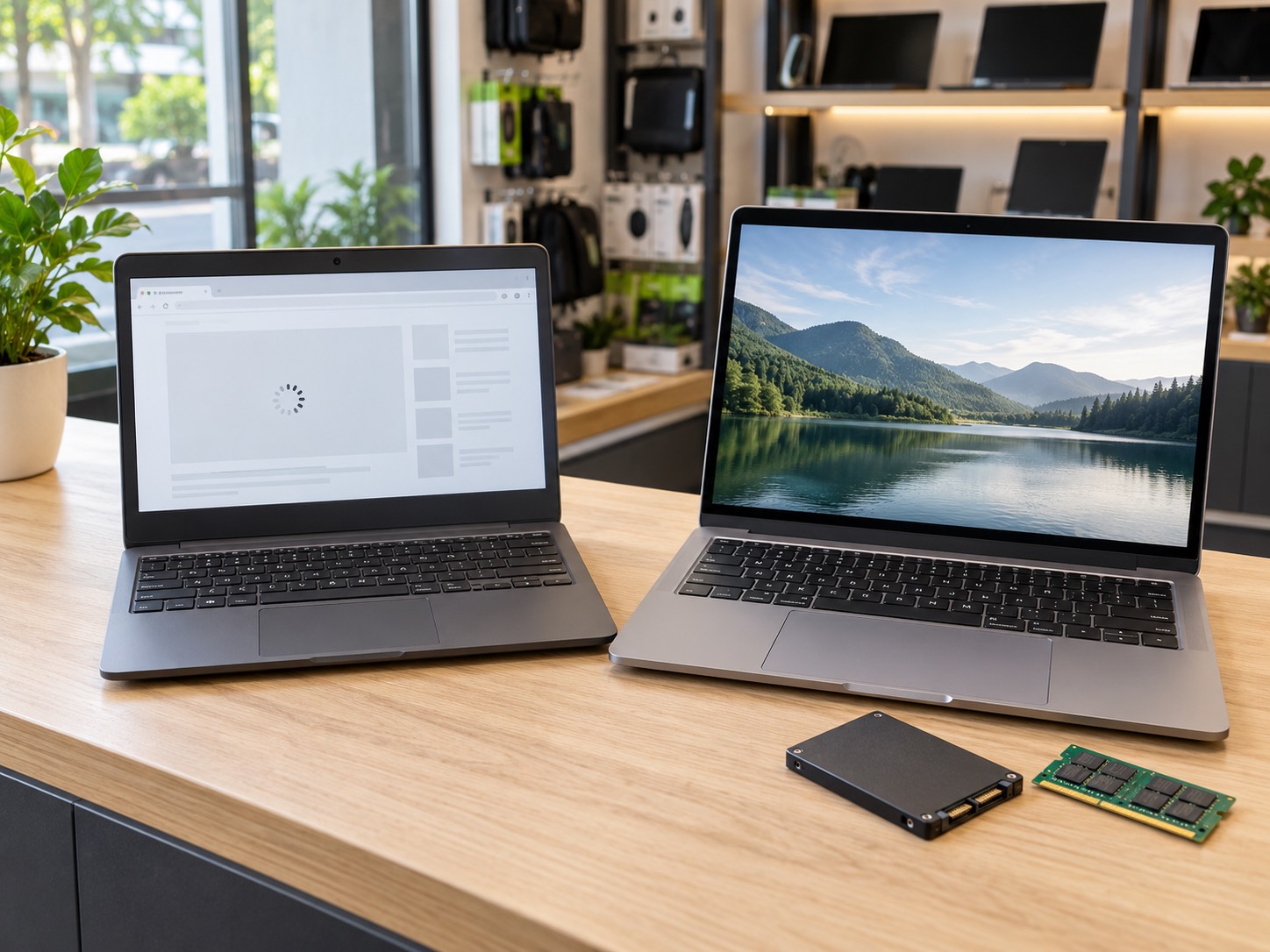
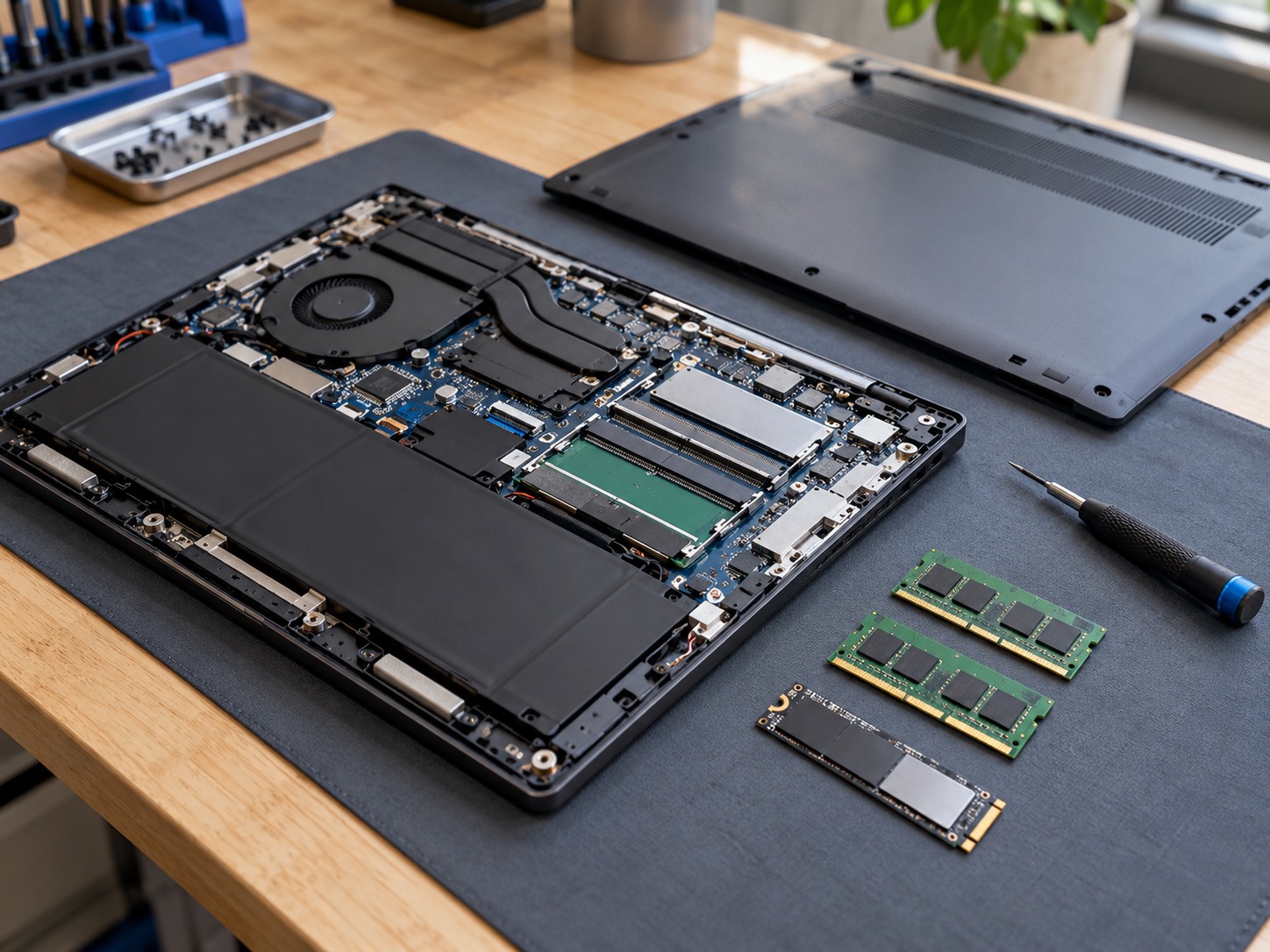
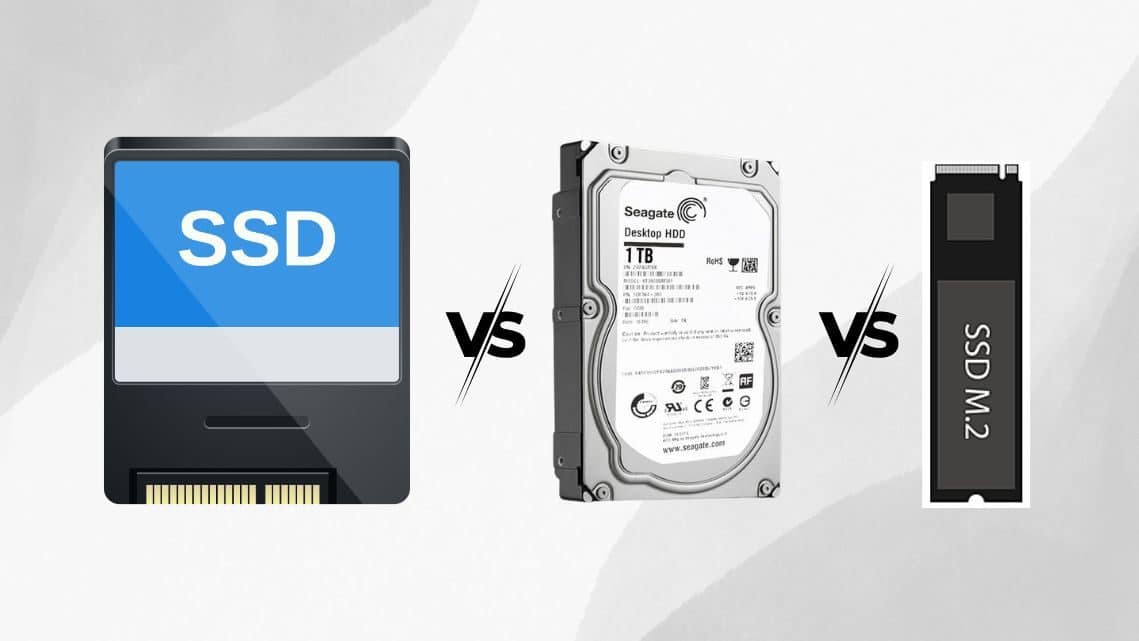
The highest-value repairs are the ones that cure a known limitation without exposing a second major limitation. Replacing a mechanical hard drive with an SSD is the classic example. It improves boot time, application loading, updates, and general responsiveness. Adding RAM can help a computer that slows down with many browser tabs, office apps, or video calls open, provided the model supports an upgrade. Those are improvements, not merely a return to yesterday's performance.
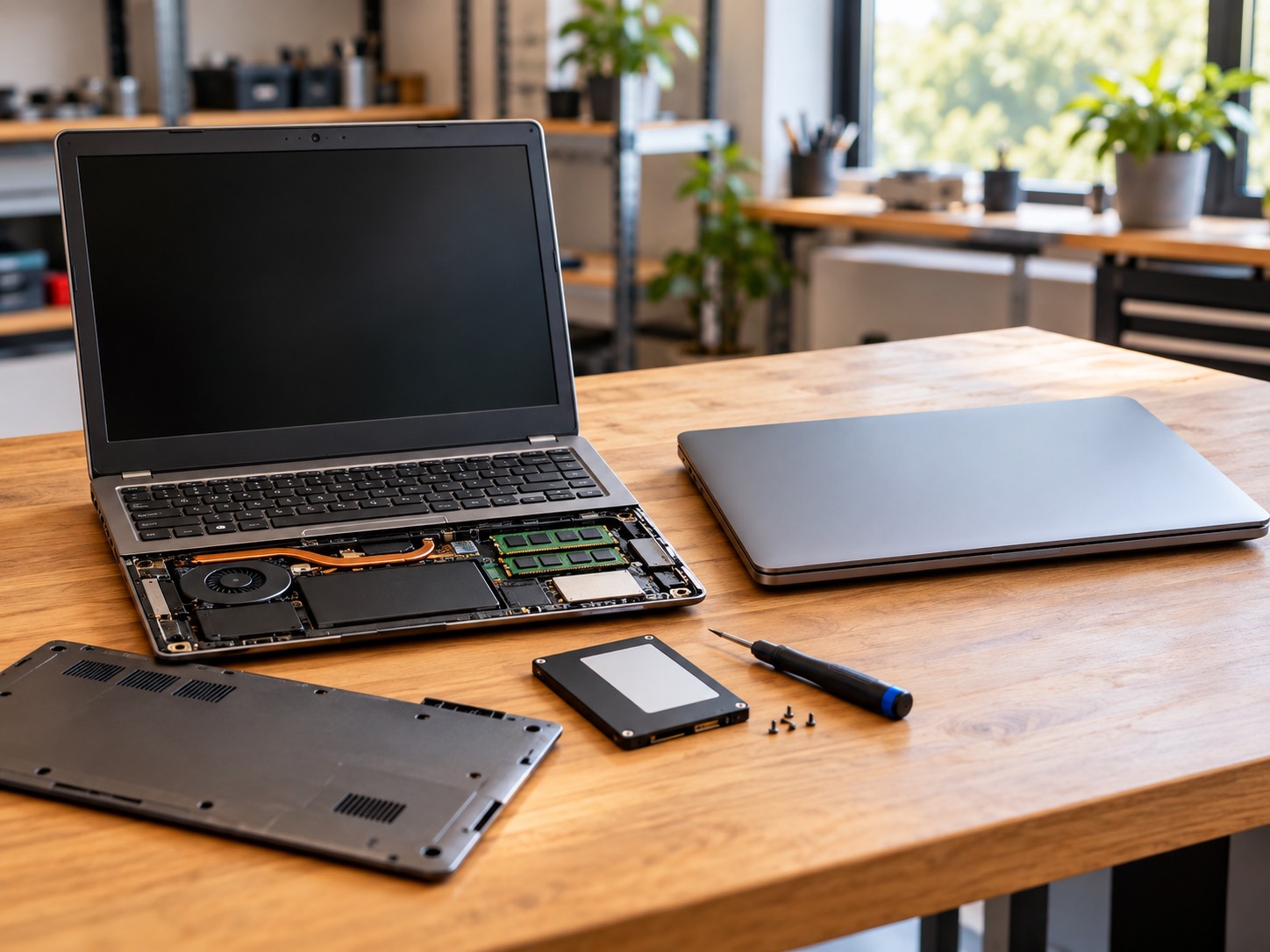
Battery replacement, fan service, charging-port repair, keyboard replacement, and a screen repair can also be sensible when the computer is otherwise quick enough and supported. A battery has a predictable lifespan. A fan collects dust. A charging port can wear from daily use. None of those facts mean the processor, memory, storage, display, and software environment all became useless at the same time. Hardware upgrades are worth discussing when they solve the problem you actually feel every day, not simply because a part is available.
For gaming computers, the calculation is different. A $125 diagnostic applies to gaming systems because testing needs to rule out graphics, power, heat, memory, and stability under load. But a desktop gaming PC is often more repairable and upgradeable than a thin consumer laptop. A failed power supply, a full storage drive, or an outdated graphics card does not necessarily mean the whole system should be discarded.
When Replacement Is Usually The Better Investment
Replacement makes more sense when one expensive repair will leave you with several other problems. An older entry-level laptop with a failed motherboard may still have a dim screen, soldered low memory, poor battery life, slow storage, no USB-C charging, and a processor that cannot meet current operating-system requirements. Repairing the board can make it start again without making it a better tool for the next few years.
- The repair involves a board-level fault, and the computer already has other serious limitations.
- The cost of the repair plus the likely next repair approaches a suitable replacement, not just a bargain-bin replacement.
- The laptop cannot run the applications, peripherals, memory load, or display setup you now need.
- The model has a history of recurring hinge, heat, port, or power problems rather than one isolated fault.
- The device is not eligible for a supported operating system and there is no reasonable upgrade path for your use case.
Be especially careful with a machine that has suffered liquid damage. Even when an immediate repair is possible, corrosion or residue can create later faults in places that did not fail on day one. That does not mean every spill requires replacement. It means the repair decision should include the machine's value, the risk you are willing to accept, and whether important data has already been protected.
Windows 10 And Windows 11 Change The Math In 2026
Windows 10 reached end of support on October 14, 2025. The computer still turns on and works, but regular Windows 10 security updates and support are no longer the normal path. That makes operating-system eligibility part of the repair decision, particularly for a computer that will be used for email, banking, work, or school.
Do not assume that an older computer must be replaced solely because Windows 10 is no longer supported. Microsoft offers a free upgrade from Windows 10 to Windows 11 for compatible devices. First check the exact model with PC Health Check or the Windows Update eligibility message. Many failures come down to settings such as TPM or Secure Boot, not an incapable processor. Our Windows 11 compatibility guide walks through that distinction before you spend money on a replacement.
On the other hand, do not force an unsupported Windows 11 install just to avoid a decision. If the hardware is genuinely unsupported, the computer is already slow, and the repair is substantial, replacement may be the cleaner long-term route. If the machine is otherwise strong but needs a compatible configuration checked or a sensible upgrade, have that evaluated before writing it off. The right answer is based on the specific model, not the year printed on its bottom label.
Protect Your Files Before Either Choice
Repairing, upgrading, replacing, and resetting all become harder when the only copy of important files lives on the computer in question. Before authorizing a reset, storage replacement, trade-in, or a risky do-it-yourself upgrade, make a verified backup of the files you would hate to lose. Open a few files from the backup itself. A cloud icon or a completed progress bar is not proof that every folder is safely copied.
If the computer has a clicking drive, disappears from File Explorer, cannot boot, or freezes while copying, stop treating it as a normal upgrade job. Repeated scans, resets, or cloning can make a recovery harder. The better next question is whether the data needs assessment before the repair decision moves forward.
Use This Five-Question Decision Check
- 1What is actually broken? Get the fault identified instead of pricing a part based only on a symptom.
- 2Will this repair solve the main daily problem, or leave several other limitations behind?
- 3What replacement would truly match this computer's performance and your current needs?
- 4Can the computer run a supported operating system and the software you need over the next few years?
- 5Are your important files safely backed up before anyone repairs, resets, trades in, or replaces the device?
If the answer points toward repair, the goal is not to keep a machine alive forever. It is to get reliable value from a computer that still meets your needs. If the answer points toward replacement, do not throw the old machine away before data transfer, trade-in value, recycling, and secure wiping are considered. A good decision protects your files and avoids paying twice for the same problem.
Get A Decision Based On Your Actual Computer
A diagnosis is useful when it ends the guessing. GeekzUP can test the machine, explain what failed, quote the repair, and tell you where the upgrade or replacement line really is. There is no benefit to recommending a repair that leaves you unhappy with the computer, and no benefit to replacing a machine that needs a sensible targeted fix. Bring it to the Hendersonville shop, book online, or ask about pickup and delivery if getting it there is difficult.
Frequently Asked Questions
Is It Worth Repairing A Five-Year-Old Laptop?
Often, yes. Age is only one input. A five-year-old laptop that needs a battery, SSD, RAM, keyboard, fan, or charging repair can still have several useful years left if its processor, screen, memory capacity, and operating-system support meet your needs.
How Much Should I Spend Repairing A Laptop?
Compare the repair with a replacement that genuinely matches your needs, not the cheapest new laptop available. Also consider whether the repair solves the main problem or leaves other expensive limitations behind. A diagnostic identifies the actual fault before you make that comparison.
Should I Repair A Laptop That Cannot Run Windows 11?
It depends on the hardware and the repair. First confirm eligibility, because some computers only need a setting checked. If it is truly unsupported and also needs a major repair or cannot keep up with your work, replacement may make more sense than extending its life temporarily.
Is A New SSD Worth It In An Old Computer?
Often. Replacing a mechanical hard drive with an SSD can make an otherwise healthy computer feel dramatically quicker. It is most worthwhile when the processor, memory, battery or power system, and operating-system support are still suitable.
Should I Back Up My Computer Before A Repair Or Replacement?
Yes. Back up important files before a repair, reset, storage replacement, trade-in, or replacement. If the existing drive is clicking, disappearing, or failing to boot, ask about data recovery before attempting resets or lengthy DIY copy jobs.
Can A Repair Shop Tell Me Honestly Whether I Should Replace My Computer?
A proper diagnosis can identify the fault, show whether an upgrade is available, and put the repair in context with the computer's remaining useful life. The best decision comes from the actual condition and your needs, not a generic rule based only on age.
Make The Right Next Move
GeekzUP Team
Veteran-owned computer repair in Hendersonville, TN. Serving Nashville and Middle Tennessee since 2012.