A laptop that says plugged in but will not charge does not automatically need a battery. Work through the charger, port, battery and Windows checks in the right order.
A laptop can be plugged into the wall, show the charging symbol and still lose battery percentage. It can also stay stuck at one number, charge only when the plug is held in one position or refuse to charge after a Windows update. Those symptoms look similar from the outside, but they do not point to the same failed part. Replacing the battery first is how people spend money and keep the original problem.
The useful question is whether power is reaching the laptop correctly, whether the laptop can accept it through the port, whether the battery can store it and whether Windows is reporting the situation properly. This guide follows that order. Start with the checks that do not require opening the machine, then stop when the symptom points to a repair rather than another online fix. If you would rather have the whole power path tested together, GeekzUP handles computer and laptop repair in Hendersonville.
First, Read The Exact Charging Symptom
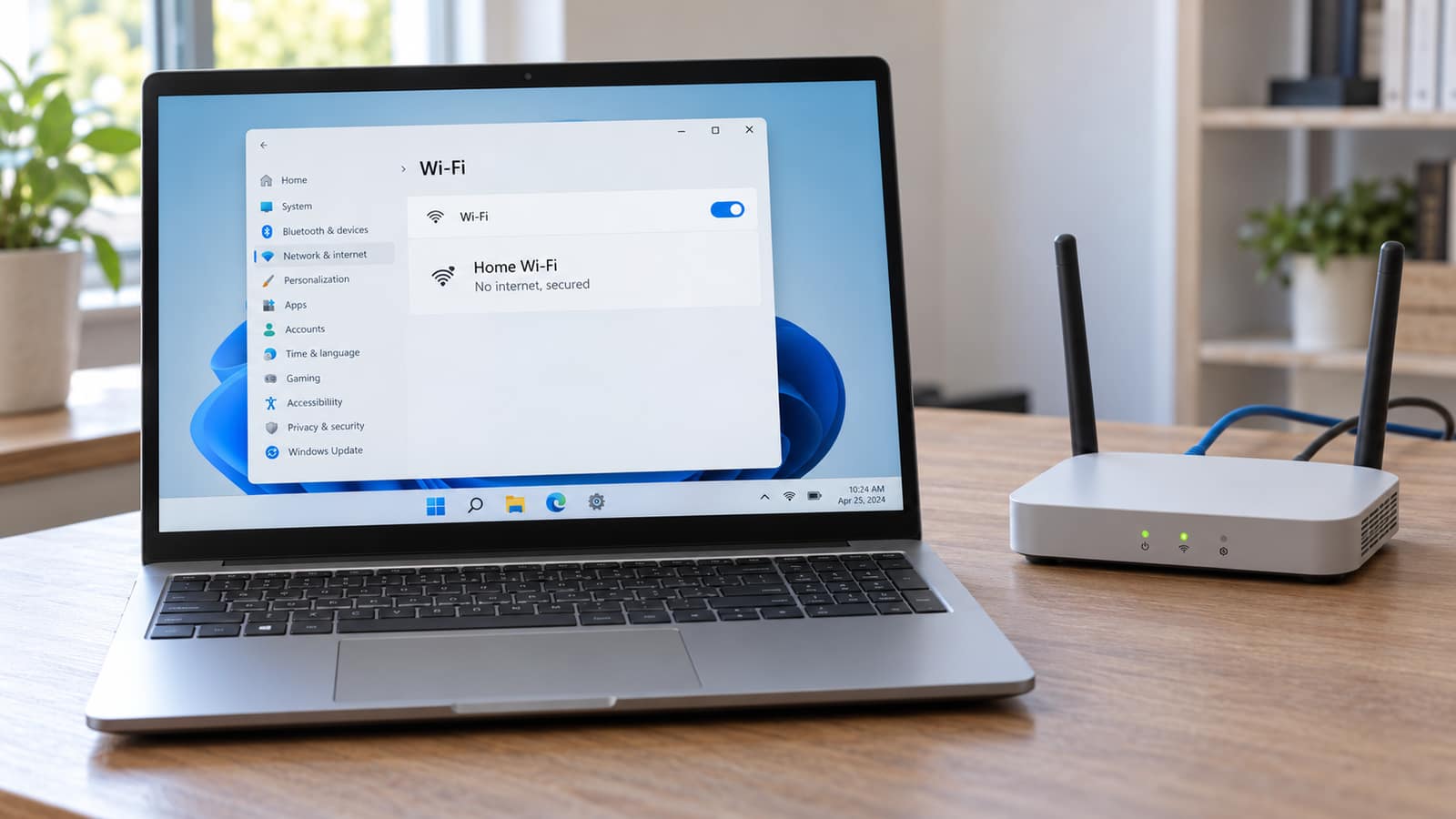
Hover over the battery icon in the Windows taskbar before changing anything. The wording gives you a starting clue. A message that says charging slowly or discharging while plugged in often means the charger, cable or USB-C connection cannot supply enough power. A message that says plugged in, not charging means the laptop sees some external power but is not adding charge to the battery. A battery that stops at 80 or 90 percent may be working normally if a battery-care setting is active.
| What You Notice | Most Likely Area | Safe First Check |
|---|---|---|
| Laptop will not power on even while connected | Outlet, charger or charging circuit | Test the outlet and inspect the charger before blaming the battery |
| Windows says charging slowly or the percentage falls under use | Underpowered charger, cable or USB-C connection | Use the original charger or a known-good charger with the required wattage |
| Battery stays at the same percentage while plugged in | Charge limit, battery, driver or charging circuit | Check for a battery-care limit, then restart and test |
| Charging works only when the plug is held at an angle | Loose or damaged charging port or cable | Stop wiggling it and inspect the port with the laptop off |
| Laptop runs on AC but dies immediately when unplugged | Battery or battery connection | Check battery health and arrange a proper battery test |
The symptom narrows the work. It does not prove a part has failed without testing the laptop and charger together.
Do not confuse a true charging fault with a Windows freeze or a laptop that shuts down under load. If the screen locks, programs stop responding or the clock stops, read our Windows 11 freezing guide as well. A battery icon alone cannot diagnose every power-related problem.
Step 1: Rule Out The Wall Outlet And Charger
Start at the wall, not inside Windows. Plug another small device into the same outlet or power strip. If it works, connect the laptop charger directly to that outlet for this test. Remove extension leads, USB hubs, docks and travel adapters temporarily. They can be the weak link, particularly when a laptop is charging through USB-C.
Then inspect the charger in two parts: the power brick and the cable. Look for a frayed section near either connector, a bent USB-C plug, exposed wire, a loose barrel tip, scorch marks or a brick that becomes unusually hot. Do not tape over damage and keep using it. A charger that fails intermittently can make a healthy battery look bad.
If you can borrow a charger, it must be compatible with the laptop and meet its required wattage. A smaller phone charger may show a charging symbol through USB-C while supplying too little power for the computer. Microsoft specifically notes that the PC, charger and cable must all support the power level the laptop needs. The original charger is the safest comparison point. If the correct known-good charger changes the behavior immediately, do not buy a battery yet.
Do Not Judge USB-C By The Shape Of The Plug
USB-C describes the connector, not the power level. A cable or charger that works for a phone can be incompatible or underpowered for a laptop. Use the charger supplied with the computer, or a replacement that matches the maker's stated charging requirement.
Step 2: Look At The Charging Port Without Forcing It
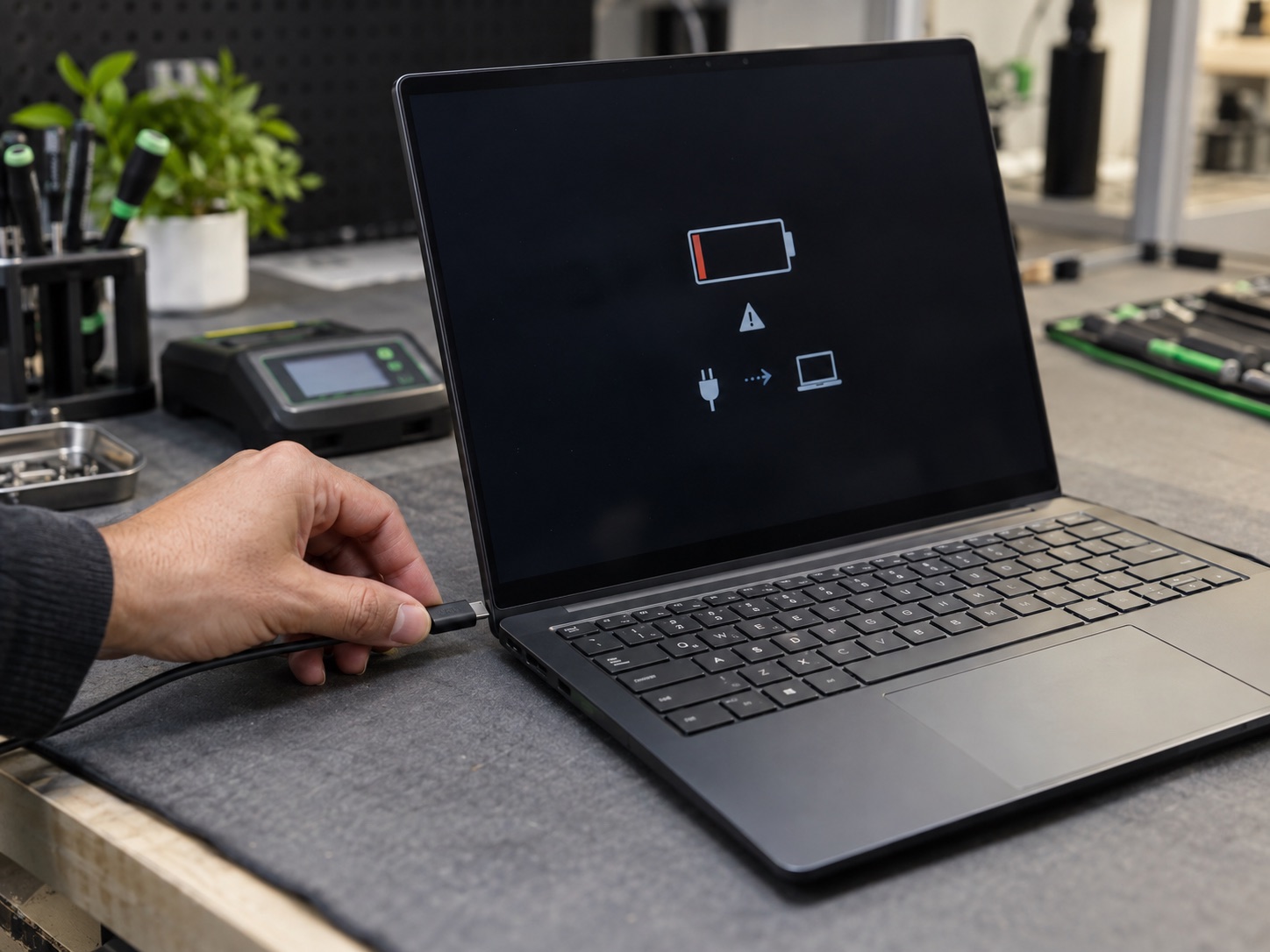
Turn the laptop off, unplug it and use a bright light to look into the charging port. Lint, a broken center pin, bent contacts or a port that has shifted inside the case can interrupt charging. With USB-C, check for debris at the bottom of the port and make sure the plug seats fully. Never use a metal pin, paperclip or liquid cleaner inside the port.
The important clue is movement. If the charging light flickers, Windows alternates between battery and AC power, or charging begins only when you hold the connector in a particular direction, the cable or port needs attention. Continuing to twist the plug can turn a loose connection into a damaged board-level charging circuit. That is a bench repair, not a reason to press harder.
A damaged port can look exactly like a bad battery because neither allows the battery to charge. It is one reason a technician checks the adapter's output and the port before quoting a replacement pack. For laptop hardware faults that need the case opened, see our hardware upgrades and repair service rather than trying to pry around a lithium battery at home.
Step 3: Check Whether The Laptop Is Limiting Charge On Purpose
A laptop that stops at 80, 85 or 90 percent is not always broken. Windows 11 and many manufacturers offer smart charging or battery-care settings that intentionally hold the battery below 100 percent when the computer spends most of its time plugged in. That reduces wear on a lithium-ion battery. Microsoft calls this status Fully Smart Charged on supported devices, while Dell, Lenovo, HP, ASUS and others use their own names and utilities.
Check the message beside the battery icon, then look in the manufacturer app or BIOS battery settings for a charge threshold, conservation mode or battery health mode. Turn it off only if you need a full charge for travel, and turn it back on afterward if you normally use the laptop at a desk. A deliberate charge limit should be a stable cutoff. It should not make the percentage fall while plugged in or make the connector feel loose.
This is also where the distinction between a charging fault and ordinary battery aging matters. A laptop that reaches 100 percent but runs for far less time than it used to can have a worn battery even though charging works. Our laptop battery replacement guide explains how to read that pattern before purchasing a replacement.
Step 4: Reset The Power State And Check Windows
If the outlet, charger and port look sound, clear a stuck power state before reinstalling anything. Save work, turn the laptop off, disconnect the charger and all USB accessories, then hold the power button for about 15 to 20 seconds. Reconnect only the charger and start it again. This is not a cure for damaged hardware, but it is a safe way to clear residual power and a confused charging state.
Next, open Device Manager from the Start menu and expand Batteries. On a typical Windows laptop you will see Microsoft AC Adapter and Microsoft ACPI-Compliant Control Method Battery. Right-click the ACPI battery entry, select Uninstall device and restart with the charger connected. Windows should reinstall the driver automatically. Do this only after the physical checks, because a broken cable will not be fixed by a driver reinstall.
Also install updates from the laptop maker's support page for your exact model, especially BIOS, chipset and power-management updates. Do not use a generic driver-updater program that changes everything at once. If the problem started immediately after a Windows update, note that date and test the basic charger checks first. A charging problem can be a driver issue, but it can also be a coincidence that exposes a weak adapter or battery.
Step 5: Separate A Worn Battery From A Charging Fault
The most useful battery test is simple: with the laptop fully charged as far as it will go, unplug the charger and use the machine normally for a few minutes. A battery that falls sharply, reports wildly changing percentages or shuts the laptop down well above zero may be worn. A laptop that instantly dies when unplugged while working normally on AC may have a failed battery or an internal battery connection issue.
But a battery that never gets the opportunity to charge cannot pass that test. When the laptop only charges with the plug at an angle, does not recognize a correct charger or loses power while connected, examine the power path first. On some Dell models, BIOS shows an adapter as Unknown when it cannot identify the charger correctly. Dell notes that this can cause slow charging, no charging and reduced performance. Other brands show a similar warning in their own firmware tools.
Battery swelling is different from ordinary wear. If the bottom case is bulging, the trackpad is lifting, the keyboard is raised or the laptop will not sit flat, shut it down, unplug it and do not press the case back into shape. A swollen lithium battery needs professional removal and proper recycling. Contact us for a safe assessment rather than shipping or throwing the laptop in household trash.
When To Stop Troubleshooting And Bring It In
Stop home troubleshooting if the charger or port gets hot, the connector is visibly damaged, a correct known-good charger does not work, the battery is swollen, the system warns that the adapter is unknown or the machine will only stay on while a cable is held a certain way. Those are physical clues. More Windows settings will not repair a cracked DC jack, failed USB-C power circuit or worn battery cells.
At the bench, the job is to test the complete chain: outlet, charger output, cable, port, battery health and the charging circuit on the board. That avoids replacing a battery when the real issue is a charger, and avoids selling a charger when the port is loose. GeekzUP offers a $80 one-hour diagnostic applied toward the repair, with no appointment needed for local drop-offs. Nashville customers can also use pickup and delivery when bringing a laptop in is inconvenient.
Bring the laptop and its usual charger. If the problem appears only through a dock, bring the dock and its power supply too. Tell us whether the percentage stays fixed, falls while plugged in, stops at a particular number or changes when the cable moves. Those details shorten the diagnosis and help us test the exact failure you see at home. You can book a repair online, or drop the laptop off when you are ready.
Frequently Asked Questions
Why Does My Laptop Say Plugged In But Not Charging?
It means the laptop detects some external power, but the battery is not gaining charge. The cause can be a battery-care limit, an underpowered or damaged charger, a loose charging port, a worn battery, a firmware setting or a Windows driver issue. Start with the outlet, correct charger and port before replacing the battery.
Can I Use Any USB-C Charger For My Laptop?
No. USB-C chargers and cables support different power levels. A phone charger may connect and show a charging symbol but deliver too little power for a laptop. Use the original charger or a replacement that meets the laptop maker's required wattage and USB Power Delivery requirements.
Why Does My Laptop Stop Charging At 80 Percent?
It may be intentional. Windows smart charging and manufacturer battery-care modes often limit charging below 100 percent to reduce long-term battery wear. Check the status by the battery icon and the manufacturer's battery utility. A stable limit is different from a percentage that falls while the laptop is plugged in.
Does A Loose Laptop Charger Port Mean I Need A New Battery?
Usually no. Charging only when the connector is held in a certain position points more strongly to the cable or charging port. Replacing the battery will not repair a loose DC jack or damaged USB-C port. Stop forcing the connector and have the port checked.
Will Reinstalling The Battery Driver Fix A Charging Problem?
It can help when Windows has a corrupted charging driver, but it cannot repair a bad charger, damaged cable, loose port or worn battery. Run the physical checks first, then restart Windows and reinstall the Microsoft ACPI-Compliant Control Method Battery driver if the hardware looks sound.
Is A Swollen Laptop Battery Dangerous?
A swollen lithium battery should be treated as a safety issue. Shut the laptop down, unplug it and do not puncture, compress or keep charging it. Arrange professional removal and recycling rather than placing it in household trash.
Need Help With A Laptop That Will Not Charge?
GeekzUP Team
Veteran-owned computer repair in Hendersonville, TN. Serving Nashville and Middle Tennessee since 2012.