Before a repair, protect the files that matter, verify the backup and keep the recovery details that can unlock your computer later.
Backing up your computer before a repair is not an accusation against the person doing the work. It is simply the right preparation when a repair may require Windows or macOS to be reinstalled, the storage drive to be replaced or the device to be reset during troubleshooting. A screen replacement may leave every file untouched. A failing drive, operating-system repair or board replacement can be a very different situation. The time to protect the only copy of your photos, tax records, schoolwork or business files is while the computer still opens them.
The goal is straightforward: make a separate copy of the files you would hate to lose, confirm that copy really opens and keep the account details that may be needed to unlock the device later. You do not need to become a backup expert in one afternoon. This guide separates the fast, sensible job to do before a normal repair from the point where a sick computer needs a data recovery assessment instead of more DIY attempts.
Start By Choosing The Right Level Of Backup
Do not start copying blindly. First decide how much time the computer has left and what you need to preserve. A healthy laptop that needs a keyboard, screen or charging repair can usually make a complete file copy. A machine that clicks, repeatedly vanishes from File Explorer, freezes during simple work or cannot stay powered on needs a shorter, more cautious approach. Repeated scans, long cloning jobs and forced restarts can turn a readable drive into a harder recovery case.
| Your Situation | Best First Move | Do Not Assume |
|---|---|---|
| Computer works normally and repair is planned | Copy important files to an external drive and confirm they open | Cloud sync has every folder, or a repair will never require a reset |
| Windows or Mac is slow but files open | Back up priority folders first, then make a second copy if time allows | A slow copy means the process is finished once the progress bar disappears |
| Drive clicks, disconnects, reports errors or freezes badly | Stop heavy work and ask about data recovery before trying repairs | A reset, scan or clone is harmless on a failing drive |
| Computer will not boot | Do not reset it. Record the symptom and ask whether data can be copied first | Your files are automatically gone because Windows or macOS will not start |
A backup is a separate usable copy. A file that exists only in the same computer, even in a different folder, is not backed up.
If the drive has started making a new repeated click or beep, read the warning signs before plugging it into more devices. A drive that is still readable may deserve less activity, not more.
Save The Files People Most Often Miss
Documents, Desktop and Pictures are the obvious places, but they are not the whole computer. The files that cause trouble after a repair are often the ones saved outside the usual folders: a Downloads folder full of forms, a project folder on the desktop, a local email archive, an accounting file, browser bookmarks, phone photos imported to a custom folder or a file sitting on a second internal drive. Make a short written list before you begin so you do not remember the missing folder only after dropping the machine off.
- Desktop, Documents, Downloads, Pictures, Videos and Music folders
- Work or school folders, including QuickBooks files, design projects, local databases and client documents
- Email archives, locally saved attachments and any folder used by Outlook or another desktop mail app
- Browser bookmarks, saved downloads and passwords or recovery codes that are not already in a password manager
- Files stored on a second internal drive, an SD card or a folder outside your normal user profile
- Software licence details, two-factor recovery codes and the sign-in information for the account that owns the computer
A cloud icon beside a file is not proof that you have a complete local or separate copy. If you use OneDrive, check which folders are protected and make sure important files that are marked online-only have finished downloading before you hand the computer over. Windows Backup and OneDrive can protect Desktop, Documents, Pictures, Videos and Music when they are configured and have available storage, but they do not automatically find every custom folder you created.
For a computer that belongs to a small business, pause before copying everything to a personal drive. Company records may have their own retention, privacy or access rules. Ask the owner or IT contact which data should be copied and where it is allowed to live. If you need help preserving a work machine without guessing, our remote support service can help you prepare it before the repair visit.
The Fast Windows Backup Before A Repair
For a working Windows 10 or Windows 11 PC, the quickest practical option is usually an external drive plus the Windows Backup or OneDrive folder settings you already use. Connect an external drive with enough free space, create a clearly named folder such as “Laptop Backup September 2026” and copy the priority folders into it. Keep the laptop connected to power while a large copy runs. Do not use the same drive that is being repaired as the destination.
- 1Connect an external drive directly to the computer, not through a loose hub if you can avoid it.
- 2Open File Explorer and check the drive letter and its free space before copying anything.
- 3Copy your priority folders first: Desktop, Documents, Downloads, Pictures and the work folders on your written list.
- 4Open several copied files from the external drive, including a recent document, photo and any important business file.
- 5Eject the drive properly once the copy is complete, then keep it separate from the laptop while it is in for service.
Windows Backup is useful when you are signed into the correct Microsoft account. In Windows 11, search for Windows Backup or open Settings, Accounts, Windows backup to review which folders and preferences are being protected. It can make a new computer easier to set up, but it should not replace checking your custom folders or opening the copy you made. If the external drive is your only backup, treat it carefully and do not leave it in the laptop bag.
Copying Is Not The Same As Verifying
A progress bar can finish even when you copied the wrong folder, ran out of space or missed files stored somewhere unusual. Open files from the backup drive itself. If you cannot find them there, they are not safely backed up yet.
The Safest Mac Backup Before Service
For a Mac that starts normally, Time Machine is the most complete built-in option. Connect a dedicated backup drive, choose it in Time Machine settings and let the backup finish before service. Time Machine can restore files or the Mac from the backup later. For a quicker first pass, also copy the specific folders that matter most to a separate location, especially anything outside iCloud Drive, Desktop or Documents.
Do not confuse iCloud Drive with a full record of every file on the Mac. Check what is actually stored there, then look at Downloads, local project folders, Photos libraries and any external storage. Apple also advises backing up before service because a startup disk may need to be erased or replaced. If privacy is your main concern, ask the repair shop what access it needs rather than erasing the Mac before you have confirmed the backup.
Keep Recovery Keys And Sign-In Details Safe
Modern computers may encrypt the drive. That is good for privacy, but it can create a serious problem if the recovery information is missing when hardware changes or the operating system will not start. On Windows, BitLocker recovery uses a 48-digit key. It may be in the Microsoft account, a work or school account, a printout or a USB drive. Microsoft cannot recreate a lost recovery key, so locate it before a repair if BitLocker is enabled.
On a Mac, know the macOS account password and Apple Account details. FileVault protects the startup disk, and Find My may need attention for some service arrangements. Do not write passwords on a sticky note attached to the computer or place recovery keys inside the laptop bag. Keep them with the owner, in a password manager or in another secure location. If a repair requires a login, provide access only after you understand why it is needed.
A quick privacy check is sensible too. Sign out of websites you do not want left open, remove a USB security key or removable storage and take a photo of the computer's condition before drop-off. Do not factory-reset a working computer solely because it is going in for repair unless the shop or manufacturer has specifically told you that is required. Resetting before you confirm the backup is how a routine repair turns into a data loss.
If The Computer Will Not Boot Or The Drive Looks Unreliable
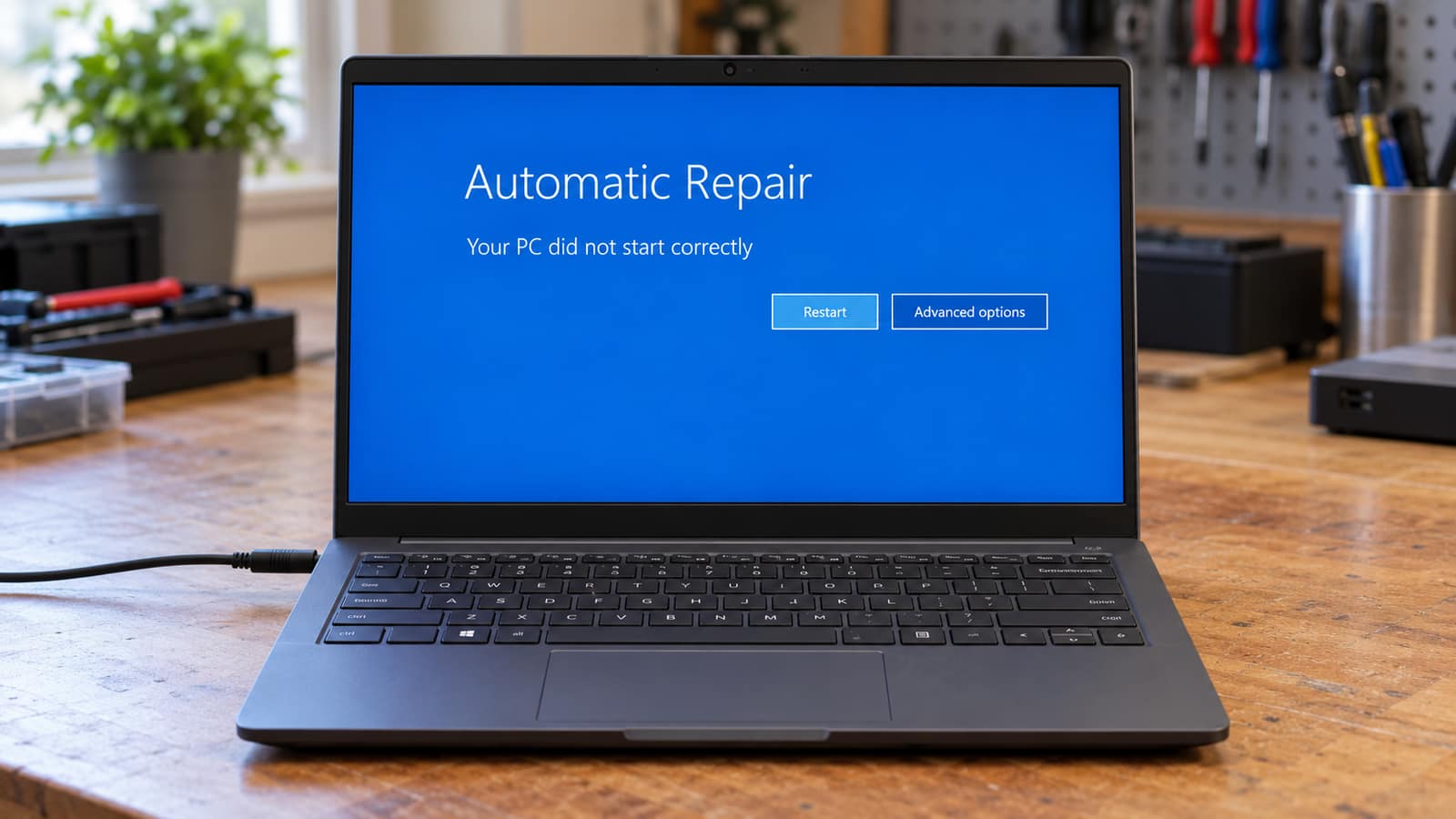
A computer that will not reach the desktop can still have recoverable files. Do not use Reset This PC, reinstall Windows, erase a Mac or format a drive as your first move. Those actions write to storage and may overwrite the very information you need. Write down what you see instead: a BitLocker screen, a spinning repair loop, a No Bootable Device message, a clicking noise, liquid exposure or a recent drop. Those details help separate a Windows problem from a storage problem.
If the machine is frozen but still opens files, save the irreplaceable folders first, then stop. If it cannot open files, is making noise or repeatedly disappears, avoid long copy attempts and get the data assessed. Our data recovery service is the better next step when preserving files matters more than making the computer boot today.
For a simple no-boot symptom with no signs of drive failure, you can also read the first safe checks in our computer-won't-turn-on guide. It helps you record the useful details without jumping straight to a reset.
What To Bring And What To Tell The Repair Shop
Bring the charger for a laptop, the power adapter for an external drive and any accessory that is part of the problem. Tell the shop whether a backup exists, where it is stored and whether data protection is your priority. Mention the exact symptom, when it started and whether the computer contains work files, family photos or a program you cannot easily reinstall. That is more useful than a general “it stopped working.”
GeekzUP handles computer and laptop repair in Hendersonville, and you can book a repair or request pickup and delivery if bringing the machine in is difficult. Preparing the backup first gives you more choices if the diagnosis points to a drive replacement, operating-system repair or a different solution.
Frequently Asked Questions
Do I Need To Back Up My Computer Before A Repair?
Yes. A routine repair may not touch your files, but a reset, operating-system repair or storage replacement can. A separate backup means you are prepared if the repair needs a more invasive step or the computer's existing drive fails while it is already having trouble.
What Files Should I Back Up Before Taking A Laptop To A Repair Shop?
Start with Desktop, Documents, Downloads, Pictures and Videos. Then check custom work folders, email archives, browser bookmarks, software licence details, two-factor recovery codes and any files stored outside your normal user folder or on a second internal drive.
Can I Use OneDrive Or iCloud As My Only Backup Before Repair?
They can protect files when the correct folders have finished syncing, but confirm exactly what is included. Custom folders, online-only files and local app data may not be there. For an imminent repair, a separate external-drive copy of the most important files gives you another recovery option.
Should I Remove The Hard Drive Before Computer Repair?
Ask first. Removing a drive can prevent some repairs from being tested properly, can be difficult on modern laptops and may affect a manufacturer's service process. If privacy is a concern, make a verified backup, ask what access is required and discuss encryption or a wipe only after the backup is confirmed.
What If My Computer Will Not Turn On So I Cannot Back It Up?
Do not reset or format it. The files may still be intact even when Windows or macOS will not start. Record the error message or symptom and ask for a data recovery assessment before authorizing work that may write to or replace the storage drive.
Where Do I Find My BitLocker Recovery Key Before Repair?
Check the Microsoft account connected to the PC, the work or school account if the device was managed, a printout or a USB drive where the key may have been saved. The key is a 48-digit number. Keep it private and do not rely on Microsoft being able to recreate it if it is lost.
Prepare Your Computer For Repair
GeekzUP Team
Veteran-owned computer repair in Hendersonville, TN. Serving Nashville and Middle Tennessee since 2012.