Three ways to check whether your PC can run Windows 11, what each blocker actually means, and why most machines that fail the check are fixable with one BIOS setting.
Windows 10 stopped getting free security updates in October 2025, and the question every customer asks next is the same one: can this machine even run Windows 11? It is a fair question, and the answer takes about two minutes to find. What takes longer is understanding what the answer means, because the most common failure message is also the most misleading one.
Here is the short version. A large share of the computers we test at our Hendersonville bench fail Microsoft's compatibility check on the first try, and most of those failures are not a hardware problem at all. They are a setting that ships switched off. This guide shows you how to check, how to read what the check tells you, and what each result actually costs to resolve.
The Fastest Way To Check: Microsoft's Own Tool
Microsoft publishes a free app called PC Health Check. It scans your machine and gives a plain yes or no, and when the answer is no it lists exactly which requirement failed. Search the Start menu for PC Health Check; if it is not installed, it downloads from Microsoft's Windows 11 page in a few seconds.
Open it, click Check now under the Windows 11 heading, and wait a moment. You will get one of two answers: this PC meets Windows 11 requirements, or this PC does not currently meet them, followed by a list. Read that list rather than the headline. The word currently is doing a lot of work in that sentence, and on plenty of machines it is accurate.
A Failed Check Is Not A Verdict
PC Health Check reports what is switched on right now, not what your hardware can do. A computer with a perfectly good TPM chip fails the check if that chip is disabled in the BIOS, which is how most machines leave the factory.
The Two Manual Checks Worth Knowing
If you would rather see the raw answer yourself, or the app will not run, two built-in tools tell you the same thing.
Check Your TPM: The tpm.msc Console
Press the Windows key and R together, type tpm.msc, and press Enter. If a management console opens and shows Specification Version 2.0, you have what Windows 11 needs. If it says version 1.2, that version is not accepted. If you get Compatible TPM cannot be found, the chip is either absent or, far more often, switched off in firmware.
Check Firmware And Secure Boot: msinfo32
Press Windows and R again, type msinfo32, and press Enter. Look at two lines in the right pane. BIOS Mode should read UEFI, not Legacy. Secure Boot State should read On. If BIOS Mode says Legacy, the disk is partitioned in an older format and Secure Boot cannot be turned on until that is converted, which is a job worth handing to someone who has done it before.
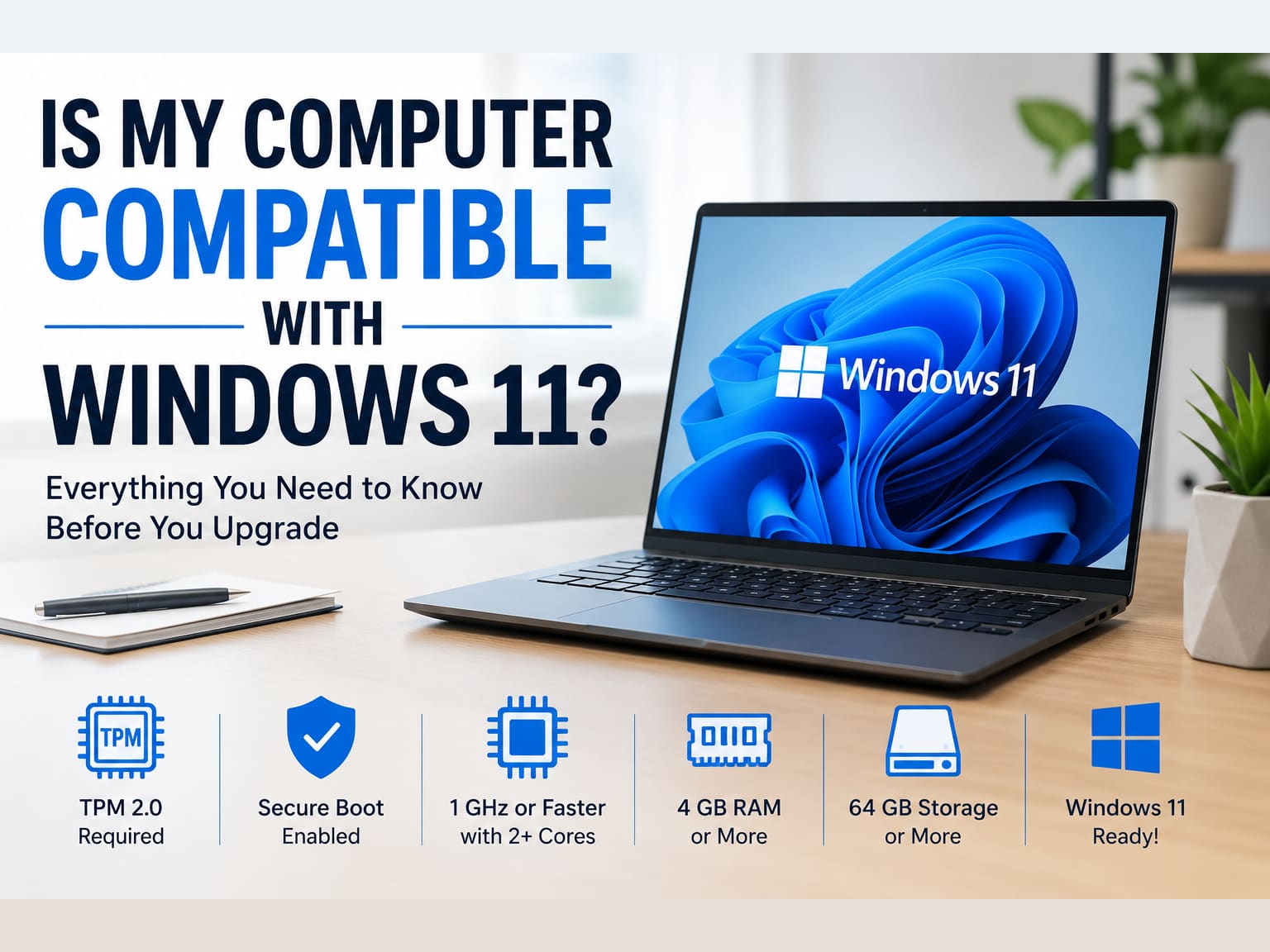
What Windows 11 Actually Requires
| Requirement | Minimum | How often we see it fail |
|---|---|---|
| Processor | 1 GHz, 2 or more cores, on Microsoft's supported list | Common on machines older than 2018 |
| TPM | Version 2.0 | Very common, and usually just disabled |
| Secure Boot | Capable and enabled | Common, tied to UEFI mode |
| Firmware | UEFI, not Legacy BIOS | Occasional, needs a disk conversion |
| Memory | 4 GB | Rare |
| Storage | 64 GB | Rare |
| Graphics | DirectX 12 with WDDM 2.0 driver | Rare |
Meeting the minimum is not the same as running well. 4 GB of memory passes the check and still gives a poor experience.
The processor line is the one that catches people out, because it is not about speed. Microsoft supports Intel 8th generation Core chips and newer, and AMD Ryzen 2000 series and newer. A first generation Ryzen 1000 or a seventh generation Intel chip can be considerably faster than a modern budget processor and still be excluded. The cutoff sits at roughly late 2017 for Intel and 2018 for AMD.
Why Microsoft Drew The Line Where It Did
The requirement that generates the most frustration is TPM 2.0, so it is worth knowing what it is for. A Trusted Platform Module is a small secure chip that stores encryption keys and verifies that the system has not been tampered with before it boots. It is what makes BitLocker drive encryption and Windows Hello sign-in meaningful rather than decorative.
Microsoft's stated reason for the hardware line is reliability data: machines that do not meet the requirements recorded significantly more kernel mode crashes than machines that do. Microsoft has since confirmed it will not lower the bar, so waiting for the rules to relax is not a plan. That said, this is the vendor's own justification, and plenty of excluded machines run perfectly well in practice.
Failed The Check? Try This Before Assuming The Worst
On most machines built from 2018 onward, the TPM chip is present and simply switched off. Manufacturers ship it that way. Turning it on is a firmware setting, not a purchase.
- 1Restart and enter your firmware settings. The key is usually F2, F10, Delete or Esc, pressed as the machine starts. The correct key is normally shown on the first screen.
- 2Look under Security, Advanced or Trusted Computing. The setting is rarely called TPM.
- 3On an Intel system, look for PTT, which stands for Platform Trust Technology. On an AMD system, look for fTPM or AMD fTPM switch. Set it to Enabled.
- 4In the same area, find Secure Boot and enable it. If it is greyed out, the machine is in Legacy BIOS mode and needs converting first.
- 5Save and exit, let Windows start, then run PC Health Check again.
That sequence resolves the blocker on a large share of the machines that arrive here failing the check. If you are not comfortable in firmware settings, this is a short job: a remote support session at $100 per hour is usually enough, and you never have to leave home.
Back Up Before You Change Firmware Settings
Enabling TPM on a drive that is already encrypted can lock you out unless the recovery key is saved somewhere safe. Check whether BitLocker is on before you touch anything, and if it is, save the recovery key to your Microsoft account first.
Your Real Options When The Answer Is Still No
If the processor is the blocker, no setting fixes that. You have four honest choices, and the right one depends on the machine's age and what you use it for.
Stay On Windows 10 With Extended Security Updates
Microsoft's consumer ESU programme delivers critical security patches through October 12, 2027. It was originally due to end in October 2026 and was extended by a year. It is a bridge, not a destination: security patches only, no features, no support.
Upgrade The Machine Instead Of Replacing It
If the processor is supported and the machine simply feels slow, the upgrade that changes everything is storage. Moving from a mechanical hard drive to an SSD, usually alongside a memory increase, regularly makes a five year old laptop feel new for a fraction of a replacement. We quote hardware upgrades after testing, so you know the exact cost before anything is opened.
Install Windows 11 Anyway, With Eyes Open
There are documented ways to install Windows 11 on unsupported hardware. They work, and we will not pretend otherwise. What you should know is what you give up: Microsoft states that unsupported installations are not entitled to updates, and the machine can stop receiving them at any feature release. For a spare machine that is a reasonable gamble. For the computer your work or your accounts live on, it is not.
Replace The Machine
Sometimes replacement genuinely is the answer, and a shop that never says so is not being straight with you. If the machine is old, the processor is excluded and the repair or upgrade would cost more than half the price of a comparable new one, put the money toward the replacement instead. We move your files across as part of the job.
What We Do With Windows 11 Upgrades
Most of the Windows 11 work that comes across our bench falls into one of three jobs. The first is enabling TPM and Secure Boot on a machine that always could run Windows 11 and nobody had told the owner. The second is converting a disk from Legacy to UEFI so Secure Boot can be switched on at all, which is the step most likely to go wrong unattended. The third is the upgrade itself on a machine holding years of files that cannot be lost.
All of it is done in house at our Hendersonville shop, with a clear repair timeline confirmed after diagnosis. Diagnostics are $100 for PCs and Macs and $125 for gaming systems, applied toward the work, and you approve the exact price before anything starts. Drop-offs need no appointment, and if you are further out we collect and return the machine.
Customers reach us from across Middle Tennessee for this. If you are in Nashville the drive is around 25 to 45 minutes, and plenty of people book a collection instead of making it twice. Hendersonville customers usually just walk in.
Frequently Asked Questions
How do I know if my computer can run Windows 11?
Run Microsoft's free PC Health Check app and press Check now. It gives a yes or no and lists any requirement that failed. For a manual answer, press Windows and R, type tpm.msc for your TPM version, then msinfo32 to confirm BIOS Mode reads UEFI and Secure Boot State reads On.
My PC says it cannot run Windows 11. Is that final?
Usually not. The most common blocker is a TPM chip that is present but switched off in firmware, listed as PTT on Intel systems and fTPM on AMD. Enabling it, along with Secure Boot, resolves the check on a large share of machines. Only an unsupported processor is a hard stop.
What is TPM 2.0 and why does Windows 11 need it?
It is a small secure chip that stores encryption keys and verifies the system has not been tampered with before it boots. It is what makes BitLocker encryption and Windows Hello sign-in meaningful. Windows 11 requires version 2.0; version 1.2 is not accepted.
Which processors does Windows 11 support?
Intel 8th generation Core chips and newer, and AMD Ryzen 2000 series and newer, which puts the cutoff at roughly late 2017 for Intel and 2018 for AMD. Speed does not override this: a fast Ryzen 1000 or 7th generation Intel chip is still excluded.
Can I install Windows 11 on an unsupported PC?
Yes, there are documented methods and they work. Microsoft states that unsupported installations are not entitled to updates and can stop receiving them at any feature release. It is a reasonable gamble on a spare machine and a poor one on the computer you depend on.
How long can I stay on Windows 10?
Free support ended in October 2025. Microsoft's consumer Extended Security Updates programme covers critical patches through October 12, 2027, after being extended by a year. Treat that as time to plan rather than a reason to stop planning.
Will upgrading to Windows 11 delete my files?
An in-place upgrade keeps your files and most applications. That said, any operating system change carries risk, and we have recovered data from upgrades that went wrong. Back up before you start, and if the machine holds anything irreplaceable, have it done properly.
What does a Windows 11 upgrade cost at GeekzUP?
It starts with the standard diagnostic, $100 for PCs and Macs or $125 for gaming systems, which confirms what your machine actually needs and is applied toward the work. You approve the exact price before anything begins. Simple TPM and Secure Boot changes are often handled remotely at $100 per hour.
GeekzUP Team
Veteran-owned computer repair in Hendersonville, TN. Serving Nashville and Middle Tennessee since 2012.