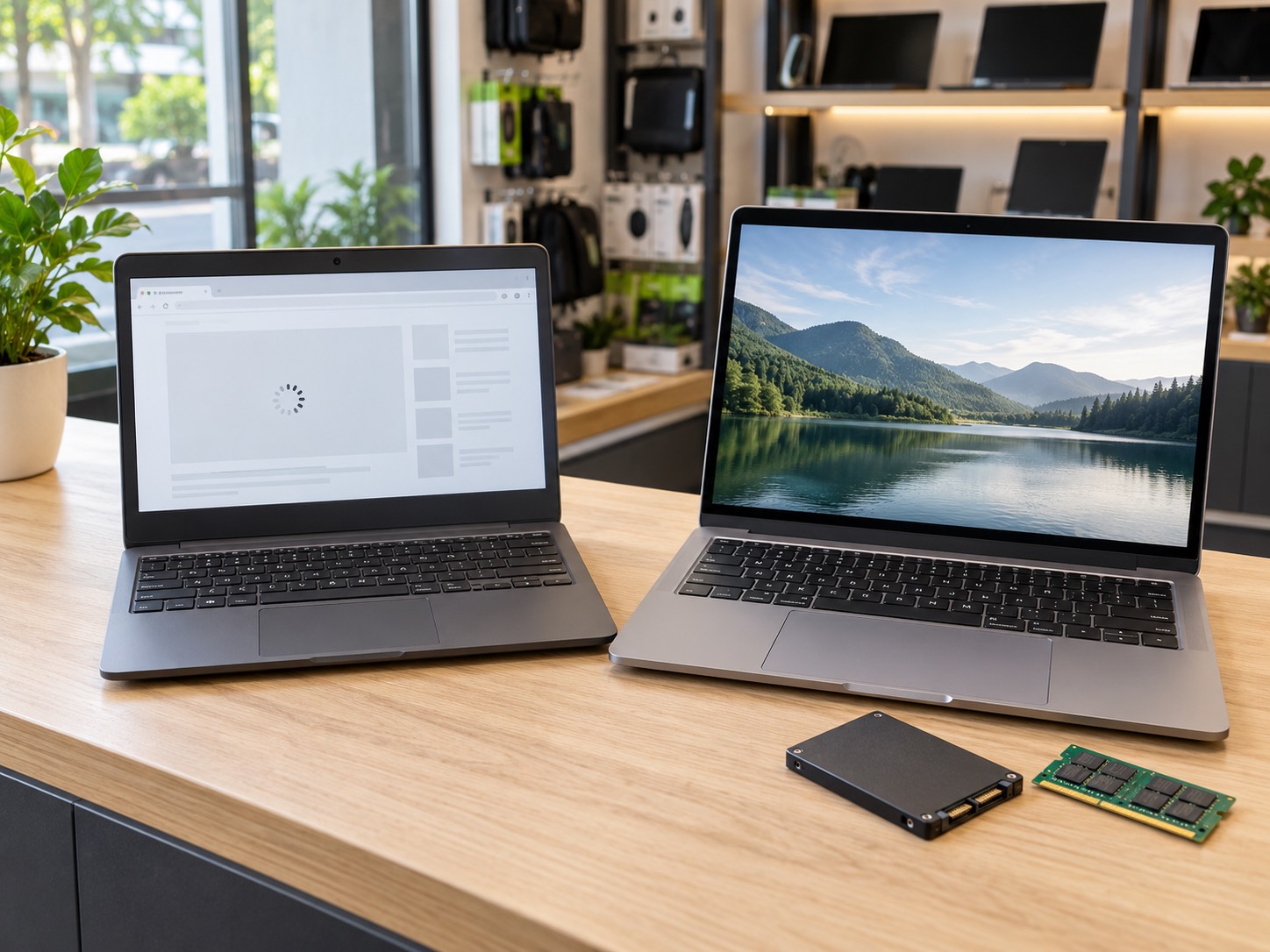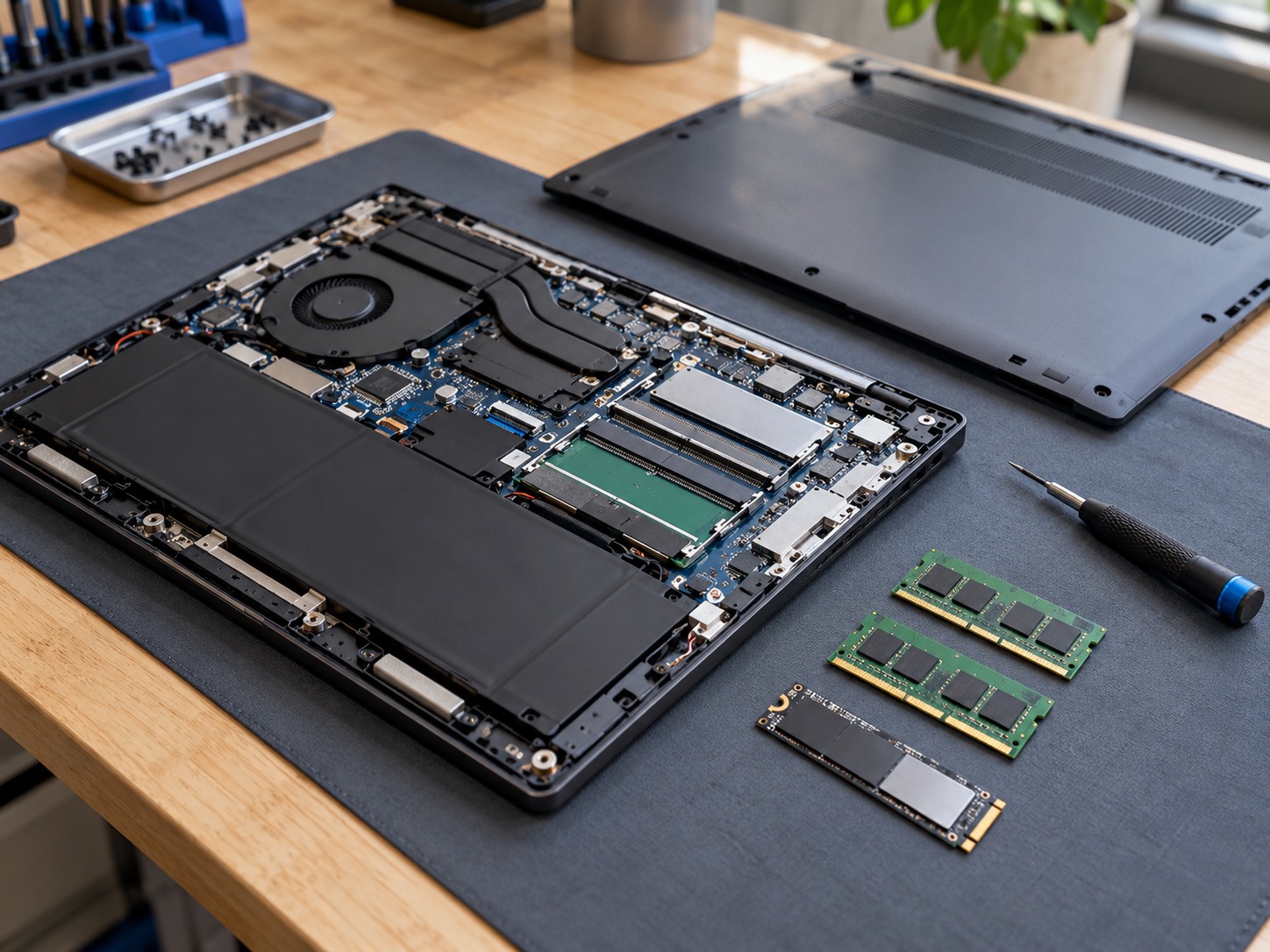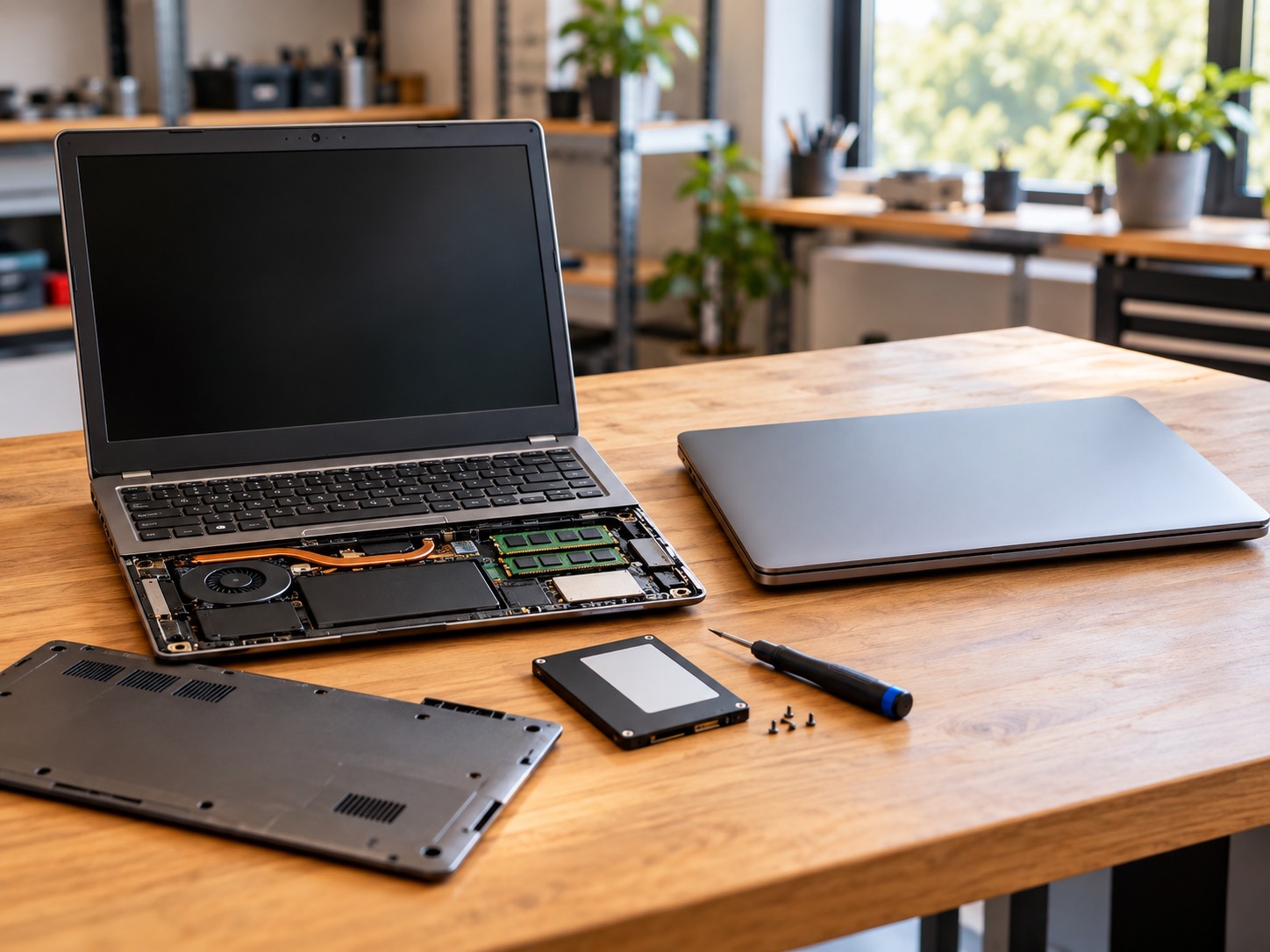
SSD vs HDD in plain English: real speed differences, what an upgrade costs, who still needs a hard drive, and why an SSD is the best money an older PC can spend in 2026.
The short answer has not changed. If your computer still boots from a spinning hard drive, replacing it with a solid state drive is the largest single improvement you can buy for that machine, and nothing else is close. The longer answer is the one worth reading, because 2026 is the first year in a while where the price of the drive is a real part of the decision, and because there is a short list of machines where an SSD is the wrong thing to spend money on. Both of those come from what lands on our bench in Hendersonville rather than from a spec sheet.
This is a counter conversation we have several times a week. Somebody brings in a six year old laptop that takes three minutes to reach the desktop, has already been told by somebody that it needs replacing, and leaves with the same laptop behaving like a new one for a fraction of what a replacement would have cost. It is the most common hardware upgrade we do, and it is also the one people put off longest, usually because they assume it means starting over with an empty machine. It does not.
What Actually Changes When The Drive Changes
A hard disk drive stores data as magnetic patterns on platters spinning at 5,400 or 7,200 revolutions per minute, and a mechanical arm swings across them to find each piece. Every read waits for the right part of the platter to rotate under the head. That wait is measured in milliseconds, which sounds like nothing until you realize that starting Windows involves tens of thousands of separate reads scattered all over the disk. A solid state drive holds the same data in flash memory with no moving parts, so there is no arm to move and nothing to wait for, and the request is answered in microseconds instead.
Storage is the bottleneck in almost every older machine that feels tired. The processor in a 2017 laptop is still perfectly capable of email, spreadsheets, video calls and a dozen browser tabs. It spends its day waiting on the drive, and everything that touches the disk inherits that delay: boot, login, opening a program, saving a file, a Windows update, even typing once memory starts paging. Take the slowest part out and the rest of the machine stops being held back. That is why the upgrade feels out of proportion to its cost, and why a slow computer is a storage question before it is anything else.
Sequential Speed Is Not The Number You Feel
Drive marketing leads with sequential throughput, the large megabytes per second figure printed on the box. It is the least useful number for ordinary use. What you actually feel is small random reads: thousands of tiny requests arriving out of order, which is what loading an operating system and opening applications look like from the drive's point of view. A hard drive manages a couple of megabytes per second of that work because the head has to physically move every time. A SATA SSD does roughly fifty times better, and an NVMe drive better again. That difference, not the headline figure, is the entire reason a machine feels new afterward.
| What you are doing | 7,200 RPM hard drive | SATA SSD | NVMe SSD |
|---|---|---|---|
| Cold boot to a usable desktop | 60 to 180 seconds | 12 to 20 seconds | 8 to 15 seconds |
| Opening a large application | 10 to 30 seconds | 2 to 4 seconds | 1 to 3 seconds |
| Sequential read, the box figure | 80 to 160 MB/s | About 550 MB/s | 3,000 to 7,000 MB/s |
| Small random reads, what you feel | 1 to 2 MB/s | 40 to 100 MB/s | 60 to 300 MB/s |
| Noise and vibration | Audible hum, occasional clicks | Silent | Silent |
| Survives a knock while running | Poorly | Very well | Very well |
| Effect on laptop runtime | Motor and heat cost you battery | Slightly better | Slightly better |
Typical hardware performance ranges, not measurements of your machine. The row that decides how a computer feels day to day is the small random reads row, and it is the one nobody advertises.
SATA Or NVMe: What Your Machine Can Actually Take
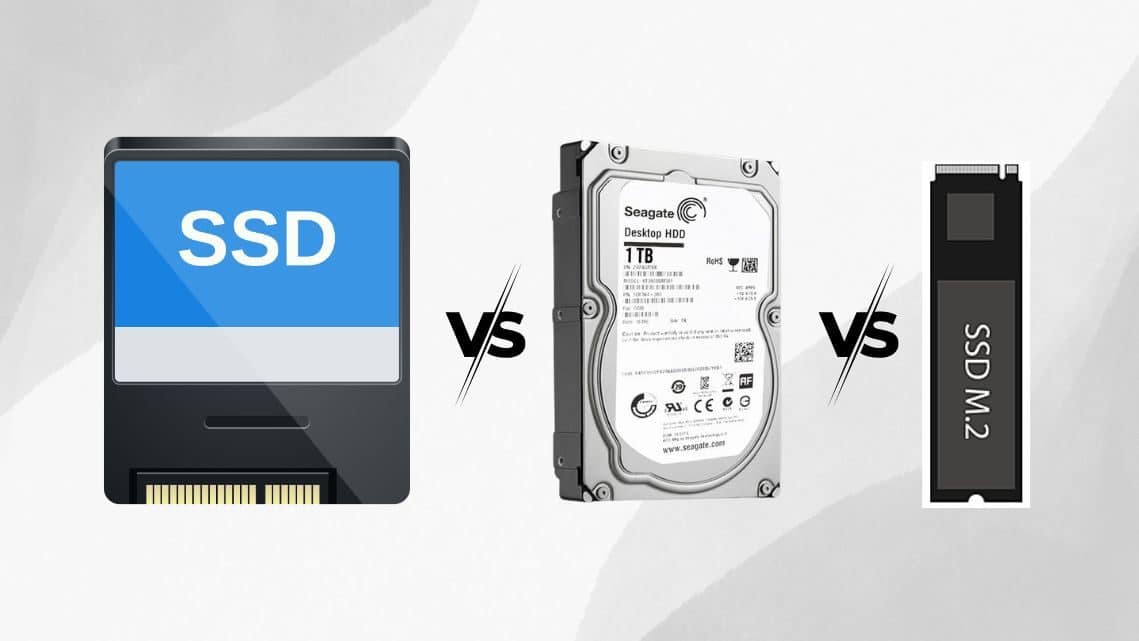
There are two shapes of SSD worth knowing about. A SATA SSD uses the same cable and the same 2.5 inch bay the old hard drive sits in, so it fits almost any laptop or desktop built in the last fifteen years. An NVMe drive is a bare stick that slots into an M.2 connector on the motherboard itself, and it is several times faster again, but the slot has to be present and it has to be wired for NVMe rather than only for SATA. Plenty of machines from around 2015 have an M.2 slot that speaks SATA only, which looks identical and is not.
The guidance is simple. Going from a hard drive to any SSD is the transformation. Going from a SATA SSD to an NVMe drive is a refinement that matters for video work, large file transfers and modern games, and is barely noticeable for browsing and office work. If a laptop is old enough that its ports run at SATA II rather than SATA III, the drive will cap at roughly 270 MB/s instead of 550, and that still turns a three minute boot into a twenty second one, so it is no reason to skip the upgrade. Checking what a board supports takes about a minute at the counter and saves buying the wrong part.
What An SSD Costs In 2026, And Why The Number Moved
For most of the last decade the answer to what an SSD costs was less than last year. That stopped. Flash memory demand has outrun supply, and consumer drive prices climbed sharply through 2025 and into 2026, in some tiers roughly doubling from their low point. As a rough guide at market today, a 500 GB SATA SSD runs about $50 to $80, a 1 TB SATA drive about $80 to $130, and a 1 TB NVMe drive about $100 to $170 depending on the tier. Those are typical retail prices for the hardware itself rather than GeekzUP quotes, and they move month to month more than they used to.
Two things follow. The first is that the upgrade is still overwhelmingly worth doing, because the comparison is not the drive against nothing, it is the drive against a replacement computer that starts near a thousand dollars once you count the software, the peripherals and the hours of setting everything up again. The second is that buying far more capacity than you need is no longer cheap. 1 TB is the comfortable choice for most people, 500 GB is workable if your files mostly live in cloud storage, and paying flash prices for four terabytes of movie library is money a hard drive would spend better.
How To Buy A Drive That Does Not Disappoint You
- Prefer TLC flash over QLC for a main drive. QLC packs four bits into each cell, which is cheaper per gigabyte and noticeably slower once the drive's fast write cache is exhausted, which is exactly what happens when you copy a large folder.
- Look for a DRAM cache on the drive Windows or macOS lives on. DRAM-less budget drives are fine as secondary storage and much less consistent as the system drive.
- Check the TBW rating, the total terabytes written the manufacturer will stand behind. A 1 TB consumer drive rated around 600 TBW will outlast the computer under normal household use.
- Take the five year warranty when the price gap is small. A three year warranty on a drive is the manufacturer telling you something about what is inside it.
- Leave capacity headroom. An SSD kept above about 90 percent full has less room to shuffle blocks and slows down measurably, so size up rather than planning to run it full.
- If you are also buying a hard drive for bulk storage, avoid SMR models for anything you write to regularly. They are cheap for a reason and their sustained write speed collapses under load.
Where A Hard Drive Still Makes Sense
Hard drives are not obsolete, they are specialized. Per terabyte they remain several times cheaper than flash, and for data that sits still and gets read occasionally that is the correct trade to make.
- Bulk storage: photo archives, video projects, ripped media, anything measured in terabytes rather than gigabytes.
- Backup drives that live in a drawer, where speed is irrelevant and cost per terabyte is the only figure that matters.
- Second drives in desktops with room for both, which is the configuration we build most often.
- Long term cold storage, where a drive that spends months powered off is a reasonable bet, since flash prefers to be plugged in from time to time.
The winning desktop setup in 2026 is the one we have been building for years: a modest SSD holding the operating system, the programs and current work, with a large hard drive underneath it for everything else. A laptop with one bay simply gets the SSD, and the old hard drive goes into a cheap USB enclosure and becomes a backup drive the same afternoon.
When An SSD Upgrade Is Not The Answer
This is the part most buying guides skip, and it is the part that saves people money. An SSD fixes waiting on storage. It fixes nothing else. If a machine is slow because it has 4 GB of memory and pages constantly, because it is choked with dust and quietly throttling itself, or because something unwanted is running in the background, a faster drive changes very little. A laptop that is really an overheating computer needs its cooling serviced, and a machine buried under toolbars and background installers needs virus and malware removal, and both cost less than a drive.
- The machine already has an SSD. Swapping one SSD for a slightly faster SSD is not where the missing speed is hiding.
- The system has 4 GB of RAM. Memory and storage have to be quoted together on those machines, because fixing one leaves the other in charge of the slowness.
- The battery is swollen or the hinge is cracked on a laptop already at the end of its life. Spend the money on the machine that will still be here in three years.
- The screen, keyboard and chassis are worn out on a ten year old laptop with 2 cores. An SSD makes it usable, not modern, and that is worth knowing before you buy.
- The existing drive is failing rather than merely old, in which case the order of operations changes completely.
That last one matters more than the rest. A drive already throwing read errors must not be cloned before the files are secured, because a clone reads every sector of hardware that is struggling and faithfully copies whatever corruption it finds. At that point you are in data recovery territory rather than upgrade territory, and the two jobs run in a specific order. Macs need their own note as well: on most models made since 2016 the storage is soldered to the logic board, so there is nothing to swap, and a Mac repair conversation about speed is about memory pressure, free space and what is actually installed rather than about fitting a new drive.
The Mistake That Wastes The Upgrade
Cloning a dying drive. People wait until the old hard drive is clicking, stalling or losing files and then decide it is finally time for an SSD. Cloning is the heaviest possible workload for failing hardware and it copies the damage across with everything else, so you end up paying for a new drive and still not having your files. If the current drive is making noise or throwing errors, get the data off first and fit the new drive second. Recovery starts at $99, which is a great deal cheaper than the alternative.
Clone Or Clean Install?
Almost everyone should clone. A clone copies Windows or macOS, your programs, your files, your printers, your saved logins and your wallpaper onto the new drive exactly as they are, so nothing has to be reinstalled and nothing has to be relearned. You turn the machine on and it is the same computer, faster. Nobody has to hunt for a product key or work out which of the twelve installed applications actually gets used.
A clean install is the better call in a narrow set of cases: the current system is genuinely broken, there are years of accumulated software nobody remembers installing, the old drive is unreliable, or you are moving to a smaller drive and the data will not fit. If the machine is still on Windows 10, the upgrade is also the natural moment to deal with that, because a fresh modern installation on a new drive is a far better starting point than an in place upgrade layered on top of a decade of clutter. Either way your files come across and the old drive goes home with you.
Gaming: What An SSD Does And Does Not Do
An SSD will not raise your frame rate. Frames come from the graphics card, the processor and memory, and a game running at 45 frames per second will run at 45 frames per second on the fastest drive ever made. What the SSD changes is everything around the frames. Level loads that took a minute finish in seconds, open world games stop stuttering as they stream new terrain in, shader compilation and patch installs stop being an event, and a title that used to hitch every time it touched the disk plays smoothly. Several recent games now assume flash storage outright and will not install on a hard drive at all.
On a gaming machine an NVMe drive is the default rather than an upgrade, and the games belong on it rather than exiled to a hard drive to save space. Anything more complicated, a system that stutters only under load or crashes in one title and not another, is a gaming PC repair question rather than a storage one, and our diagnostic on gaming hardware is $125 rather than $100 because those machines take longer to test properly.
My Computer Already Has An SSD And It Is Still Slow
This one arrives weekly, and it is almost never the drive itself. Work through these before spending anything.
- The drive is nearly full. Free space is working space on an SSD, and past roughly 90 percent it has to shuffle data around before it can write anything at all.
- There is not enough memory. 8 GB is the practical floor for Windows 11, and 16 GB is where a browser and an office suite stop fighting each other.
- It is thermally throttled. Dust in the fans and dried out thermal paste cost more speed than any storage upgrade returns.
- Too much launches at login. Fifteen background applications starting at once will make any machine feel unresponsive for its first two minutes.
- It is a cheap DRAM-less QLC drive doing work it was never built for, which shows up as a machine that is quick for ten seconds and then stalls halfway through a large copy.
- The SSD is wearing out or failing. Flash does not click, so the only warnings are read errors, a sudden switch to read only, or the drive missing at the next boot.
What The Upgrade Looks Like At GeekzUP
- 1We confirm what the machine takes, SATA or NVMe, how many bays or slots it has, and whether the existing drive is healthy enough to clone safely.
- 2You approve the drive, the capacity and the price before anything is ordered or opened.
- 3The current system is cloned across, or clean installed where that is the better call, with your files carried over either way.
- 4The new drive goes in, the partition is expanded to use the full capacity, TRIM is confirmed active, and firmware and drivers are brought up to date.
- 5The machine is tested under real load rather than declared finished at the desktop wallpaper, and you get the old drive back to keep as a backup.
Our diagnostic is $100 for PCs and Macs and $125 for gaming laptops and desktops, and it is applied to the repair, so the testing is not money spent twice. We confirm the expected timeline for an SSD upgrade after evaluating the machine. Everything stays in-house on the same computer and laptop repair bench from the first look to the last test, the work carries a warranty on parts and labor, and drop-offs need no appointment at 110 Sanders Ferry Rd, Suite 11 in Hendersonville.
If the question is only whether storage is what is holding a machine back, that part can often be answered without anyone driving anywhere. A remote session at $100 per hour is usually enough to read the drive health, see what the disk is doing under load and tell you whether an SSD is the right purchase. The swap itself has to happen in person. Customers bring machines in from Nashville, Gallatin, Franklin and the rest of Middle Tennessee, and the payment terms are published rather than produced at the counter: cards carry a 3.5 percent fee, while cash, CashApp, Venmo, Apple Pay and Zelle carry none.
Keeping The New Drive Fast
- Leave ten to fifteen percent of the drive free. This single habit does more for long term SSD performance than anything else you can do.
- Do not defragment an SSD. It achieves nothing on flash and spends write cycles for no benefit. Windows already runs TRIM on a schedule instead.
- Keep bulk media on a second drive or an external if the SSD is small, rather than fighting over the last twenty gigabytes every month.
- Check drive health once or twice a year. SSDs report wear as a percentage, so you get a number rather than a guess about how much life is left.
- Back up anyway. An SSD is more reliable than a hard drive and it still fails, and when flash fails it usually fails all at once rather than gradually.
The summary has not changed in ten years. If the machine still boots from a spinning disk, the drive is the reason it feels old, and replacing it is the cheapest large improvement available to you. What changed in 2026 is that the drive costs more than it did and choosing the right one matters more than it did. Tell us what the machine is and what it does, and you will get a straight answer about whether an SSD fixes it, whether it needs memory at the same time, and whether the files on it should come off before anything else happens.
Frequently Asked Questions
Is an SSD upgrade worth it on an old laptop?
If the laptop still runs a spinning hard drive, it is usually the best money you can spend on it. Minutes-long boots become seconds and the whole machine feels new for a fraction of replacement cost. The exceptions are laptops with 4 GB of memory, a swollen battery or a cracked chassis, where the drive is not the thing standing between you and a usable computer.
Will I lose my files when switching to an SSD?
No. The existing drive is cloned to the SSD, so Windows or macOS, your programs, your settings and your files carry over exactly as they were, just faster. You also get the old drive back, which means there is a second copy of everything sitting in a drawer on the day the upgrade finishes.
How big an SSD should I get in 2026?
1 TB is the comfortable choice for most people. 500 GB works if your documents and photos mostly live in cloud storage. Flash is no longer cheap enough to buy four terabytes of it for a media library, so on a desktop pair a 1 TB SSD with a large hard drive rather than paying SSD prices for archive space.
SATA or NVMe, which should I buy?
Whichever the machine supports, and that gets checked before anything is ordered. Hard drive to SATA SSD is the dramatic leap. NVMe is faster again and the sensible default on any modern board, and it is genuinely worth it for gaming, video work and moving large files. It is close to invisible for email and browsing.
How much does an SSD upgrade cost?
The drive itself is typically $50 to $170 at market depending on capacity and type, and the labor depends on the machine, since some laptops open in two minutes and others need most of the chassis removed. The diagnostic is $100 for PCs and Macs and $125 for gaming systems, it is applied to the repair, and you approve an exact quote before any work starts.
Will an SSD make my games run faster?
It will not change your frame rate, which comes from the graphics card, processor and memory. It will cut loading screens dramatically, stop the stuttering that happens when an open world game streams data in, and make patches and shader compilation far less painful. Some recent titles will not install on a hard drive at all.
How long does an SSD last compared to a hard drive?
Longer, in most homes. A consumer 1 TB SSD is typically rated for around 600 terabytes of writes, which is decades of ordinary household use, and with no moving parts there is nothing to wear out mechanically. The trade is that SSDs tend to fail suddenly rather than getting noisy first, so a backup matters just as much as it did before.
Can I keep using my old hard drive after the upgrade?
Yes, and you should. In a desktop it goes back in as a second drive for bulk storage. On a laptop it drops into an inexpensive USB enclosure and becomes an external backup. The one exception is a drive that failed or was showing errors, which is not something to trust with a backup.
Why is my computer still slow after an SSD upgrade?
Because storage was not the only bottleneck. The usual culprits are too little RAM, a machine running hot and throttling, unwanted software running in the background, or a drive that is almost full. All four are fixable, and all four are cheaper to identify with a proper test than to guess at one part at a time.
Ready For The Upgrade?
GeekzUP Team
Veteran-owned computer repair in Hendersonville, TN. Serving Nashville and Middle Tennessee since 2012.