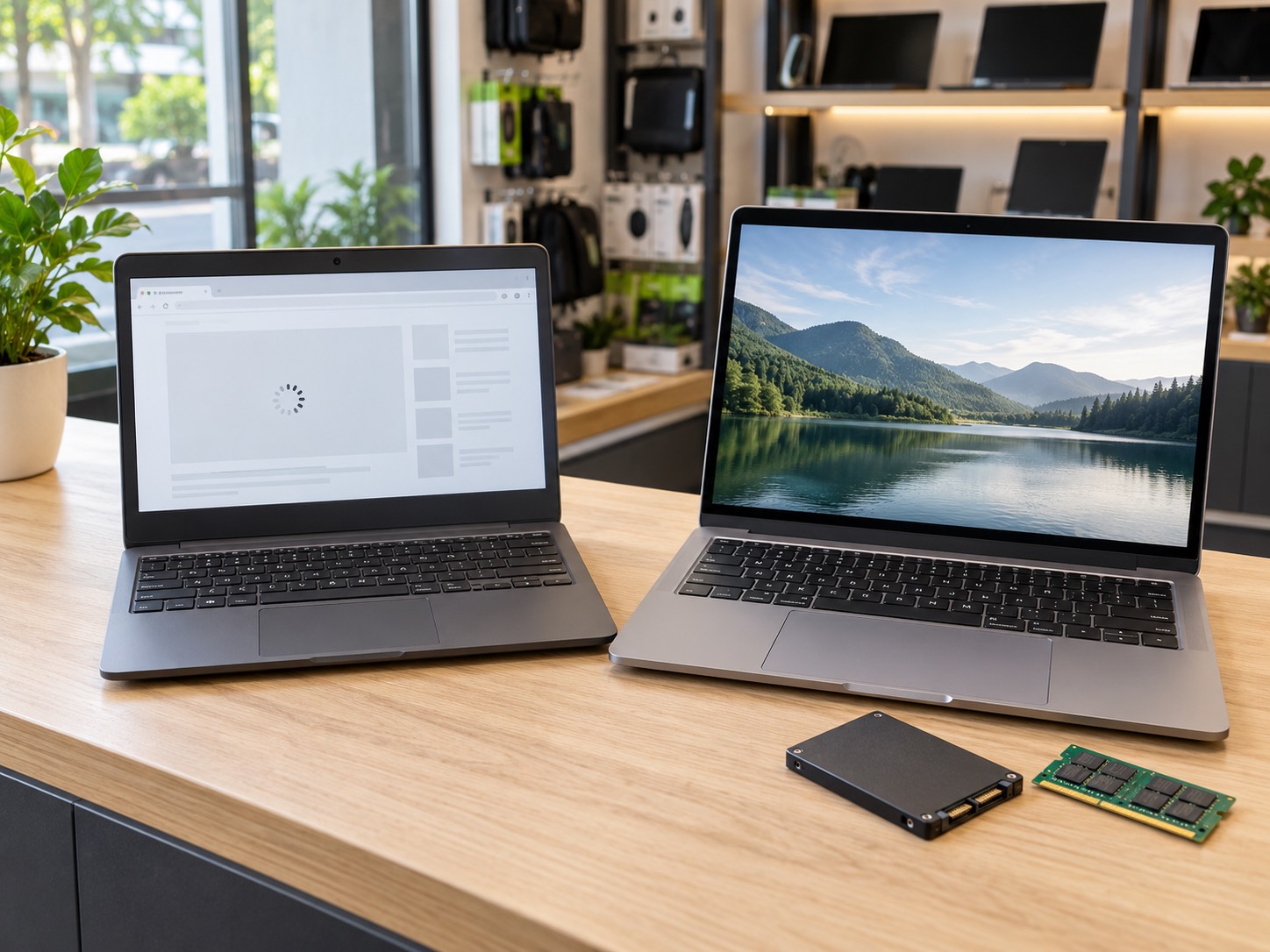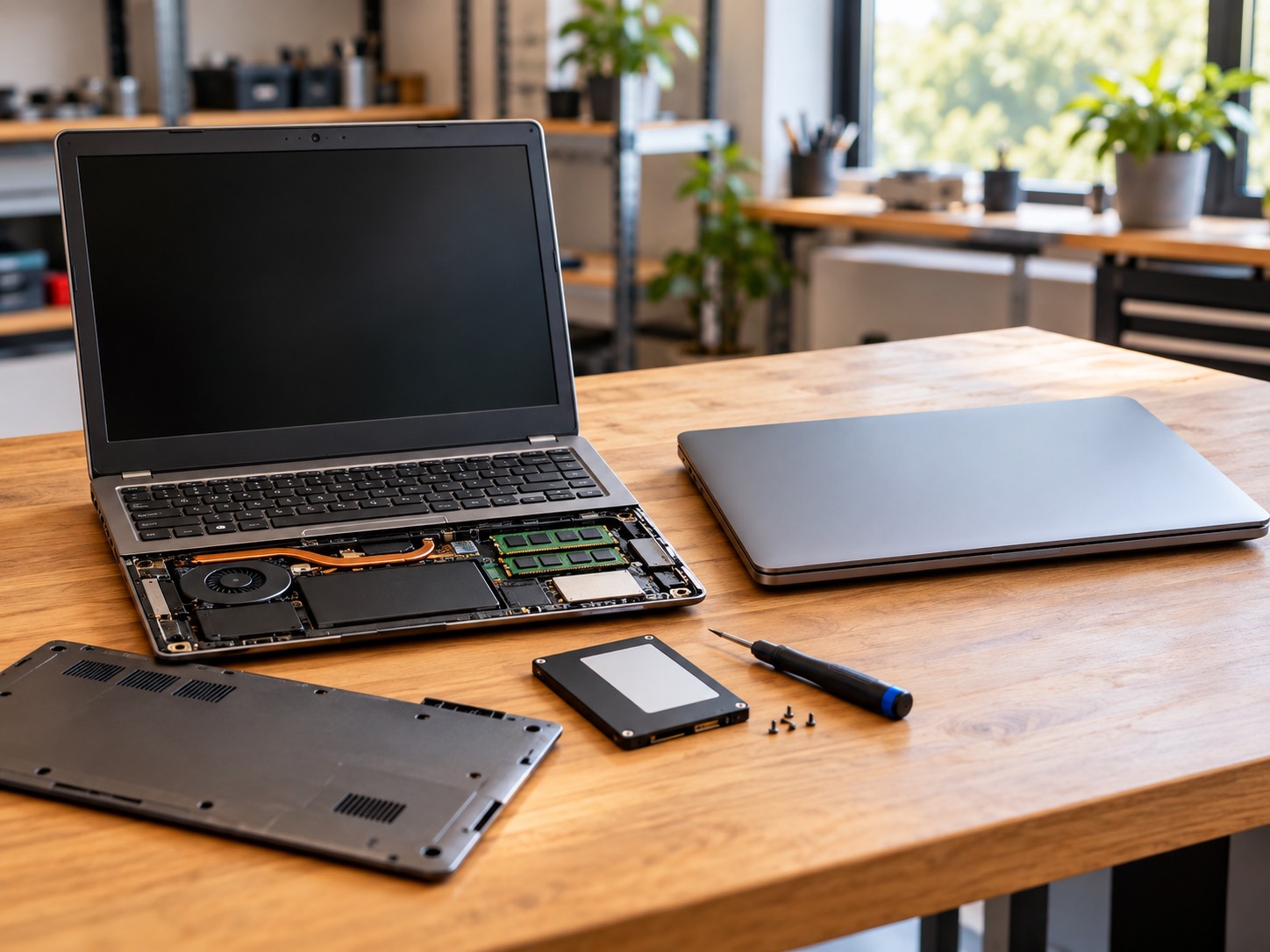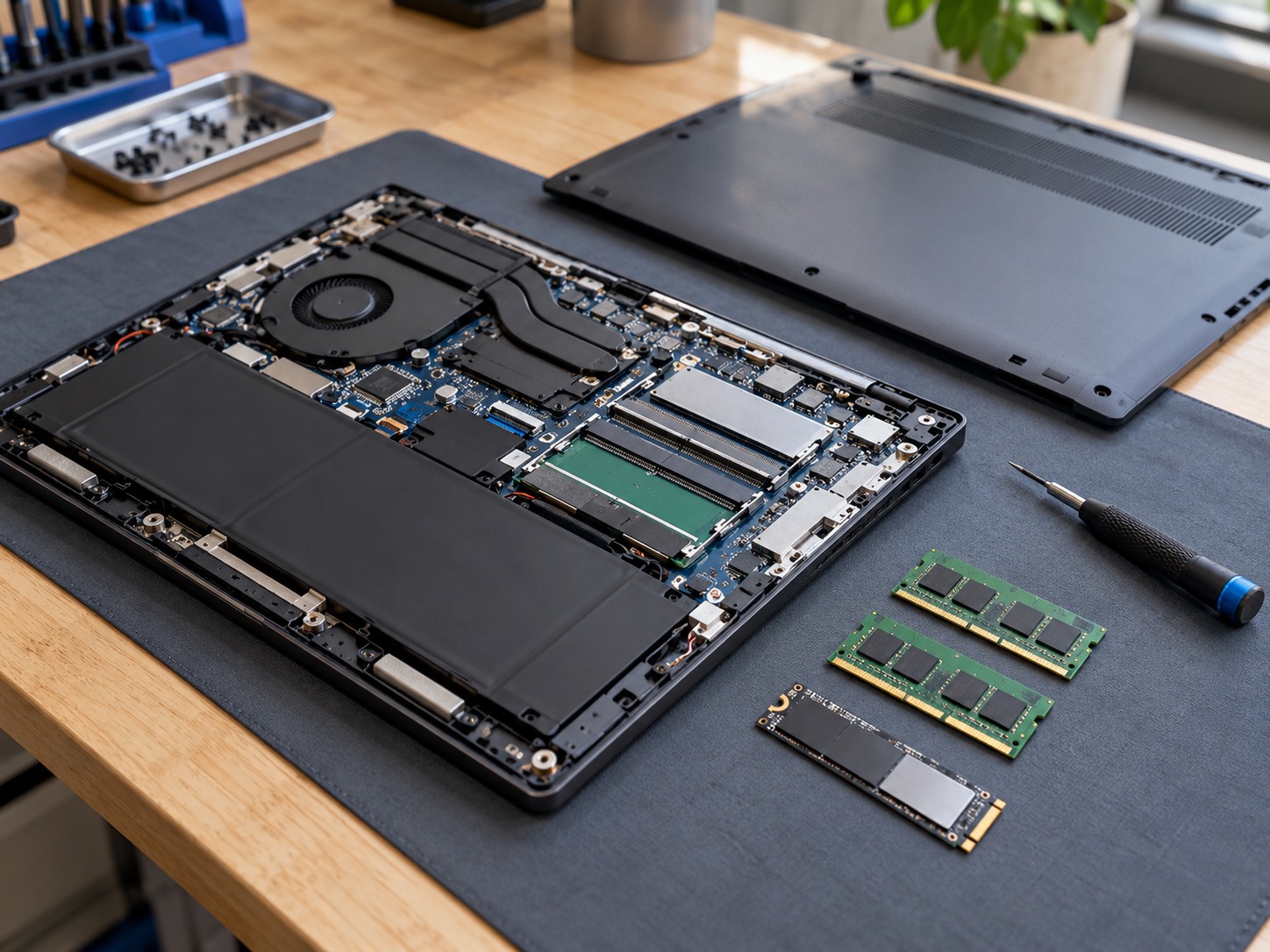
A RAM or SSD upgrade can make the right computer feel new again, but the part is only one piece of the cost. Compatibility, data transfer, and the condition of the machine matter just as much.
An SSD or RAM upgrade can be one of the best ways to make a computer feel useful again. But the right question is not just, “How much is the part?” The total depends on the exact computer, what it can accept, whether your files need to be moved, and whether the upgrade fixes the problem you actually have. A quick upgrade on a healthy, compatible laptop is very different from trying to force a new part into a machine with soldered memory, failing storage, or an operating-system problem.
GeekzUP starts standard PC and Mac diagnostics at $100, and that diagnostic is applied toward the repair. That lets us check compatibility, identify the real bottleneck, and quote the job before anyone orders a part. It is the useful way to get an upgrade price, because there is no honest one-size-fits-all number for every laptop, desktop, or Mac.
What Goes Into A RAM Or SSD Upgrade Cost?
There are four pieces to an upgrade quote: the compatible part, labor to install it, the work needed to move or set up data, and the condition of the computer around it. The part itself may be simple to buy online, but a model number on a product page does not prove that it fits your machine or that it will solve your problem.
| Part Of The Job | Why It Changes The Cost | What A Proper Quote Checks |
|---|---|---|
| The RAM or SSD | Capacity, speed, form factor, and brand vary by model | Whether the computer accepts the part and whether it adds useful performance |
| Physical installation | Some devices have easy access; others require deeper disassembly | Access to the slot, battery, cooling system, and any fragile clips or cables |
| Data transfer | A replacement boot drive may need cloning, migration, or a clean Windows install | Whether the old drive is healthy enough to copy and whether files are backed up |
| Testing and setup | The computer should be checked after the part is fitted | Memory stability, drive health, booting, activation, updates, and real-world performance |
A lower part price is only a saving if it is the right part, is installed safely, and leaves you with a stable computer.
Be cautious when a quote starts with a very low labor number but says nothing about compatibility, migration, or testing. Installing a part is only one step. If the computer does not boot after a drive change, has device encryption, or is already running out of life in another area, the job needs more than a screwdriver.
When An SSD Upgrade Is Worth The Money
An SSD upgrade is usually the biggest noticeable improvement for a computer that still uses a mechanical hard drive. Startup, app launching, Windows updates, and everyday browsing can all feel dramatically quicker because the computer is no longer waiting on a spinning drive. It can also make sense when a smaller SSD is almost full and the computer supports a larger compatible replacement.
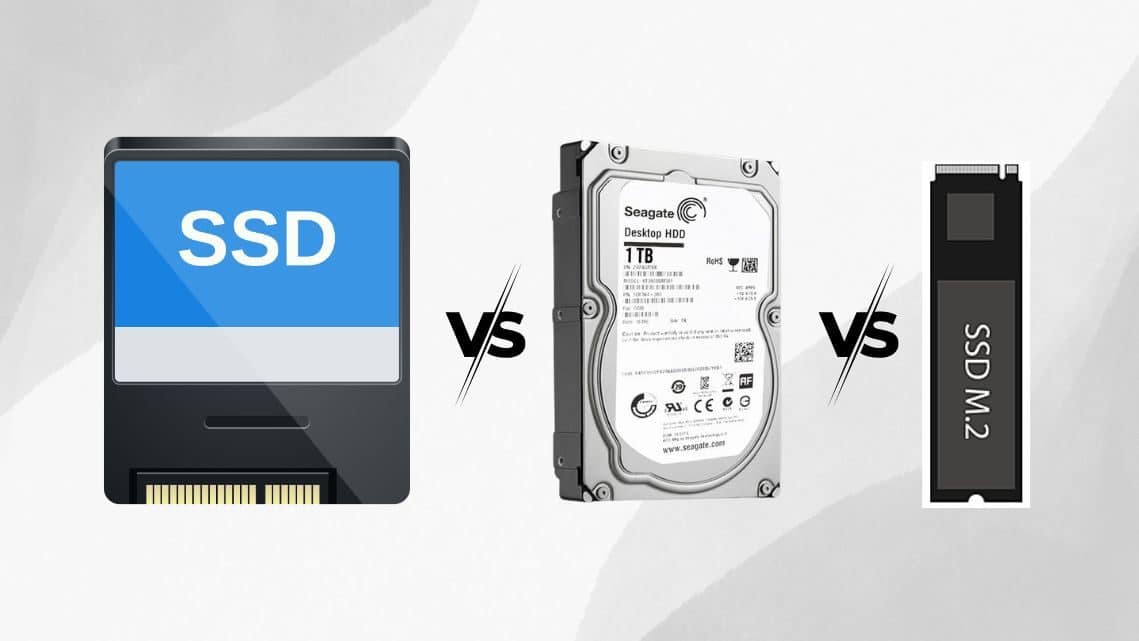
The key word is compatible. A laptop may use a 2.5-inch SATA drive, an M.2 SATA drive, an M.2 NVMe drive, or storage soldered directly to the board. M.2 is only a shape, not a guarantee that every M.2 drive works in every slot. The laptop manual or manufacturer specification is the starting point, and a technician should confirm the exact interface before a part is purchased.
If the old drive is healthy, its contents can often be migrated to the new one so Windows, programs, and files come across together. If it is clicking, disappearing, throwing read errors, or freezing during copies, do not treat it like an ordinary upgrade. Repeated cloning attempts can make a failing drive worse. That becomes a data-protection decision first, not an SSD-install price question.
Back Up Before Replacing A Drive
A successful migration is not a backup. Make sure important files exist in another verified location before storage work begins. If the old drive is failing, stop DIY attempts and ask about recovery first.
When A RAM Upgrade Is Worth The Money
RAM helps when the computer runs out of working memory while you are using it. Common signs include browser tabs constantly reloading, long pauses while switching between apps, a system that becomes sluggish during video calls, or heavy disk activity even when you are not doing much. More RAM gives Windows and your programs more room to stay active instead of constantly moving data to and from storage.
It is not a cure for every slow computer. A computer with a failing hard drive, a weak processor, malware, overheating, or a nearly full SSD may still feel slow after a memory upgrade. Likewise, some laptops have all memory soldered to the board, while others have one soldered module and one open slot. Those machines need a model-specific check before anyone promises an upgrade.
For many everyday Windows users, 8GB can feel constrained with modern browsers and multiple apps open, while 16GB is a sensible target for general multitasking when the device supports it. Gaming, creative work, virtual machines, and large spreadsheets can justify more, but only if the processor and graphics hardware are capable enough for the work. Adding memory to a computer with a different bottleneck is not a good investment just because a slot is available.
Why The Same Upgrade Costs Different Amounts On Different Laptops
Two customers may both ask for a 1TB SSD or more RAM and receive different quotes for good reasons. One laptop may have a bottom cover that comes off with a few screws. Another may require the battery to be disconnected, the cooling assembly moved, or a keyboard and motherboard lifted to reach the part. Some modern thin laptops and many Macs use soldered storage or memory that cannot be economically upgraded at all.
- A desktop usually offers the simplest access and the broadest choice of compatible parts.
- A business-class laptop may be easy to service and worth upgrading for several more years.
- A thin consumer laptop may have soldered RAM, limited cooling, or storage that requires full disassembly.
- A Mac may need a model-specific approach because many recent models do not have user-upgradeable RAM or storage.
- A gaming system may need additional testing to make sure power, cooling, and stability are right under load.
That is why “Can you install this part I found online?” is best treated as a compatibility check, not a promise. Bringing the computer or its exact model number prevents an incorrect part, wasted return shipping, and an upgrade that does not address the slowdown you are experiencing.
Do You Need To Pay For Data Transfer Or A New Windows Install?
Sometimes an SSD upgrade is straightforward: the old drive is healthy, the new drive fits, and the system can be cloned. Other times a clean Windows installation is safer or faster, especially if the current Windows setup is damaged, full of unwanted software, or tied to a failing drive. A clean install can be excellent for performance, but it changes the scope of the job because programs, settings, licenses, printers, and files need to be restored deliberately.
Before choosing either path, make sure you can sign back into your important accounts. That includes a Microsoft account, email, browser sync, password manager, accounting software, and work tools. If device encryption is turned on, keep the recovery key somewhere safe too. A fast new SSD cannot recover an account password or an encryption key that was never saved.
If your current laptop will not start, do not assume the files are gone. The storage may still be readable, but the answer depends on whether it is removable, encrypted, and healthy. Our guide to getting files off a laptop that will not turn on explains the difference between a simple removable drive and a device that needs more careful recovery work.
Can An Upgrade Make An Old Computer Ready For Windows 11?
More RAM or a larger SSD can improve daily use, but neither upgrade automatically makes a computer eligible for Windows 11. Microsoft requires compatible hardware as well as at least 4GB of memory and 64GB of storage. Processor generation, TPM 2.0, Secure Boot capability, and firmware configuration can still decide whether an upgrade path exists.
That does not mean an older computer should be discarded before it is checked. Some machines are compatible but need a setting enabled, while others are better served by a different plan. Check compatibility before spending on parts, especially if you are deciding between an upgrade and replacement. Our Windows 11 upgrade service can identify the safe path for the exact computer.
Should You Install RAM Or An SSD Yourself?
DIY can be a good option when you have a serviceable desktop or laptop, the exact compatible part, a verified backup, and you are comfortable opening the device. Manufacturer documentation matters because connector locations, screw lengths, battery procedures, and drive interfaces vary. Take your time, avoid forcing a connector, and keep the original part until the upgraded system has been tested.
Professional installation is often the safer value when the device is thin, expensive, encrypted, holding important data, still under warranty, or difficult to open. It also makes sense when you are not sure whether the machine is actually slow because of RAM or storage. The aim is not to charge for a task you could do. It is to avoid buying the wrong part, losing files, or spending on an upgrade that cannot solve the real problem.
Get A Quote That Matches Your Computer
The most useful upgrade quote starts with your computer, not a generic shopping cart. GeekzUP can check the model, confirm what is upgradeable, test the existing drive and memory, discuss whether cloning or a clean setup makes sense, and provide the actual total before work begins. If an upgrade is not worthwhile, we will tell you that too. Bring the machine to the Hendersonville shop, request pickup and delivery, or book a diagnostic online.
Frequently Asked Questions
How Much Does It Cost To Install An SSD In A Laptop?
The total depends on the drive capacity and type, whether the laptop accepts that drive, the access required to install it, and whether data needs to be moved or Windows set up again. A diagnostic confirms those details before a final quote is given.
Is An SSD Upgrade Worth It For An Old Laptop?
Often, yes. An SSD can make an otherwise healthy laptop start, update, and open programs much faster. It is most worthwhile when the processor, memory, battery or power system, and Windows compatibility still suit your needs.
Can I Add More RAM To Any Laptop?
No. Some laptops have open memory slots, some combine soldered memory with one slot, and some have all memory soldered to the board. The exact model must be checked before RAM is purchased.
Should I Upgrade RAM Or SSD First?
If the computer still uses a mechanical hard drive, an SSD often creates the biggest everyday improvement. If it already has an SSD but struggles with many programs or browser tabs open, RAM may be the better next upgrade. Testing identifies which limit you are actually hitting.
Will I Lose My Files When Upgrading To An SSD?
You should not rely on migration alone. Back up important files first. A healthy old drive can often be cloned, but a drive that is failing may need a different recovery approach before any replacement work begins.
Can More RAM Or An SSD Make My PC Compatible With Windows 11?
Not by itself. Windows 11 also has processor, TPM 2.0, Secure Boot, and firmware requirements. More storage or memory may improve use of a compatible computer, but the exact model needs a compatibility check.
Plan The Right Upgrade
GeekzUP Team
Veteran-owned computer repair in Hendersonville, TN. Serving Nashville and Middle Tennessee since 2012.