A cheap laptop is only a deal if it can still do what you need a year from now. These three specs often decide whether it stays useful or becomes frustrating fast.
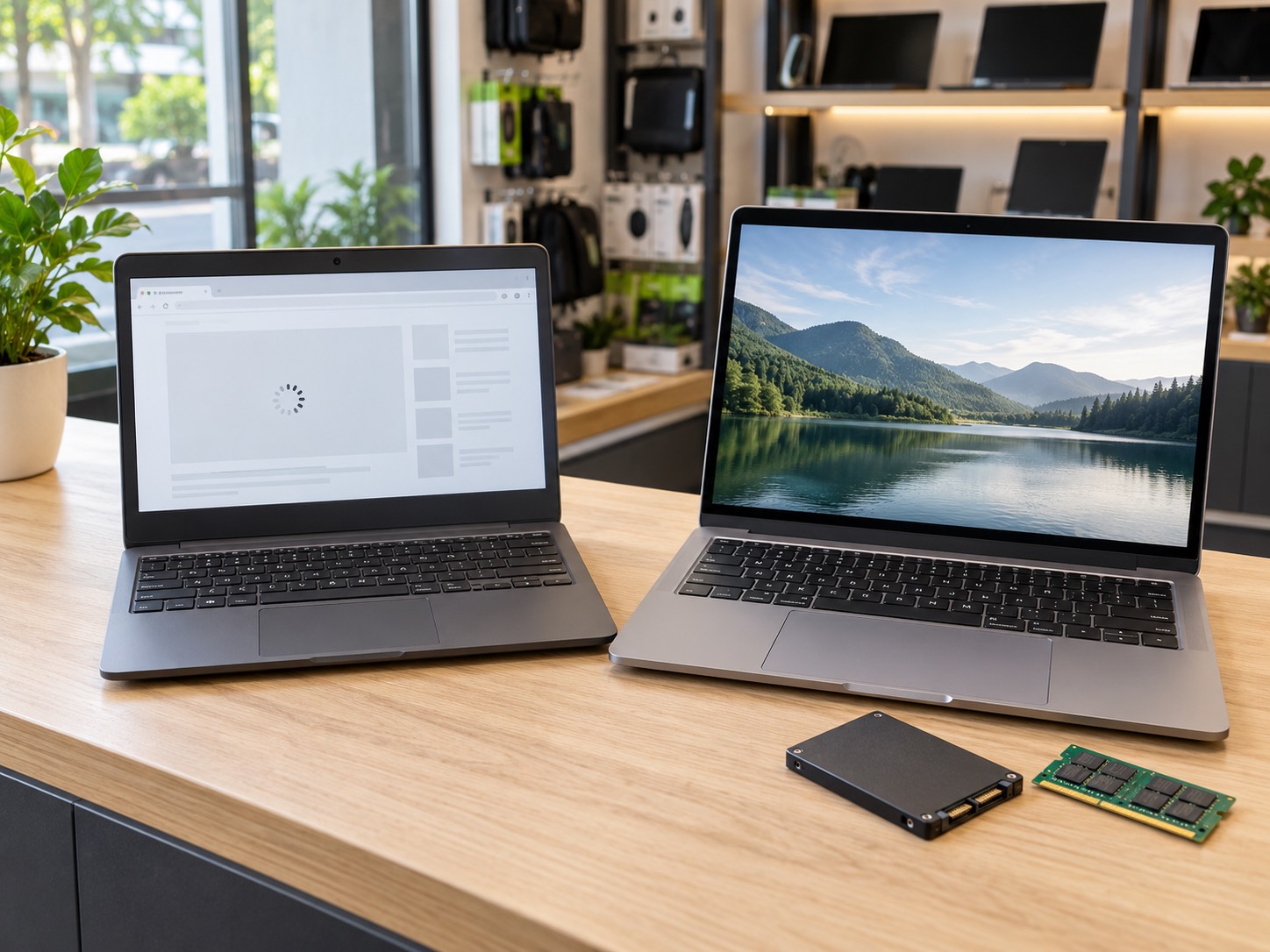
A low price tag can make a laptop look like a smart purchase, especially during a sale. But two laptops that look almost identical on a retailer shelf can feel completely different once you start using them. One handles schoolwork, email, video calls, and a pile of browser tabs without much complaint. The other pauses while opening a document, fills up after a few updates, and becomes frustrating long before it is physically worn out.
The difference is usually not the logo on the lid. It is the combination of memory, storage, processor, and whether any of those parts can be upgraded later. This guide focuses on the three specifications that most often turn an inexpensive Windows laptop into a slow one: 4GB of RAM, eMMC storage, and a low-end processor with no headroom. It is not an argument that everyone needs an expensive computer. It is a way to spend a modest budget on a machine that will still be usable next year.
The Minimum Spec Is Not The Comfortable Spec
Windows 11 can install with 4GB of memory, but that is a hardware floor, not a recommendation for everyday multitasking. A laptop has to run Windows, browser tabs, updates, security software, and your actual work at the same time.
Is 4GB RAM Enough For A Laptop In 2026?
For a very narrow job, 4GB can still function. But for a Windows laptop, it is a tough recommendation for most people. Modern browsers use memory quickly, video calls need it, and background tasks such as updates, cloud sync, and security checks do not stop just because you opened an email.
When memory runs low, Windows has to use storage as temporary overflow. On a fast SSD, that can still feel like a pause. On slow eMMC storage, it can feel like the laptop has frozen. You may see browser tabs refresh when you return to them, a delay switching between a document and a meeting, or a computer that is fine right after a restart but slows down as the day goes on.
For general Windows use, 8GB is the practical starting point to look for. If you keep many tabs open, work with spreadsheets, attend video meetings, edit photos, or want the computer to last several years, 16GB is the safer target when the budget allows. That does not mean every person needs 16GB. It means 4GB should only be bought when the job is intentionally limited and the low price genuinely reflects that limit.
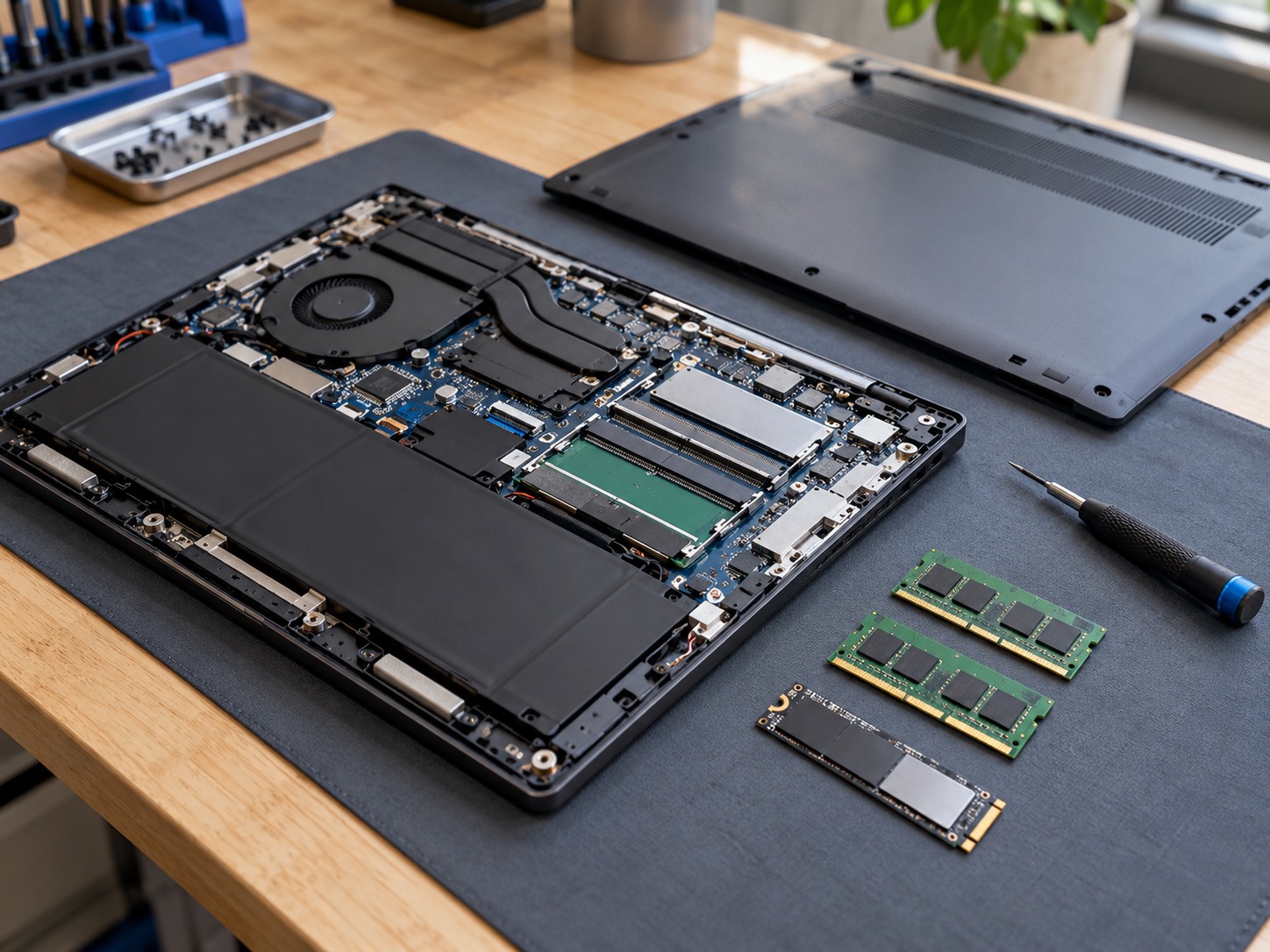
Before buying, check whether the RAM is upgradeable. Some laptops have a memory slot. Others use all soldered memory, so the 4GB you buy is the 4GB you keep. A model with one open slot can be a reasonable value if an upgrade is possible later. A model with soldered 4GB and weak storage is usually a false saving.
Why eMMC Storage Is The Bigger Trap
Many inexpensive laptops advertise 64GB or 128GB of storage without making the type of storage obvious. If the listing says eMMC, treat that as a question to investigate, not a technical detail to ignore. eMMC is a small flash-storage chip soldered to the board. It keeps the laptop inexpensive and uses little power, but it is generally slower than a proper SSD and is often not replaceable.
Storage capacity matters too. Windows updates, recovery files, apps, browser caches, photos, and cloud-sync folders can consume a 64GB drive surprisingly quickly. Once storage is close to full, the computer has less room for updates and temporary files, which makes a slow machine feel even worse. An external drive can hold photos or backups, but it does not replace a healthy internal drive for Windows itself.
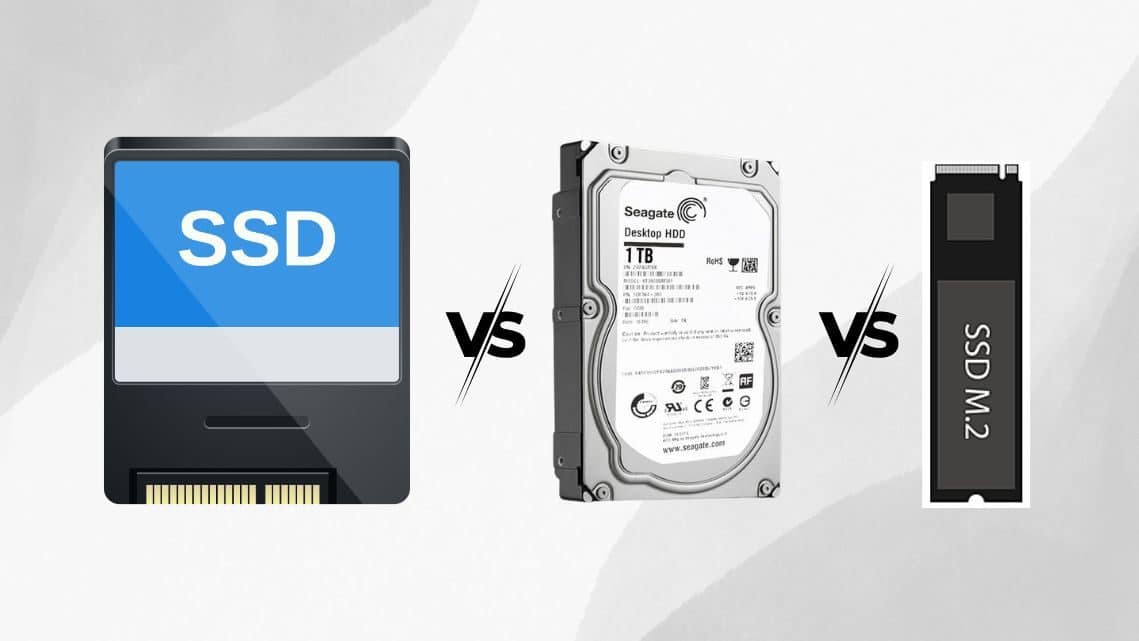
| Storage Type | What It Usually Means | Upgrade Path |
|---|---|---|
| 2.5-inch SATA SSD | A standard replaceable solid-state drive common in older laptops and desktops | Often straightforward when the device can be opened |
| M.2 NVMe SSD | A small fast internal drive used in many modern PCs | Often upgradeable, but the exact slot and size must be checked |
| M.2 SATA SSD | Looks similar to NVMe but uses a different interface | Compatibility must be verified before buying |
| eMMC | Small flash storage soldered to the board on many low-cost devices | Usually not realistically upgradeable |
| Soldered SSD | Integrated storage found on some thin laptops and Macs | Often requires model-specific repair rather than a simple upgrade |
Never order a drive based on its shape alone. M.2, capacity, and laptop model do not prove compatibility.
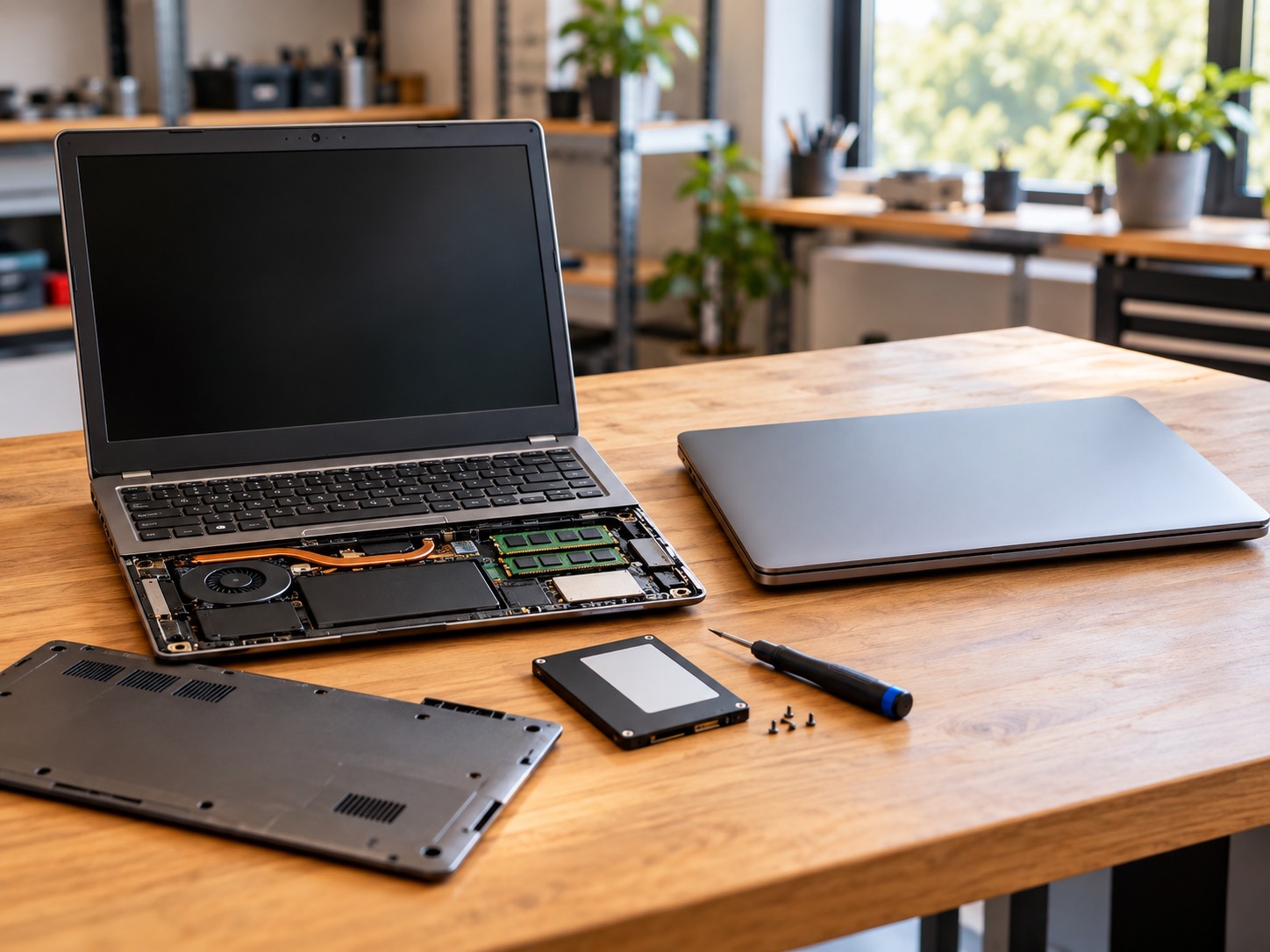
A laptop with a real 256GB or 512GB SSD is usually a better long-term purchase than a slightly cheaper model with 64GB eMMC. You get more room for updates and files, better everyday responsiveness, and sometimes a path to a larger drive later. If you already own a computer with a replaceable drive, an SSD upgrade can be a smarter use of money than replacing the whole laptop.
The Processor Matters More Than The Brand Sticker
A processor name can be confusing because a familiar brand does not automatically mean strong performance. A recent entry-level Intel or AMD chip can suit web browsing and documents, while an older low-power chip can struggle with the same tasks. Look beyond words such as Intel, Celeron, Pentium, Ryzen, or Core. Check the model generation, the number of cores, and the type of work you need it to handle.
A very low-end processor becomes a problem when it is paired with 4GB of soldered RAM and eMMC storage. Each limitation adds to the others. The processor takes longer to complete a task, memory runs out sooner, and slow storage makes the waiting more obvious. No one part has to be completely broken for the laptop to feel bad. That is why a spec sheet needs to be read as a whole.
For email, documents, web browsing, video calls, and normal home use, prioritize a current-generation processor with at least 8GB of RAM and SSD storage before paying extra for a thin design, touch screen, or a larger screen. For creative work, coding, gaming, or a small business with many browser-based tools, buy more headroom. The right computer is the one that fits the work you expect to do two years from now, not only the demo you tried for five minutes in a store.
Three Cheap Laptop Listings To Walk Away From
- 1A Windows laptop with 4GB of soldered RAM and 64GB eMMC storage, unless it is for one very limited task and the price reflects that restriction.
- 2A listing that proudly shows a large screen or free accessories but hides the processor generation, storage type, or RAM upgradeability.
- 3A new laptop only a little cheaper than a refurbished business-class model with 8GB or 16GB of RAM, a proper SSD, and a real warranty.
This does not mean every affordable machine is bad. It means you should not compare only the headline price. A used business laptop may offer a stronger keyboard, more ports, repairable parts, and better value. A new Windows laptop can be excellent when its memory and storage are chosen carefully.
Can A Slow Cheap Laptop Be Fixed Later?
Sometimes. A laptop with an open RAM slot and a replaceable SSD can gain a lot from the right upgrade. A laptop with eMMC storage and soldered 4GB memory usually cannot. You can remove unused apps, clean up storage, and reduce startup tasks, but those steps cannot create a second RAM slot or turn soldered eMMC into an internal NVMe SSD.
If the laptop was fast when new and has become slow, it may be worth diagnosing instead of replacing. A dying drive, malware, too little free storage, overheating, or a damaged Windows installation can mimic weak hardware. GeekzUP can check what is actually holding the machine back and tell you whether an upgrade makes sense before you spend on a part.
A Better Budget Laptop Checklist
- At least 8GB of RAM for most Windows buyers, with 16GB preferable for heavier multitasking.
- A real SSD, ideally 256GB or more, instead of 64GB eMMC storage.
- A processor model and generation you can identify, not only a brand name.
- A clear answer on whether RAM and storage can be upgraded later.
- Enough ports, battery health, and warranty coverage for how you will actually use it.
- A supported operating system and a plan to keep important files backed up.
If you are choosing between two laptops and the listings are confusing, bring the links or model numbers to GeekzUP. We can explain the real differences, check whether an existing computer is worth upgrading, or help you set up the right replacement. The goal is not to push the most expensive option. It is to make sure the computer you buy is not already at the end of its useful life on day one.
Frequently Asked Questions
Is 4GB RAM Enough For Windows 11?
4GB meets Microsoft’s minimum memory requirement, but it is restrictive for most everyday Windows use. Browser tabs, video calls, updates, and multiple apps can quickly use available memory. For most buyers, 8GB is a more practical starting point.
Is eMMC Storage The Same As An SSD?
No. Both use flash memory, but eMMC is generally slower and is commonly soldered to the motherboard on inexpensive laptops. A proper SATA or NVMe SSD is usually faster and may be replaceable, depending on the model.
Can I Upgrade A Laptop With eMMC Storage?
Usually not in the same way you can upgrade a laptop with a 2.5-inch or M.2 SSD. eMMC is normally soldered to the board. Some devices have an additional storage slot, but the exact model must be checked.
Should I Buy An 8GB Or 16GB Laptop?
8GB can handle typical web, email, document, and streaming use. Choose 16GB when you multitask heavily, use many browser tabs, attend frequent video meetings, do creative work, or want more useful life from the computer.
Are Used Business Laptops Better Than Cheap New Laptops?
Often, a well-chosen refurbished business laptop offers stronger construction, proper SSD storage, more memory, and easier repairs than a brand-new entry-level laptop. Compare warranty, battery condition, update support, and the exact specifications before deciding.
Can GeekzUP Check A Laptop Before I Buy It?
Yes. Bring the model number or listing details and we can explain the memory, storage, upgrade path, and whether it fits the work you need it to do. That can prevent spending money on a machine that will be frustrating from the start.
Choose A Laptop That Lasts
GeekzUP Team
Veteran-owned computer repair in Hendersonville, TN. Serving Nashville and Middle Tennessee since 2012.