A random freeze is not the same as a slow computer. Learn which freeze pattern points to software, storage, memory, graphics or power, what to check safely and when to stop experimenting.
A computer that freezes randomly is frustrating because it often leaves no useful clue. There may be no blue screen, no clear error and no pattern. The mouse may still move while every program stops responding. Or the whole screen may lock so completely that holding the power button is the only way out. Those are not the same symptom, and treating them as one is why so many online fixes amount to changing settings until something happens.
The useful starting point is to notice exactly what freezes, what was happening immediately before it and whether the problem appears only under a particular load. A brief pause while opening files points in a different direction from a hard lock while gaming, a freeze after waking from sleep or a machine that is stable in Safe Mode. This guide gives you a safe order to narrow it down without jumping straight to a reset or replacing parts at random.
First, Separate A Freeze From A Slow Computer
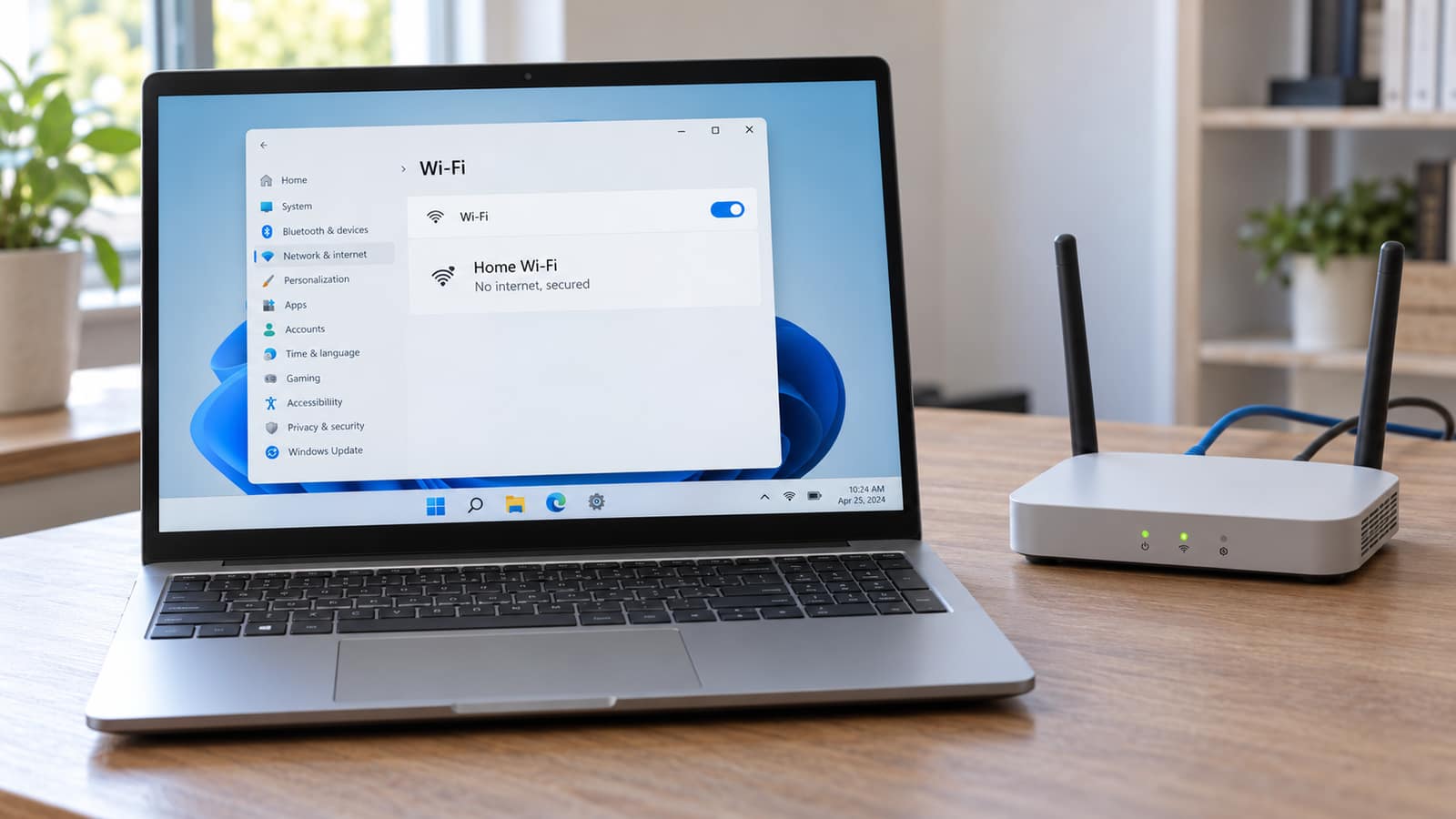
A slow computer still responds. Windows may take a long time to open a browser, a folder or a program, but the cursor moves and the task eventually finishes. A freeze means progress stops. A brief stutter can be a busy background task, low available memory, a storage pause or a graphics hitch. A full lock where the clock stops and keyboard shortcuts do nothing is more serious because Windows stopped responding.
Do not assume more RAM is the answer just because the machine feels sluggish. Memory can cause a freeze, but so can a failing SSD, a graphics driver, overheating, a power problem or software that starts with Windows. If the machine is merely slow, start with our guide to a slow computer. If it truly locks up, make a note of the pattern below before changing anything.
| What You See | Most Useful First Clue | Safe First Move |
|---|---|---|
| A pause of a few seconds, then Windows continues | Does it happen while opening files, switching apps or waking from sleep? | Check free storage, recent updates and the specific app involved |
| Mouse moves but an app or the taskbar will not respond | Is one program always involved? | Close that app after the freeze clears and check its update or add-ons |
| Everything locks and only the power button works | Did it start after hardware, a driver or a Windows change? | Record the timing and use Safe Mode or a clean boot to isolate software |
| Freeze only during games or graphics work | Does the display glitch, go black or recover after a moment? | Check graphics drivers, temperatures and power delivery |
| Freezes plus missing files, boot trouble or drive warnings | Is storage making noise or disappearing? | Stop stress tests and protect the files first |
The table narrows the investigation. It does not prove a part has failed without testing.
What To Do Right After The Next Freeze
When Windows comes back, resist the urge to install five driver-updater tools. Write down the time, the app you were using and anything that changed recently: a Windows update, a new monitor, a graphics driver, a USB device, an antivirus trial or a game. That small record is more useful than a generic optimizer because it gives you a before-and-after point to test.
- 1Save and back up the files that matter before testing further, especially if the freezes are getting worse.
- 2Disconnect any newly added USB device, dock, external drive or adapter for one normal work session. Do not open the PC or reseat internal parts while it is powered.
- 3Check Settings, Windows Update, then Update History. Note the date of the last update rather than blindly uninstalling everything.
- 4Open Device Manager and look for a yellow warning symbol. Update only the device tied to the problem or use the computer maker's support page for the correct driver.
- 5Leave at least 10 to 15 percent of the Windows drive free. Windows needs working room for updates, temporary files and its page file.
Microsoft recommends checking new hardware, Device Manager, available drive space and current Windows updates when a system is failing or restarting. Those checks are useful here too, but a random freeze needs context. The goal is to find one variable that changes the result, not to create ten more variables at once.
Use The Freeze Pattern To Narrow The Cause
Brief Freezes When You Open Files Or Folders
A short pause when opening folders, saving files or launching apps often puts storage high on the list. It can be as simple as a nearly full drive or a cloud-sync app catching up. It can also be an early storage fault, particularly when files take longer to open than before, File Explorer hangs or the PC occasionally says a drive cannot be found. A hard drive that clicks, beeps or repeatedly disappears should not be benchmarked or scanned over and over. Treat the data as the priority and read our clicking-drive guide first.
An SSD does not make the same mechanical noise, but it can still become unreliable. A freeze paired with a No Bootable Device message, a missing Windows drive in BIOS or files that suddenly vanish is not a normal Windows tune-up job. Shut the machine down and consider a data recovery assessment before a reset or reinstall writes more to the drive.
Freezes When Gaming, Streaming Or Using Two Screens
Graphics-heavy work puts the display driver, GPU temperature and power delivery under more pressure than email or web browsing. A frozen game with a working Windows desktop is different from a whole-PC lock. Notice whether the screen goes black for a second, whether you hear audio continue or whether the system recovers after Windows refreshes the display driver. Do not use a random driver-updater website. Start with Windows Update or the laptop or graphics-card maker's current driver, and change one driver at a time.
If the problem began after a graphics change, a second monitor, dock or high-refresh display setting is a useful clue. Test the computer once with the extra screen and dock disconnected. A gaming PC that freezes only under load may also need its cooling, graphics card and power supply checked together. That is the kind of fault where a gaming PC repair inspection is more useful than buying a new graphics card on a guess.
A Full Lock With No Blue Screen Or Error
A hard lock with no blue screen can still be caused by software. A bad startup program, third-party security tool, device driver or background utility can freeze Windows before it has time to make a useful crash report. It can also be memory, a power fault or storage that briefly stops responding. The absence of a blue screen does not prove the hardware is fine, but it does mean you should isolate the software side before replacing parts.
Do Not Turn A Hard Lock Into A Data Problem
If freezes are becoming more frequent, the machine has started losing files, it is clicking or it will not boot consistently, skip long stress tests and repeated forced restarts. Back up what you can or have the data assessed first. A reset cannot repair a physically failing drive and may make recovery harder.
The Safest Troubleshooting Order
Start With Recent Changes
Remove a newly installed app, accessory or driver only when its timing matches the first freeze. If the PC was stable until a USB dock, printer utility, antivirus package or graphics update appeared, that is a reasonable first test. If nothing changed, do not invent a culprit. Move to Safe Mode instead of uninstalling software at random.
Test In Safe Mode
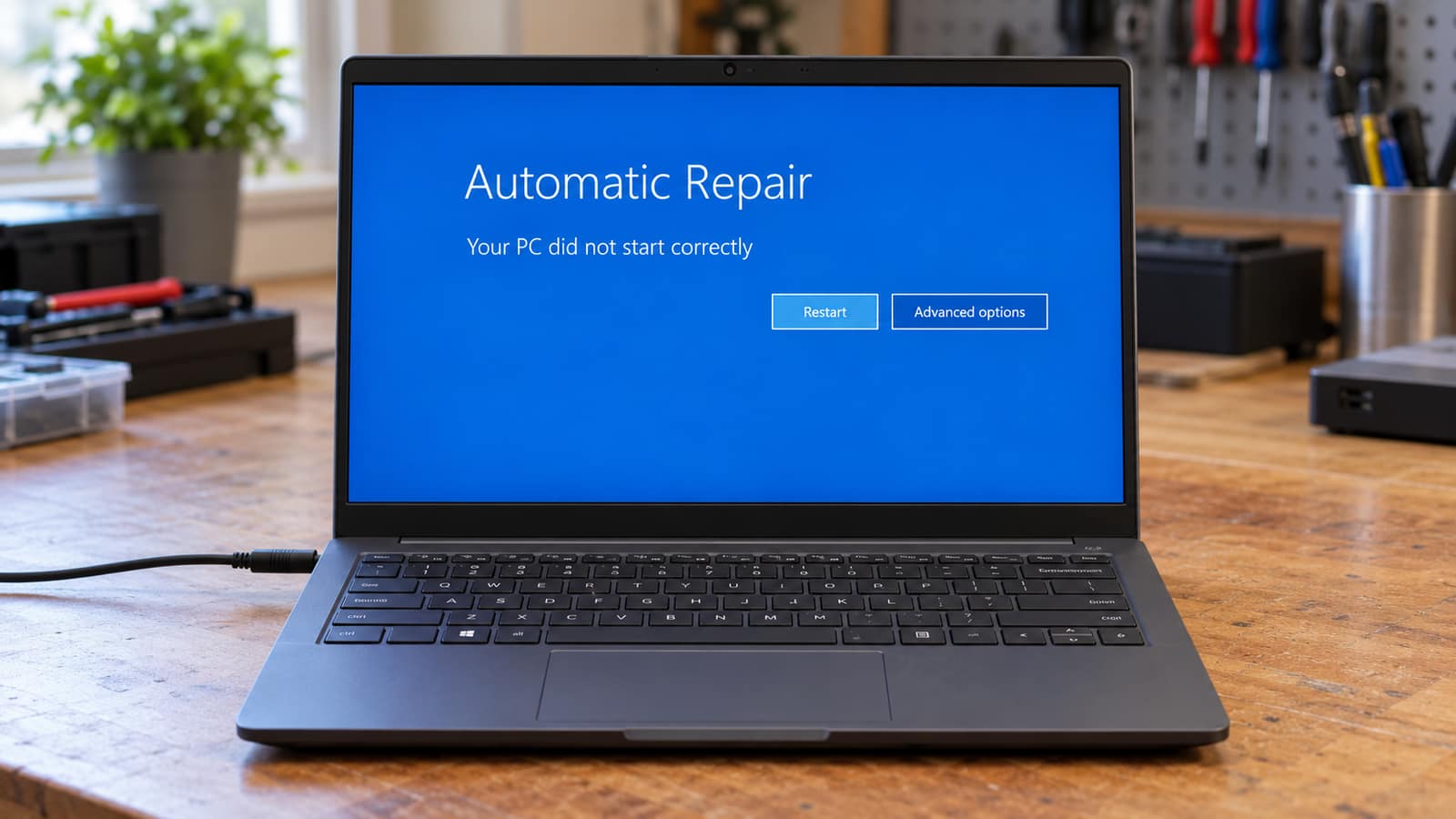
Safe Mode starts Windows with a limited set of drivers and services. In Windows Recovery, choose Troubleshoot, Advanced Options, Startup Settings, Restart, then select Safe Mode with Networking. If the computer is stable there, the result points away from the normal startup environment and toward a driver, startup app or service. It is a clue, not a final diagnosis. Safe Mode does not load every part of the system that a normal session uses.
If the PC freezes even in Safe Mode, or it cannot reliably reach Safe Mode, stop treating it as a simple app conflict. A full computer and laptop repair diagnostic can test memory, storage health, temperatures and power delivery without using your machine as a trial-and-error project.
Use A Clean Boot For A Software Conflict
A clean boot is more controlled than disabling random startup icons. Microsoft describes it as starting Windows with essential drivers and startup programs only, then adding services back in stages to find a conflict. It is useful when Safe Mode is stable but you need to identify which normal startup item causes the freeze. Take screenshots of what you disable so you can restore it later, and do not use clean-boot settings to change advanced boot options.
For a work computer with accounting software, a VPN, printer tools or security software, it is often safer to get remote support while you do this. A technician can help isolate the conflict without leaving the business PC stripped of something important.
When Memory, Heat Or Power Needs A Real Test
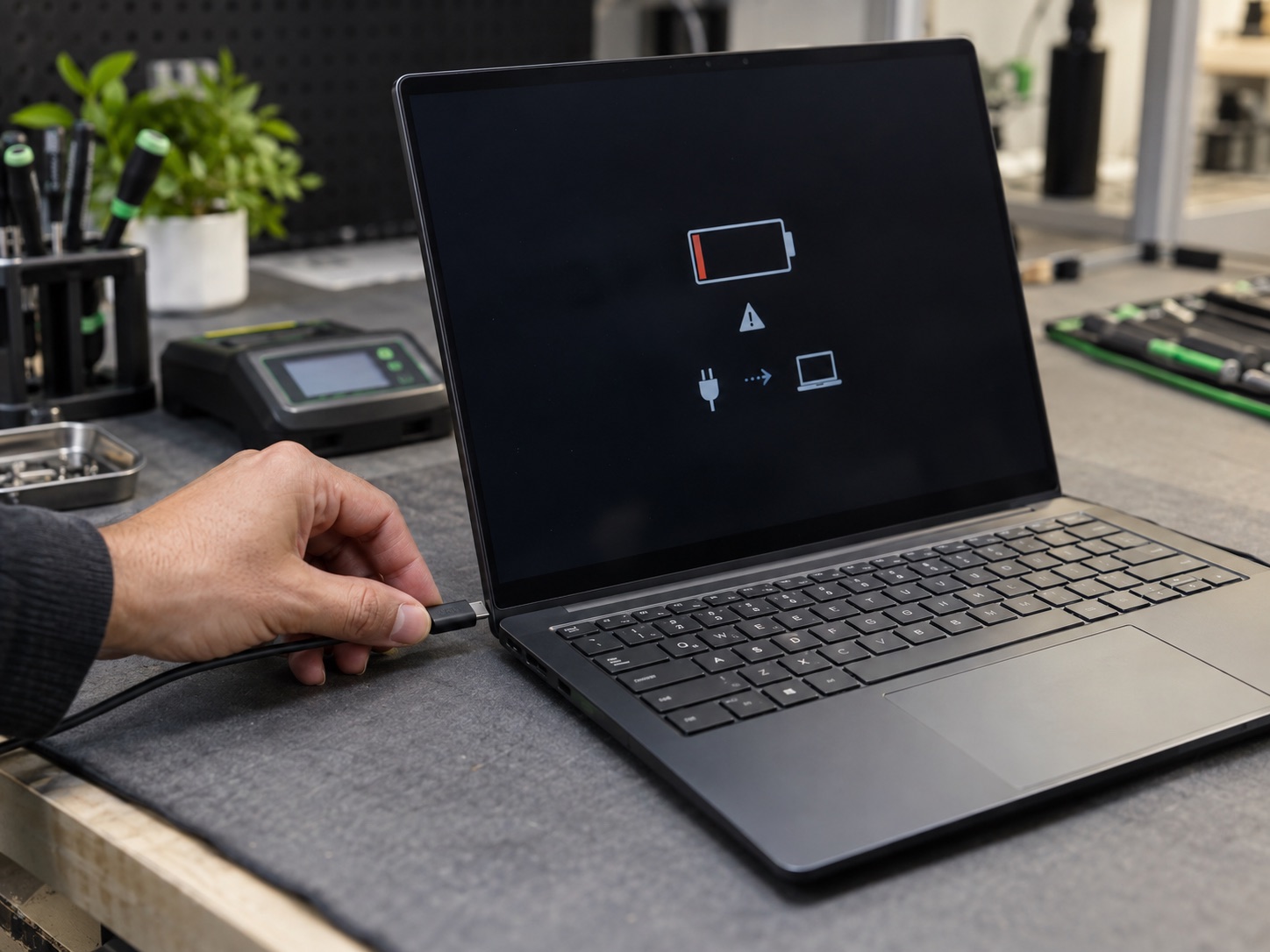
Memory trouble can show up as random freezes, application crashes or restarts, but a passed quick test does not prove every RAM problem is gone. Heat-related freezes usually have a load pattern: gaming, video editing or a hot room makes them happen faster. A power issue may show up only when the GPU and CPU draw more power together. These symptoms overlap, which is why changing RAM, thermal paste and the power supply all at once rarely tells you what actually fixed it.
For an older desktop, a targeted hardware upgrade may be the right result after testing: more memory, a replacement SSD or a cooling repair can make sense. For a laptop with a board-level power or graphics issue, the repair-versus-replace decision depends on the diagnosis and the value of the machine. Do not spend on parts until the failing subsystem is identified.
When To Stop Troubleshooting At Home
Book an assessment when freezes are getting worse, you have to hold the power button regularly, the drive is missing or noisy, the problem survives Safe Mode, the machine overheats, or the files are too important to risk. GeekzUP can separate Windows, driver, storage, memory and power faults, then explain the repair before work begins. Drop-offs do not need an appointment, and customers around Middle Tennessee can request pickup and delivery when carrying the computer is not practical.
A freeze is not a diagnosis. The best result comes from preserving the pattern, changing one thing at a time and stopping before a possible storage problem becomes a lost-data problem. If you want a technician to take over, our Hendersonville repair team can check the machine and give you a clear next step.
Frequently Asked Questions
Why Does Windows 11 Freeze Randomly With No Blue Screen?
A hard freeze can come from a driver or background software conflict, storage that briefly stops responding, memory instability, overheating or a power problem. No blue screen simply means Windows did not produce a stop-code screen. The pattern matters: note whether the freeze happens while opening files, after sleep, only in games or even in Safe Mode.
Can A Full SSD Cause Windows To Freeze?
A nearly full Windows drive can contribute to poor performance and update trouble because Windows needs room for temporary files and the page file. Freeing space is a sensible first check. But repeated freezes, missing files, boot errors or a disappearing drive need more caution because those can point to an unreliable storage device rather than ordinary low space.
How Do I Know If A Driver Is Causing The Freeze?
The strongest clue is timing: the trouble began just after a graphics, dock, printer, network or other driver change. Test with the related device disconnected if possible, check Device Manager for warnings and use Safe Mode or a clean boot to see whether the normal driver and startup environment is involved. Avoid bulk driver-updater tools because they change too many variables at once.
Is It Bad To Hold The Power Button When Windows Freezes?
A forced shutdown is sometimes necessary when the system is fully unresponsive, but it should not become the repair plan. Repeated forced shutdowns can interrupt writes and obscure the original issue. If you need to do it regularly, save important files first and investigate the cause rather than waiting for the next freeze.
Will Reinstalling Windows Fix Random Freezes?
It can fix corruption or a software conflict, but it is not the first answer. A reinstall does not repair failing RAM, storage, cooling or power hardware. Back up important files and use the less disruptive checks first. If the drive is unreliable, reinstalling Windows can fail or make a data recovery situation more difficult.
Should I Replace RAM If My Computer Keeps Freezing?
Only after testing points to memory. RAM is one possible cause, but storage, graphics drivers, heat and power can produce similar symptoms. Replacing parts based on a symptom alone can cost more and still leave the freeze unresolved. A diagnostic identifies the subsystem before you buy an upgrade.
Need Help With A Freezing Computer?
GeekzUP Team
Veteran-owned computer repair in Hendersonville, TN. Serving Nashville and Middle Tennessee since 2012.