
Fans spinning and RGB lighting do not prove your computer has started successfully. Separate a missing video signal from a startup failure before spending money on a graphics card.
Your desktop lights up, the fans spin and the monitor stays black. Before ordering a graphics card, establish whether the monitor is receiving a signal and whether the computer completes its startup checks. A powered fan is not proof that Windows loaded, that the power supply is healthy or that the GPU failed.
The useful first question is what you actually see: no monitor menu, a No Signal message, a startup logo that disappears or a black Windows desktop with a cursor. Those symptoms lead to different tests. Our gaming PC repair service looks at the complete system rather than treating every black screen as a graphics-card replacement.
Stop If There Are Electrical Warning Signs
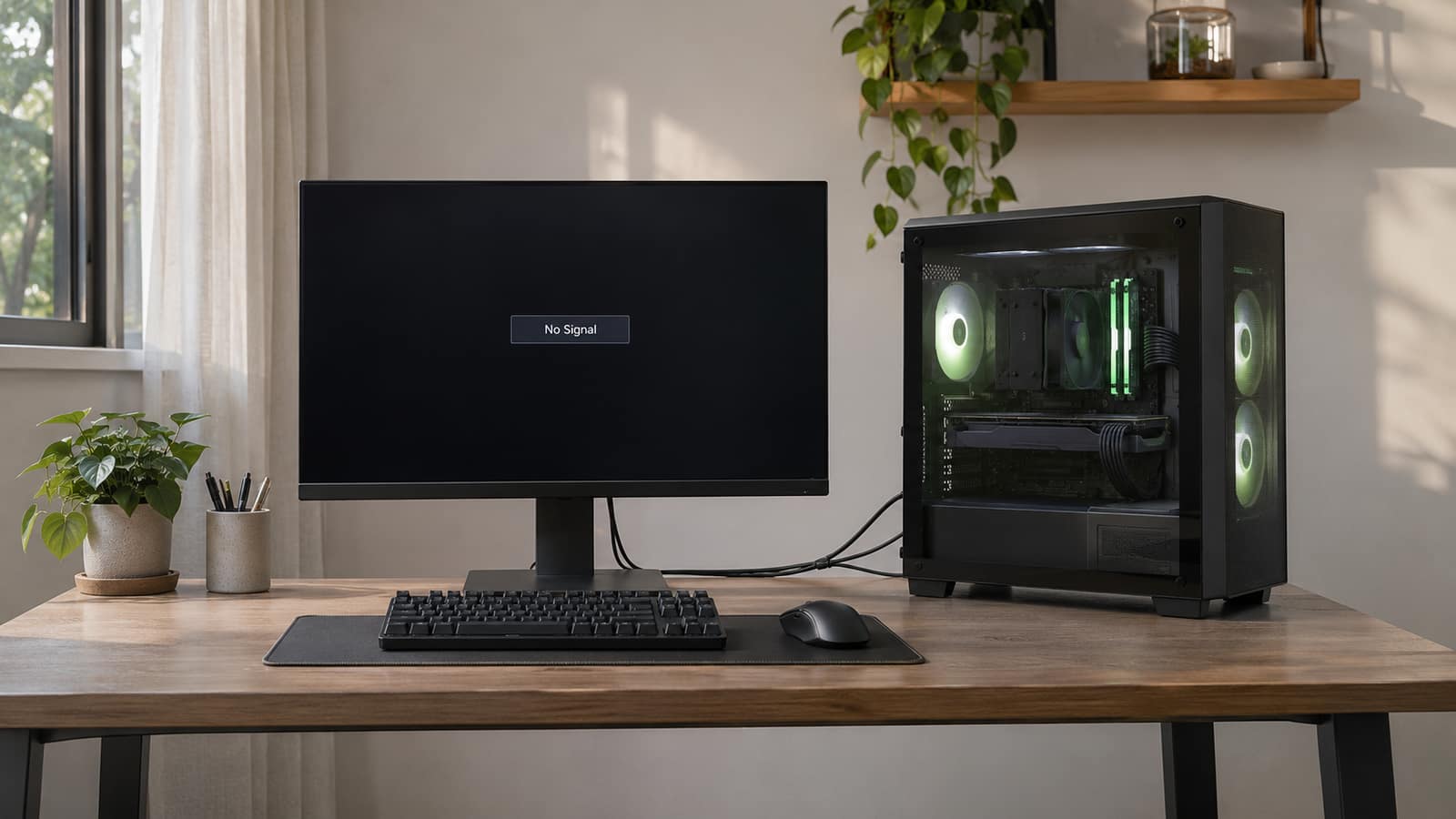
Burning smells, smoke, sparks, liquid damage or a visibly damaged power connector are reasons to stop testing. Switch off and disconnect power only if safe. Do not open the power supply, jump its pins or keep restarting the PC. The feature image is an illustrative generated scene, not a photograph of a customer repair.
Identify Which Kind Of Black Screen You Have
| What You See | Start Here | Do Not Assume |
|---|---|---|
| No monitor menu or power indicator | Monitor power, controls and its own instructions | That replacing the GPU will restore the screen |
| The monitor displays No Signal | Selected input, cable and the PC's video output | That the monitor or graphics card is definitely healthy |
| Fans run but no startup logo ever appears | External checks, then startup diagnostic indicators | That Windows is the first thing to repair |
| Startup logo appears, then the picture disappears | When the failure occurs and whether Windows loads | That the GPU must be physically broken |
| The problem followed a move or hardware change | The exact change, connections and compatibility | That every component now needs replacing |
These observations narrow the investigation. None identifies a failed component by itself.
If nothing in the case powers on, use our computer-won't-turn-on guide instead. A no-power problem is different from a running tower without a picture. This guide focuses on desktop PCs; a laptop with a built-in black screen has additional display and power considerations.
Check The Monitor And Cable Before Opening The Case
Begin outside the tower. MSI's no-display guidance includes checking monitor power, the video connection, the selected input and an alternative cable. A No Signal box shows that the monitor can draw its own message. It does not certify every input or prove the PC is sending usable video.
- 1Use the monitor's own buttons to open its menu. Check its power connection and follow its manual if no menu appears. Do not confuse a sleeping display with a switched-off monitor.
- 2Select the exact input your cable uses. HDMI 1 and HDMI 2 are different choices. Do not rely on automatic input switching while troubleshooting.
- 3Turn off the equipment before changing connections. Reseat the video cable at both ends without forcing it. Release any DisplayPort latch before pulling a connector.
- 4Use one monitor connected directly to the PC. Temporarily bypass a dock, adapter, KVM switch or extension so there are fewer unknowns.
- 5Try a known-working compatible cable. Then test another available output or display, changing one thing at a time and noting the result.
If the same monitor works with another device, record the input and cable used. That helps isolate the problem, but one successful test does not prove the original computer's graphics card is defective. Conversely, one working PC output does not establish that every port on the card works.
Is The Cable Plugged Into The Graphics Card?
A tower can have video ports in two places: the motherboard's rear connection panel and the separate graphics card's expansion-slot bracket. NZXT's desktop troubleshooting guide highlights this easy-to-miss distinction. With a dedicated GPU, use the card's output for the initial test, following the system's setup instructions.
Motherboard HDMI is not a guaranteed backup. The processor must support integrated graphics, and the board and configuration must support that output. A port can physically exist without being usable with your CPU. Do not remove the card or change BIOS settings just to test this without checking the exact model documentation.
Find Out Whether The PC Gets Through Startup
Before the operating system starts, the computer performs hardware initialization and checks, commonly called POST. A machine can light its fans while failing this stage. Note whether a manufacturer logo appears, whether the machine repeatedly restarts and whether a motherboard diagnostic light stays on. Photograph the label rather than guessing from its color.
Some boards have CPU, DRAM, VGA or BOOT indicators; others use numerical codes or beeps. Read the manual for that exact motherboard or prebuilt PC. An indicator identifies the area where startup stalled, not a guaranteed shopping list. A VGA light alone is not enough evidence to order a new card.
Tell the technician what changed immediately beforehand: a RAM upgrade, new GPU, cable move, BIOS change or power interruption. Preserve that sequence instead of trying several unrelated fixes together. A hardware-upgrade assessment can check compatibility and installation before you pay for replacement parts that may not solve the fault.
Treat Internal Checks As A Separate Step
If the simple external tests fail, do not start pulling parts from a powered computer. Shut down, disconnect mains power and follow the manufacturer's service and static-protection instructions before any internal access. If you are unfamiliar with the hardware, stop at recording the symptoms. Check the supplier's support process before opening a prebuilt system.
A technician may check memory seating, the graphics-card slot and required power connections, then test a supported minimal configuration. Which memory slot to use and which connectors are required depend on the actual components. The safe test is model-specific, not a generic instruction to move every RAM stick or force a connector until it fits.
Power-supply substitution needs particular care. CORSAIR explains that modular PSU cables are not universally interchangeable, even when connectors look alike. Use cables explicitly compatible with the replacement PSU. Reusing the old unit's internal cables without checking compatibility can damage hardware, including when both units carry the same brand.
Do not make clearing CMOS, flashing the BIOS, removing the CPU or shorting motherboard pins your next experiment. Those operations need a reason and the correct procedure. Our computer and laptop repair service can investigate a no-display system without turning the first visit into an unnecessary upgrade purchase.
If You See A Logo Before The Screen Goes Black
A picture before Windows starts changes the investigation. Record the last visible screen and whether a cursor or sign-in screen ever appears. A driver or display-mode problem becomes a possibility, but an intermittent hardware fault is not ruled out. Reinstalling Windows or buying a GPU is still premature.
Microsoft's blank-screen guide includes Windows + Ctrl + Shift + B to reset the graphics driver. Try that once only when Windows is running or reasonably believed to have loaded. It cannot fix a machine stuck before POST. If Ctrl + Alt + Delete displays the security screen, that is another useful observation to report.
If the failure began after a driver or system update, follow a Windows recovery path rather than random hardware changes. Our Windows startup-recovery guide explains the precautions before advanced recovery. Have your BitLocker recovery key available when applicable. Do not repeatedly interrupt startup, erase partitions or choose Reset this PC simply because the screen is dark.
What Would Actually Justify Replacing The GPU?
The diagnosis should distinguish a display-chain problem from a card fault. Useful evidence might include a known-compatible replacement card restoring video in the original system, with power delivery and connections checked, or the suspect card failing controlled testing elsewhere. No single symptom replaces that context. Compatibility, available power and the test setup all matter.
- What specific component or connection failed the tests?
- Which checks ruled out the monitor, cable, memory and power delivery?
- Does the proposed repair address the fault or simply upgrade performance?
- What parts and labor will be approved before work begins?
Compare the confirmed repair with the usefulness of the complete PC. Our repair-or-replace guide explains that decision without assuming a new computer is always better. If replacement makes more sense, compare suitable computers after diagnosis rather than buying a tower to fix what turns out to be a cable problem.
Protect Your Files And Bring Useful Information
A missing picture does not tell you whether the drive or your files are healthy. Avoid formatting or reinstalling as a first test. If stable access returns and the machine is safe to use, protect important files before further changes. Our backup-before-repair checklist helps you prepare; tell us if the machine holds the only copy of something important.
For service in Hendersonville and Middle Tennessee, provide the PC model or main component list, monitor model, exact screen message, diagnostic indicators and the tests already tried. Mention any recent upgrade or move. Ask which accessories to bring. Do not submit account passwords, BitLocker keys or other private credentials in booking notes.
GeekzUP labor is $80/hour for standard PCs and Macs or $100/hour for gaming PCs and laptops. Parts are separate. We inspect and diagnose the device before quoting the repair and confirm the work before approval. Book a service and describe the no-display symptoms so we can start with evidence, not a guessed GPU purchase.
Frequently Asked Questions
Why do the fans spin but there is no display?
Fans can receive power even when the computer cannot complete hardware startup. Monitor input, cabling, memory, graphics and power delivery all need consideration. Fan movement alone does not diagnose the fault.
Does No Signal mean my graphics card is dead?
No. It means the selected monitor input is not receiving a usable signal. Check the input, connection and correct PC output before treating the GPU as defective.
Why does my motherboard HDMI port not work?
The port depends on supported integrated graphics in the processor and a compatible board configuration. Check the exact CPU and system documentation. A visible HDMI socket does not guarantee working video.
Should I reseat RAM to fix a black screen?
Memory seating can be relevant, especially after a hardware change, but do not touch internal parts while powered. Follow the exact service manual and disconnect mains power first. If you are not confident, arrange diagnosis instead.
What if BIOS displays but Windows goes black?
That requires a different investigation from a PC that never shows a startup image. Record when the picture disappears, check Microsoft's Windows blank-screen guidance and protect files before recovery changes. It does not automatically require a new GPU.
GeekzUP Team
Veteran-owned computer repair in Hendersonville, TN. Serving Nashville and Middle Tennessee since 2012.