Full Wi-Fi bars do not tell you where the internet connection failed. Compare a second device, try the right checks and find out whether you need your provider, your router or your computer looked at.
The laptop says it is connected. The Wi-Fi bars look healthy. But websites do not load, your meeting will not connect and restarting a browser changes nothing. Before buying a router or resetting the computer, find out what the failure follows: one device, one network or one application. Those are different repair jobs, even when they produce the same frustrating message.
At GeekzUP, network troubleshooting starts with comparisons rather than a list of settings to erase. A laptop that works elsewhere tells a different story from a house where every device is offline. This guide covers Windows PCs and Macs, explains what each check can establish and helps you decide whether the next call belongs with your internet provider or a technician.
What Connected But No Internet Actually Means
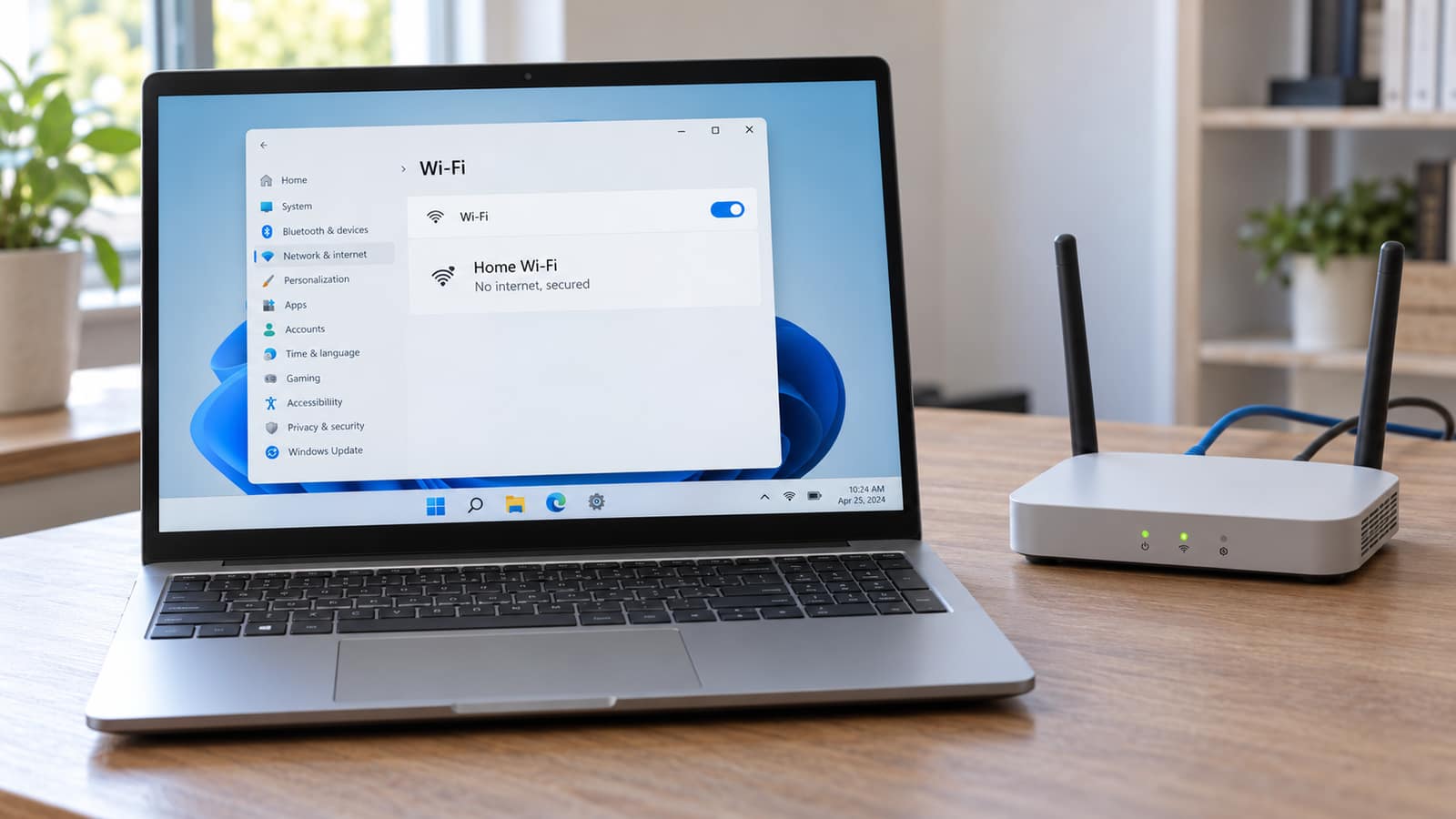
Wi-Fi connects your device to a nearby wireless network. Reaching a website also depends on the rest of the route, including local settings, the router and the internet service. A strong radio signal is not a test of that complete journey. Similarly, the word secured beside a network does not mean the provider's connection is working. TP-Link's explanation separates joining Wi-Fi from reaching the internet.
The status message is a clue, not the entire diagnosis. Microsoft's connectivity indicator uses network probes to help judge access. If several websites and applications work despite a No Internet warning, investigate the warning or the affected application before treating the whole network as down. Do not disable the connectivity checks just to make the icon look normal.
Make Three Comparisons Before Changing Settings
- 1Try two unrelated websites and another internet-dependent application. Note whether all access fails or only one service.
- 2Connect another device to the same named Wi-Fi network, in roughly the same location, and repeat the website tests.
- 3If permitted and practical, compare the affected computer on a different trusted network, or test a wired connection to your router. Record which comparison you used.
For the phone comparison, temporarily turn cellular data off while leaving Wi-Fi on. Otherwise the phone may appear to prove your Wi-Fi works while it is actually using its mobile connection. Apple's Wi-Fi Assist documentation explains this automatic fallback. Restore your previous cellular setting after the test. You do not need to disable mobile service for the rest of the day.
An optional personal hotspot test does use mobile data, so consider your allowance and workplace rules. Do not join an unknown open network just to complete a comparison. Working on a hotspot narrows the search toward the original network or its interaction with the device; it does not prove every component in the laptop is healthy.
| What You Find | Where To Look Next | What It Does Not Prove |
|---|---|---|
| Several devices fail on the same network | Provider status, modem/router and shared network equipment | That the router must be replaced |
| Only one computer fails | That device's settings, software and access to this network | That router policies cannot affect it |
| The computer works on another trusted network | The original network, saved profile and network-specific settings | That all hardware faults are ruled out |
| Only one website or app fails | That service, browser or required work connection | That all internet access is broken |
These are directions for investigation, not guaranteed diagnoses. Repeat the same checks after one change at a time.
If Several Devices Are Offline, Start Outside The Computer
Check Provider Status And Record The Equipment State
Using a separate working connection, check your provider's official outage or account-status page. Note when the interruption started and photograph the equipment lights before restarting anything. A recorded outage is useful evidence. An empty outage map, however, is not proof that the connection into your particular building is healthy. Keep the provider's incident number if you contact support.
Read the light labels and the manual for your exact equipment. Google documents different light meanings even between its own Wi-Fi models, so advice that every orange light means the same fault is unreliable. Identify whether you have one combined gateway or separate modem and router units before following a restart sequence.
Check Cables And Restart Only Equipment You Manage
Look for a loose power lead or visibly damaged Ethernet cable. Do not unplug unfamiliar fiber connections or move cables between ports at random. When equipment is not updating and a restart is appropriate, follow your provider's instructions. For separate modem/router arrangements, Microsoft's connection guide describes restoring the modem first, allowing it to reconnect, then starting the router. A combined gateway needs its own procedure.
Restart Is Not The Same As Factory Reset
Do not press and hold a recessed Reset button as a routine restart. A factory reset can erase network names, passwords and custom settings. Recovery may require provider or administrator information you do not have. Photograph settings and consult the equipment owner before considering that step.
For example, Google's factory-reset guidance explicitly warns that its Wi-Fi devices need to be set up again afterward. Use the documentation for your own model, not a generic button-holding time from an unrelated router.
In an office, coordinate the interruption before restarting shared equipment. Calls, payment terminals, security equipment and other people's remote sessions may depend on it. If the connection repeatedly returns and fails again, record the timing instead of assuming a new router is the answer. On-site support lets us assess the actual network, cabling and affected devices together.
If Only One Computer Fails, Keep The Changes Local
Start With A Restart And The Saved Network
Save your work, restart the affected computer and reconnect to the intended network. Check that you are not accidentally using a guest network with different access rules. If other devices continue working, keep the household router running while you investigate this machine. That preserves a useful comparison and avoids disconnecting everyone for a device-specific problem.
On Windows, try the Network and Internet troubleshooter in Get Help. For a personal Wi-Fi profile, Settings, Network & internet, Wi-Fi, Manage known networks lets you forget that network and reconnect. Have the password first. Ask the administrator before removing managed profiles or certificates. Microsoft's Wi-Fi troubleshooting guide documents these options; they are not a promise that every connection issue is a saved-profile fault.
On a Mac, check the date and time, then consider the built-in Wireless Diagnostics. Hold Option while clicking the Wi-Fi menu and choose Open Wireless Diagnostics. Apple's Mac connection guide also covers restarting and trying another network. Keep its findings rather than changing several advanced settings at once. A Mac repair assessment can distinguish a device-side issue from a connection that fails only at one location.
Separate VPN, Proxy And Application Problems
Did this begin after adding a VPN, a filtering application or work software? Record that change. Windows proxy settings are under Network & internet, Proxy, and a proxy may be required by an organization. Do not delete company settings, switch off the firewall or remove endpoint security to test a theory. Ask the administrator or software provider how to perform a controlled comparison.
If normal browsing works but your mail application does not, focus on that application, account or mail service instead of resetting the router. Our email setup service can help with that narrower problem. Likewise, a single unavailable website deserves a check in another browser and on another device before changing the entire network.
What Wired And Address Checks Can Tell You
If you have a suitable Ethernet port or adapter, a wired comparison can be useful. Use a known-working cable in a router LAN port, not the port reserved for its internet uplink. Temporarily turn Wi-Fi off on the computer so you know which path you are testing. Restore it afterward. Working Ethernet points toward the wireless path or its configuration, but does not by itself identify the failed part.
For a Windows address check without changing anything, open Terminal or Command Prompt and enter ipconfig alone. Microsoft's command reference explains the address and default-gateway information it displays. Look at the active Wi-Fi adapter, not a disconnected adapter or unrelated VPN. Keep relevant results for support rather than posting the full output publicly. Adding release or renewal switches changes the operation and can interrupt a remote session.
On a DHCP-configured Mac connection, Apple documents Renew DHCP Lease under System Settings, Network, the selected connection's Details, then TCP/IP. Do not replace a deliberately assigned static address with guessed values. If you do not know how the network is configured, collect the symptom and ask its owner before changing it.
DNS is the name-lookup part of a connection. If a technician needs a read-only Windows check, nslookup www.microsoft.com queries a name using the configured resolver. A returned address shows that query succeeded, not that every browser or secure connection works. A timeout needs investigation, not an automatic router replacement. Microsoft's nslookup documentation explains the tool. Avoid copying a public DNS setting into a managed network without approval.
Public Wi-Fi May Need A Sign-In First
At a hotel, airport or café, the wireless connection may exist before the network's sign-in or terms page is complete. Check the device's sign-in notification and confirm the network name with the venue. A portal problem is not evidence that your home router or laptop needs replacing. Stop if a supposed Wi-Fi login asks you to run commands or install unexplained software.
Know When To Stop Resetting And Get Help
A Windows network reset removes and reinstalls network adapters and restores settings. VPN clients and virtual networking may need reconfiguration afterward. Keep that disruptive option late, with a recovery plan, rather than applying it to every No Internet message. Similarly, do not uninstall a driver while offline unless the correct installer is available. There is no benefit in creating a second problem while investigating the first.
Bring the result of the comparisons, not just the description that Wi-Fi is broken: which devices failed, which networks were tested, whether Ethernet worked and which application showed the error. Add the time the issue began and any recent software or equipment changes. Computer and laptop repair is appropriate when the evidence follows the machine. Network solutions is the better starting point when it follows the location or shared equipment.
Remote support needs a working connection on the affected computer, perhaps through a permitted alternative network. Without one, hands-on help may be more practical. For homes and businesses in Hendersonville and Nashville, book the service that matches the problem and include your test results. Inspection comes before an accurate repair quote; you do not need to purchase replacement equipment just to find out where the fault is.
Frequently Asked Questions
Why does my phone work but my laptop has no internet?
First confirm the phone is using the same Wi-Fi network rather than cellular data. If it is, compare the laptop on another trusted network and investigate its settings and access rules. That result narrows the problem but does not prove a particular part has failed.
Do full Wi-Fi bars mean the internet is working?
No. Signal strength describes the wireless connection, not the complete path to the internet. Compare actual access on another device before replacing equipment.
Should I factory-reset my router?
Not as an opening step. Restarting and factory-resetting are different, and a factory reset can remove settings needed to reconnect. Consult the owner or provider before using the reset button.
Can GeekzUP help if the internet is completely down?
A remote session requires connectivity, but hands-on network assessment may be appropriate. If the provider reports a service outage, start there; a computer repair cannot restore a provider's unavailable service.
GeekzUP Team
Veteran-owned computer repair in Hendersonville, TN. Serving Nashville and Middle Tennessee since 2012.