A dead computer is usually not a dead computer. Work through these 8 checks, from power cable to RAM reseat, before assuming the worst. From the techs at GeekzUP Repairs in Nashville.
You press the power button and nothing happens. No light, no fan, no sound. Or the machine wakes up perfectly happily, the fans spin, the keyboard lights come on, and the screen stays black anyway. Either version produces the same first thought, and the first thought is almost always the expensive one. A large share of the dead computers that reach our bench in Hendersonville leave again after a charger, a reseat, a power supply or a cleared CMOS, and the owner had already priced a replacement in their head on the drive over.
What follows is the order we work in ourselves. It starts with the checks that cost nothing, moves into the ones that need a screwdriver, and finishes with the small number of faults where the correct action is to stop pressing the button entirely. Work top to bottom rather than jumping to the step that sounds most like your problem, because most of these checks only mean something once the one above has ruled something out.
Name The Symptom Before You Fix Anything
No power means nothing at all happens: no light, no fan, no noise. No boot means the machine runs but never reaches Windows or macOS. No display means it sounds completely alive while the screen stays black. These are three different faults in three different places, and treating them as one problem is why people replace parts that were never broken.
Three Different Problems Wearing The Same Coat
Before you touch anything, sit in front of the machine and watch it for ten seconds after you press the button. Is there a light anywhere? Does a fan move air? Is there a hard drive spinning up, a beep, a chime? The answers put you in one of three rows below, and the row decides which checks are worth your time.
| What it does | What you actually see | Where the fault usually lives | Start at |
|---|---|---|---|
| No power | Nothing at all, no light, no fan, no sound | Outlet, charger, power supply, board | Checks 1 to 3 |
| Power but no boot | Fans and lights run, no logo, no operating system | RAM, storage, BIOS settings, board | Checks 4, 7 and 8 |
| Power but no display | Sounds fully alive, screen stays black | Panel, video cable, graphics output, RAM | Checks 5 and 7 |
Telling a technician which of these three rows you are in is worth more than any other single piece of information you can give over the phone.
The Eight Checks, In The Order We Run Them
1. Prove The Outlet, Then The Cable, Then The Strip
It sounds too simple to be worth a step and it solves real cases every week. Plug a lamp into the same outlet and confirm the outlet is live. Then take the computer off the power strip and go straight into the wall, because a surge protector that has absorbed one hit will keep its light on and quietly pass nothing through. Storms in Middle Tennessee retire a lot of them. On a desktop, push the power lead firmly into the back of the machine and check the small rocker switch on the power supply has not been knocked from I to O, which happens every time someone moves a tower to vacuum behind it.
2. Laptops: Assume The Charger Until It Is Proven Innocent
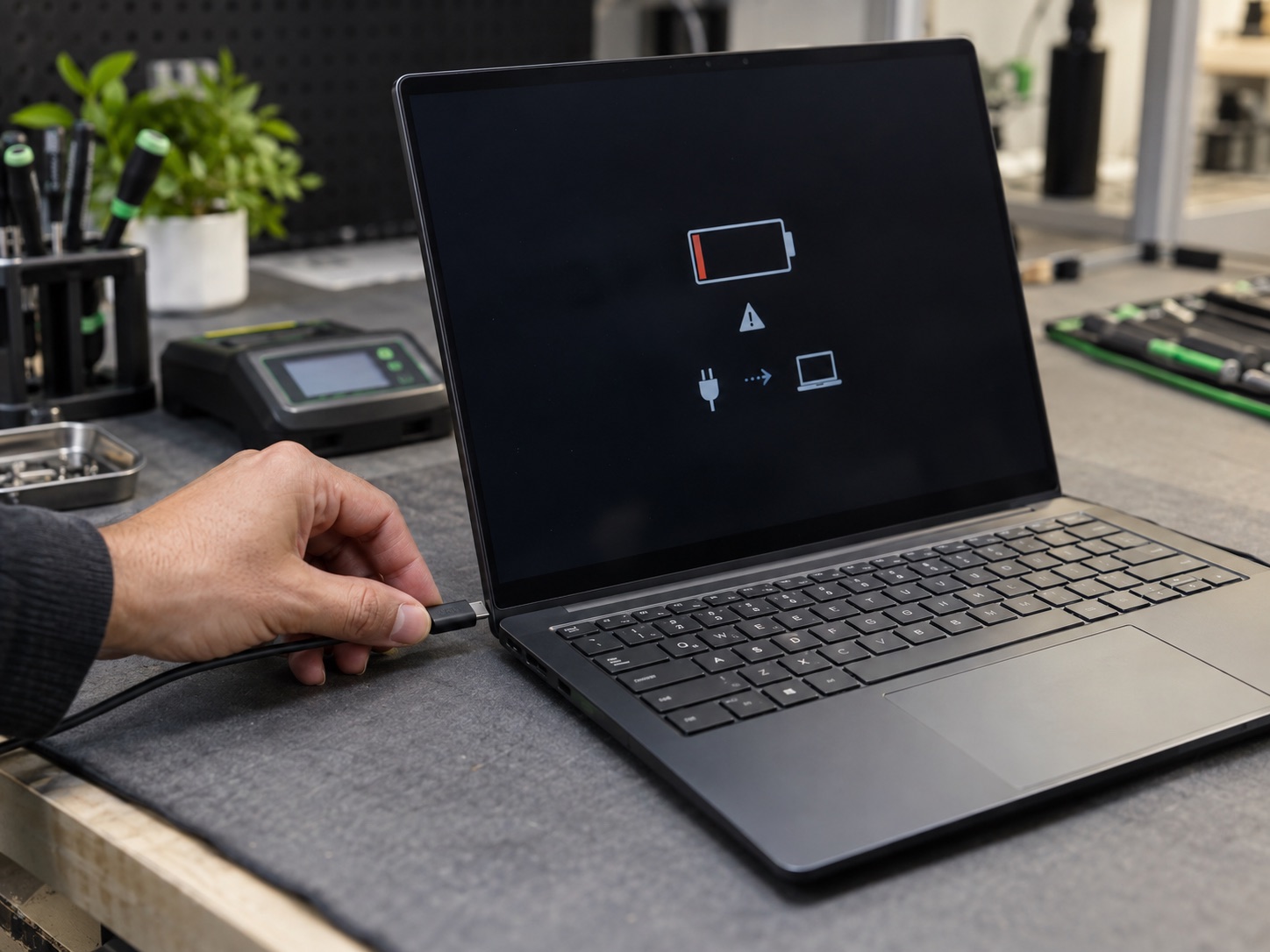
A laptop that will not power on is far more often a laptop that has been quietly running on nothing for a week. Look for the charge light when you plug in. No light is a strong clue, and so is a light that only appears when you hold the connector at a particular angle, which means the cable has broken inside its own insulation near the strain relief. Borrow a known good adapter of the right wattage if you can, and on a USB-C machine try both sides, since only some ports carry power on many models. A laptop that will not charge and a laptop that will not start are frequently the same fault at different stages. Third party adapters are the usual culprit: a genuine replacement typically runs $40 to $90 at market, and the $15 unit is a false economy that fails again in four months.
While you have it in your hands, put the laptop on a flat table and press each corner. If it rocks, or the trackpad has gone stiff and stopped clicking, the battery underneath has swollen. Stop there. A swollen cell needs battery replacement rather than another charging attempt, and it should not be left in a bag or on a bed in the meantime.
3. Do A Real Hard Reset, Not A Restart
Power states get stuck. The small controller that watches the power button holds a charge and can hang in a state where it refuses to start the rest of the machine, and no amount of pressing the button clears it. Unplug the adapter, remove the battery if it comes out without tools, then press and hold the power button for a full thirty seconds with nothing connected. That drains the residual charge sitting in the capacitors. Reconnect power on its own, leave the battery out if it was removable, and try again. This single step revives more apparently dead laptops than everything else on this list combined, and it costs nothing but half a minute of patience.
4. Listen To The Beeps And Read The Lights
A machine that powers on but never boots is usually trying to tell you why. A pattern of beeps, or a power light and caps lock light blinking in a specific rhythm, is a diagnostic code rather than a random fault. Count it: three long and two short is a different message from five short. Write the pattern down before you do anything else, because it will not always repeat. Most gaming motherboards go further and carry four small labelled LEDs for CPU, DRAM, VGA and BOOT, and whichever one stays lit is naming the component that failed its check. That single LED will often shorten a gaming PC repair from an afternoon of swapping parts to a ten minute confirmation.
5. Rule The Screen In Or Out With An External Monitor
Fans running, lights on, black screen. The computer may be completely healthy while only the display path is broken. Connect an external monitor or the living room TV over HDMI and press the input button. A picture there means the machine works and the fault is the panel, its cable or the hinge the cable runs through, which on a laptop is a routine screen repair rather than a new computer. One more test worth thirty seconds: in a dark room, shine a phone torch at the laptop screen at a sharp angle. If you can just make out the desktop, the panel and the graphics are both fine and the backlight has failed. On a desktop, confirm the monitor cable is plugged into the graphics card at the bottom of the back panel and not into the motherboard port above it, and try a different cable before you conclude anything.
6. Strip Every Accessory Off It
One shorted USB device can hold an entire machine down. So can a failing external drive, a docking station, an SD card left in the reader, or a second monitor whose cable has gone bad. Disconnect everything except power, and on a desktop the one monitor you are testing with. Try again. If it starts, add devices back one at a time and you will find the offender within a couple of minutes. Docks are the most common single answer here, especially the ones that also deliver power, because when a dock fails it can take the charging path down with it.
7. Reseat The Memory And The Power Connectors
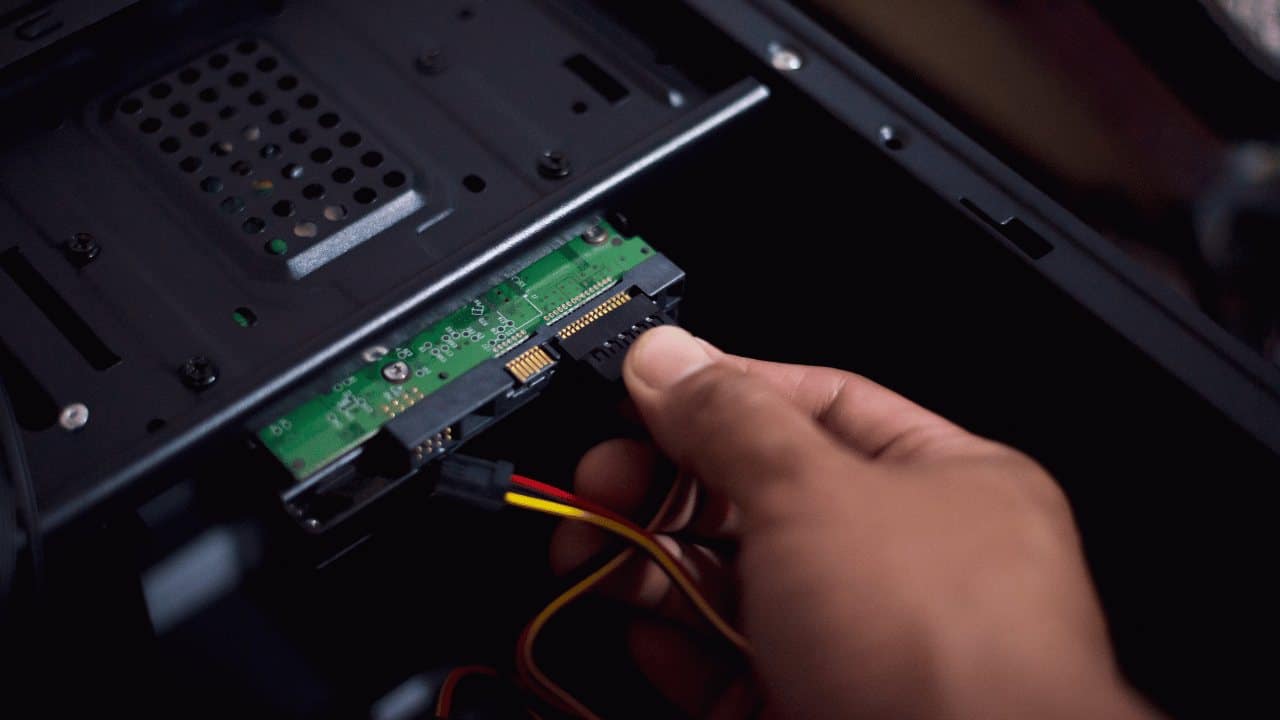
Memory works itself loose. Not often, but house moves, a knocked tower and years of heating and cooling all do it, and a module that is a fraction of a millimeter out will stop a computer dead with no display and no beep. With the desktop unplugged and the power supply switched off, press the clips at each end of a RAM stick, lift it out, and push it back in until both clips snap closed on their own. If there are two sticks, try booting with one at a time and in different slots, since a single failed module presents exactly like a failed motherboard. While the side panel is off, push the wide 24 pin connector and the 8 pin CPU connector at the top of the board back into place. The 8 pin is the one people forget after a build or a move, and a board with no CPU power does absolutely nothing when you press the button. If opening the case is not something you want to do, that is entirely reasonable, and it is exactly what a diagnostic exists for.
8. Clear The CMOS
A machine that powers up and stalls before the manufacturer logo is sometimes stuck on a setting rather than broken. A failed overclock, a memory profile the board cannot actually run, a boot order pointing at a drive that is no longer there: all of them look like dead hardware from the outside. With the machine unplugged, take out the coin cell battery on the motherboard, hold the power button for thirty seconds to drain the board, wait five minutes and put it back. Many boards also have a labelled clear CMOS jumper or a button on the rear panel that does the same job faster. On an older desktop, a coin cell that has simply died shows up as a clock that resets to a date years ago every time the machine is unplugged, and it is a $2 to $5 part at any hardware counter.
Desktops: Deciding Whether The Power Supply Is The Fault
On a tower that is genuinely dead, with no light on the motherboard at all, the power supply is the leading suspect. There is a rough field test: with everything unplugged from the wall, disconnect the 24 pin connector from the board, bridge the green wire to any black wire with a paperclip, then plug in and switch on. If the supply fan spins, the unit will at least start. Understand what that does and does not prove. It shows the unit is not completely dead. It says nothing about whether the rails hold voltage under real load, which is the failure mode that produces a computer that runs for ten seconds and dies. A proper answer needs a tester or a known good replacement unit, which is one of the reasons a bench diagnosis beats guesswork. A decent mid range unit runs $70 to $120 at market, and an aging no-name supply is worth replacing on sight rather than nursing, because when they fail badly they can take the motherboard with them.
Before you condemn the supply, rule out the button. The front panel power switch is two thin wires on a small connector labelled PWR_SW on the motherboard. Briefly touch a screwdriver across those two pins with the system plugged in and switched on. If the machine starts, the power supply and the board are both fine and the case button or its wiring has failed, which is one of the cheapest repairs there is.
Macs Do Not Fail Quite The Same Way
On Apple silicon there is no separate reset ritual to learn. Hold the power button down for ten seconds, release it, wait a few seconds and press it normally. On an Intel MacBook the equivalent is the SMC reset, and on both, the more useful check is the charger itself, taken in two halves: the brick and the cable are separate failures and swapping only one of them proves nothing. A Mac that chimes or shows a backlight glow while the screen stays dark is a display path problem rather than a logic board problem. It is also worth knowing before you start that most current models have storage soldered to the board, so a Mac repair conversation about a machine that will not power on is also a conversation about where the backup is.
Stop Now If Any Of This Is True
There is a short list of situations where the next press of the power button is the one that turns a repair into a replacement. A burnt electronics smell, a pop or a buzz from inside the case, visible scorching, a machine that died during a storm or a flicker, a swollen battery, a drive clicking rhythmically, or any spill in the past week. In all of those, unplug it and leave it alone. Liquid damage in particular gets worse every time current runs through wet contacts, and a machine that survived a spill last night can be killed by an eager test this morning.
The Mistake That Turns A Repair Into A Replacement
Pressing the power button twenty more times. When a component has shorted, every attempt pushes current through the fault and widens the damage, and a board that could have been cleaned and repaired on Monday becomes a board that gets replaced on Friday. One or two attempts tell you everything a hundred will. If nothing changes after the checks above, the machine is not going to be argued into starting.
What Actually Fails, And What It Takes To Put Right
| Fault | Typical sign | What it takes | Data at risk |
|---|---|---|---|
| Failed charger or adapter | No charge light, laptop completely flat | Replacement adapter, $40 to $90 at market | No |
| Dead or swollen battery | Runs only on mains, or the case is bulging | Battery replacement | No |
| Power supply failure | Tower entirely dead, sometimes a smell | New unit, $70 to $120 at market | No |
| Failed memory module | Beeps or a blink code, no display | Reseat, or replace one stick | No |
| Failed storage drive | Powers on, reports no boot device | New drive, clone or clean rebuild | Yes |
| Screen, cable or backlight | Alive but black, external monitor works | Panel or cable replacement | No |
| Surge or liquid damage to the board | Dead after a storm or a spill | Board level assessment, sometimes replacement | Usually recoverable |
Part figures are typical market prices for the hardware itself, not GeekzUP quotes. What your repair costs depends on the machine, and you get that number before any work starts.
When To Stop And Bring It In
- You worked the eight checks and nothing changed at any step.
- There are repeated beeps, a blink code you cannot interpret, or clicking from inside.
- Anything smells burnt, looks scorched, or made a noise it has never made before.
- The machine died during a storm, a power flicker, a spill, or a drop.
- It powers on happily but Windows or macOS never appears.
- It starts, runs for a few seconds, and shuts itself off again, repeatedly.
- The files on it matter more than the machine does, which is true more often than people admit.
What The Diagnostic Actually Covers
Our diagnostic is $100 for PCs and Macs and $125 for gaming laptops and desktops, and it is applied to the repair, so the testing is not money spent twice. It is not a guess with a multimeter. We power the board on a bench supply, substitute known good parts one at a time to isolate the failing one, test the storage separately from the machine it came out of, and confirm the fix under load rather than declaring victory at the desktop wallpaper. You get a plain explanation of what failed and a quote you approve before anything is ordered or opened further, and the work carries a warranty on parts and labor. Drop-offs need no appointment.
Data comes first when there is any doubt. If the drive is healthy, we can pull your files off before you decide anything about the machine, which changes a stressful decision into a straightforward one. If the drive is the fault, data recovery starts at $99 and we tell you honestly whether it is a bench job or a case that belongs in a specialist lab. The whole job stays in-house on the same computer and laptop repair bench from the first look to the last test, and we confirm timing after the evaluation.
Two practical notes. A machine that will not turn on cannot be helped remotely, so if you have found a remote session offered for this symptom anywhere, it will not work: something has to be physically tested. For a desktop under a desk full of cables that nobody wants to disturb, on-site support is $125 per hour with no minimum and we come to you, across Hendersonville, Gallatin, Nashville and the rest of Middle Tennessee. And the payment side is published rather than sprung on you at the counter: cards carry a 3.5 percent fee, while cash, CashApp, Venmo, Apple Pay and Zelle carry none.
Making The Next One Less Likely
- Replace surge protectors every few years. They wear out absorbing hits and give no sign that they have stopped protecting anything.
- Put a desktop on a small uninterruptible power supply. It costs less than one board replacement and it rides out the brownouts that do the real damage.
- Buy the manufacturer's charger, or a reputable equivalent at the correct wattage. Cheap adapters are the single most common part we replace.
- Route the charger so the cable is not bent hard at the plug. Nearly every dead cable fails within two inches of the connector.
- Keep vents clear and the machine off soft surfaces. Sustained heat ages power components long before it ever shows as a crash.
- Back up on a schedule, not on a feeling. A computer that will not turn on is only a crisis when the only copy of everything is inside it.
A computer that will not turn on is, in the great majority of cases, a computer with one failed part and six healthy ones. The trick is finding out which is which before you spend anything, and doing it without making the situation worse in the process.
Frequently Asked Questions
Why does my computer turn on but show nothing on the screen?
The fault is usually the panel, the video cable or the graphics output rather than the computer. Connect an external monitor or a TV over HDMI. A picture there proves the machine is working and narrows the problem to the screen path, which is a common and very fixable repair.
Can a dead computer still have its files recovered?
Almost always. Whatever killed the machine, the storage drive normally survives it, and the files can be read outside the computer. Recovery starts at $99. The one thing that reduces your odds is repeated power-on attempts on hardware that has shorted, so stopping early is genuinely worth something.
Why did my PC die after a storm?
Surges take out the power supply first and the motherboard second, and a surge protector that already absorbed one hit will pass the next one straight through while its light stays on. Do not keep trying to start it. Have it tested, and replace the protector at the same time.
How much does it cost to fix a computer that will not turn on?
It depends entirely on which part failed, which is why testing comes before pricing. The diagnostic is $100 for PCs and Macs, $125 for gaming systems, it is applied to the repair, and it produces an exact quote that you approve before any work begins.
How long should I hold the power button to reset a computer?
Thirty seconds, with the charger unplugged and the battery out if it is removable. You are draining residual charge from the capacitors and clearing a stuck power state, not forcing a shutdown, so the usual five second press is not long enough for this purpose.
My computer turns on for a few seconds then shuts off. What is that?
A short power-on followed by a shutdown usually points at the power supply failing under load, a CPU cooler that is not seated, or a short somewhere on the board. It is a protection circuit doing its job. Repeating it does not help and can widen the damage, so this one is worth bringing in rather than retrying.
Is it the motherboard or the power supply?
You cannot tell from the outside, which is why swapping parts on a hunch gets expensive. A dead supply and a dead board both produce a tower that does nothing. The reliable answer is substitution with known good parts on a bench, and that is a diagnostic rather than a guess.
Should I try opening my laptop myself?
For a charger swap or an external monitor test, no tools are needed and you should absolutely try. Beyond that, modern laptops use ribbon cables and clips that break easily, and a battery that has swollen is a genuine hazard to puncture. If the eight checks did not solve it, the next step needs the case open on a bench.
GeekzUP Team
Veteran-owned computer repair in Hendersonville, TN. Serving Nashville and Middle Tennessee since 2012.