A restart loop or Automatic Repair screen does not automatically mean your files are gone. Check what failed, protect your data and choose the right recovery option before resetting Windows.
Windows installed an update, restarted and never reached the sign-in screen. Now you see spinning dots, repeated restarts or Automatic Repair. Before choosing Reset this PC, establish two things: whether your important files exist somewhere else and whether the drive needs a BitLocker recovery key. Getting Windows running is important. Keeping your only copy of family photos or business records matters more.
Start with the symptom, not a random repair command. A computer that will not power on needs a different investigation from one that reaches Windows Recovery. At GeekzUP, computer and laptop repair starts by identifying that difference, then deciding which changes are justified. This guide gives you stopping points as well as recovery steps.
What The Latest Update Reports Actually Show
Research checked October 20, 2026: Microsoft's public release history lists the October 13 security release for the applicable Windows 11 servicing family. Microsoft subsequently released KB5127936 on October 16 for versions 25H2 and 26H2 in the Insider Release Preview channel. That is not the same as a general public rollout, and its release notes do not establish a new widespread boot failure.
A recent first-person report describes Dell computers failing to boot after October updates deployed through Automox, while updates installed manually through Windows Settings reportedly succeeded. The original post does not name the package or establish the cause. It is a deployment-specific report, not Microsoft confirmation that every updated PC is affected, and it does not implicate the October 16 preview.
The timing is useful evidence, but it is not a diagnosis. Record what changed and the exact error instead of assuming that removing whichever update is newest will solve it. This article is a recovery guide, not a claim that a newly confirmed patch defect exists.
The focus here is a startup failure following an update and the recovery choices available now. If there is no clear update connection and Windows repeatedly returns to Preparing Automatic Repair, our automatic repair loop guide covers that broader symptom separately.
Match Your Screen Before Trying A Fix
| What You See | What To Do First |
|---|---|
| Update, firmware or recovery progress is still running | Keep power connected. Do not interrupt an active operation to force recovery. |
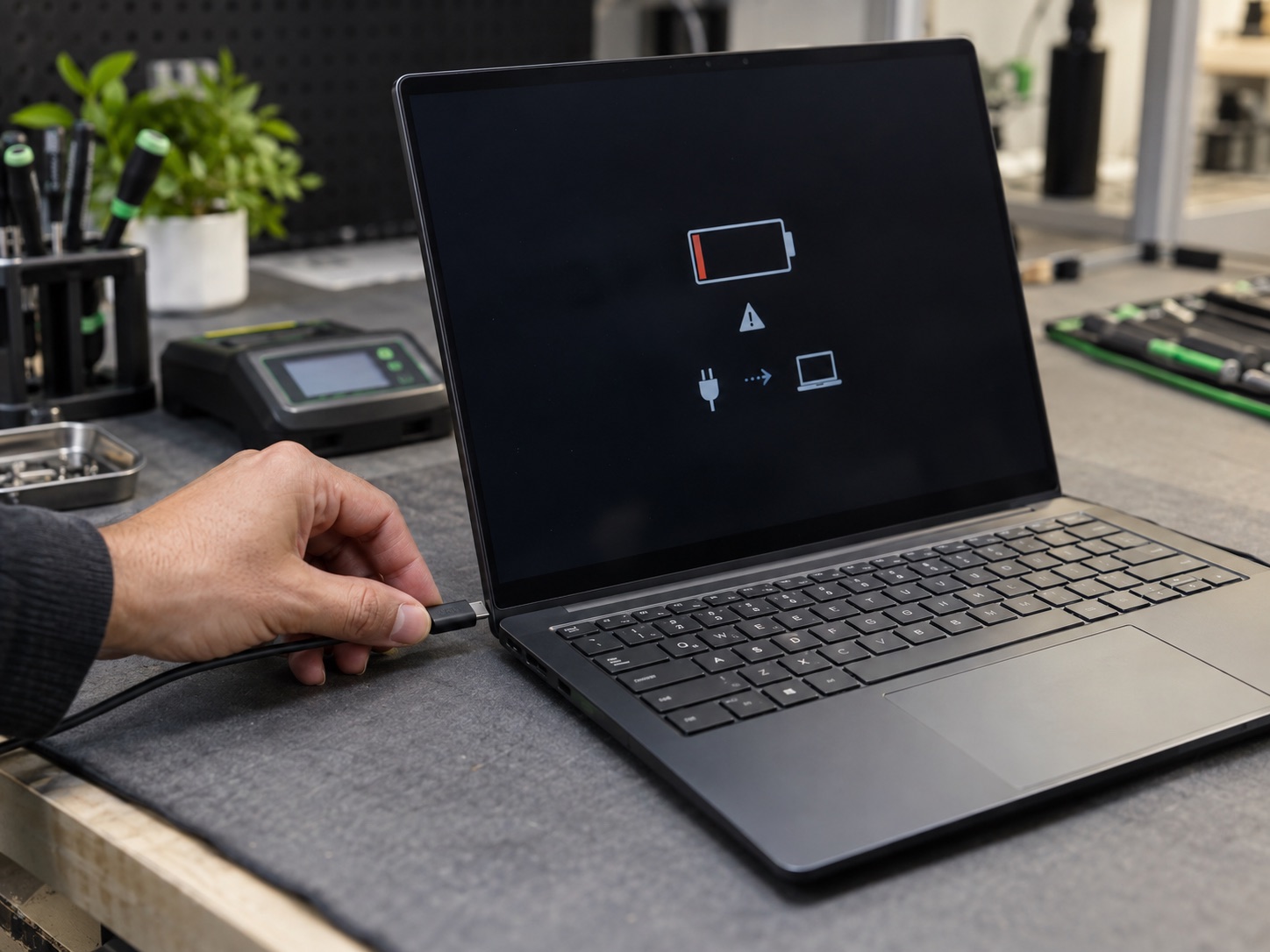
| No lights, no fan and no image | Check power and charging before attempting Windows recovery. |
| Fans run but the screen stays black | Investigate the display path as well as Windows startup. |
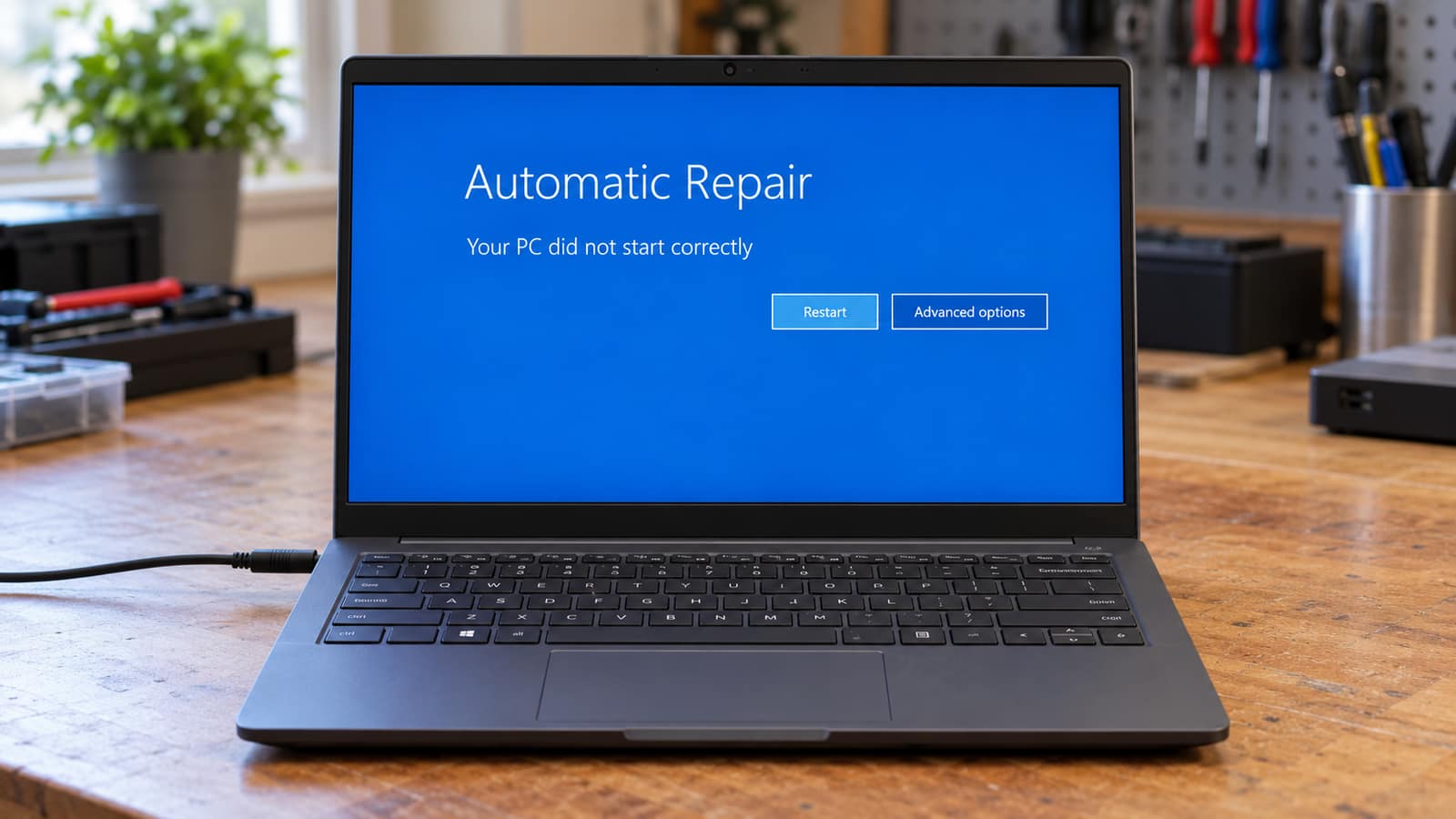
| Automatic Repair or a repeated Windows restart | Record the error, check backups and locate the recovery key. |
| BitLocker asks for a recovery key | Match the key ID with your saved recovery key before proceeding. |
These observations guide the next check. None proves which component or update caused the failure.
Use the computer won't turn on guide for a machine with no signs of power. If the machine sounds alive but has no image, start with the black-screen display checks. A visible stop code belongs in your notes; our blue-screen troubleshooting guide explains why the exact wording matters. Do not treat those three situations as the same boot loop.
Protect Your Files And Find The Recovery Key
- 1Photograph the complete error, including its code. Note the last successful startup and what happened immediately before the failure.
- 2Check backups from another device and identify which important files exist only on the affected computer.
- 3Locate the recovery key before approving changes. Write down what you try and the result of each attempt.
From another device, open your backup or cloud account and check that the actual files are present and current. A folder named OneDrive on the broken PC does not prove its contents finished uploading. If Windows starts even once and the drive behaves normally, copy essential files before experimenting further. Check that the copied files open on another device.
If there is no backup, say so before anyone resets or reinstalls Windows. Unreadable folders, a disappearing drive or unusual mechanical noises change the priority from repairing Windows to assessing the storage. Our data recovery service is a separate conversation from simply making the computer boot; neither recoverability nor a successful repair can be promised without assessment.
BitLocker recovery uses a 48-digit key, not your normal sign-in PIN. Follow Microsoft's recovery-key instructions from another device, check the account used to set up the computer and match the displayed key ID. Also check saved or printed copies. For a work or school device, contact the organization that manages it. Do not post the key in a public forum.
Missing Key? Do Not Reset Just To Get Past The Prompt
Microsoft cannot recreate a lost BitLocker recovery key. A technician cannot promise to bypass encryption either. If the encrypted drive holds your only copy of important files, stop and investigate the key and backup options before accepting a data-removal warning.
Reach Windows Recovery Without Starting A Reinstall
If Automatic Repair is already showing, select Advanced options. If you can reach the sign-in screen, hold Shift while choosing Power, then Restart. Microsoft's Windows Recovery Environment guide also explains entry using Windows installation media created on another working PC. In setup, choose the repair option, not the installation path.
Microsoft documents interrupting normal startup twice to request recovery on the third start. That is not permission to power off during an update, firmware update, reset or restore. If you cannot tell which operation is running, stop rather than repeatedly cutting power. If recovery does not appear, use the documented installation-media route or get help instead of escalating the shutdown cycle.
Photograph the menu and any error before changing anything. Menu names can vary by Windows build and device configuration. If your screen differs, do not choose a vaguely similar destructive option. Opening the recovery menu is not itself a decision to reset the computer.
Choose A Recovery Tool For The Evidence You Have
Try Startup Repair For A Startup Failure
With backups and the key considered, select Troubleshoot, Advanced options, then Startup Repair. Microsoft's Startup Repair documentation describes automatic checks for problems such as damaged system files and boot configuration. Allow the operation to finish and record its result. If it cannot repair the PC, that does not establish that the SSD is dead or that a reset is necessary.
Consider Update Removal Only When The Timeline Fits
For a failure immediately following a monthly update, WinRE offers Troubleshoot, Advanced options, Uninstall Updates, then Uninstall latest quality update. Microsoft's uninstall guidance warns that security-update removal carries risk and some packages cannot be removed. This is a targeted troubleshooting choice, not a recommendation for every PC. On a managed device, ask the administrator before changing its update state.
A feature-version rollback is different from removing a monthly quality update. Do not choose it merely because its button is nearby. If removal fails, keep the message rather than deleting packages manually. Once recovered, arrange a supported update path; leaving security updates disabled indefinitely is not a completed repair.
Check Which Restore Tool You Are Opening
System Restore can reverse recent system, driver and program changes using an existing restore point without rolling back personal documents. In WinRE, look under Troubleshoot, Advanced options, System Restore. Review the date and affected programs before confirming. No suitable restore point means this route is unavailable, not that your files are gone.
Do not confuse it with the newer point-in-time restore experience. Microsoft describes that option as restoring the entire system state, including personal files, so changes made after the selected point can be lost. Read the actual warning and protect newer files first. Similar names do not mean the same data-retention behavior.
Use Safe Mode To Narrow The Investigation
Under Advanced options, choose Startup Settings, Restart, then the listed Safe Mode option. Microsoft's startup-settings guide explains that Safe Mode loads a limited set of files and drivers. If it works, record that result and prioritize accessible files. It narrows the investigation; it does not prove every hardware component is healthy. Do not enable options that disable driver-signature or malware protection as a routine shortcut.
Reset, Cloud Download And Cloud Rebuild Are Different
Before approving a reinstall, read Microsoft's reset options. Keep my files is intended to retain personal files but removes apps and settings. Remove everything removes personal files too. Cloud download and Local reinstall describe where Windows installation files come from, not whether your documents are retained. Back up first even when the chosen option says it keeps files.
Cloud rebuild is a separate preview feature covered in the October 16 Release Preview notes. Microsoft's Cloud rebuild documentation says it reformats the system disk and removes local files, accounts, apps and settings. Microsoft limits this preview to evaluation on non-production devices. It is not a file-preserving rescue button or an option every Windows 11 PC currently has.
If Windows does start, another option may be available: Fix problems using Windows Update under System, Recovery. Microsoft says that reinstalling the current version this way preserves apps, files and settings. It needs a working Windows session, power and internet, and availability varies, including on managed PCs. It is not the same as booting a USB installer and starting over.
When To Stop And Have The PC Checked
Stop when files are irreplaceable and unbacked-up, the encryption key is missing, the drive behaves inconsistently or the next instruction involves formatting, partition changes or firmware resets. A copied command list cannot inspect your particular storage layout. Keep a record of each completed attempt so the next person does not repeat changes without knowing their results.
Remote support requires Windows to run well enough for the connection and support software. A PC stuck before sign-in may need hands-on work instead. For an office with multiple affected computers, on-site support can help investigate the shared update or deployment pattern without assuming every machine has the same physical fault.
Customers in Hendersonville and Nashville can bring the computer and charger, or ask about pickup and delivery. Include the error photo, last successful startup, backup status and any recovery attempts. Book a diagnostic so we can inspect the device before quoting repair work. Our payment policy explains charges and approval. A startup symptom alone cannot determine the final repair price.
Frequently Asked Questions
Does a boot loop mean my files have been deleted?
No. Failure to load Windows does not establish whether personal files remain readable. Check backups and encryption before making changes, and do not choose a reset just to find out.
Should I uninstall the latest Windows update immediately?
Not automatically. Match the failure to the installation timeline and consider the security implications. Some updates cannot be removed, and a hardware or display fault needs a different investigation.
What if I cannot find my BitLocker recovery key?
Check the setup account, saved copies and any organization managing the device. Microsoft cannot recreate the key. Do not approve erasure if you still need the encrypted files.
Can GeekzUP fix a boot loop remotely?
Only if the computer can run the necessary support connection and software. If Windows cannot get that far, hands-on assessment is usually the appropriate route. A successful recovery is not guaranteed.
GeekzUP Team
Veteran-owned computer repair in Hendersonville, TN. Serving Nashville and Middle Tennessee since 2012.