
A missing drive does not automatically mean your files are gone. Before accepting a format prompt, find out whether the computer detects the disk and whether your next step could change the only copy of your data.
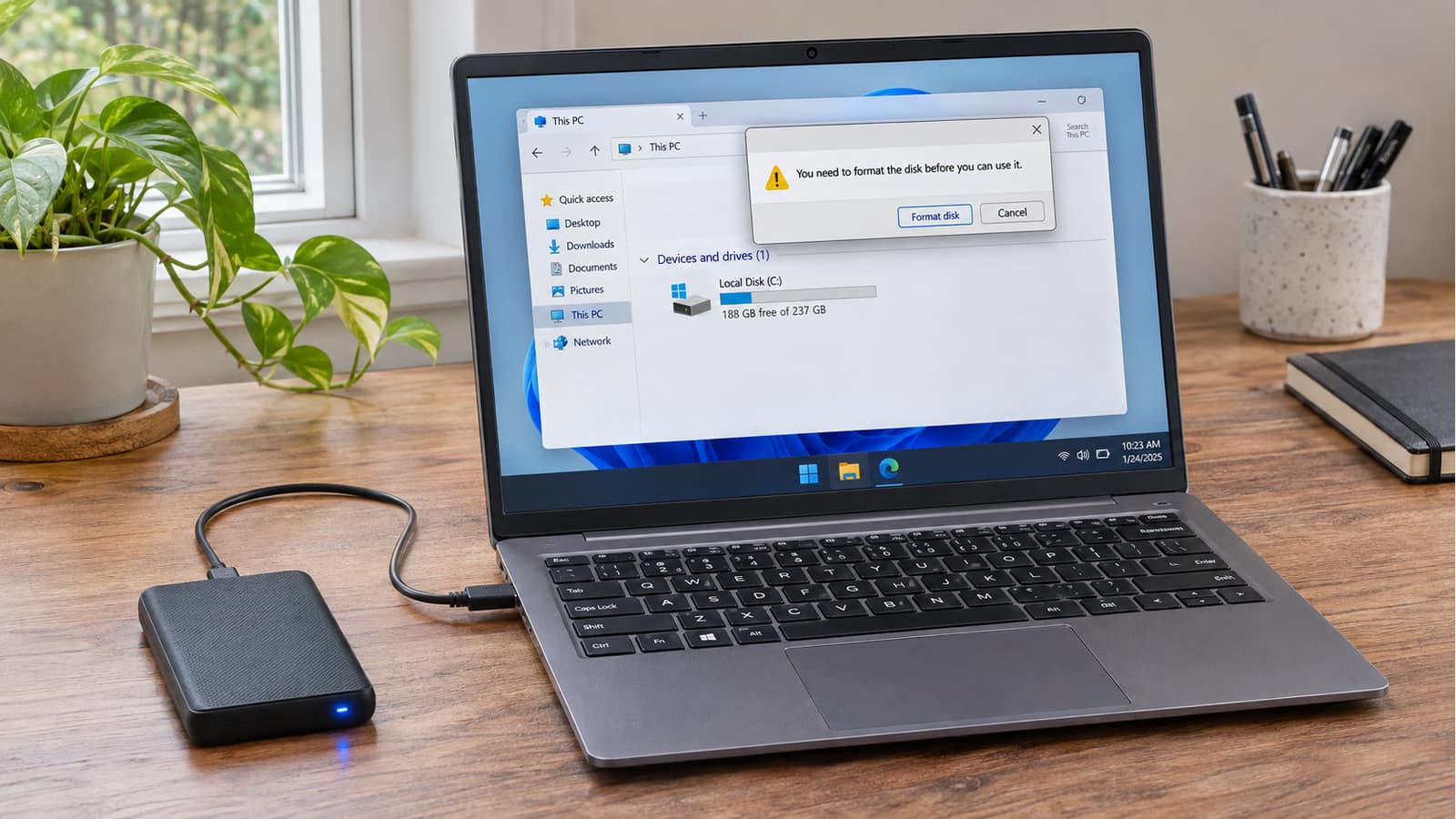
You connect the external drive that holds your photos, business documents or old computer backup, but nothing appears. Perhaps the light comes on. Perhaps Windows asks you to format the disk. Neither message tells you whether the files are recoverable, and formatting is not how you find out.
At GeekzUP, we separate two jobs: getting a storage device working and protecting the information already on it. If those files matter, data recovery takes priority over making an empty drive appear in File Explorer. Start with the checks below, but stop immediately if the drive has physical warning signs.
First, Decide Whether The Files Have Another Copy
A newly purchased, genuinely empty disk is different from one that worked yesterday. Microsoft's initialization instructions are specifically for new disks without existing data and warn against initializing a disk already in use without a backup. A setup prompt is not evidence that your old drive is empty.
Cancel The Format Prompt
If you need files from this drive, cancel Format disk or Initialize Disk. Do not choose New Simple Volume, Delete Volume or Erase. Do not follow a DiskPart clean tutorial. Those operations are not file-recovery steps. A factory-sealed empty drive can be prepared later, after you have positively identified it.
New grinding, repeated hard clicking, a recent drop or repeated disconnects changes the advice: stop testing and disconnect the drive. Seagate distinguishes normal operating sounds from changed or excessive mechanical noise. Our clicking and beeping drive guide explains why noise needs its own assessment rather than another software fix.
Check The Connection Without Running A Repair
For a drive without those warning signs, make one controlled connection check. Seagate's USB troubleshooting starts with the cable, port, computer and power supply. Change one variable at a time so you know what helped. A light only shows that some power reaches the device; it does not verify that files can be read.
- 1Connect directly to the computer instead of through a dock, hub or extension. Use a compatible data cable, not just a cable that can charge a device.
- 2Try one other known-good cable and port. For a desktop external drive, check its original or manufacturer-approved power adapter. Do not experiment with adapters just because their plugs fit.
- 3If the drive stays quiet and stable, try one other trusted computer. Decline any format, initialization or repair prompts there too.
- 4If files become accessible, copy the most important ones to a different healthy drive first. Do not start a speed test or a full-disk repair before protecting them.
Working on another computer is useful evidence, not a health certificate. If several devices fail only on your original laptop, computer and laptop repair may be the right route. Keep the external drive disconnected while investigating that computer, and preserve any accessible files before troubleshooting further.
On Windows, Look In Disk Management
File Explorer shows accessible volumes, not every storage device Windows notices. Disk Management also displays physical disks and partitions. Right-click Start and select Disk Management. If an initialization dialog appears, cancel it. For now, you are gathering information, not preparing a disk.
Identify the external drive using its capacity, model where shown and existing volume label. Never assume Disk 1 is the external drive. If you cannot confidently identify it, take a screenshot and stop. Leave C:, EFI System and Recovery partitions alone. Note the capacity, file system, status and any drive letter.
| What You See | What It Suggests | Next Step |
|---|---|---|
| Healthy data volume, no letter | A missing drive-letter assignment may hide an otherwise accessible volume | Consider the restricted letter check below |
| RAW or a format prompt | Windows cannot currently use the volume normally | Cancel formatting; preserve the original for assessment |
| Unallocated or Not Initialized | Expected layout is missing, unreadable or possibly locked | Do not create a volume on a previously used disk |
| Offline, incorrect capacity or repeated disappearing | Needs further investigation, not a guessed fix | Record the status; avoid repeated attempts |
| No physical disk listed | The problem is below File Explorer | Check USB detection, then stop if basic checks failed |
These are triage clues, not proof of a specific failure. Healthy is a volume status, not a guarantee of the drive's physical condition.
When Adding A Drive Letter Is Reasonable
Use this only for a correctly identified, stable external data volume with a recognized file system, expected capacity and Healthy status, but no drive letter. It must not be an operating-system, application, EFI or recovery partition. Microsoft's drive-letter procedure describes the supported operation; it does not make an unreadable disk safe.
- 1Right-click the correct volume's rectangle, not an unidentified disk label.
- 2Choose Change Drive Letter and Paths, then Add. Select an unused letter and confirm.
- 3Check File Explorer. If a format prompt appears, cancel it. If the option is unavailable, stop instead of creating or formatting a volume.
What RAW Or Not Initialized Does Not Tell You
RAW is not a diagnosis of permanent data loss, and Not Initialized does not establish that a disk is new. Microsoft's Disk Management troubleshooting describes several possible access and configuration problems. The displayed status cannot, by itself, tell you whether the trouble is logical, electrical or mechanical.
Also consider what changed: was this drive previously used on a Mac, protected by a password, moved between enclosures or unplugged during a transfer? Keep its original enclosure, cable and power supply for assessment. Do not dismantle it to test another adapter or try random passwords and reset options.
If It Is Missing From Disk Management Too
Open Device Manager from the Start context menu. Look under Disk drives and Universal Serial Bus controllers, and record any device name, warning symbol or Device Status error. A USB connection sound does not establish that Windows has successfully detected a usable disk. Do not uninstall all USB controllers or download a driver-fixer bundle.
If a quiet drive remains absent after the limited cable, power and second-computer checks, stop. Software needs access to the underlying storage; a recovery application's scan button cannot substitute for that connection. Repeated reconnecting is not a recovery plan. The next useful step is assessment of the complete device.
On A Mac, Check Finder And Disk Utility Separately
An external drive missing from the desktop may simply be hidden by Finder settings. Choose Finder > Settings, then check external disks under General and Sidebar. Apple's connected-device instructions explain these visibility settings. Changing them does not repair a drive, but it avoids confusing a hidden icon with failed storage.
Next, open Applications > Utilities > Disk Utility and choose View > Show All Devices. This view includes physical devices, containers and volumes rather than only volumes. Check whether the physical external device appears, then inspect the volume beneath it. Do not select Erase or Partition.
For a stable device with an expected existing volume and no failure warning signs, select that volume and try Mount once. Apple's mounting instructions explain this step. If it mounts, copy important files elsewhere. If it fails, disconnects or asks for initialization, stop instead of repeating the attempt.
Compatibility also matters. Apple's file-system reference distinguishes Mac formats from Windows-compatible FAT and ExFAT. A drive used with a different operating system is not automatically damaged. Do not reformat its only copy of files for compatibility. If its history or format is unclear, Mac repair support can help establish the next step.
Why CHKDSK And First Aid Are Not The First Move
Repair tools have legitimate uses, but diagnosis and recovery are not interchangeable. Microsoft's CHKDSK documentation explains that repair switches fix errors and can change file-system structures. That is why we do not recommend starting a repair command on an unstable drive holding your only copy. This guide intentionally provides no repair command to paste.
Apple likewise tells you to have a current backup before using Disk Utility repairs. First Aid may be appropriate after files are protected and hardware concerns assessed, but it is not a substitute for recovering inaccessible originals. If a repair fails, the next step is not automatically Erase.
If software recovery is appropriate, never install it onto the affected drive or save recovered files there. Microsoft's Windows File Recovery requires different source and destination drives. For irreplaceable data or unstable hardware, get advice before starting a long scan. A tool finding filenames is not a guarantee that the actual files are intact.
If The Files Come Back, Copy And Verify Them
Copy, do not move, important folders to separate healthy storage. Open representative documents, photos and other essential files from that destination. Prioritize what you cannot replace. If copying stalls, produces errors or the drive disappears, stop rather than retrying the same files all afternoon. Our backup preparation guide explains how to verify a separate copy.
A folder labeled Backup is not a backup if it contains the only remaining copy. If the computer's originals were deleted after transfer, this external drive became primary storage. Once your files are safe, hardware upgrade support can help plan replacement storage and a backup arrangement that does not depend on one device.
What To Bring To GeekzUP
For help in Hendersonville or the Nashville area, bring the drive in its original enclosure, its cable and any separate power adapter. Tell us when it last worked, whether it was dropped, what prompts appeared and which checks or repair tools you already tried. Identify the folders that matter most and any verified copies elsewhere. Keep passwords out of public chat messages.
You can book an assessment or ask about pickup and delivery. Explain that preserving existing files is the priority. We need to assess the device before explaining the recovery options and cost; neither successful recovery nor a completion time can be promised from an error message alone.
Frequently Asked Questions
Frequently Asked Questions
Why does my external hard drive light up but not show up?
The light does not prove a working data connection or readable files. Check a compatible data cable, direct port and required power supply, provided there are no physical failure signs. Then check Disk Management on Windows or Disk Utility on Mac.
Should I initialize an external drive that already has files?
No, not as a troubleshooting shortcut. Cancel initialization and establish why its existing layout is unavailable. Initializing is a setup operation, not a recovery method.
Can files be recovered after I accidentally formatted the drive?
Sometimes, but it depends on the device, type of formatting, subsequent writes and underlying damage. Stop using it and describe exactly what happened. Do not format it again or save recovered files onto it. No result can be guaranteed.
Does Healthy in Disk Management mean my drive is fine?
No. It describes the volume's reported state, not a complete hardware assessment. Prioritize copying accessible files, especially if the device has been intermittent or reports errors.
When should I stop trying to fix the drive myself?
Stop for new grinding or repeated hard clicking, drop damage, recurring disconnects, incorrect capacity or inaccessible irreplaceable files. Also stop when a suggested fix would format, initialize, erase or repair the only copy without a recovery plan.
GeekzUP Team
Veteran-owned computer repair in Hendersonville, TN. Serving Nashville and Middle Tennessee since 2012.