
NVIDIA's November 24 driver brings the background SSD-write fix into a WHQL release. Here is what the official notes confirm, what they do not prove and how to update without guessing.
NVIDIA has released GeForce Game Ready Driver 621.40 WHQL, dated November 24, 2026. The important maintenance change is a listed fix for excessive background writes to nvlog.nvlgstg. This is newer than the November 20 hotfix 621.35, so advice that treats that hotfix as the latest release is already behind the current driver.
We checked NVIDIA's driver download page, release notes and staff announcements on November 25. The distinction matters: NVIDIA listing a fix is confirmed; declaring every affected SSD repaired or every gaming crash solved is not. Our gaming PC repair service starts with the installed version and reproducible symptoms, not an assumption that a new graphics card is needed.
Version And Evidence Matter
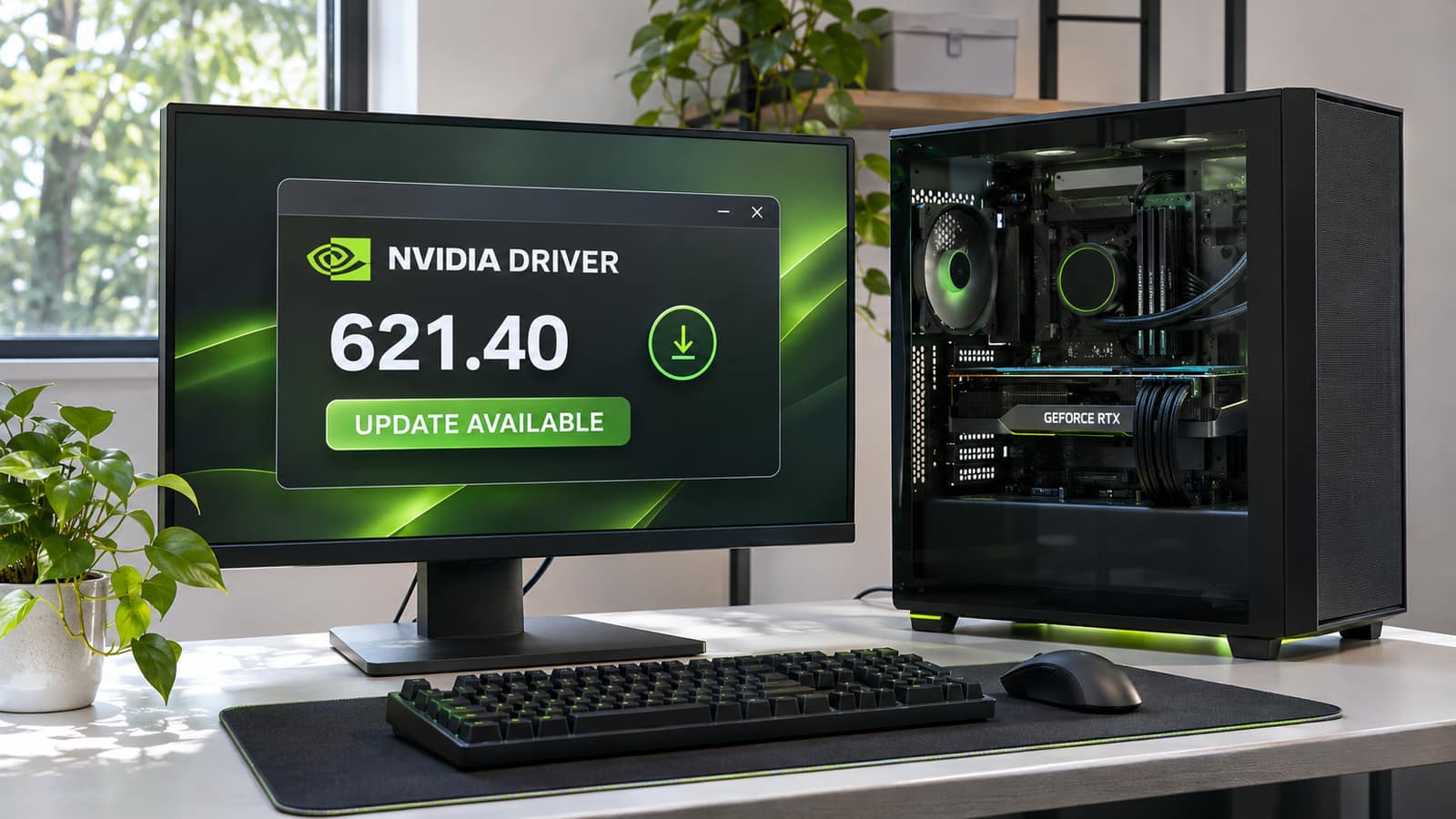
This guide covers the Windows GeForce 621.40 release verified on November 25, 2026. It is not a claim that every NVIDIA GPU, operating system or laptop should use the same package. Check compatibility before installing. The feature image is a generated illustration with a simplified update window, not a screenshot of NVIDIA's app or a customer computer.
Which NVIDIA Update Are We Talking About?
| Release | Date | Why It Matters |
|---|---|---|
| GeForce Game Ready 621.24 | November 12, 2026 | Earlier regular release used as the base for hotfix 621.35 |
| GeForce Hotfix 621.35 | November 20, 2026 | Targeted optional release addressing excessive background log writes |
| GeForce Game Ready 621.40 WHQL | November 24, 2026 | New regular release listing the write fix alongside other changes |
Use NVIDIA's current compatible driver listing when reading later. A release number alone does not establish support for your hardware.
NVIDIA's hotfix announcement identifies 621.24 as its base. The support explanation describes hotfixes as optional beta releases with abbreviated testing, intended to deliver targeted changes sooner. Version 621.40 is a WHQL release, not simply another name for the hotfix. That certification still does not guarantee trouble-free operation on every configuration.
What The SSD Write Fix Actually Addresses
NVIDIA's 621.40 staff post lists excessive background writes to nvlog.nvlgstg as a fixed general bug, reference 7116722. This is the specific logging issue behind the update discussion. It is not a statement that all disk activity on an NVIDIA-equipped computer comes from this file, or that the graphics driver physically damaged every drive.
Separate three questions: is unnecessary writing happening now, does the installed driver include NVIDIA's listed fix, and is there evidence of an actual storage fault? A high disk-activity graph alone cannot answer all three. Avoid converting a screenshot from someone else's PC into a forecast for how long your SSD has left.
There is no universal writes-per-second threshold in this guide. Background updates, downloads and ordinary applications also write data. If your PC is safe and responsive, keep important files backed up while investigating. Our backup-before-repair checklist explains how to protect the information you need without waiting for a component to fail.
Other Changes In The Release
NVIDIA's published change list also includes a Chaos Vantage OptiX denoiser problem at high resolutions and incorrect DJI D-Log H.265 video colors in Windows Photos and Media Player. Those are specific application cases, not promises that every renderer or every video-color problem has been corrected.
The game announcement names Warhammer 40,000: Dawn of War IV, Where Winds Meet's DLSS 5 update and Assetto Corsa Rally's DLSS 4.5 Dynamic Multi Frame Generation update. Treat driver readiness, game updates and supported GPU features as separate requirements. Installing a driver does not give an older graphics card every feature advertised for newer hardware.
We have not benchmarked this release on your system and cannot promise a frame-rate gain. If a game already shows high FPS but still feels uneven, our frame-time and stuttering guide is a more useful next step than comparing driver numbers alone. Keep the test scene, resolution and settings consistent.
Does This Mean There Are No Remaining Bugs?
No. The version-specific open-issues section in the 621.40 release notes says N/A, while the document still contains limitations and system-specific guidance. That is not a guarantee that every configuration is bug-free. The notes also distinguish a listed issue from a problem that has been fully investigated.
The feedback discussions contain individual reports of continuing problems around these releases. A forum reply can justify further investigation, but it is not a confirmed failure rate or proof that your PC has the same fault. Likewise, one successful installation cannot demonstrate that the write issue is resolved on every machine.
Should You Install 621.40?
- If a supported system shows the specific background-write problem, review the compatible regular release that lists the fix rather than following an old hotfix link blindly.
- If you need support for a named game or application change, check the game's patch requirements and your GPU's feature support as well as the driver.
- If the PC is stable and you have work due, schedule the update when you can restart and test. Do not start it halfway through an important job.
- For a gaming laptop, check the laptop manufacturer's recommended graphics package and instructions first. Hybrid graphics and external-display arrangements can be model-specific.
Do not install this Windows package on Linux or assume it supports every old GeForce model. Confirm the exact GPU, operating system and desktop or notebook configuration. If the machine also has persistent freezes unrelated to a driver change, our random-freezing guide helps you record the pattern before software and hardware changes get mixed together.
How To Check The Writing Without Changing System Files
Start by recording the version shown in the NVIDIA app's driver area. If investigating disk activity, open Windows Resource Monitor and use its Disk view to observe the process, file path and write activity. Compare a quiet period before and after the update under similar conditions. A momentary burst or the log file's size alone is not a sustained write rate.
Save a screenshot and the approximate observation period. Do not delete NVIDIA folders, block logging files with permissions or paste a registry command from a comment to make the graph look quieter. Those changes can interfere with the software and make the original problem harder to reproduce. Observation should come before an undocumented workaround.
A disappearing drive, unreadable files or storage warnings deserves its own assessment. It should not be dismissed as this logging bug. Our missing-drive guide explains why formatting an existing data drive is not a diagnostic step. If there are signs of data loss, stop making unnecessary changes and tell the technician what is irreplaceable.
A Controlled Installation Beats Changing Everything
- 1Record the installed version, GPU model and current symptom. Note custom graphics settings you may need to restore.
- 2Protect important files and close open work. Make sure you can afford a restart and have stable power.
- 3Get the compatible installer through NVIDIA's official site, the NVIDIA app or the laptop maker's recommended route. Avoid driver-updater ads and repackaged downloads.
- 4Let other updates finish. Close games, browsers, video apps and GPU tuning or monitoring utilities before installation. Do not routinely disable antivirus to perform this update.
- 5Follow the installer, restart when appropriate and check the installed version again. Retest the original symptom before changing other settings.
If installation fails or needs troubleshooting, NVIDIA's manual clean-install guide uses Custom (Advanced), then Perform a clean installation. That is a driver procedure, not a Windows reset or permission to erase your files. Read the full instructions before starting and preserve the settings you rely on. Third-party cleanup utilities are not our default first step.
If Performance Or The Display Gets Worse
Test the same game or application again with the same settings. NVIDIA's feedback guidance notes that rebuilding shader-cache data after a clean installation can temporarily reduce performance in some games. That possibility is not an explanation for repeated crashes or a reason to ignore a reproducible regression.
Record whether the problem affects one game, the desktop, a particular monitor or only a certain display mode. If the PC never produces a startup image, use our no-display guide rather than assuming Windows' driver caused a pre-startup fault. A working logo followed by a black screen is a different observation from no picture at any stage.
For a downgrade, do not assume Windows' Roll Back Driver button restores the entire NVIDIA package. Section 5.12 of the release notes warns against that method and describes removing the current driver through Windows' program-uninstall route before installing the older package. Use a compatible, supported version and preserve a recovery route. Do not select an arbitrary old driver as a permanent fix.
If Windows itself becomes inaccessible, stop experimenting with repeated installs. Our Windows startup-recovery guide covers the precautions before recovery changes. Have the applicable BitLocker recovery key available, and do not put recovery keys or account passwords into public support posts or booking notes.
What To Send With A Support Request
Include the GPU and PC or laptop model, Windows version, old and new driver versions, affected application, monitor connection and exact steps that reproduce the issue. For the write complaint, include the process, file path and observation period. Redact personal information from screenshots and share diagnostic files only through the support provider's secure route.
For customers in Hendersonville and Middle Tennessee, remote support may suit a driver or settings investigation when the desktop remains usable. A system that cannot display reliably or has storage or electrical warning signs may need hands-on assessment. We will explain the appropriate next step rather than promise a software update can repair faulty hardware.
GeekzUP labor is $80/hour for standard PCs and Macs or $100/hour for gaming PCs and laptops. Parts are separate, and inspection and diagnosis come before a repair quote. Book a service with the symptoms and changes you have recorded. A useful diagnosis identifies what remains wrong after the update instead of turning a driver headline into an unnecessary hardware purchase.
Frequently Asked Questions
What is the latest NVIDIA driver covered here?
GeForce Game Ready 621.40 WHQL, released November 24, 2026 and verified November 25. Check NVIDIA's current listing for your specific GPU when reading later.
Does 621.40 fix the NVIDIA SSD-write bug?
NVIDIA lists excessive background writes to nvlog.nvlgstg as fixed, reference 7116722. That is the official release claim, not a guarantee about every PC or proof of a drive's condition.
Should I install hotfix 621.35 instead?
It is the earlier targeted optional hotfix. Review the newer compatible regular driver first. Do not use an old hotfix download simply because a search result calls it the latest update.
Does heavy writing mean my SSD is already damaged?
Not by itself. Establish which process and file are involved, protect important files and investigate actual storage warnings separately. A disk-activity graph cannot predict the remaining life of your drive.
Will this update fix every black screen or stutter?
No. Verify the installation, reproduce the symptom under controlled conditions and distinguish driver behavior from display, storage, power or other hardware faults.
GeekzUP Team
Veteran-owned computer repair in Hendersonville, TN. Serving Nashville and Middle Tennessee since 2012.