

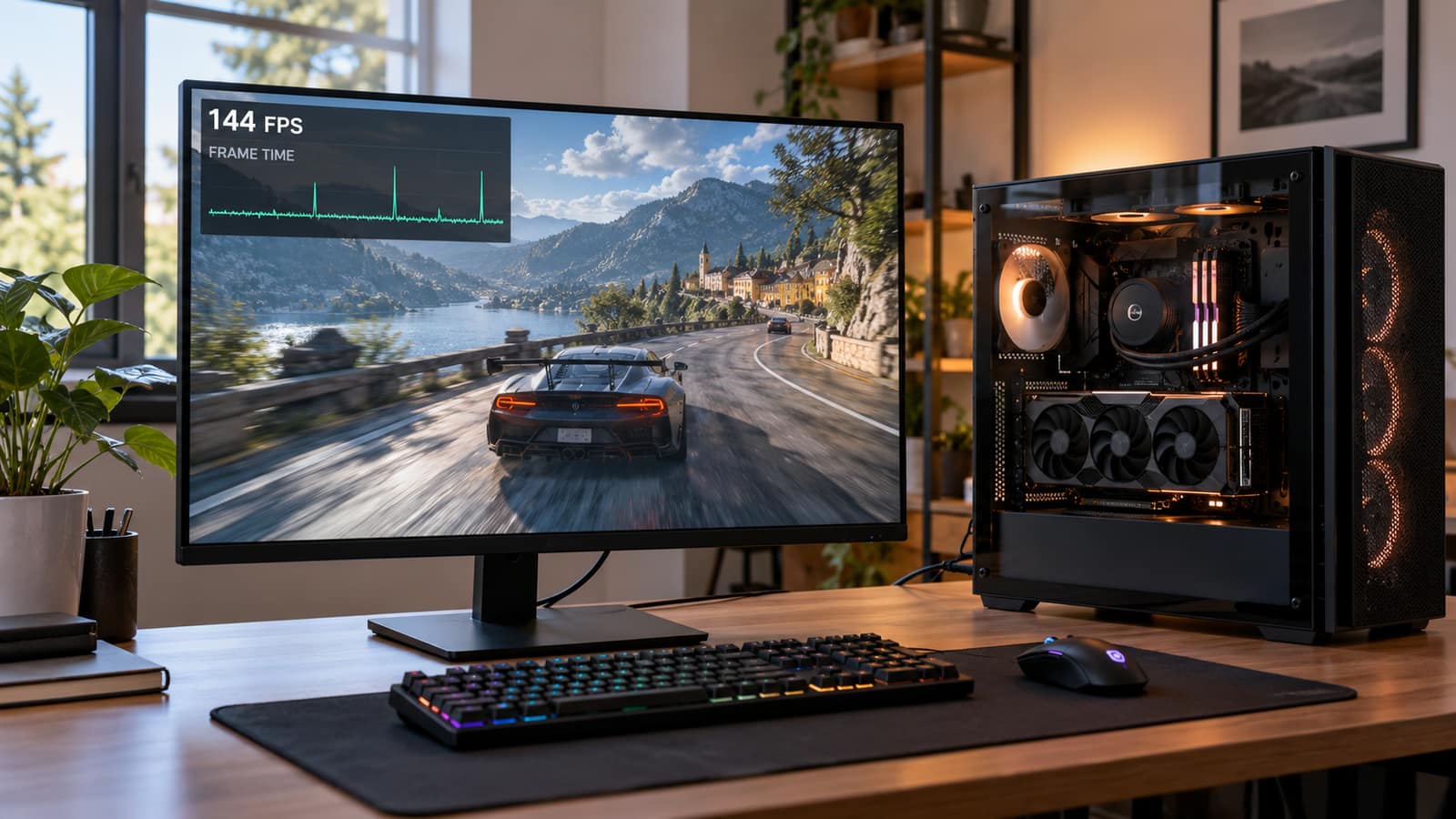
A high FPS counter can hide uneven frame delivery. Follow a repeatable troubleshooting sequence to find out whether the problem is the game, your settings or the hardware.
Your FPS counter says 144, but the game keeps hitching when you turn a corner, enter a fight or load a new area. That does not automatically mean your graphics card is too weak. A high average frame rate can hide individual frames that take much longer to arrive. The useful question is what interrupts frame delivery, not which expensive part to replace first.
Start by separating a problem in one game from a problem across the computer. Then reproduce the same hitch while changing one thing at a time. This guide explains what to measure, which checks are safe and when a hardware assessment makes more sense than another settings tweak. GeekzUP provides gaming PC repair for desktops and gaming laptops, including performance problems that need testing before an upgrade is recommended.
Why High FPS Does Not Always Feel Smooth
FPS measures how many frames are produced over time. Frame time describes the interval for an individual frame, normally in milliseconds. At a steady 144 FPS, that interval is about 6.9 milliseconds. A single frame taking 50 milliseconds breaks the rhythm even if the surrounding frames are fast enough to keep the average looking healthy. Those interruptions appear as spikes on a frame-time graph.
Also look at the tool's 1% low figure, which summarizes performance in the slowest portion of the run. It is not simply the lowest instantaneous FPS you saw. Different tools can calculate low-percentile figures differently, so compare runs made with the same tool and settings. NVIDIA FrameView can log frame rates and frame times; AMD's performance metrics can monitor supported hardware and save logs. Use one monitoring tool, not several overlays competing at once.
First, Separate Stutter From Network Lag
An uneven camera pan with frame-time spikes points toward rendering or system performance. Players teleporting while your own camera remains smooth points more toward network or server behavior. They can occur together. Compare an offline scene or built-in benchmark before treating every online hitch as a graphics-card fault.
Make A Short Baseline Before Changing Anything
- 1Restart the computer, let startup activity settle and pause game downloads or cloud-sync transfers.
- 2Choose a repeatable 60- to 90-second section, such as the same practice map, saved-game route or built-in benchmark. Avoid menus and loading screens in the capture.
- 3Record the game version, driver version, resolution, graphics preset, frame cap and whether frame generation is enabled.
- 4Capture frame times, average FPS, low-percentile FPS, GPU load, memory use, temperatures and clock speeds where your tool supports them.
- 5Repeat the section once unchanged. Then alter one setting and repeat it again. Keep a brief note of what improved or stayed the same.
A test in an empty room cannot be compared fairly with a crowded multiplayer fight. If one run is much worse, repeat it before drawing a conclusion. If Windows itself also locks up, the mouse stops moving or the computer requires a forced restart, use our computer freezing guide too. That is a wider stability problem than a brief in-game hitch.
Use The Stutter Pattern To Choose Your Next Test
| When It Happens | What To Investigate | Useful First Test |
|---|---|---|
| First run after an update or a new effect | Shader compilation or asset preparation | Finish any shader-preparation screen, then repeat the same scene |
| Only in one game | Game files, patches or that game's settings | Compare a second game and verify the affected game's files |
| Every few seconds across several games | Background work, overlays or system instability | Pause downloads and test without optional overlays |
| Worse after the machine warms up | Cooling or power limits | Compare temperatures and clocks before and during the hitch |
| While entering detailed areas | Memory pressure or storage loading | Lower texture quality and compare disk activity |
| Movement feels uneven but frame times stay steady | Display pacing, refresh settings or input behavior | Check the monitor's selected refresh rate |
These are starting hypotheses, not proof that a component has failed. Several causes can produce the same visible symptom.
1. Check Display Settings And Frame Pacing
Confirm that the monitor is actually running at the intended refresh rate. In Windows, open Settings, System, Display, Advanced display, choose the correct monitor and check the selected rate. A monitor advertised as 144Hz may still be configured at 60Hz. Microsoft explains how to change the refresh rate and notes that the available choices depend on the display and connection.
For a reversible test, use the game's frame limiter to choose a rate the machine can maintain in your baseline scene. Do not stack several limiters. If your display supports variable refresh, check its setup instructions rather than copying a stranger's combination of V-Sync and driver overrides. A limiter may improve pacing, but it cannot repair a recurring loading stall.
If frame generation is enabled, repeat the test with it off and note the base performance. Generated frames can raise the displayed FPS without identifying the underlying hitch. NVIDIA's Frame Generation documentation describes how additional frames are inferred from rendered frames. This is a diagnostic comparison, not a blanket recommendation to avoid the feature.
2. Rule Out A Game-Specific Or Shader Problem
When only one game stutters, check its current patch notes and known issues before touching the hardware. Finish any shader-compilation screen the game provides. If the hitch happens when an effect appears for the first time, compare a second pass through the same area. Improvement on that pass is a clue, not a guarantee that every remaining hitch is harmless.
NVIDIA's shader-cache documentation explains that compiling shaders can cause stutter and that a driver installation can clear cached shaders. First-run hitches after an update therefore need to be separated from a persistent fault. Repeatedly deleting the cache can make the game rebuild work you wanted it to reuse. Avoid treating cache clearing as routine maintenance.
Check game files through the launcher before reinstalling the whole game. For Steam, open the game's Properties, choose Installed Files and use Verify integrity of game files. Steam's verification instructions also advise against running other intensive tasks during verification. Follow the developer's guidance for mods and save files before removing anything.
3. Test Background Load And Optional Overlays
Open Task Manager and look for work coinciding with the hitch: a launcher downloading, a browser using memory, cloud backup transferring files or a recording app encoding video. Pause nonessential activity and test again. Close optional performance overlays, RGB utilities and capture features one at a time. Keep the one monitor you need for the comparison, then try a run without it as well.
Do not disable antivirus protection or end unfamiliar Windows processes just to get an empty task list. The aim is to identify a competing workload, not strip the computer of safeguards. If the issue turns out to be software setup rather than a physical fault, remote support may be appropriate. Hardware inspection still requires access to the device.
4. Separate CPU Pressure From GPU Pressure
Repeat your baseline at a lower rendering resolution without changing other settings. If performance improves substantially, investigate graphics workload. If the same hitches remain, a faster GPU has not yet been justified. CPU work, asset loading or a game-engine limitation may be holding up the next frame. A single utilization percentage cannot settle that question.
Intel's bottleneck explanation describes how a GPU can wait for work from the CPU and how the opposite constraint can also occur. CPU averages can conceal uneven work across cores. GPU utilization can fall during a stall because it is waiting, not because the card is defective. Match the interruption to the logged activity before choosing hardware upgrades.
5. Check Memory Pressure And Game Storage
System RAM and graphics memory are different resources. First close unnecessary applications and compare system memory use during your repeatable test. Then lower texture quality and compare again. An allocated VRAM figure near the card's capacity is not enough by itself to prove a shortage; look for a repeatable improvement when texture demand is reduced.
Check whether the game requires an SSD and where it is installed. A nearly full drive, slow loading or a storage-health warning deserves investigation, but an SSD is not a universal stutter cure. Our SSD versus HDD guide explains what storage changes can improve, while the RAM and SSD upgrade cost guide helps you plan an upgrade once the test supports it.
Keep the Windows page file managed normally during troubleshooting. Do not disable it as a performance shortcut. If the drive disconnects, produces errors or makes a new mechanical noise, stop repeated benchmarks and protect your files first. Data recovery is a different job from optimizing a healthy gaming system.
6. Compare Cooling And Clock Speeds Over Time
A game that feels smooth at launch but deteriorates after warming up needs a temperature-and-clock comparison. Intel explains thermal throttling as a protective reduction in clock speed near a processor's temperature limit. Check the limits and behavior for your actual components; one internet temperature rule does not apply to every CPU, GPU and gaming laptop.
Check that vents are unobstructed and fans operate. Use a gaming laptop on a hard surface with its correct power adapter. Stop testing if the system shuts down, smells hot or shows a cooling failure. Our computer overheating guide covers the cooling side in detail. Never open a power supply or bypass thermal protections to keep a benchmark running.
7. Review Drivers And Tuning Without Changing Everything
Write down when the symptom started. If it followed a graphics-driver change, check that release's notes and the game developer's guidance. Use the GPU maker's official download or the laptop manufacturer's recommended package, not a driver-updater advertisement. Test the supported driver change by itself and account for shader rebuilding before calling the result a failure.
If the computer has an overclock, undervolt or aggressive memory profile, a technician can compare documented stock settings. Instability can appear as hitching before an obvious crash. Do not raise voltage, flash the BIOS or load an unfamiliar preset because a video promises more FPS. Save a BitLocker recovery key before firmware changes and ask for help if you do not know how to restore your exact configuration.
Skip The One-Click FPS Fix Packs
Registry bundles, timer tweaks and scripts that disable security or Windows services can introduce new problems while hiding what changed. Do not reinstall Windows as your first test. Preserve settings, protect your files and make reversible comparisons. A repeatable result is more useful than a bigger list of tweaks.
When A Gaming PC Diagnostic Is Worth It
Bring the system in when several games stutter despite a clean comparison, temperatures or clocks behave abnormally, crashes accompany the hitching or you are considering an expensive upgrade without a clear cause. At the bench, the useful work is reproducing your symptom, comparing frame delivery with load and temperature, checking stability and testing the suspected subsystem. A score from one synthetic benchmark is not the same as fixing your game.
For gaming desktops and gaming laptops, GeekzUP's diagnostic charge is $100 and covers up to one hour. It is applied toward the repair you approve. Gaming labor is $100 per hour. We inspect and diagnose the device before providing a repair quote, rather than guessing through chat, text, email or phone. Customers in Hendersonville and Nashville can book a diagnostic and include the game, settings and exact point where the hitch occurs.
Upgrade when the evidence identifies a limit the new part can address. More graphics performance will not fix a game-specific shader stall; extra RAM will not repair a cooling fault. If a rebuild is genuinely the better option, our custom gaming computers can be planned around your games, resolution and performance target instead of the biggest number on a parts list.
Frequently Asked Questions
Why Does My Game Stutter Even At 144 FPS?
An average FPS counter can hide unusually slow individual frames. Check a frame-time capture and compare the same scene twice. Shader compilation, background activity, loading, memory pressure or cooling can interrupt delivery even when the average remains high.
Will A Better Graphics Card Fix Stuttering?
Only if graphics performance or graphics-memory capacity is the limiting factor. Test lower rendering resolution and texture settings separately. A CPU-side delay, driver conflict or game-specific issue can remain unchanged after an expensive GPU upgrade.
Should I Clear The Shader Cache To Fix Stuttering?
Not as a routine first step. Clearing cached shaders can require recompilation and temporarily create more first-run hitches. Follow the game's or GPU maker's troubleshooting guidance when there is a specific reason to rebuild it.
Can An SSD Or More RAM Stop Game Stutters?
Sometimes, when loading or memory pressure is the actual cause. Confirm the game's storage requirements and compare memory use during a repeatable scene. Neither upgrade guarantees smooth performance if the interruption comes from another subsystem.
Does A High 1% Low Mean There Cannot Be Stuttering?
No. A summary can miss a rare but noticeable hitch, and tool calculations differ. Read the frame-time trace alongside the low-percentile number. Compare the same section with the same tool, rather than unrelated benchmark runs.
Find The Cause Before Buying Parts
GeekzUP Team
Veteran-owned computer repair in Hendersonville, TN. Serving Nashville and Middle Tennessee since 2012.

