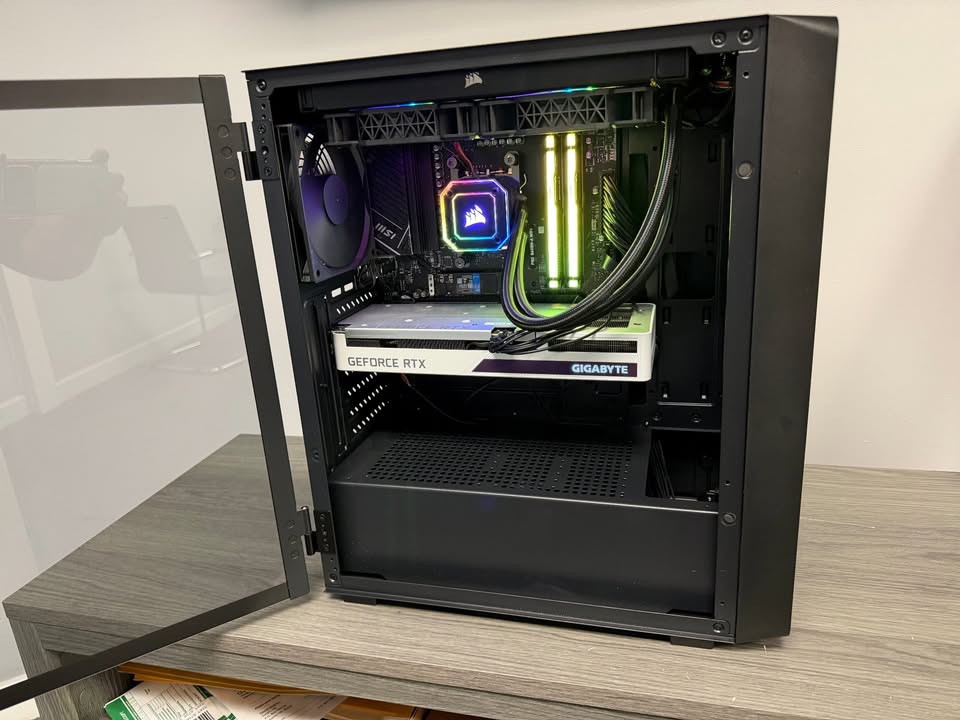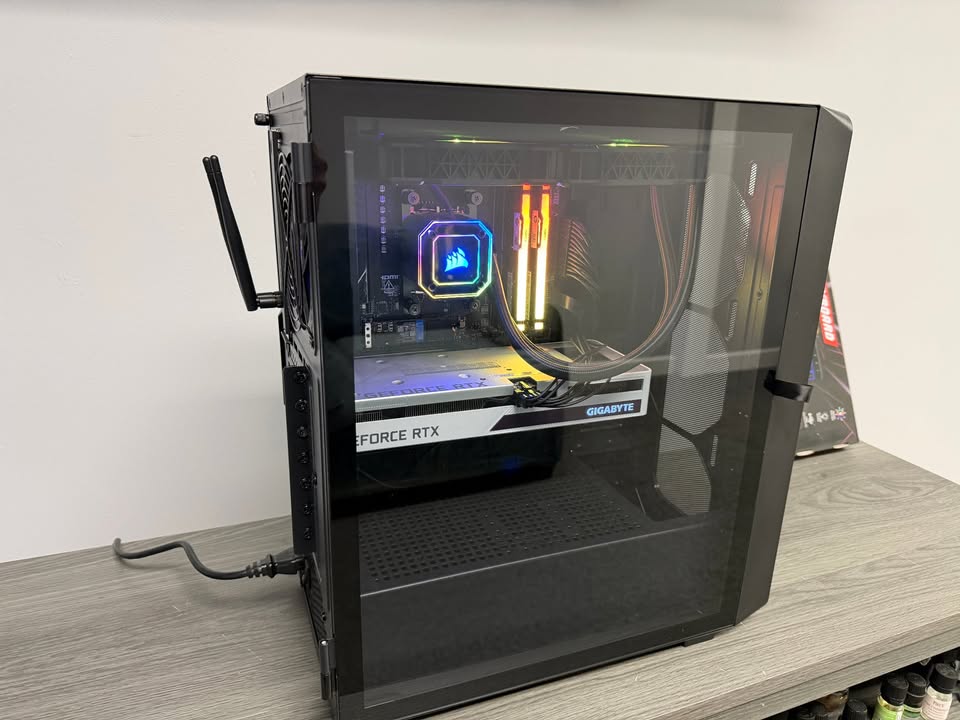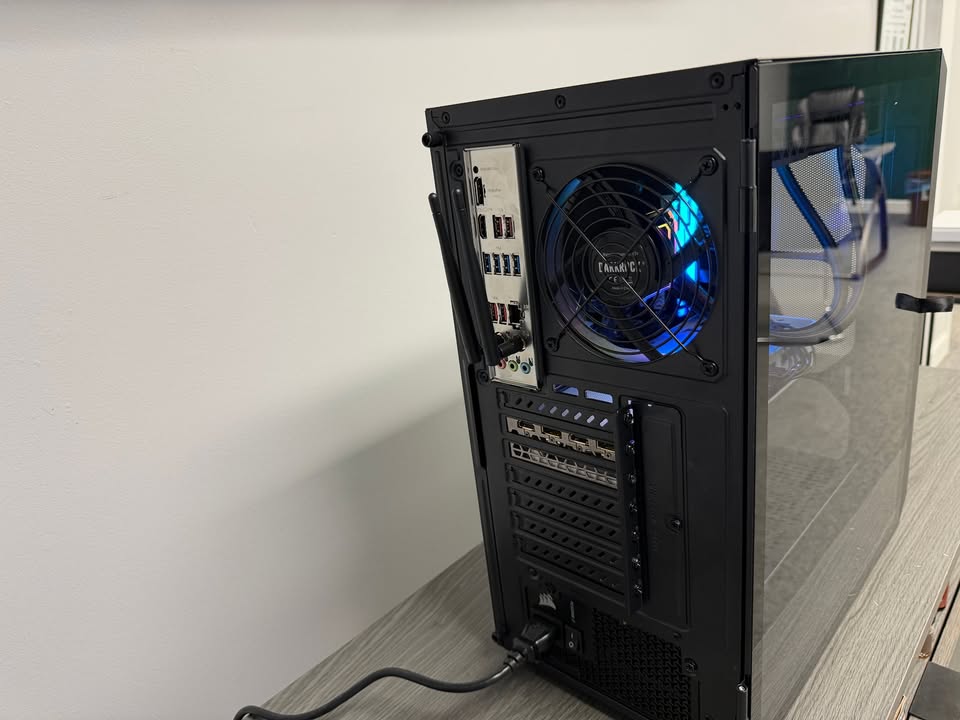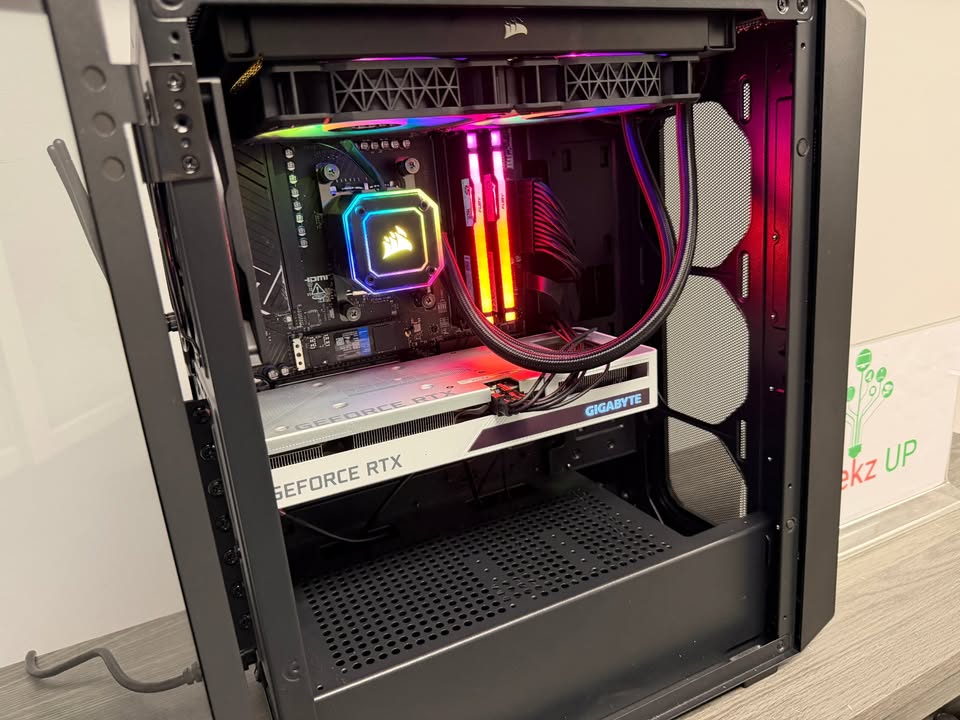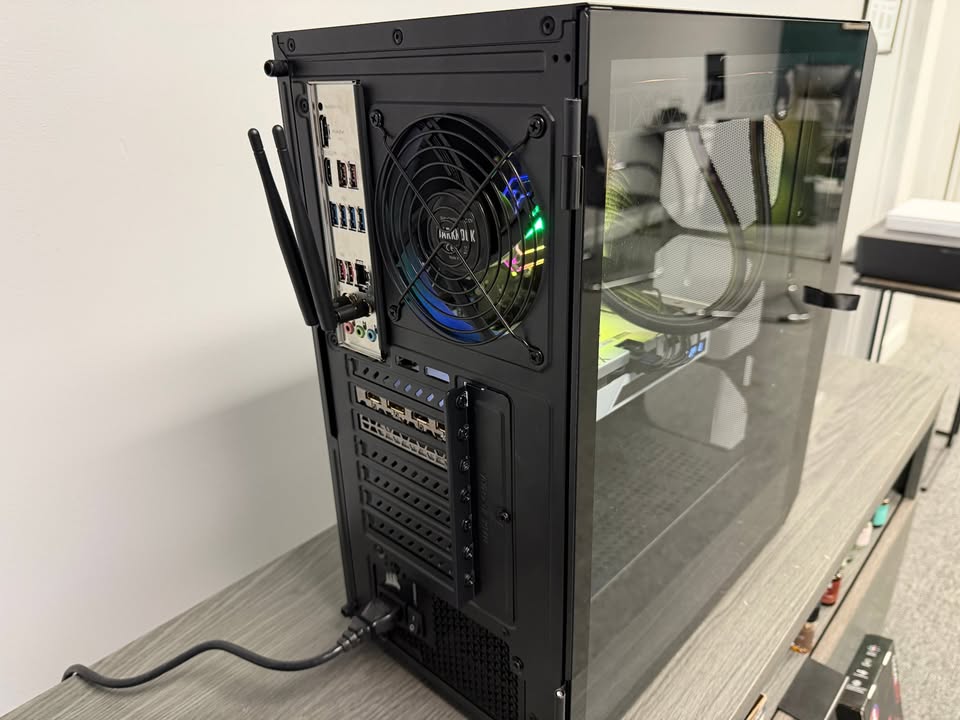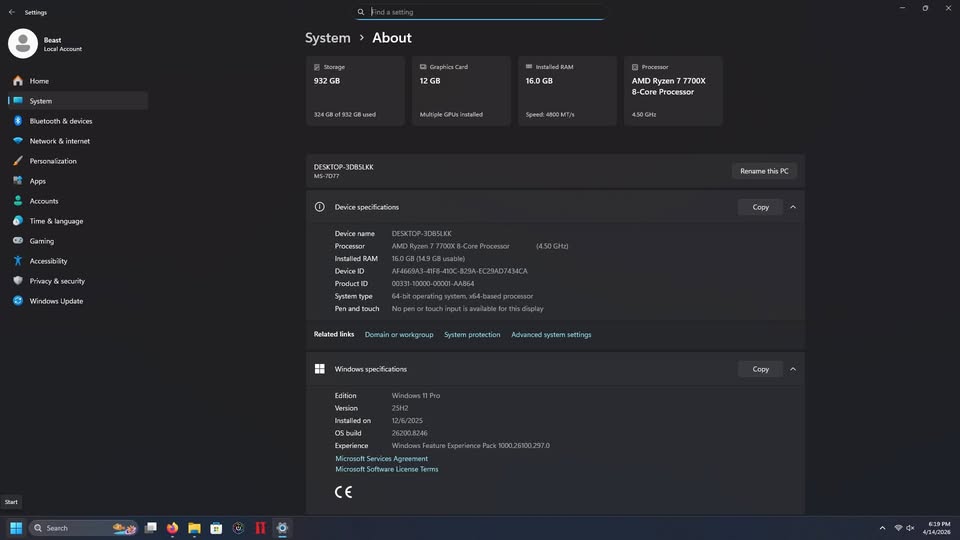
A computer that suddenly stops detecting a Wi Fi network can be extremely frustrating. Whether you are working, gaming, or streaming, losing access to your network disrupts everything. The good news is that most Wi Fi detection issues can be fixed with a few careful steps. At GeekzUP Repairs in Hendersonville TN, we help customers solve these problems every day, and many solutions are simpler than you might think.
In this guide, you will learn how to troubleshoot a computer that’s unable to detect a Wi Fi network and understand what causes the issue in the first place.
Check if Wi Fi is Turned On
Before moving to advanced steps, make sure the Wi Fi function on your computer is enabled.
On Windows:
Go to Settings, then Network and Internet, then Wi Fi. Make sure Wi Fi is toggled on.
On macOS:
Click the Wi Fi icon in the menu bar and ensure it is turned on.
Sometimes Wi Fi gets turned off after system updates, battery saving mode, or accidental key presses.
Restart Your Computer and Router
This simple step fixes most connectivity problems.
- Restart your computer to refresh the network drivers.
- Restart your router by unplugging it for ten seconds and plugging it back in.
Wait for the router lights to stabilize and check if your computer detects the Wi Fi network again.
Move Closer to the Router
Weak signals can make your computer unable to detect your Wi Fi network. Thick walls, metal objects, and appliances like microwaves can block signals. Bring your computer closer to the router to see if the network appears.
If it works nearby but not in other rooms, you may need a Wi Fi extender or router upgrade.
Check if Other Devices Can See the Network
- Try connecting with your phone, tablet, or another computer.
- If no device detects the network, the issue is likely with your router.
- If only your computer cannot detect it, the issue is on your system.
This step helps narrow down the root cause.
Enable or Reinstall the Network Adapter
Your computer uses a network adapter to detect and connect to Wi Fi. If the adapter is disabled or malfunctioning, you will not see any networks.
On Windows:
Open Device Manager, expand Network Adapters, right click your Wi Fi adapter, and select Enable.
If already enabled, select Uninstall Device and restart your PC. Windows will reinstall it automatically.
If already enabled, select Uninstall Device and restart your PC. Windows will reinstall it automatically.
On macOS:
Reset your Wi Fi settings from System Settings by toggling the adapter off and on. You can also reset network configuration using the Network Diagnostics tool.
If your adapter is damaged, GeekzUP Repairs can replace or repair it.
If your adapter is damaged, GeekzUP Repairs can replace or repair it.
Update Your Network Drivers
Old or corrupted drivers can prevent your computer from detecting Wi Fi networks. Updating drivers ensures full compatibility with your router and operating system.
On Windows:
Go to Device Manager, open your Wi Fi adapter, click Update Driver.
On macOS:
Drivers update automatically with system updates, so make sure macOS is up to date.
If updates fail or your system crashes, it may indicate deeper hardware issues.
Check Your Wi Fi Settings and Frequency Bands
Some computers do not support newer Wi Fi bands like 5 GHz. If your router broadcasts only 5 GHz, your device may not detect it.
Try enabling both 2.4 GHz and 5 GHz bands in your router settings.
Older laptops often detect 2.4 GHz better.
Also make sure your SSID broadcast is turned on. If SSID broadcasting is off, your network becomes hidden and your computer will not display it.
Run Network Troubleshooter
On Windows:
Go to Settings, then Troubleshoot, then Other Troubleshooters. Run the Network Troubleshooter.
It scans for common issues, resets adapters, and applies fixes automatically.
On macOS:
Run Wireless Diagnostics by holding Option and clicking the Wi Fi icon.
These tools often resolve misconfigurations instantly.
Check for Airplane Mode
Airplane mode disables all wireless communication. Make sure it is turned off in both Windows and macOS. Even accidentally pressing one key can switch it on.
Reset Network Settings
If none of the above steps work, resetting your network configuration can help.
On Windows:
Go to Settings, then Network and Internet, then Advanced Network Settings.
Click Network Reset.
On macOS:
Use Wireless Diagnostics to rebuilt Wi Fi settings, or remove your network service and add it again.
Resetting clears corrupted settings that may be blocking Wi Fi detection.
When the Problem Is Hardware
If your computer still cannot detect any Wi Fi network at all, the issue may be hardware related. Common hardware issues include:
- A burnt Wi Fi card
- Loose antenna cables
- Liquid damage
- Motherboard issues
- Faulty network drivers that cannot be repaired
At GeekzUP Repairs, we diagnose and replace faulty Wi Fi adapters, repair internal antennas, and fix damaged logic boards for laptops and desktops.
Final Thoughts
Now you know how to troubleshoot a computer that’s unable to detect a Wi Fi network. Many issues can be solved at home with simple steps like enabling Wi Fi, updating drivers, restarting devices, or resetting network settings. If the problem is deeper, professional repair may be necessary.
If your computer still cannot detect your Wi Fi network, GeekzUP Repairs is here to help.
Phone: 615-387-9454
Email: [email protected]
Website: www.geekzuprepairs.com