Troubleshooting IPTV

Please use the following guide to troubleshoot your application. Let us know if you continue to experience issues.

Troubleshooting Channels/Source

If for some reason one of our channels is giving you one of the following issues Broken, Video Freezing, Audio/Video Out Of Sync, No Video, or No Audio. (Sometimes back out and going into the channel may fix the issue) Please do the following
1.Report it on the channel, by going to the headset icon on the channel, right when the channel first comes up
2. Reach out to us with the Name and channel number which is giving you issues, on our chat here, or through email ([email protected]). We must have both the *Name and Number of the channel to fix the problem*
troubleshooting 1 Geekz Up Repairs

maintenance

Check and see if your fire stick needs to be updated

1. Home

Go to the home section of your fire stick application.

2. Settings

Navigate to the right of the screen and click the Settings icon.

3. My Fire TV

Then go to My Fire TV

4. About

Then choose About

5. Check Updates

Scroll to the bottom and click on Check For Updates

Having Issues?

Now if you are still having issues you could try ->

**DO NOT RESET TO FACTORY DEFAULT**

This will reset your firestick and remove any and all application. Meaning you will lose your subscription code and you will have to re-pay for your subscription.
Disconnect your VPN, to see if this may be causing your issues

1. Settings

Go to settings

2. My Fire TV

Click on My Fire TV

3. Restart

And then restart the firestick

Troubleshooting MoaTV

1. Home

Go to the home of your firestick

2. Settings

At the top navigate to the right of the screen where it stats (settings)

Applications

Then go to (applications)

4. Manage Installed

After going inside applications click on Manage Installed Applications

5. MoaTV

Then Select MoaTV

6. Clear The Cache

While in the Moatv application go to the bottom and Clear the cache

7. Force Stop

After you (clear the cache) force stop the application

8. Launch Application

Finally now launch the application.

Issues with Updating IPTV

If you’re running into trouble getting your IPTV app to update on your Firestick, don’t worry this is a common hiccup and usually an easy fix. Follow the steps below to get things sorted:

Restart your Firestick

Follow the restart steps outlined above and allow the device to fully reboot before trying again.

Repeat if needed

It’s not unusual for the update to require 2–3 restarts before it fully goes through. If it didn’t work the first time, try restarting again and give it a moment to catch up.

Still not working? Reinstall the app

In rare cases, a full reinstall is the quickest path to a clean, updated version. Head over to our Installing MoaTV page for step-by-step instructions.

IPVanish Setup & Troubleshooting Guide for MoaTV

Welcome to the Geekz Up setup guide! To ensure the best streaming experience on MoaTV, it is crucial to configure your VPN correctly. Follow the steps below to optimize your IPVanish settings.
Note: If you do not have your IPVanish login credentials, please reach out to us directly, and we will provide them for you.
Ensure the following options are toggled ON:
Once you have logged into the IPVanish app, navigate to the right side of the screen and select the Settings menu (represented by the Gear Icon).
Navigate back to the main menu and select the Location Icon on the left-hand side.
For the smoothest playback and to avoid buffering on MoaTV, we have tested and recommend connecting to one of the following regions:

Troubleshooting Connection Issues

If you are connected to the recommended countries but still experiencing issues, try changing the specific server. Instead of using the “Best Available” option, scroll to the bottom of the location list and manually select a different Server Number within that country.

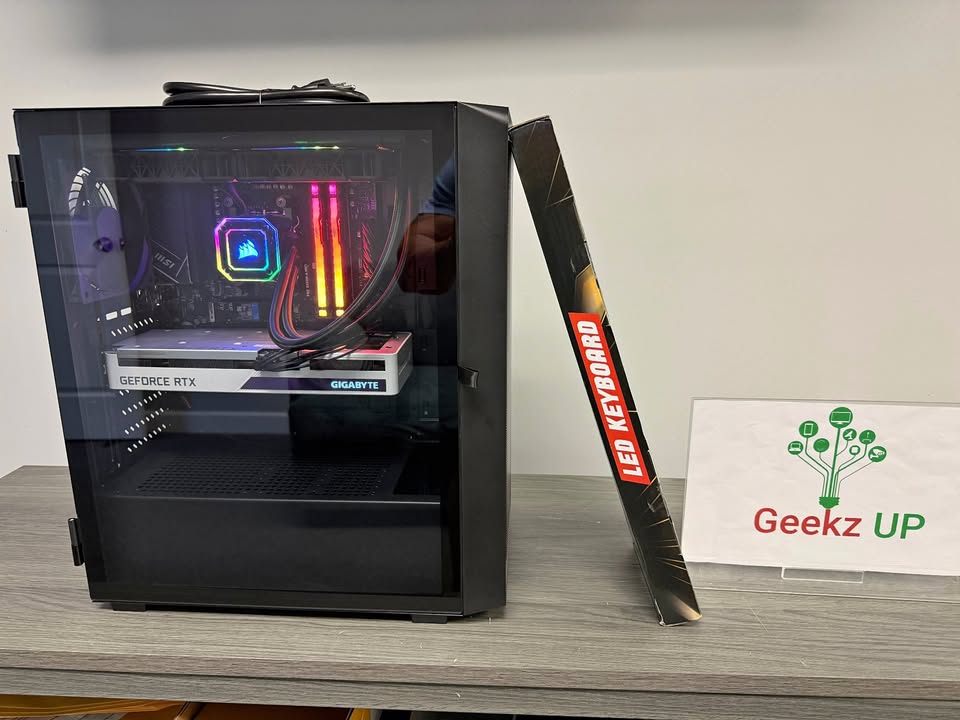
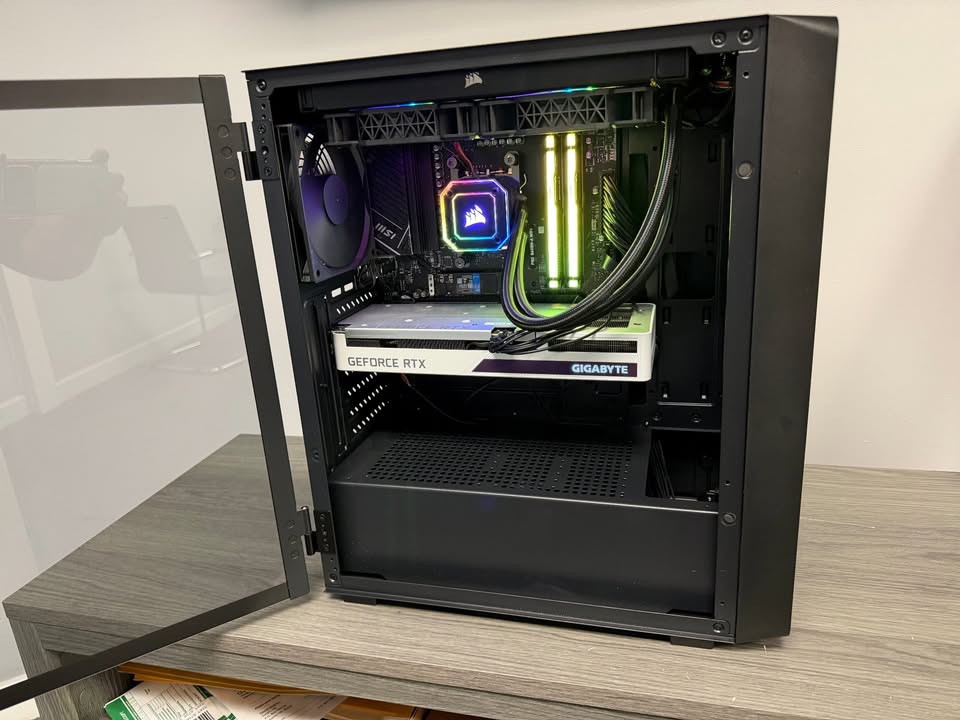
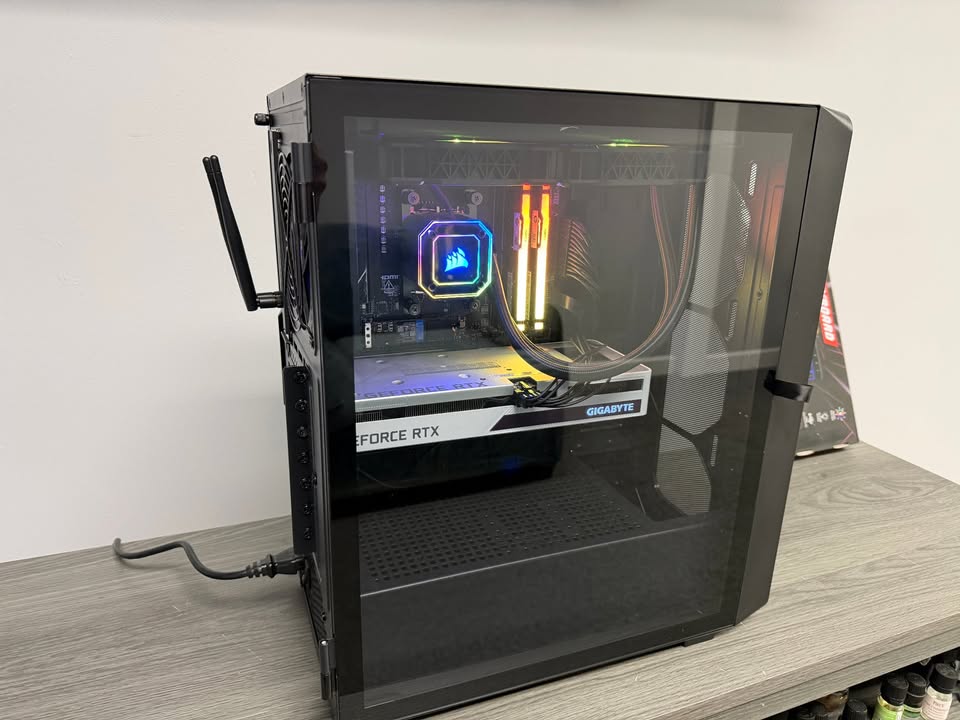
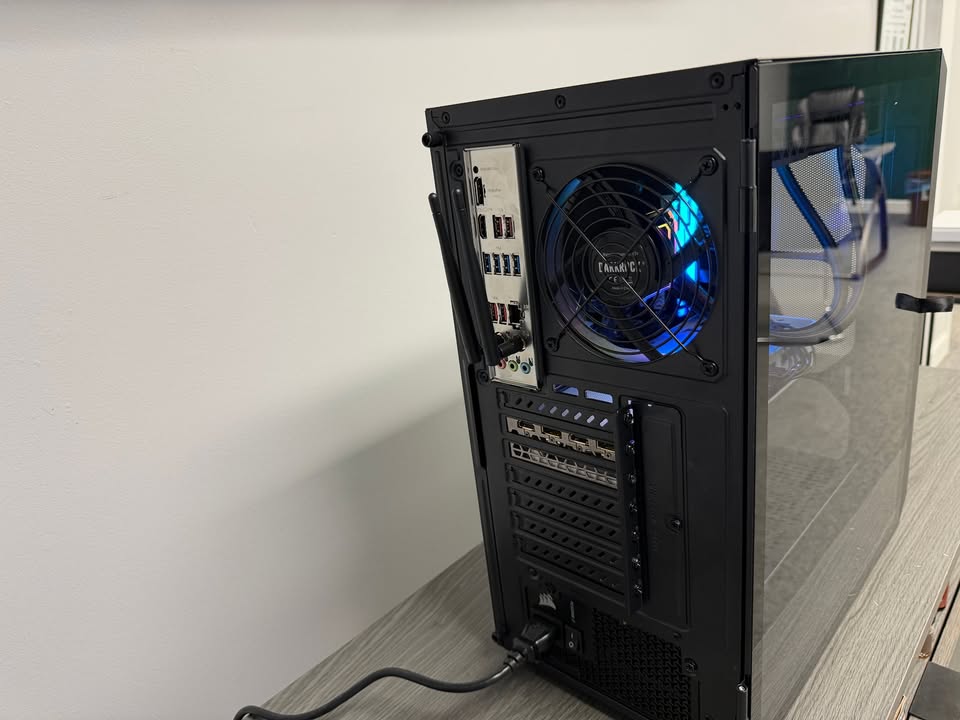
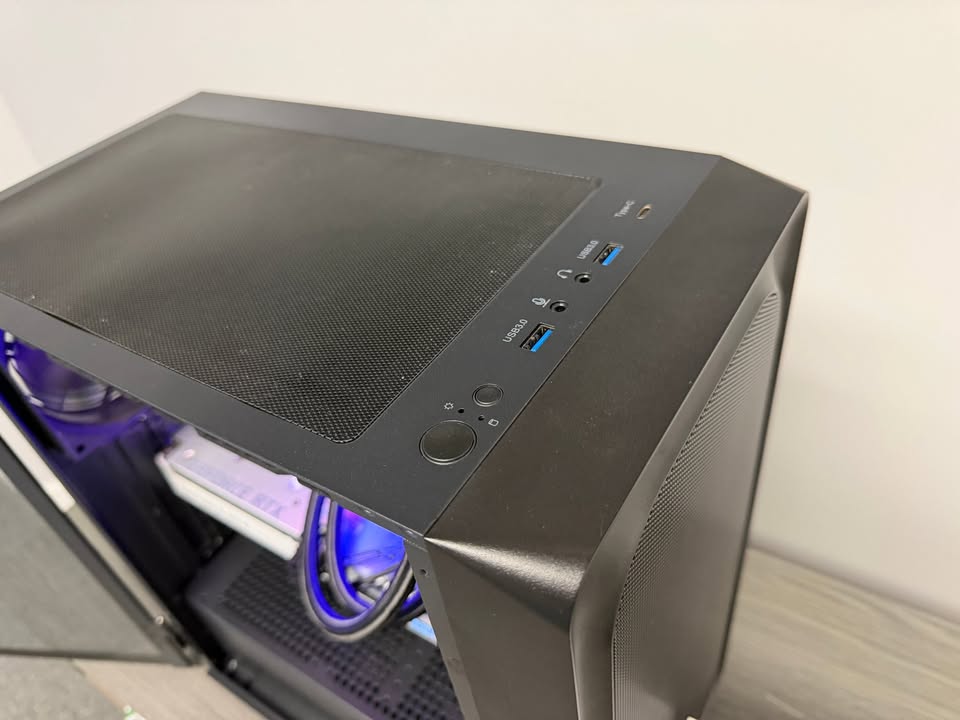
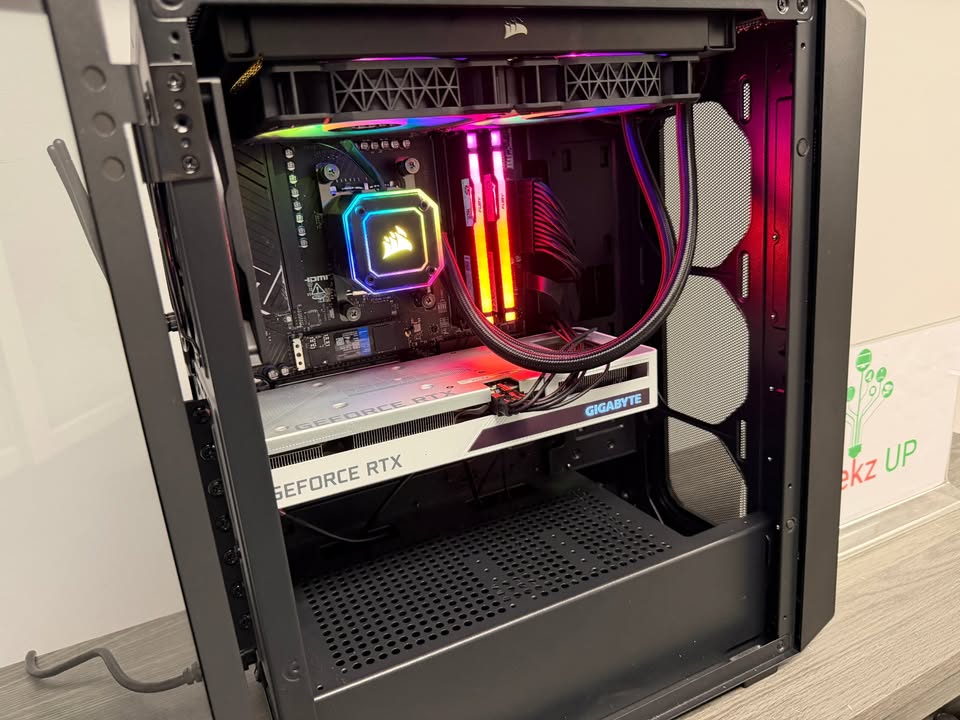
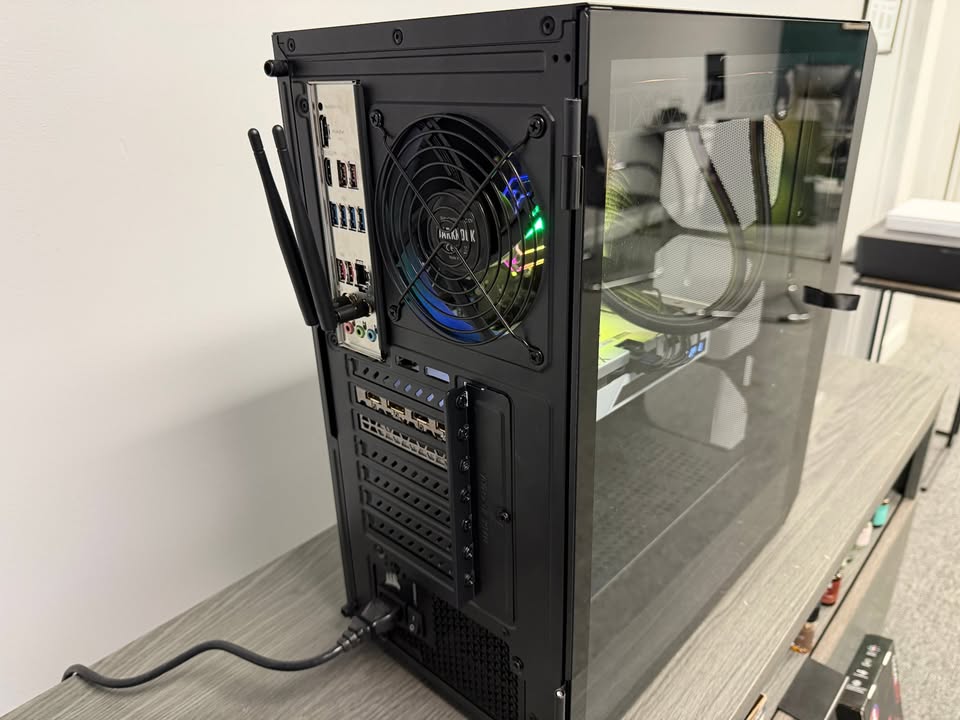
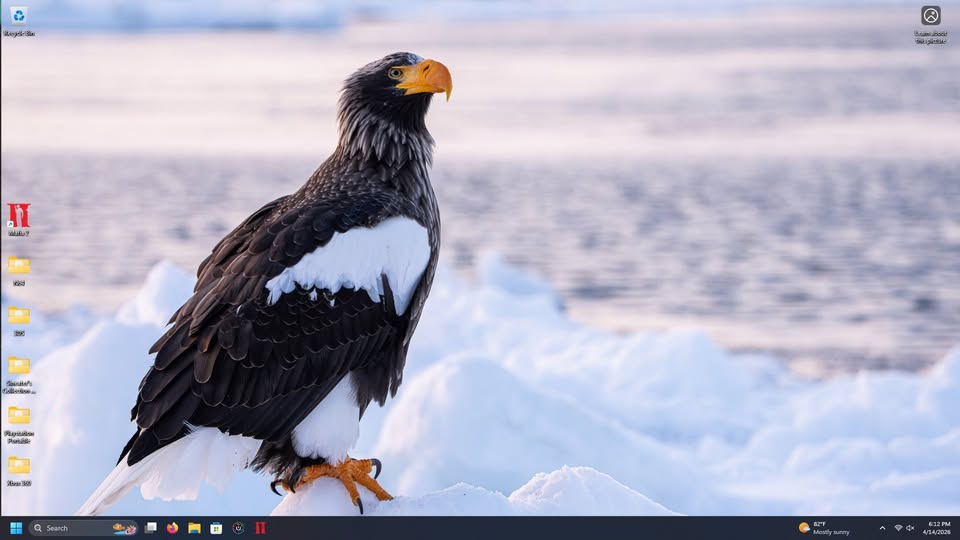
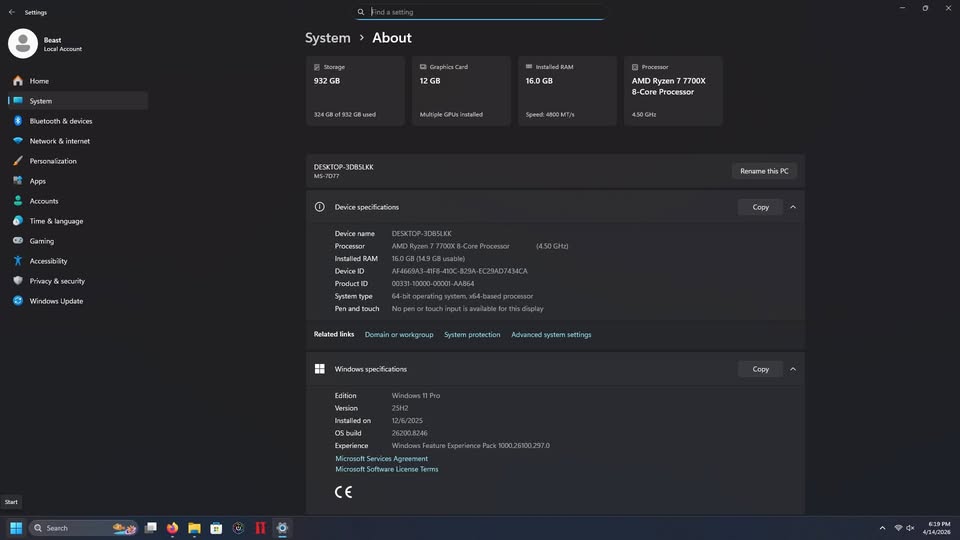
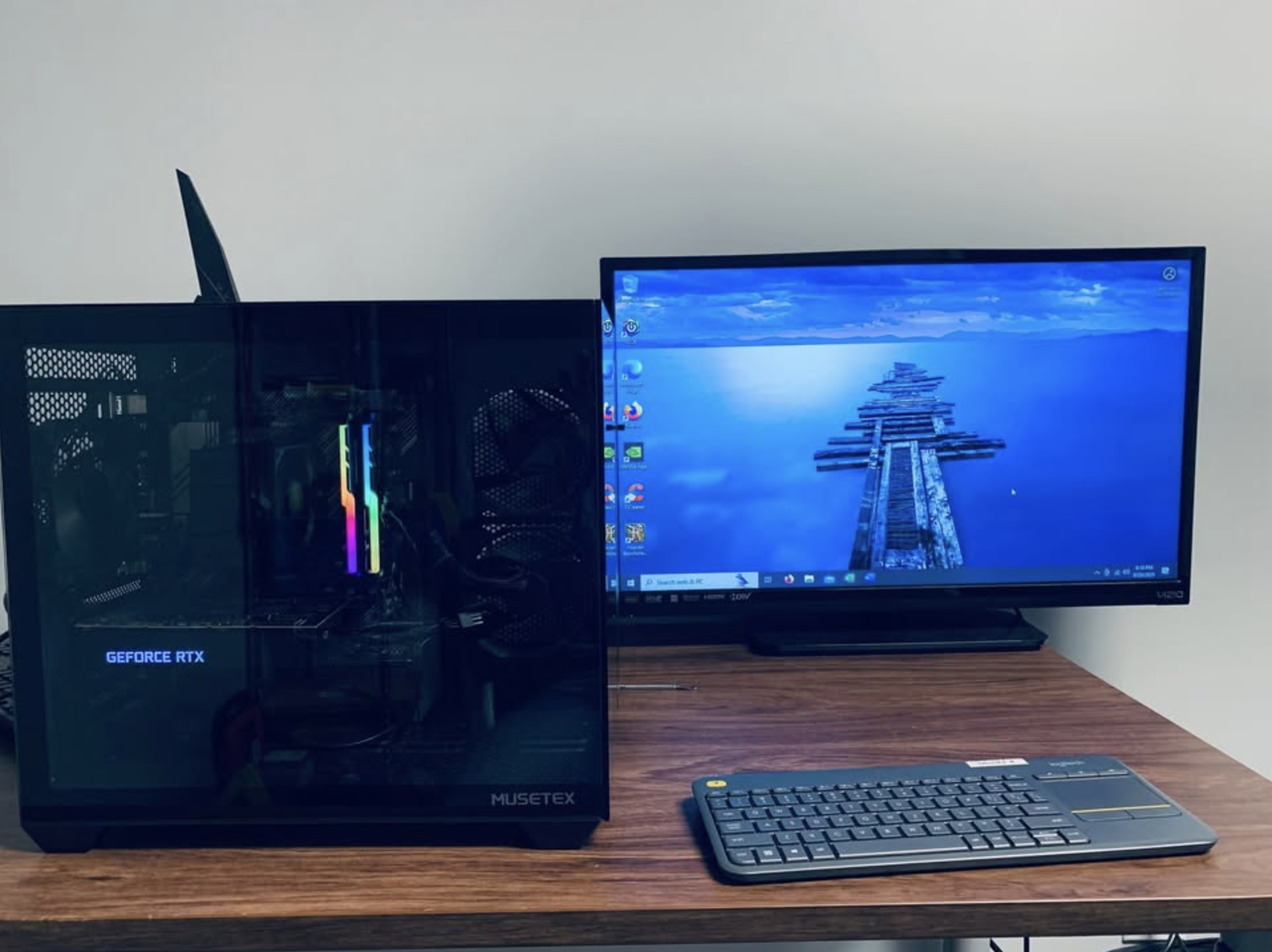
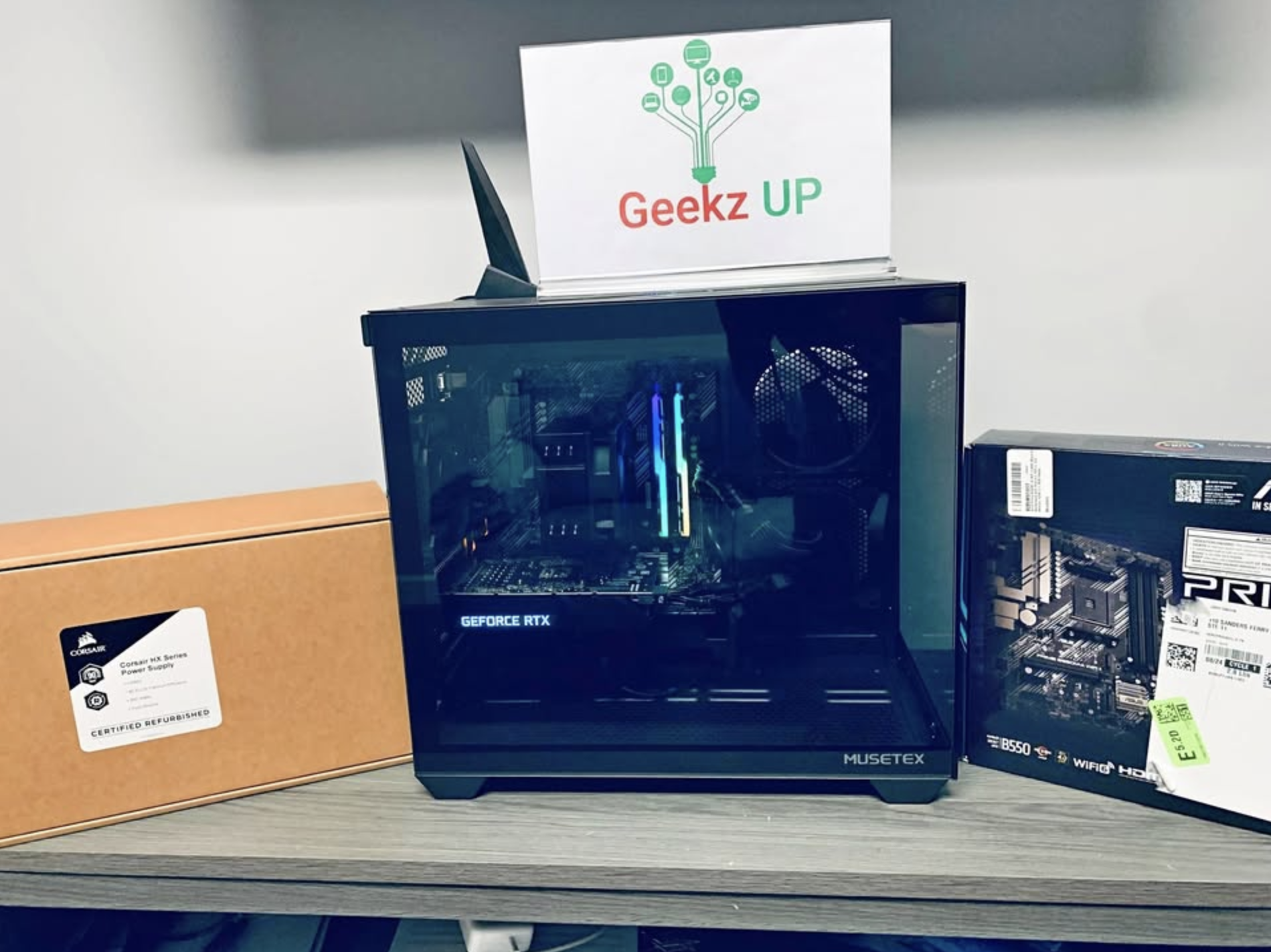
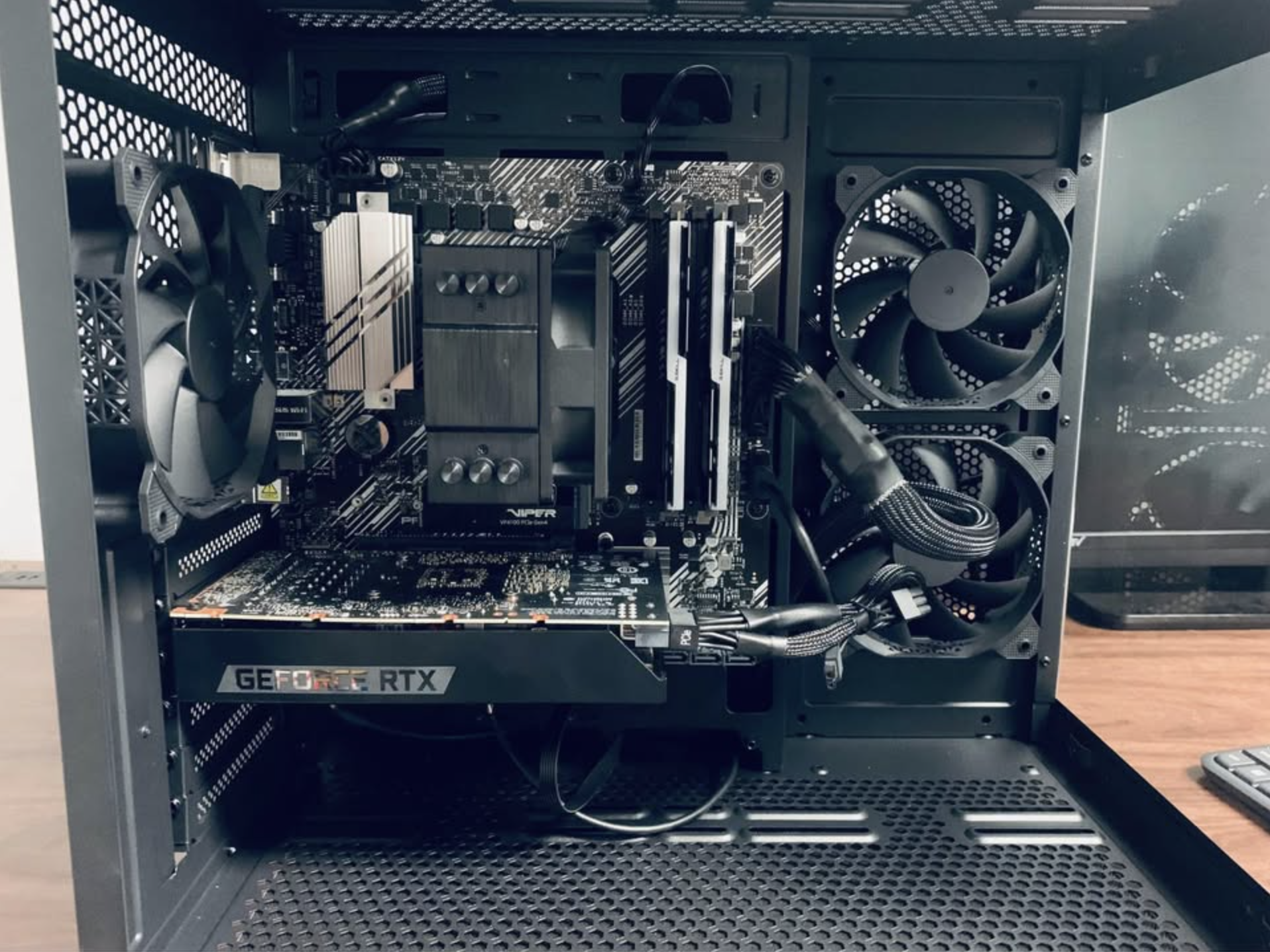
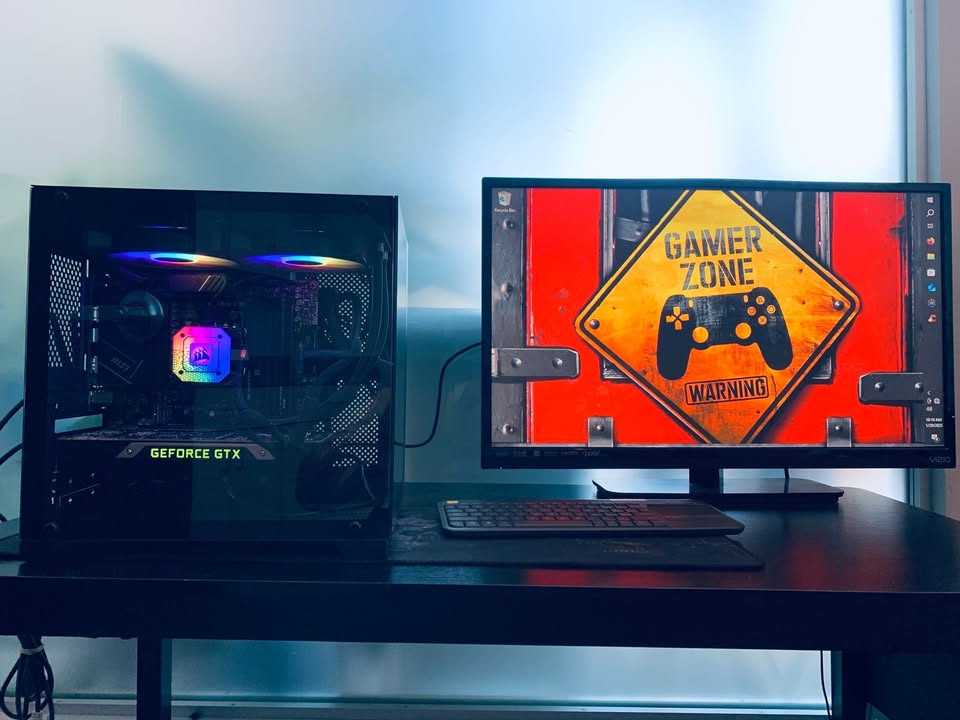
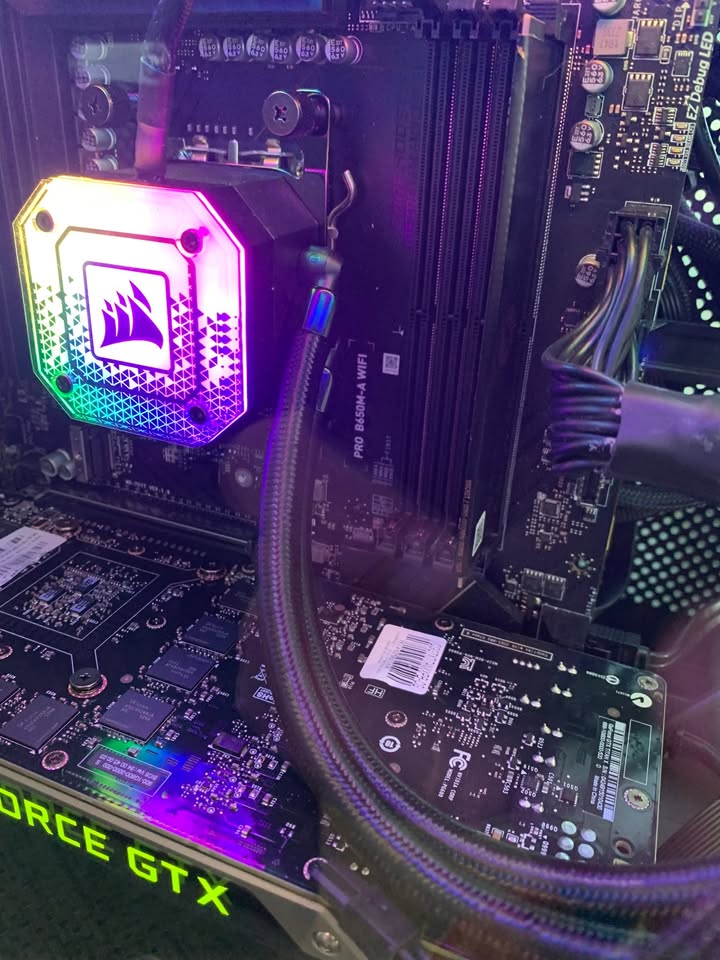
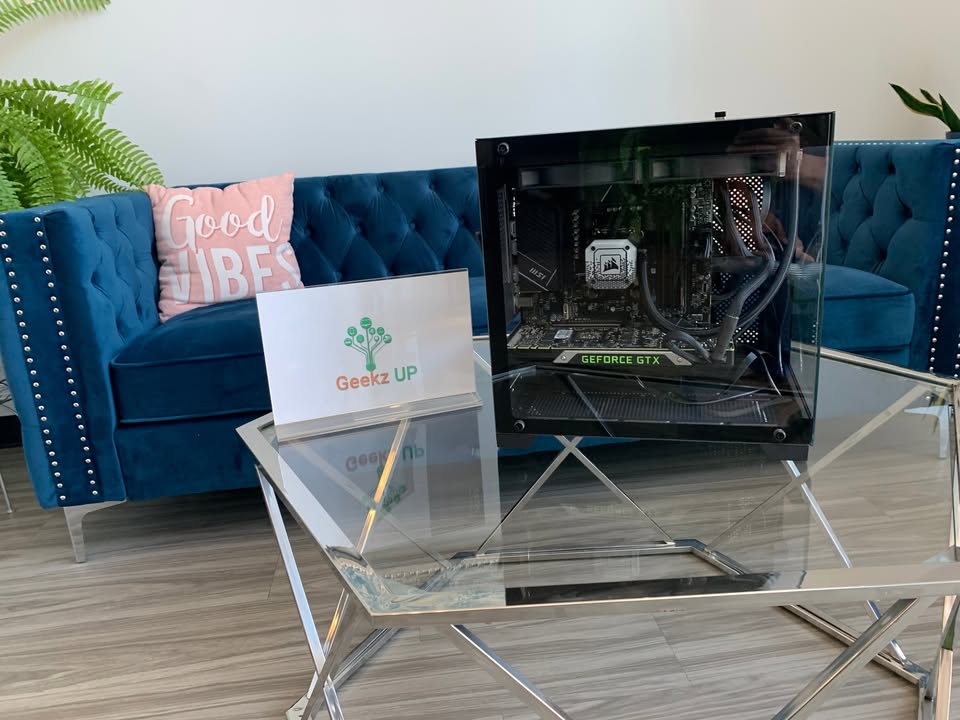
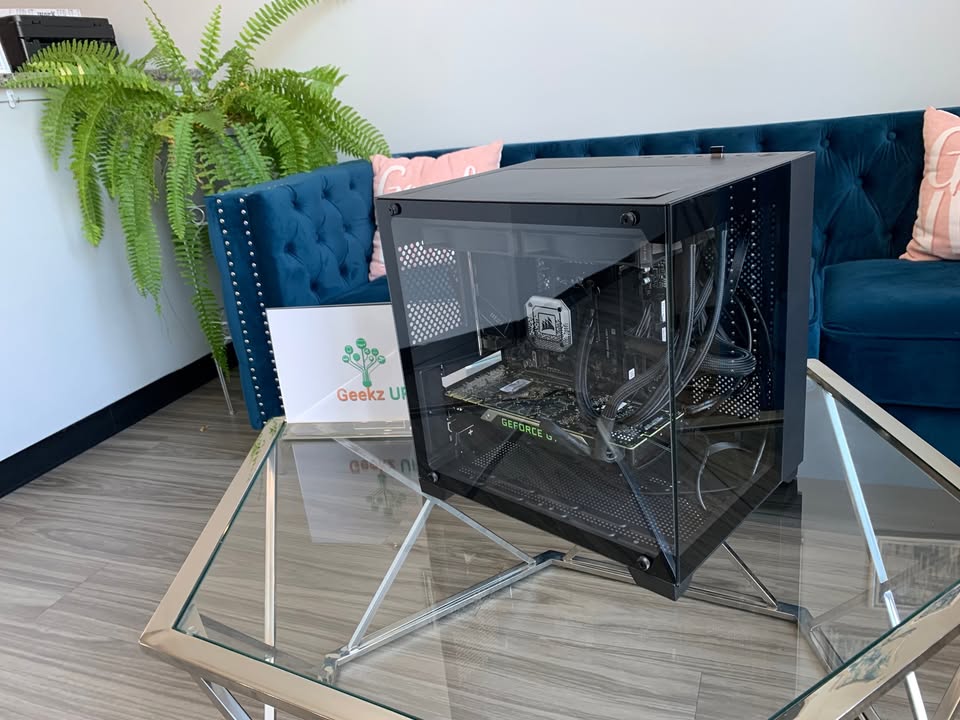
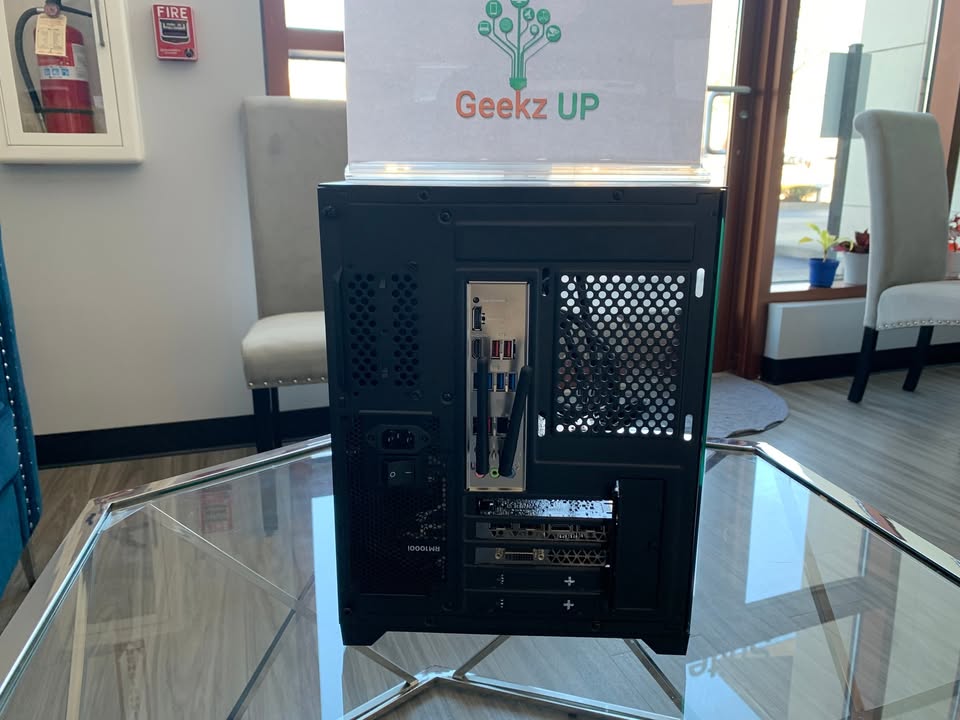
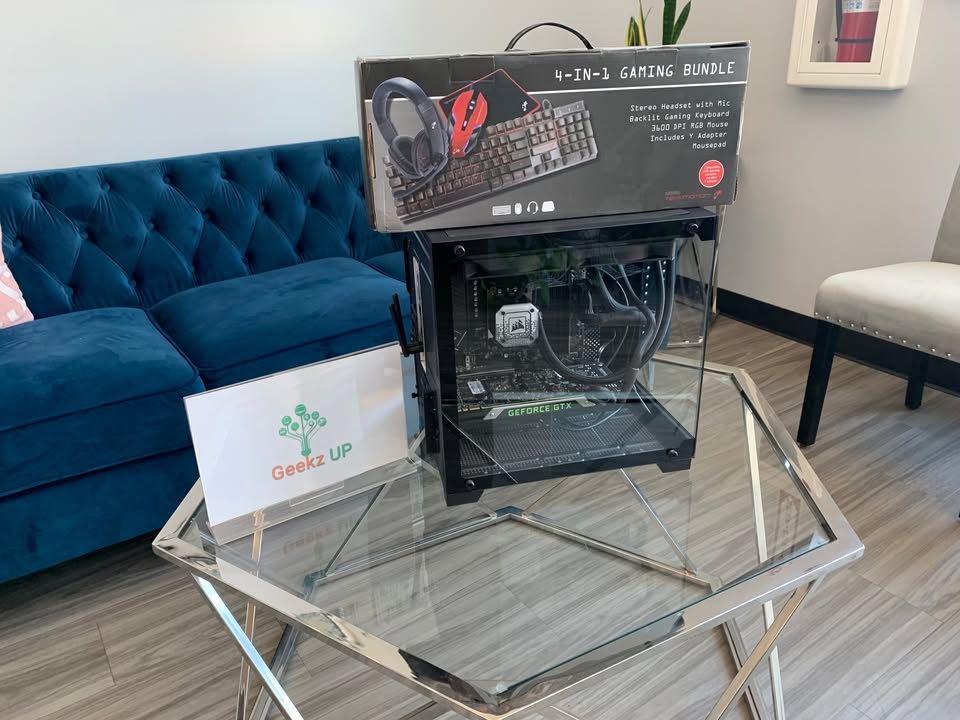
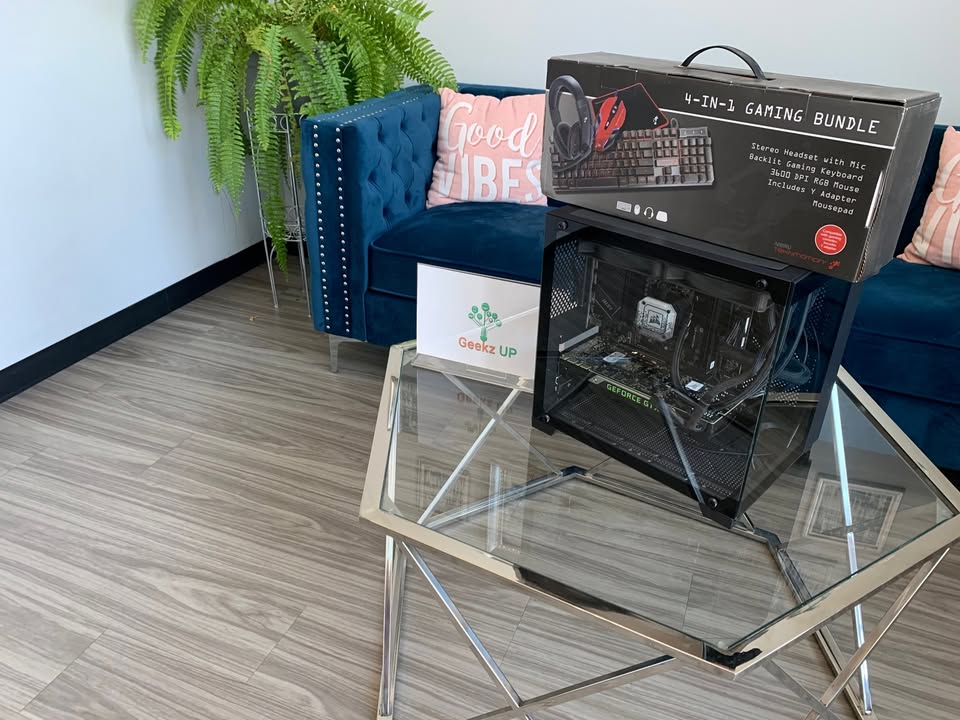
Gaming Beast 4.5 AMD 7 7700x, 16gb DDR5, Nvidia 3060 12gb, MSI Pro B650-A Wifi, Fully Loaded

Configuration

Preloaded Software

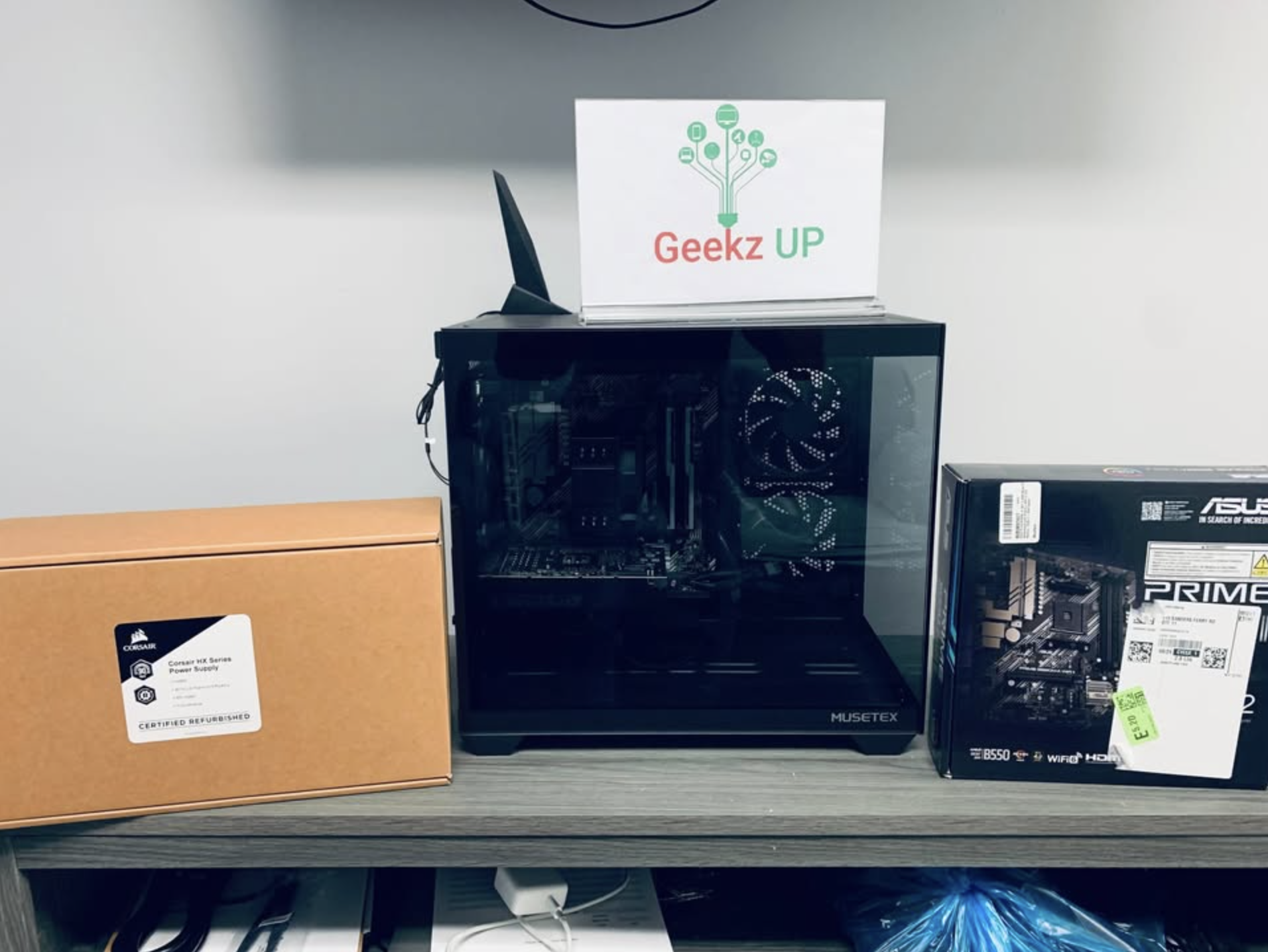
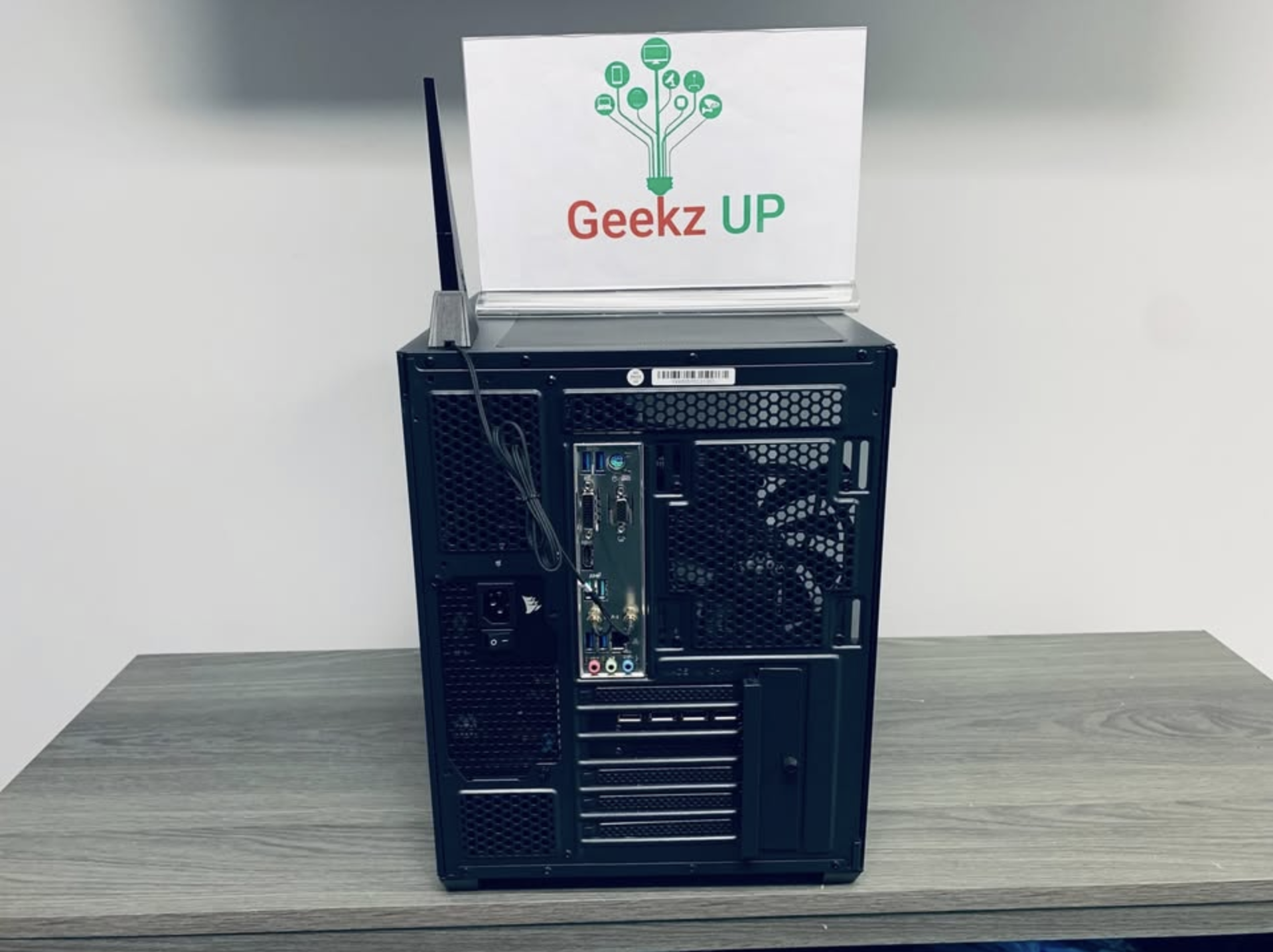
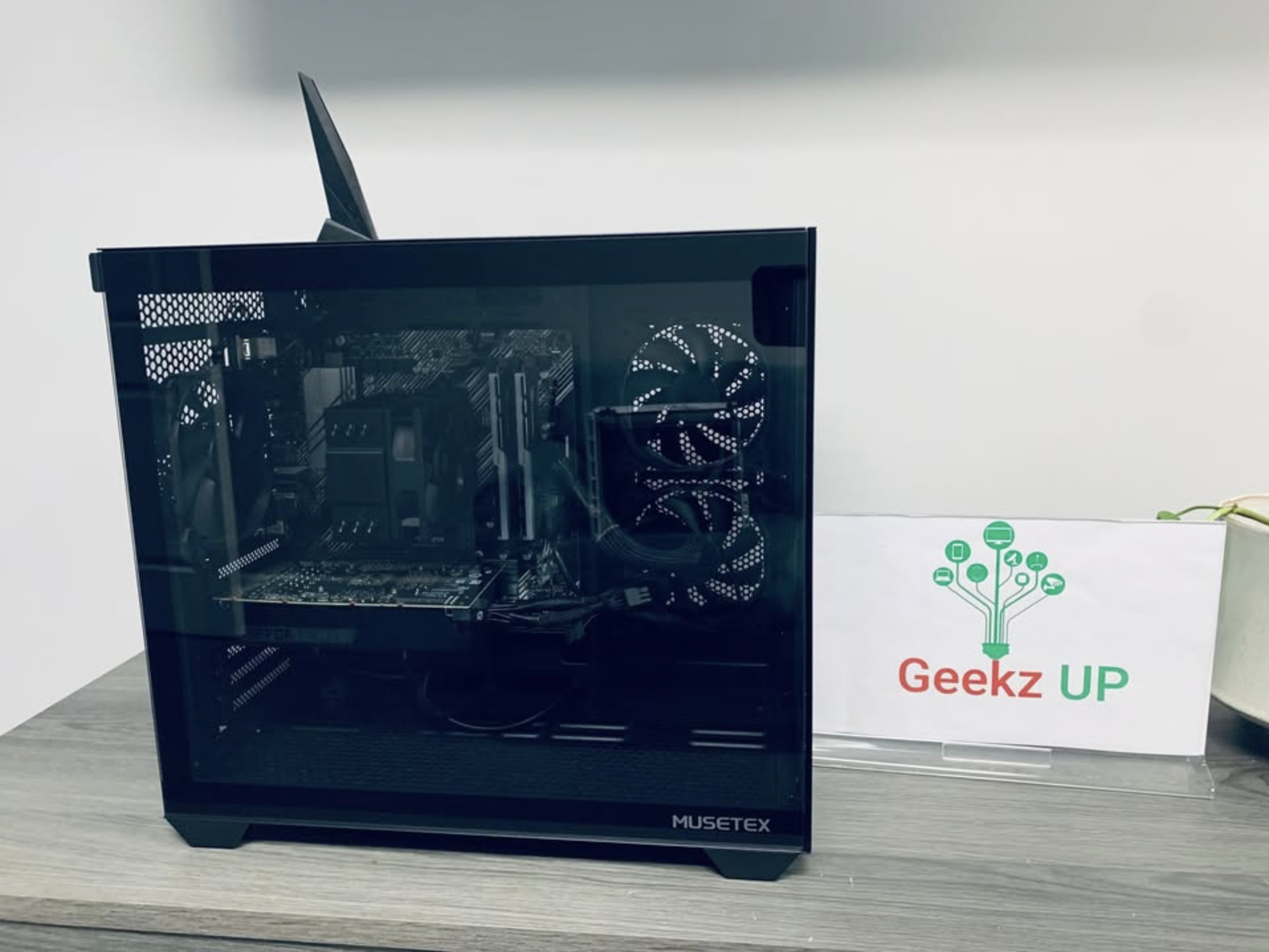
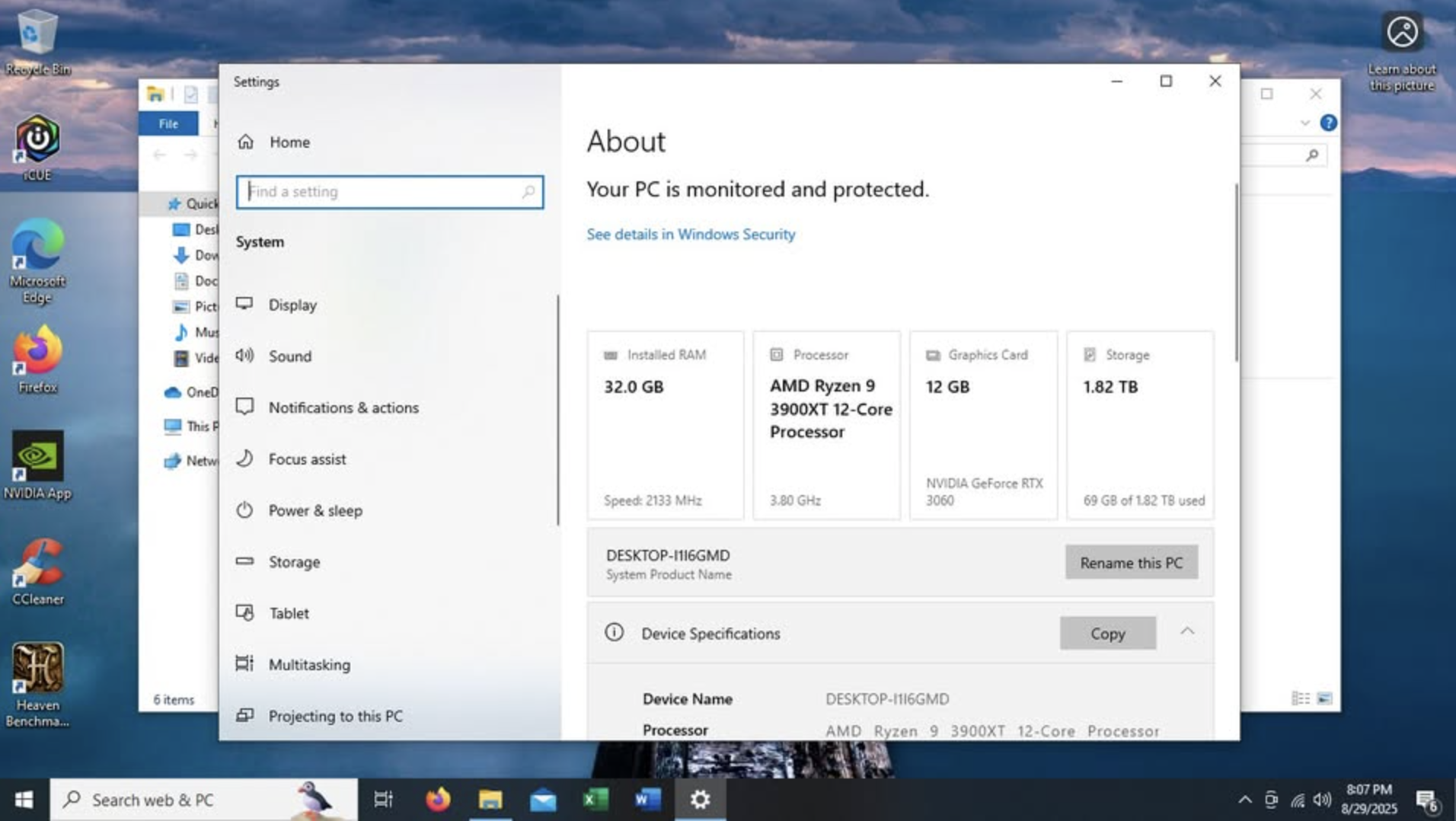
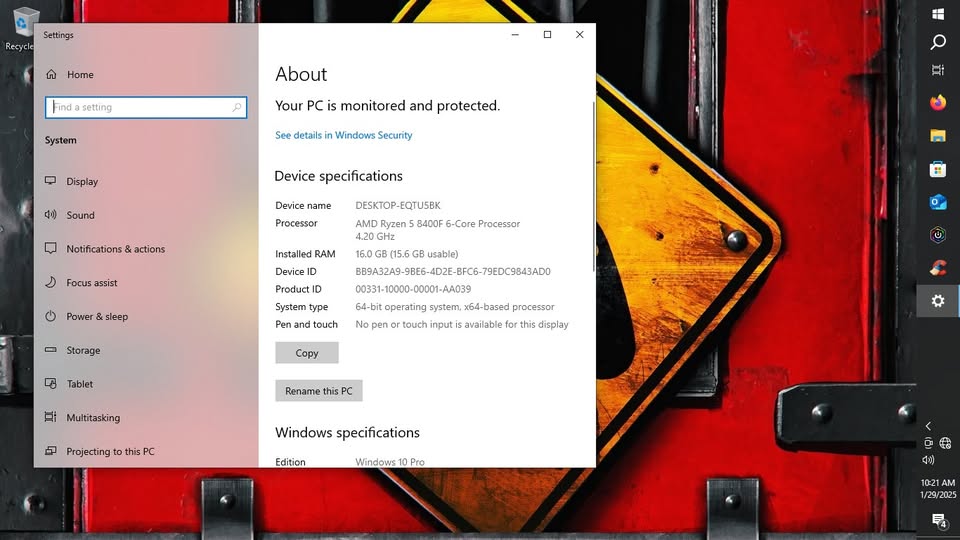
Beast~ 3.8 AMD, 32gb, 2tb M.2, 3060 12gb, Windows 10 Pro, Fully Loaded. New Condition

Configuration

Preloaded Software

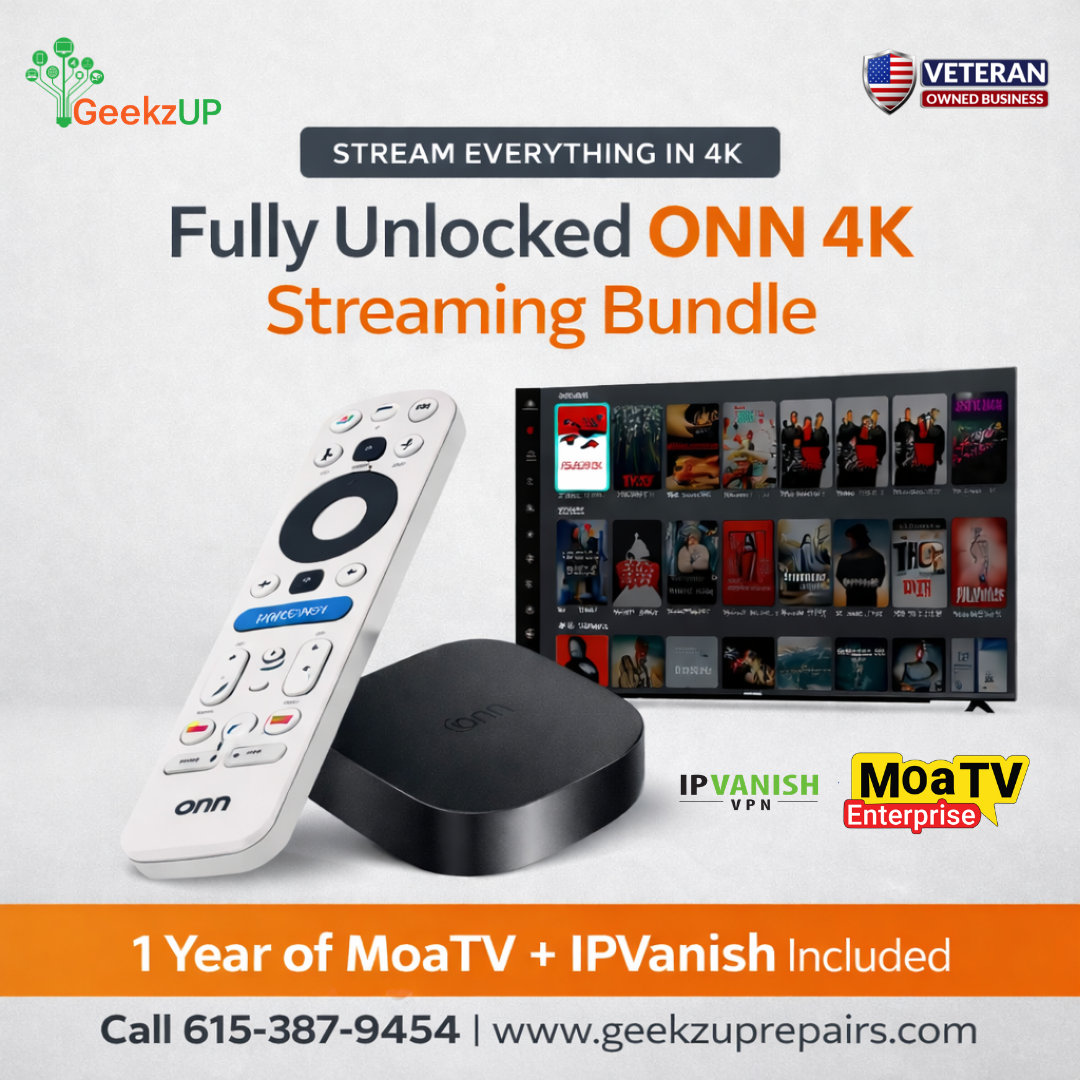
ONN 4k Device Fully Unlocked & Setup $250

One of the best IPTV plans for long-term users who want consistent streaming access across supported devices.
•⁠ ⁠6,000+ Live Channels with EPG
•⁠ ⁠International & Premium VOD
•⁠ ⁠PPV & Sports Events
•⁠ ⁠Year-long TV access

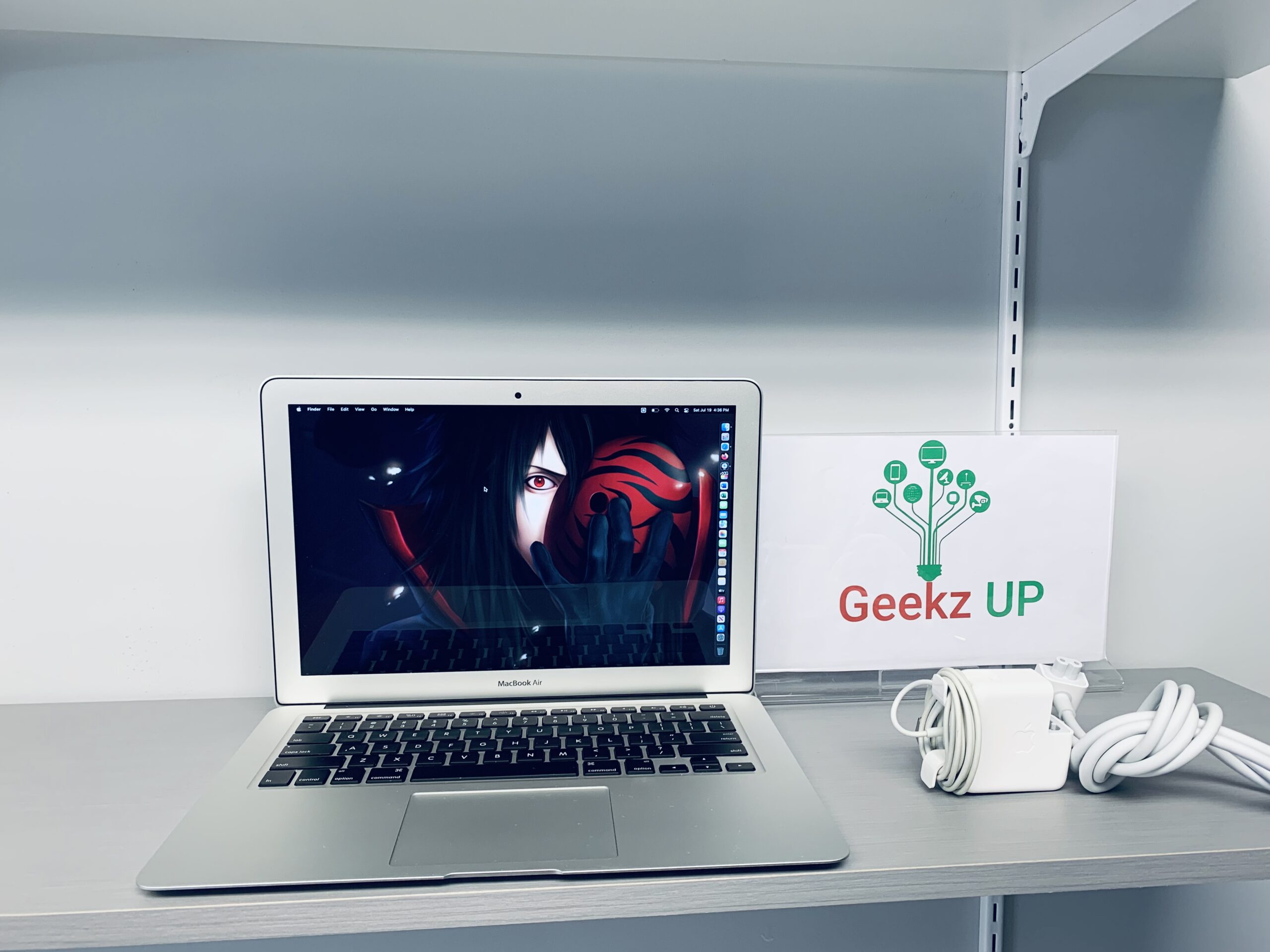
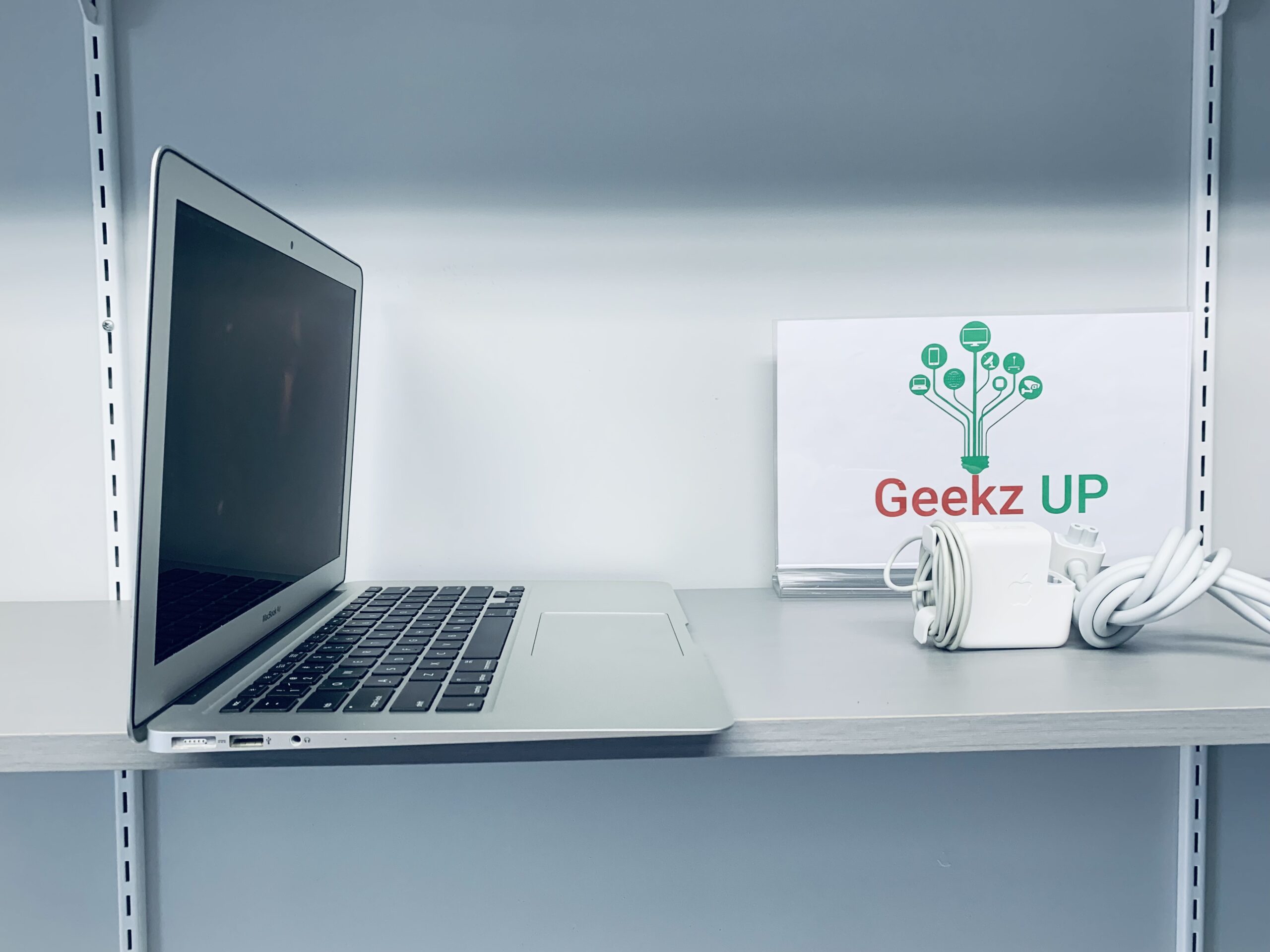
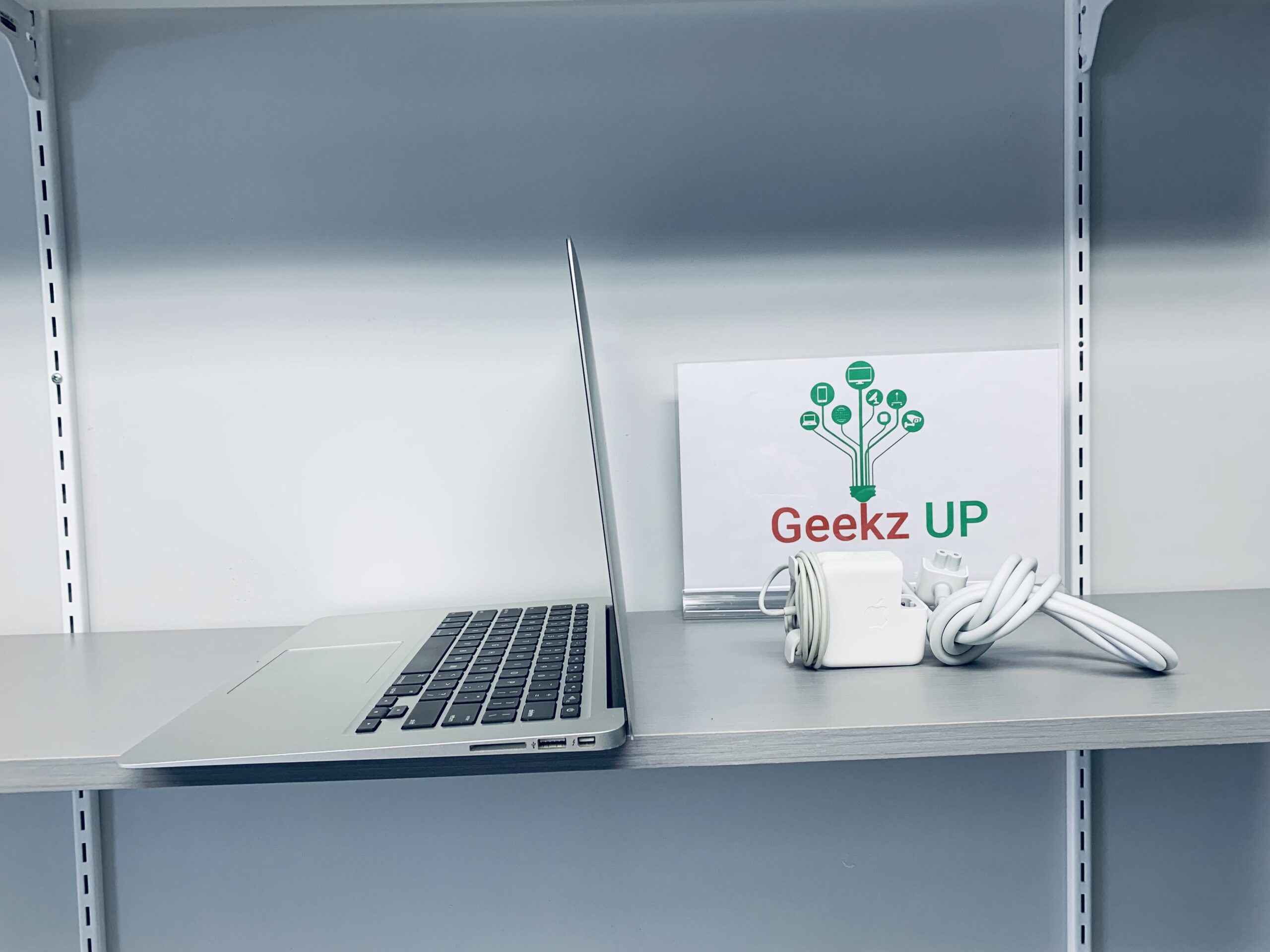
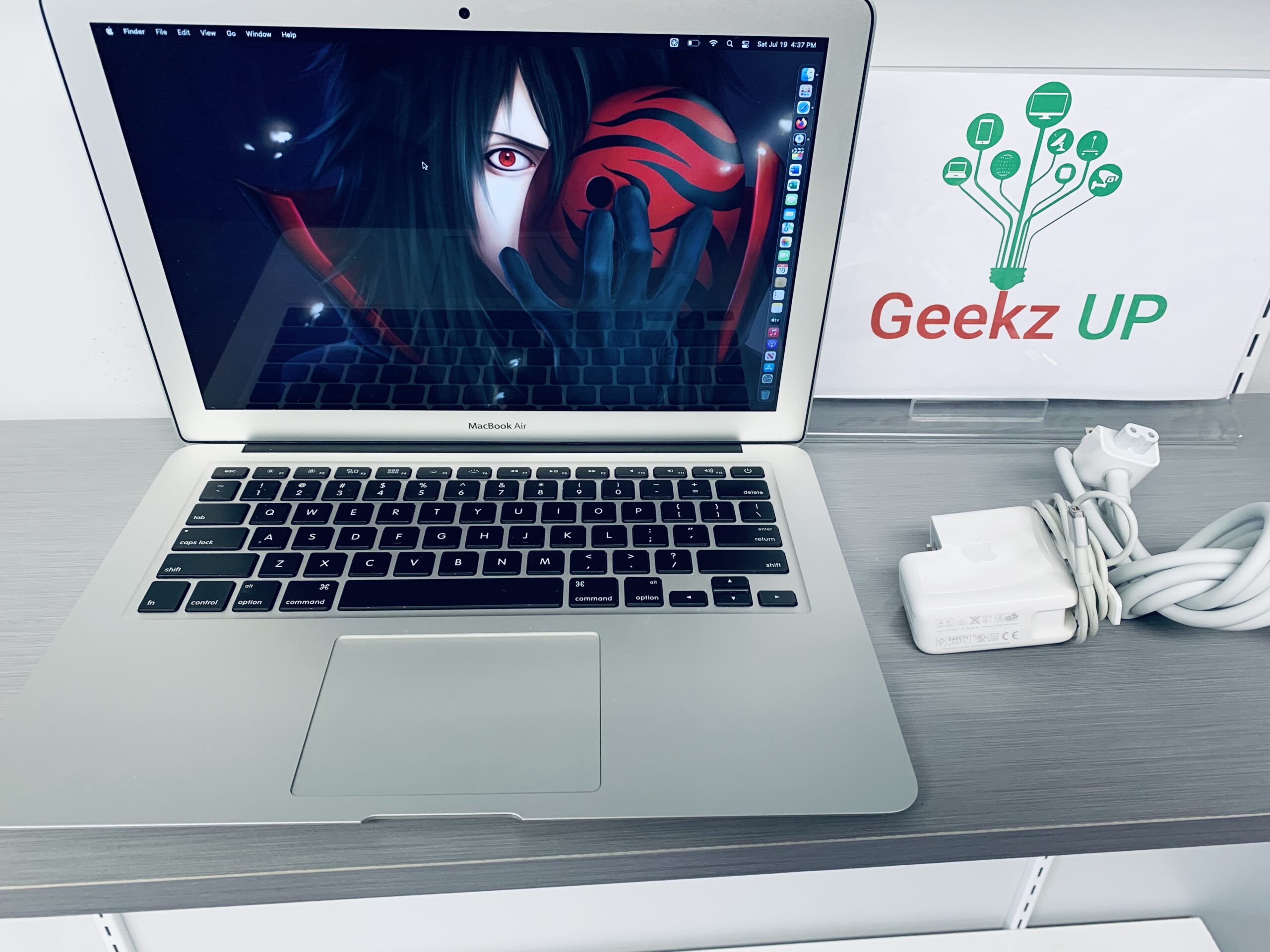
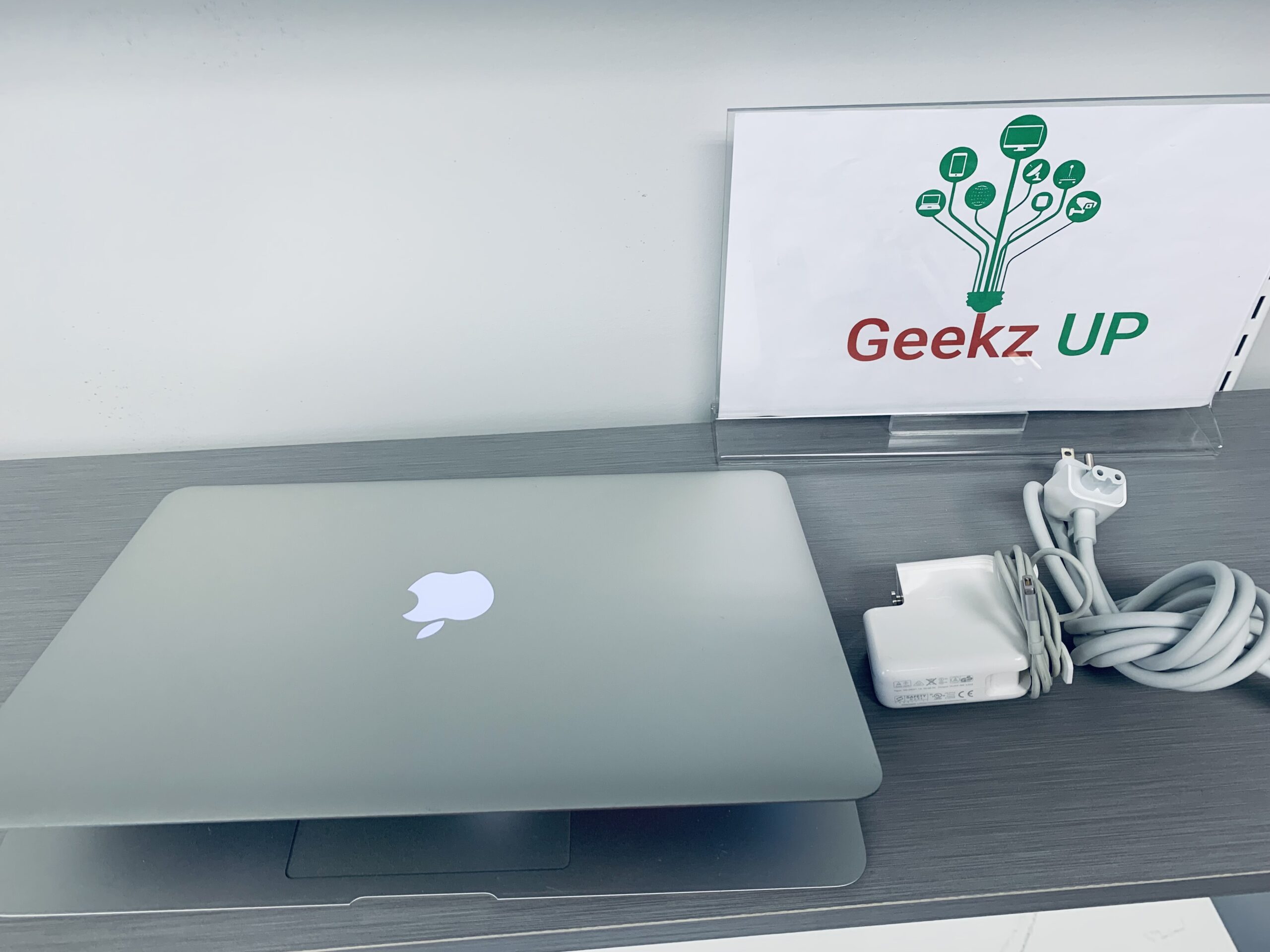
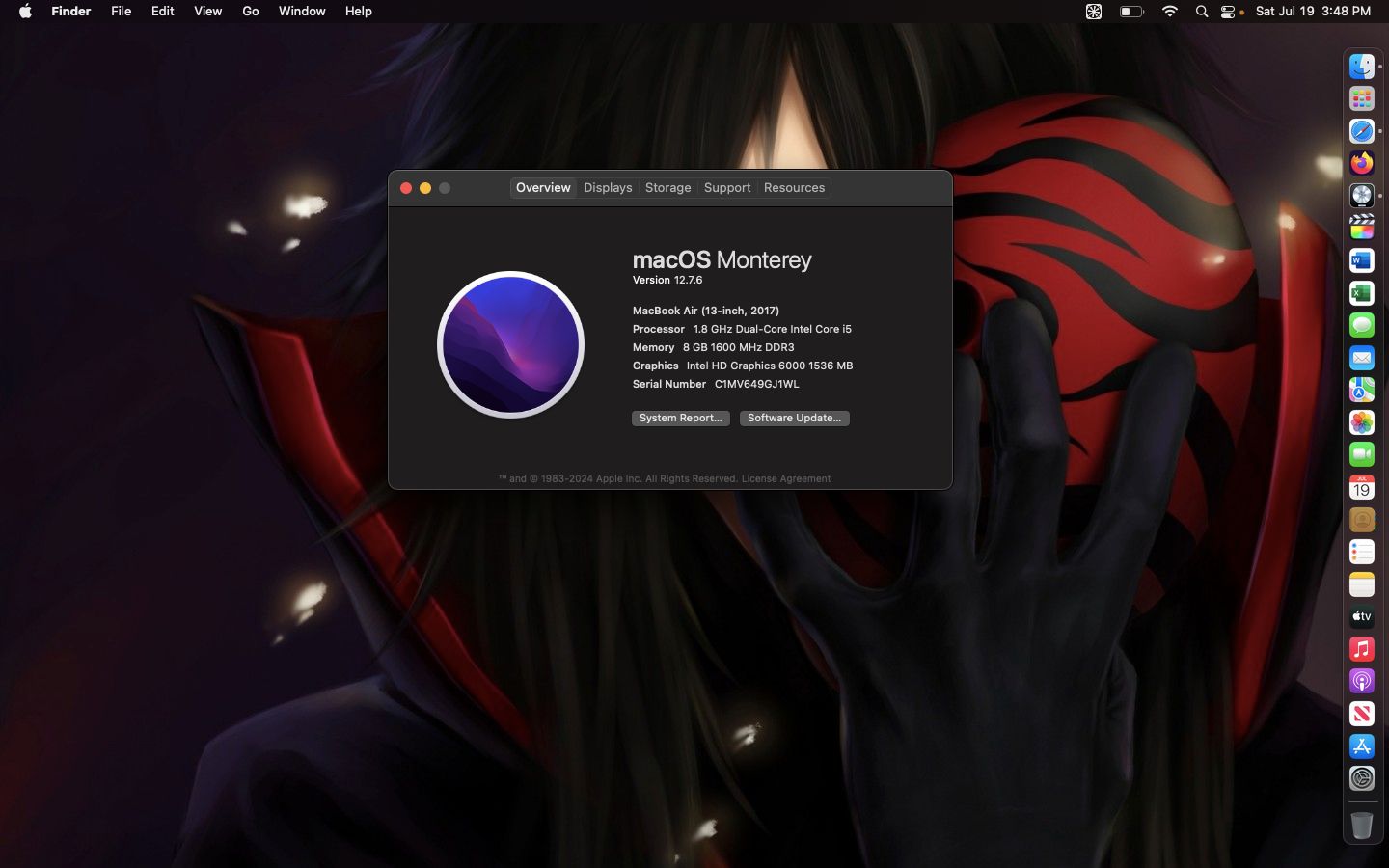
Macbook Air 2017

Configuration

Preloaded Software

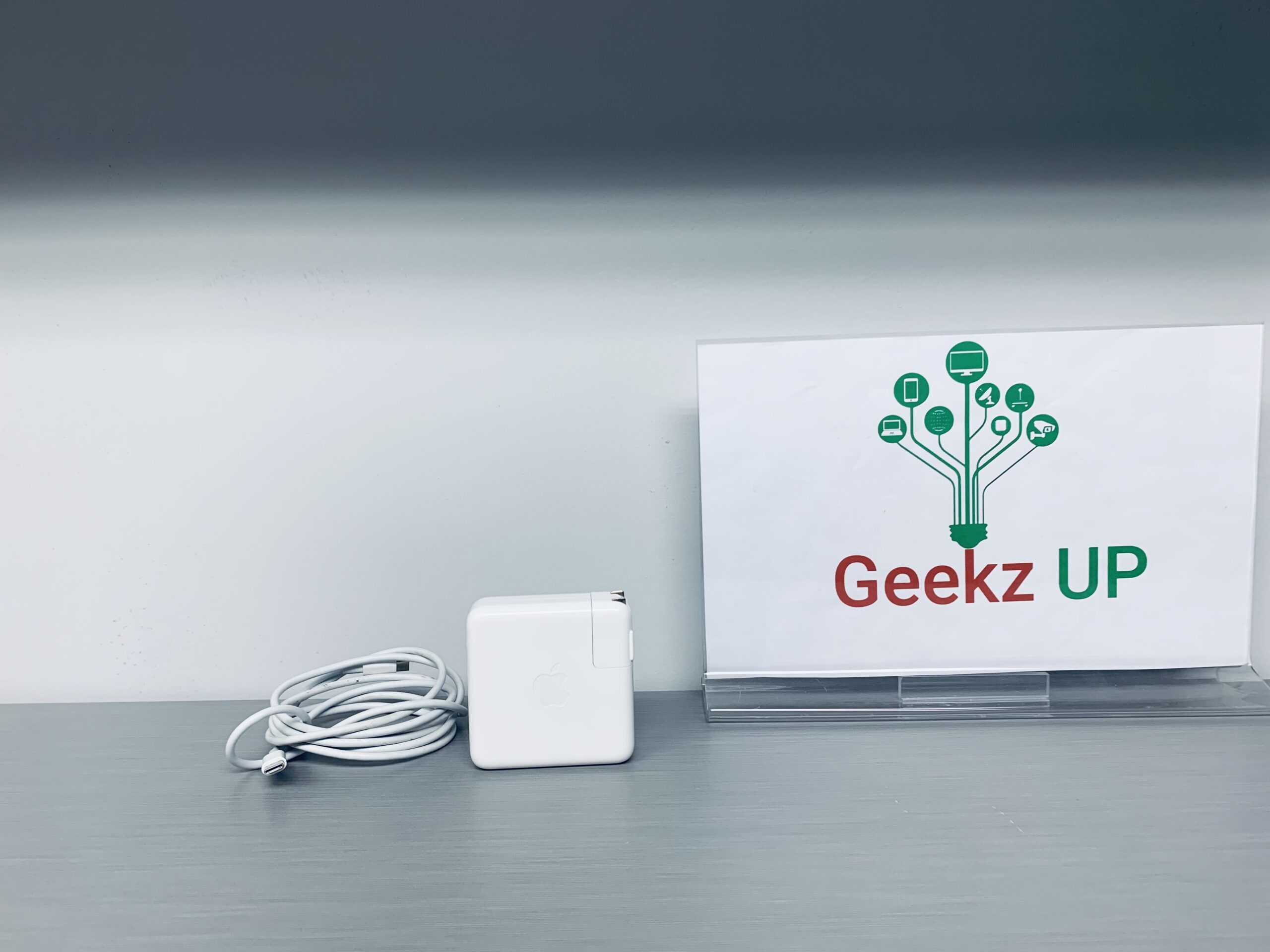
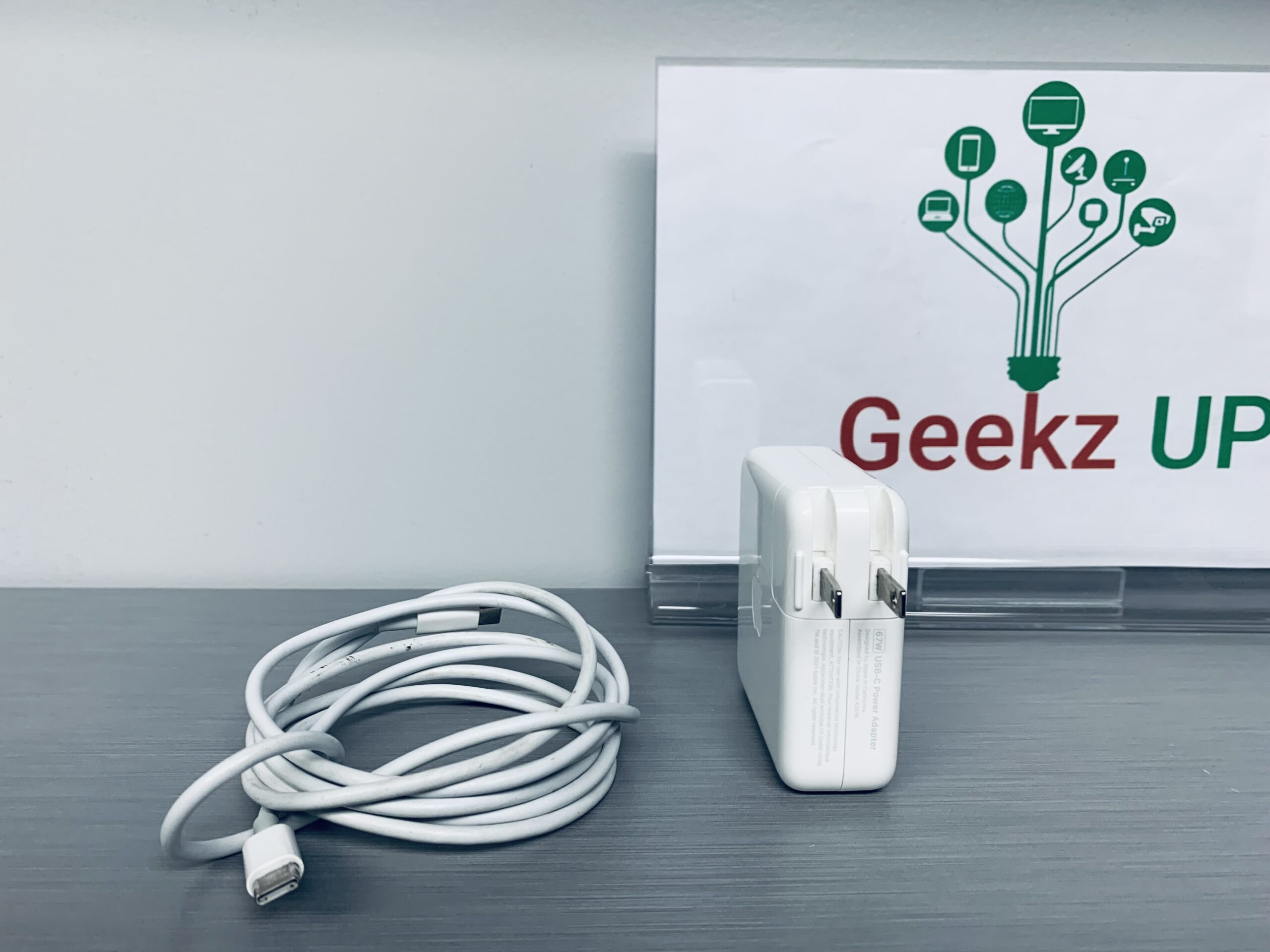
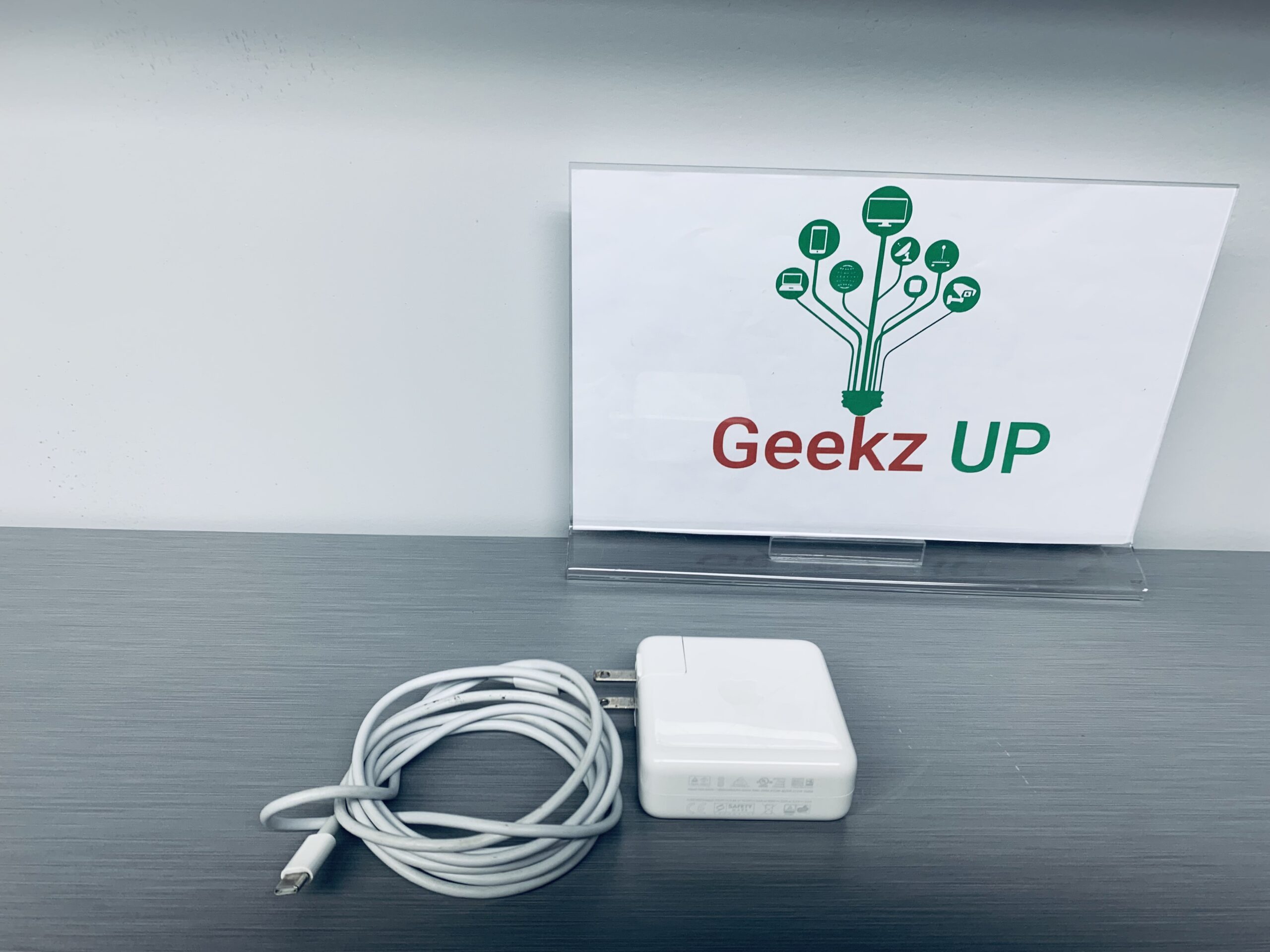
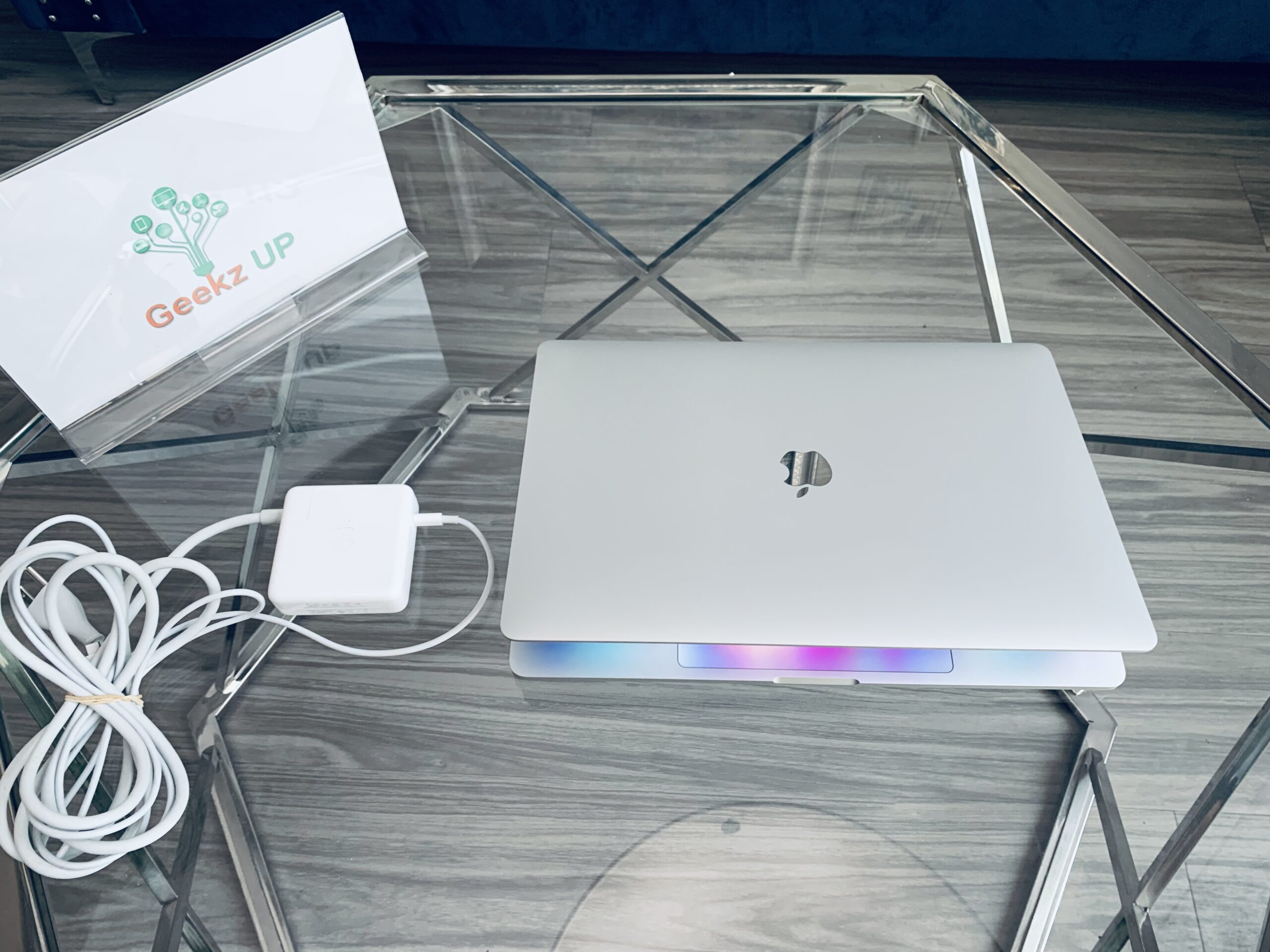
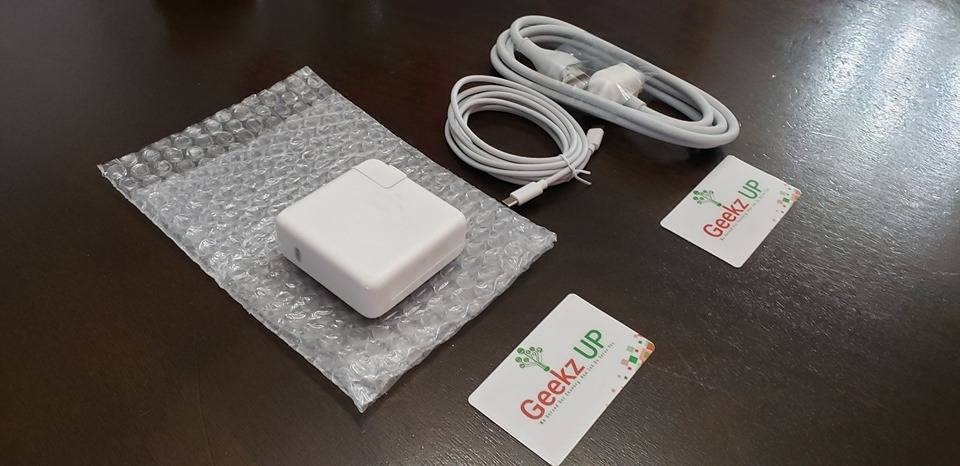
Genuine 67W Type-C Power Adapter Charger for Apple MacBook Pro 13" M1 A2518

For Apple:

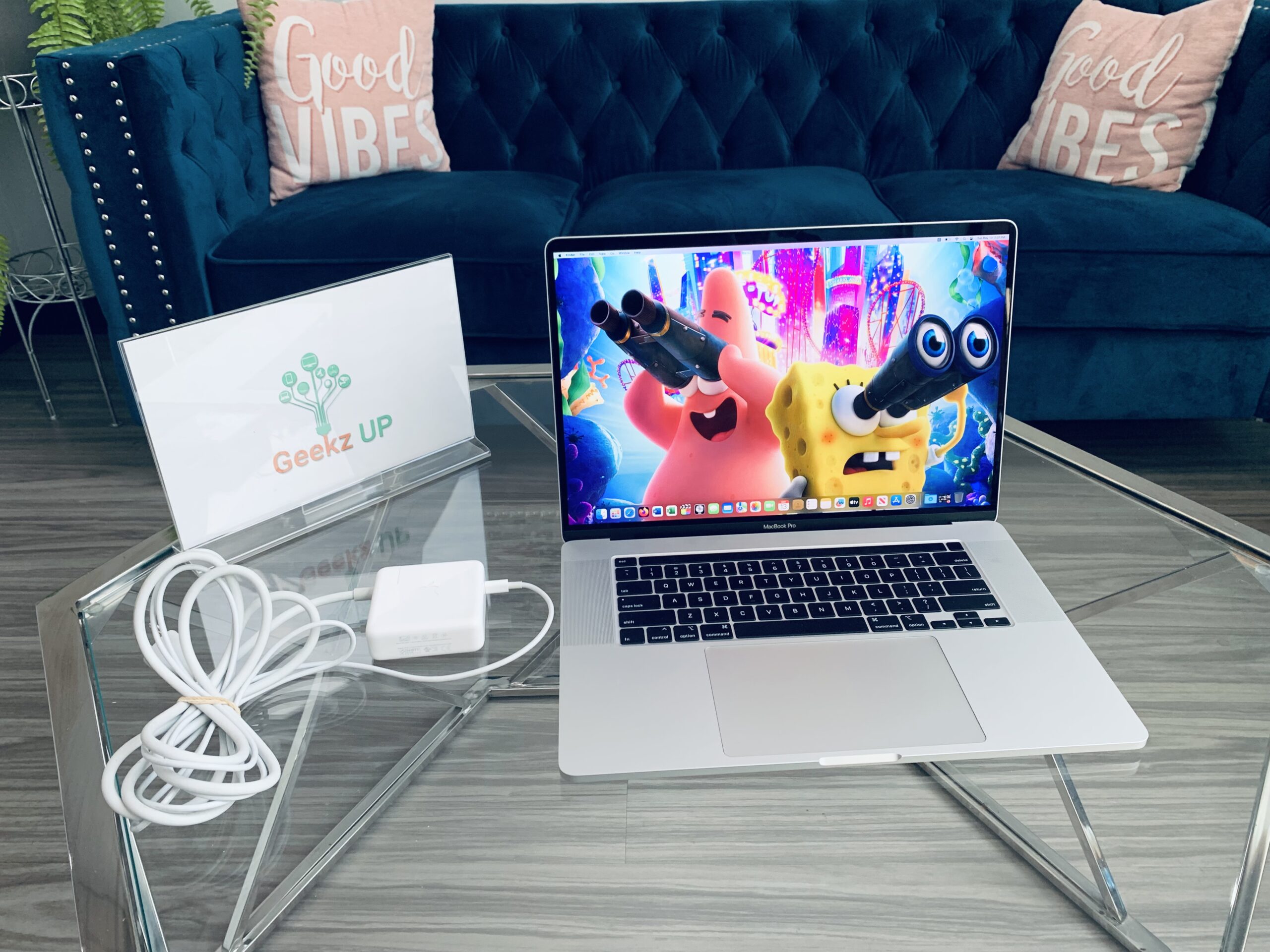
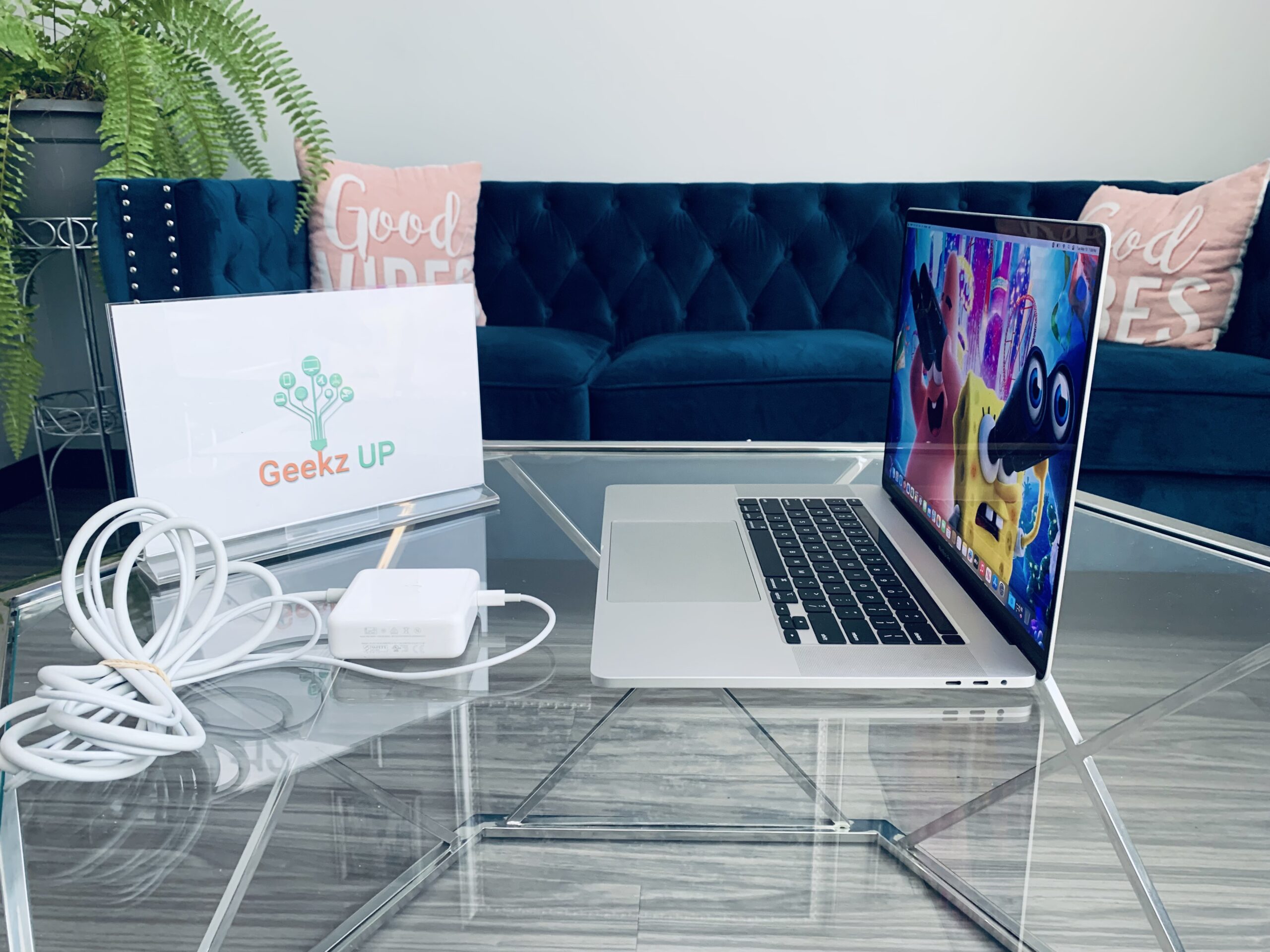
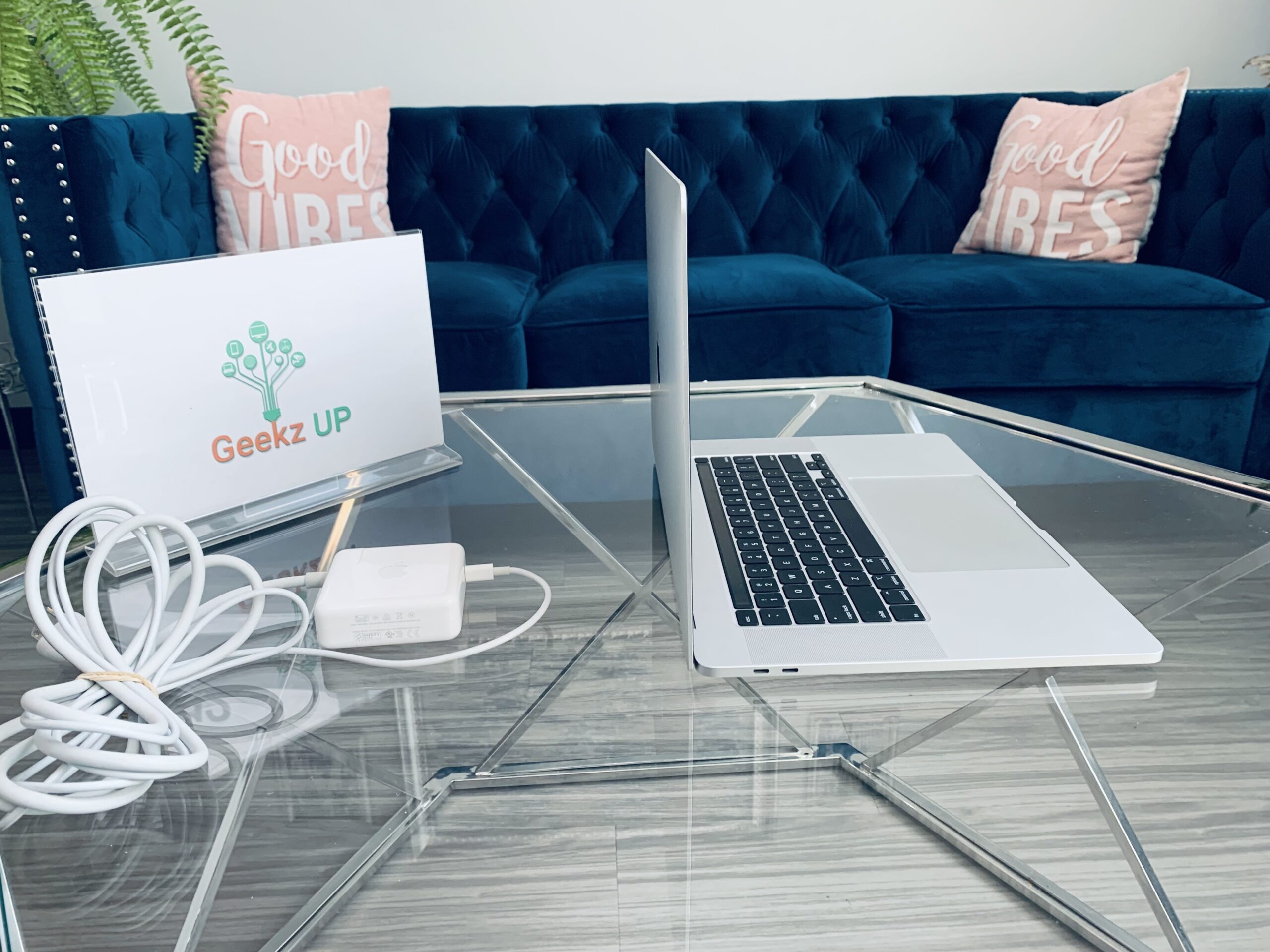
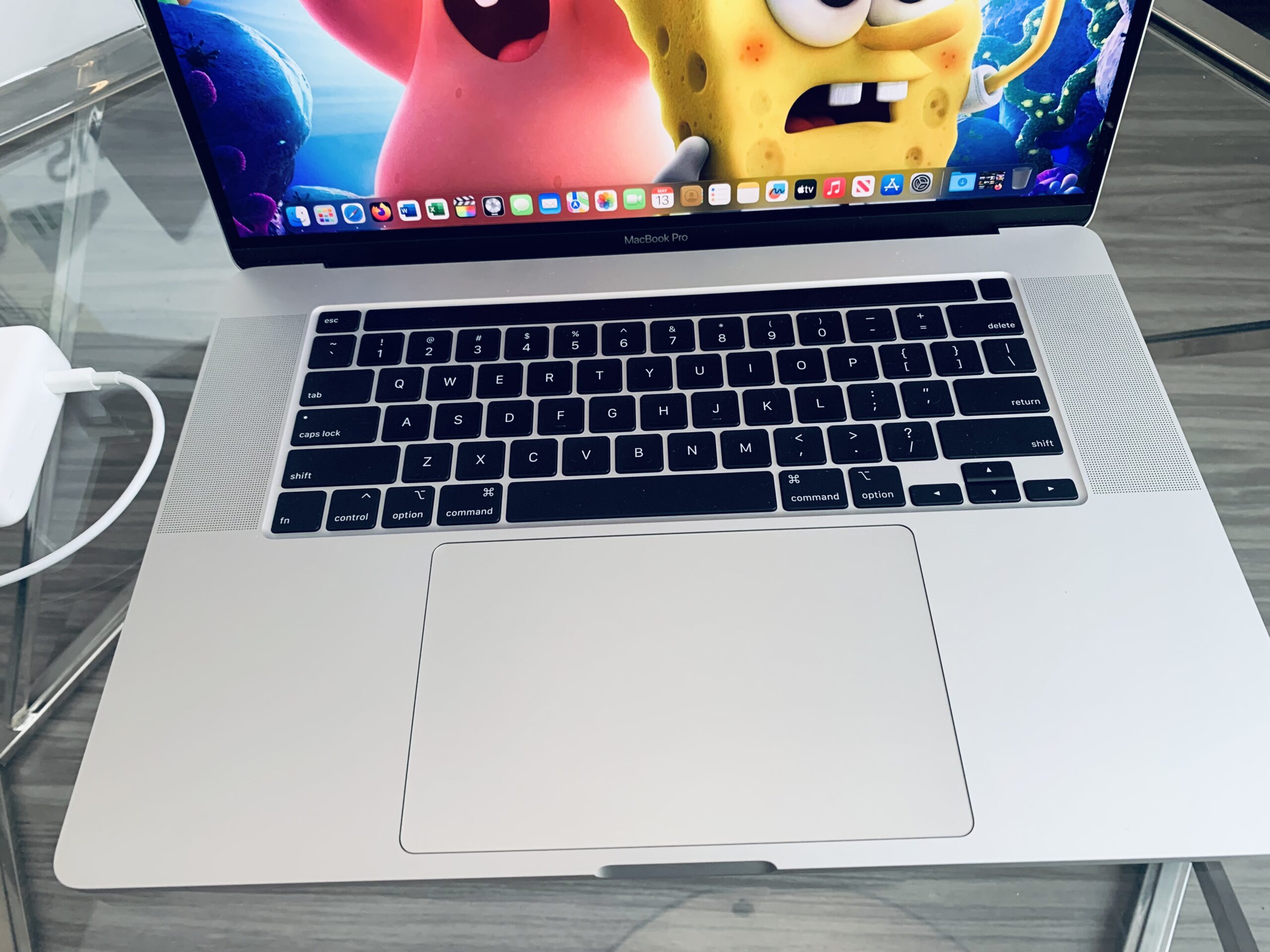
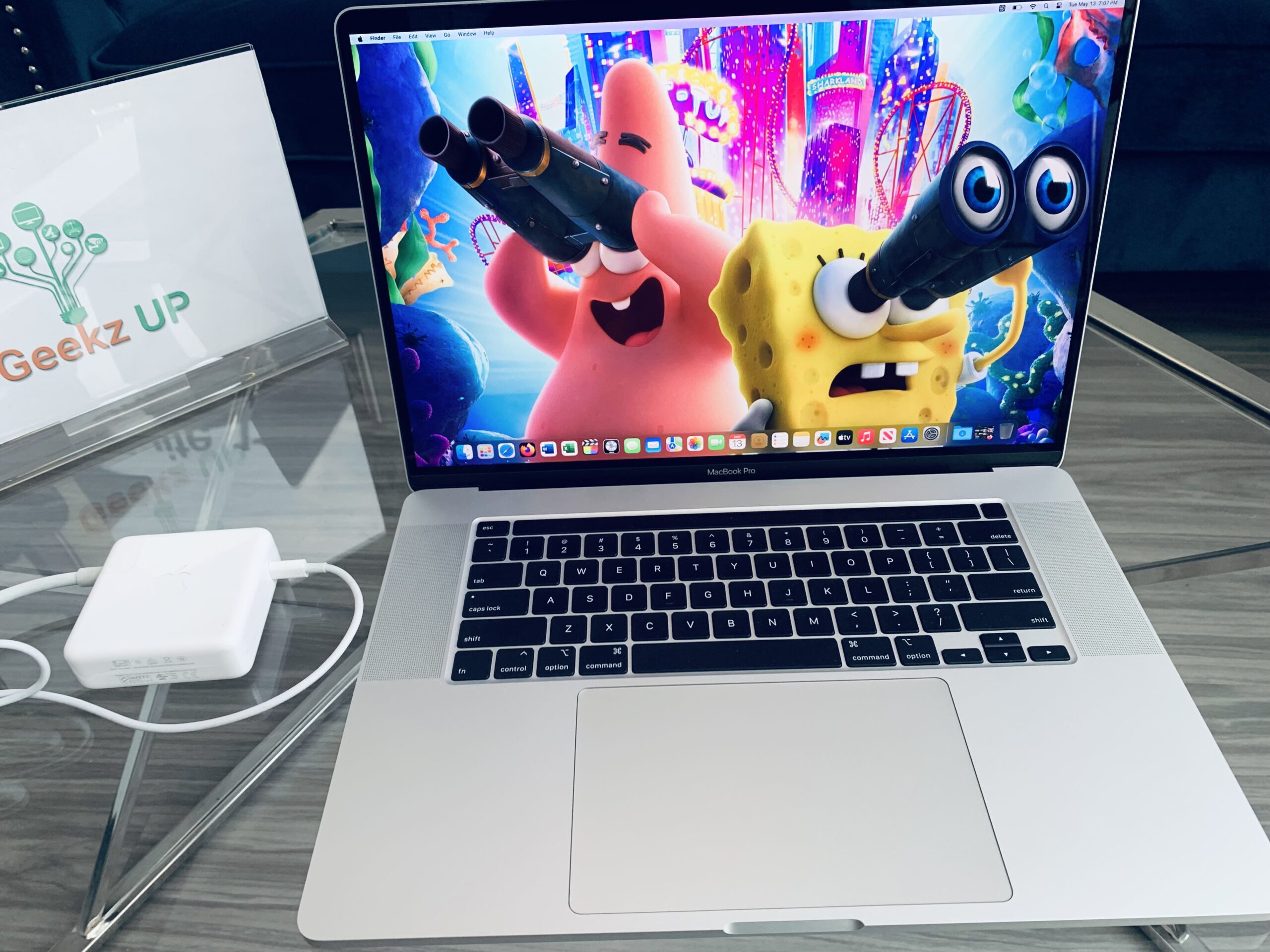
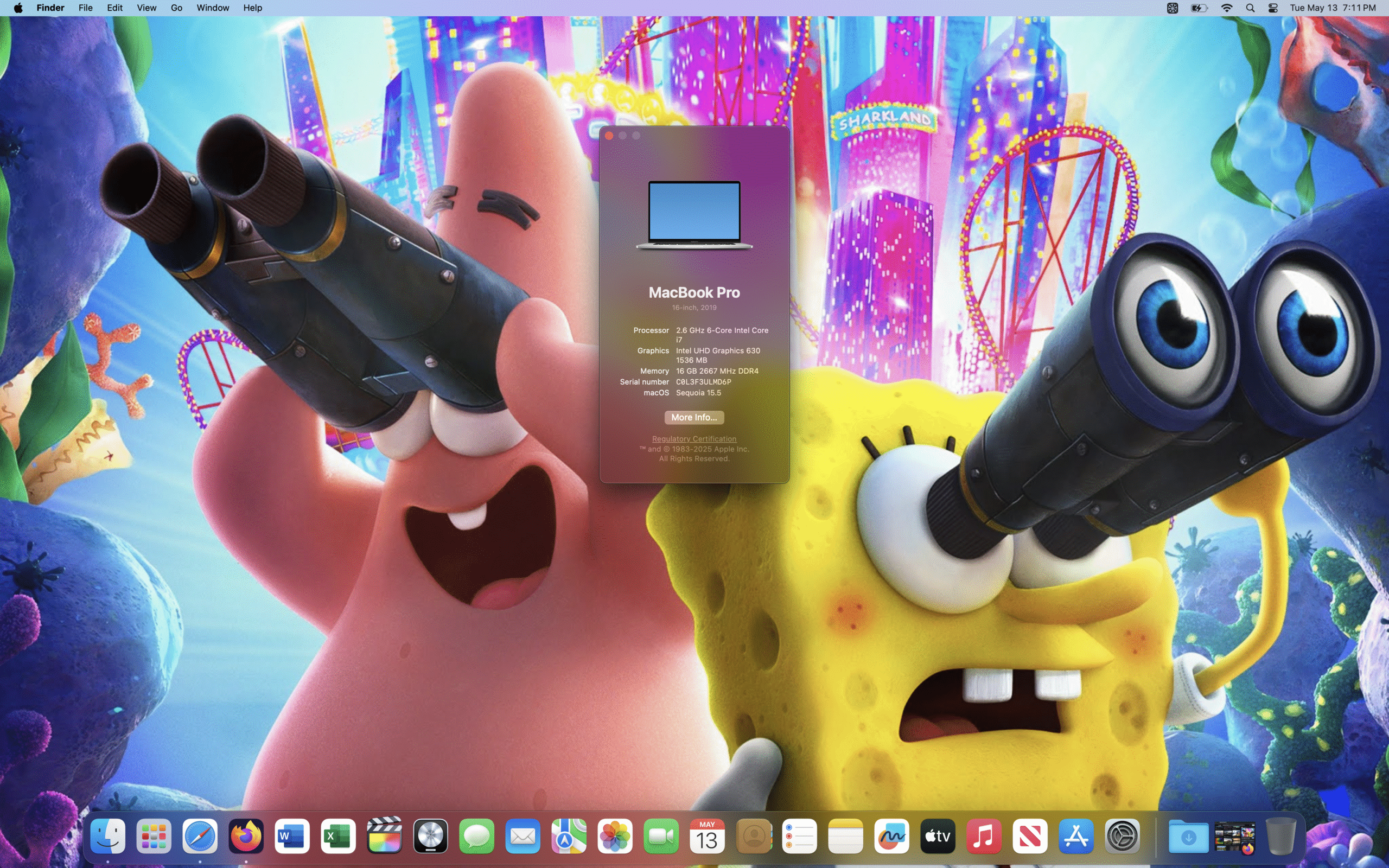
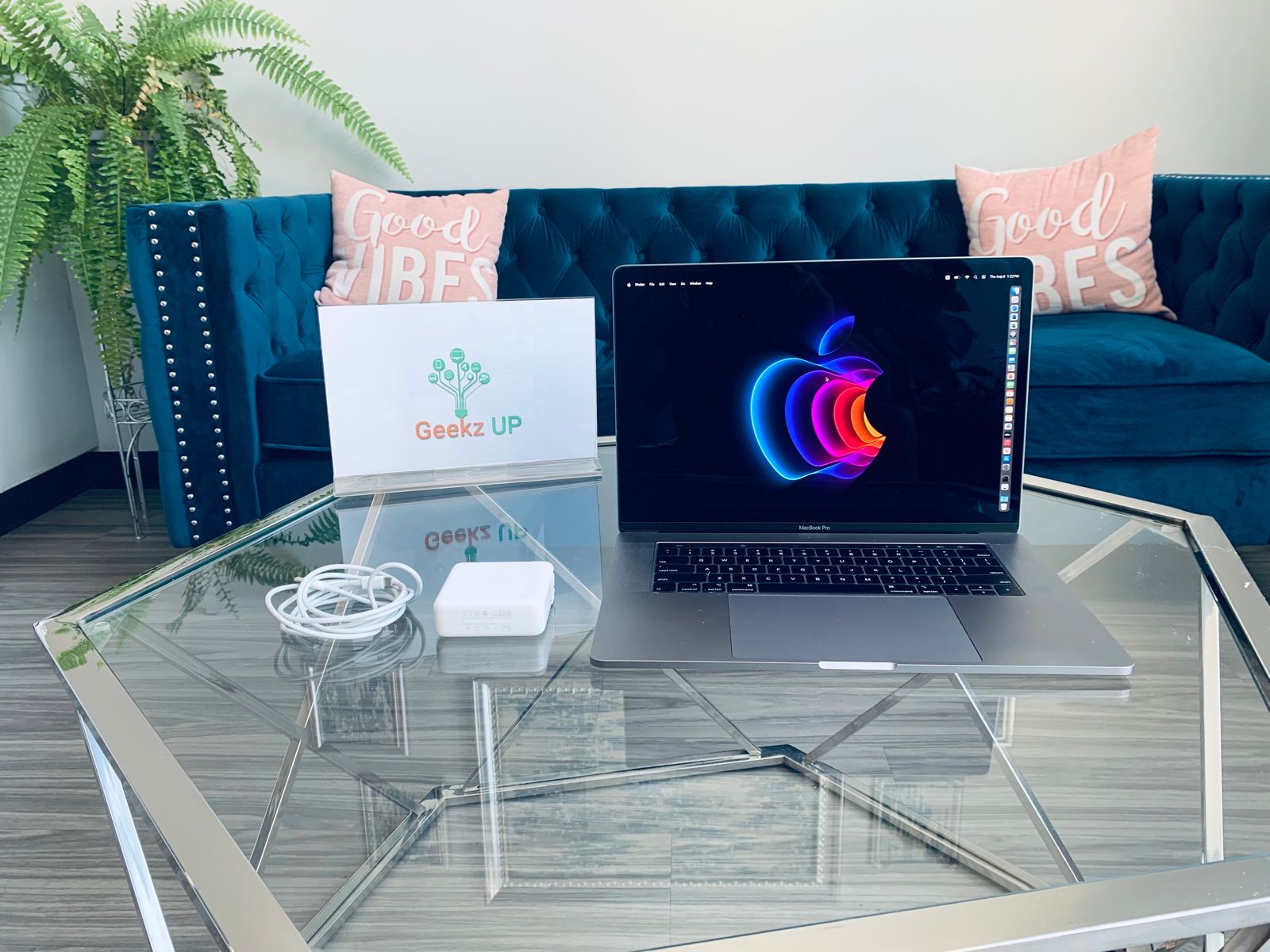
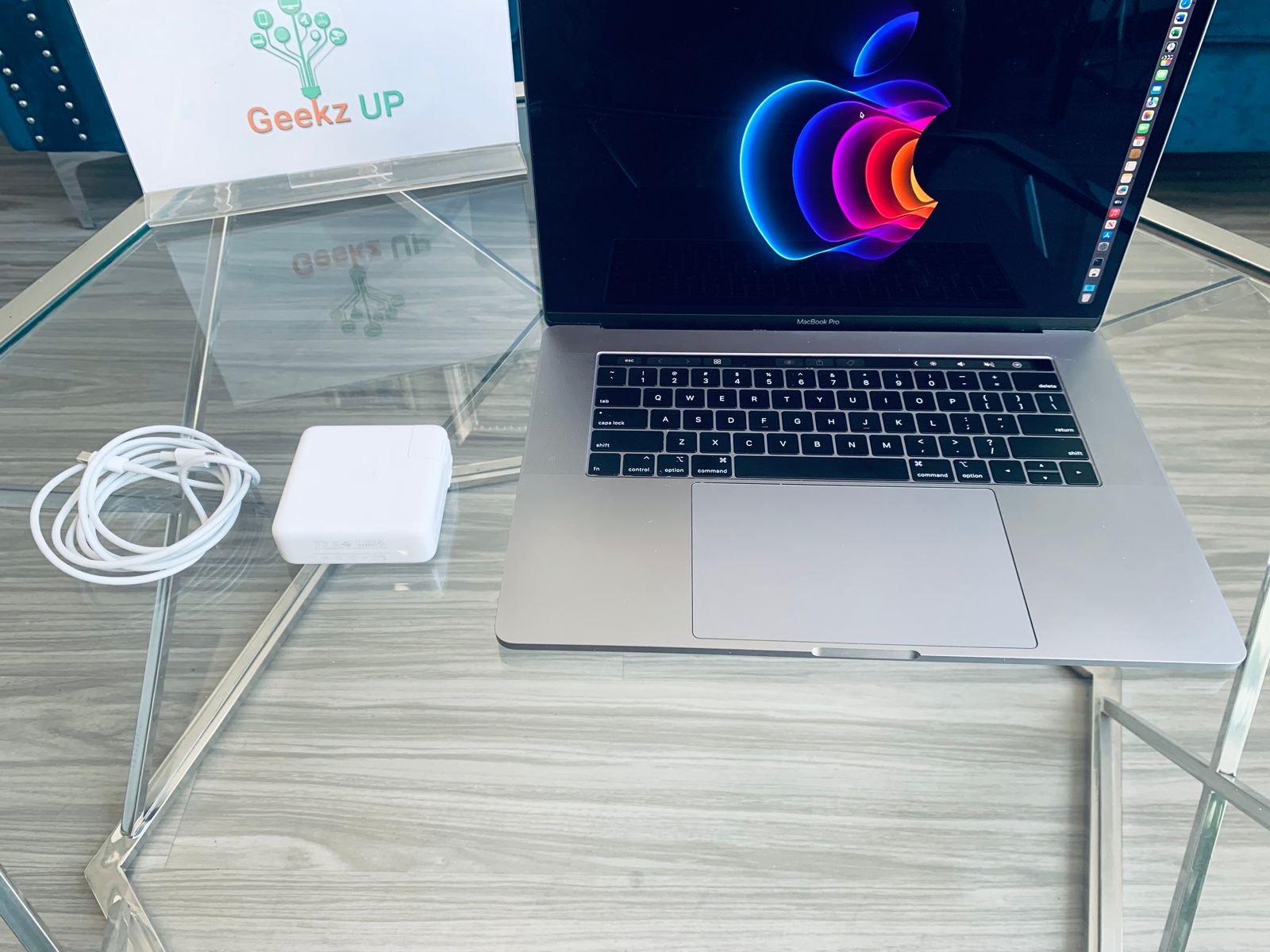
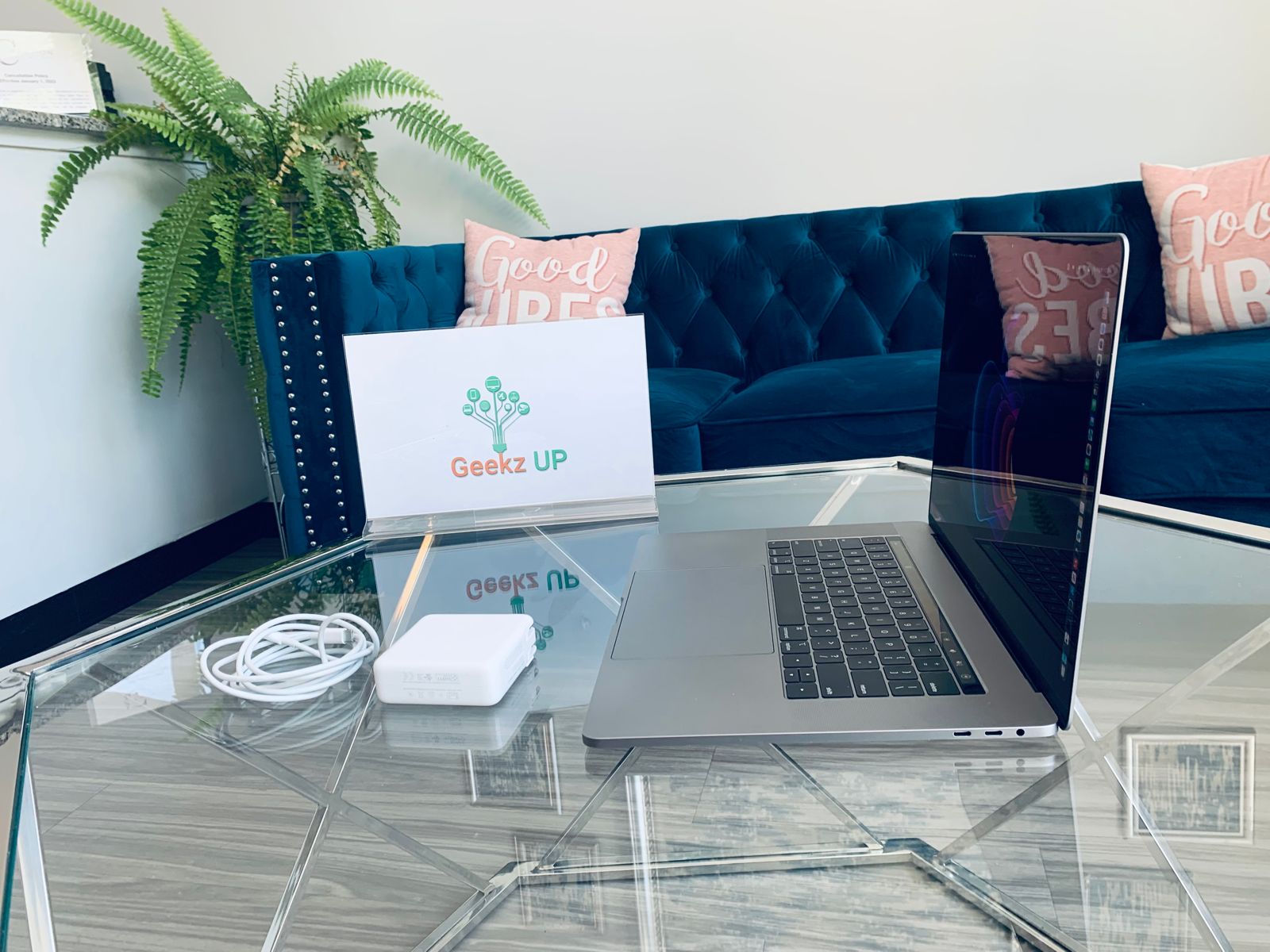
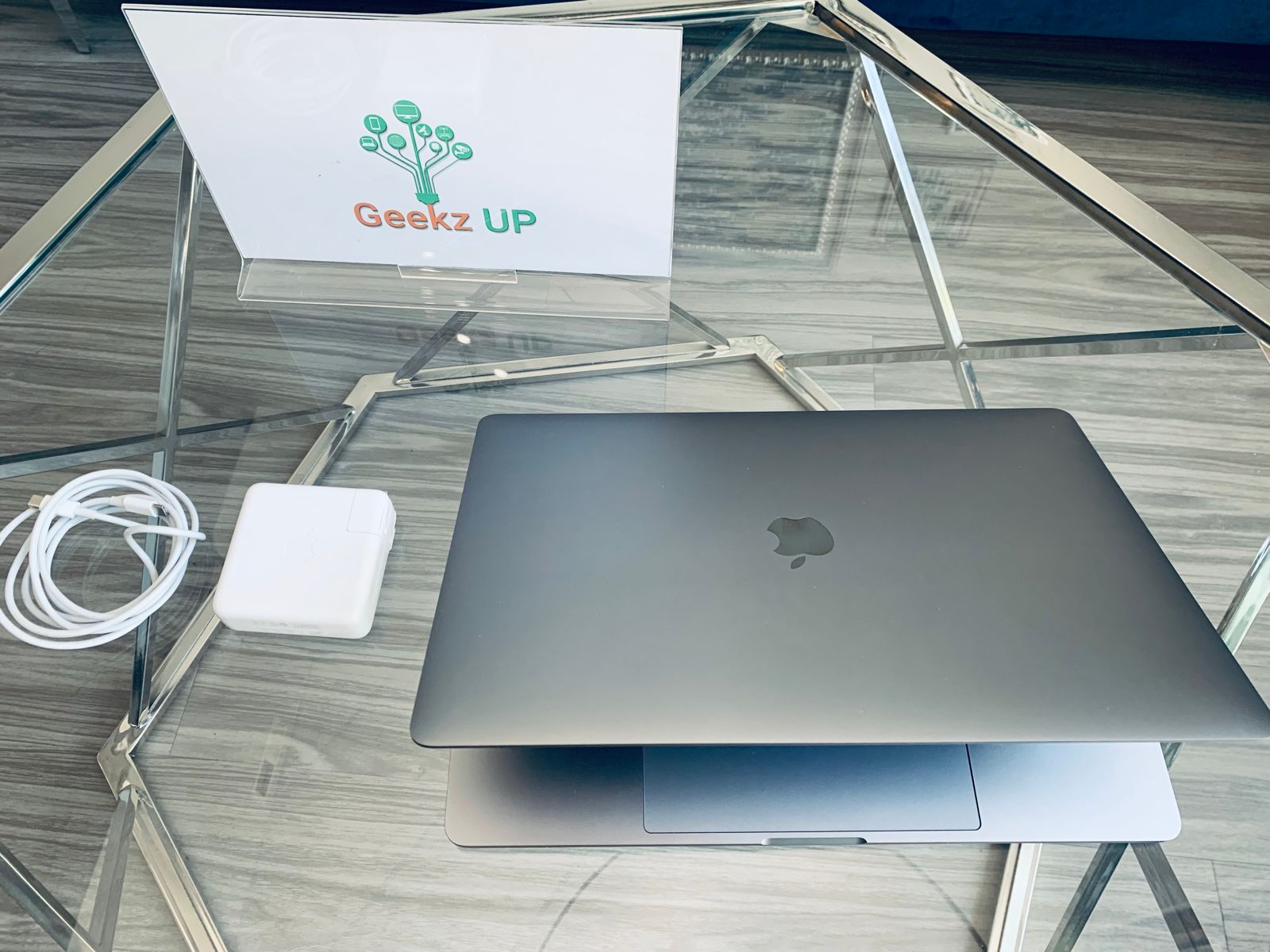
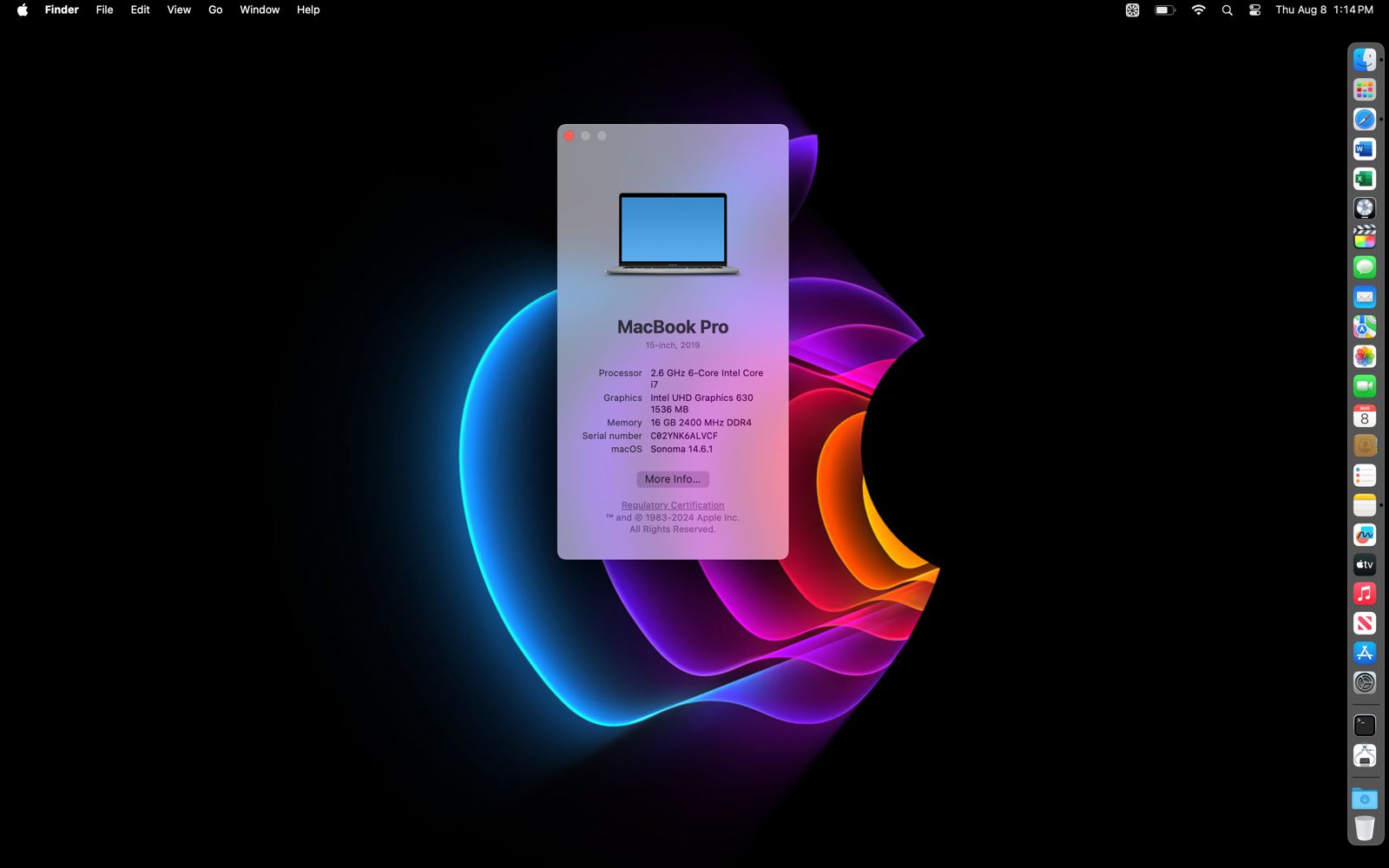
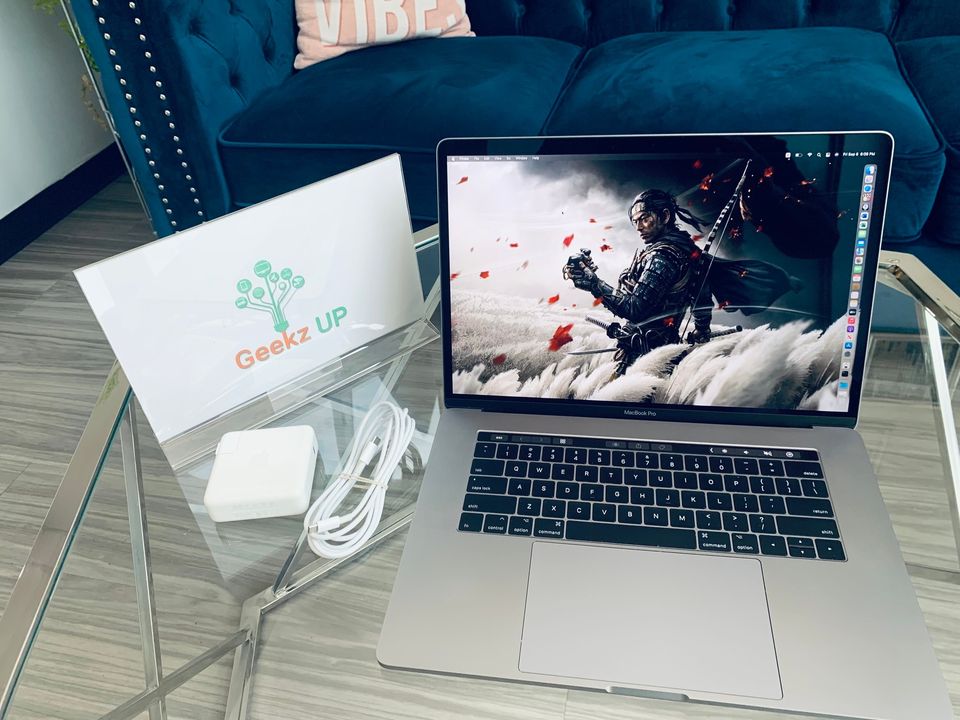
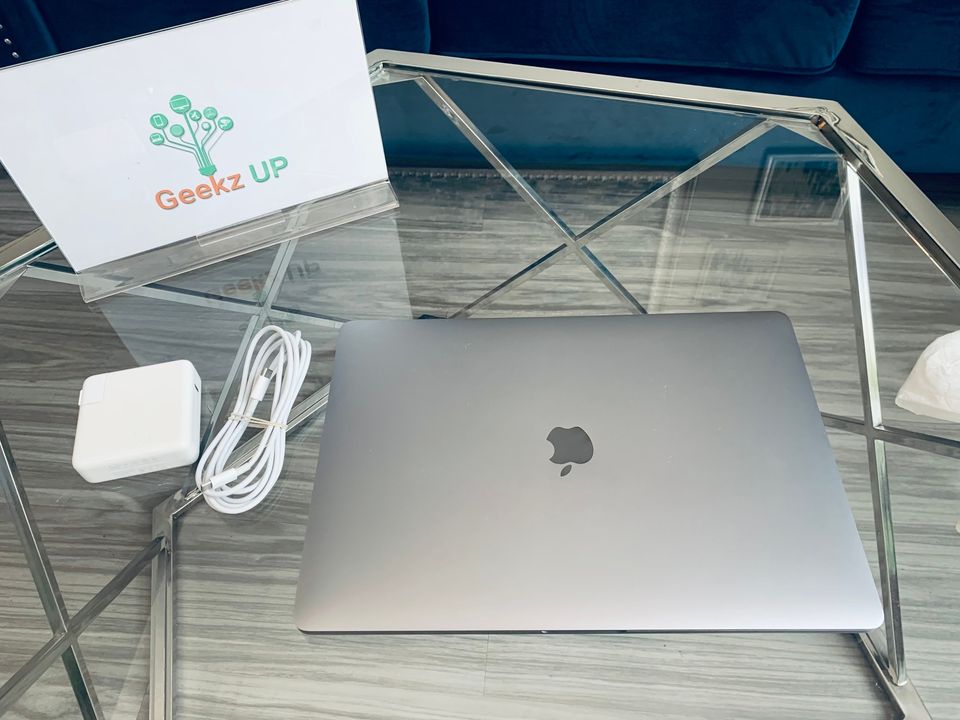
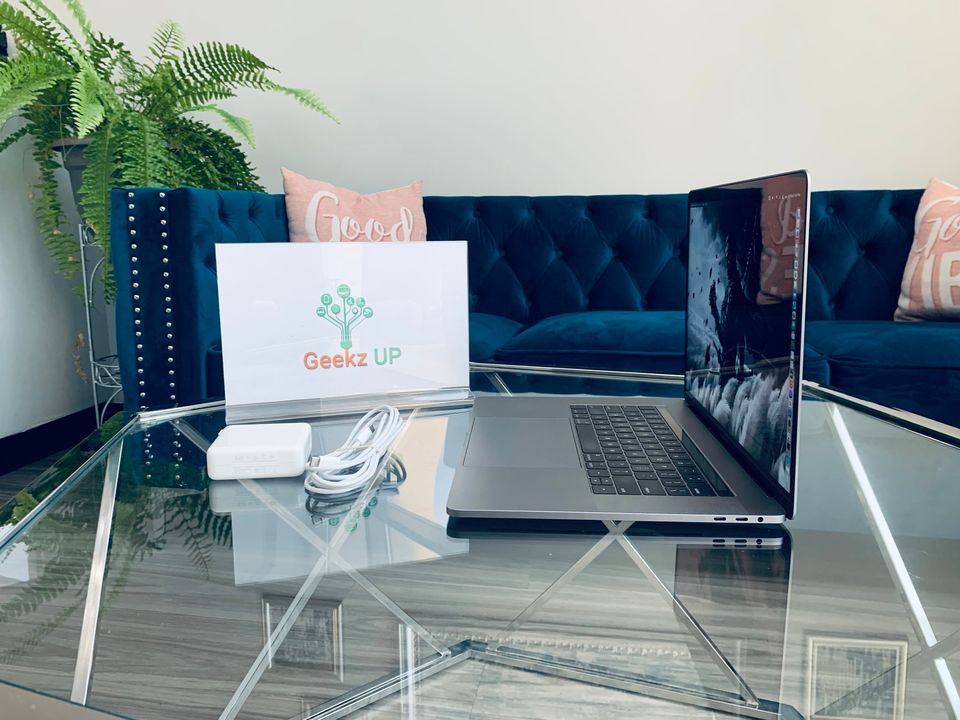
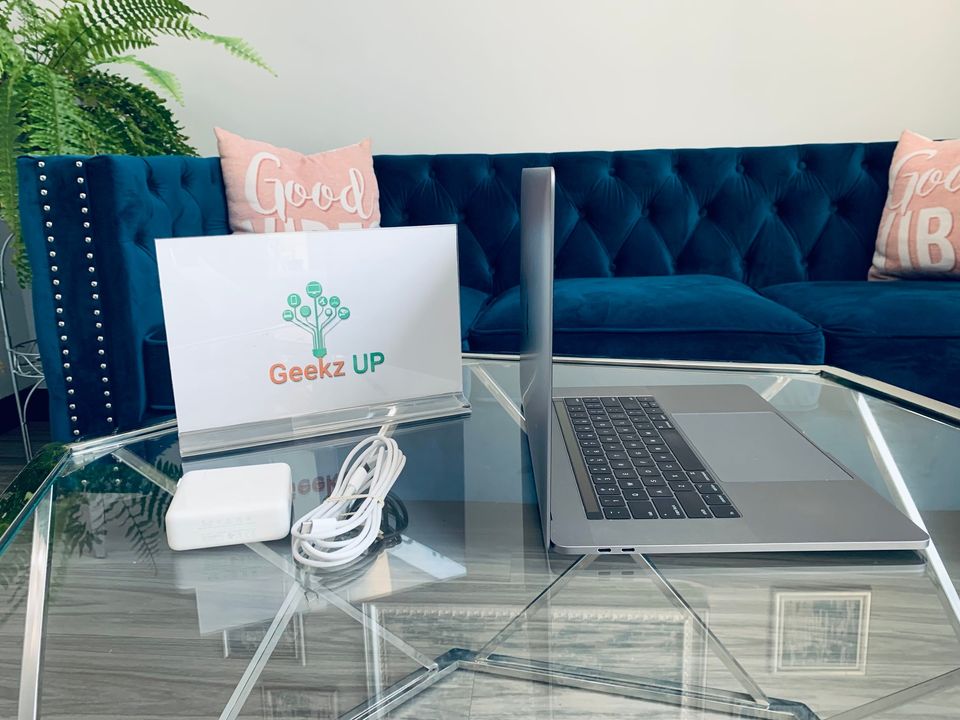
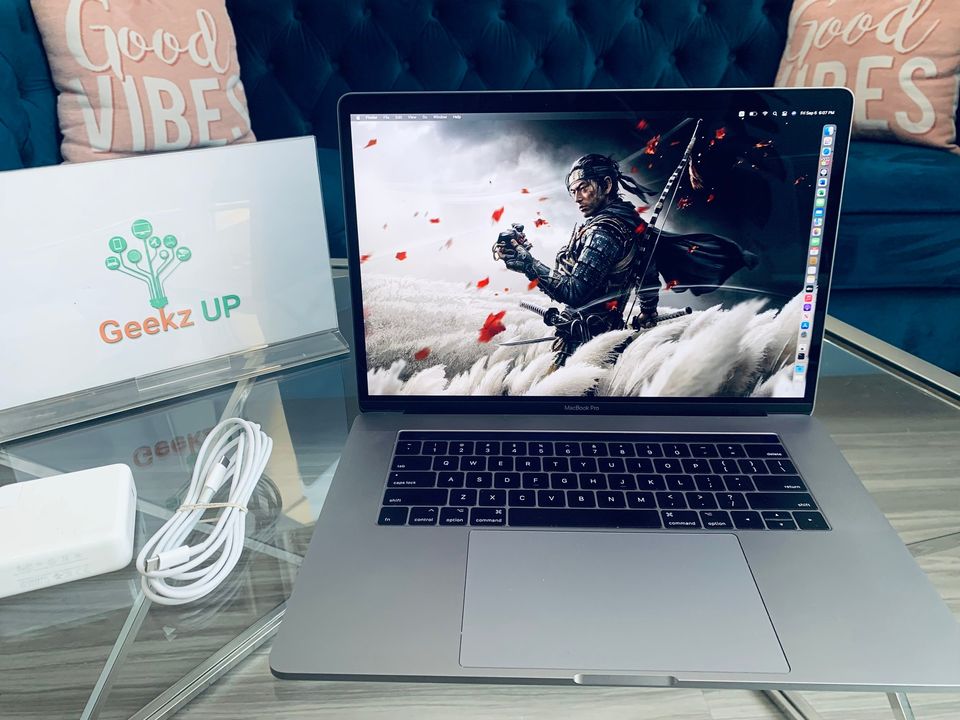
Like New 2019 16” Macbook Pro

Configuration

Preloaded Software

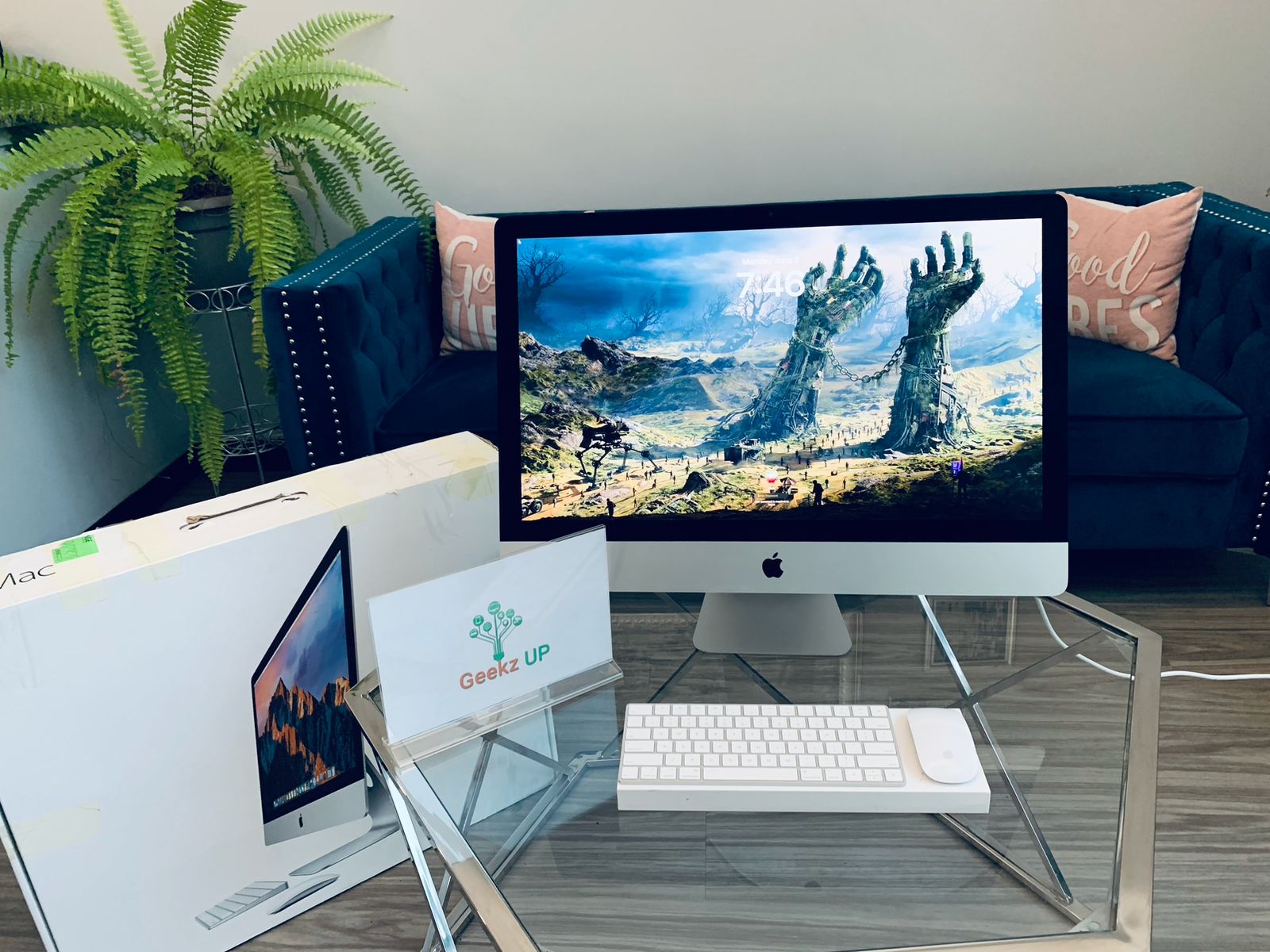
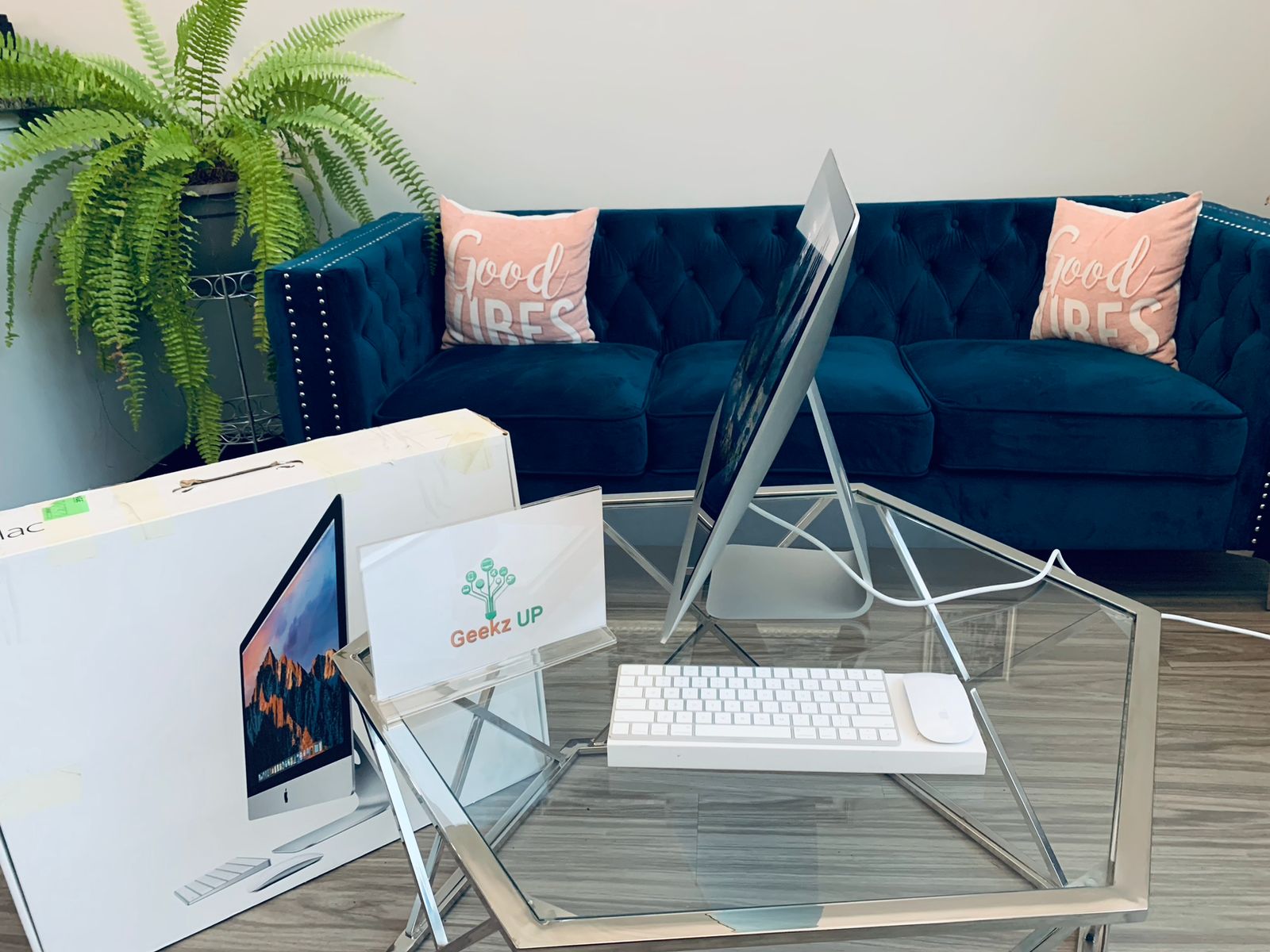
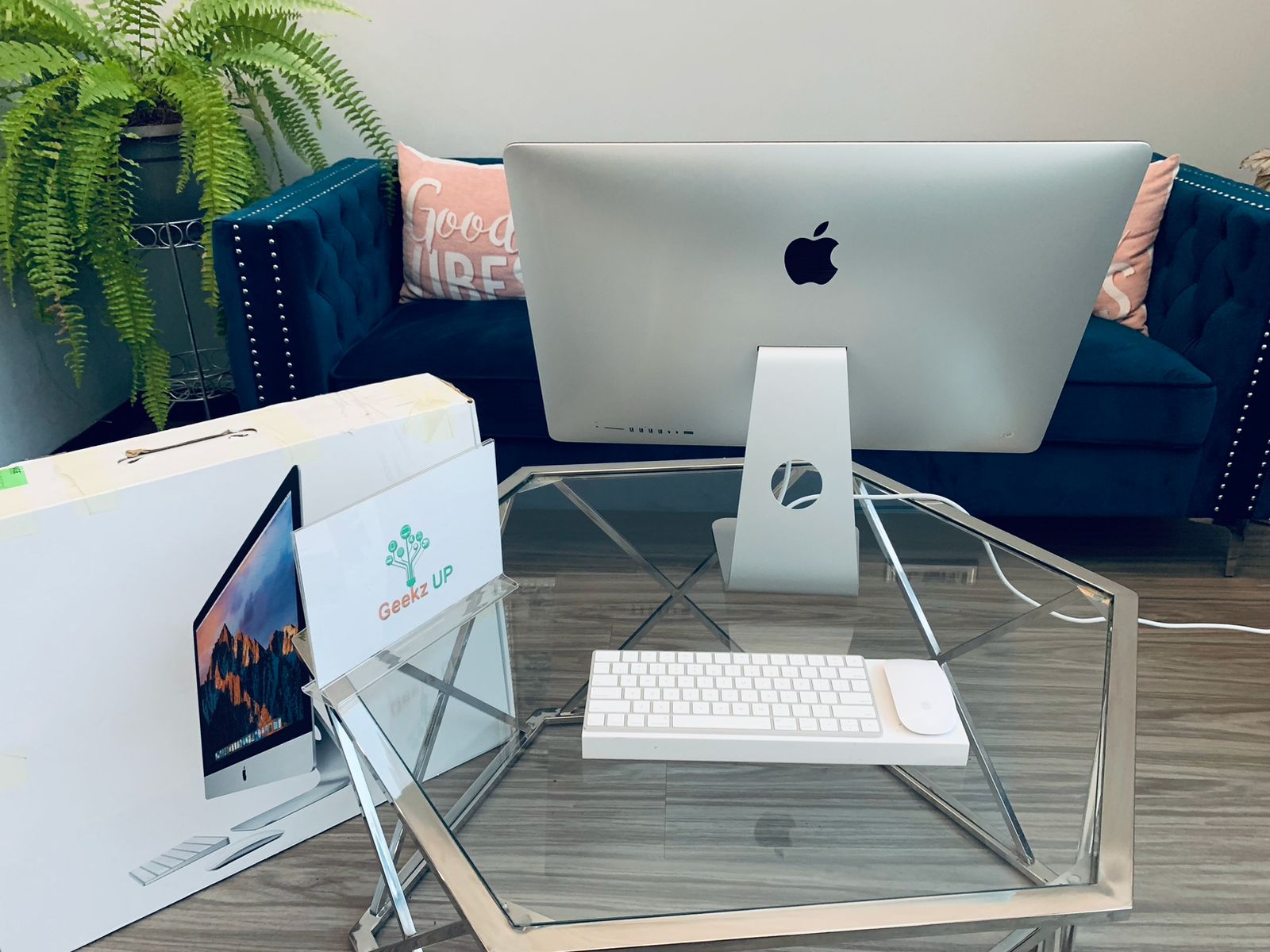
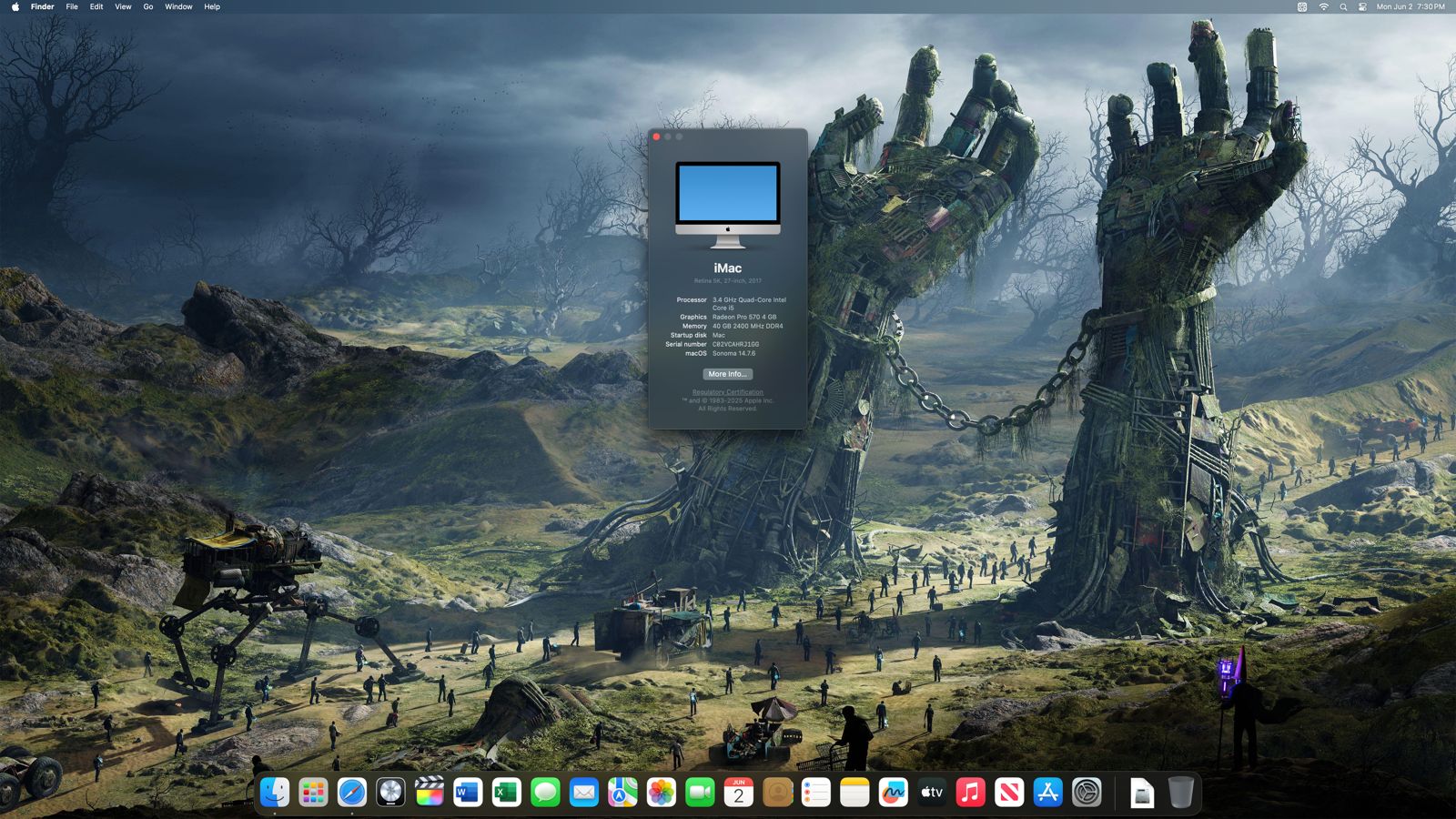
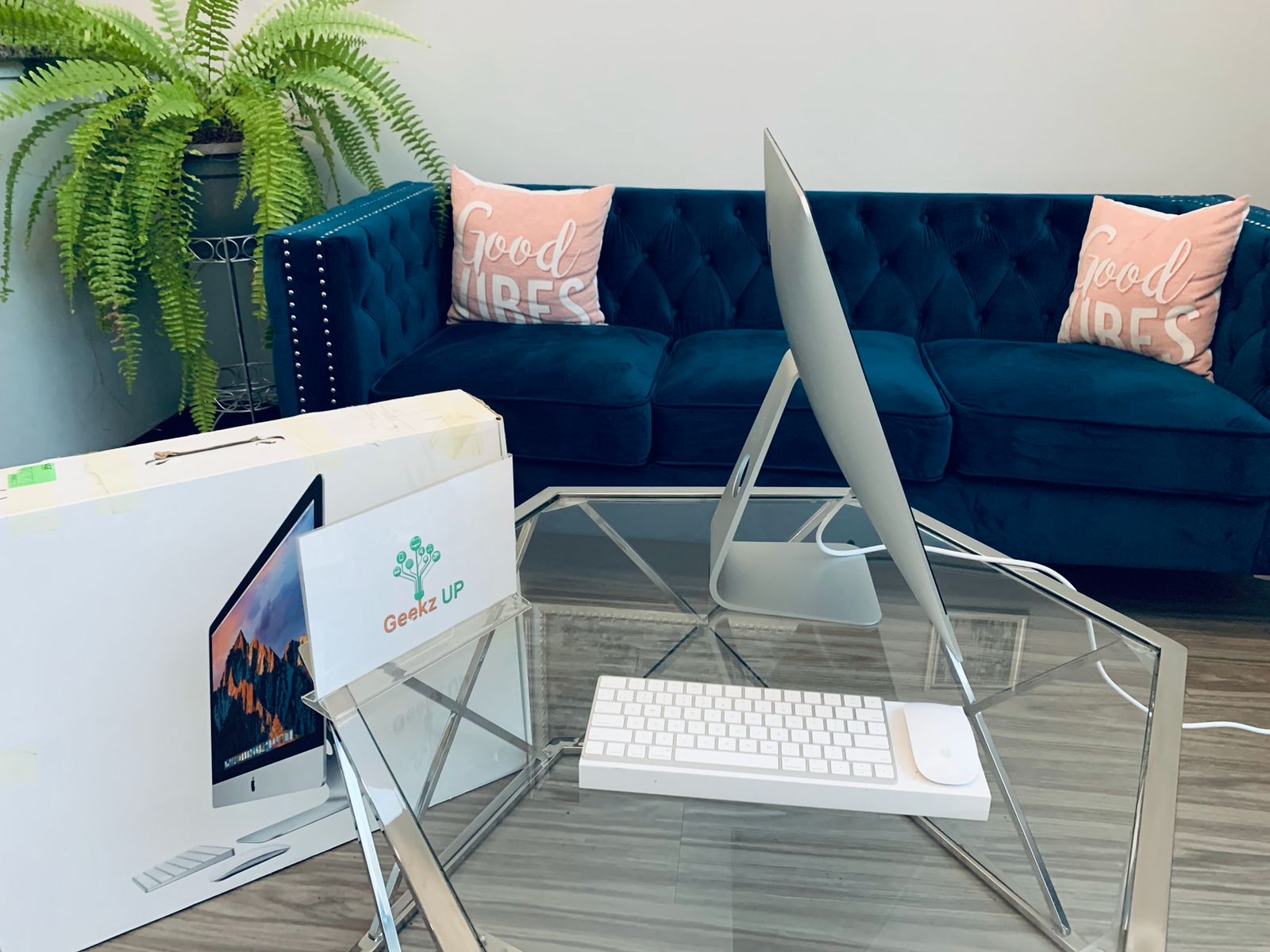
Like New 2017 iMac 27"

Configuration

Preloaded Software

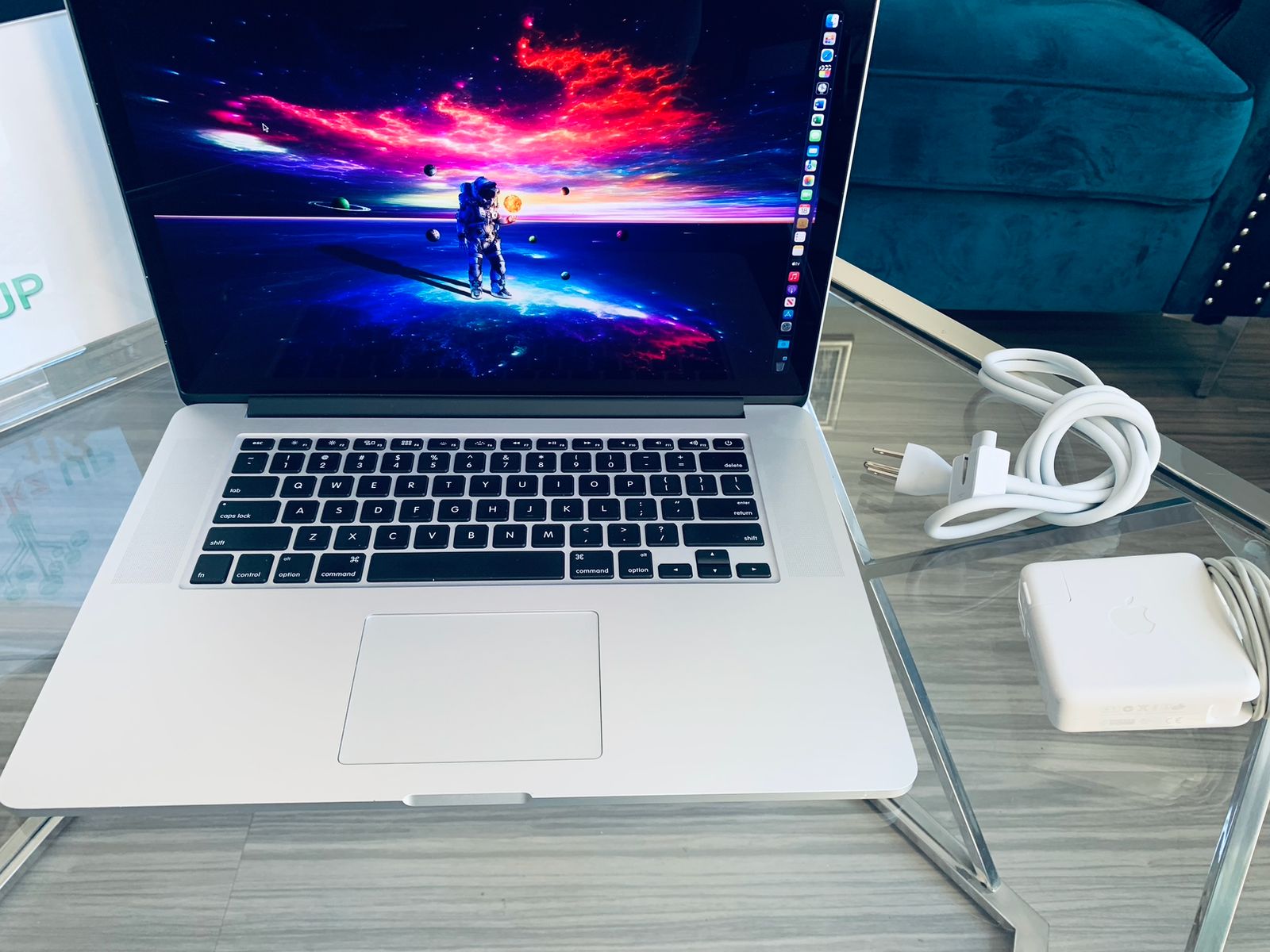
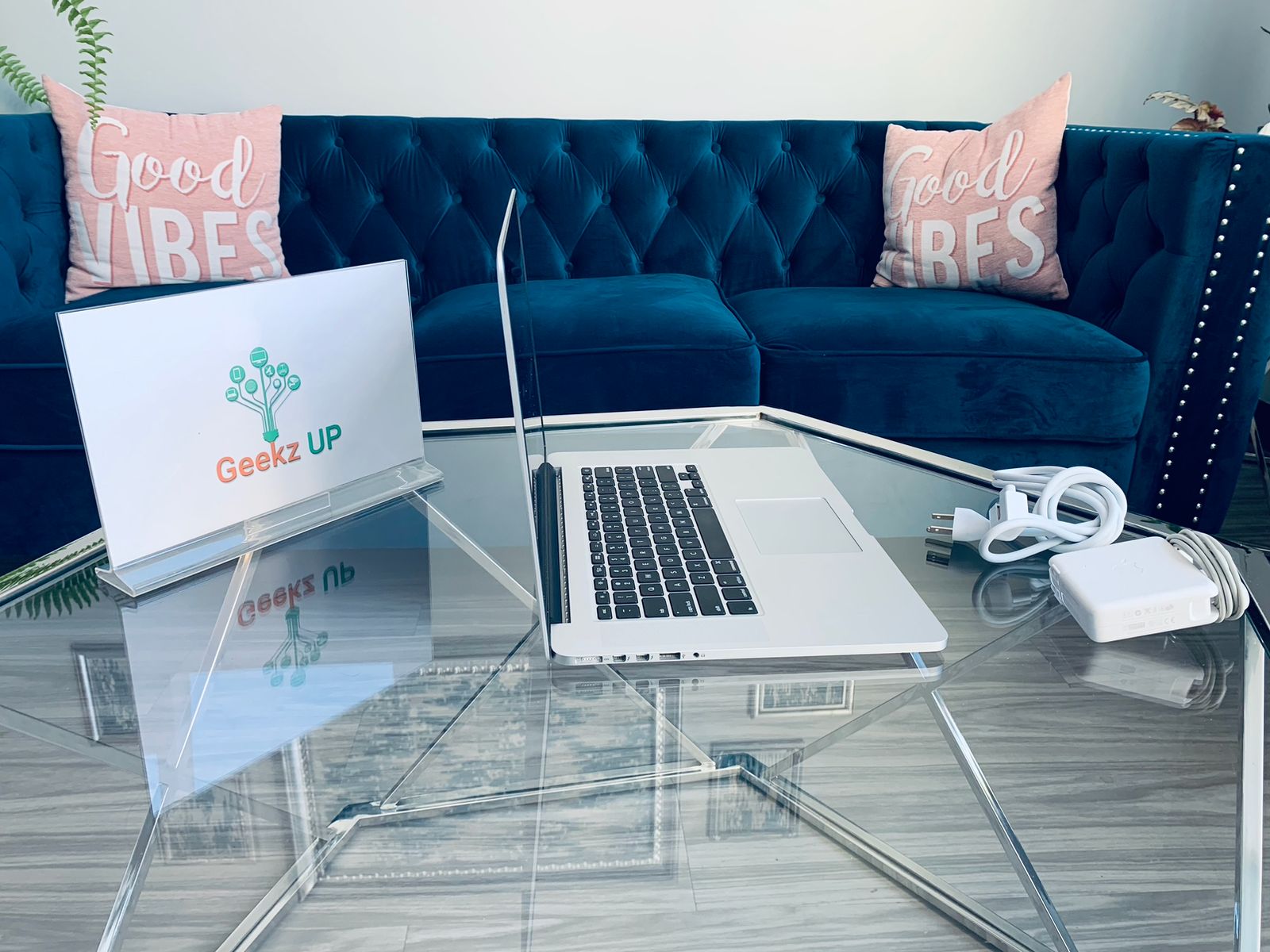
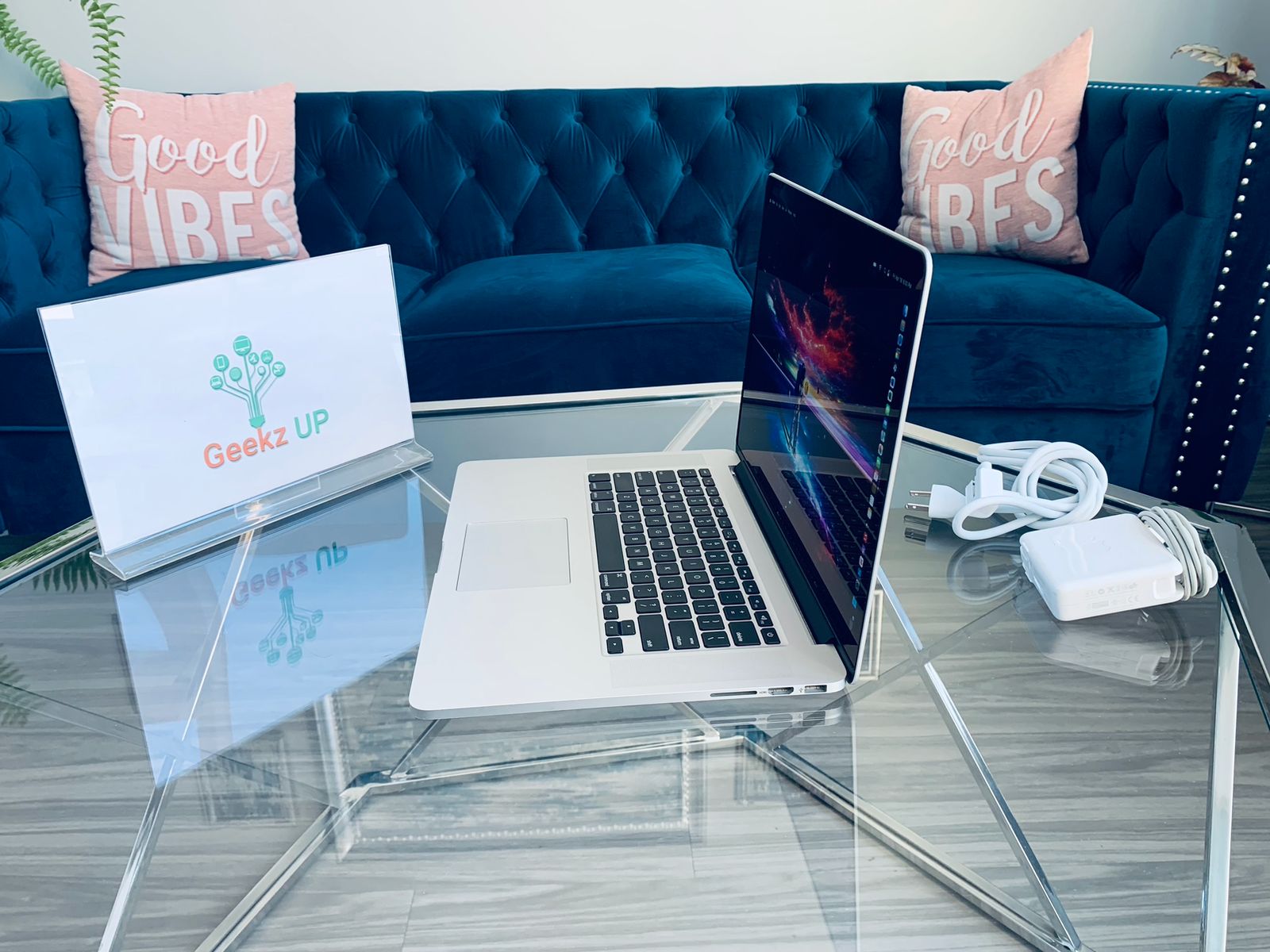
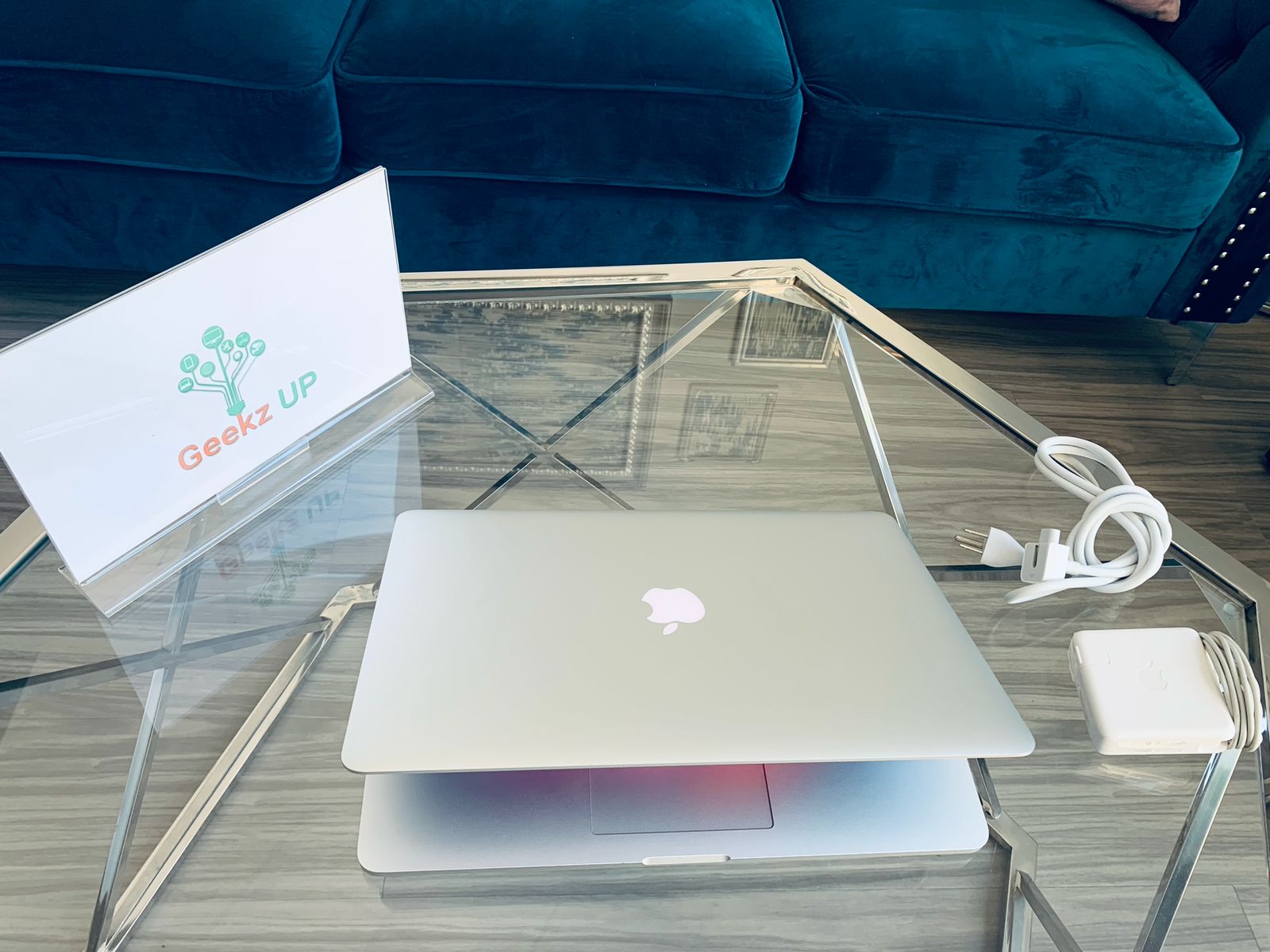
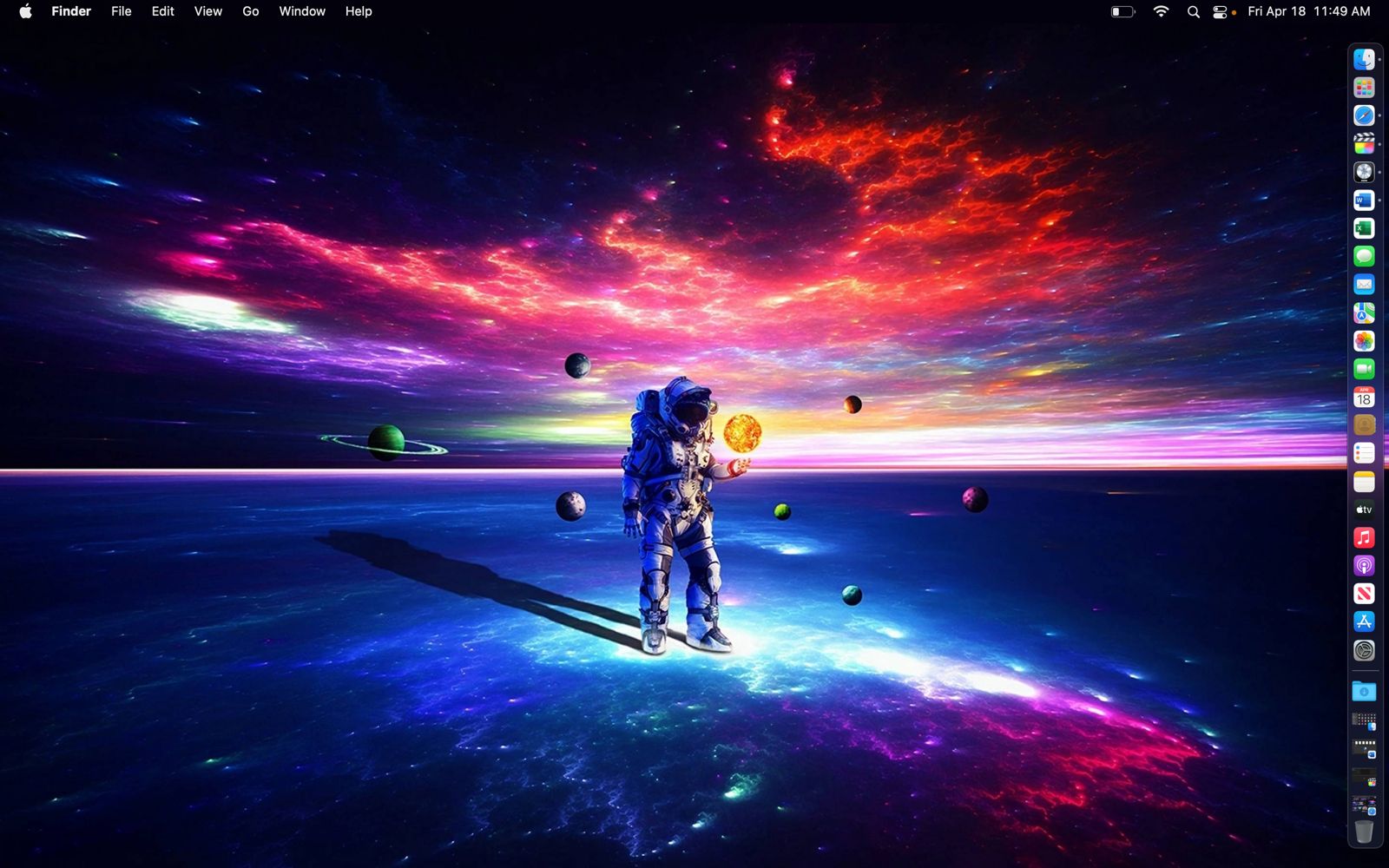
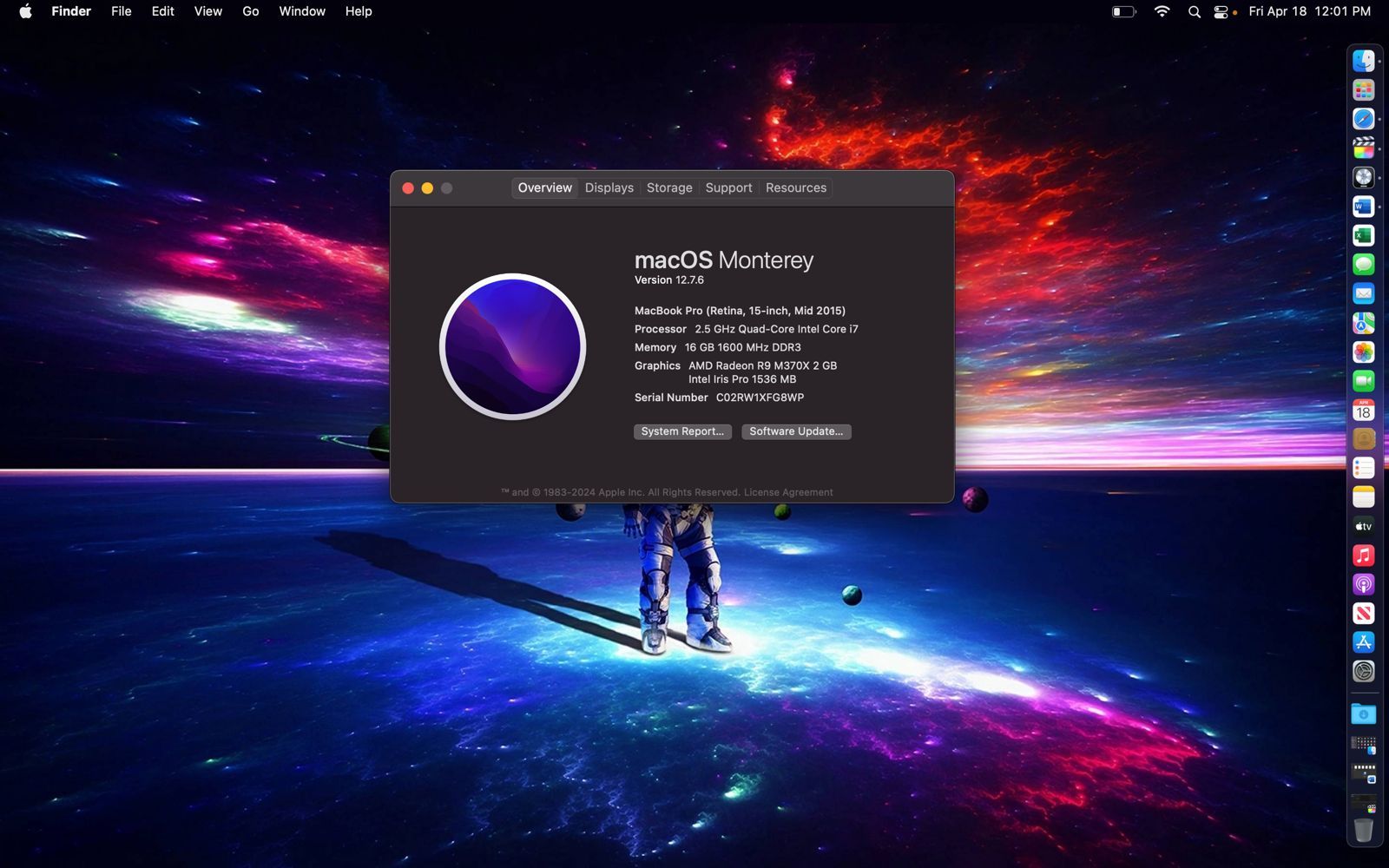
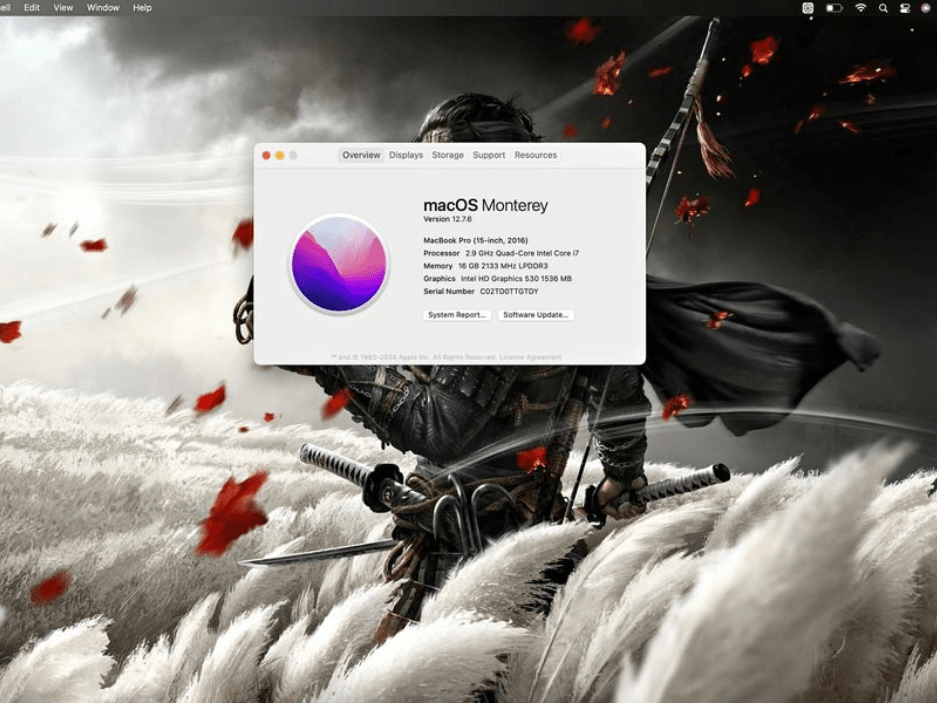
15’ Macbook Pro 2015 (Like New)

Configuration

Preloaded Software

Gaming Beast

Configuration

Preloaded Software

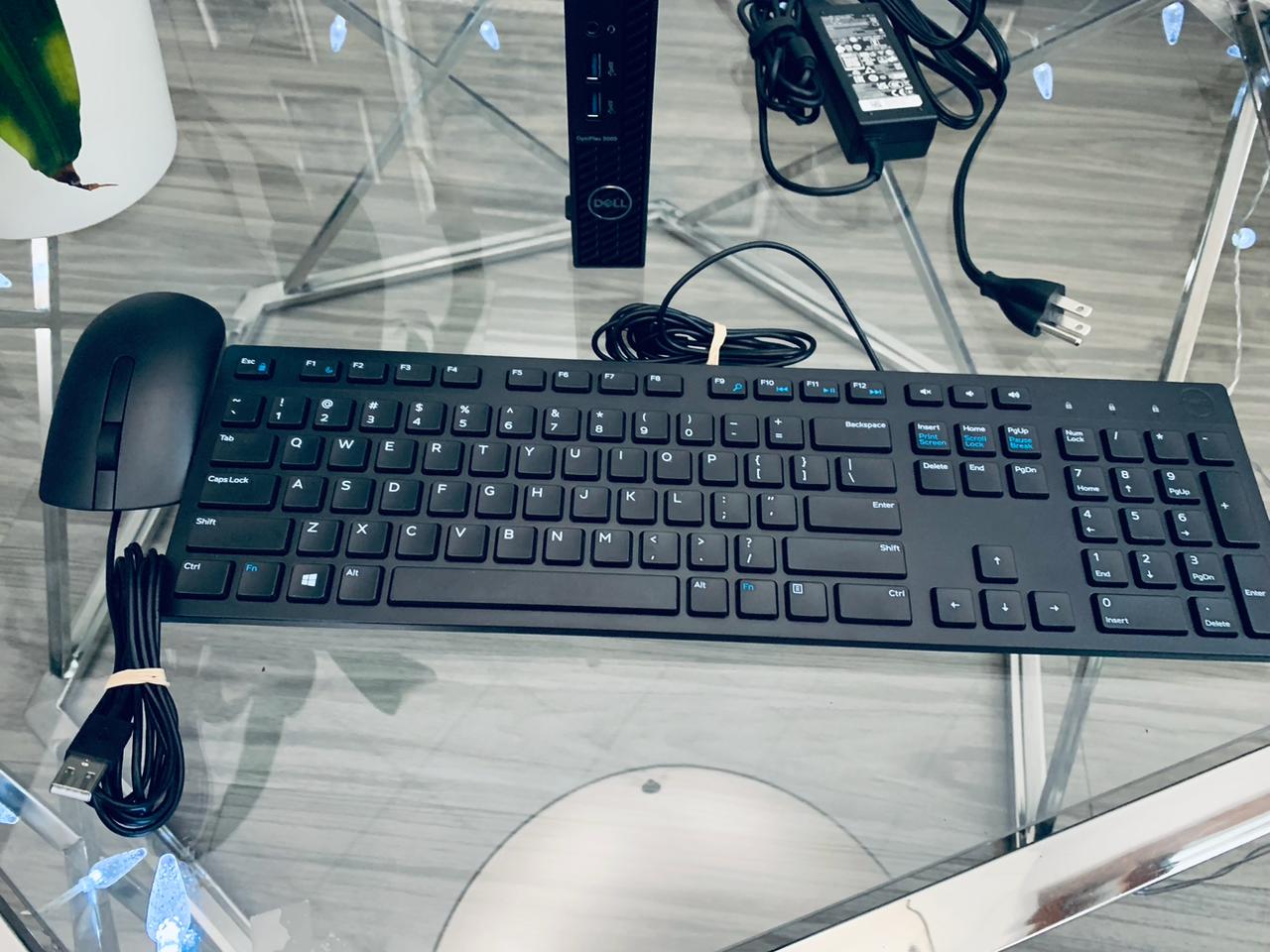
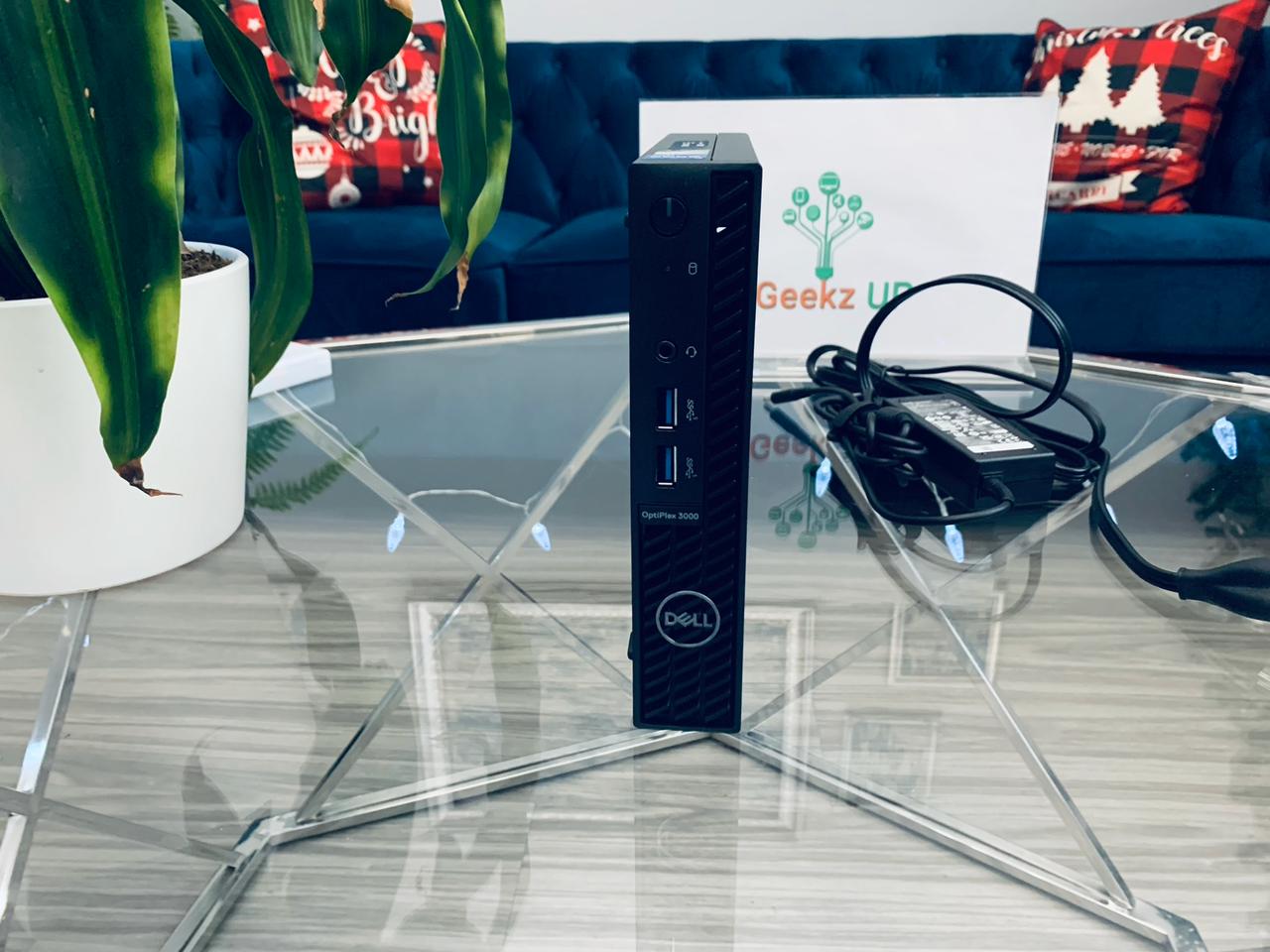
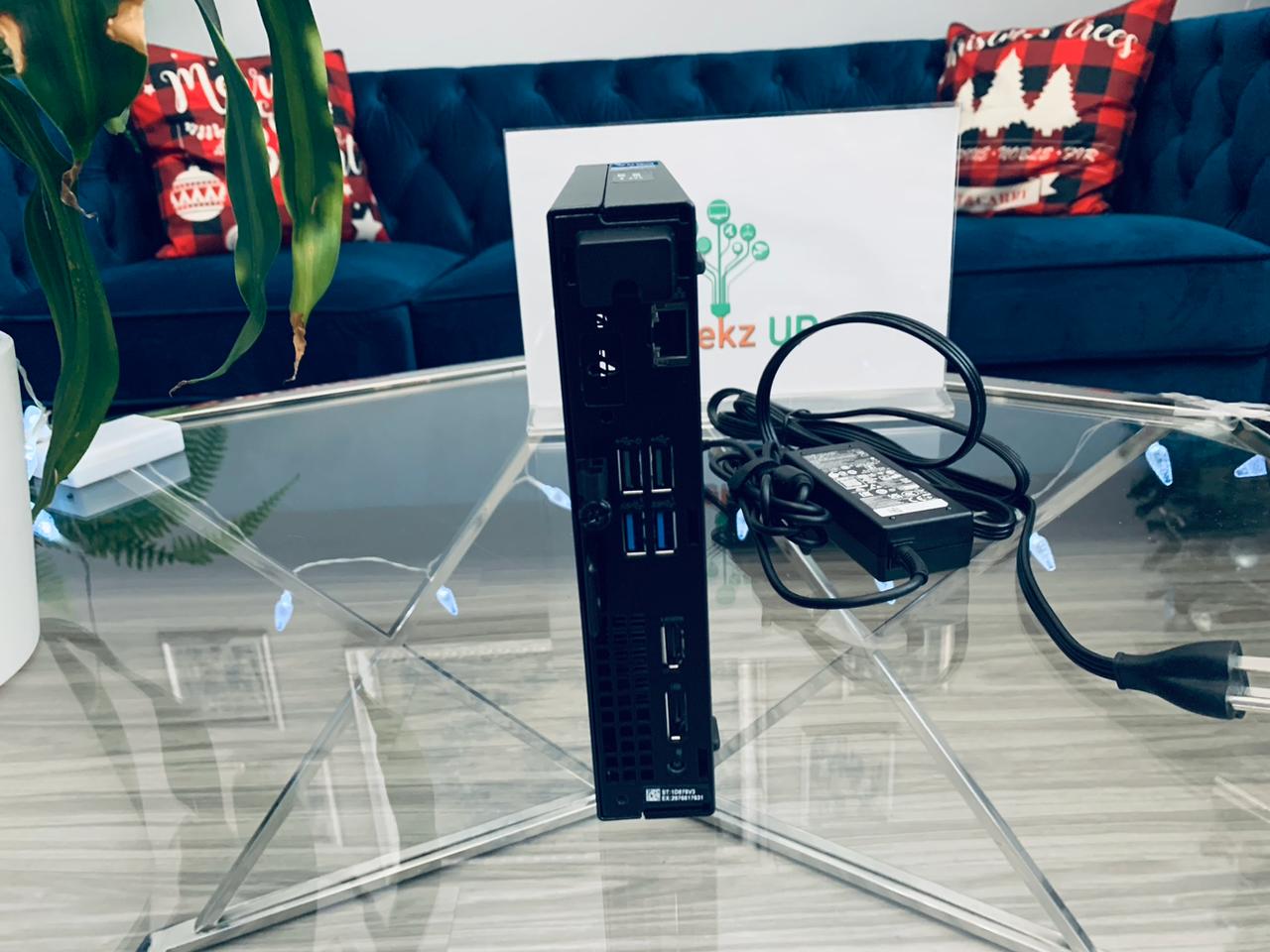
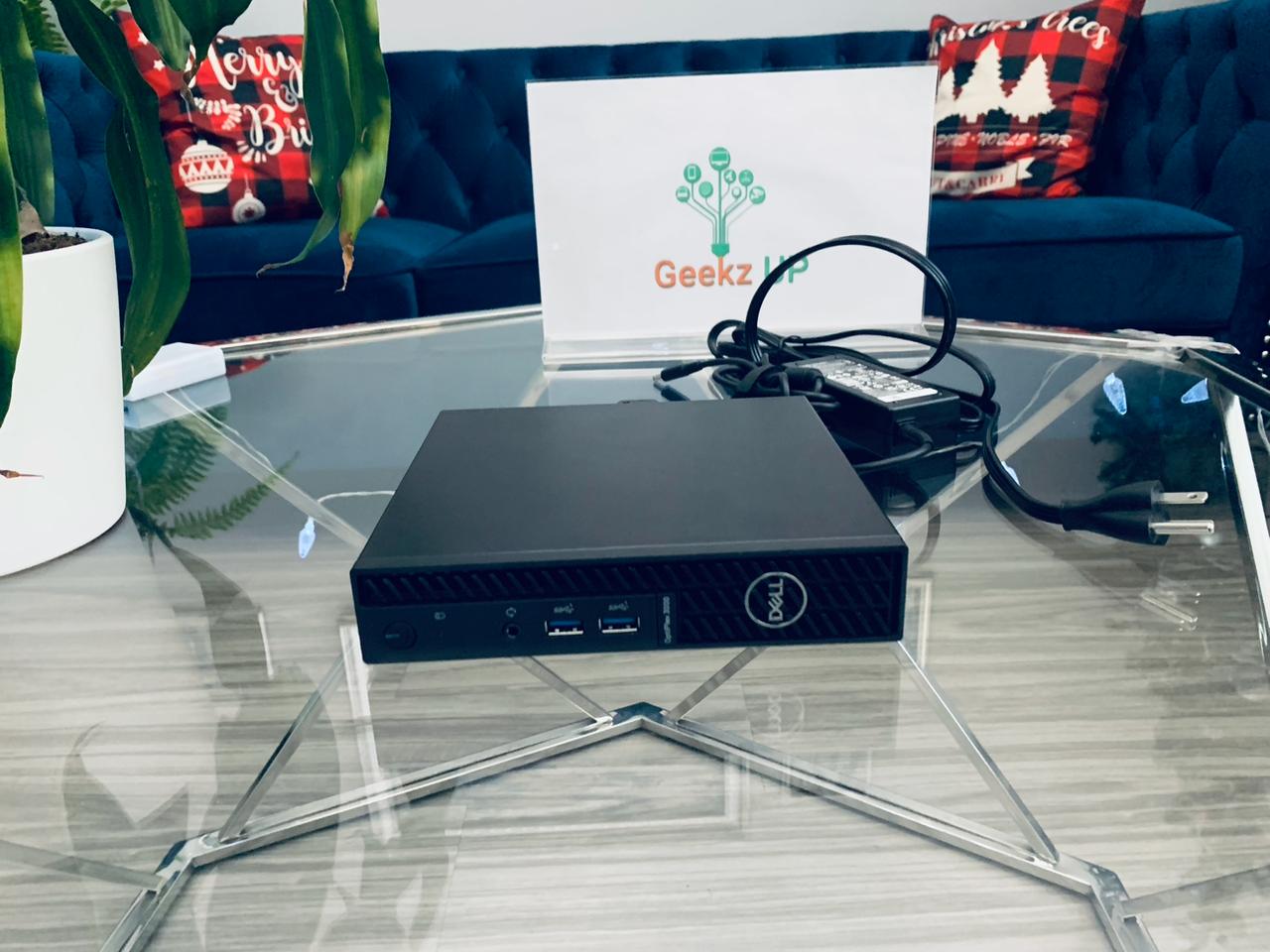
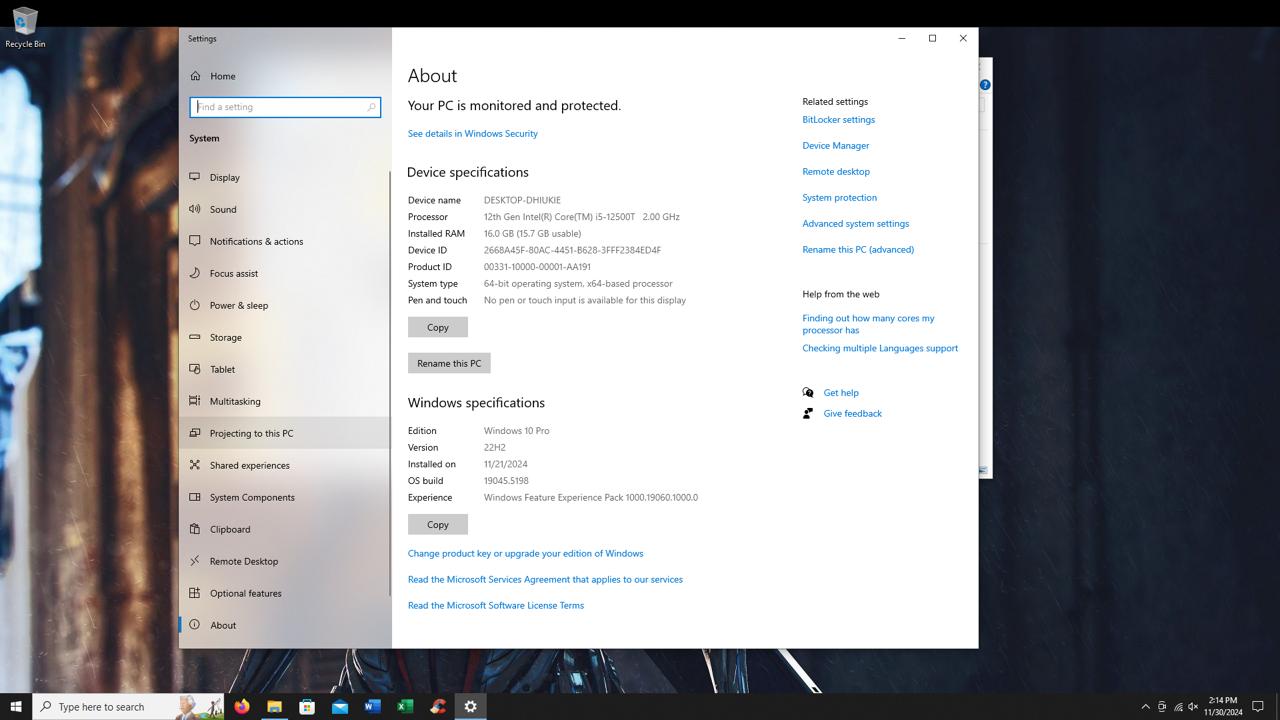
Dell OptiPlex 3000

Configuration

Preloaded Software

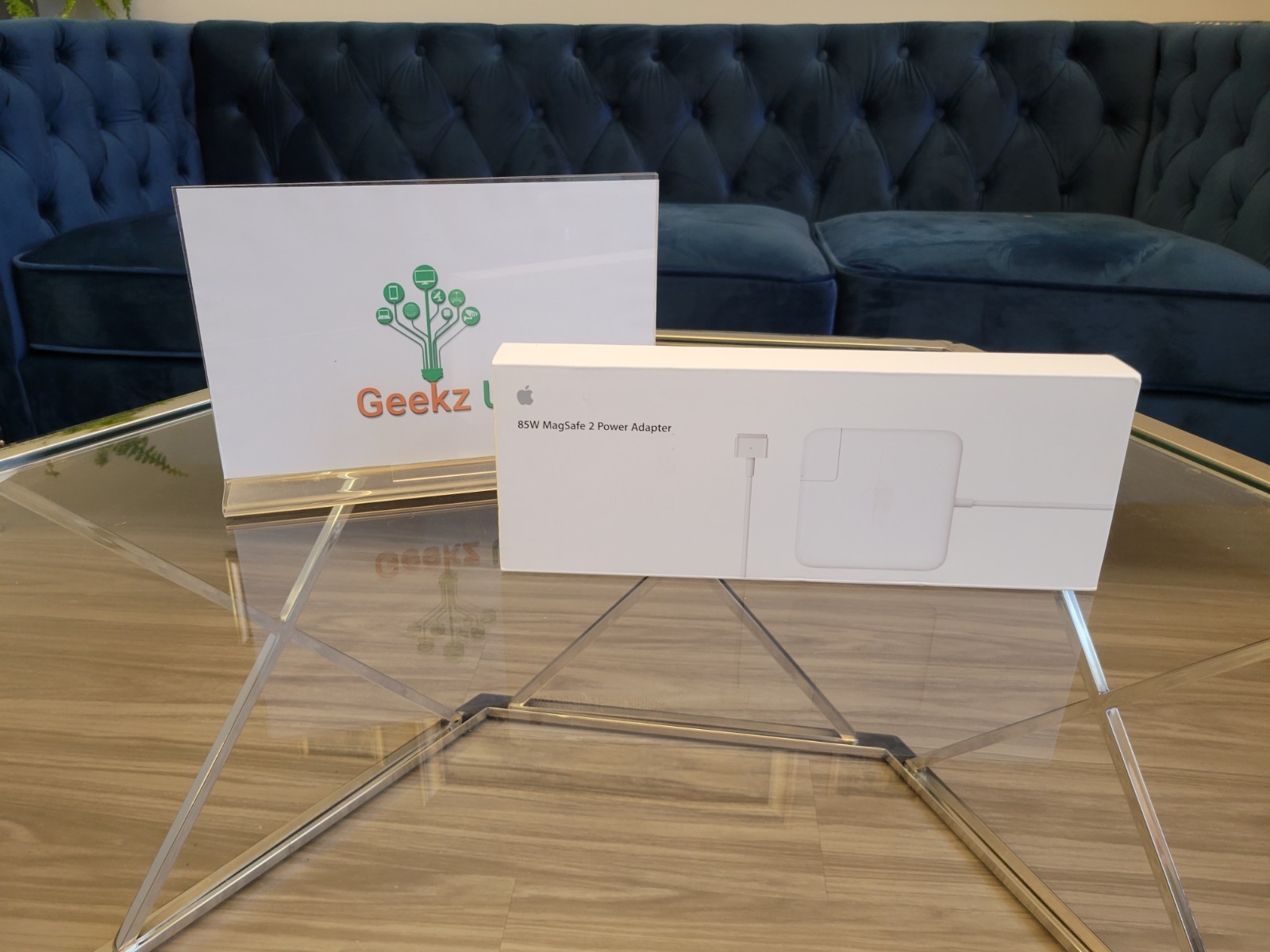
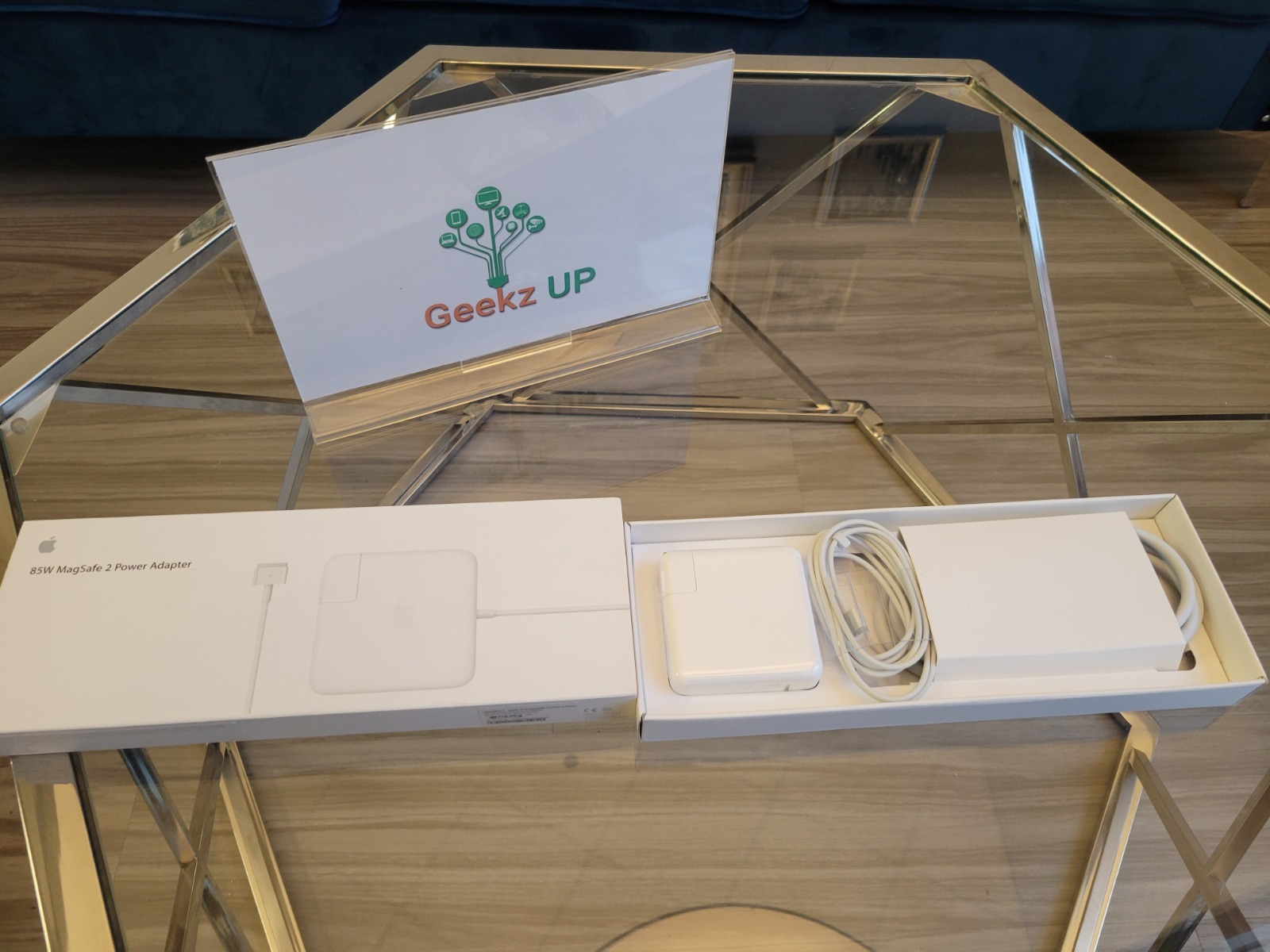
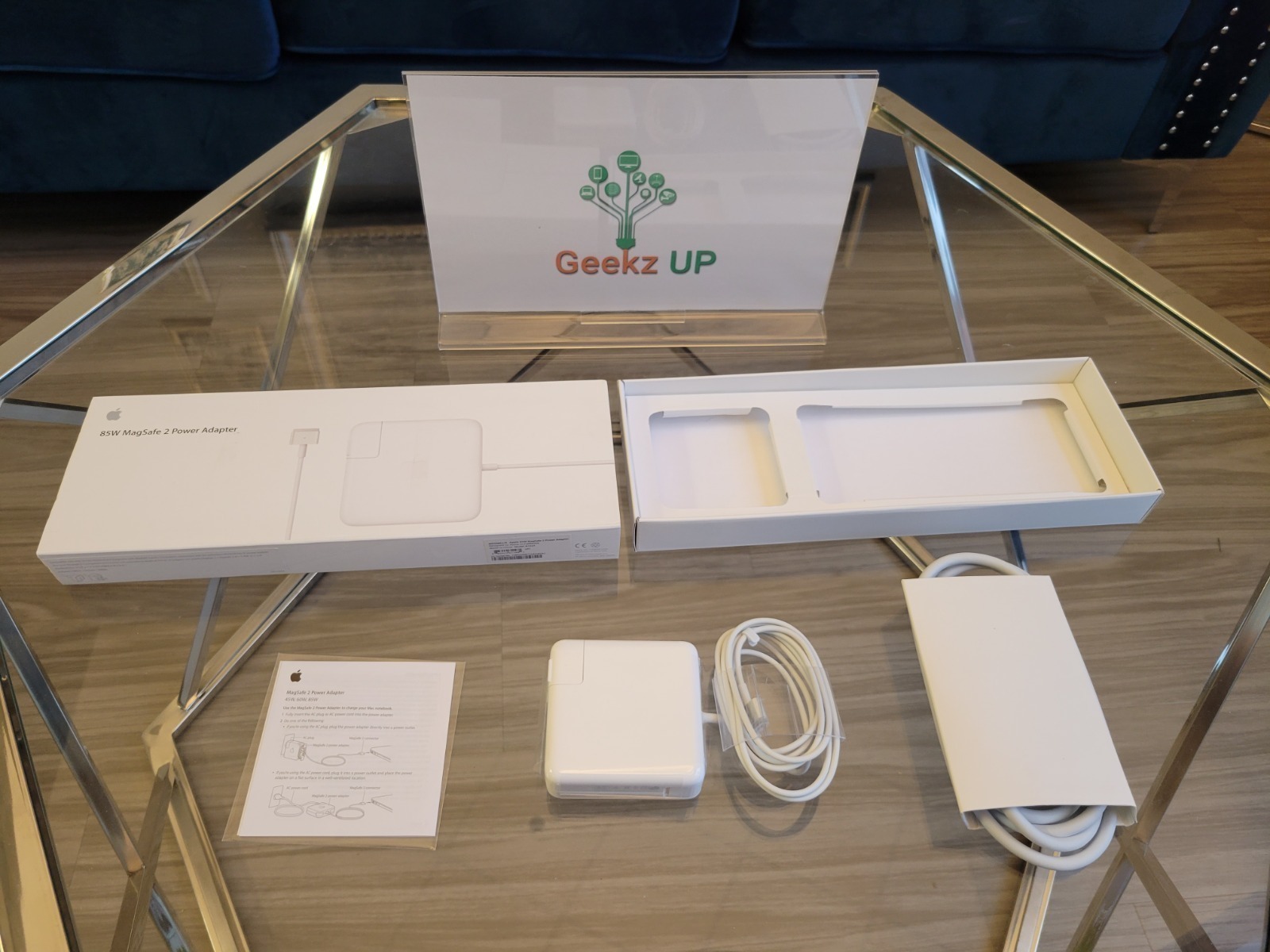
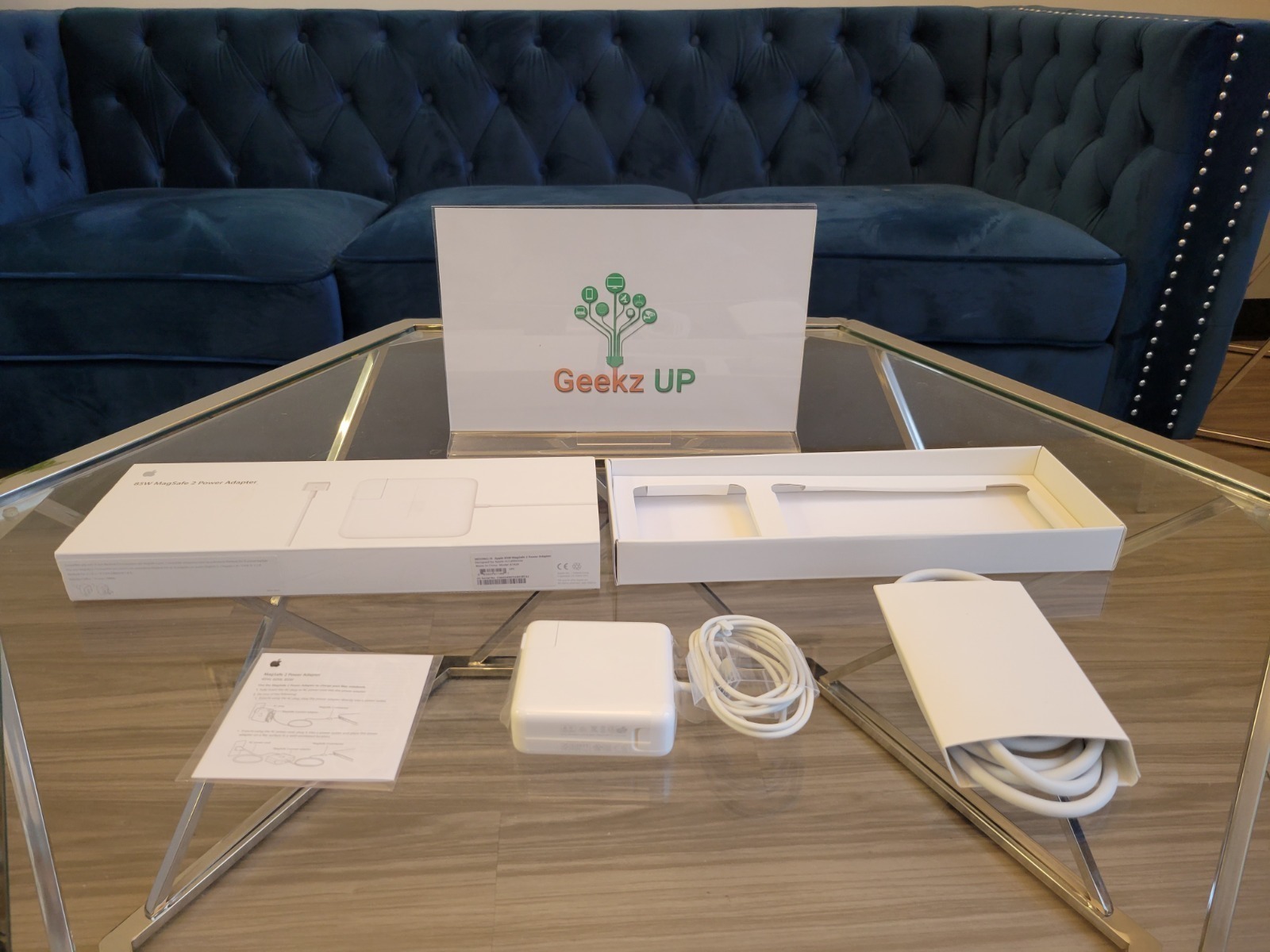
Genuine OEM 85W MagSafe 2 Power Adapter With 6Ft Extension Cord For Apple MacBook Pro Retina

Technical Specifications

Compatible Models

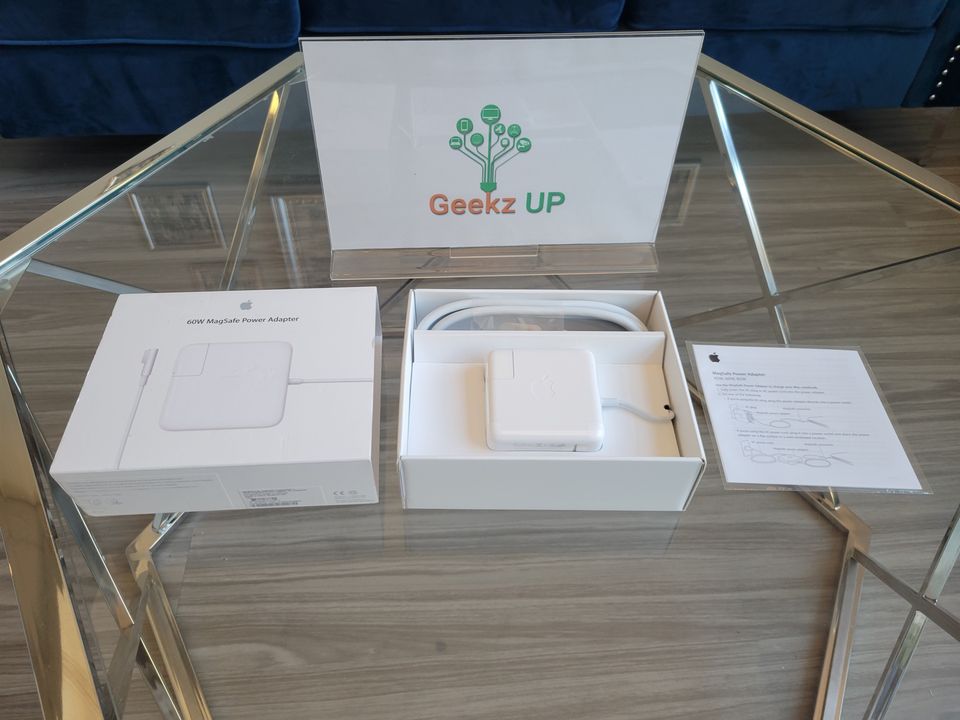
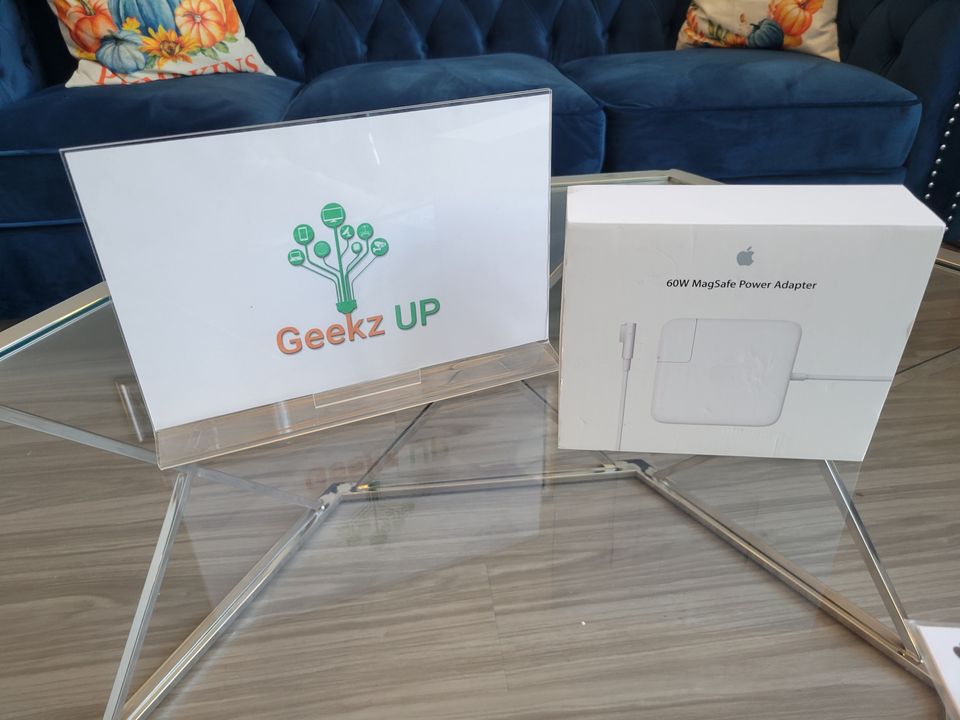
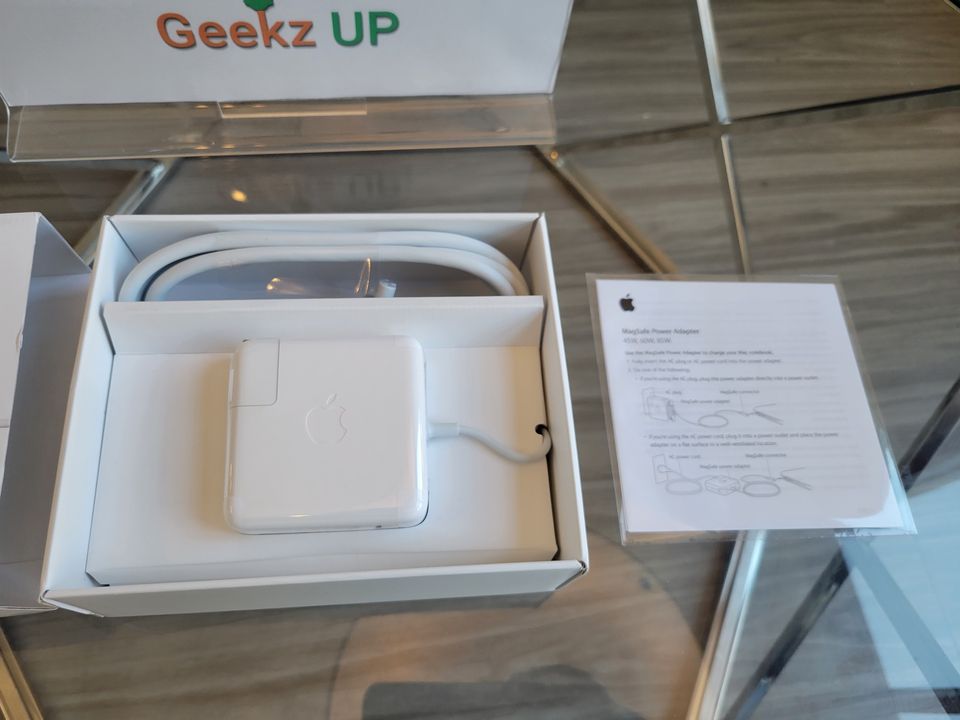
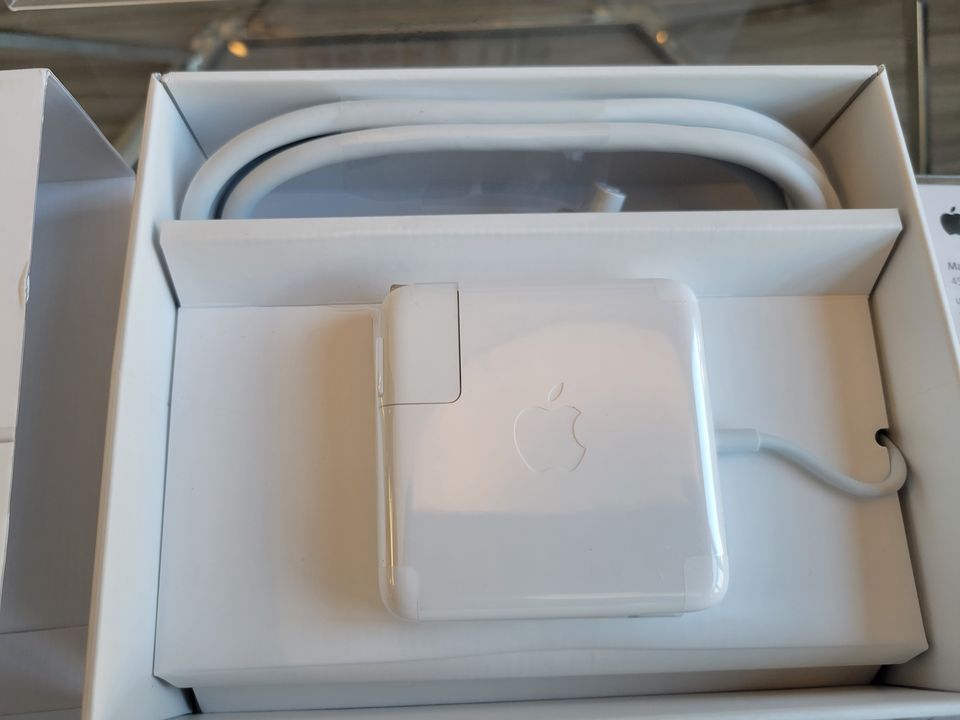
Brand New 60W MagSafe1 Adapter For MacBook Pro Power Charger A1184 A1330 A1344

Neutral box

Specifications

Compatible model

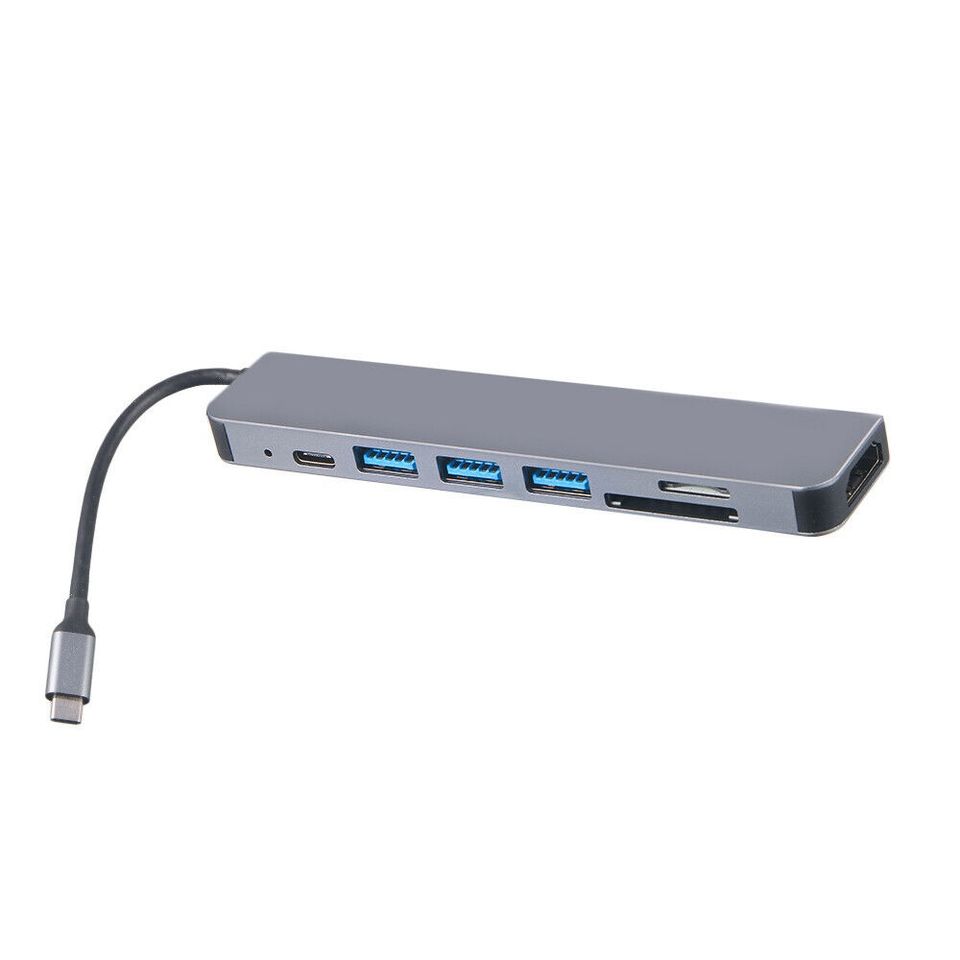
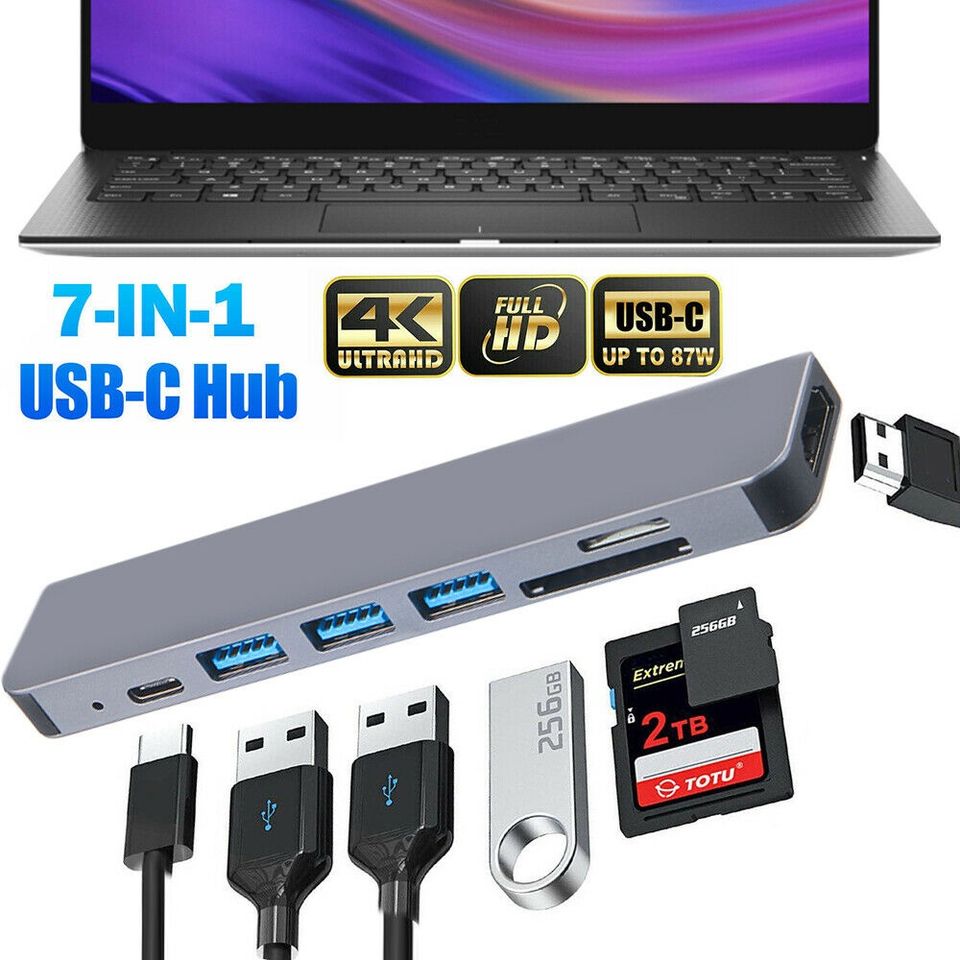
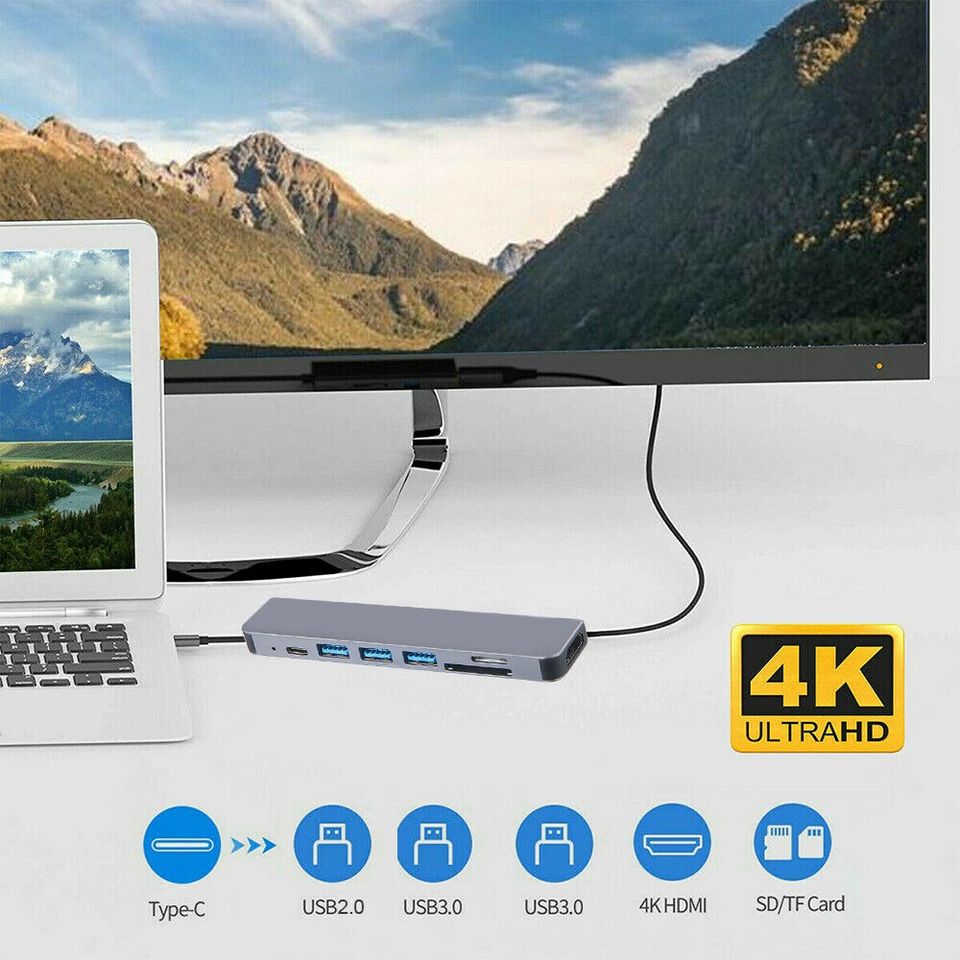
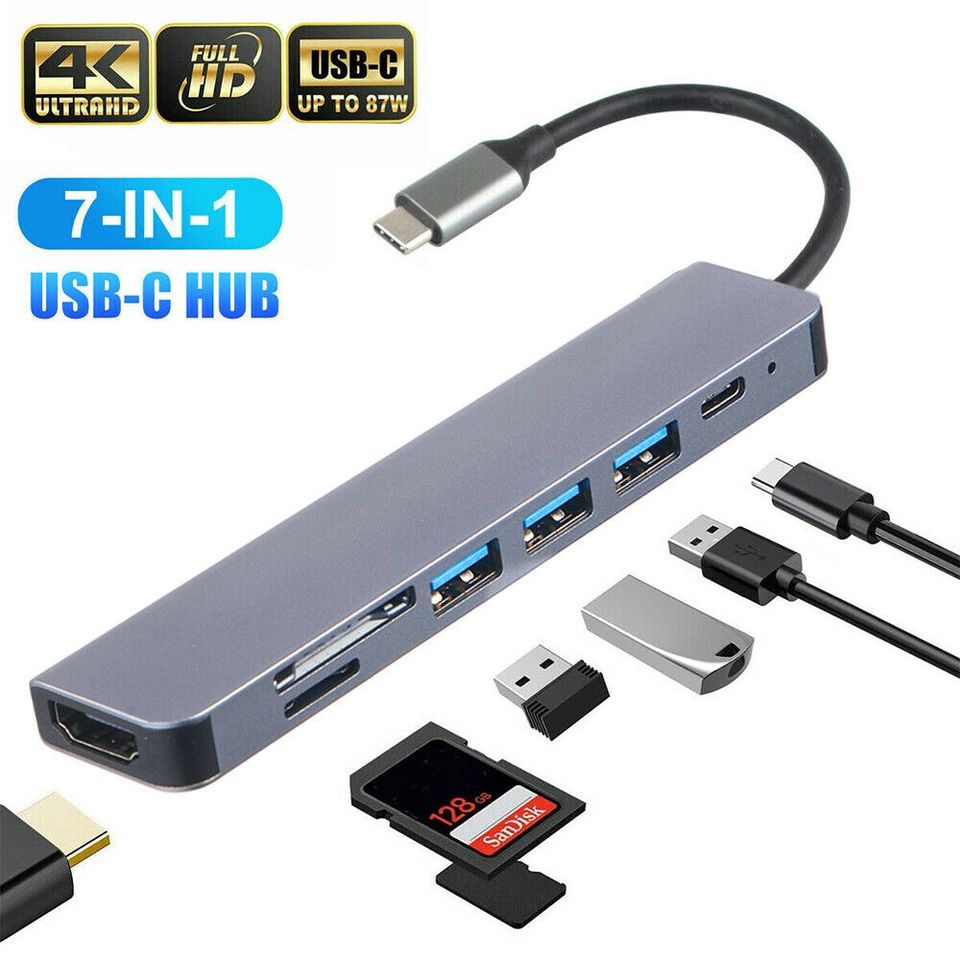
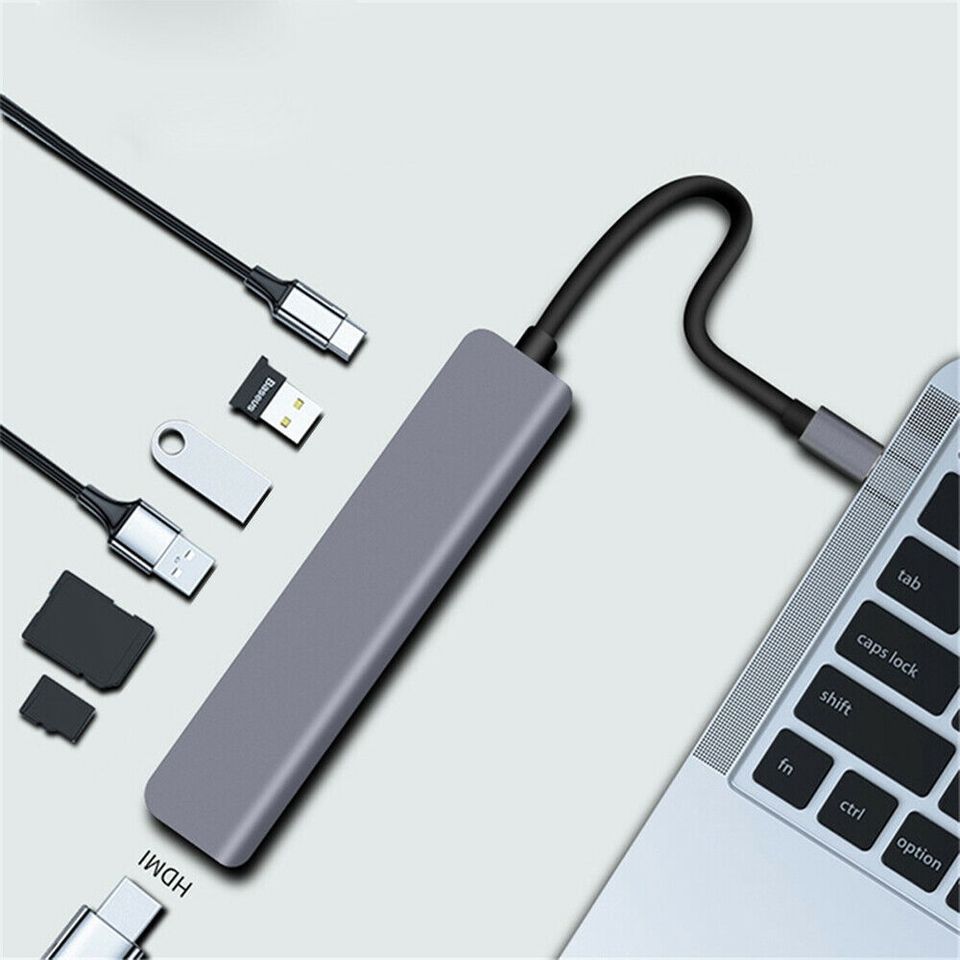
7 in 1 Multiport USB C

Features

Specifications

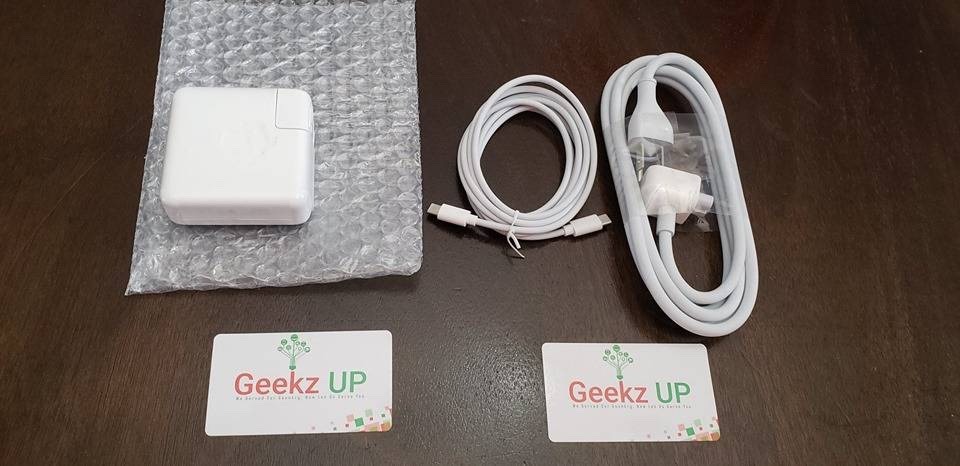
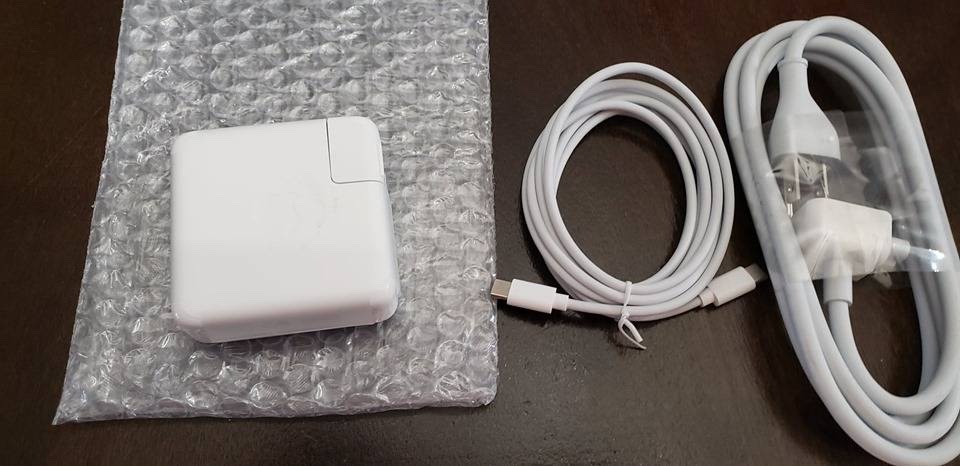
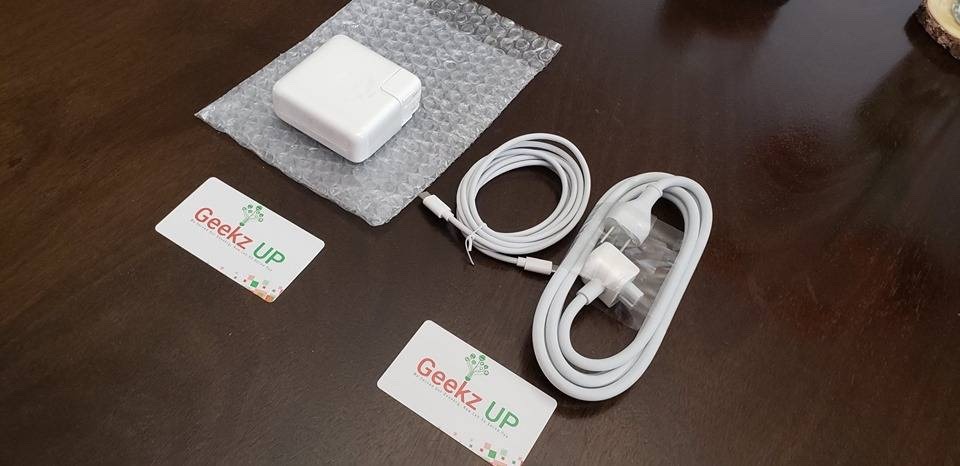
Apple 61W USB-C Power Adapter with 1M USB-C to C Cable + Extension Cord

Mac Models

Bundle

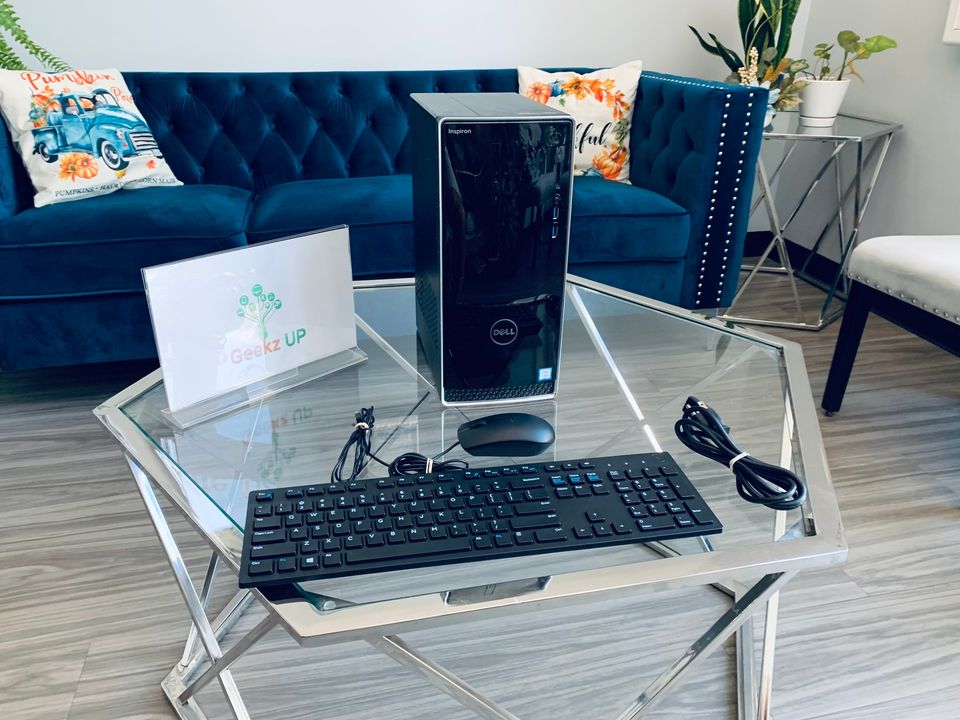
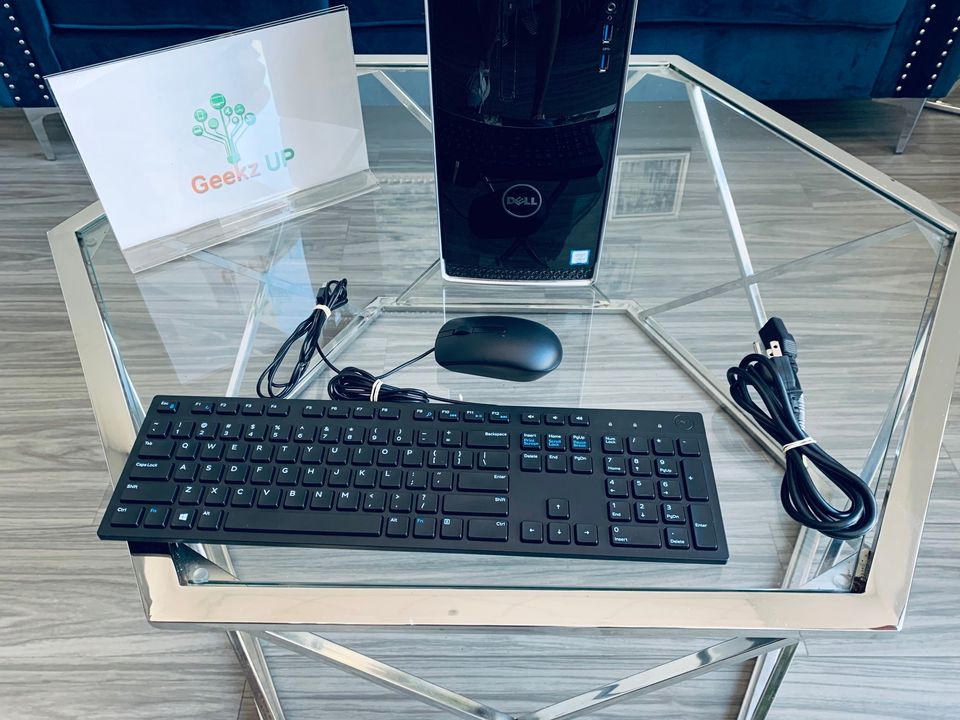
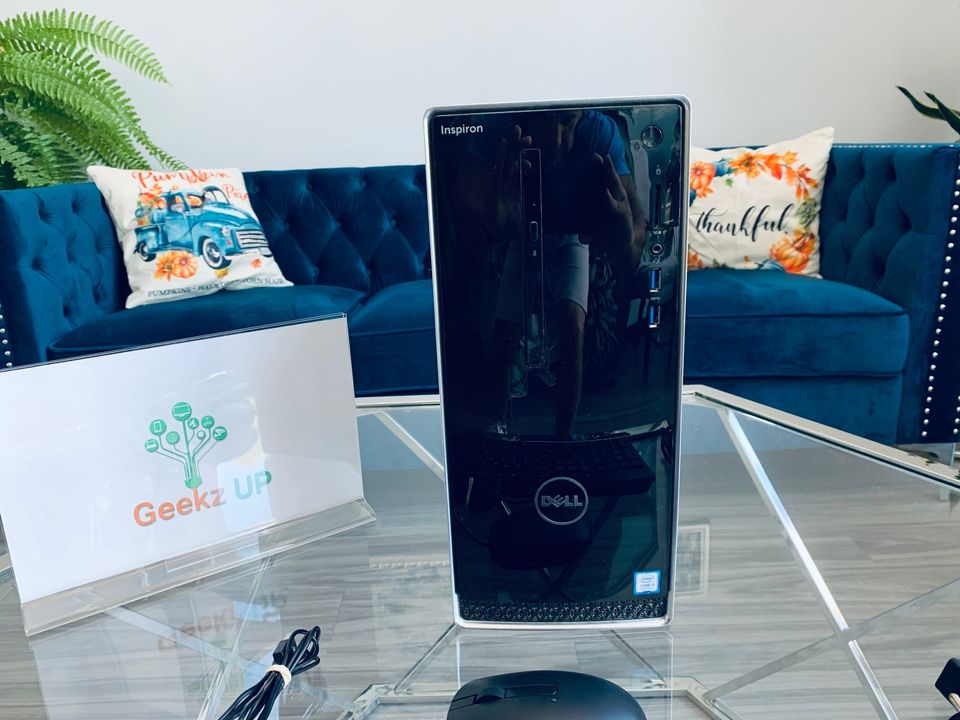
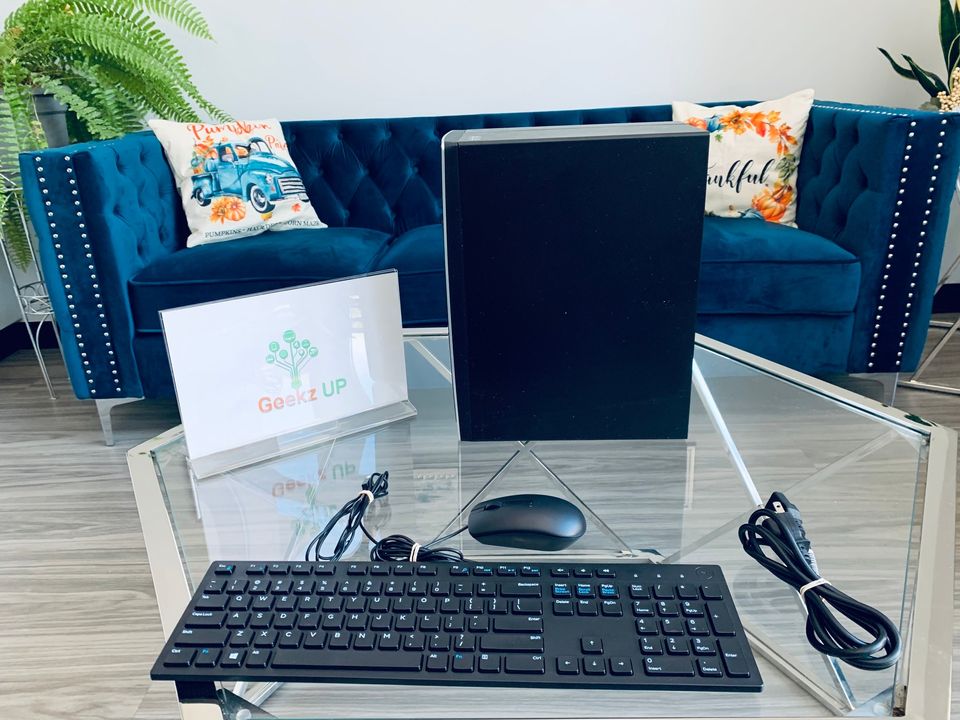
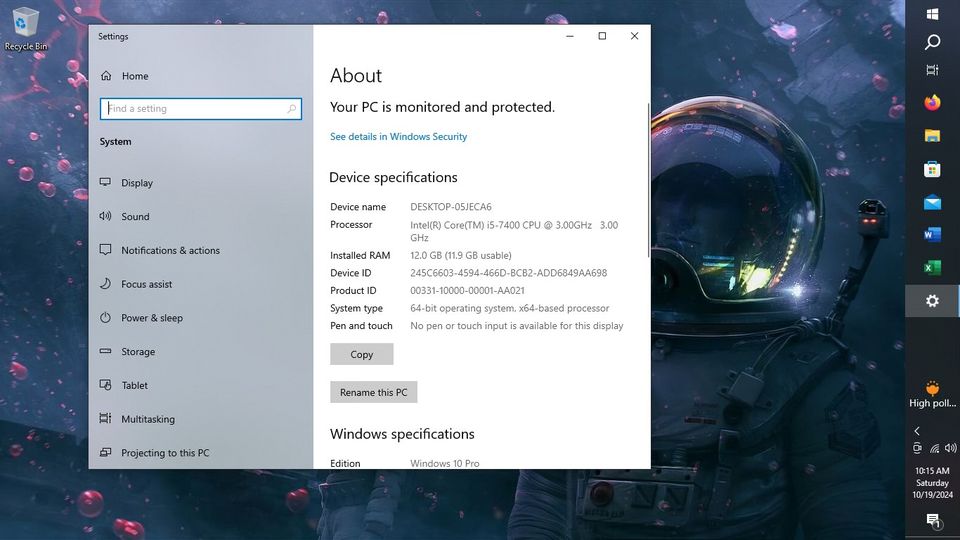
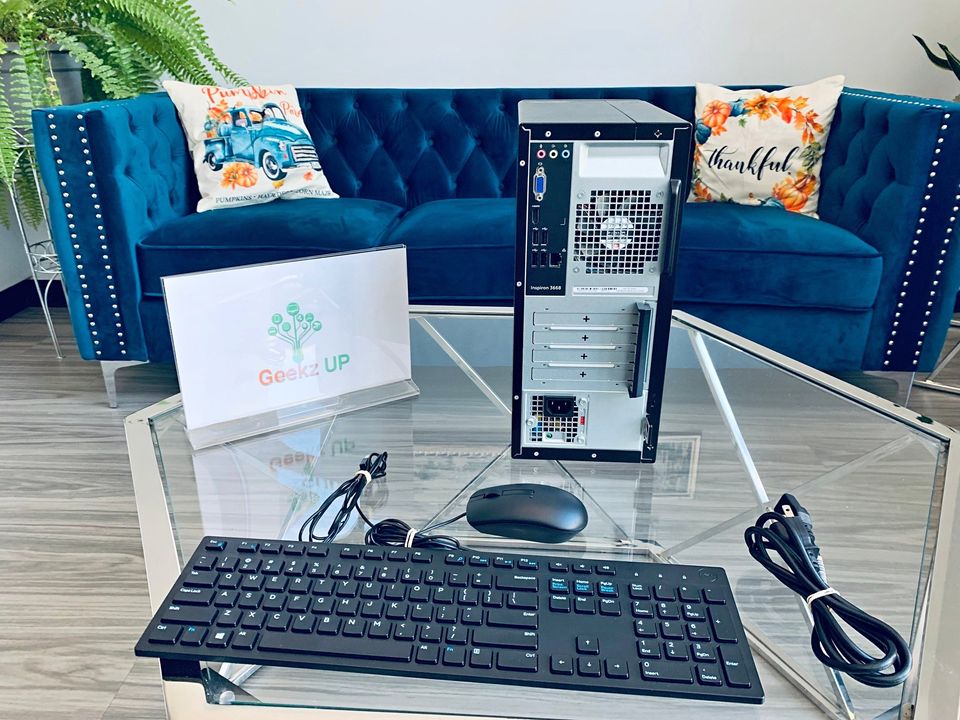
Dell Inspiron 3668~3.0 i5,12gb,1tbSSD,Win10Pro,Office

Configuration

Preloaded Software

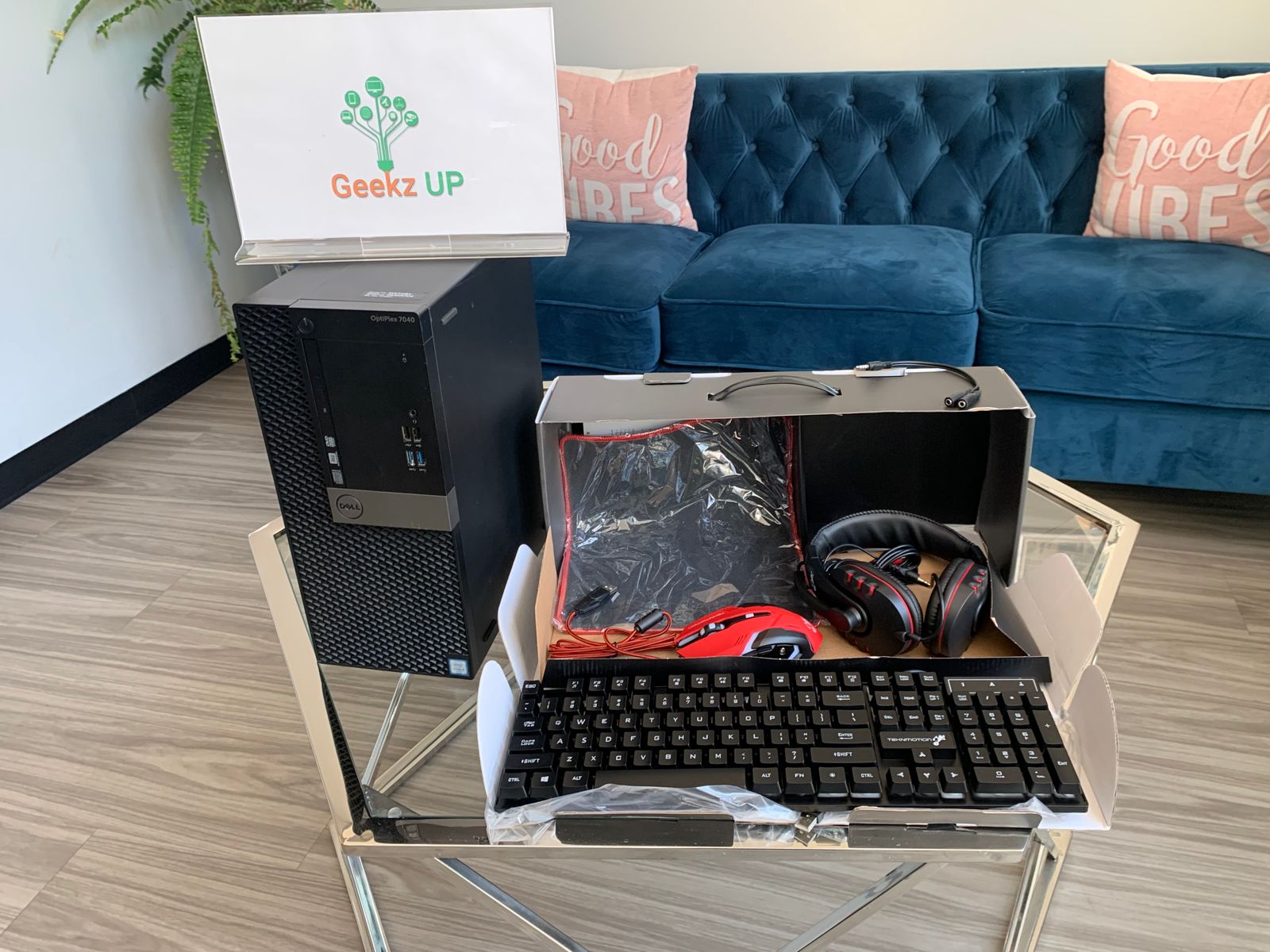
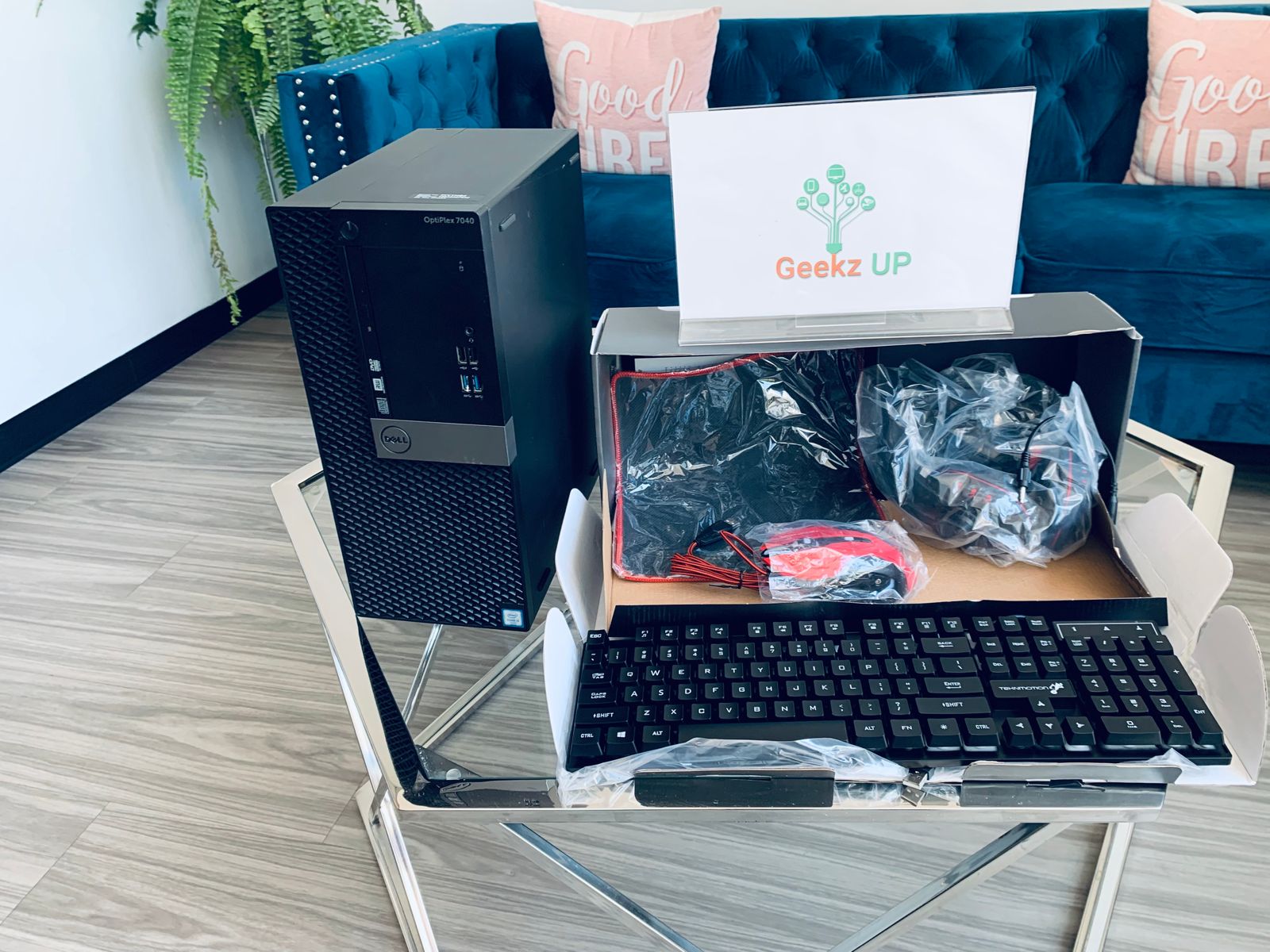
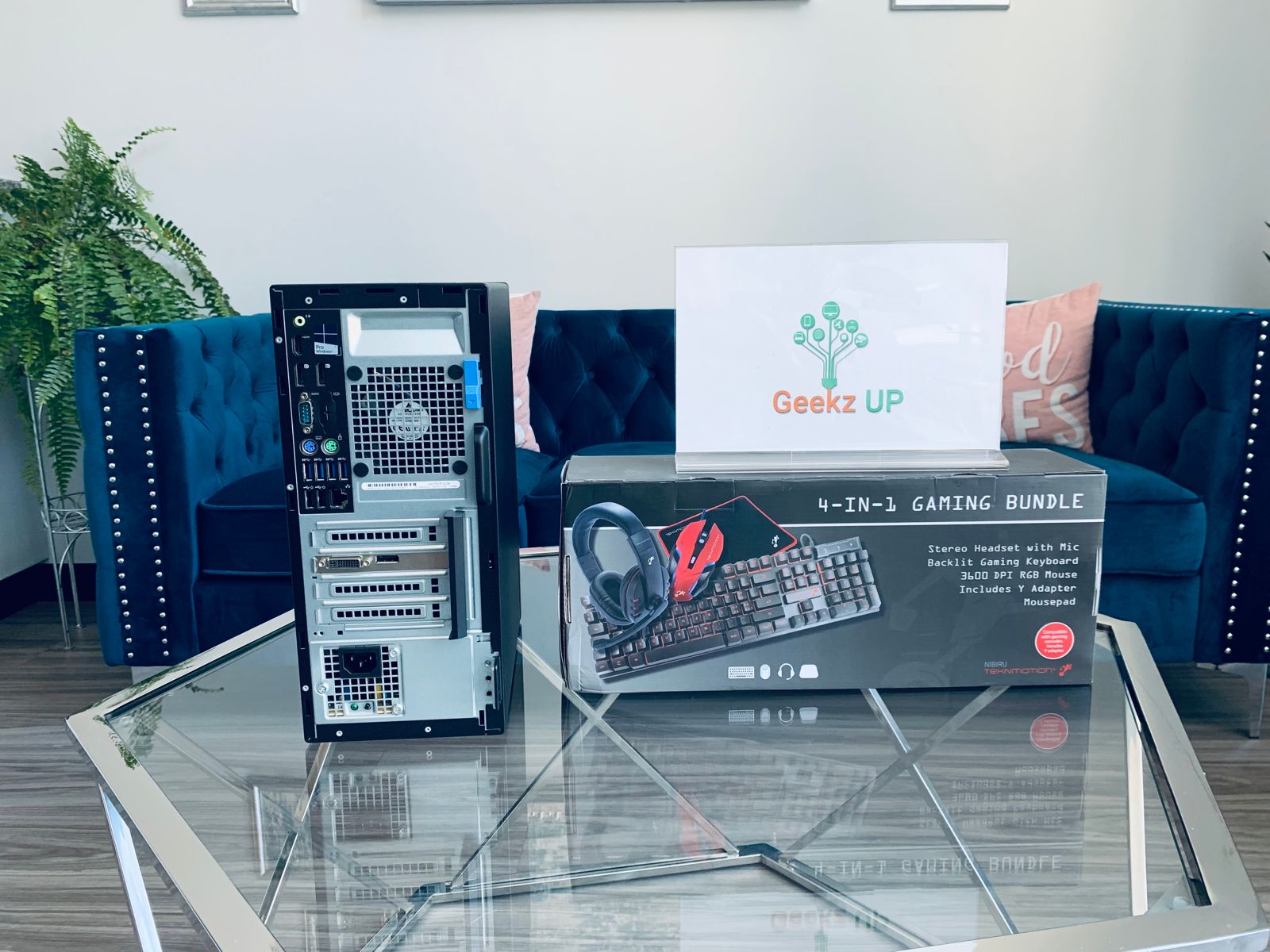
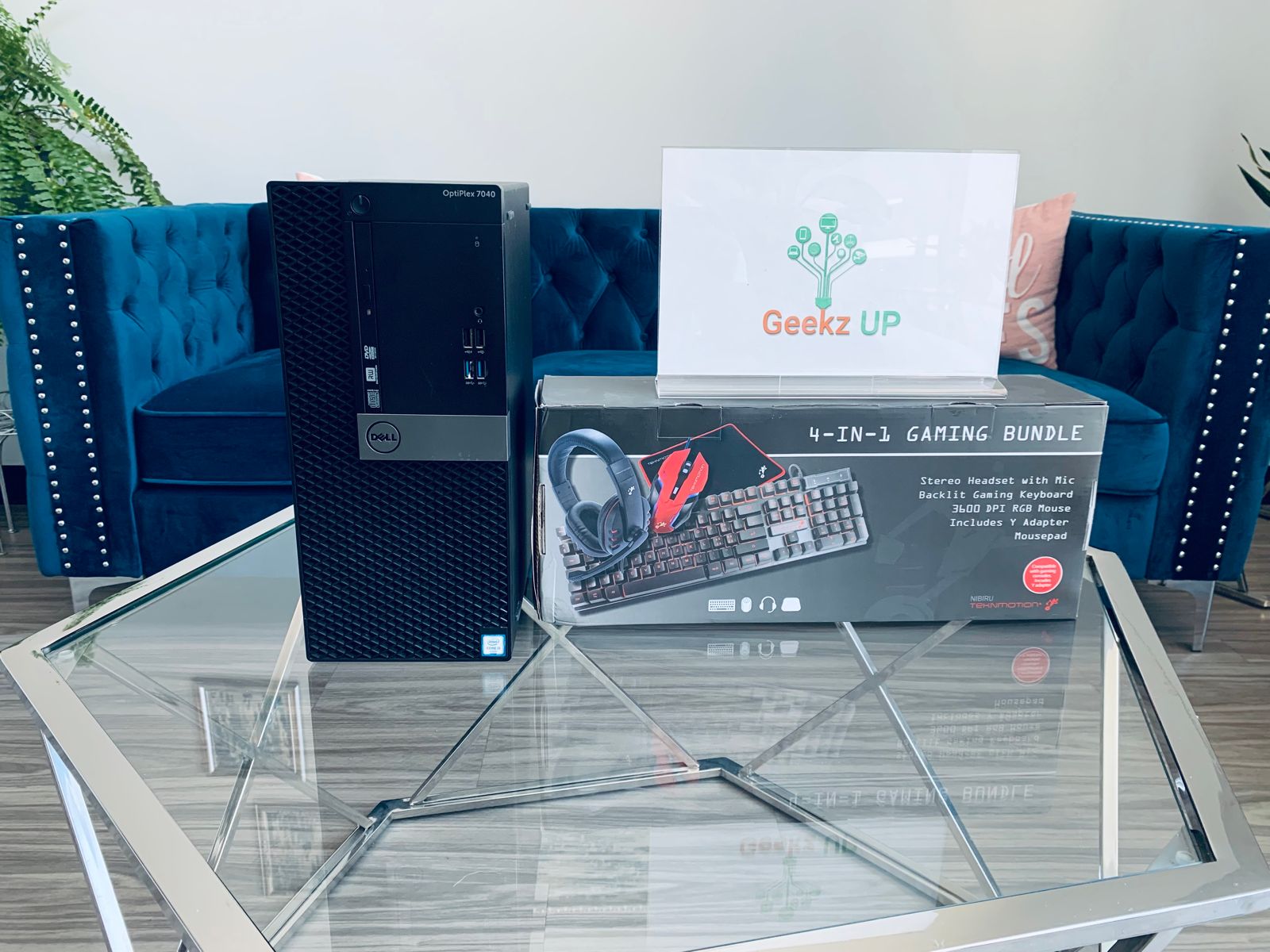
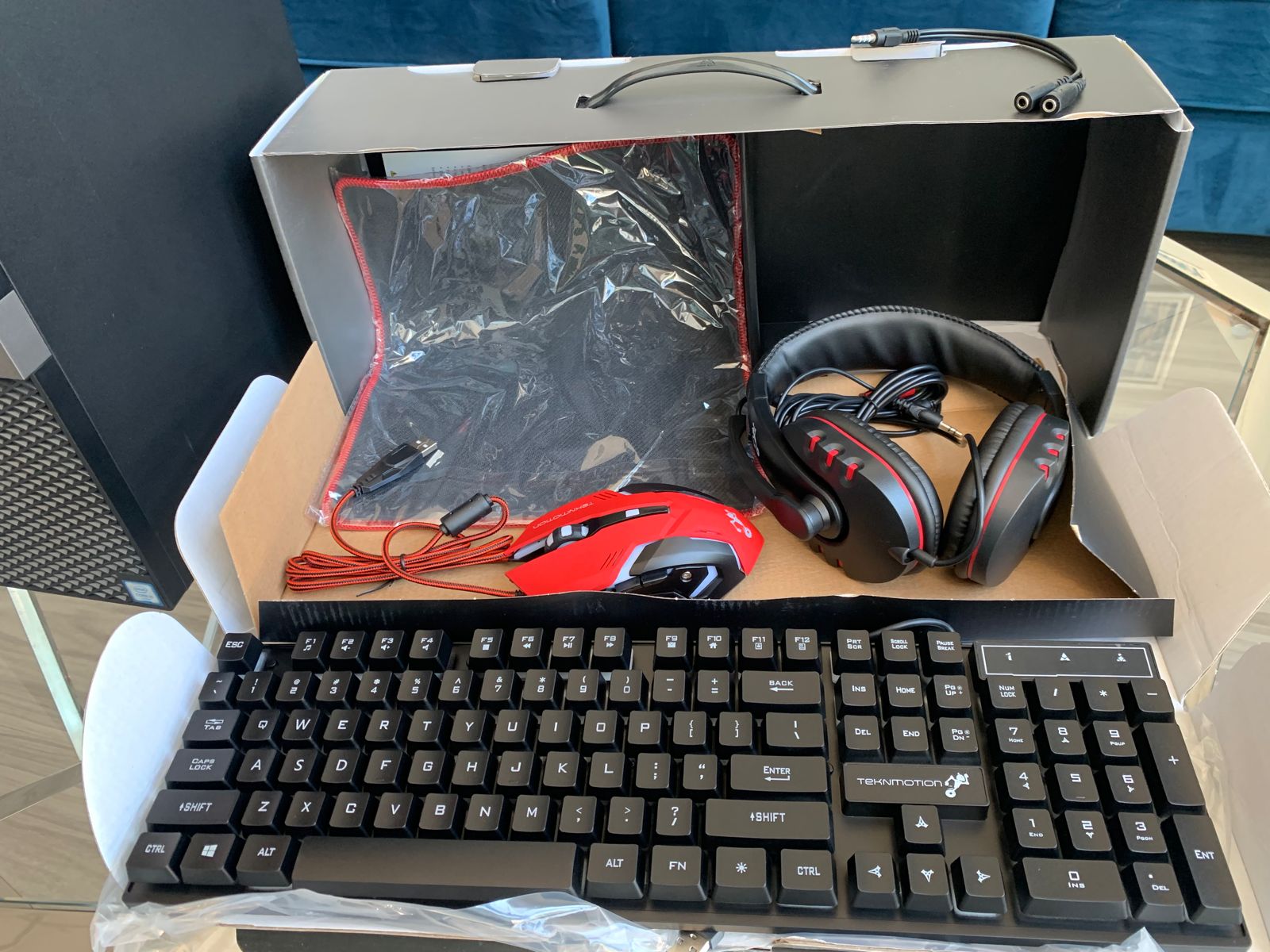
Dell Optiplex With Gaming Bundle (Keyboard,Mouse, Headset and Mousepad)

Configuration

Preloaded Software

2019 Macbook Pro 16” (Like New)

Configuration

Preloaded Software

Like New 2016 Macbook Pro 16”

Configuration

Preloaded Software

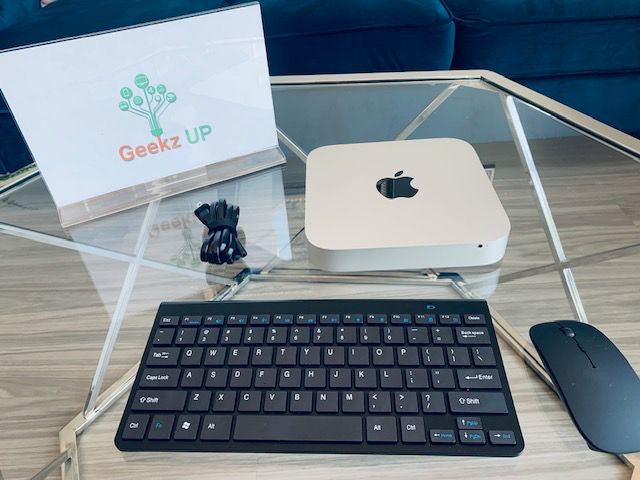
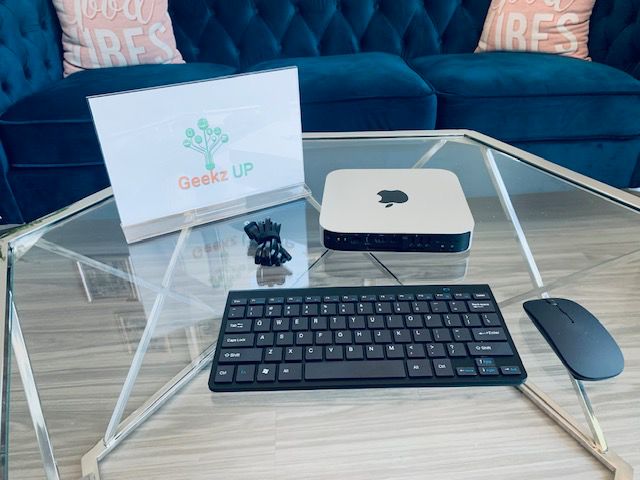
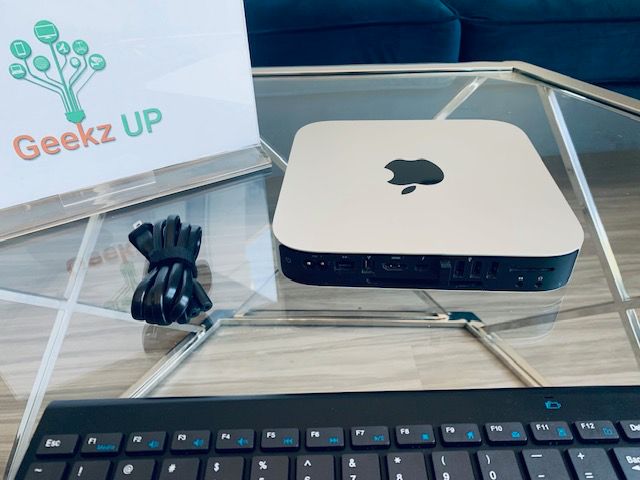
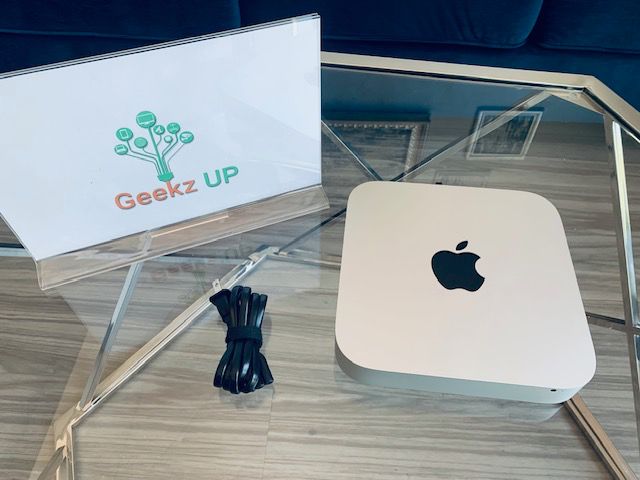
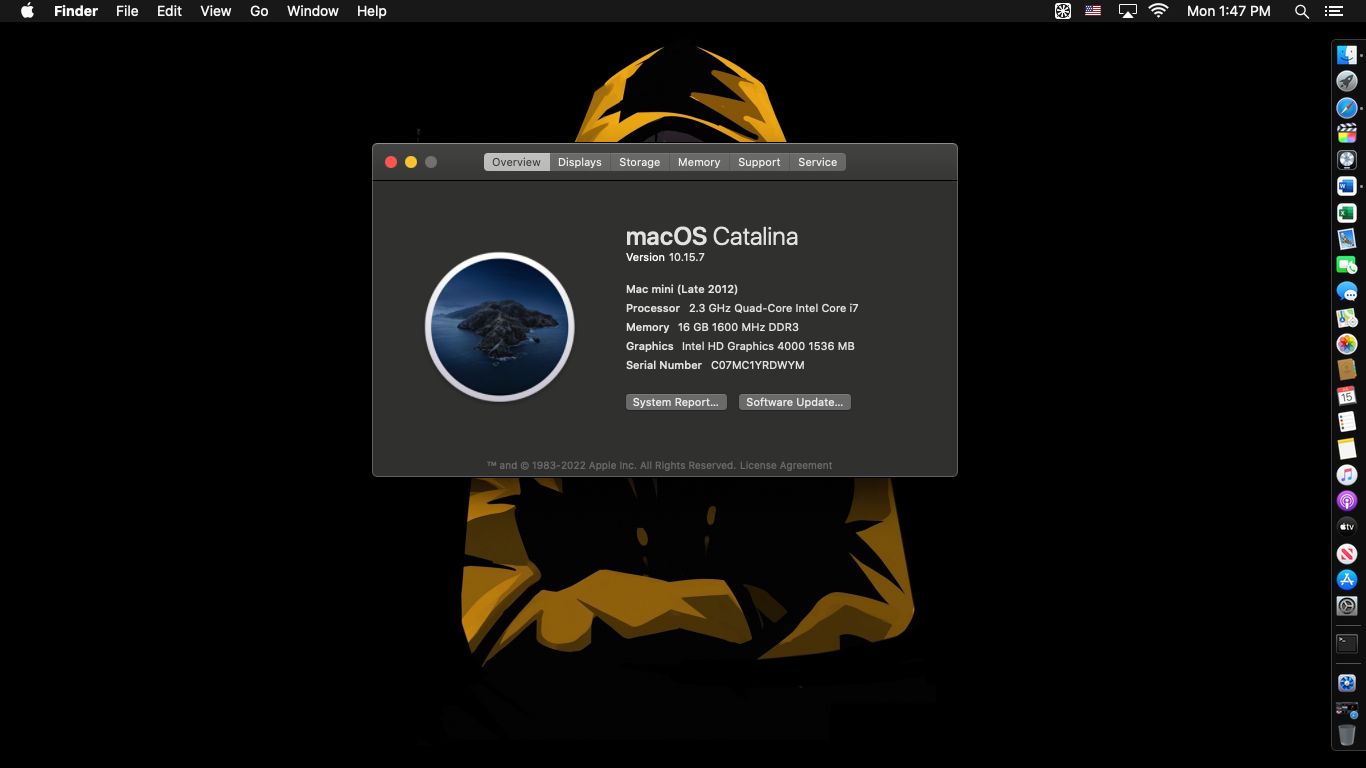
Late 2012 Mac mini

Configuration

Preloaded Software