Setup For Moatv
Follow the setup guide below in the same order as the document and images.
This will prevent a lot of support messages and make the setup process easier to follow.
Before you start
This will prevent a lot of support messages:
ONN 4K connected to TV
Make sure the ONN 4K device is connected to your TV.
Wi-Fi ready
Make sure your Wi-Fi is ready before starting setup.
Google account ready
Have your Google or Gmail account ready.
MoaTV activation code ready
Keep your MoaTV activation code ready for later in setup.
IPVanish login ready
Have your IPVanish login ready before installing the VPN.
Step by step setup
Follow each image and matching instruction below in the same order as the document.
Device setup
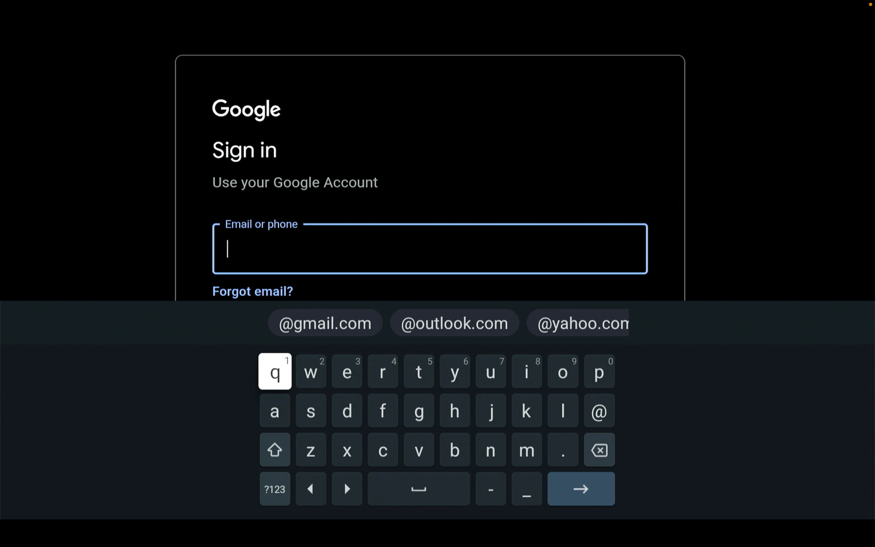
Sign in to your google/gmail account to start your setup
We provide devices fully setup and ready for use in our products. Need help with setup? Geekz Up can fully install and configure your device for a small service fee.
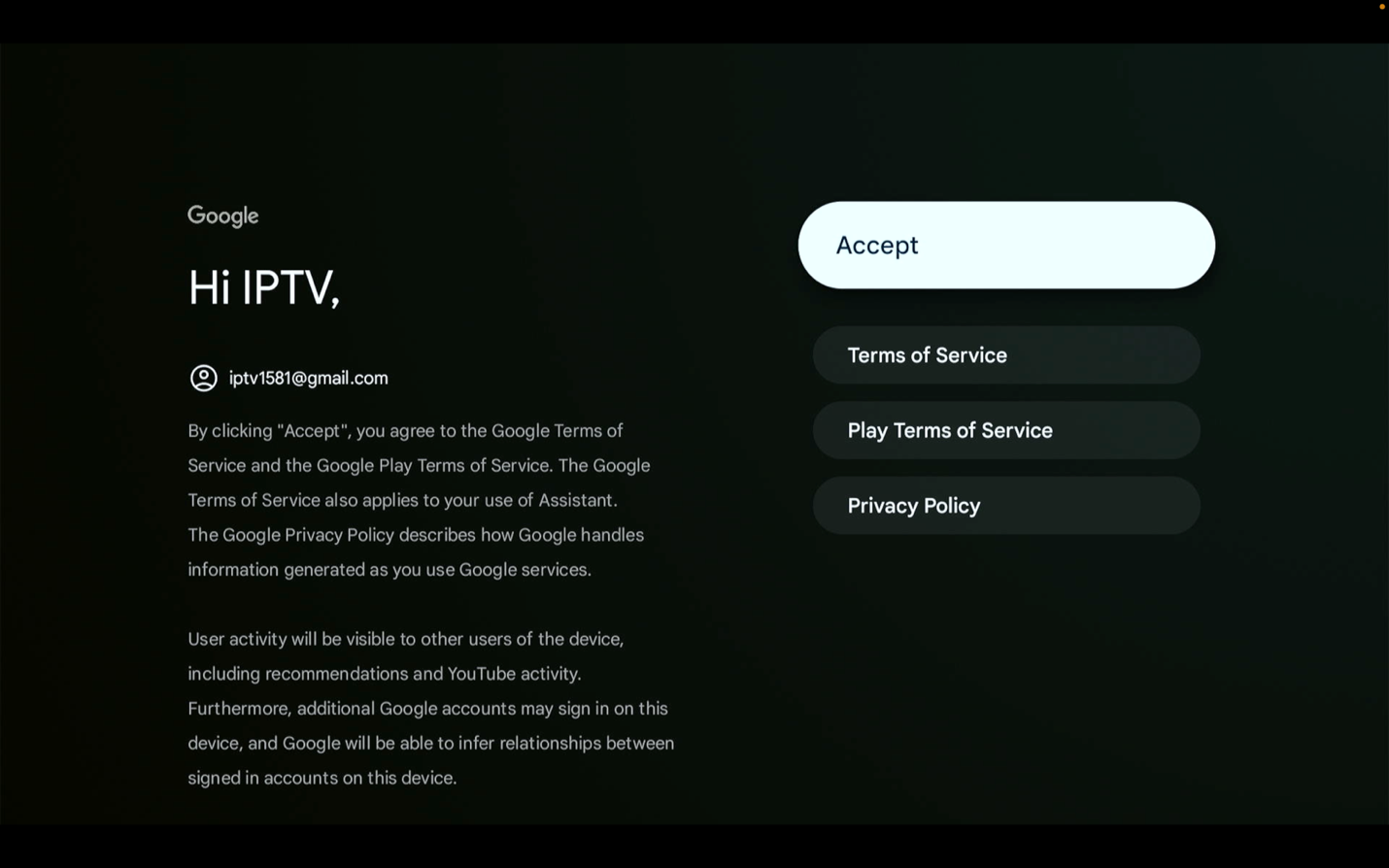
Accept the terms
Accept the terms to continue with setup.
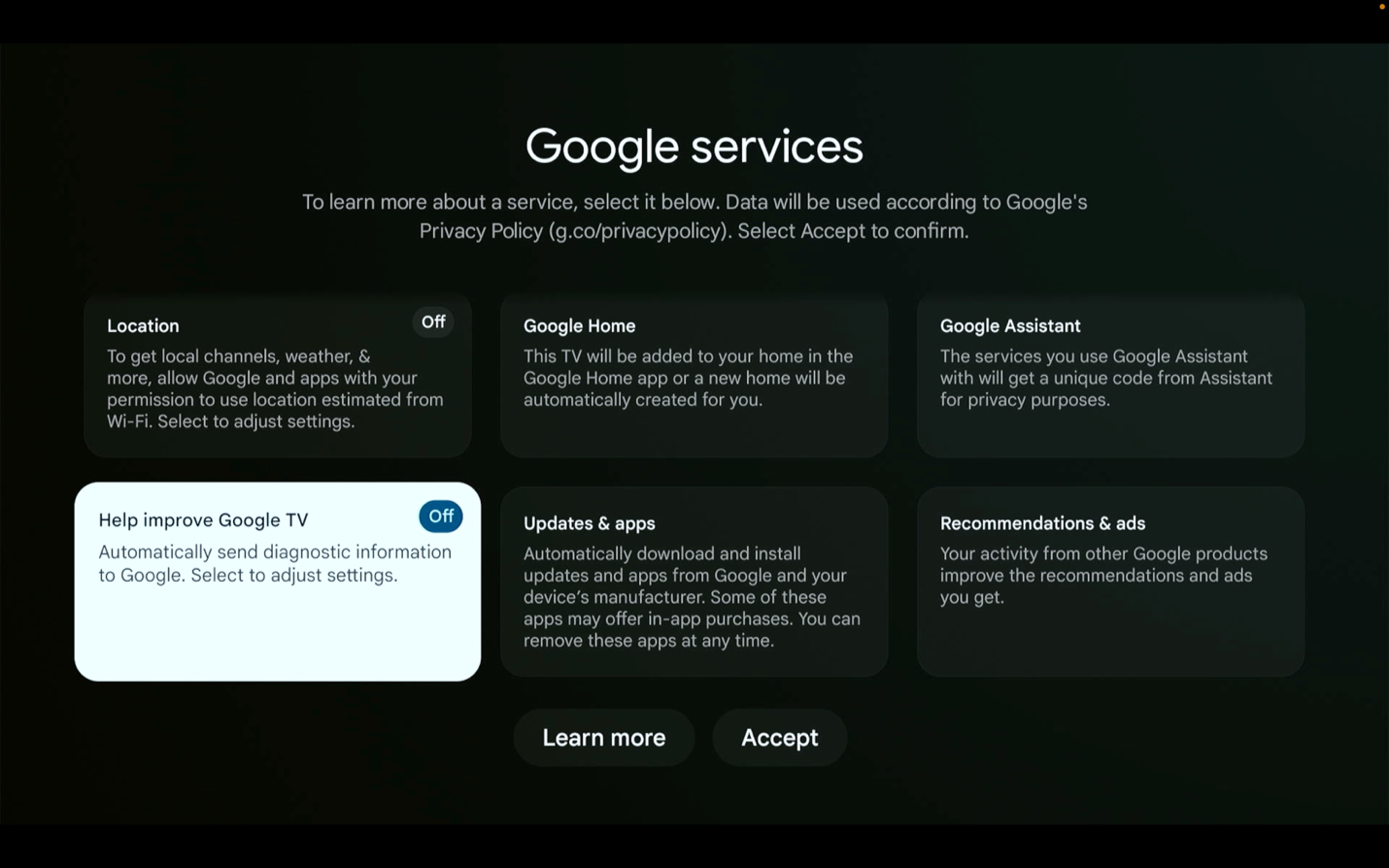
Disable Location and Help improve Google TV
This is not required but we recommend you disable Location and Help improve Google TV.
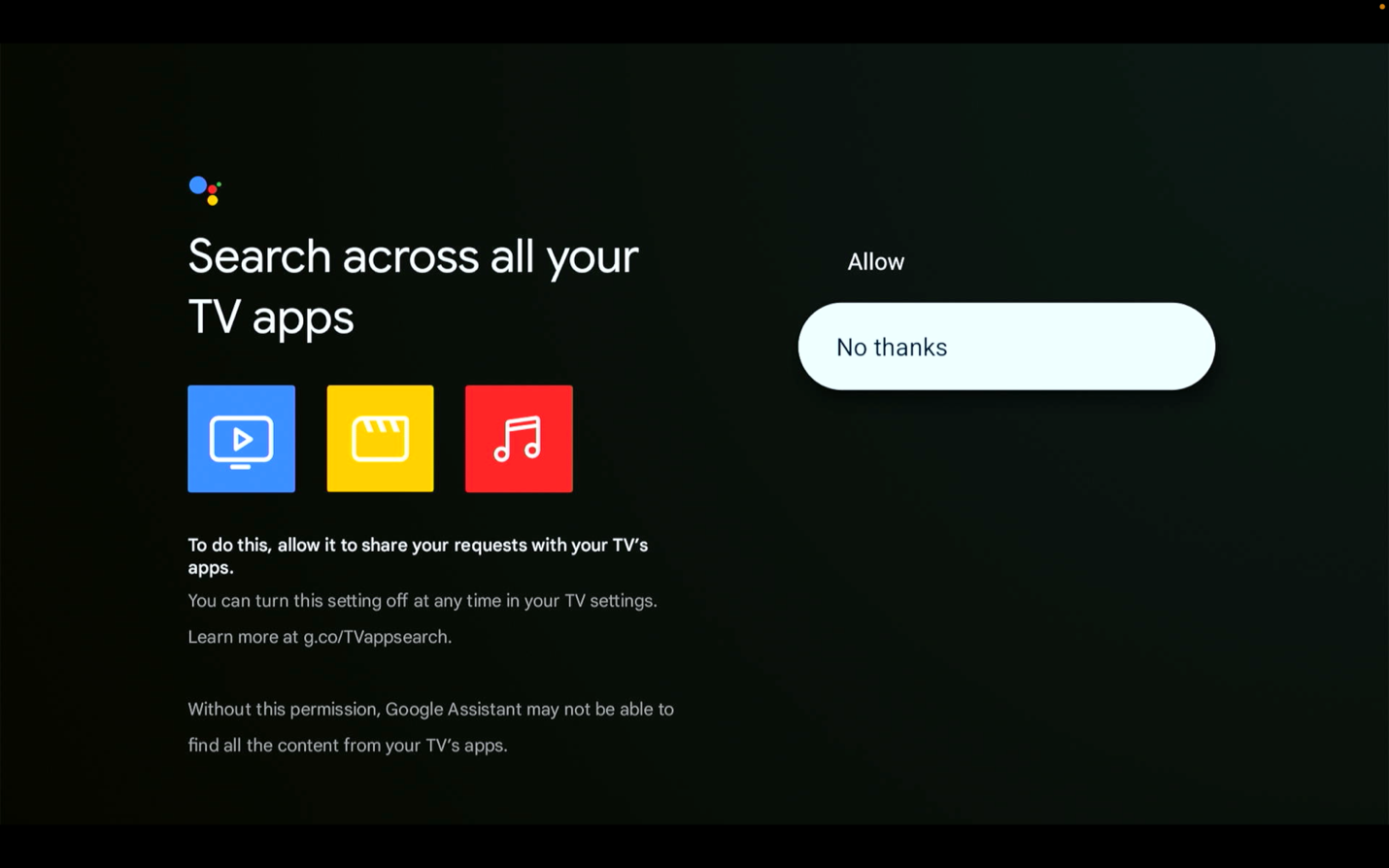
Choose no thanks
Choose no thanks, if you are not wanted any additional apps.
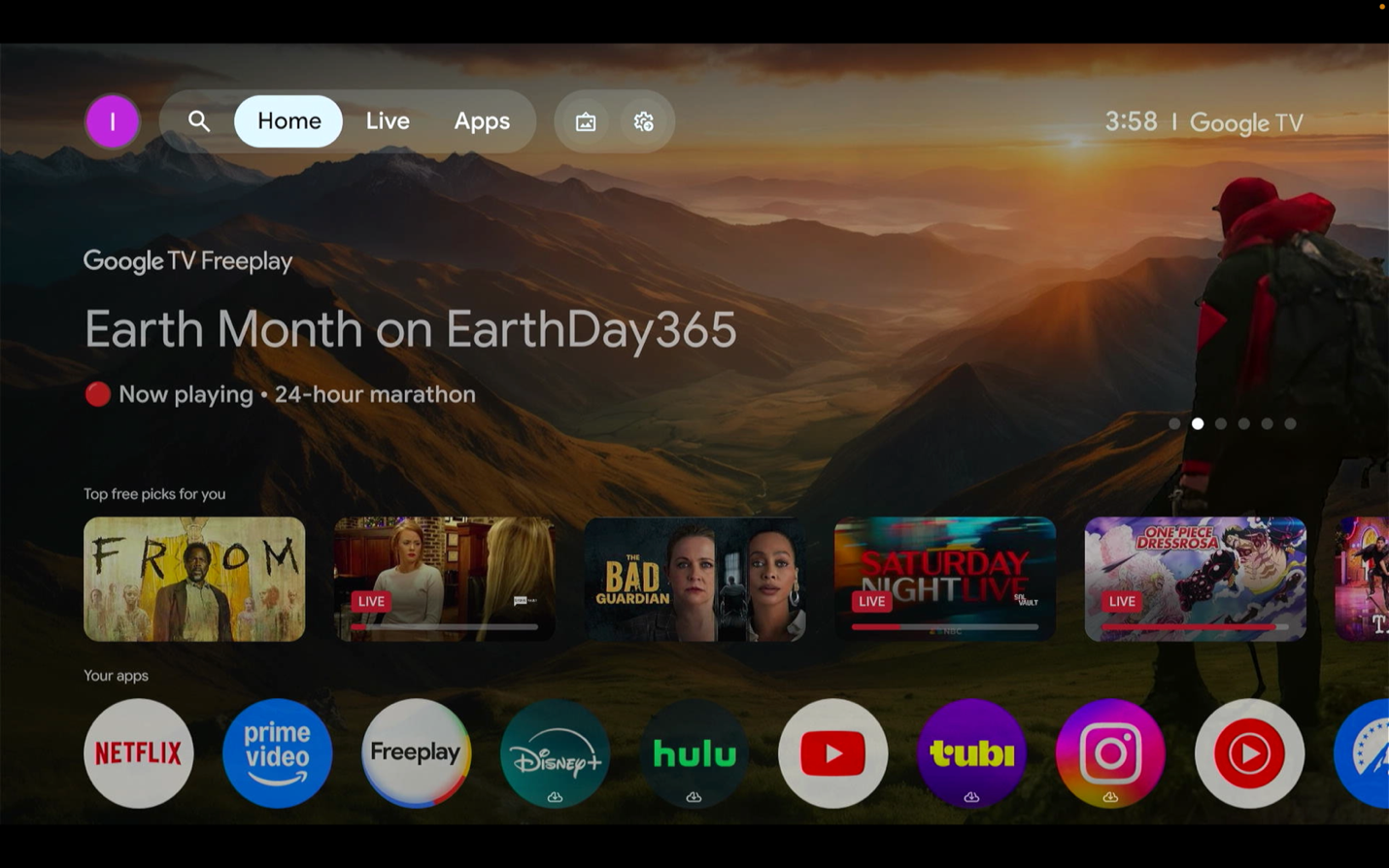
Now you are on the main page the of the device
This is the main page of the device.
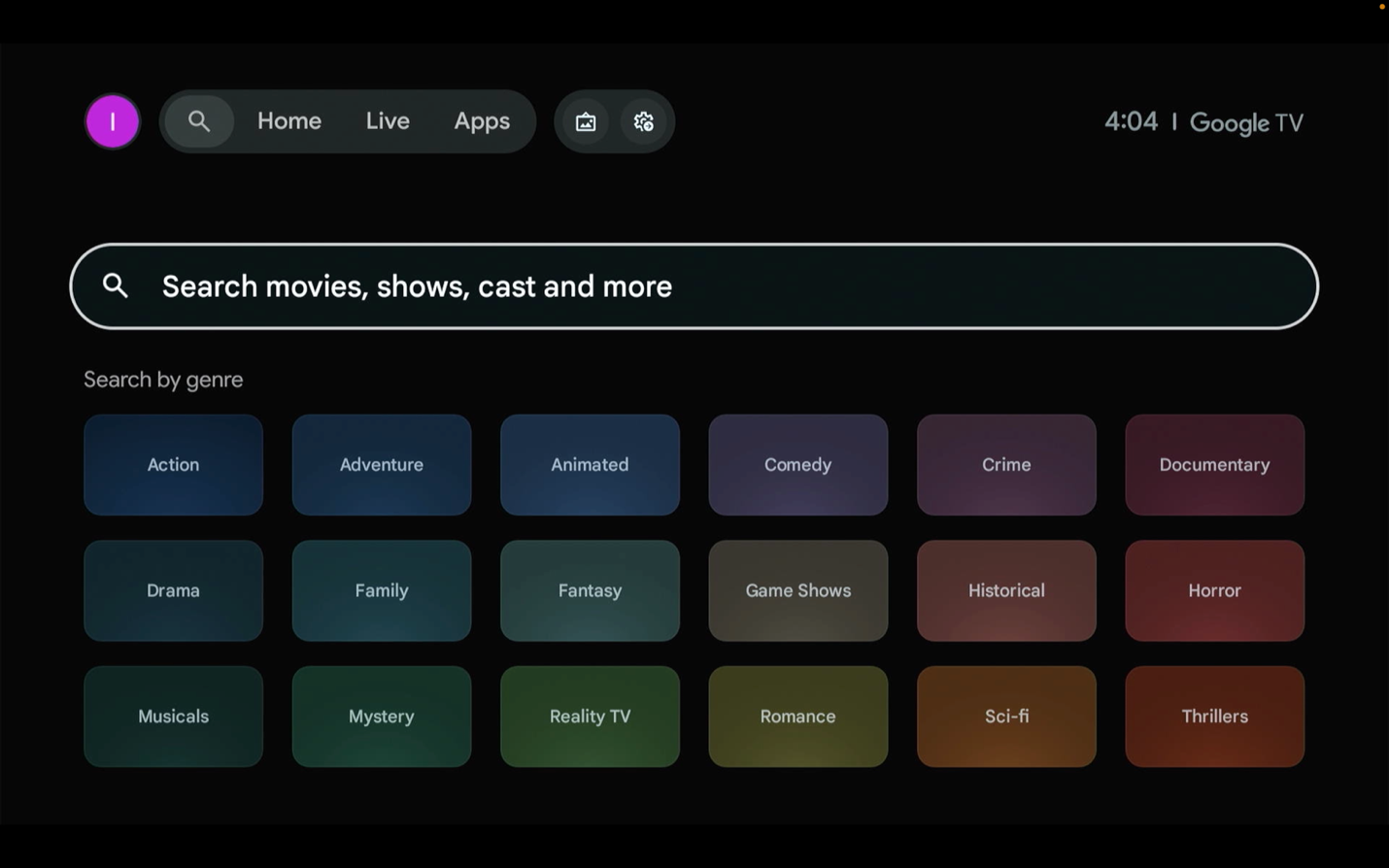
Type Downloader in the search area
Next to the “Home” is the search area, here type “Downloader”.
Install the official orange Downloader app
There are several similar apps, so install the official orange Downloader app.
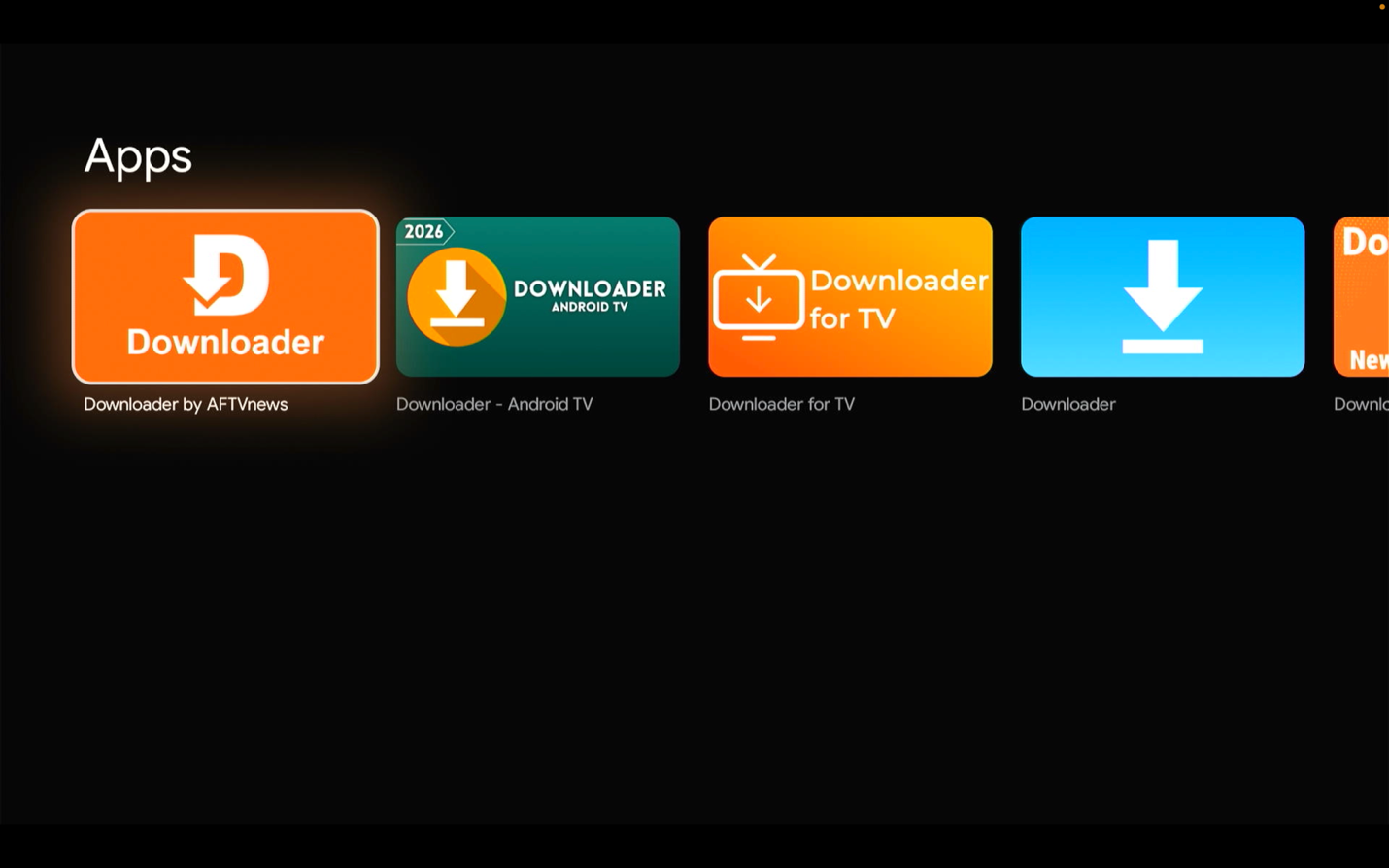
This is the official Downloader app
Install and open it.
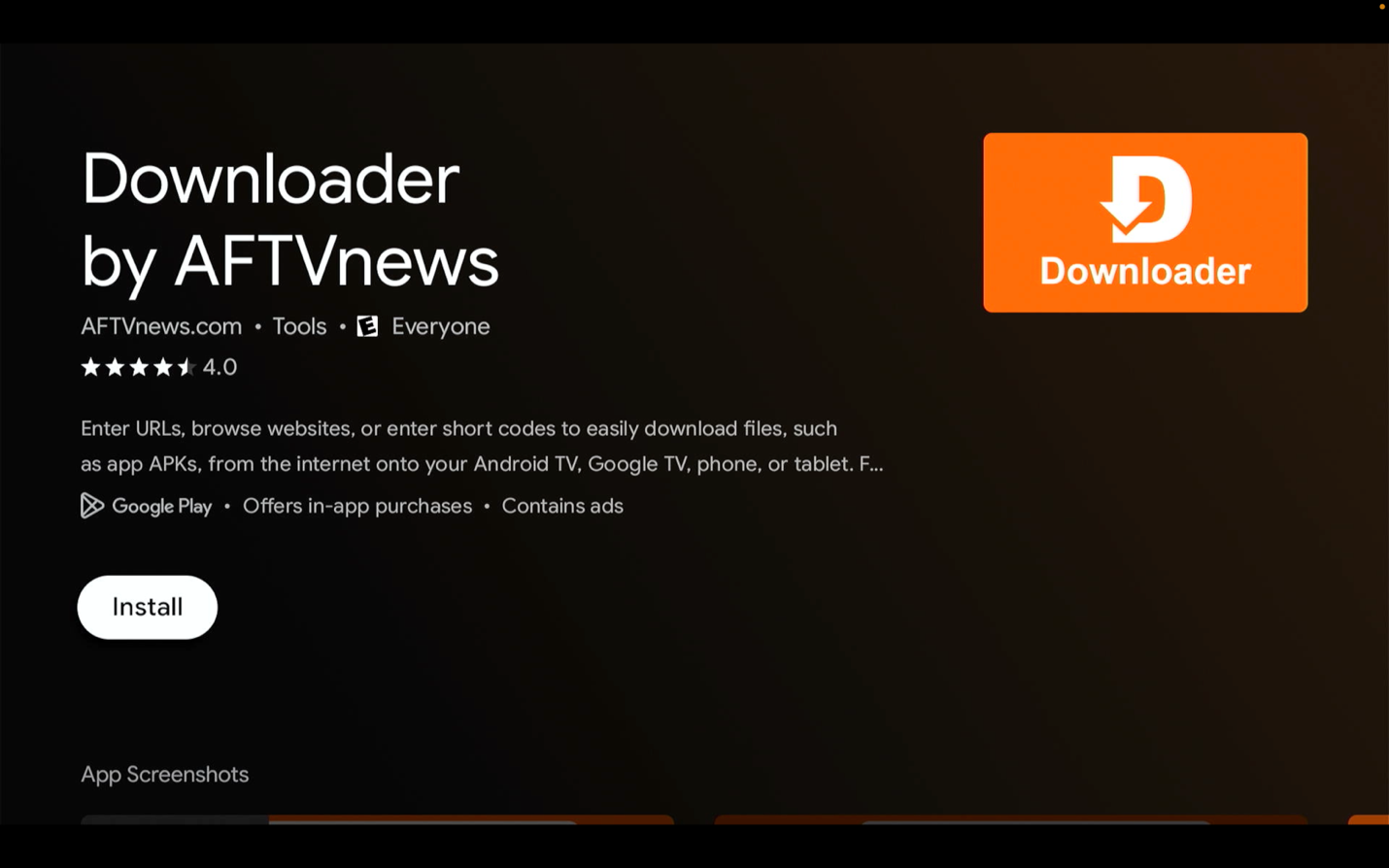
Enter the short code in the url area
5472026In the url area type the following short code “5472026”.
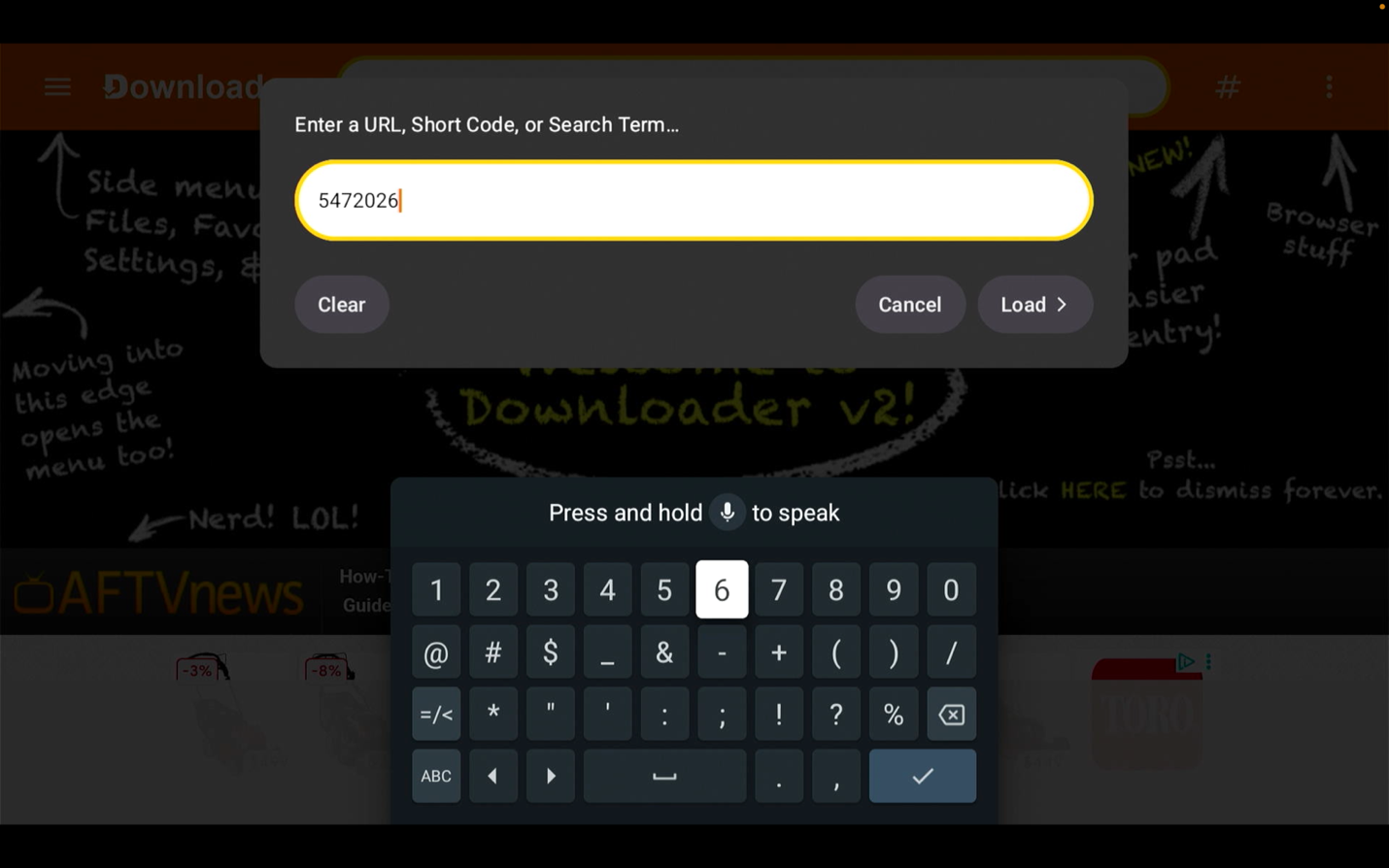
This will start the process to install Moatv
The install process will begin after entering the short code.
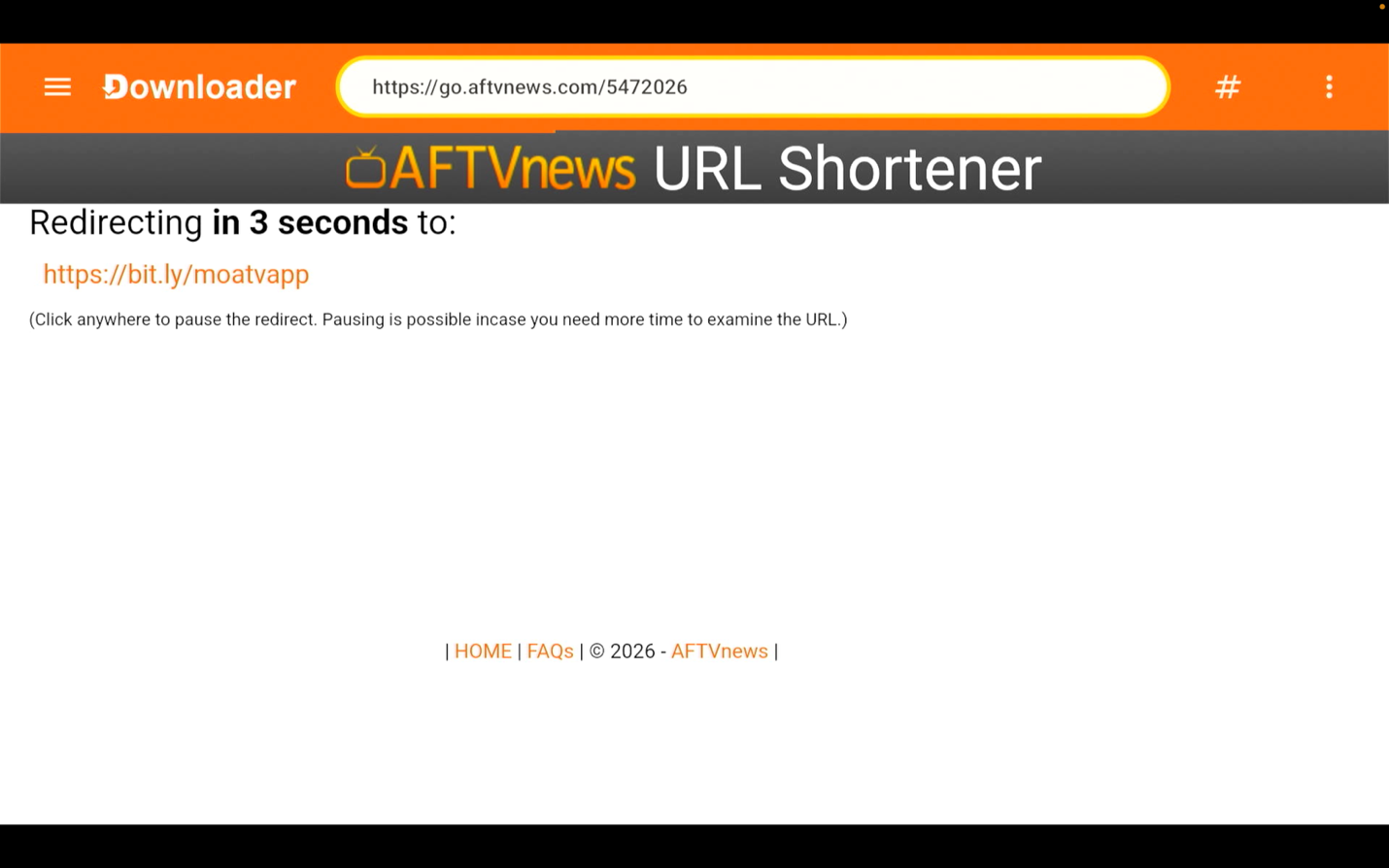
The file download will start
Wait for the file download to begin.
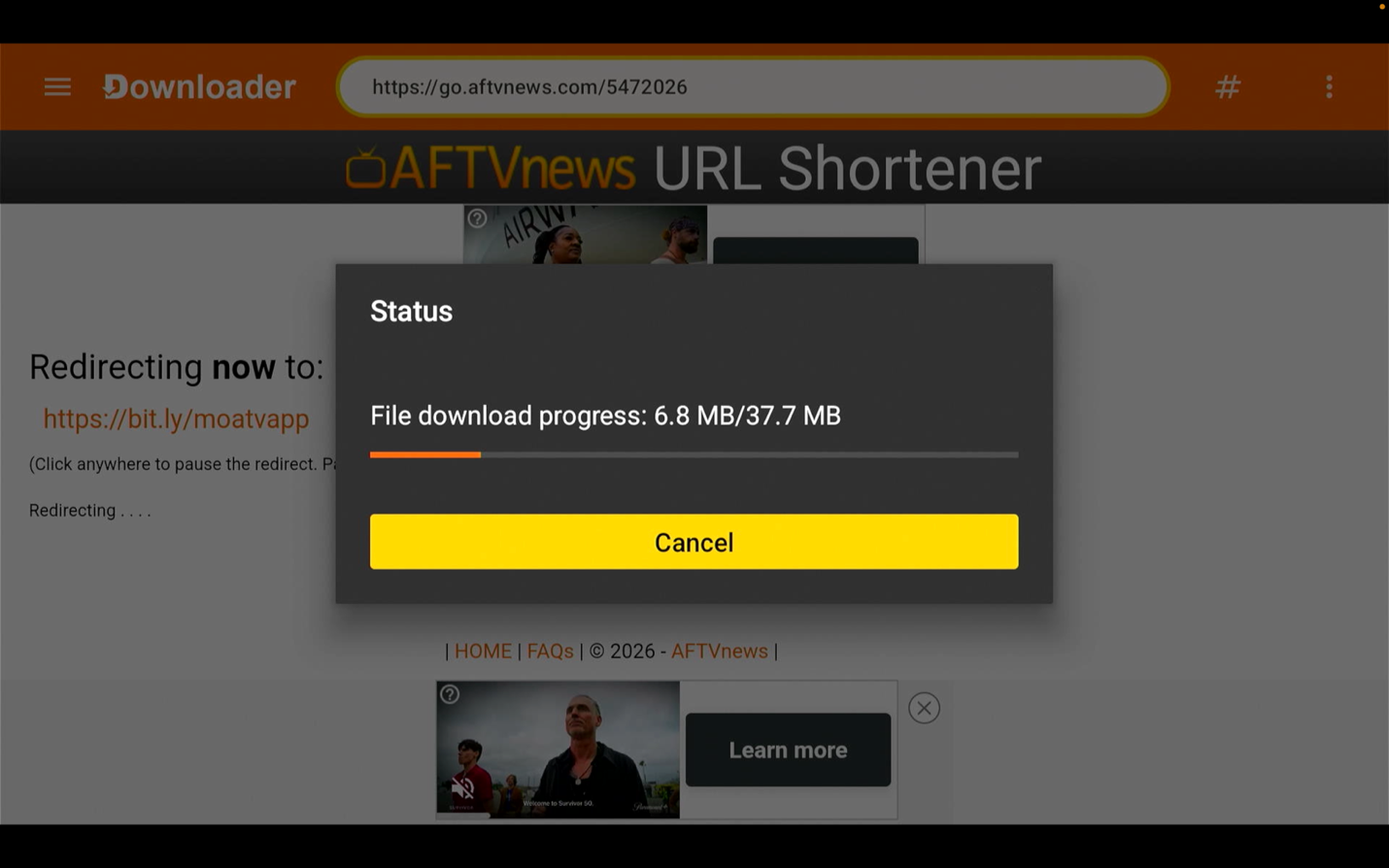
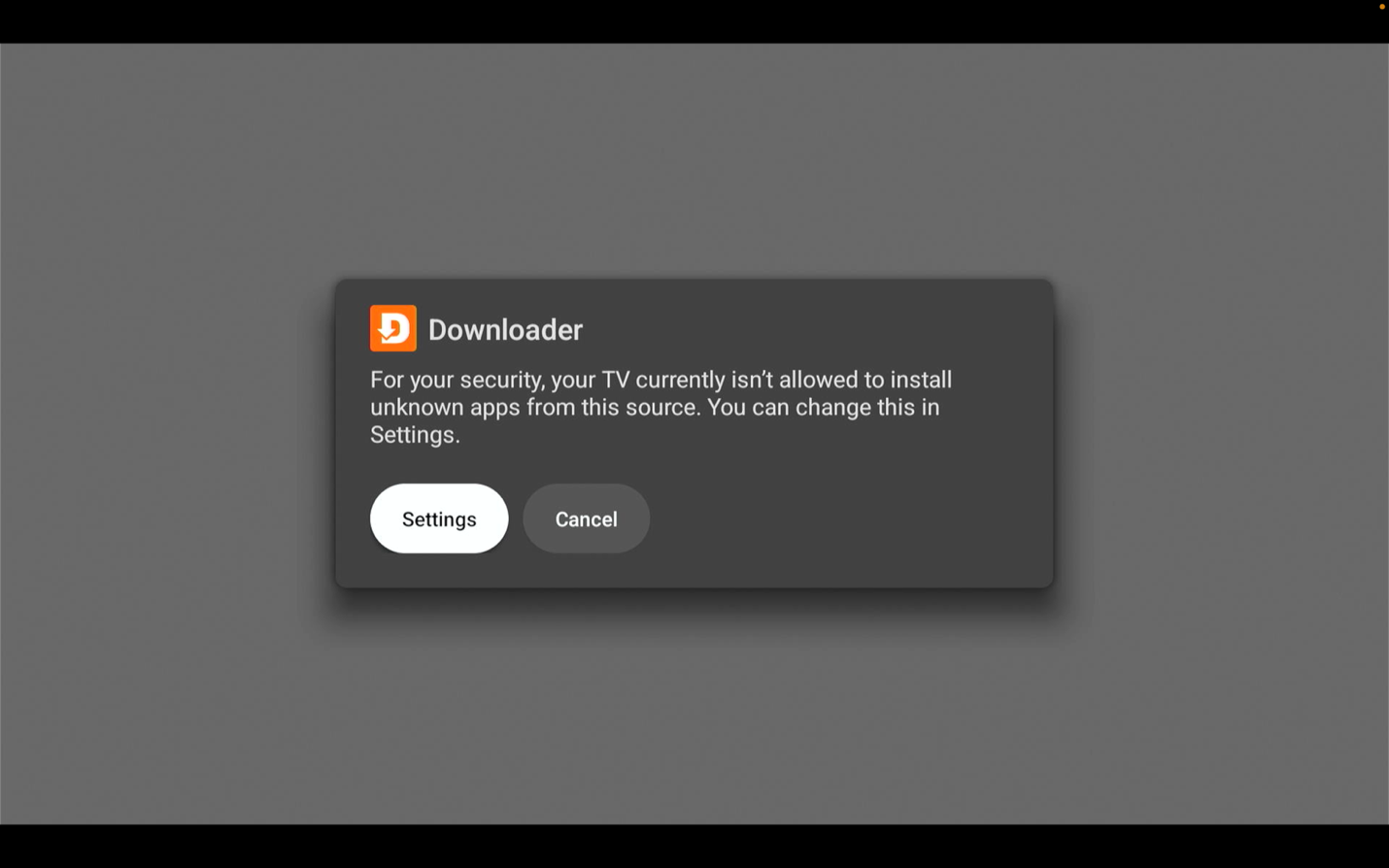
Allow Downloader to install apps
You will then receive this pop-up, to where it will alert you to allow Downloader to install apps, allow it. Then click on setting.
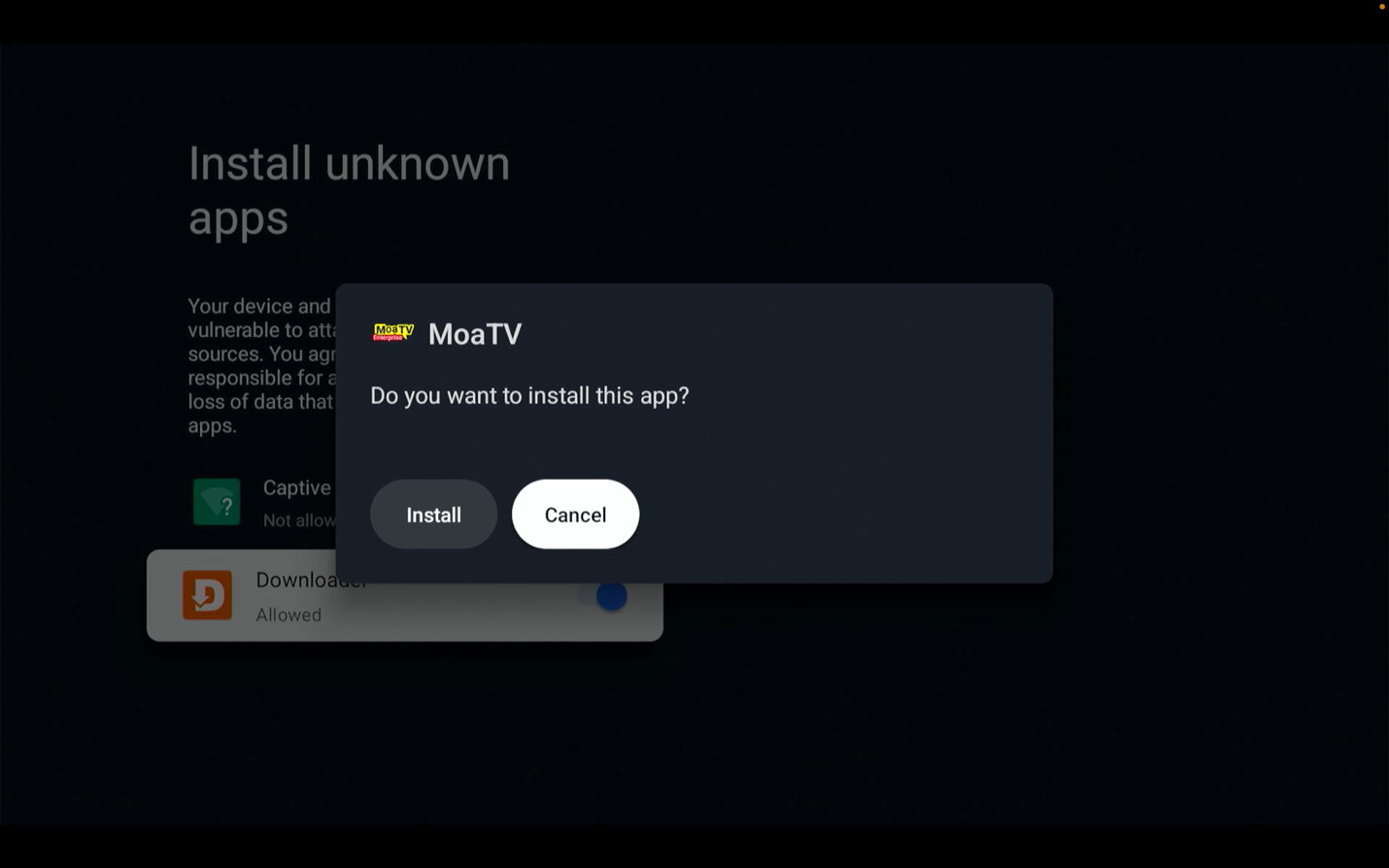
Press allow on the Downloader section then press install
Enable Downloader permission, then press install.
Continue the IPTV app install
Now the download/install of the IPTV app will continue, open when done.
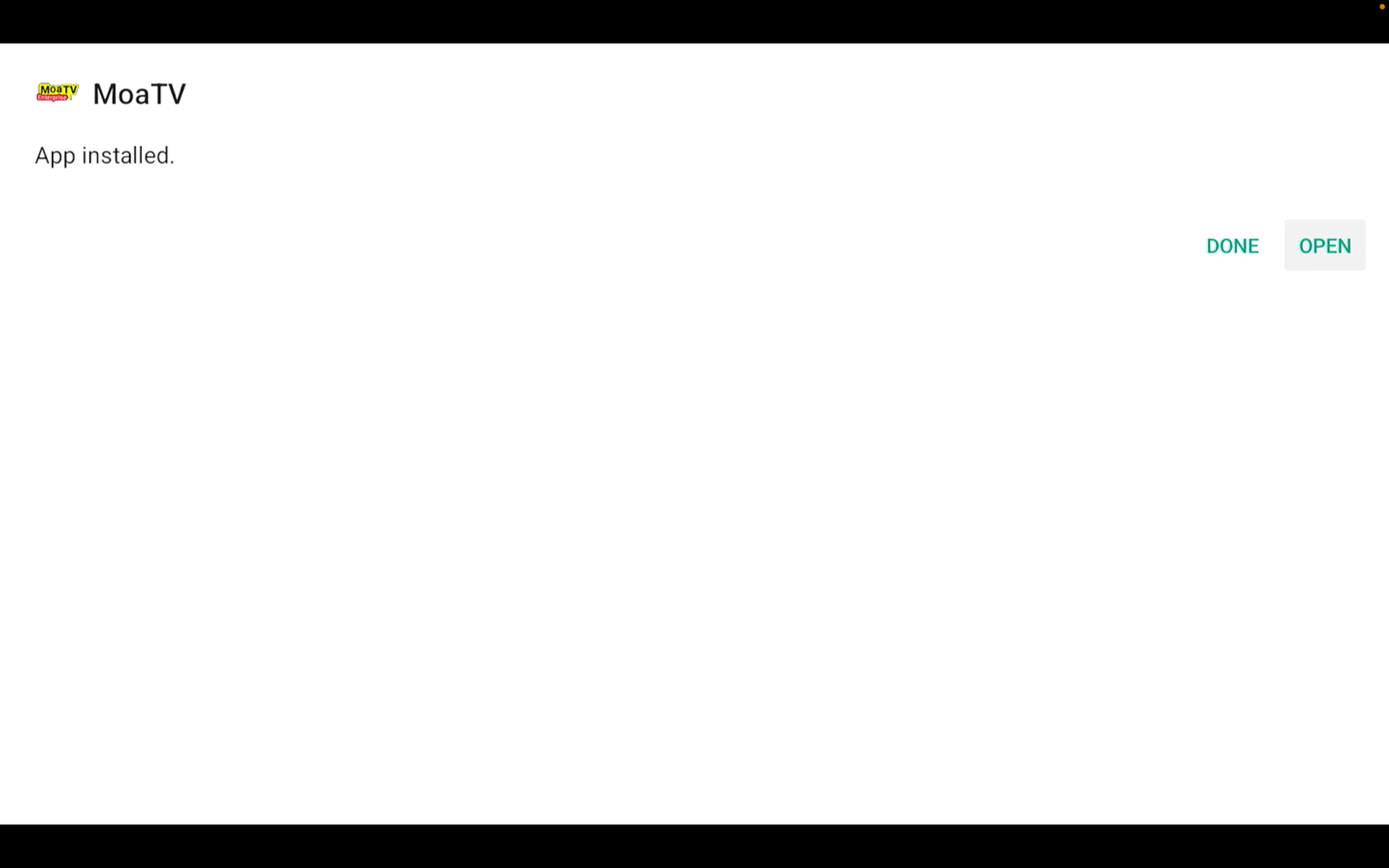
Moatv will open
MoaTV will open after the install is complete.

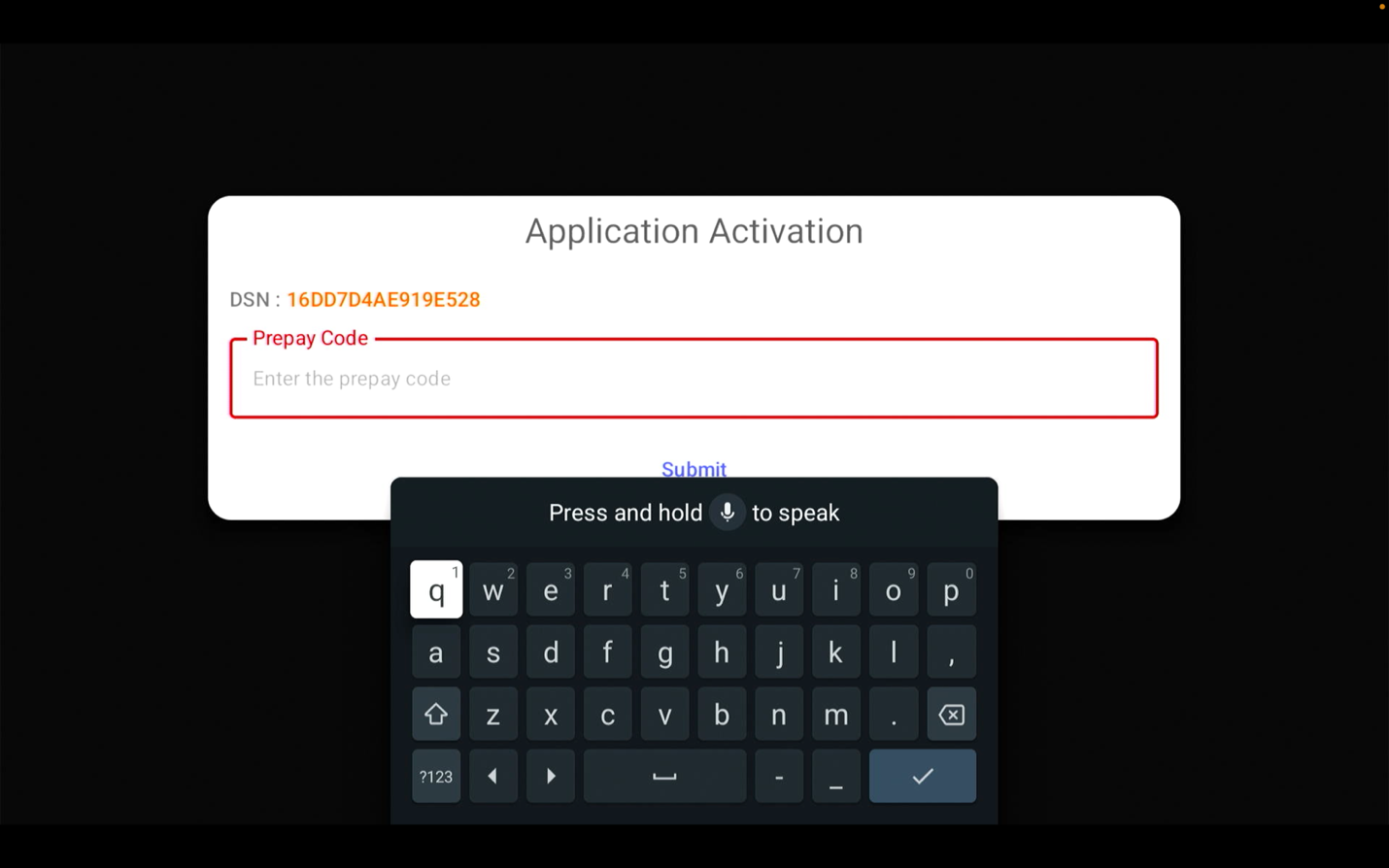
Enter the activation code provided by Geekz Up
Enter the activation code to continue.
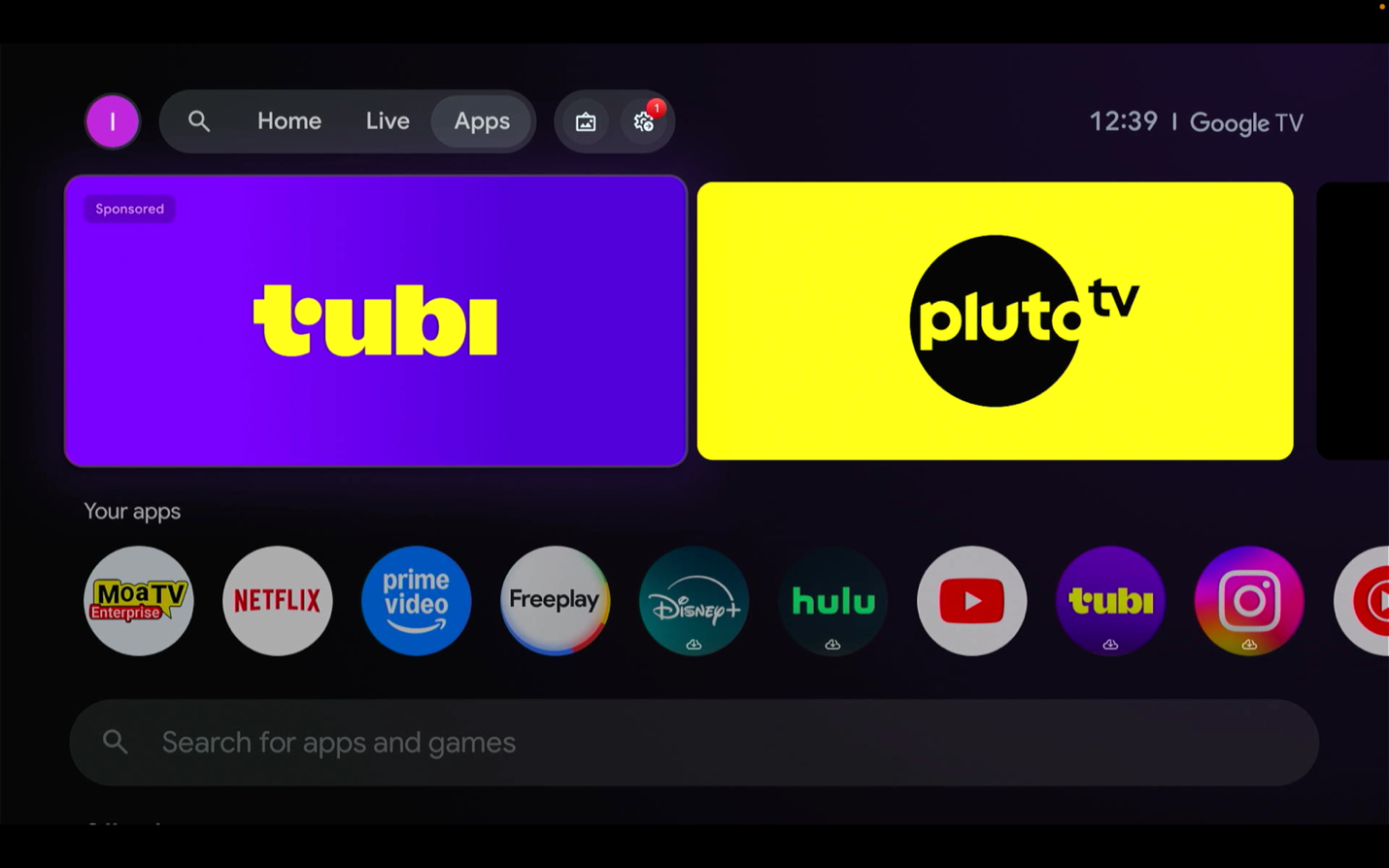
Installing/Setting Up IPvanish
Scroll over to where it’s says “Apps” on the main page.
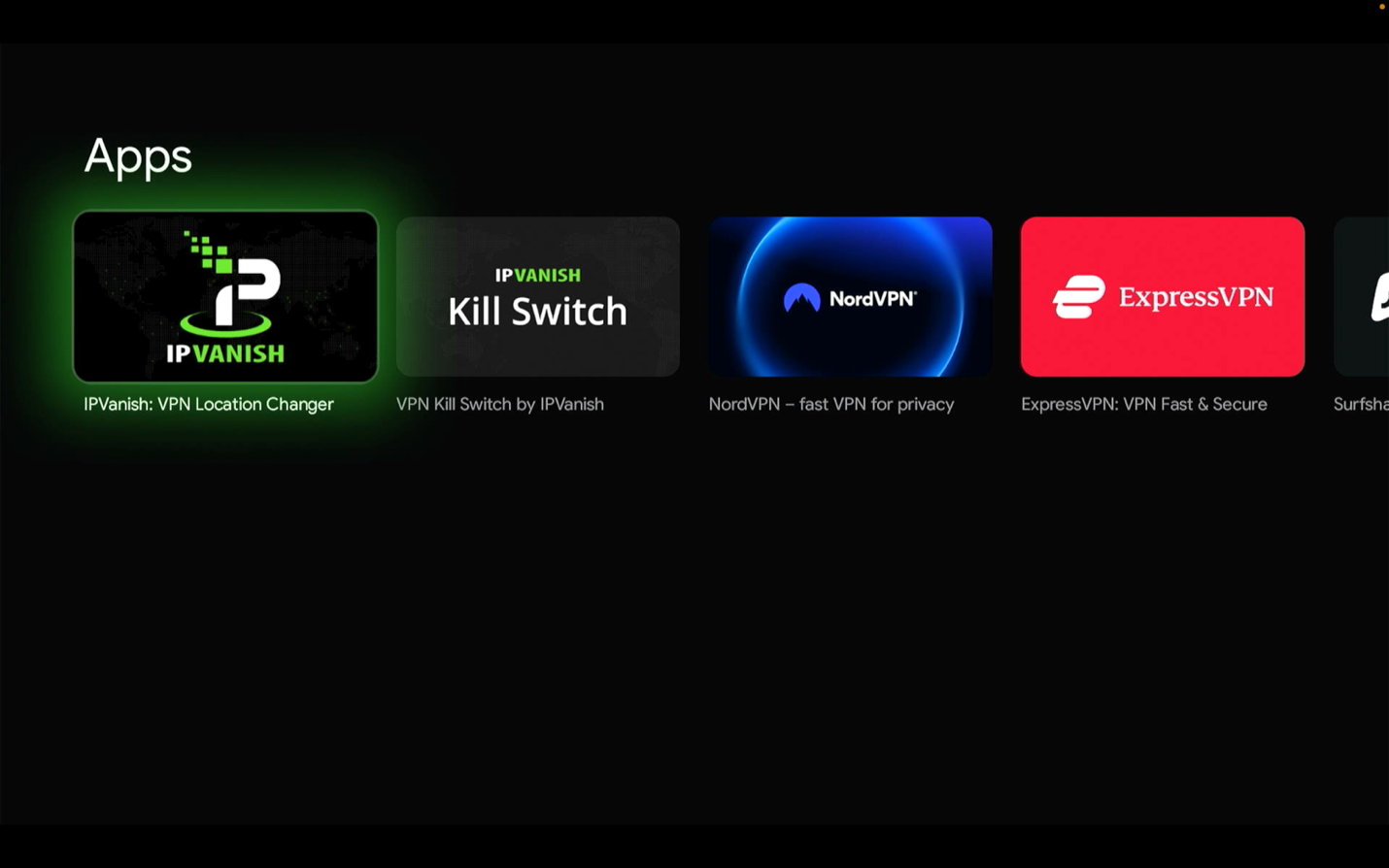
Search for IPVanish
In the middle of the page you will see where it says search here type in IPVanish.
Download, install, and log in
When you see the app download, install, open and put in the credentials provided by Geekz UP.
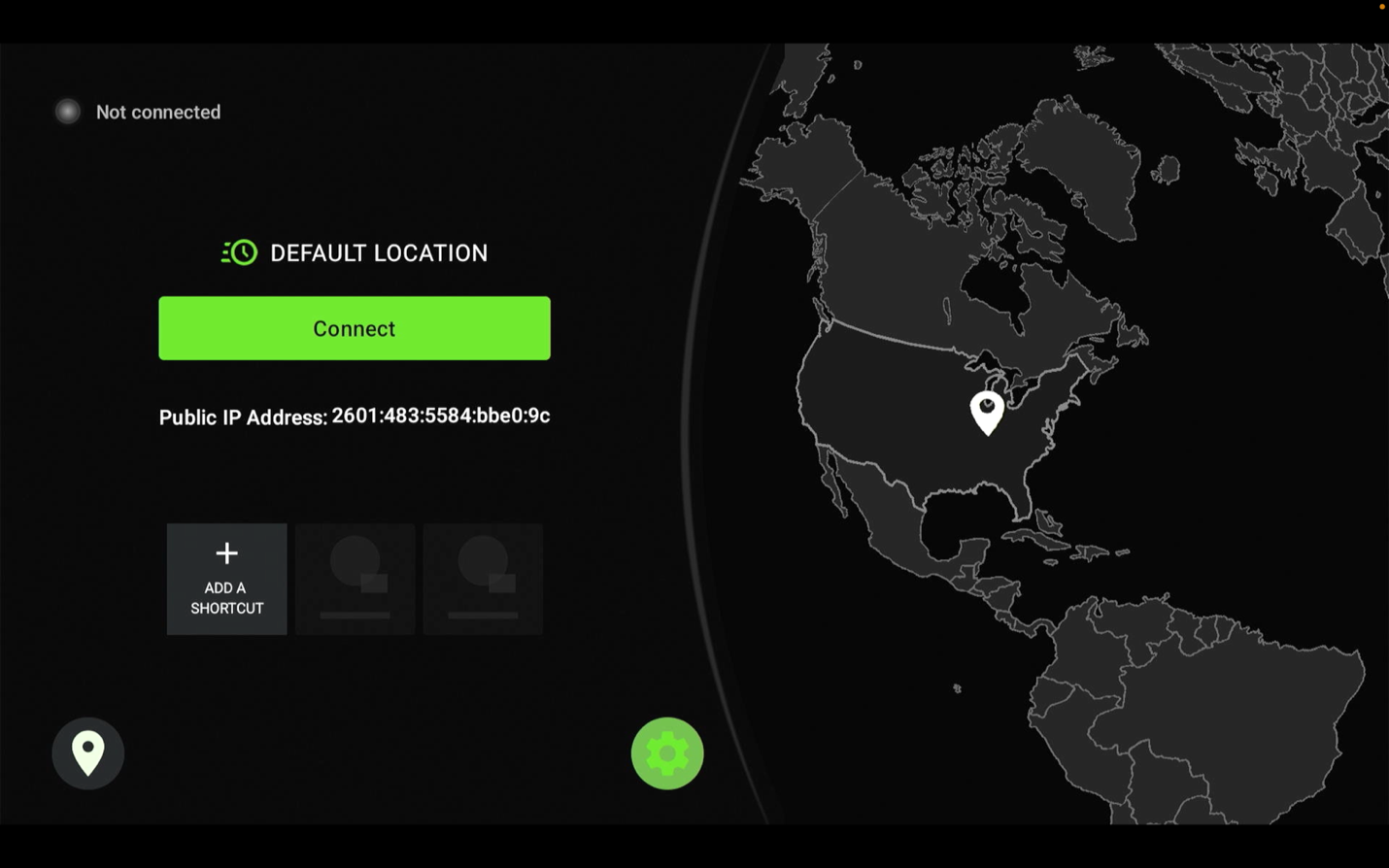
Go to the settings
Now that you are logged in, let’s go to the settings which is the gear icon on the right.
Turn on Connect on Android Startup
Turn on “Connect on Android Startup”.
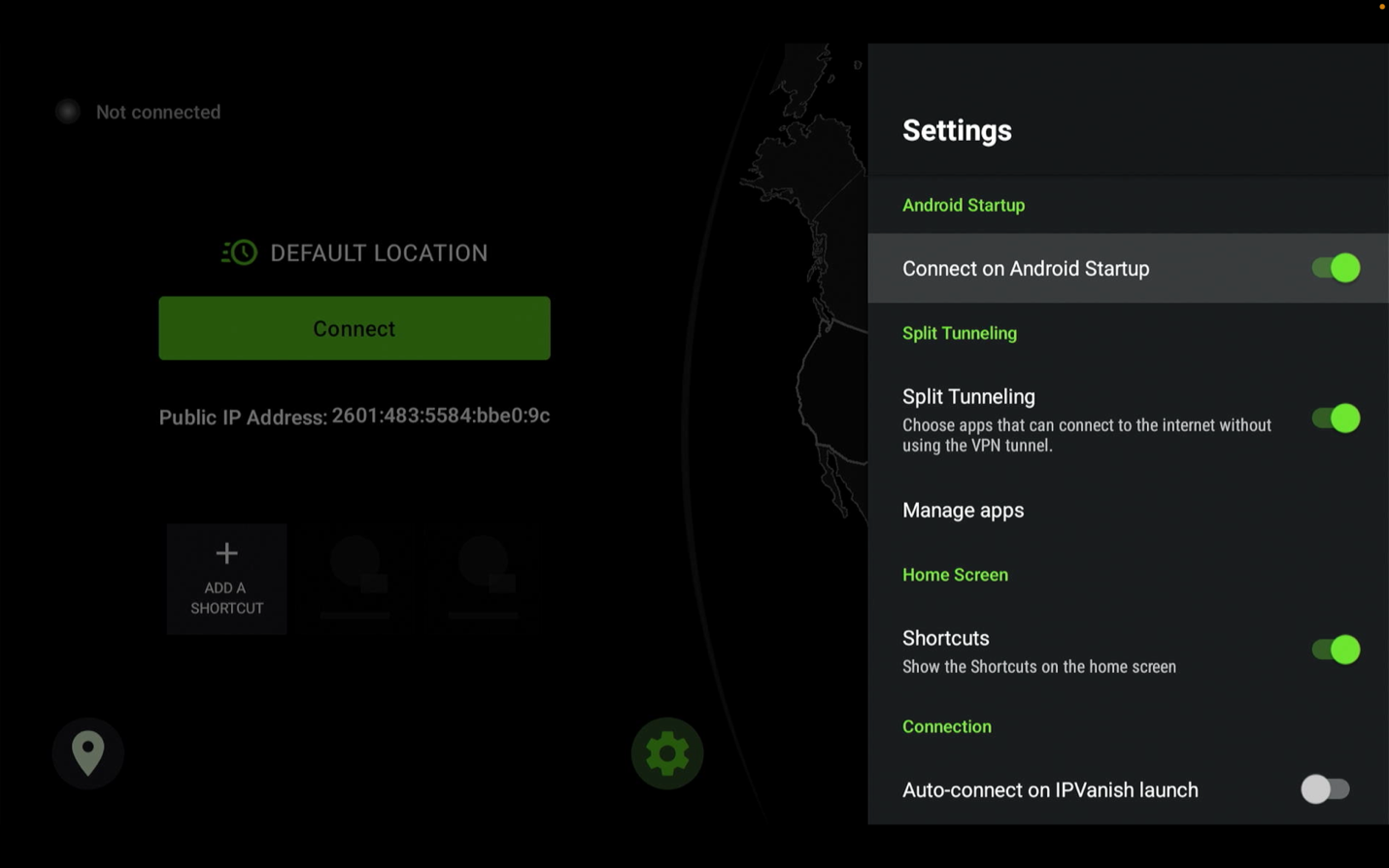
Turn On Auto-connect on IPVanish launch
Turn On “Auto-connect on IPVanish launch”.
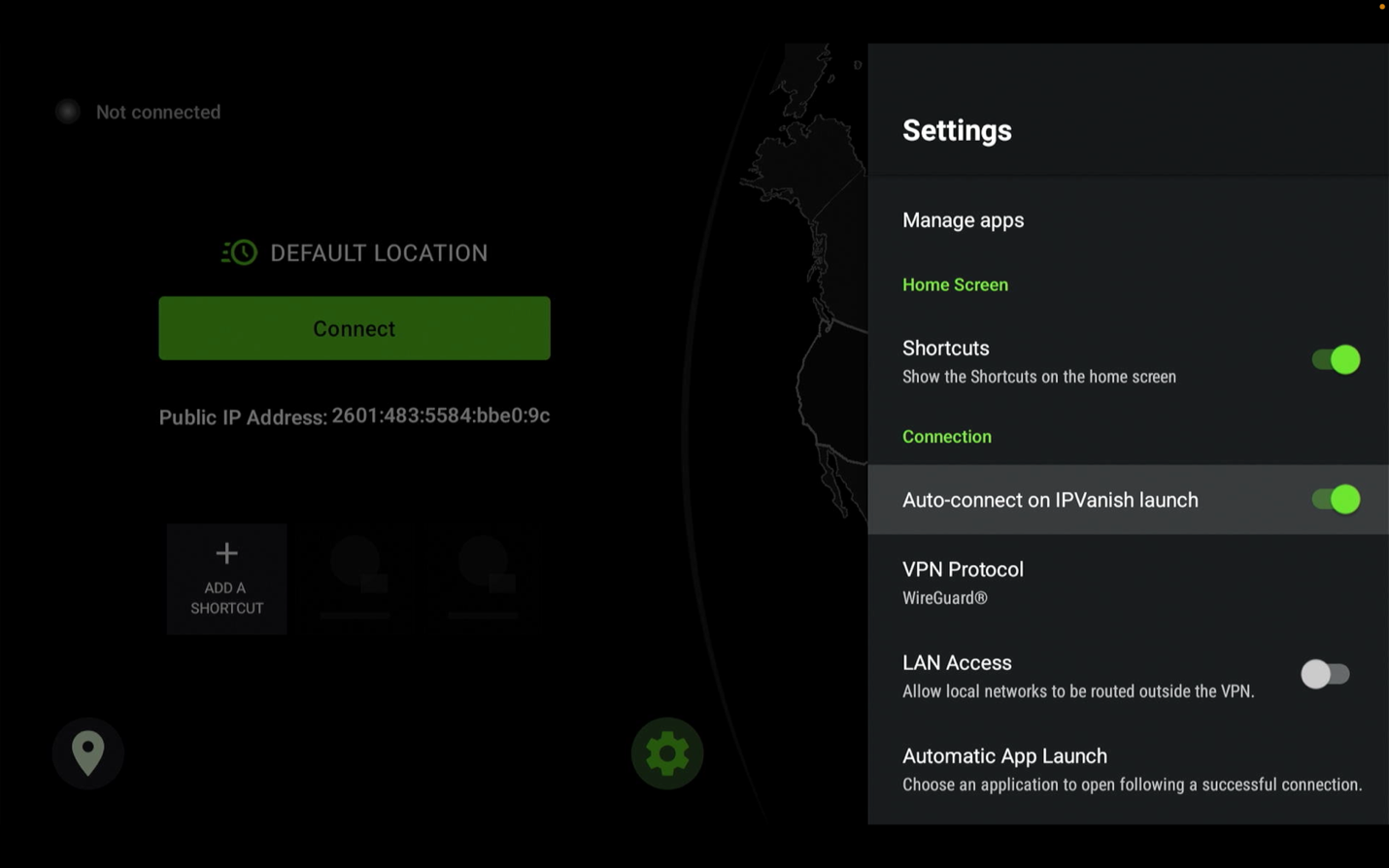
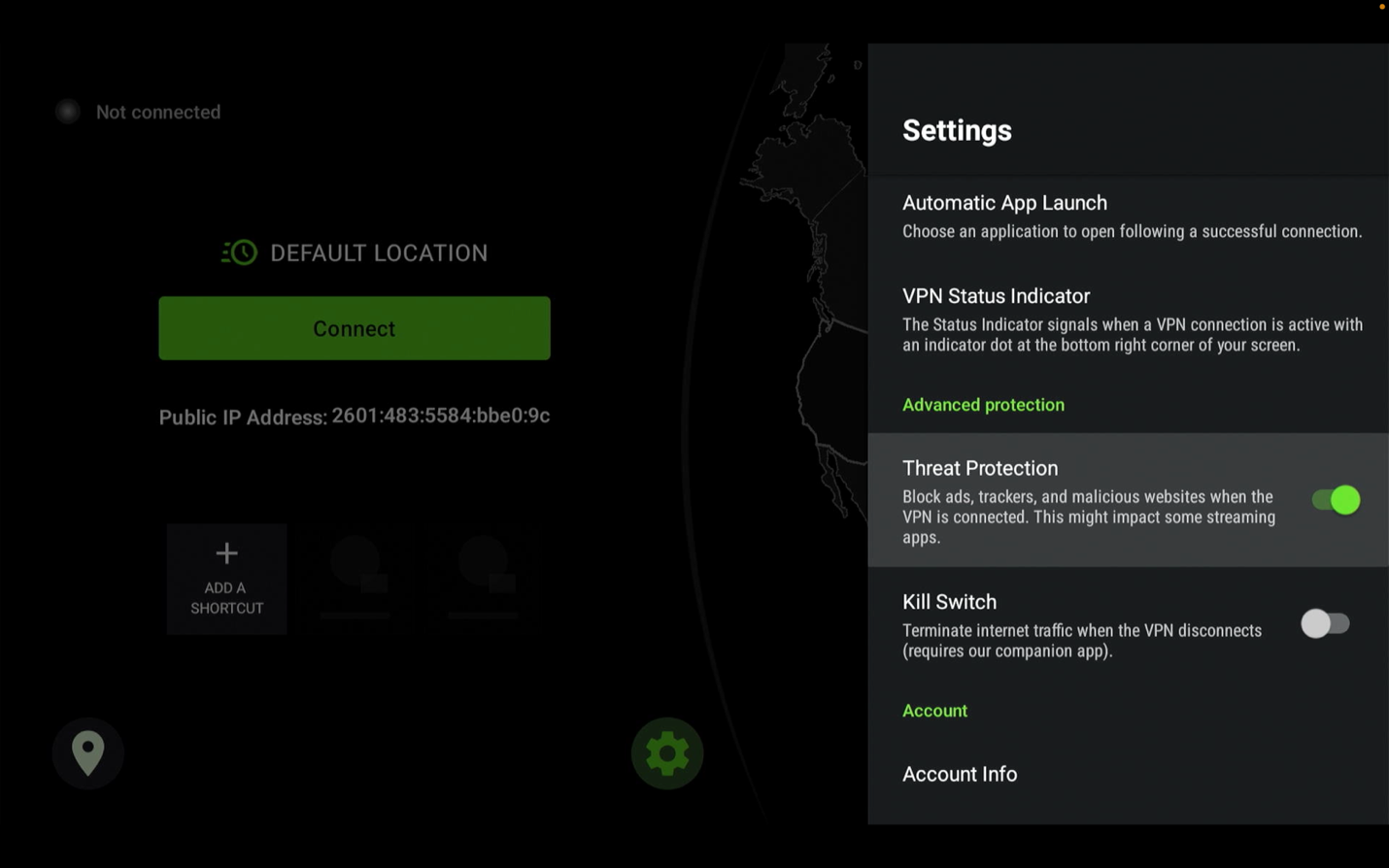
Turn on Threat Protection
Turn on “Threat Protection”, all other settings leave as they are.
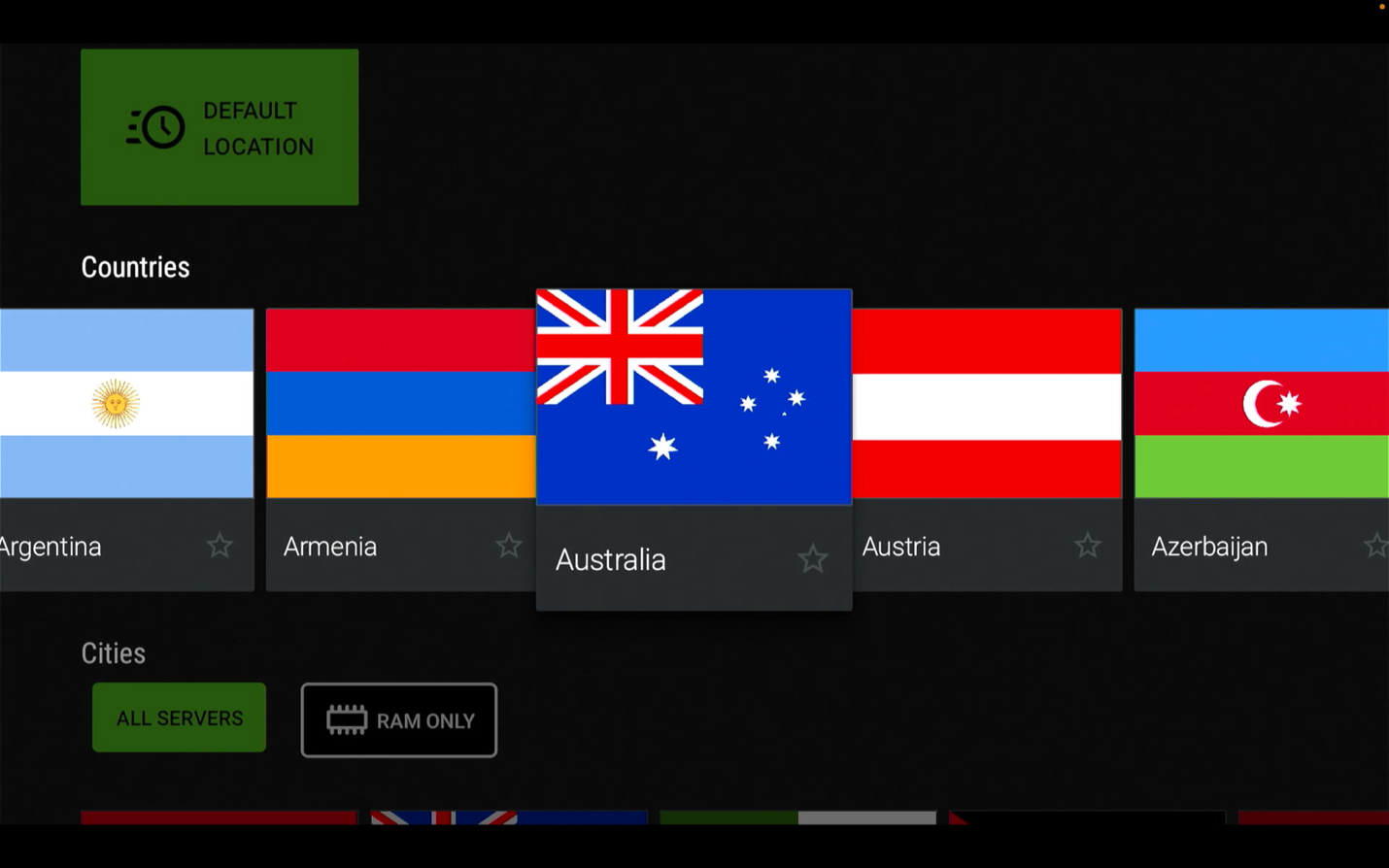
Choose the location icon
Now to choose the country gives you the best results, move to the icon on the left “The location icon”.
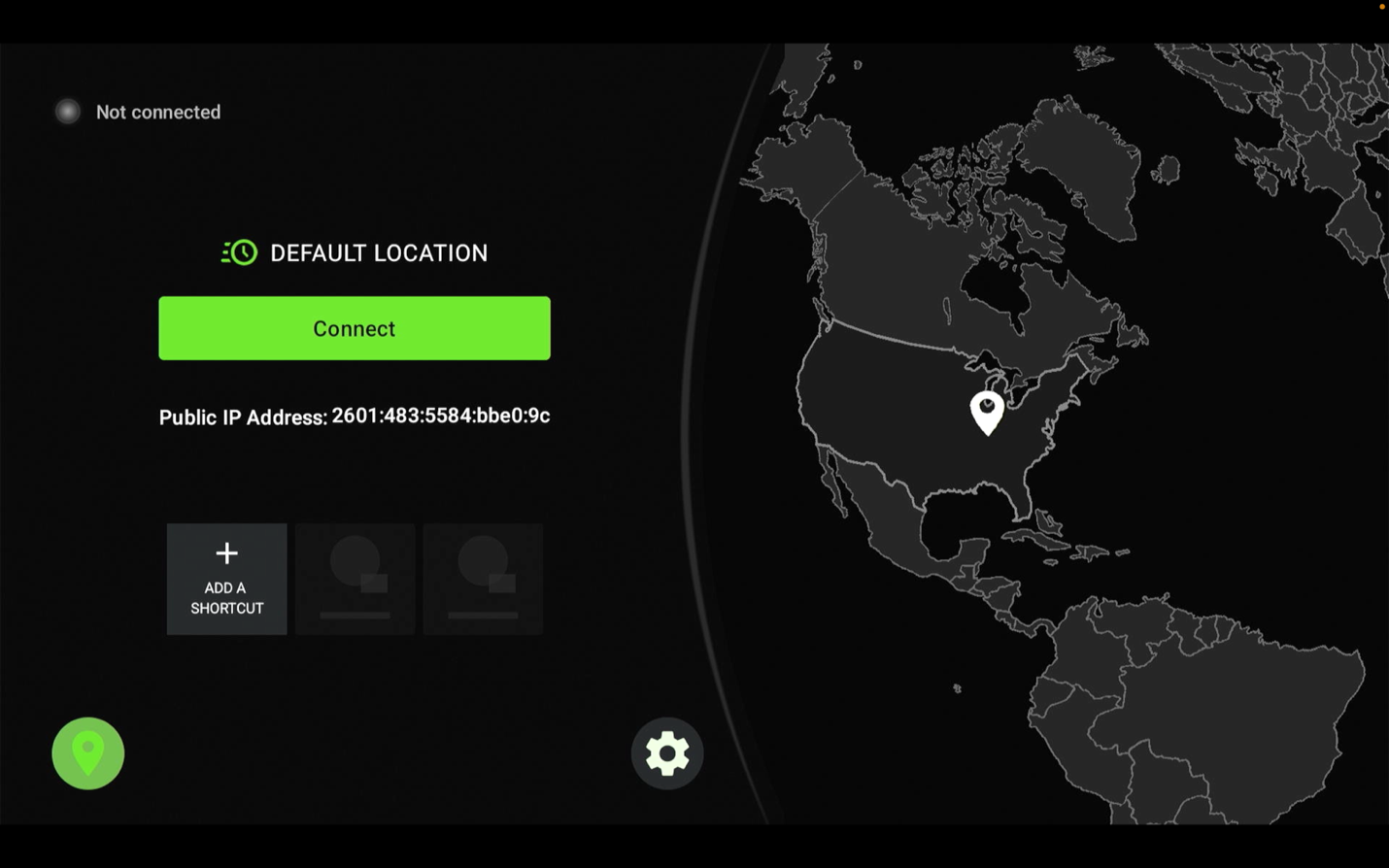
Choose either Australia or Colombia and press connect
Select either Australia or Colombia and then press connect.
HOW TO BEST CONFIGURE AND OPTIMIZE YOUR ONN 4K DEVICE
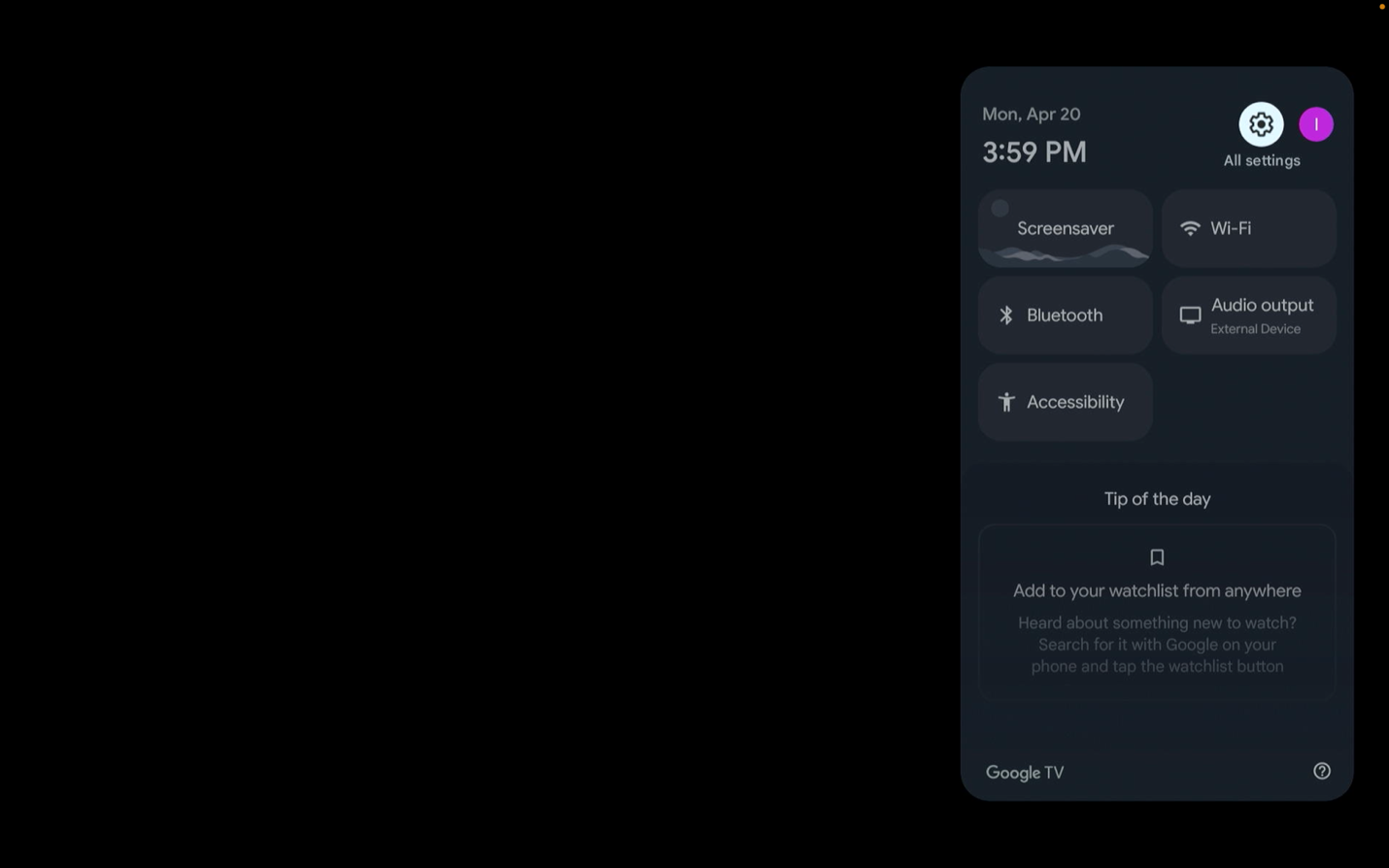
Go to setting
Open the settings menu on the device.
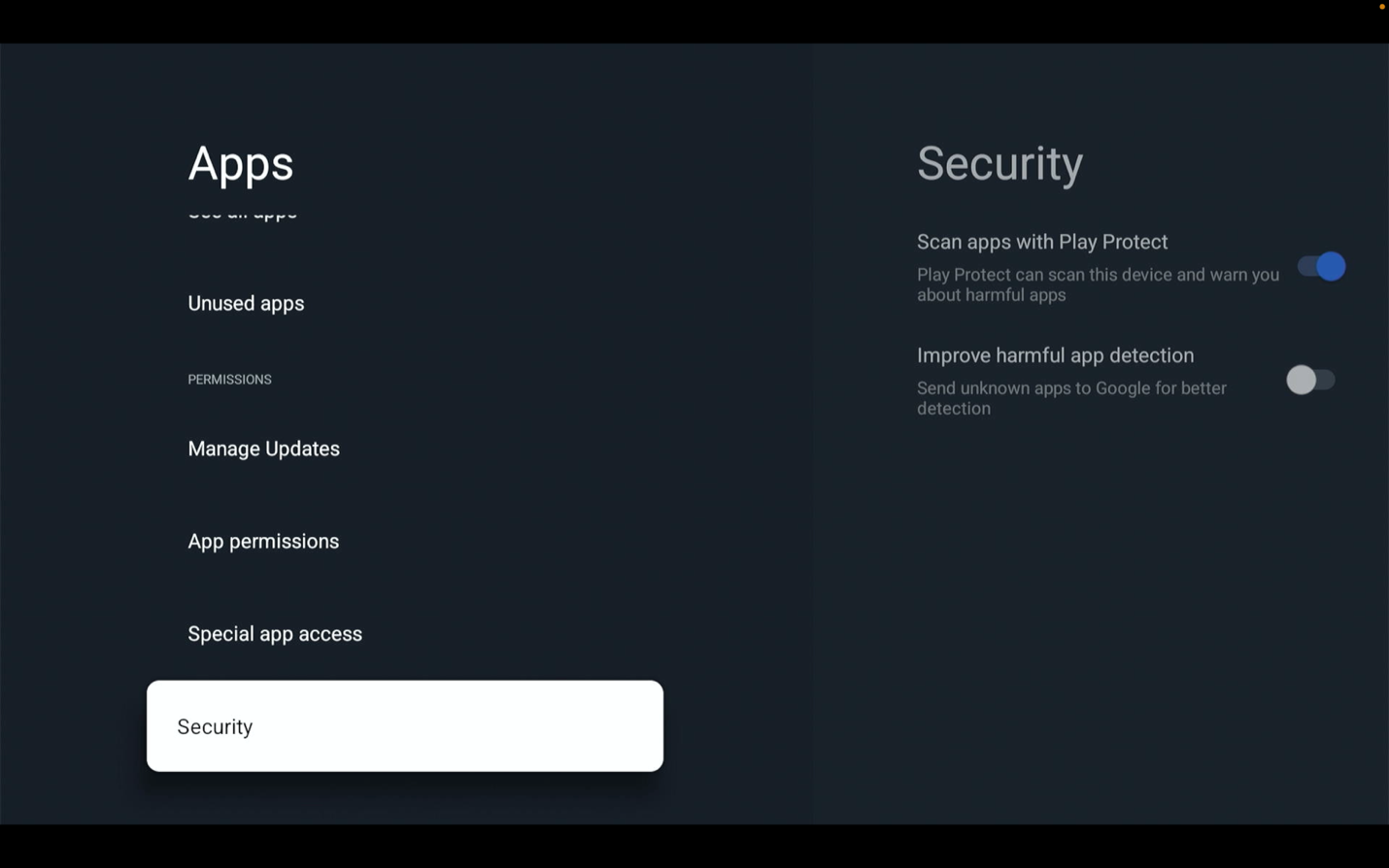
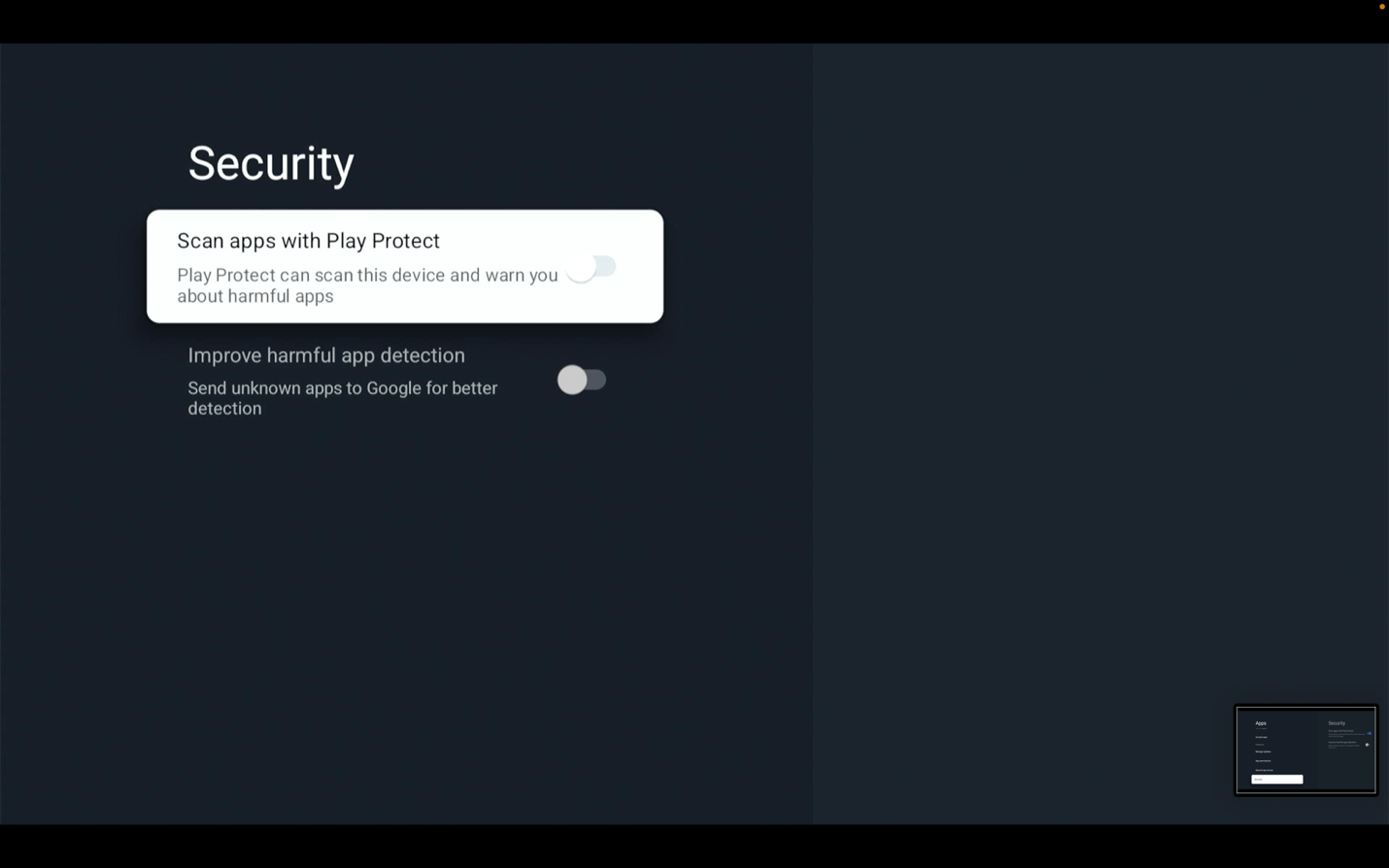
Disable “Scan apps with play protect”
Disable Scan apps with play protect.
Install additional apps
Now you are able to install additional apps that are not in the google play store.
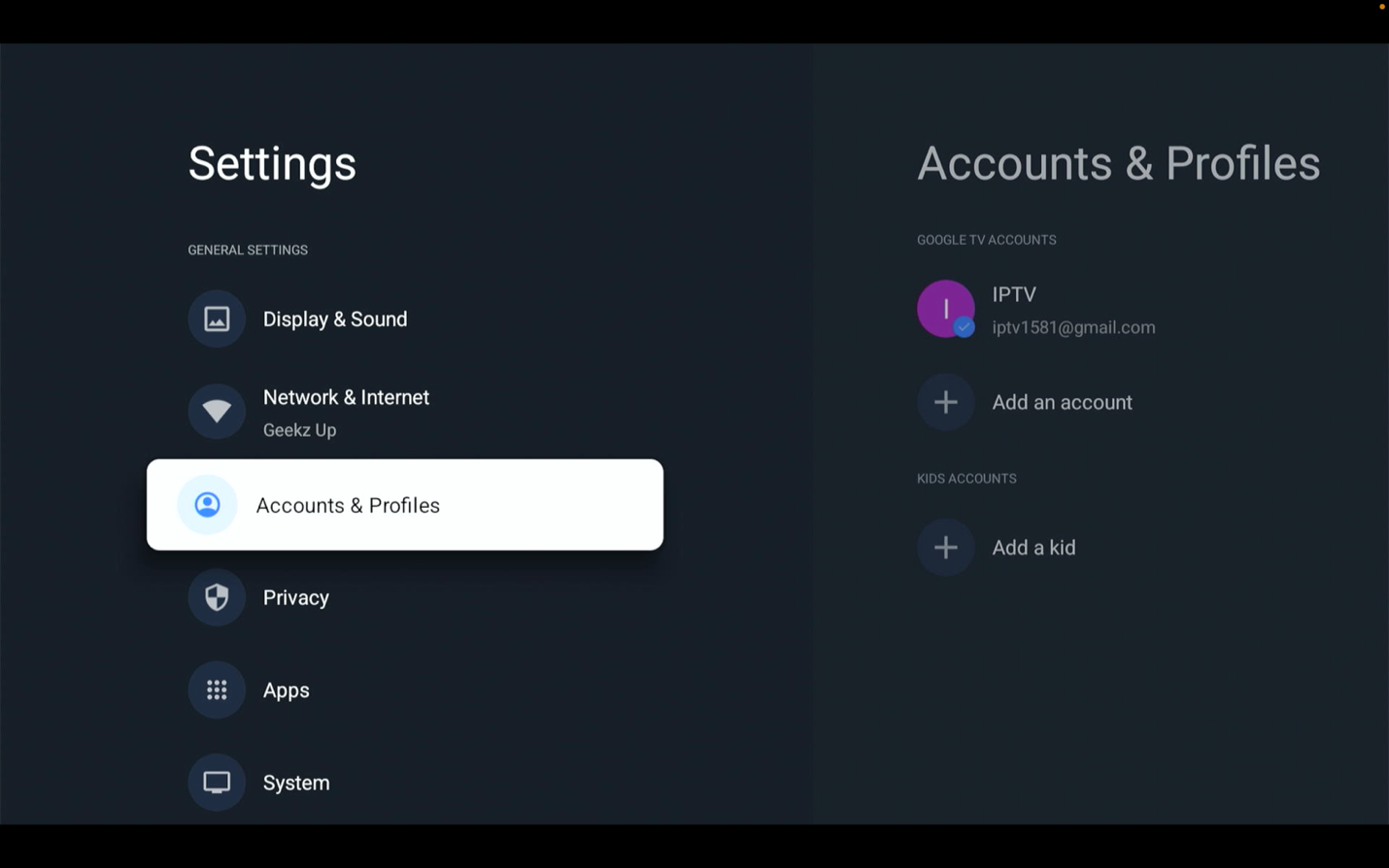
Open Accounts & Profiles
Go back to setting and select “Accounts & Profiles”.
Select your profile
Select your profile on the device.
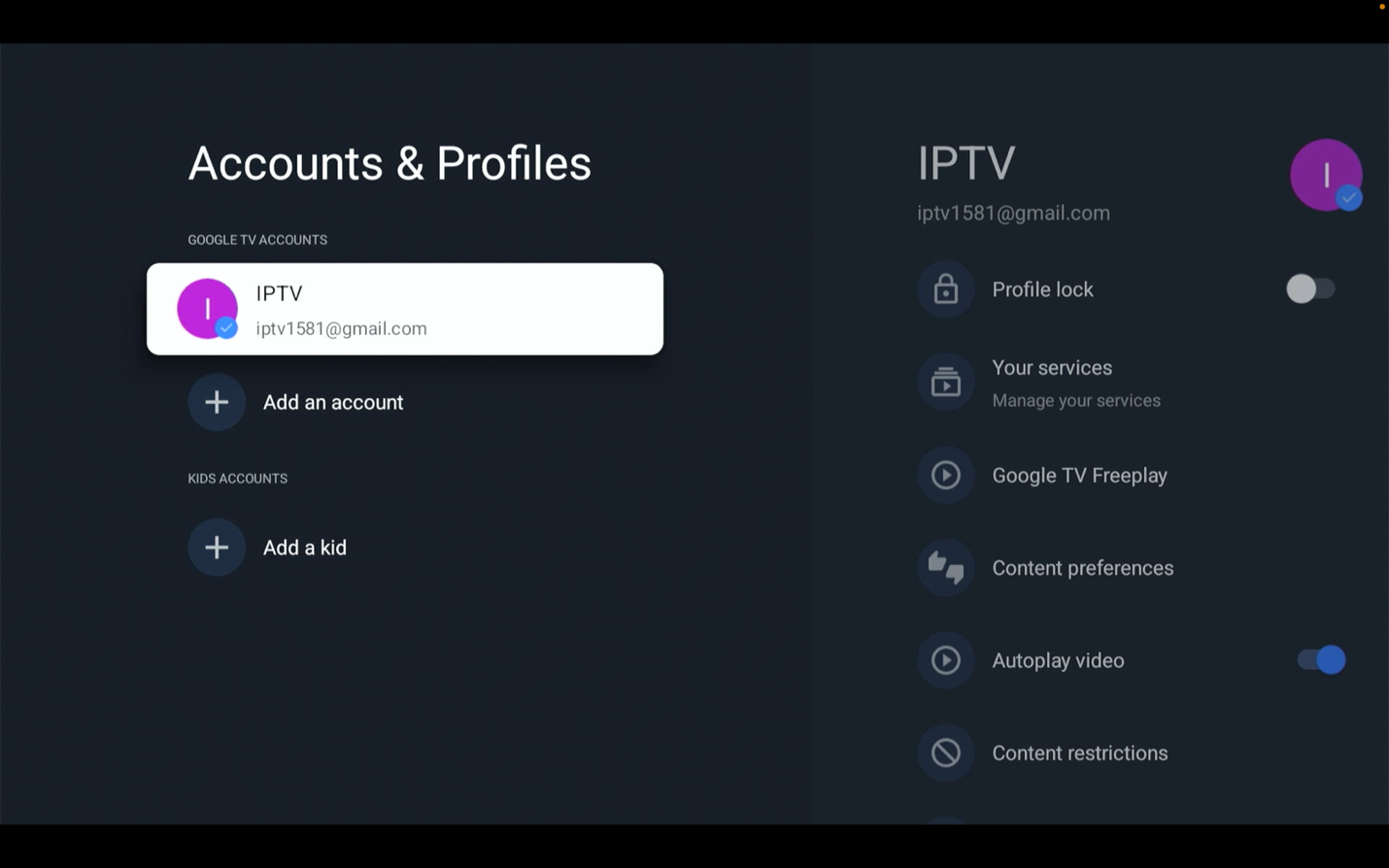
Final step
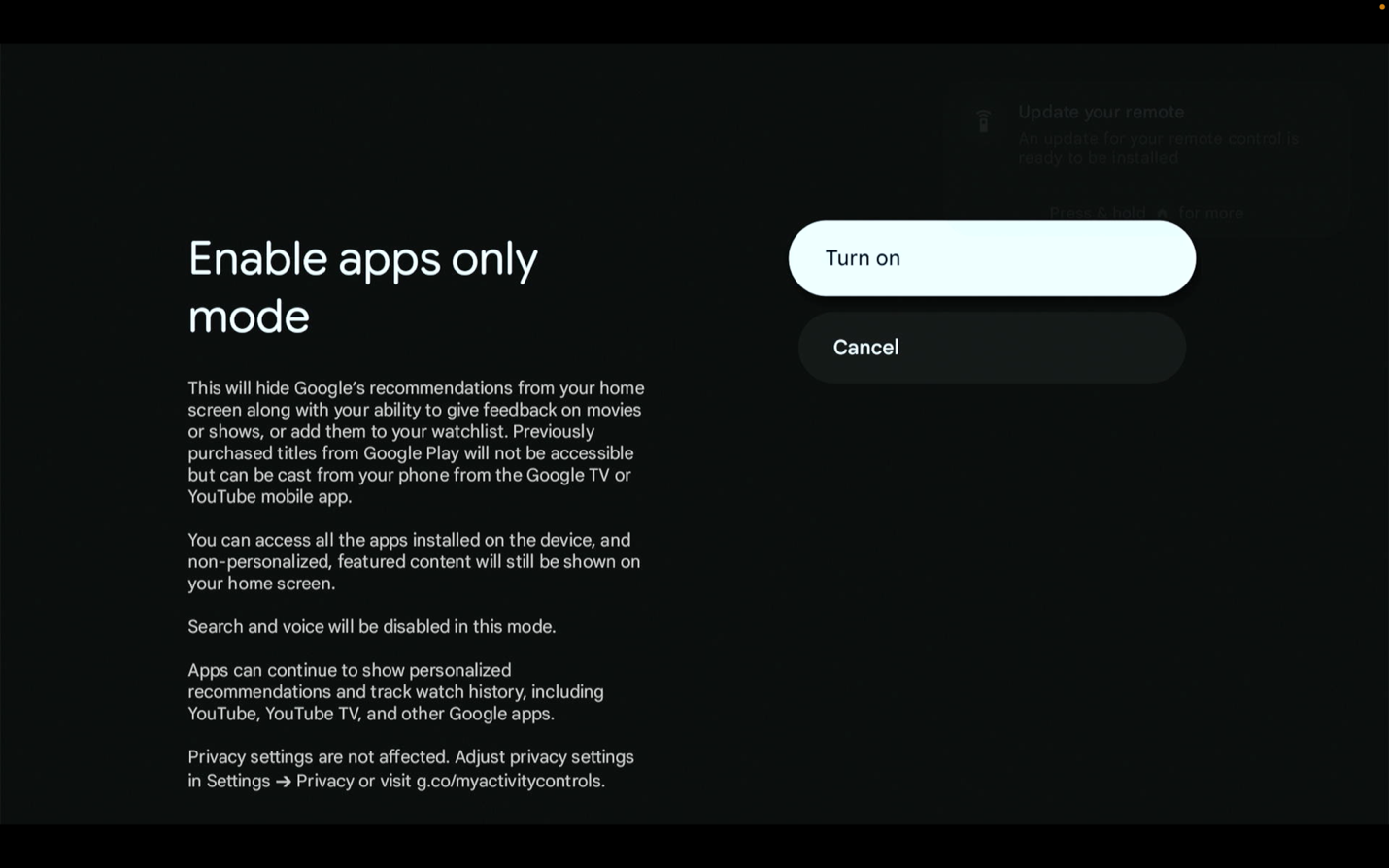
Turn on Apps only mode, this will disable all the other garbage besides your apps.