MoaTV User Guide For Firestick

MoaTV on Firestick is simple to use once you know where everything is. This guide helps you watch live TV, movies, series, sports, and more with easier navigation, search, and favorites, so you can find what you want faster and use the app with confidence.

MoaTV User Guide

Simple Firestick instructions for live TV, movies, series, sports, and more

Support Note: MoaTV is the app platform used to access the service from our private servers. If you need help with setup, navigation, tech support or finding content, contact us directly for support.

Quick Start

  • Open MoaTV and wait for the main screen to load.
  • Select My Live for live TV, Movies for movies, or Series for TV shows.
  • Use Search when you already know the name of what you want to watch.
  • Press the heart icon to save channels or content to Favorites for faster access later.
  • Press Back 2 to 3 times to usually return to the main page of MoaTV.

Main home screen

Main home screen — this is the starting point for Live TV, movies, series, sports, and other sections.
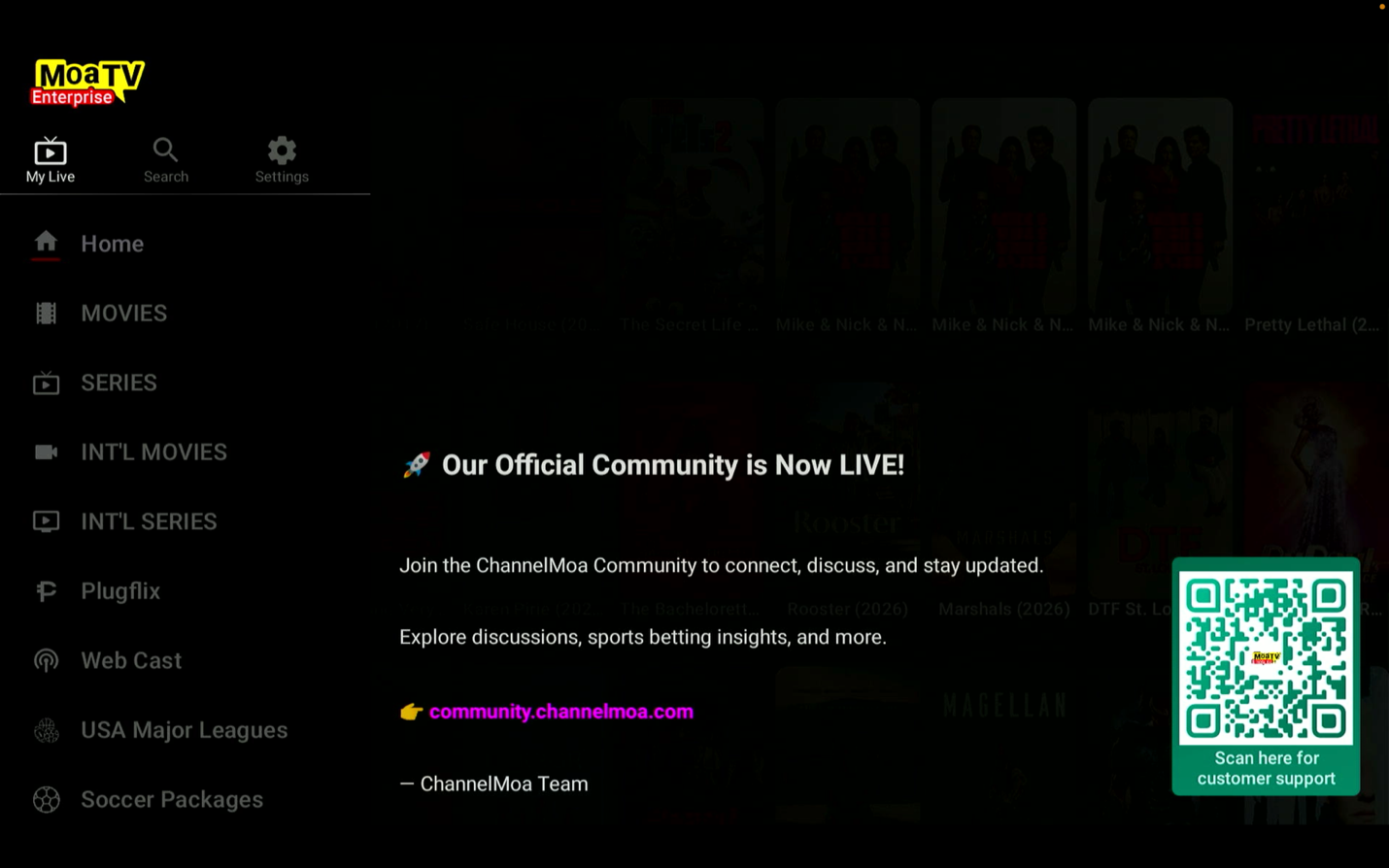
Important Remote Tip: On a Firestick, pressing the Home button on the remote exits MoaTV and returns you to the Firestick home screen. To get back to the main page inside MoaTV, press the Back button 2 to 3 times. The Home option inside the MoaTV menu returns you to the app’s main page.
Main home screen

Getting Started

This guide is written for both tech-savvy users and older users who want clear, simple directions. The easiest way to learn MoaTV is to start with the most-used sections first and ignore the rest until you feel comfortable.

What to remember first
Back button = moves you back inside the app.
Back button 2 to 3 times = usually returns you to the MoaTV main page.
Home button on the remote = exits the app and takes you to the Firestick home screen.
Home inside the MoaTV menu = returns you to the app main page.
Search = fastest way to find a channel, movie, sports event, or TV show by name.
Favorites = Saves your most-used channels, movies, and series. Each section also keeps your favorites pinned at the top for quick access.
Helpful Tip: If you ever feel lost, do not press the Firestick Home button unless you want to leave the app. Use Back a few times instead.
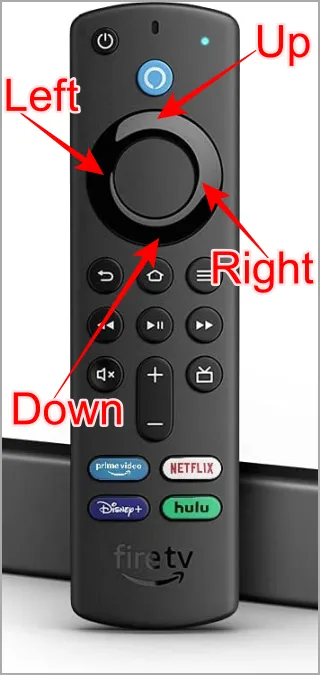
Remote basics
Remote basics - use the direction ring to move, the center button to select, and the Back button to return inside MoaTV.

Main Menu Overview

When you open MoaTV, you will see several main sections. Here is the easiest way to understand what each one does.

Section What it does
My Live Watch live TV channels from the U.S. and around the world.
Search Quickly find a channel, movie, sports event, or TV series by name.
Home (app menu) Returns you to the main page inside the MoaTV app.
Movies Browse on-demand movies from multiple categories.
Series Browse TV shows and episodes.
INT’L Movies / Series Watch international movies and TV content.
PlugFlix Opens extra content areas and added viewing options inside MoaTV.
Sports Sections Includes USA Major Leagues, Soccer Packages, PPV & Sports Events, Global Sports, and Replay Sports.
Best Places to Start: For most users, the easiest path is My Live for live TV, Movies for movies, Series for TV shows, and Search when you already know the name of what you want.

How to Watch Live TV

Select My Live from the top-left area of the app to open live TV channels. This is where you can watch local and international channels.

Inside My Live

  • The app may automatically reopen on the last live channel you watched.
  • Use the heart icon to add a channel to Favorites so you can find it faster later.
  • Favorites are especially helpful for channels you watch often.
  • If you only want the basics, this is the main section to learn first.

Helpful Tip: For many users, MoaTV feels much simpler after they save a few favorite channels. That way you do not have to search every time.
My Live section
My Live section - this is where live TV starts. The app may open on the last channel you were watching, and that is normal.

How to Open the TV Guide

Inside My Live, select the three-line menu icon to open the TV Guide. The guide shows what is playing now and what is coming up next.
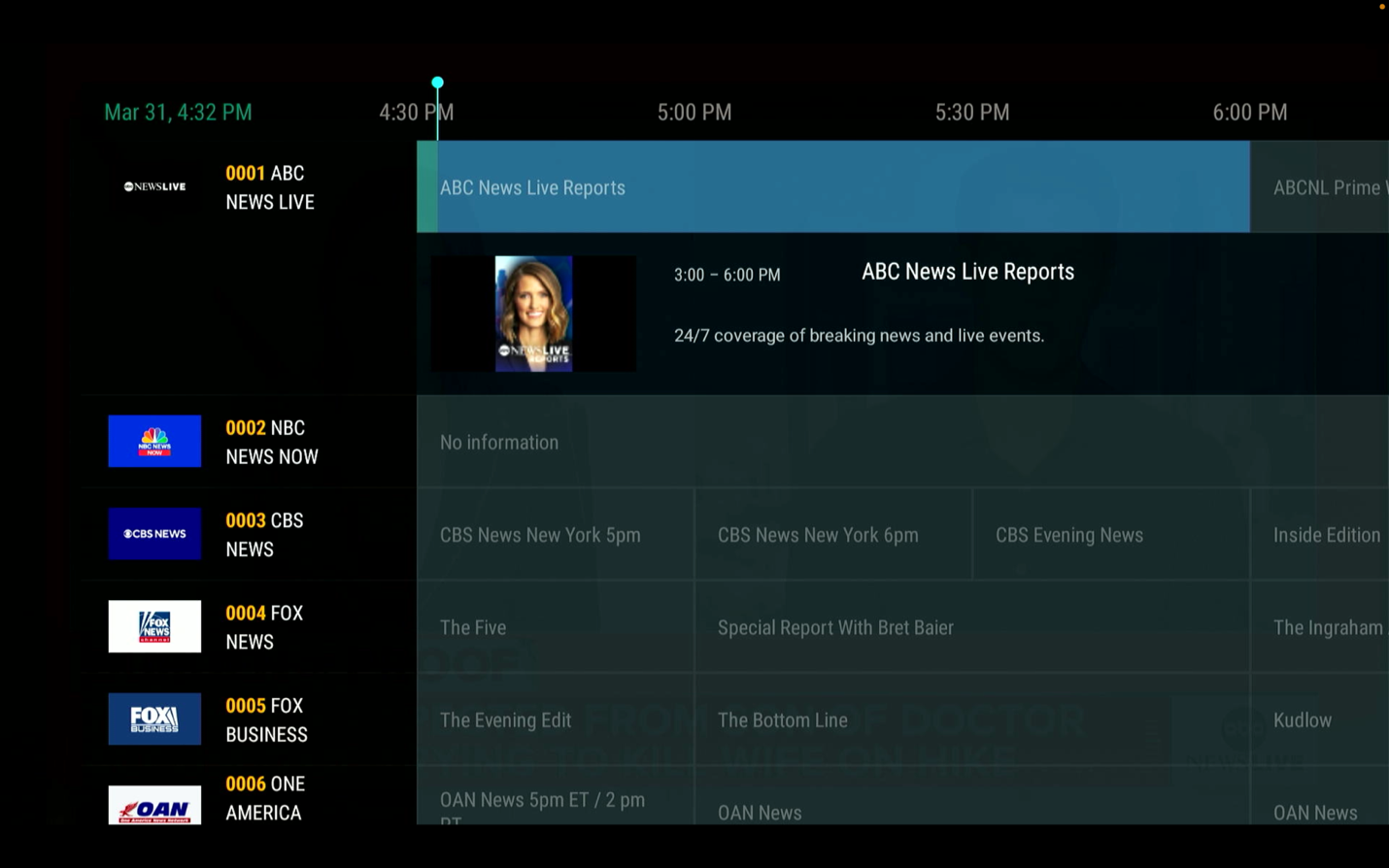
TV Guide view
TV Guide view — browse what is on now and what is coming next.
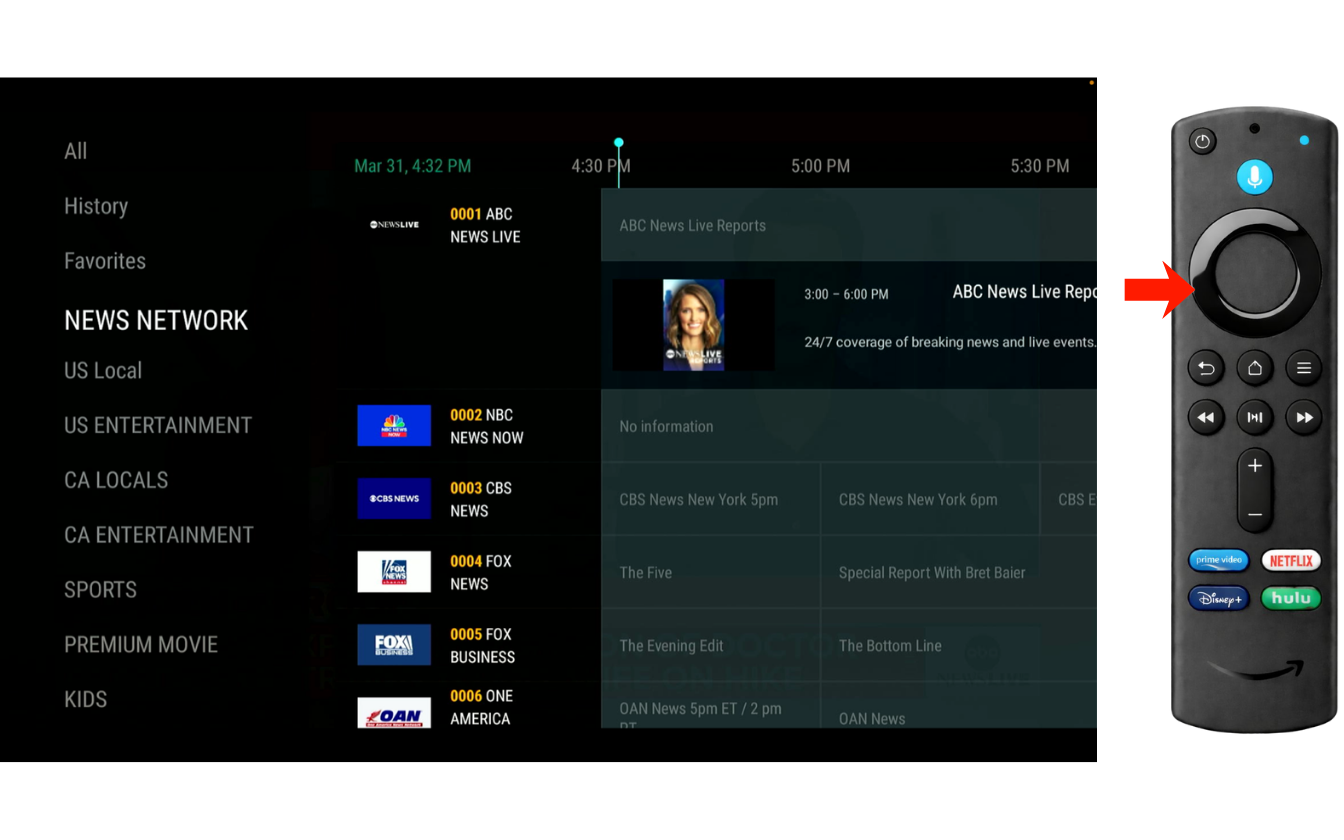
Categories panel
Categories panel — press left on the remote inside live TV to open channel categories and Favorites.
Important Note: Guide information may not be available in every region or category. Some listings may be limited or unavailable.

Movies, Series, and International Content

MoaTV is not only for live TV. You can also watch on-demand movies and TV shows from the Movies, Series, INT’L Movies, and INT’L Series sections.
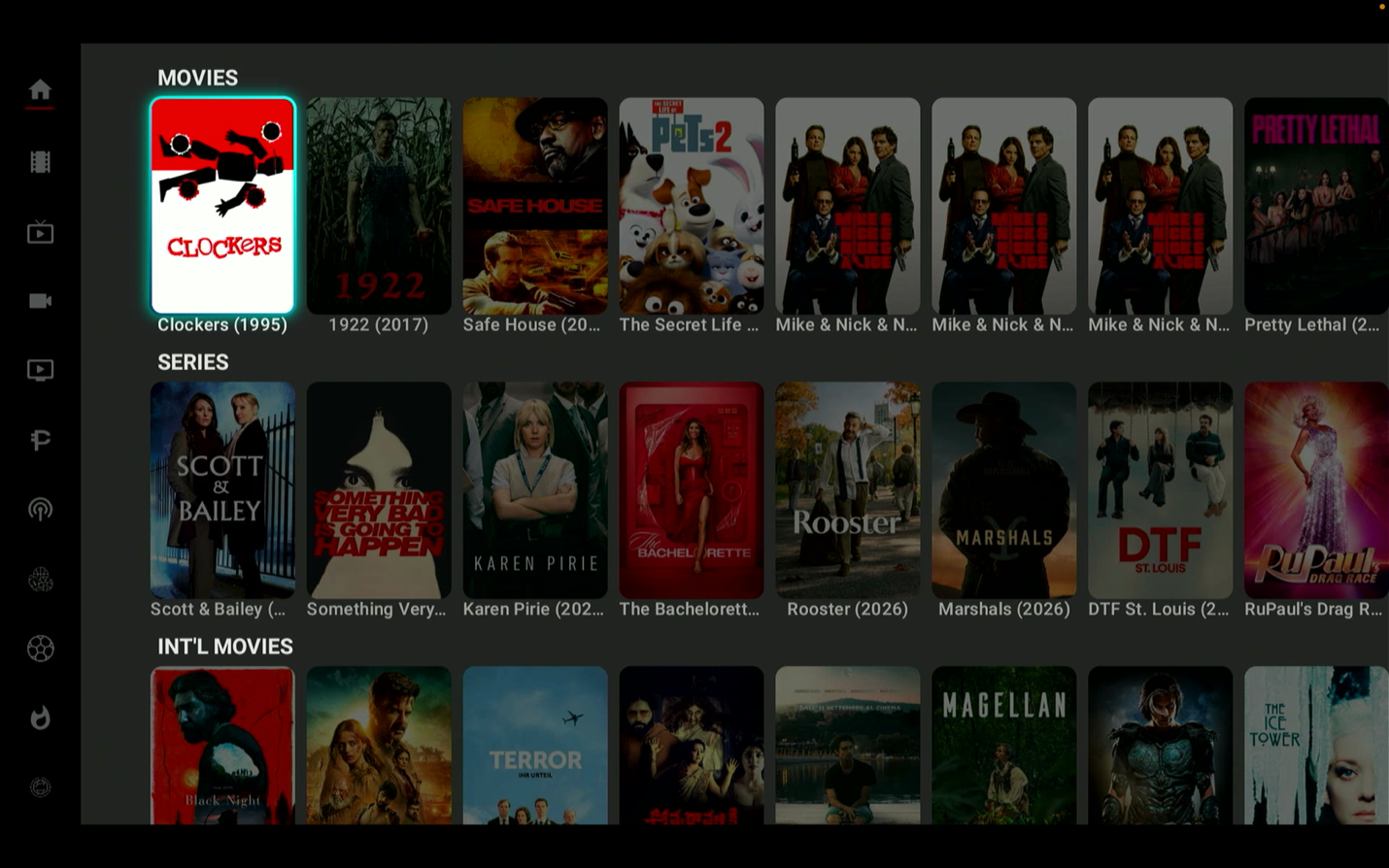
Movies and series screen
Movies and series screen- use these sections for on-demand content instead of live TV.

What each on-demand section does

Movies: browse films from different categories and sources.
Series: browse TV shows and episodes.
INT’L Movies: browse international movies.
INT’L Series: browse international TV shows and episodes.
Helpful Tip: If you already know the name of the movie or show you want, use Search instead of scrolling through rows of titles.

PlugFlix and Sports Sections

PlugFlix is an extra content area inside MoaTV that gives you more ways to browse and watch. Sports content is also grouped into easy-to-scan sections.

PlugFlix may include

  • extra content areas
  • web-based streaming options
  • sports packages
  • additional viewing categories

Sports sections include

  • USA Major Leagues
  • Soccer Packages
  • PPV & Sports Events
  • Global Sports
  • Replay Sports
Helpful Tip: If you cannot find a game or event in the sports sections, use Search with the team name, league name, or event name first.

Hidden 19+ Section

The 19+ section is hidden by default. To enable it on the TV app, follow these steps exactly.

Go to the main MoaTV page. Highlight the Settings or Gear icon. Press and hold the Gear icon for about 5 seconds. Enter the code 6969. When Enable Adult Mode appears, scroll to the bottom of the menu to find the 19+ section. Use the default PIN: 0000.
Important Note: The 19+ section is hidden again by default each time you reopen the app.

Troubleshooting and Simple Fixes

  • The app opens on a channel right away: this usually means it reopened the last channel you watched. That is normal.
  • You cannot find something: try Search with a short keyword or exact title.
  • You feel lost in the menu: press Back 2 to 3 times to return to the main page of MoaTV.
  • You pressed the Firestick Home button by mistake: reopen the MoaTV app from the Firestick home screen.
  • Your Favorites are missing: check the Favorites area inside the section you were using.
Final Tip: The easiest way to learn MoaTV is to start with My Live, Movies, Series, Search, and Favorites. You do not need to use every section on day one.

Need Help?

If you need help with setup, navigation, or finding content, contact us directly for support.
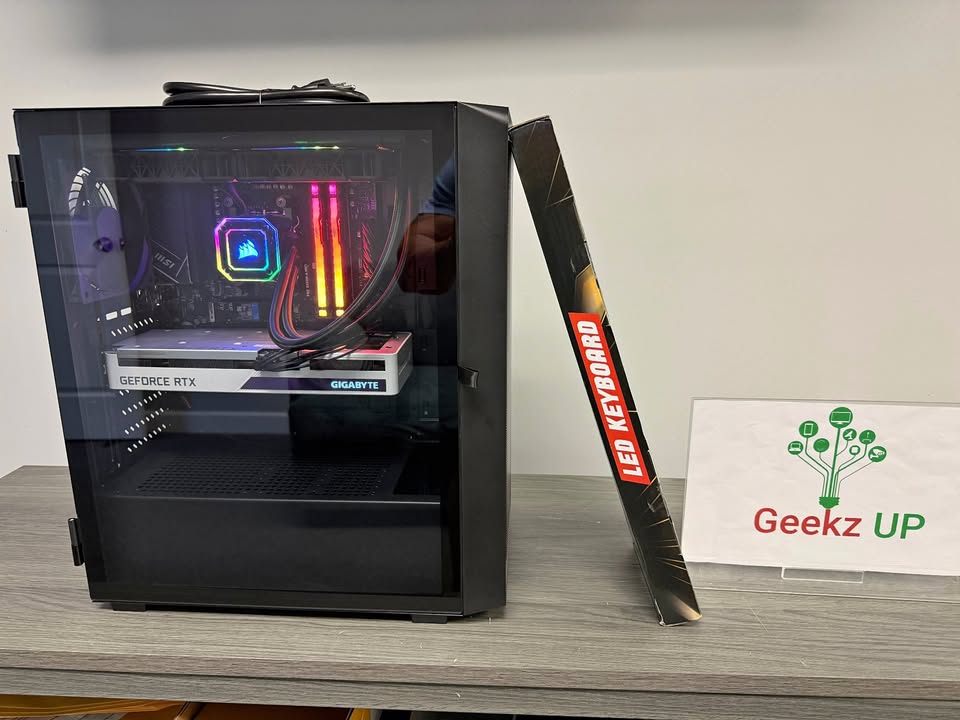
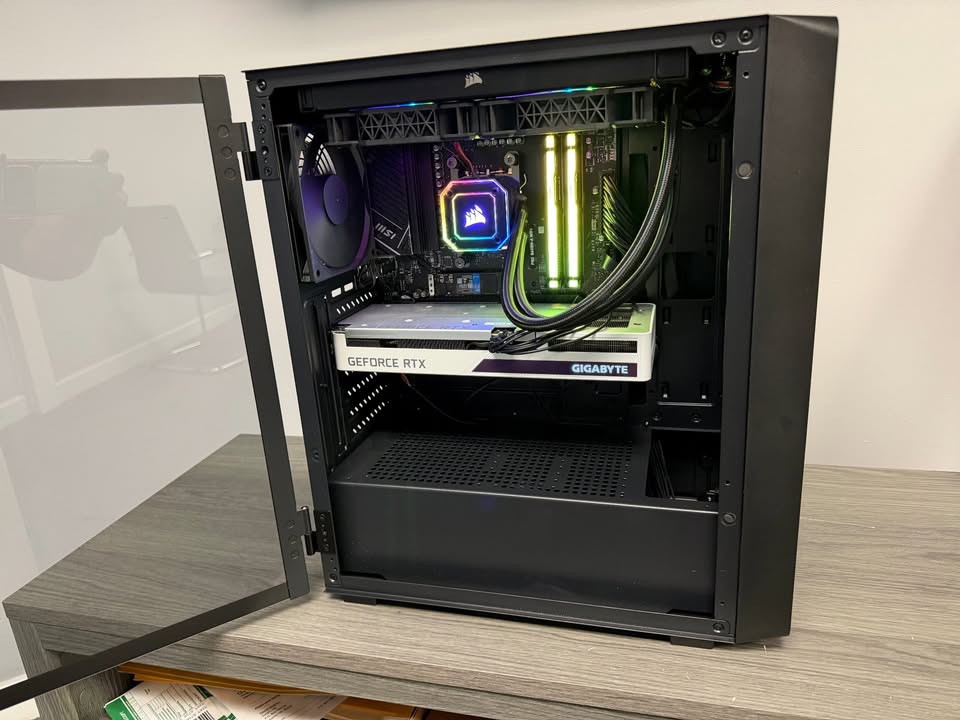
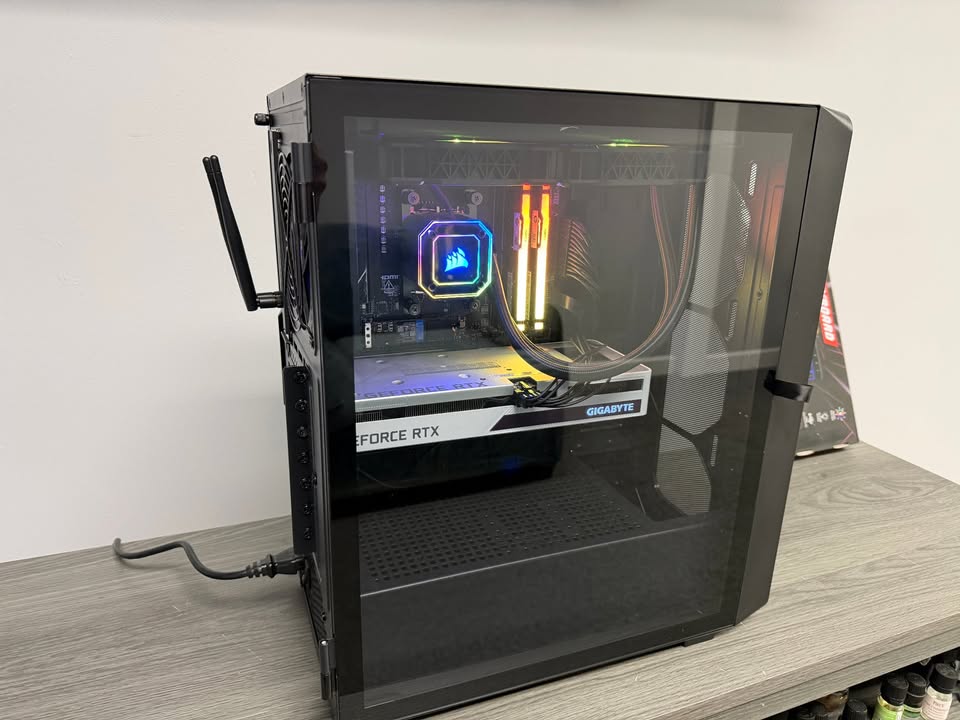
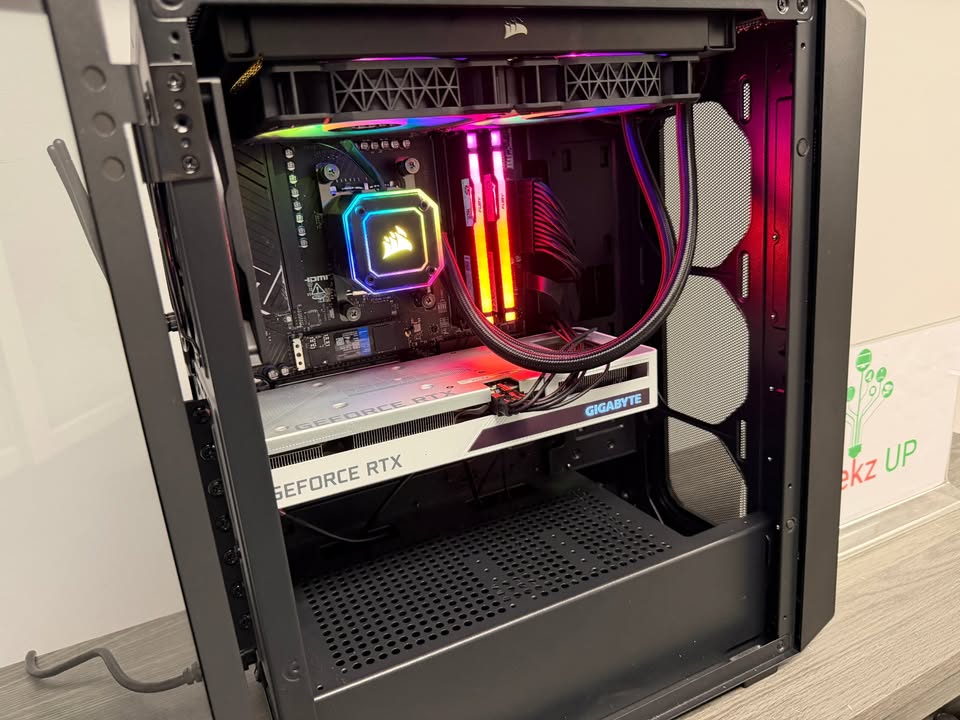
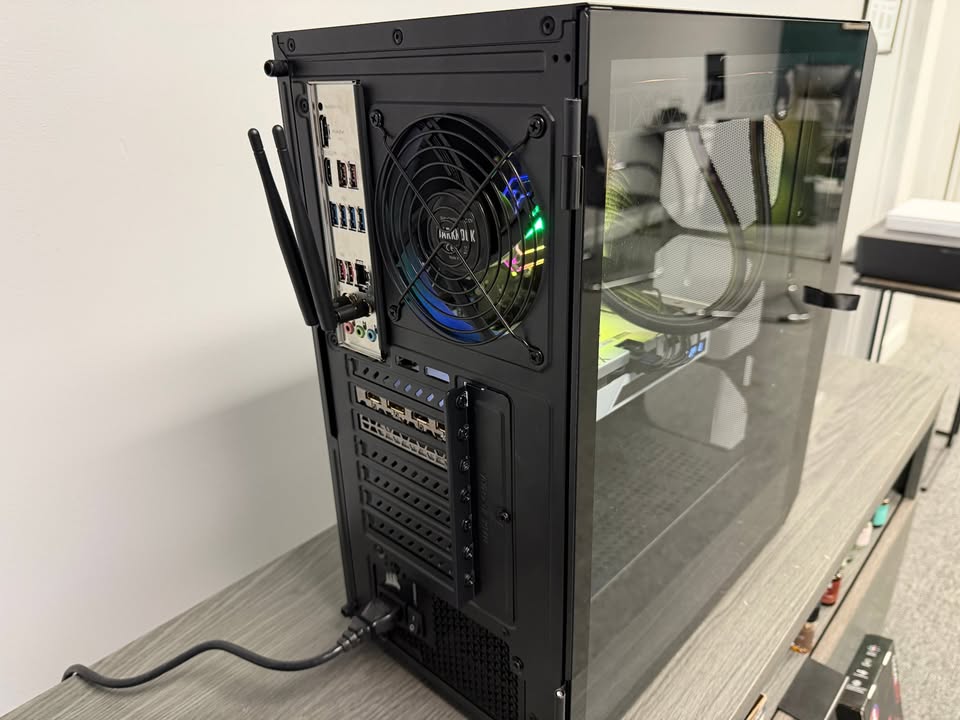
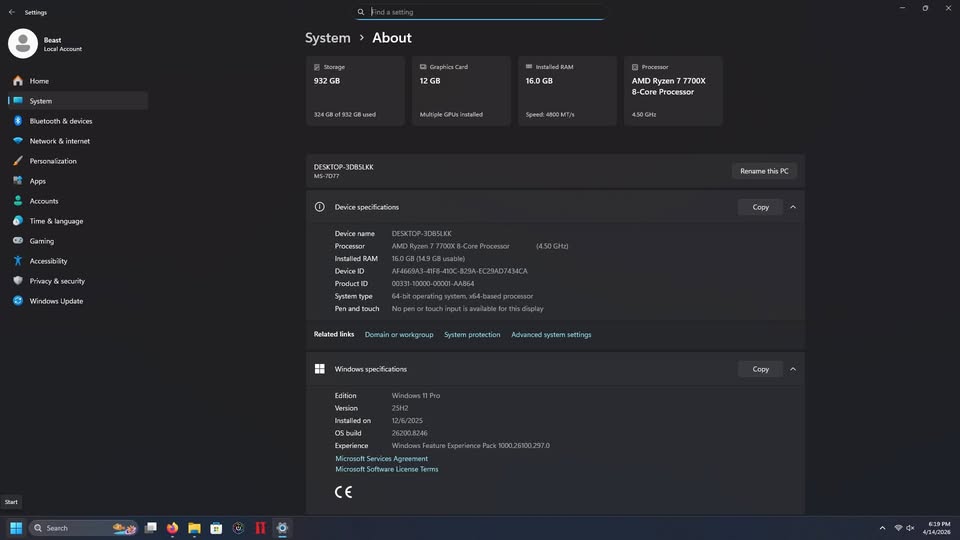
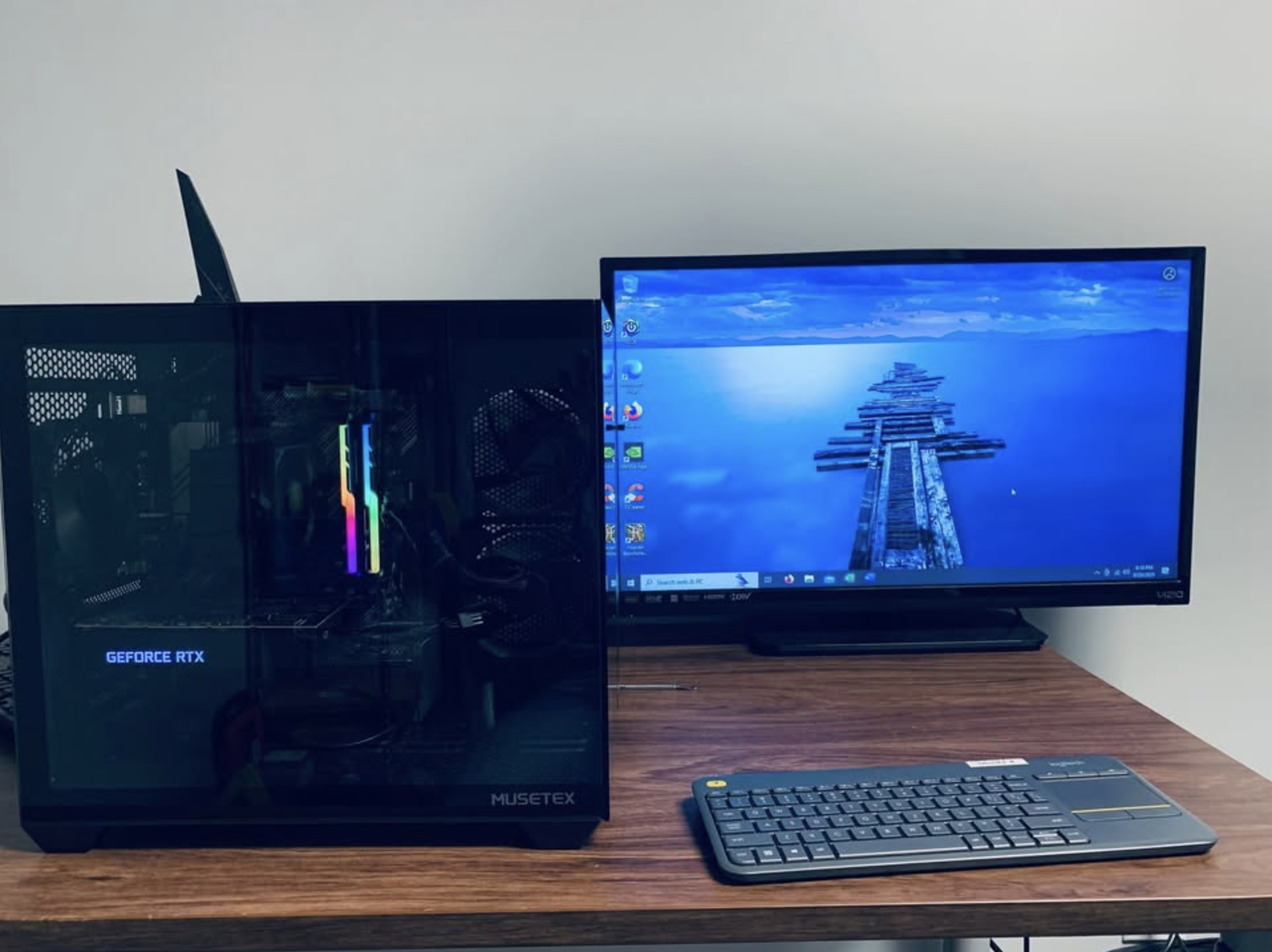
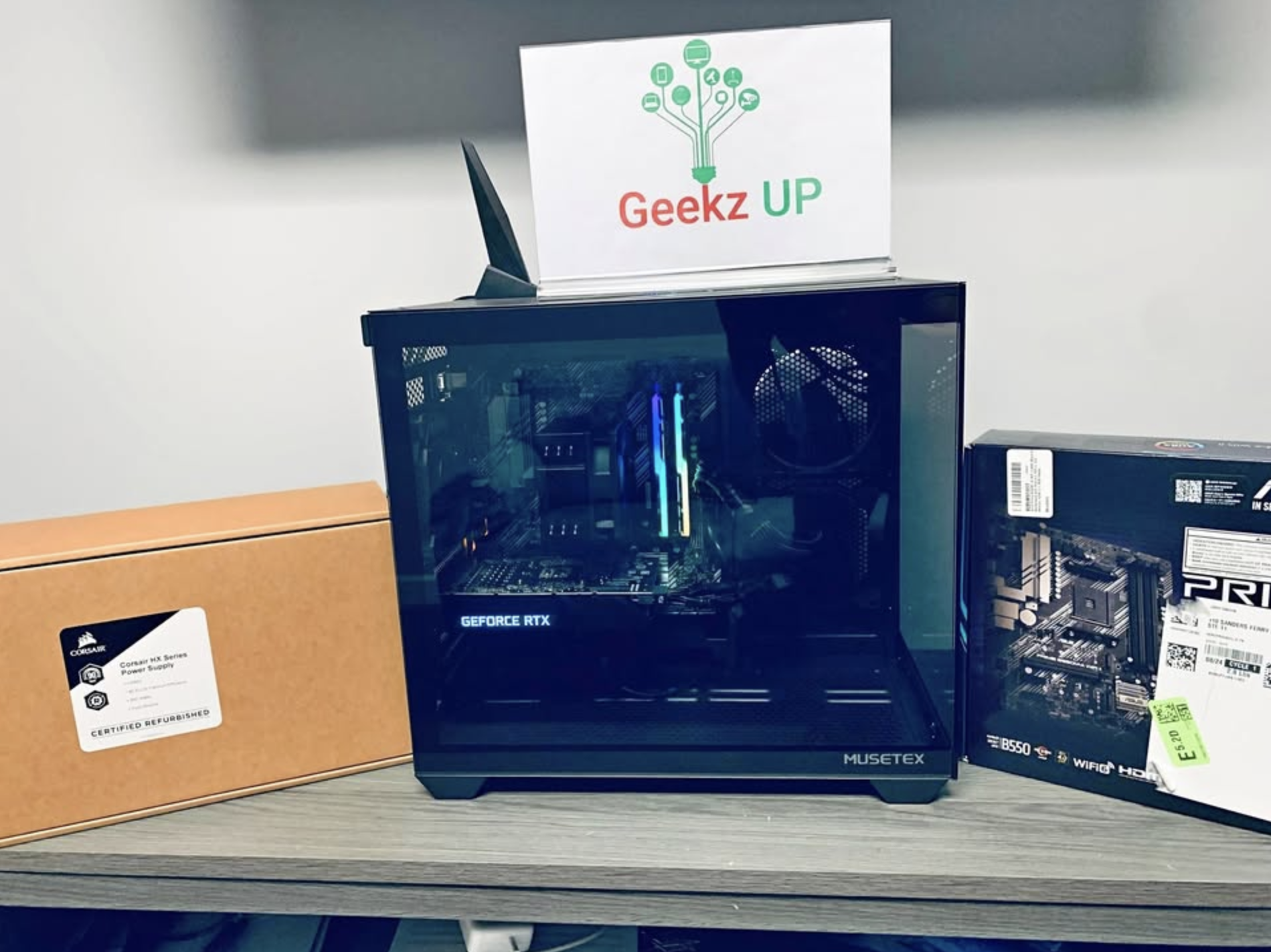
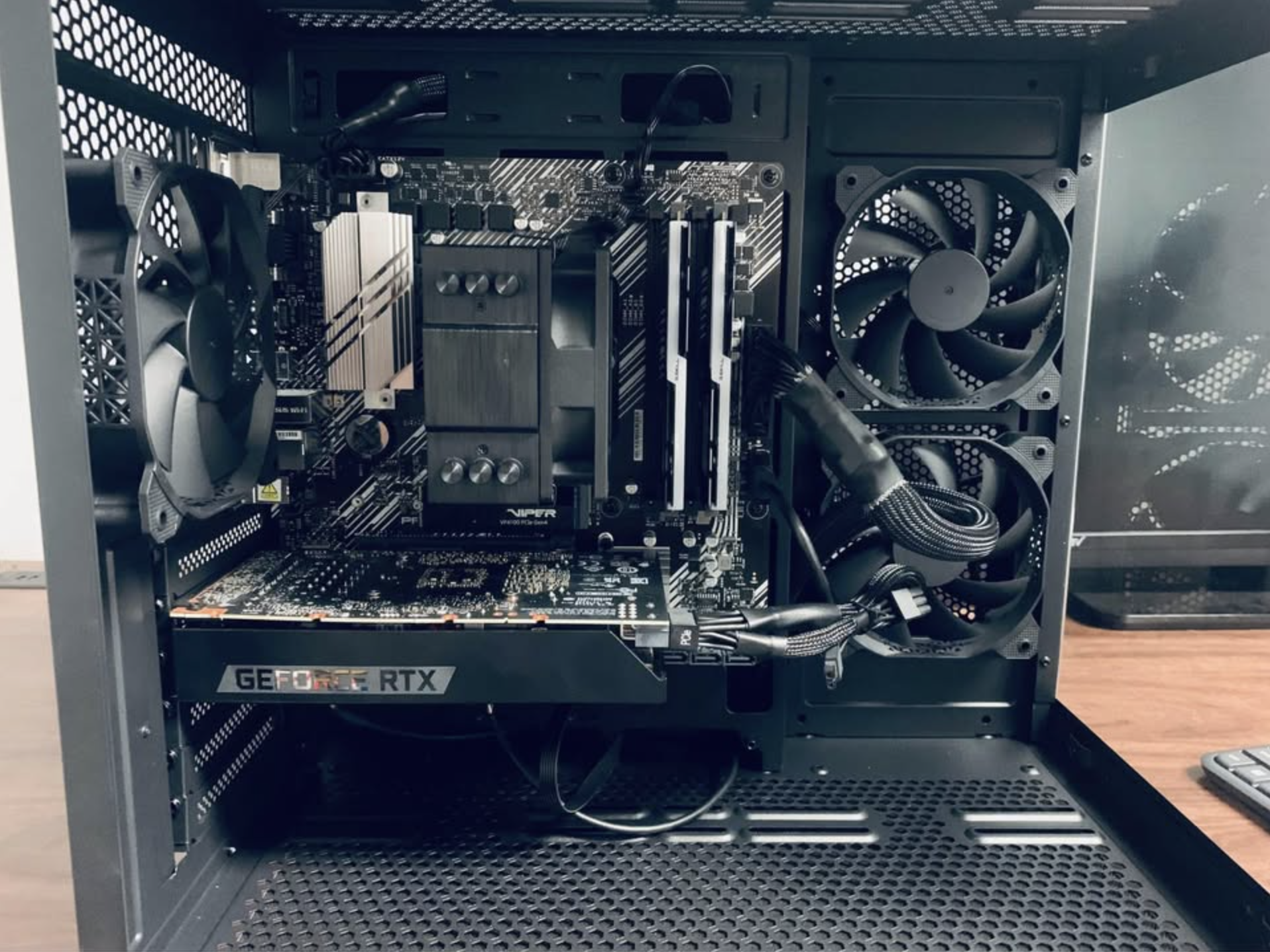
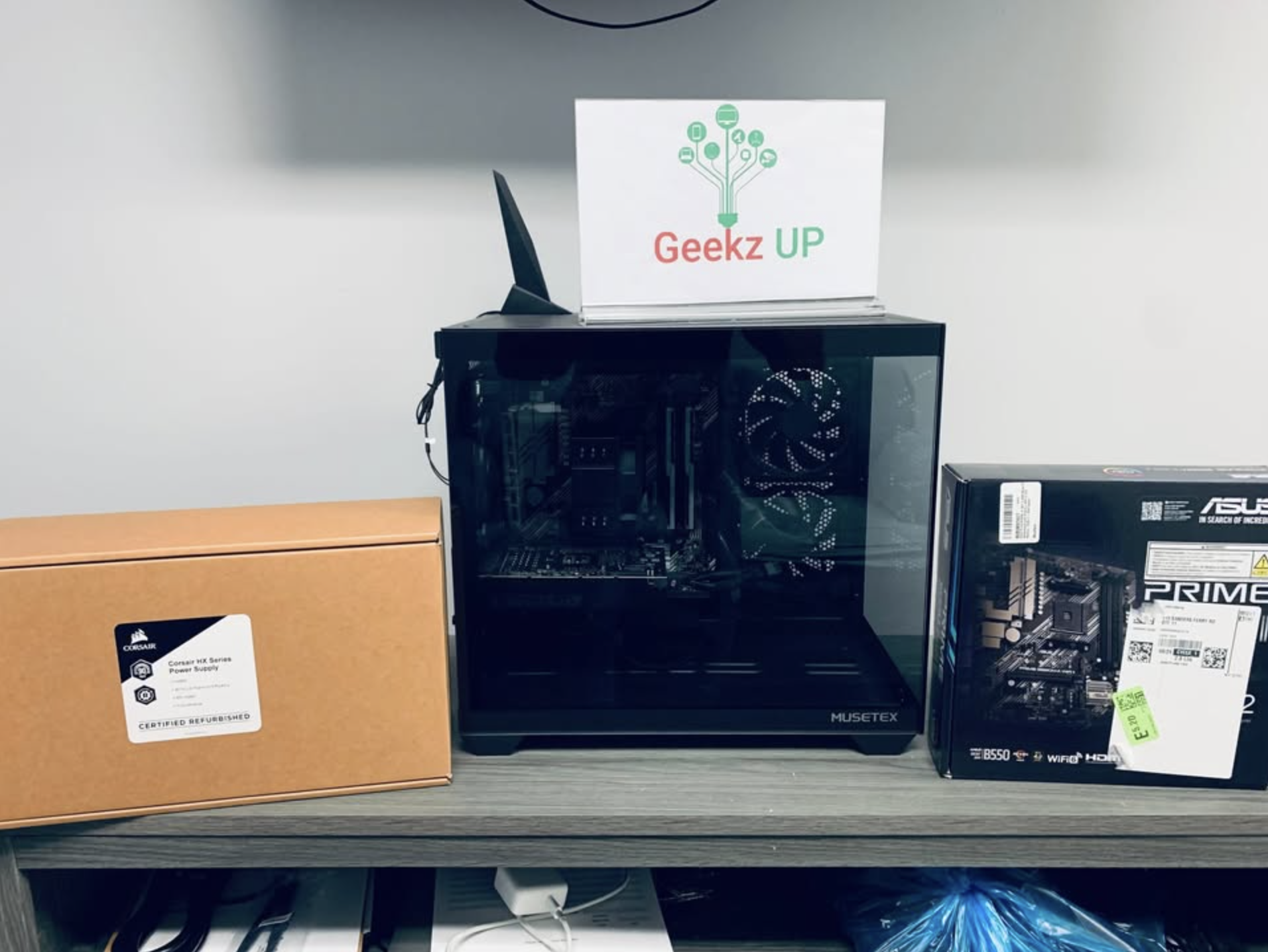
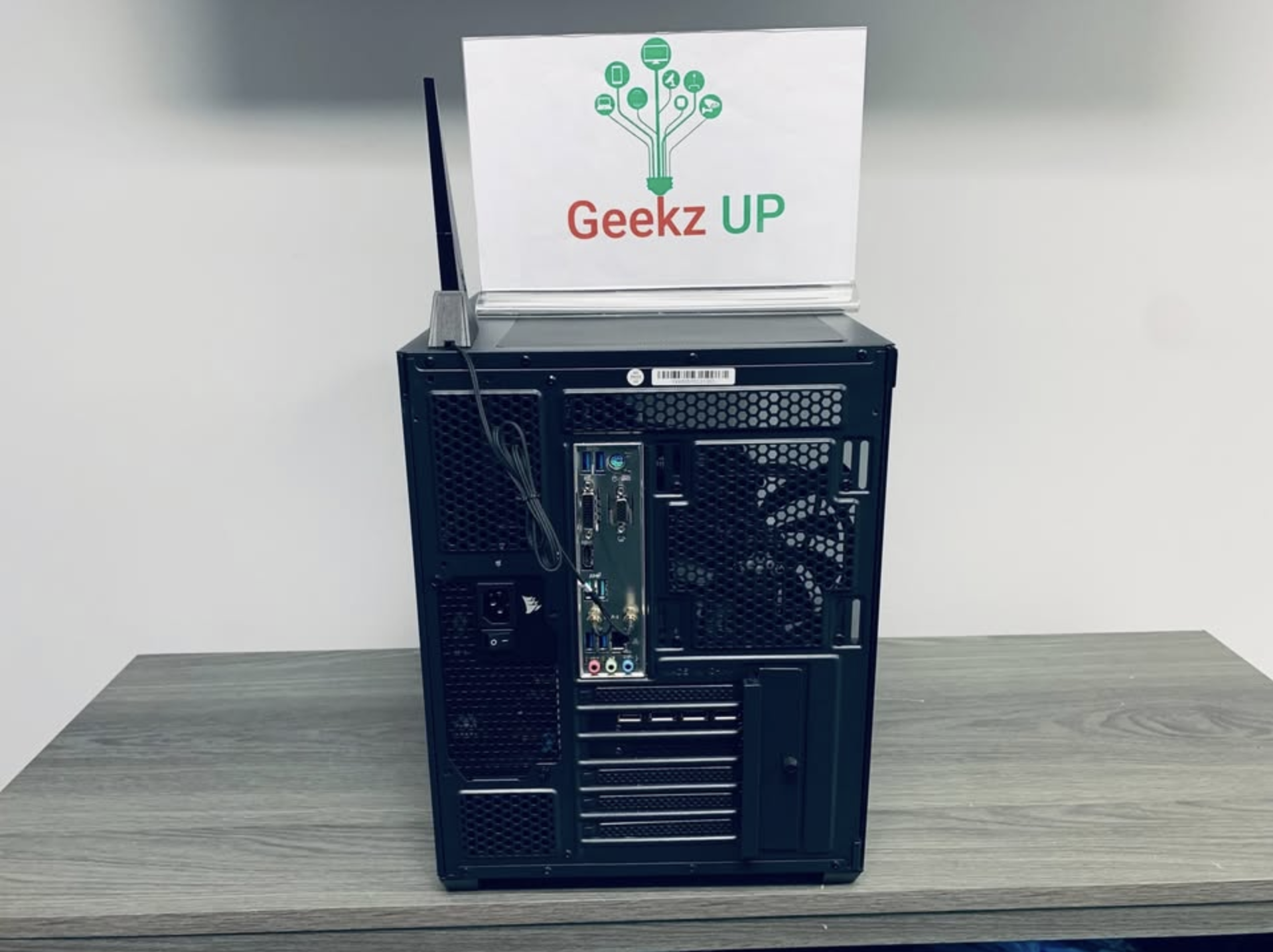
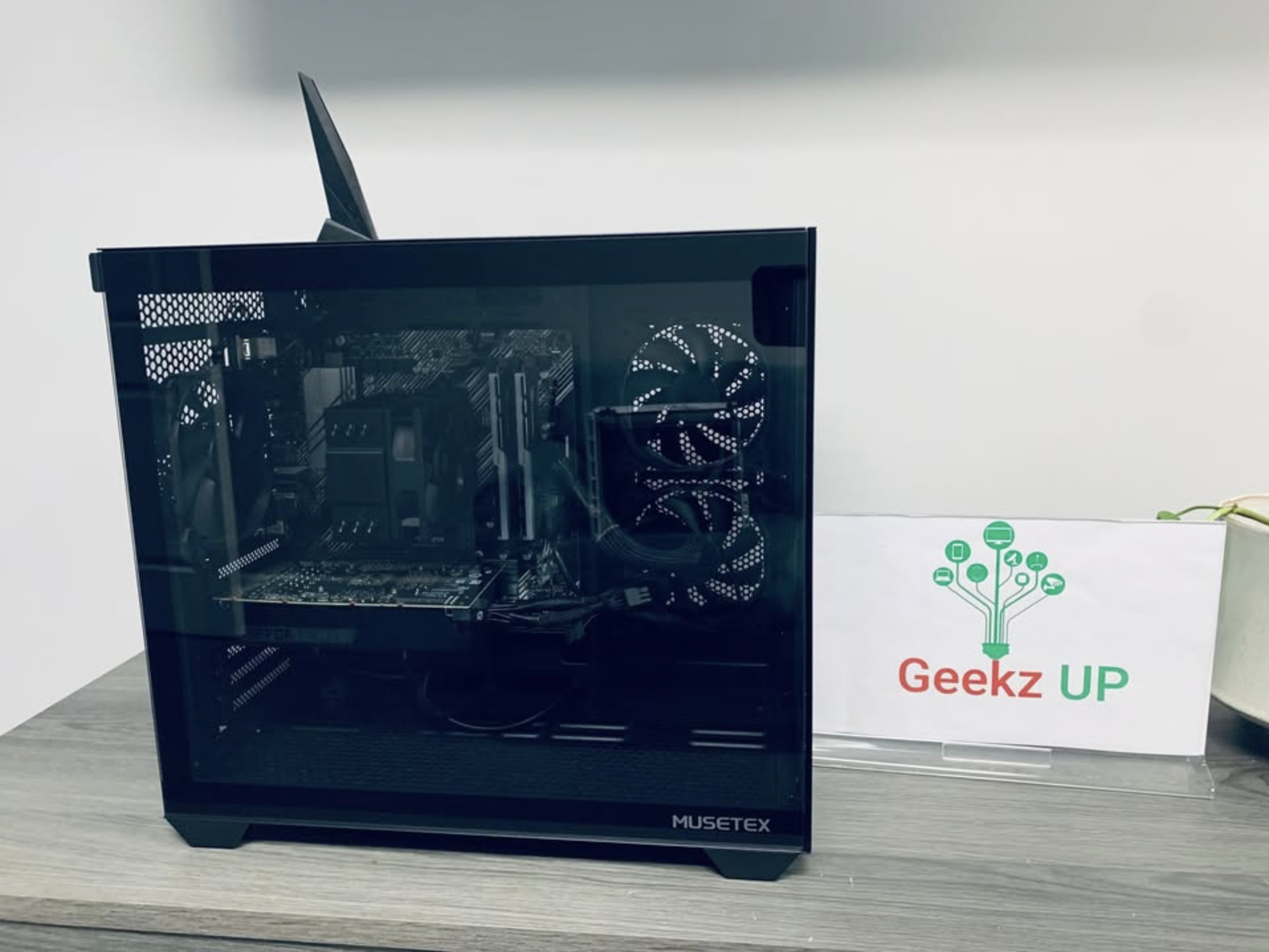
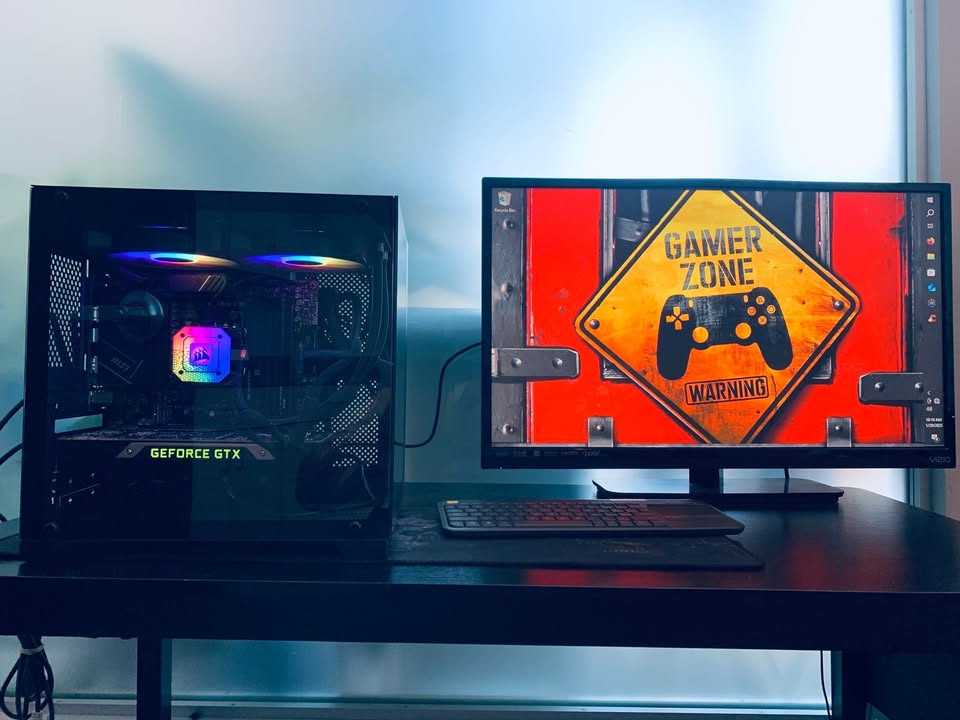
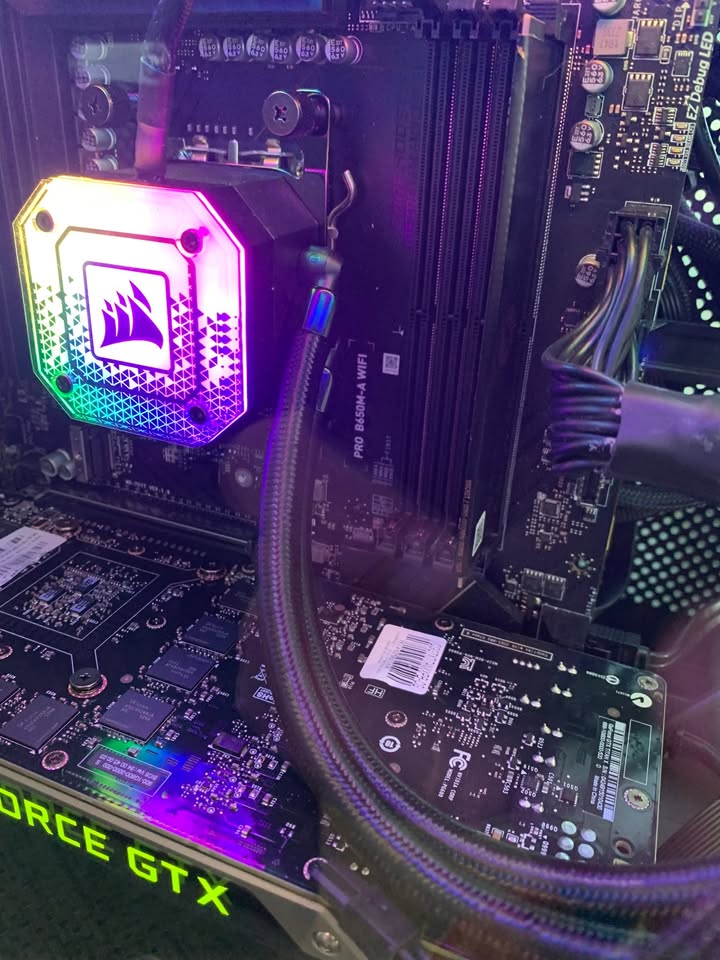
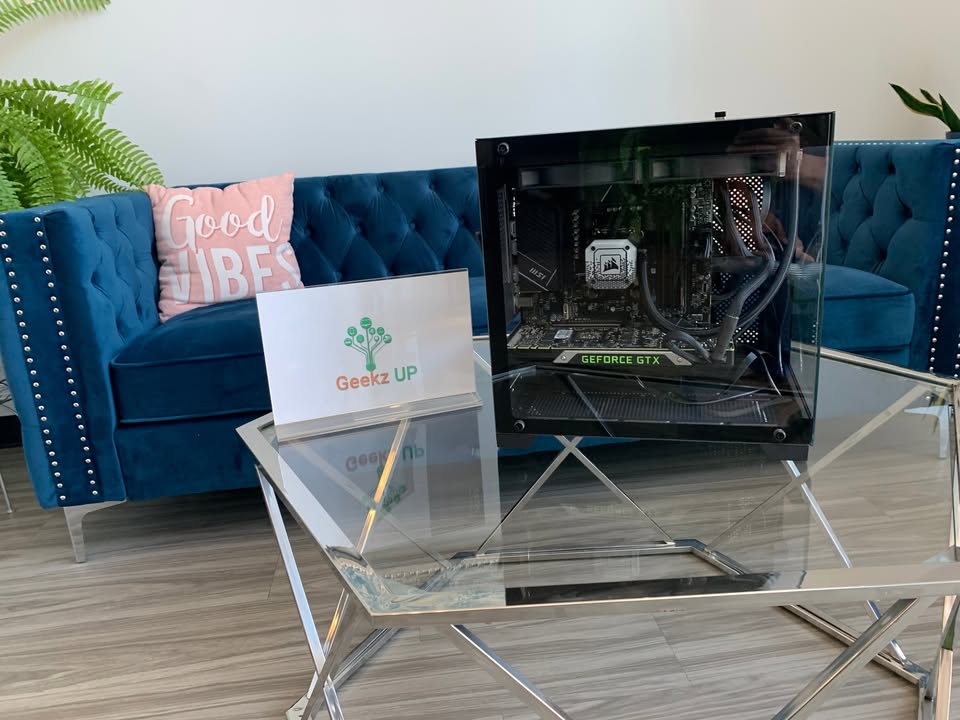
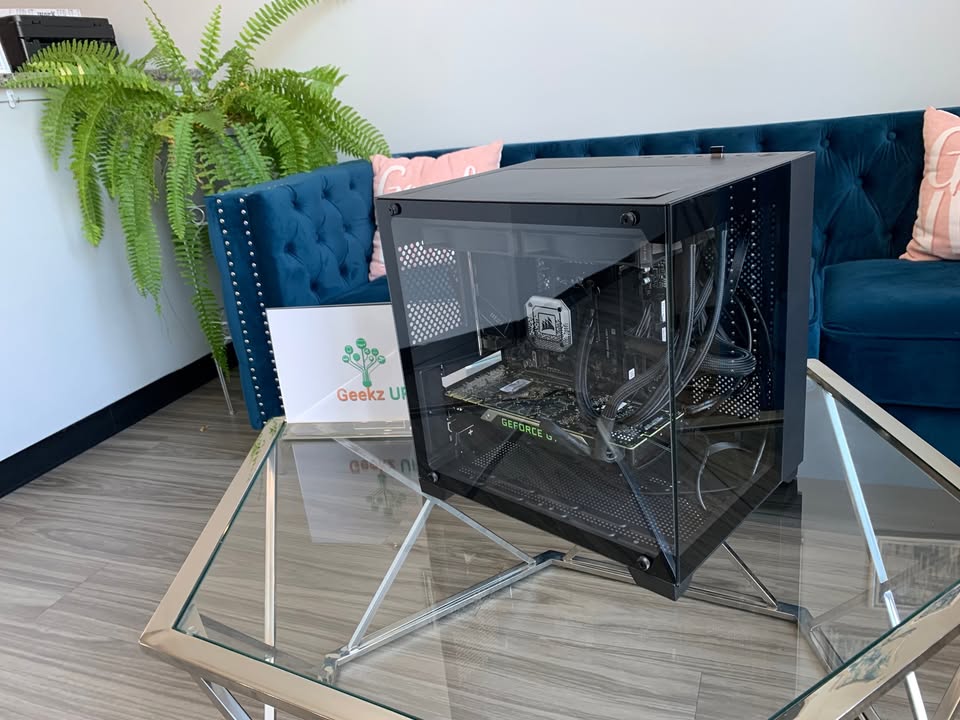
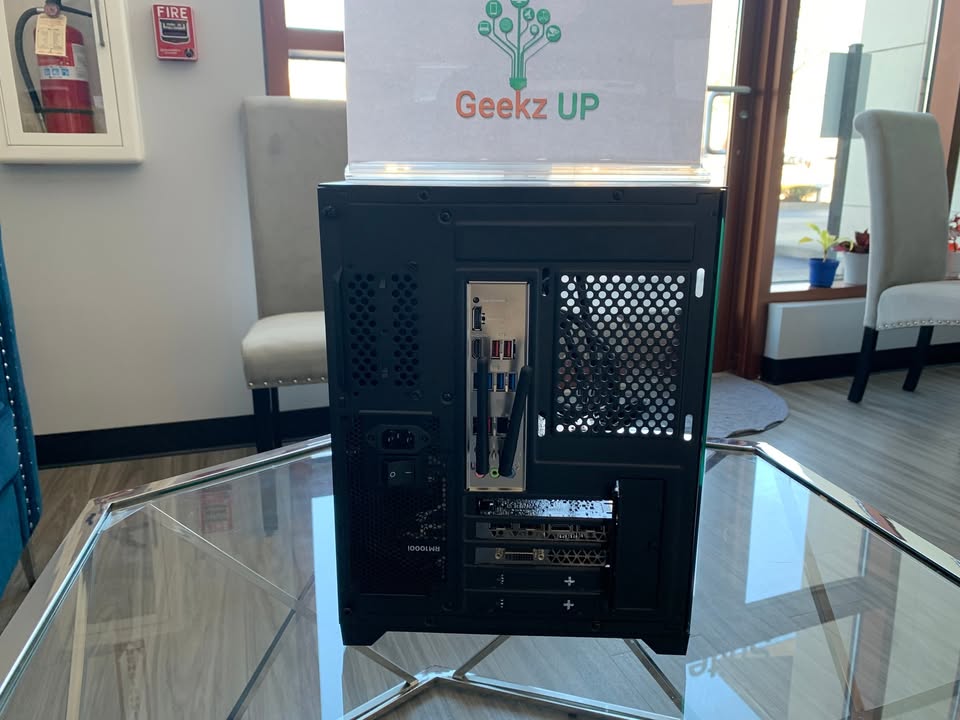
Gaming Beast 4.5 AMD 7 7700x, 16gb DDR5, Nvidia 3060 12gb, MSI Pro B650-A Wifi, Fully Loaded

Configuration

Preloaded Software

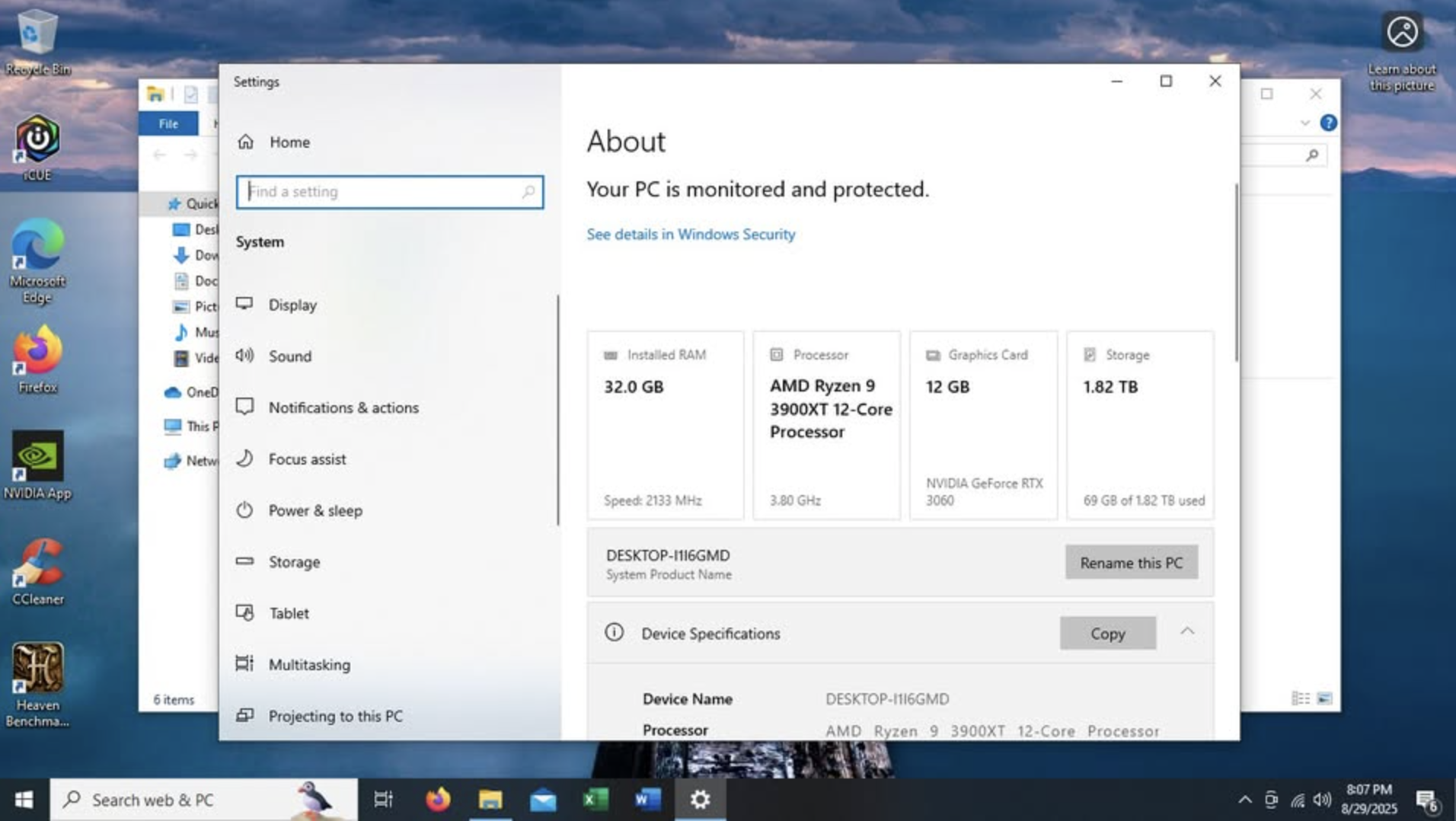
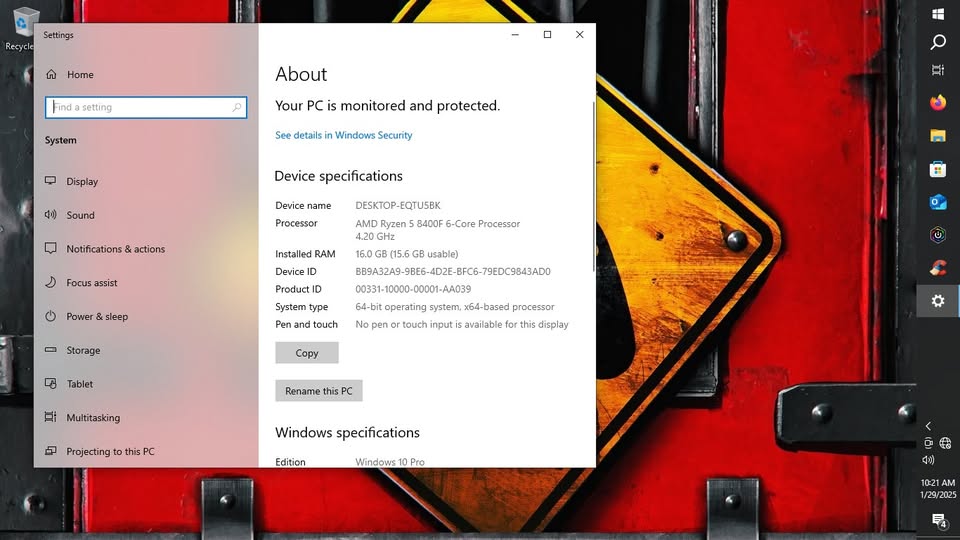
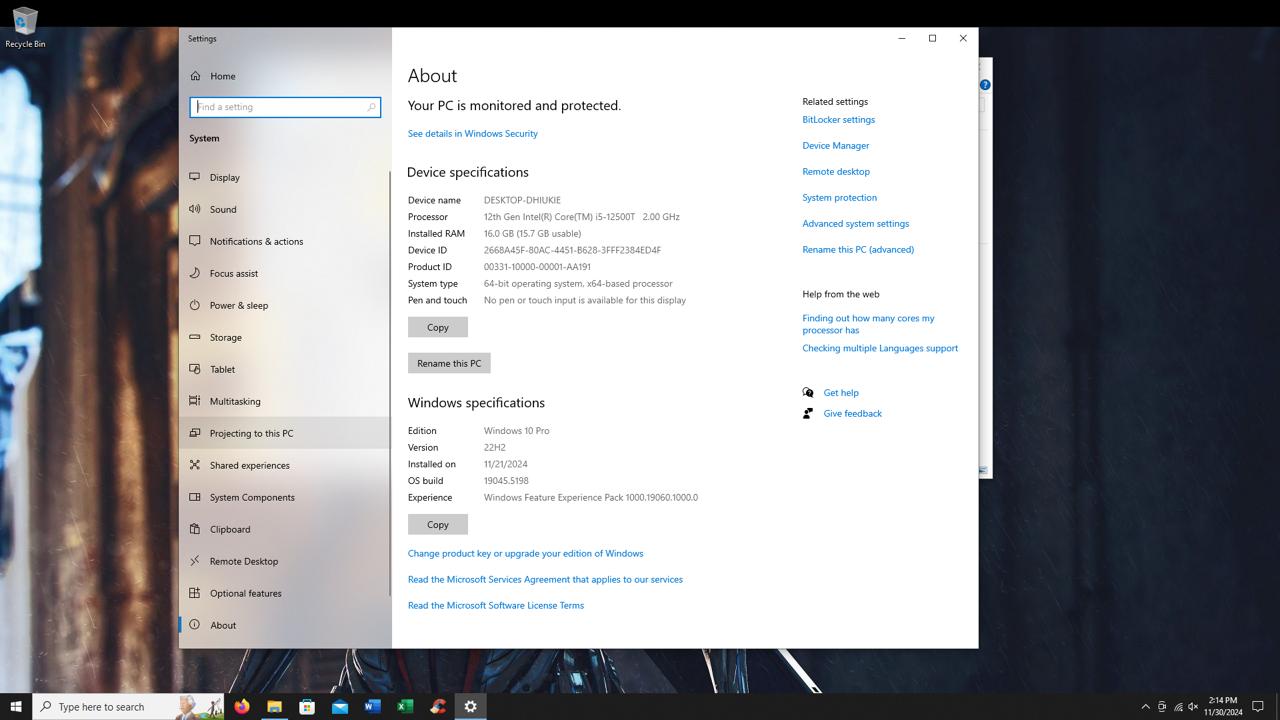
Beast~ 3.8 AMD, 32gb, 2tb M.2, 3060 12gb, Windows 10 Pro, Fully Loaded. New Condition
Configuration

Preloaded Software

ONN 4k Device Fully Unlocked & Setup $250

One of the best IPTV plans for long-term users who want consistent streaming access across supported devices.
•⁠ ⁠6,000+ Live Channels with EPG
•⁠ ⁠International & Premium VOD
•⁠ ⁠PPV & Sports Events
•⁠ ⁠Year-long TV access

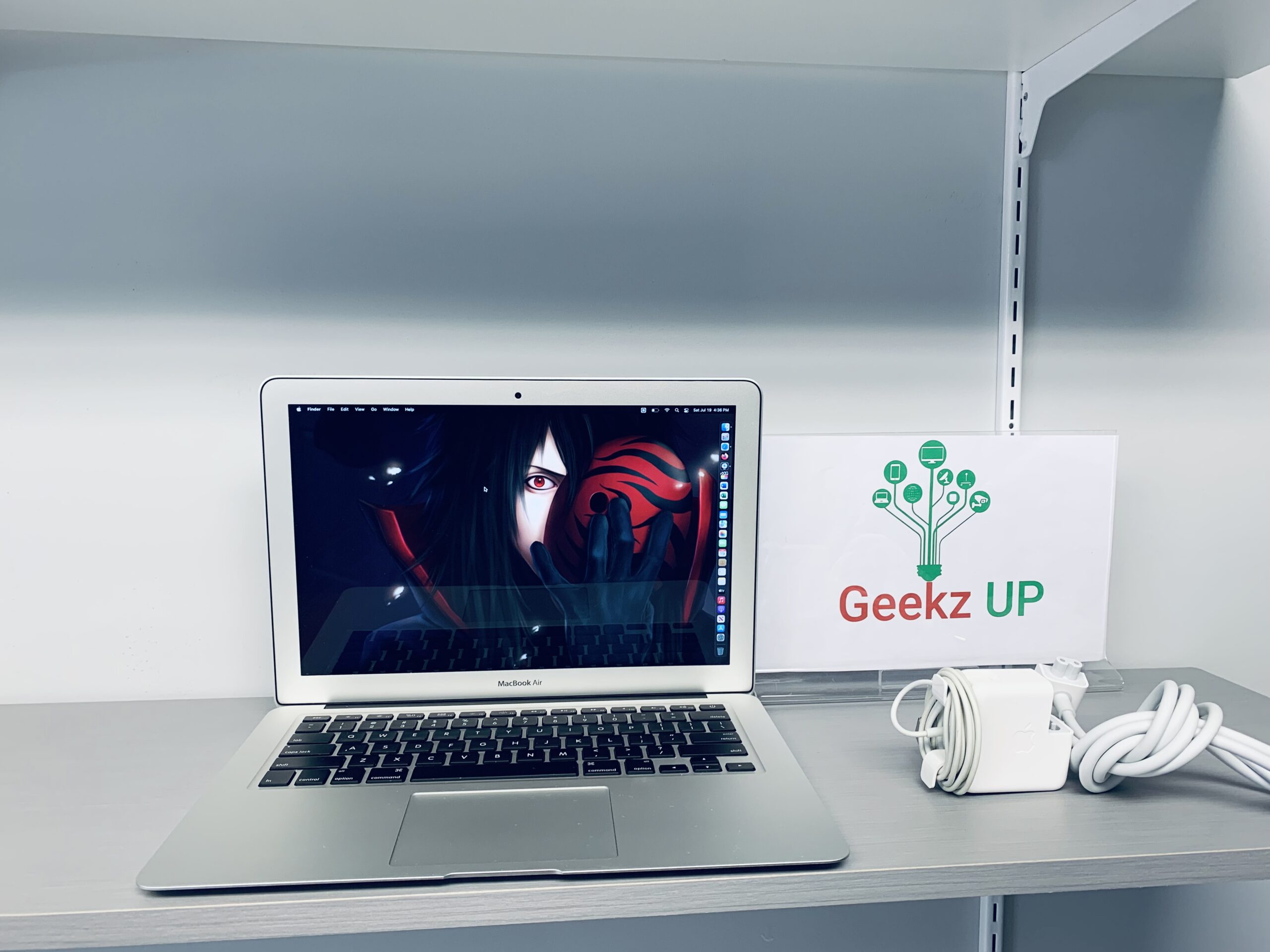
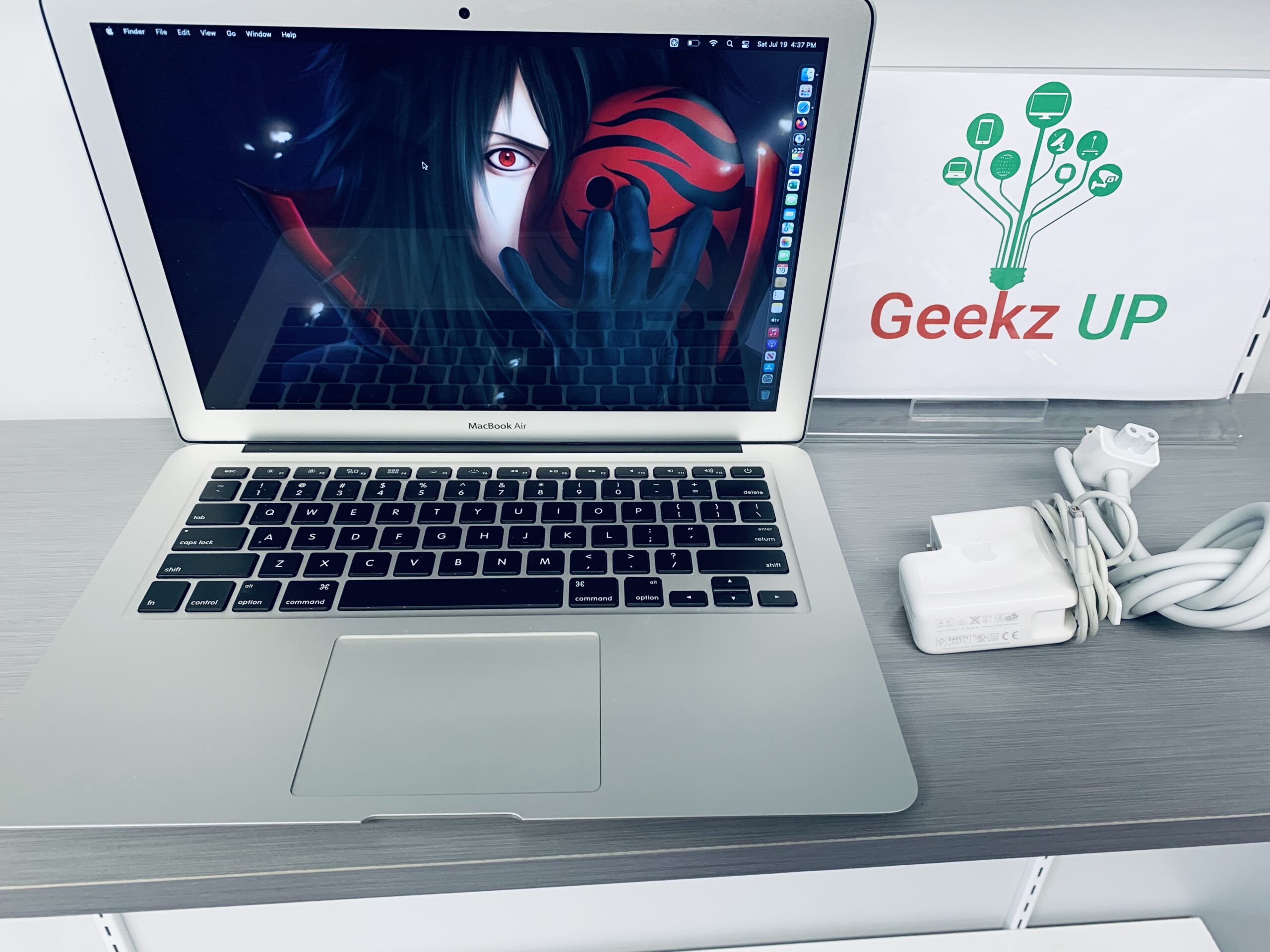
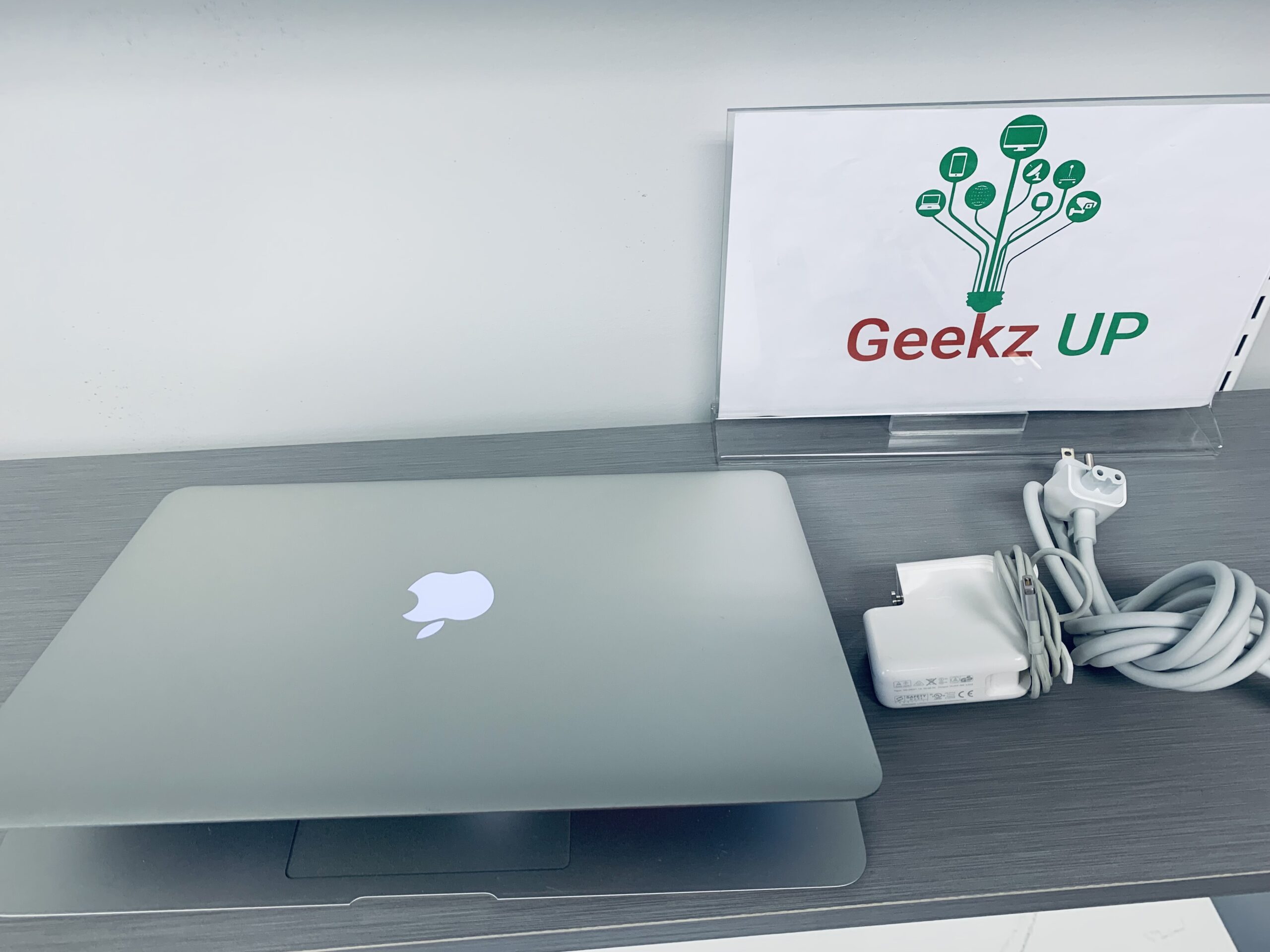
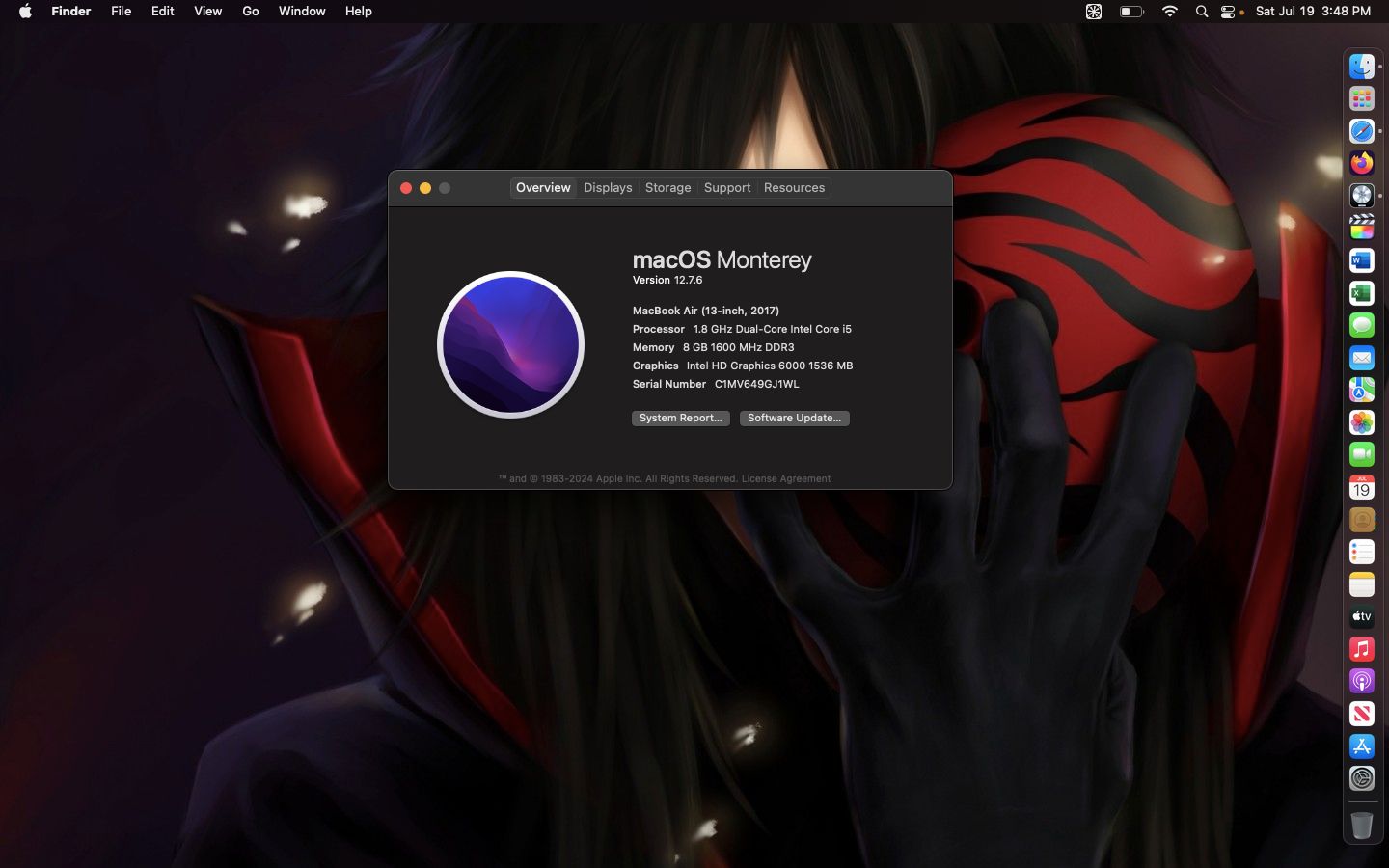
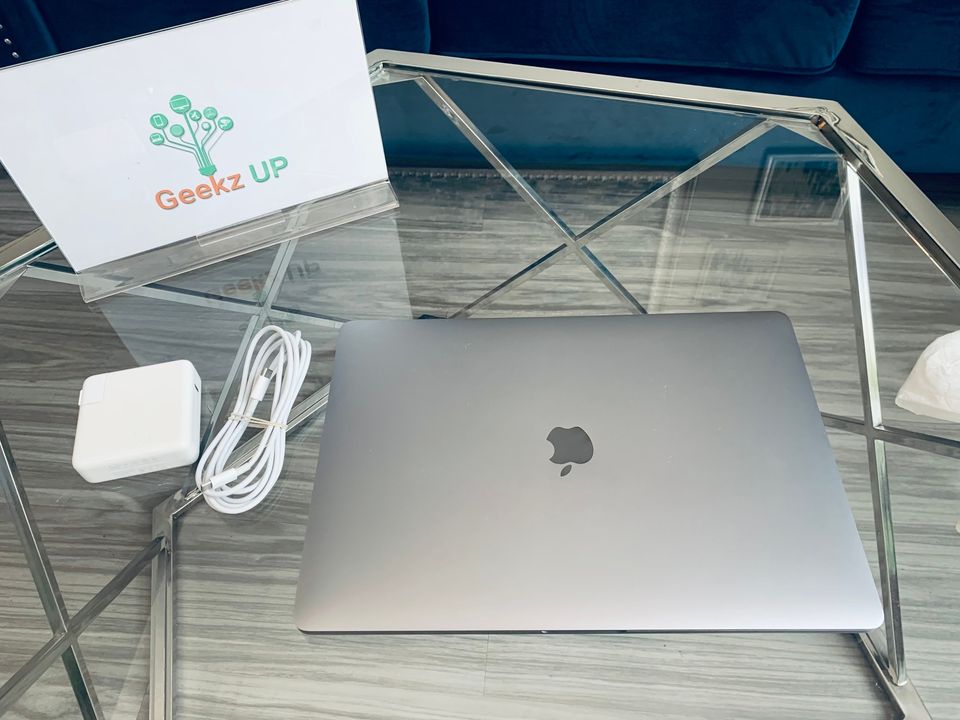
Macbook Air 2017

Configuration

Preloaded Software

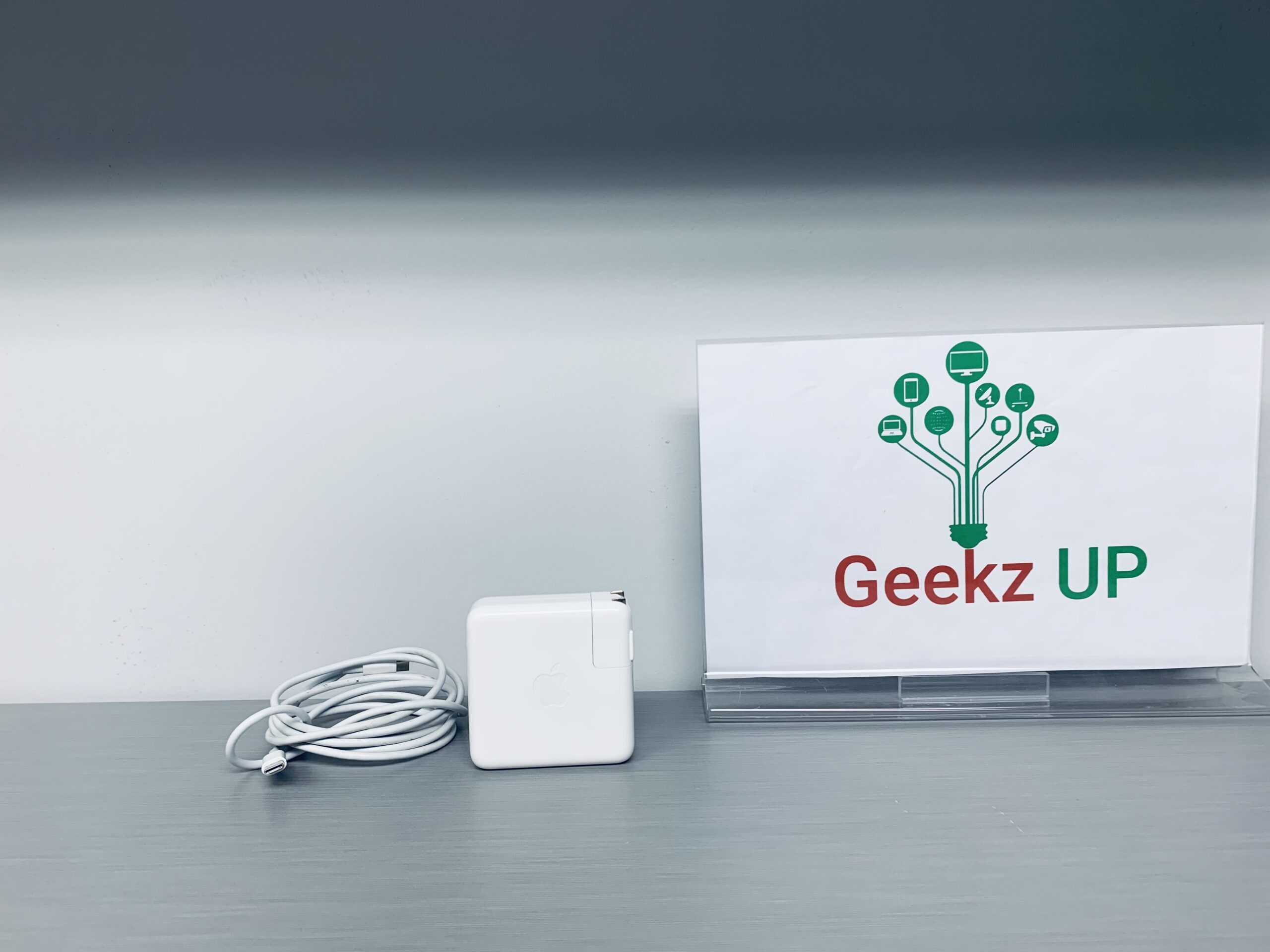
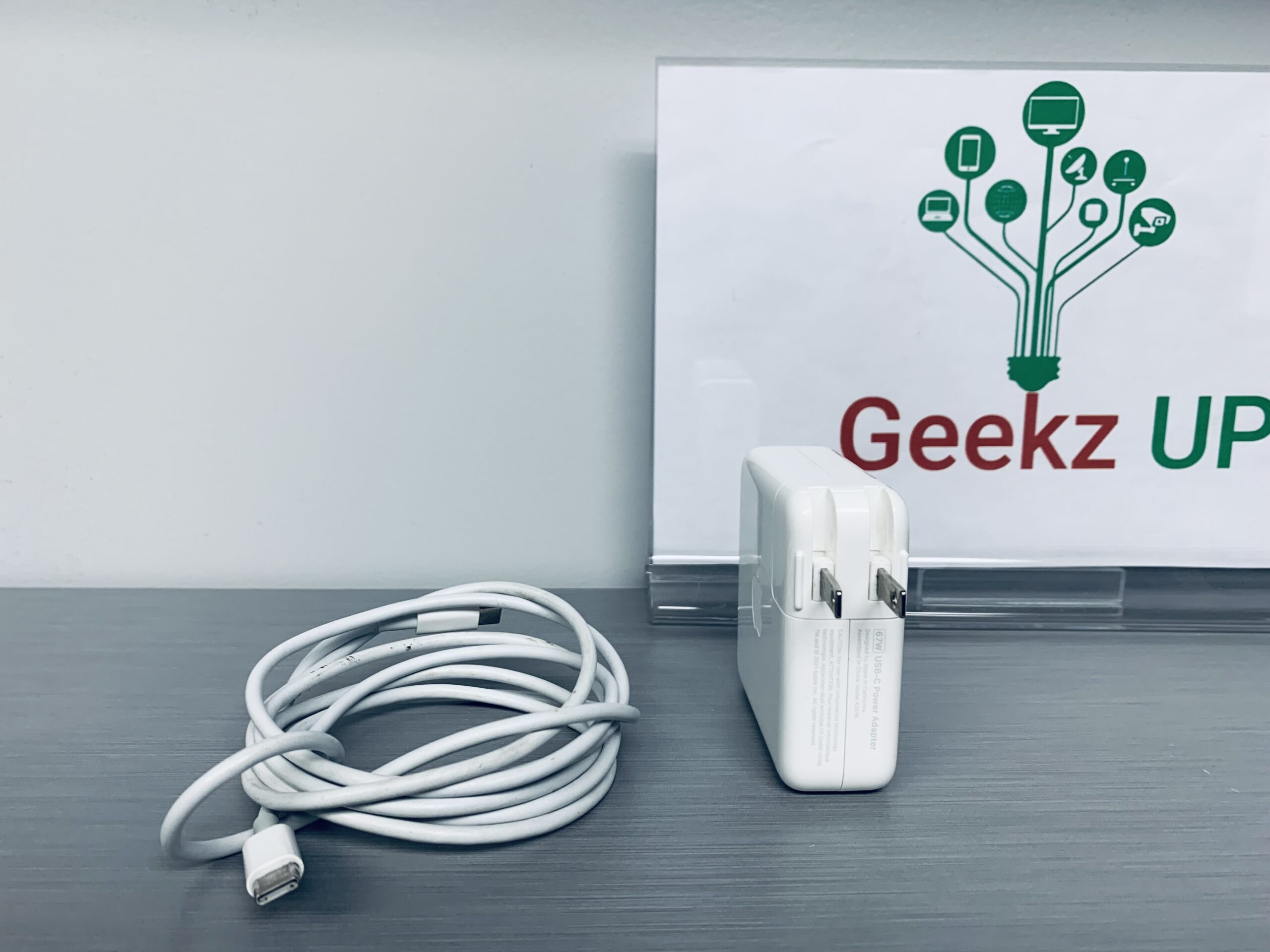
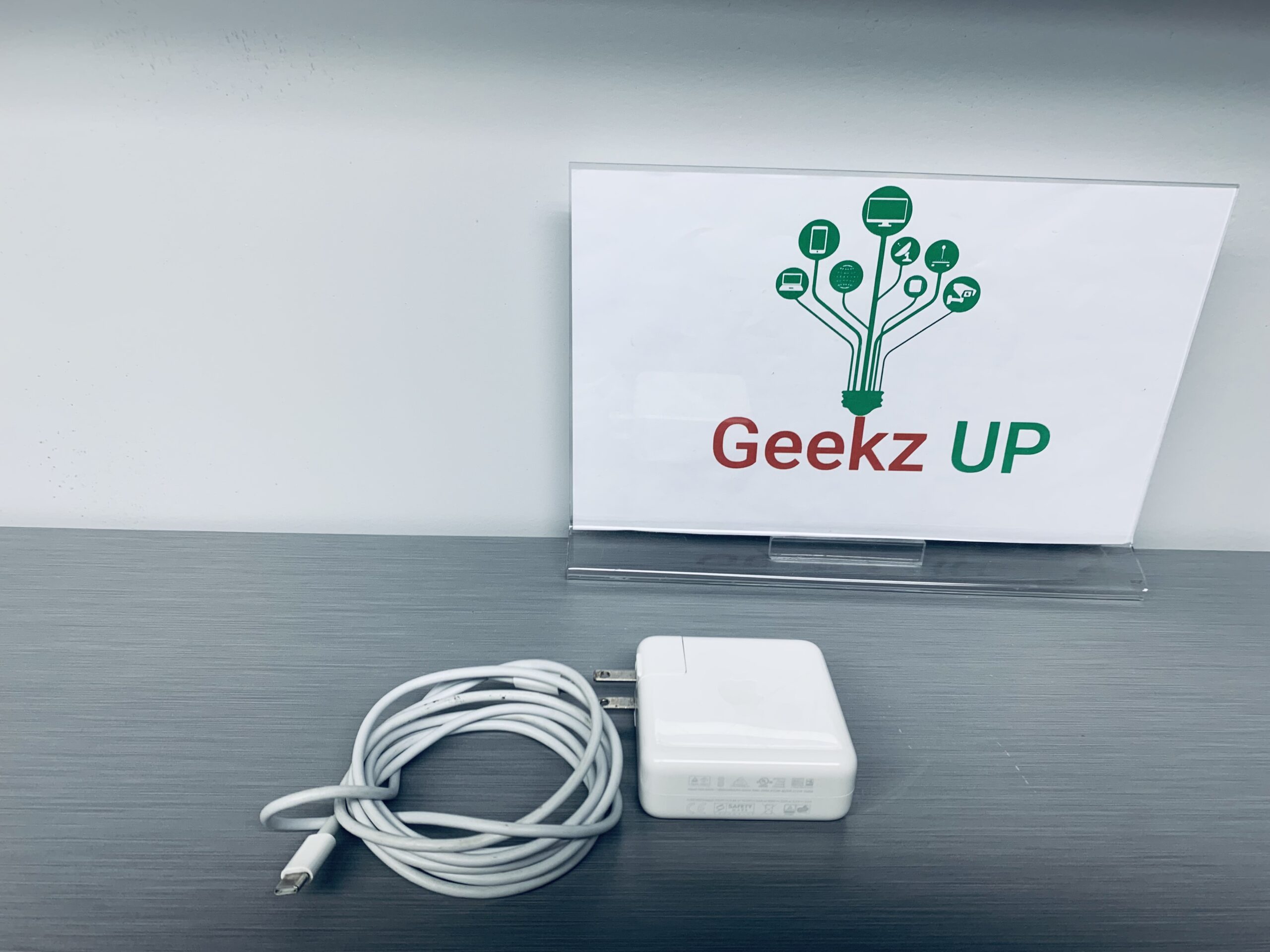
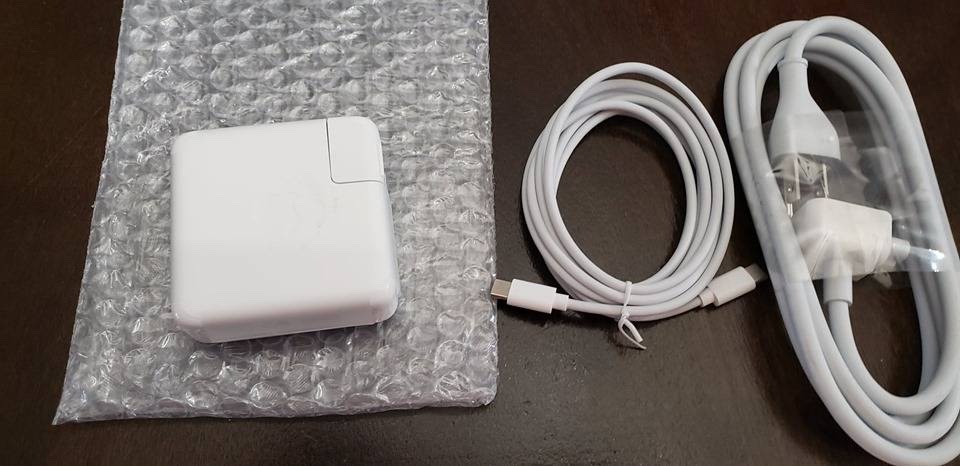
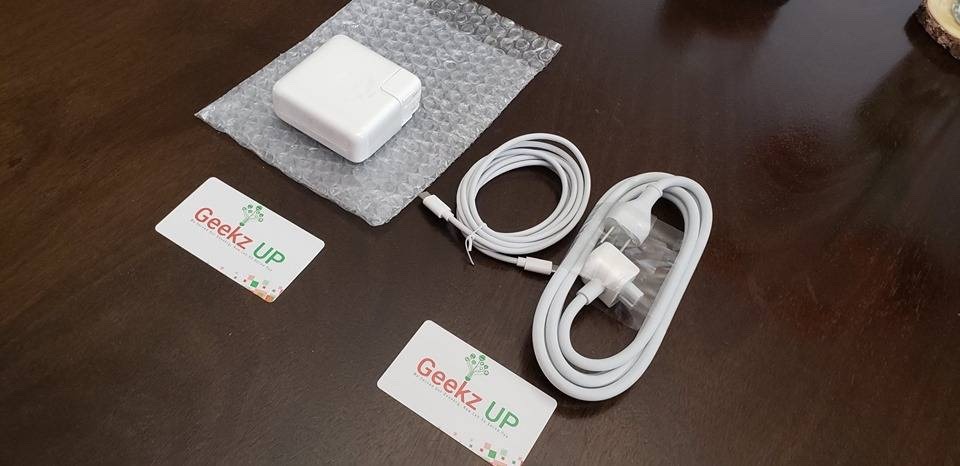
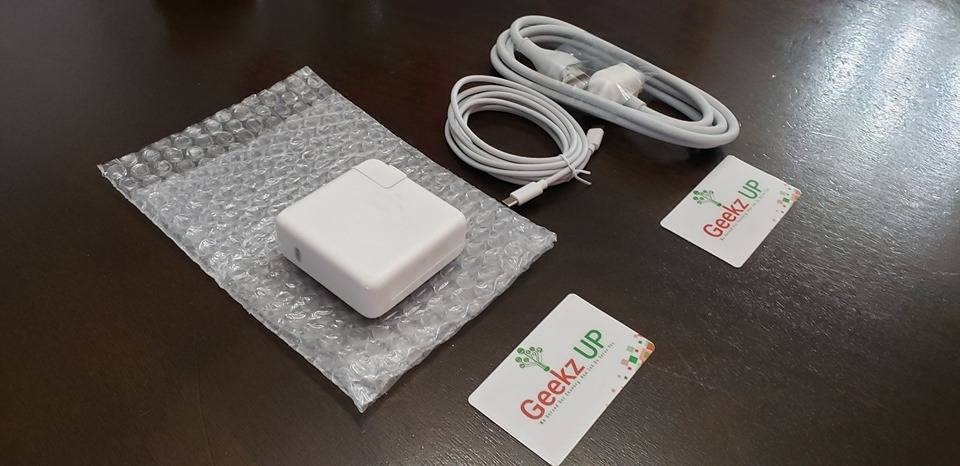
Genuine 67W Type-C Power Adapter Charger for Apple MacBook Pro 13" M1 A2518

For Apple:

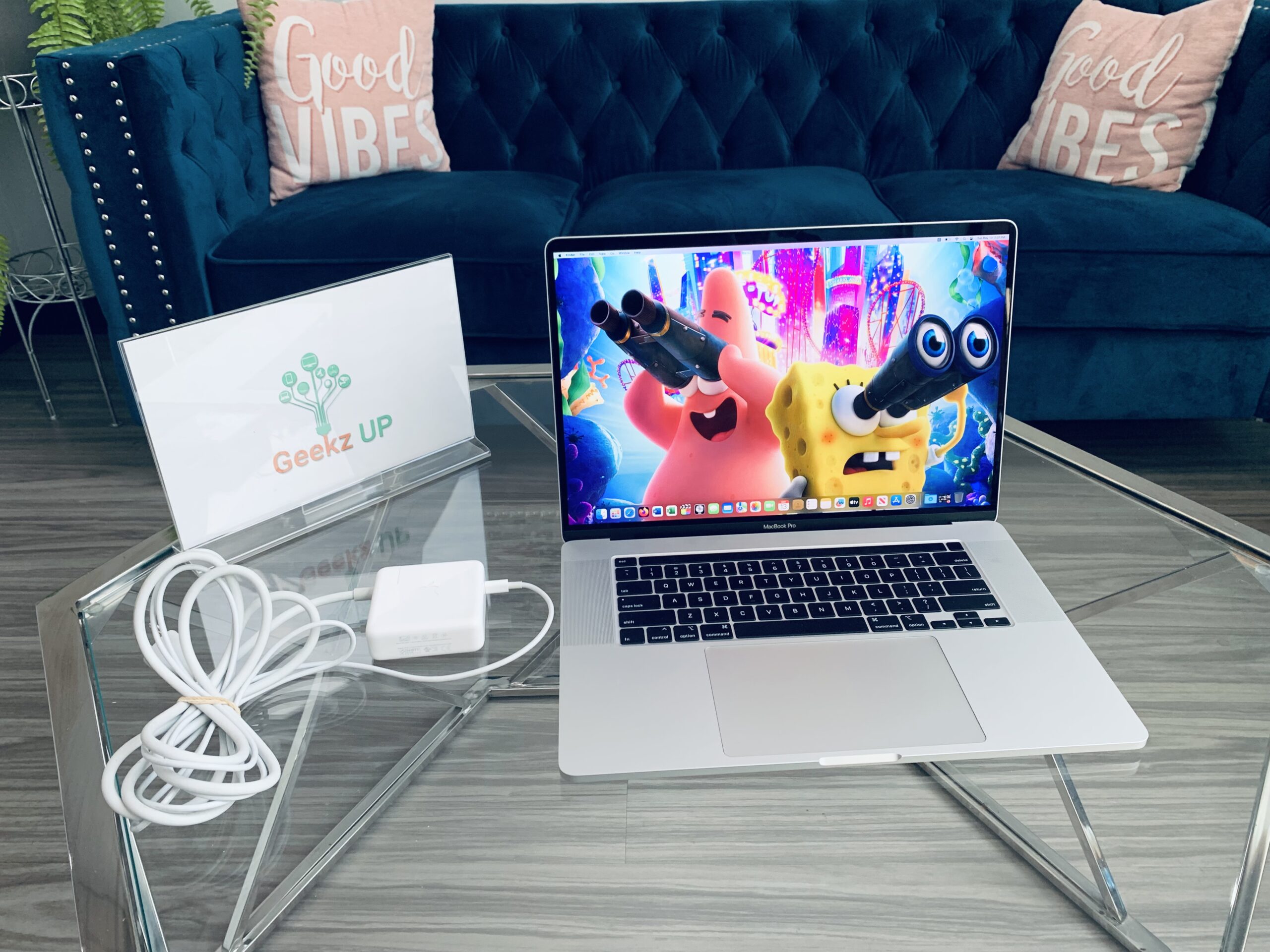
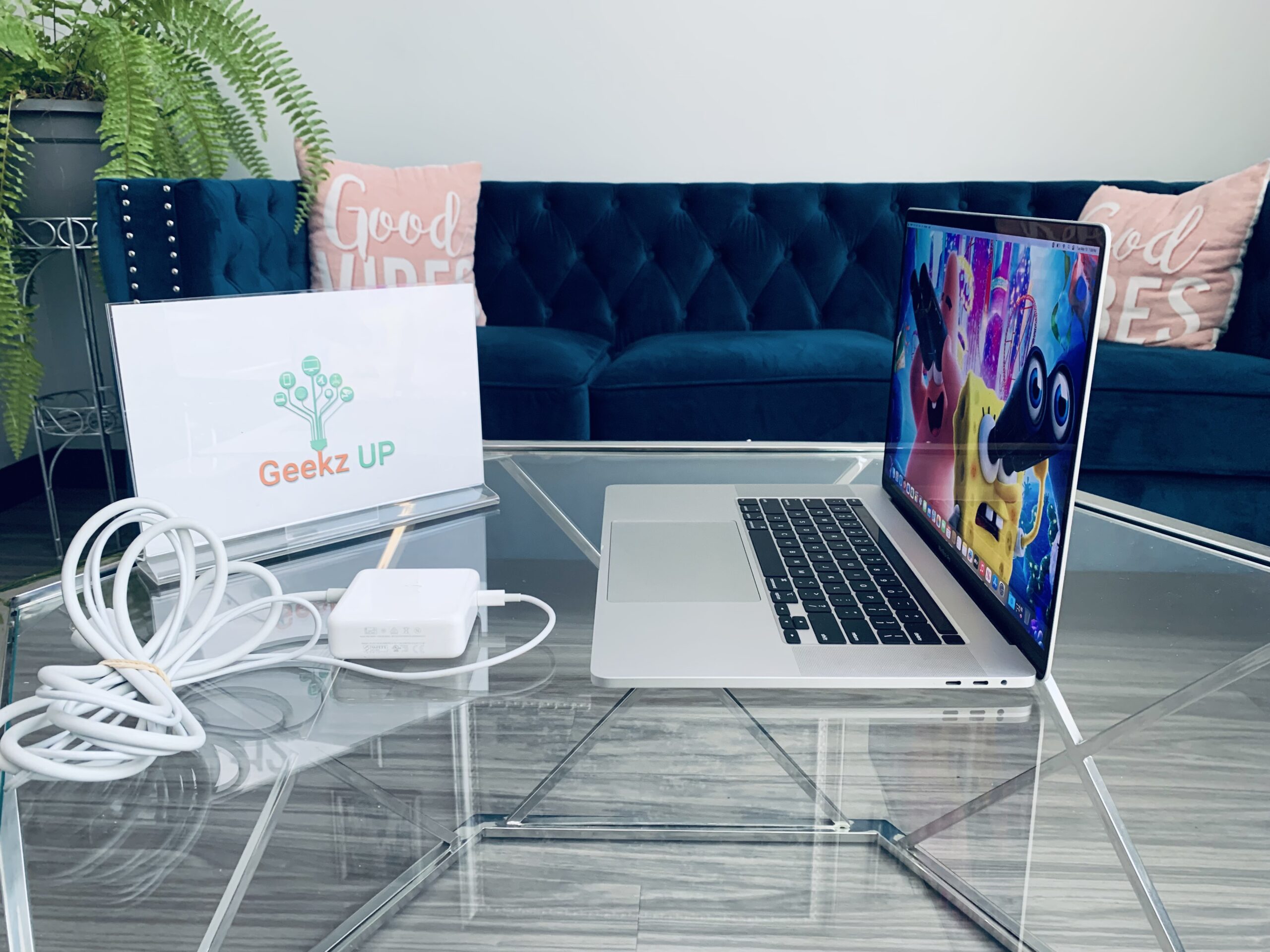
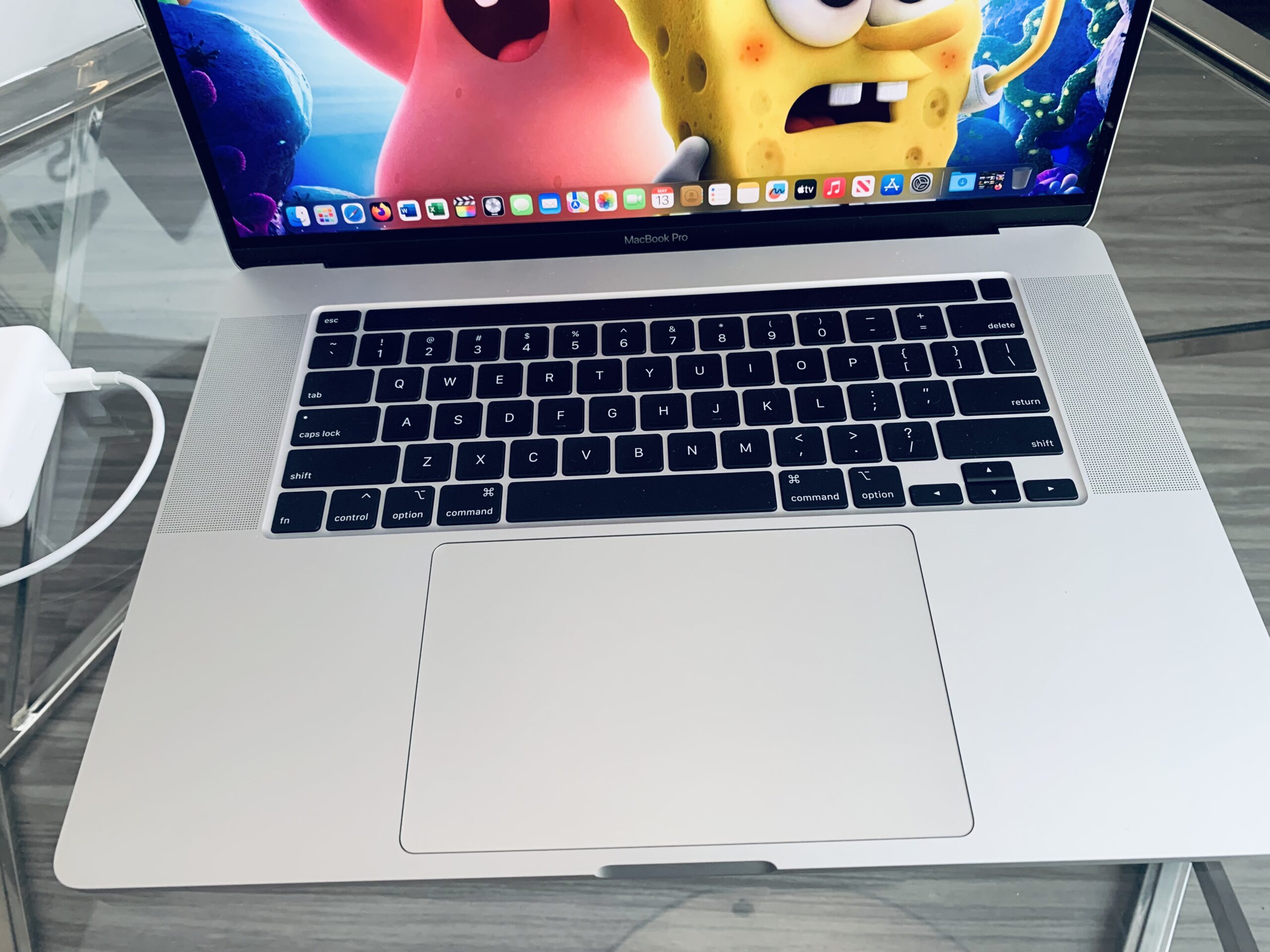
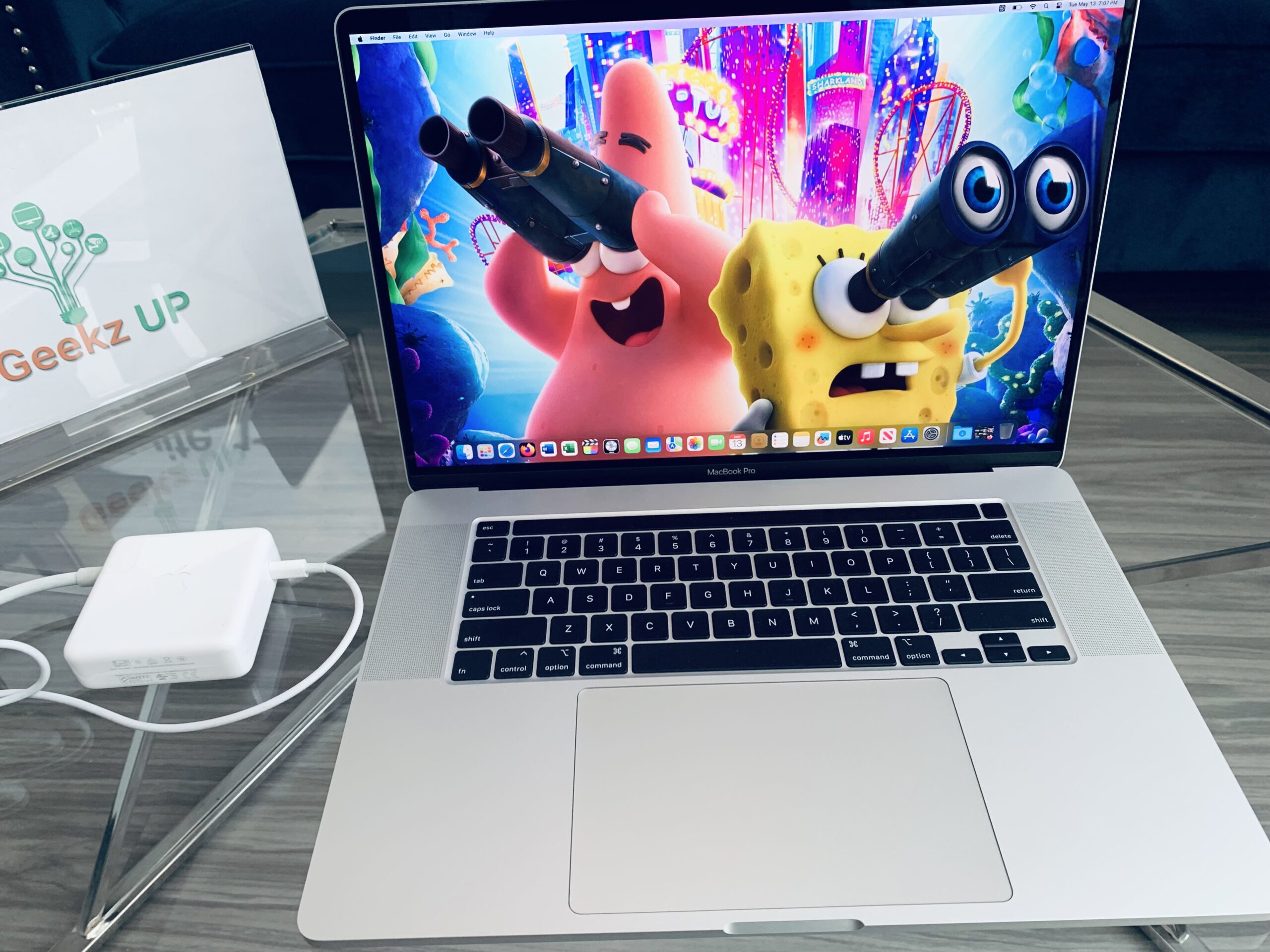
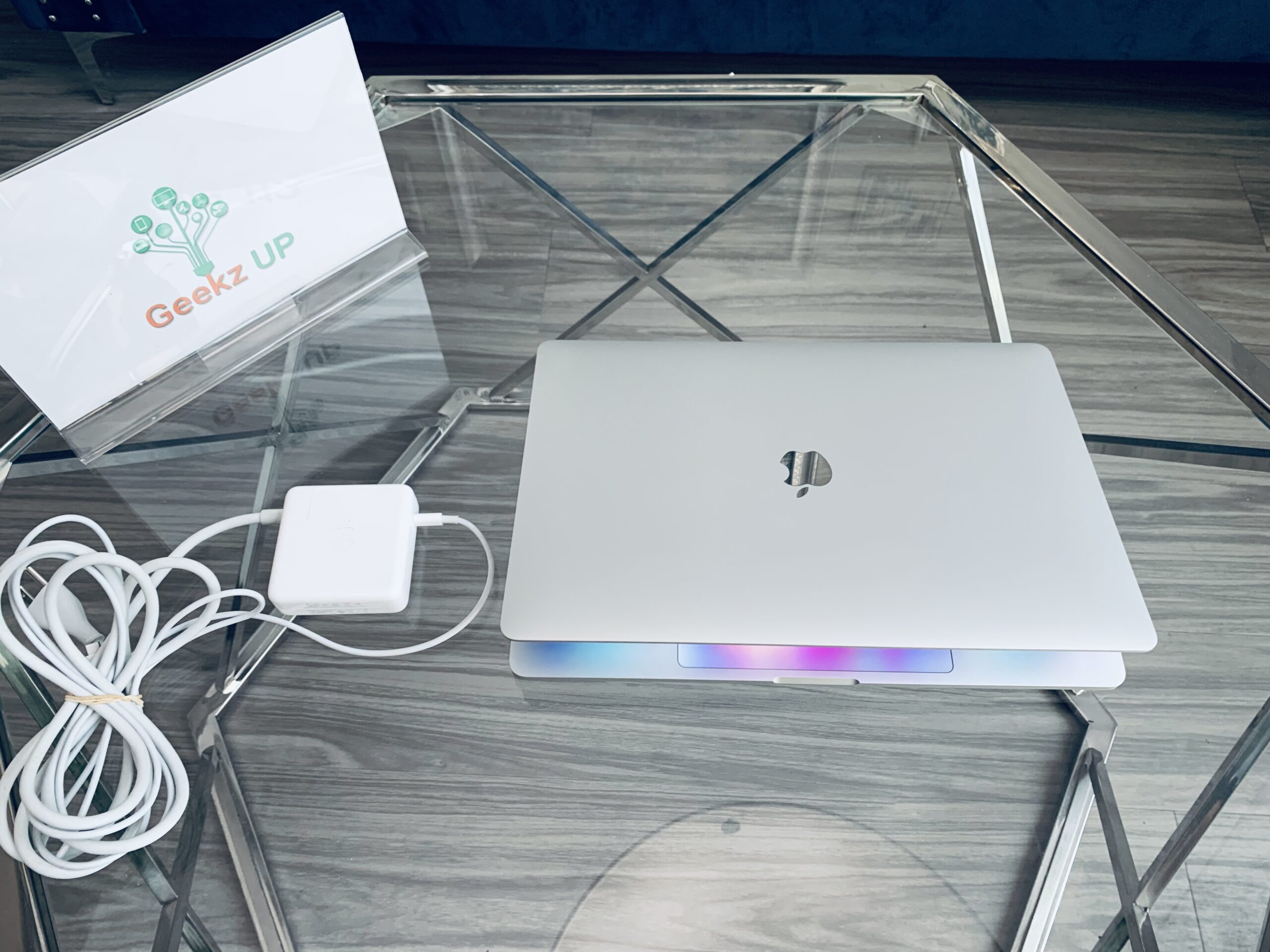
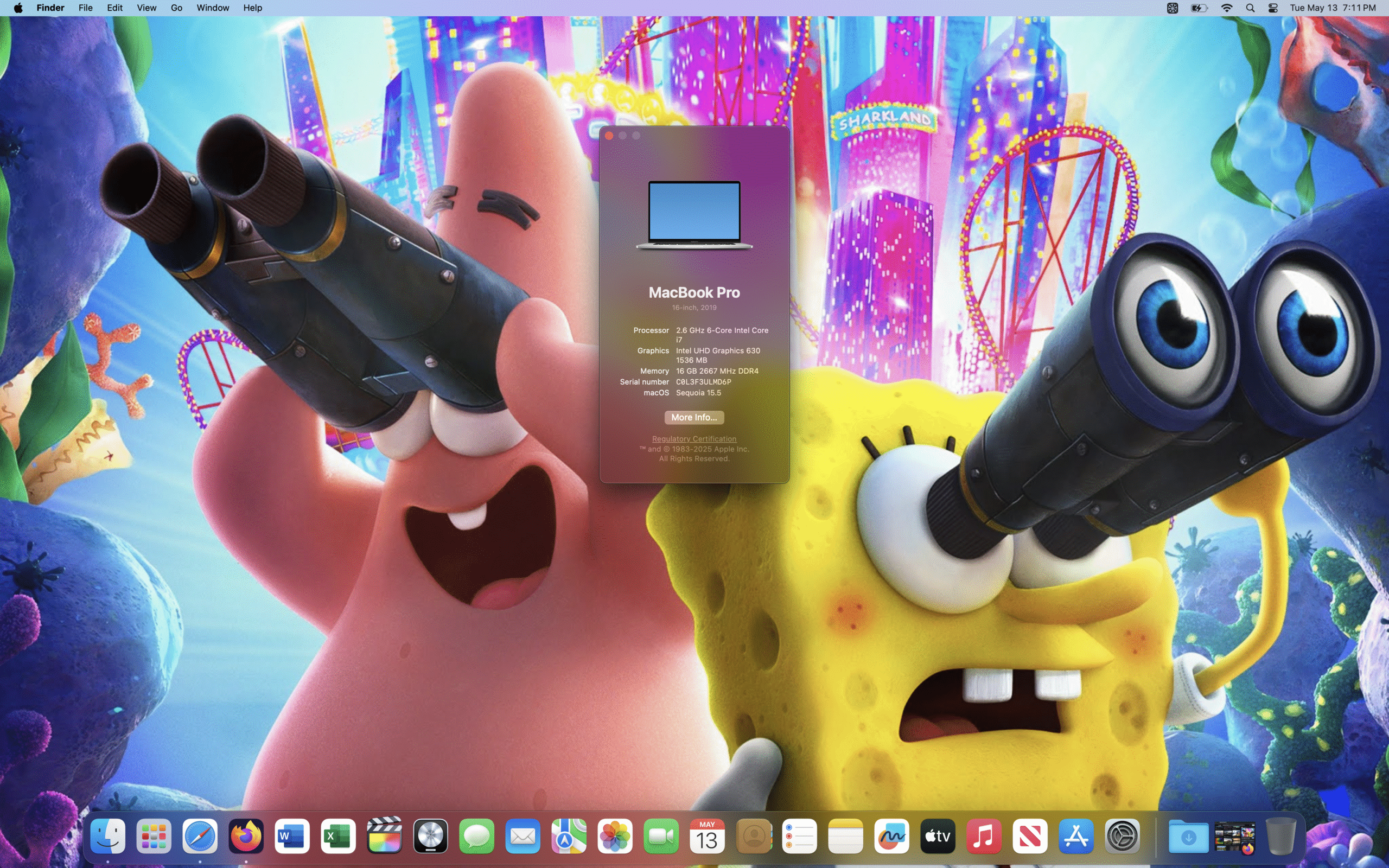
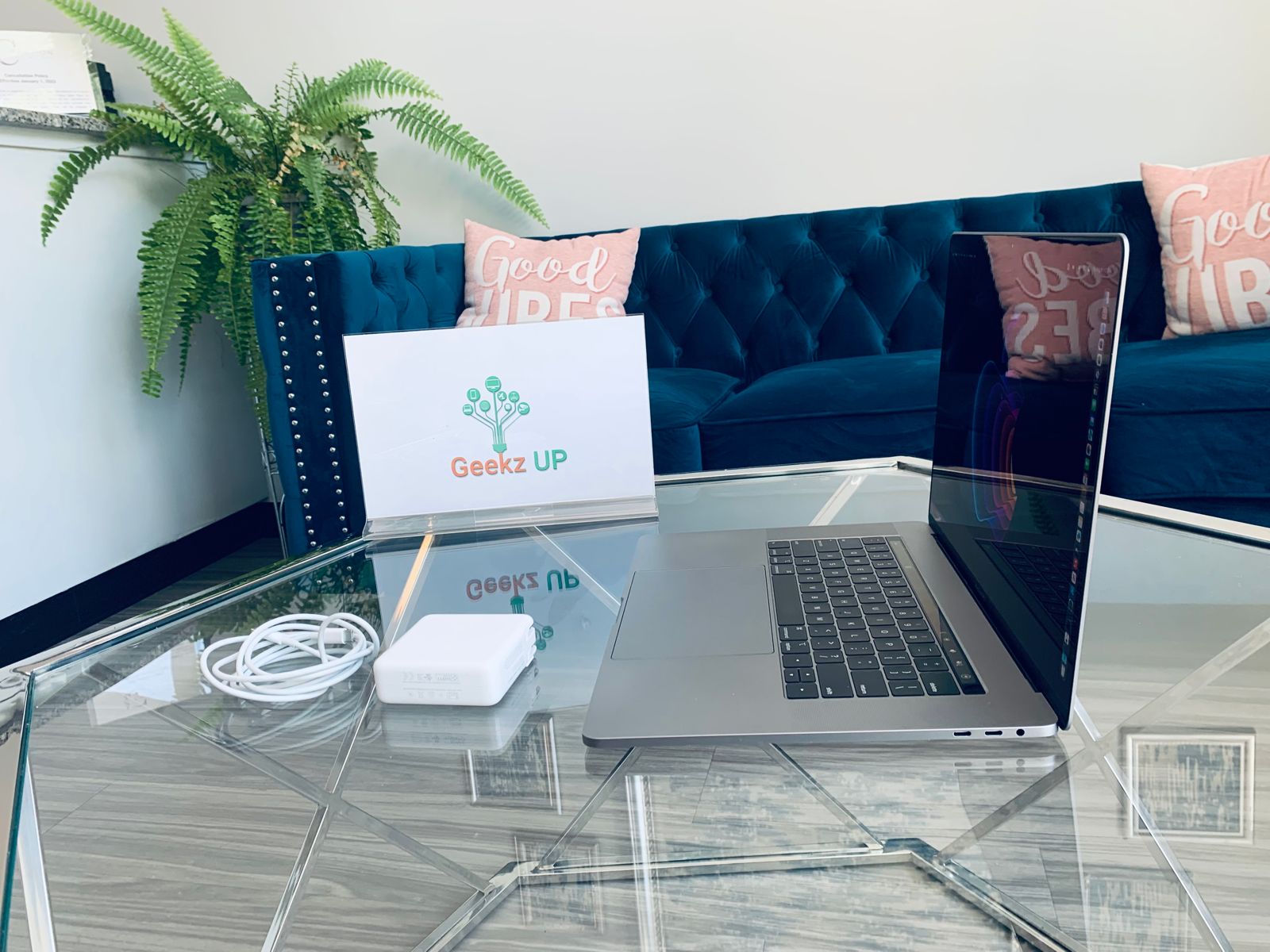
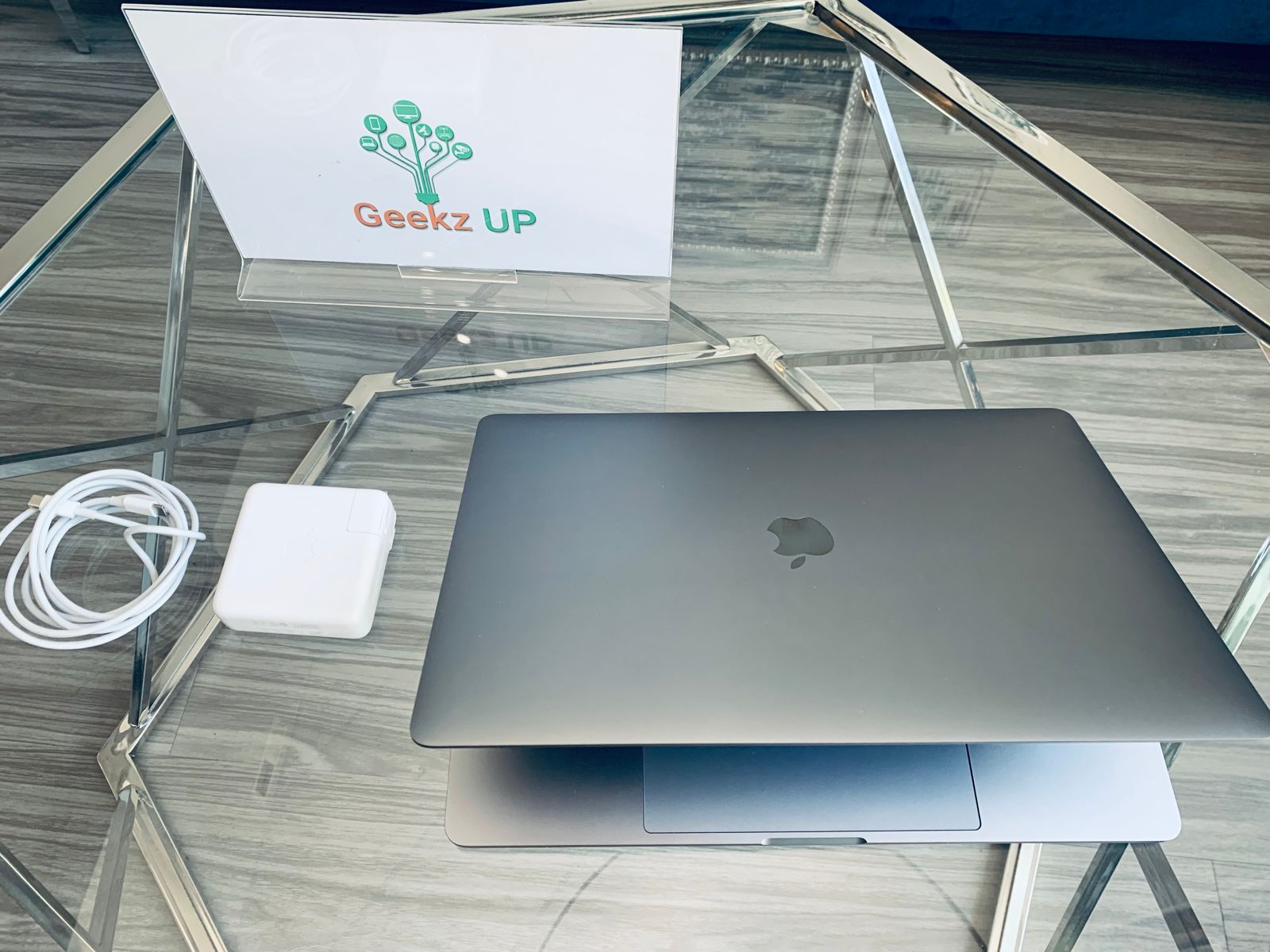
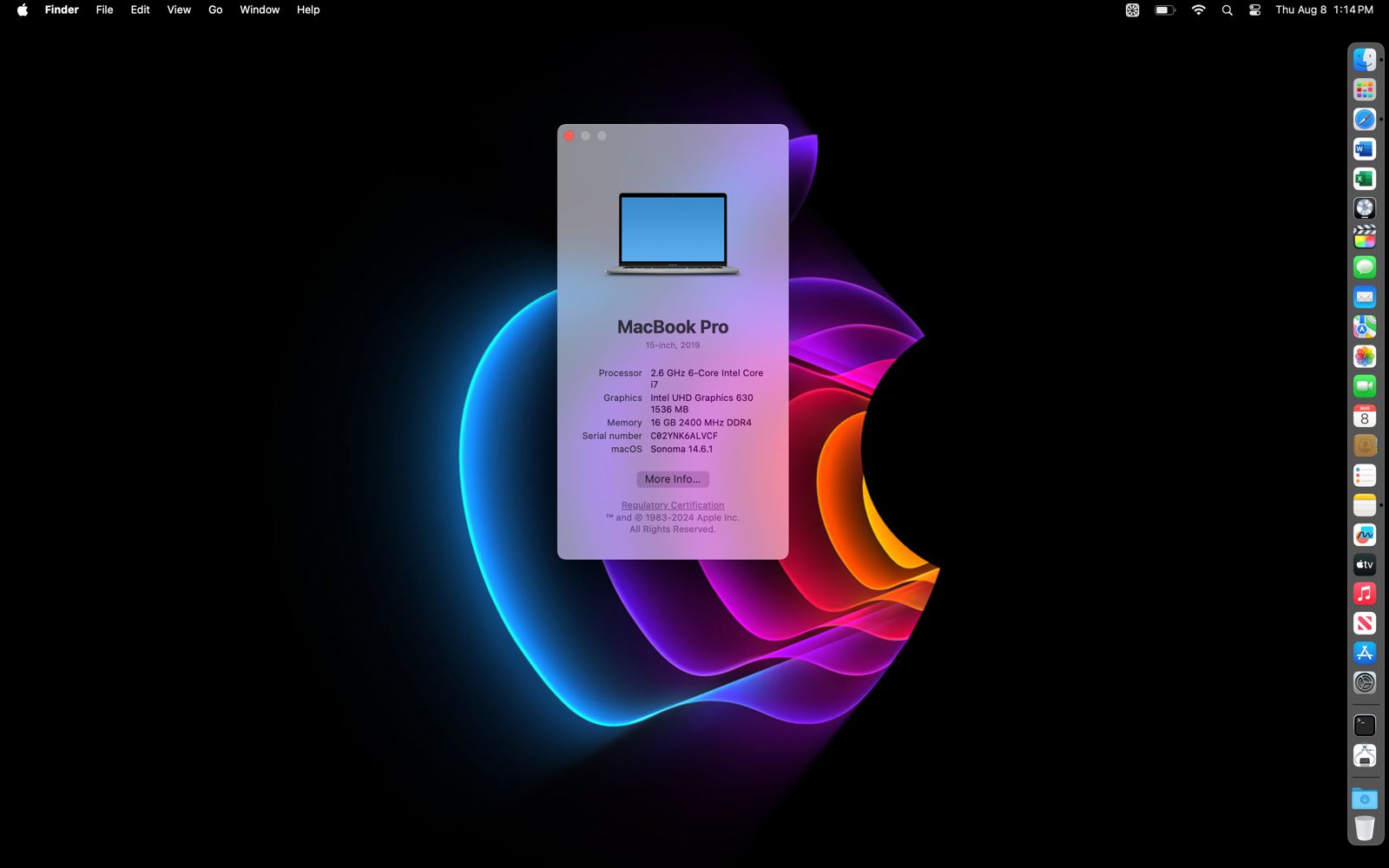
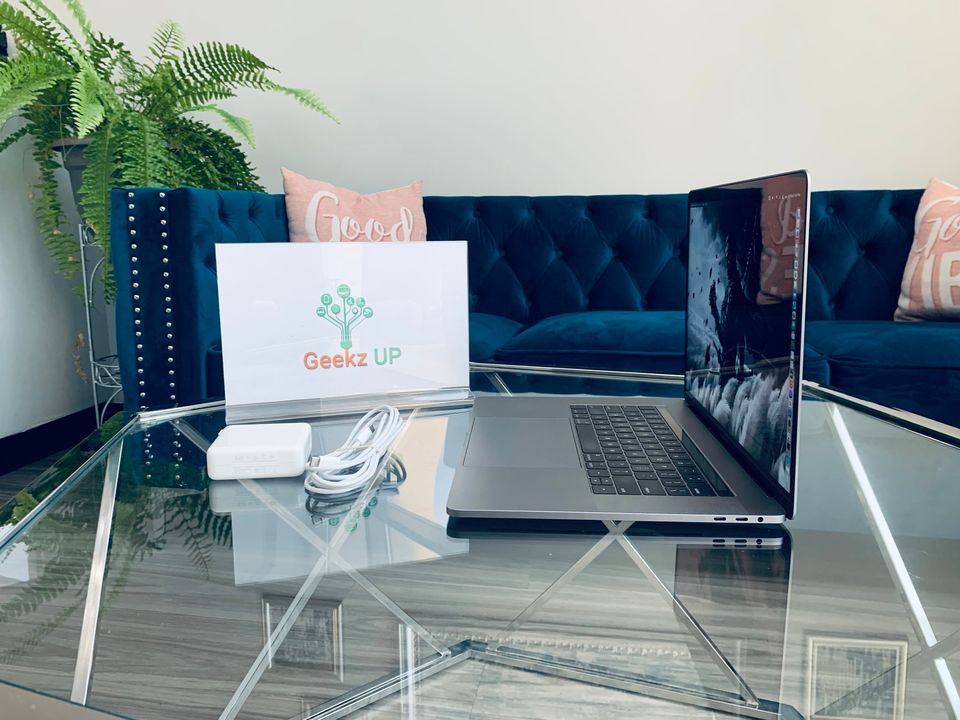
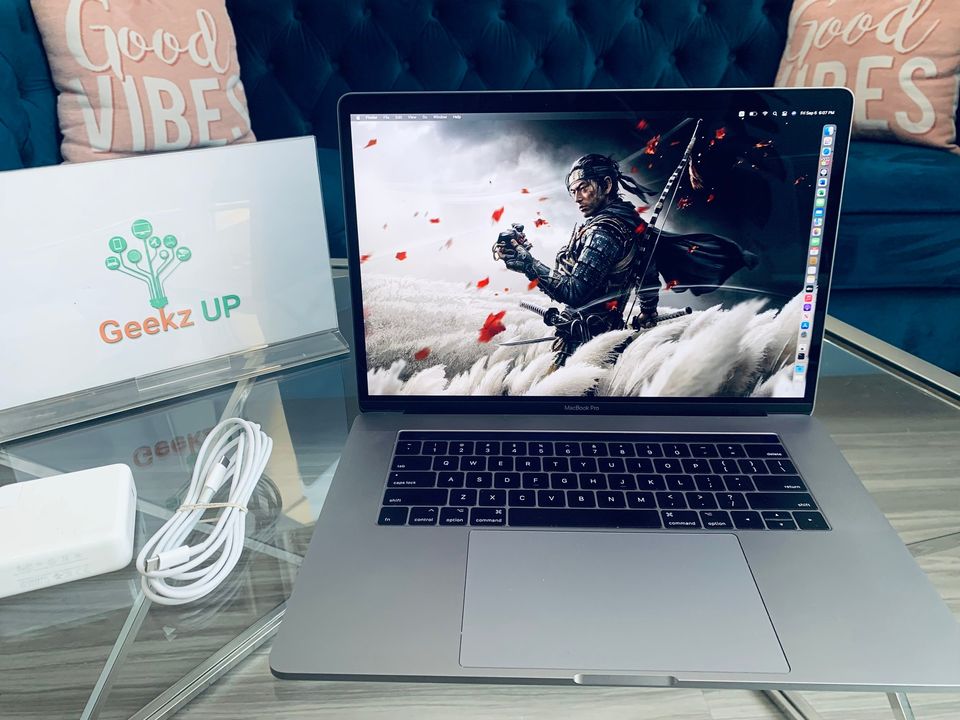
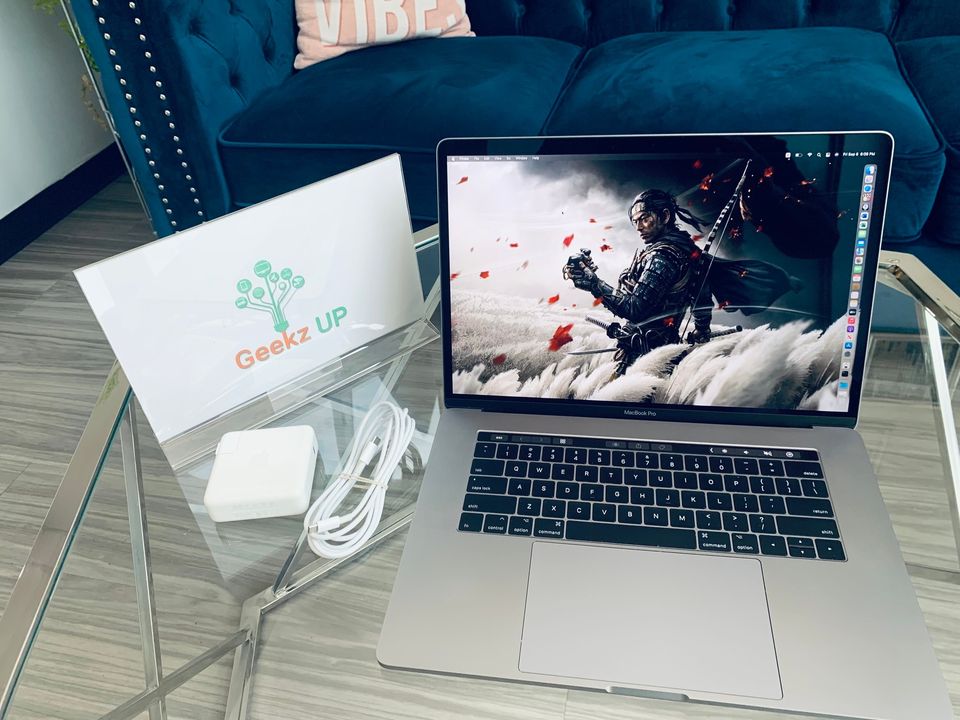
Like New 2019 16” Macbook Pro

Configuration

Preloaded Software

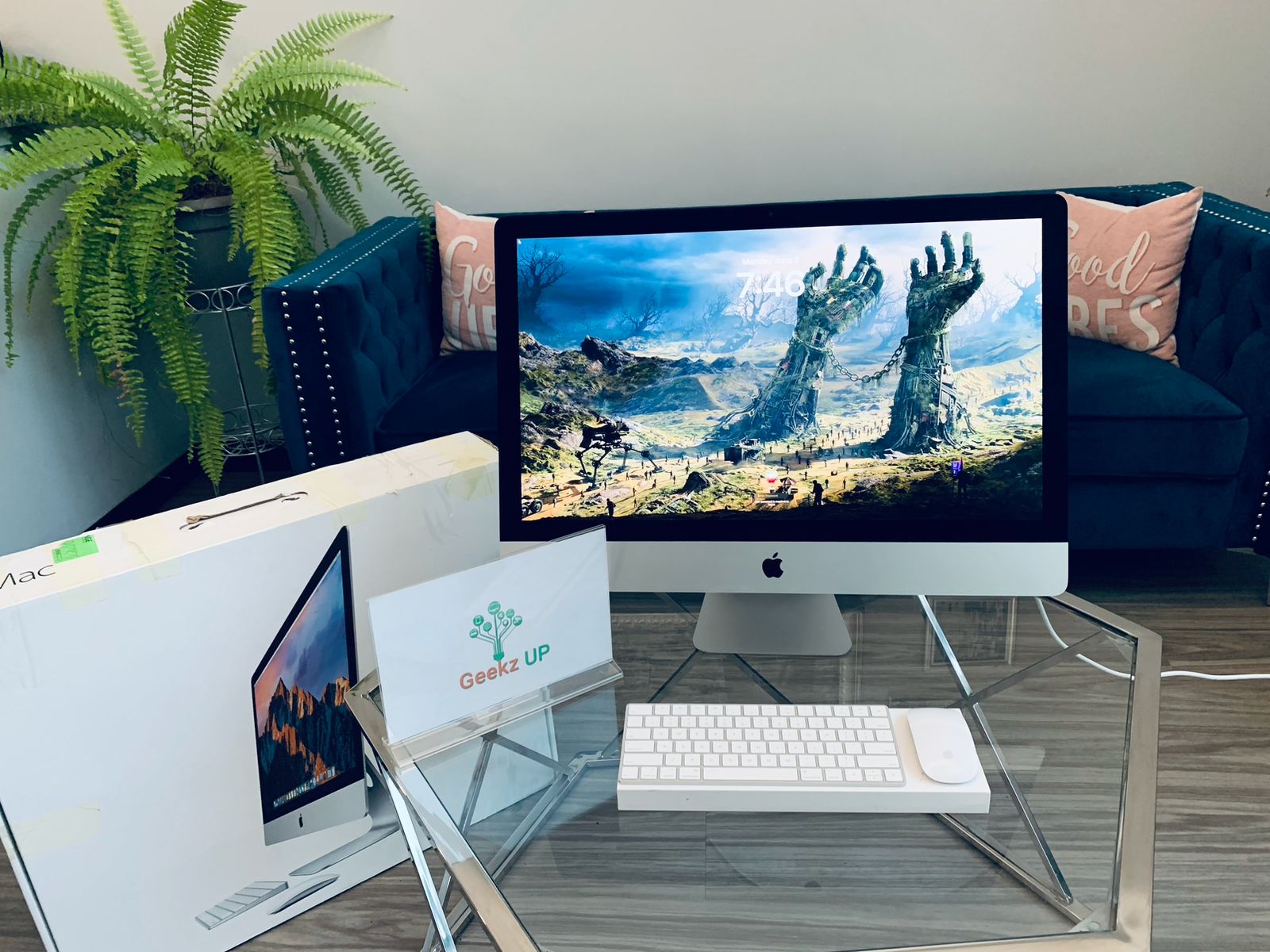
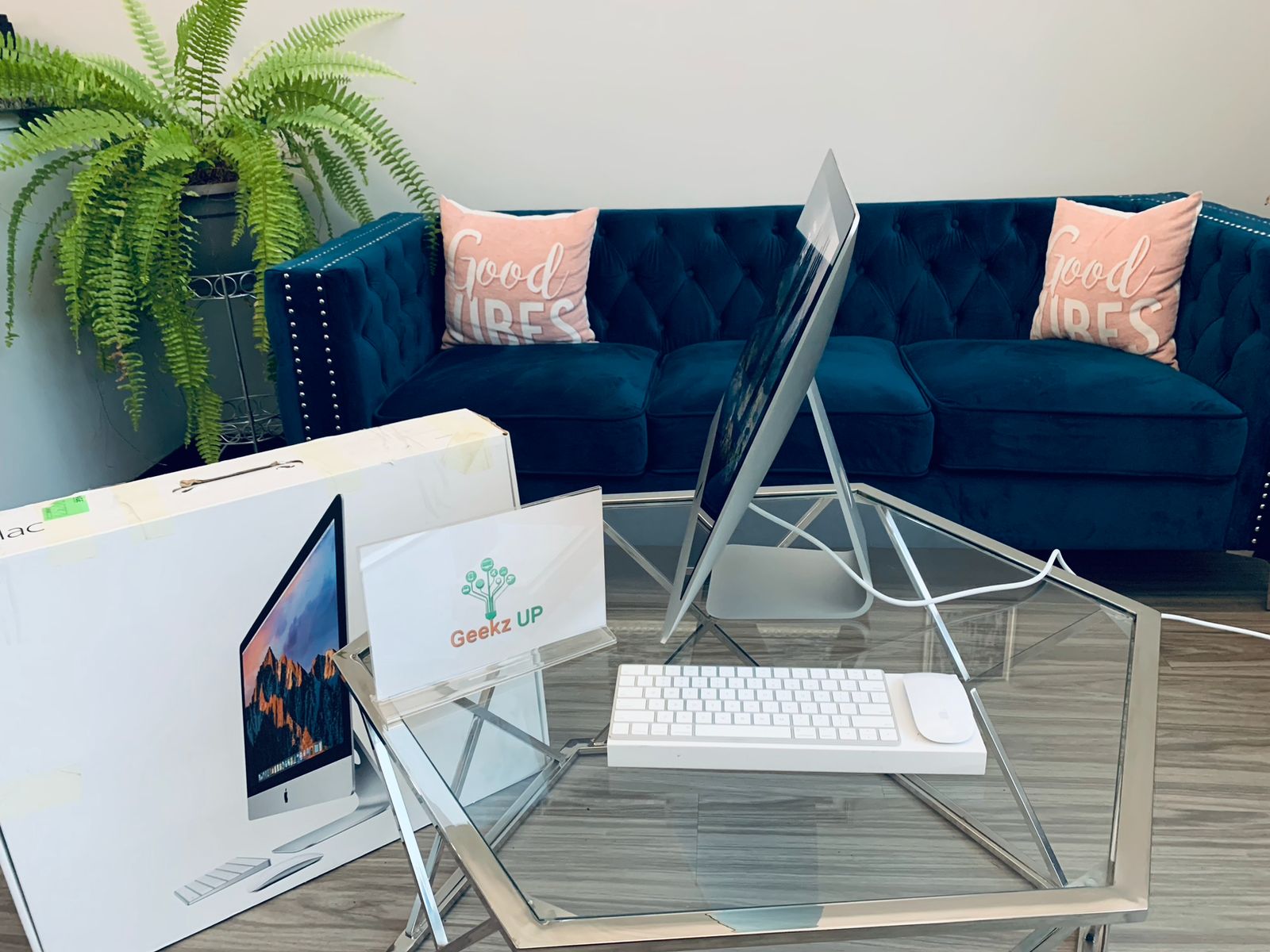
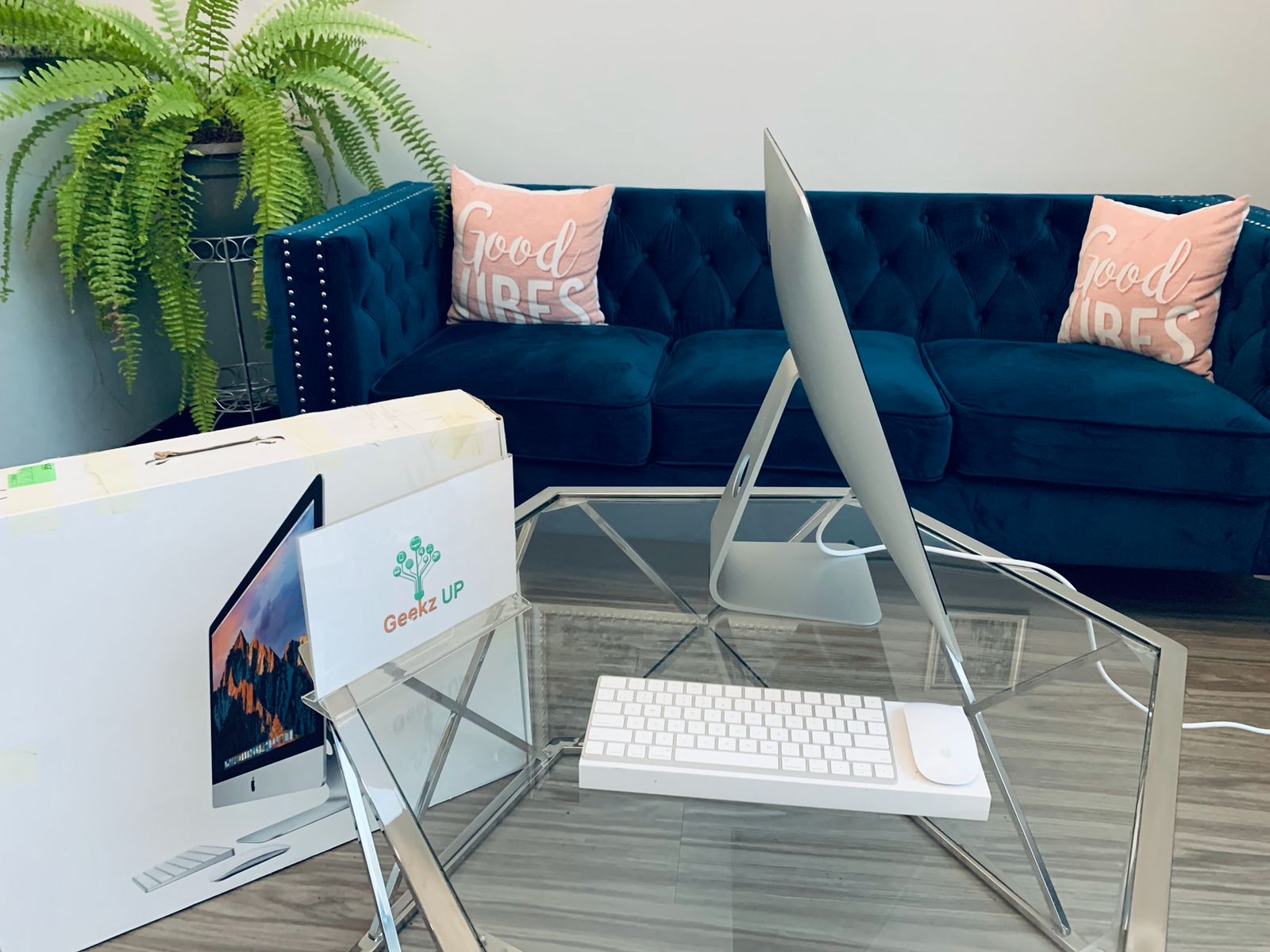
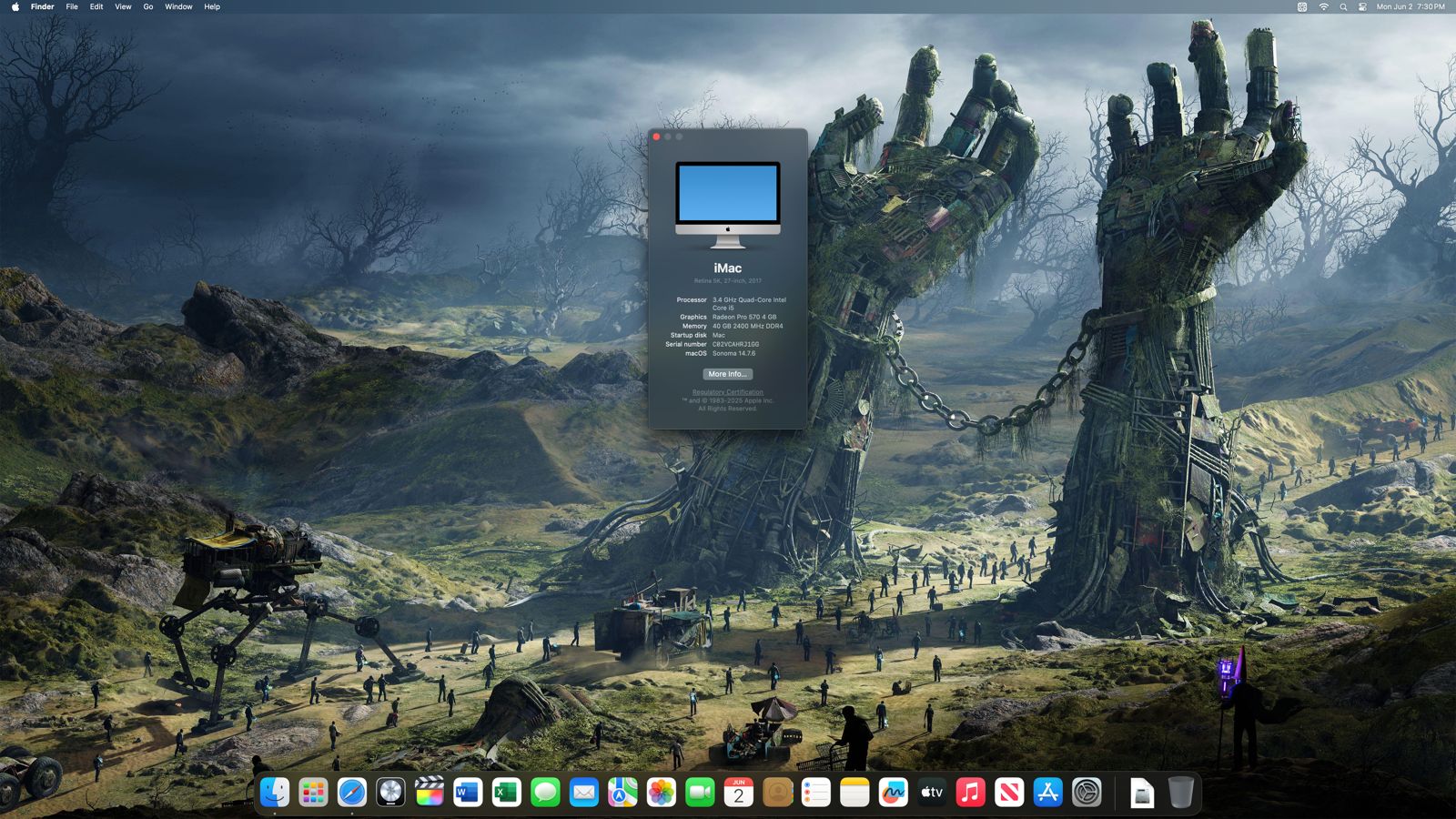
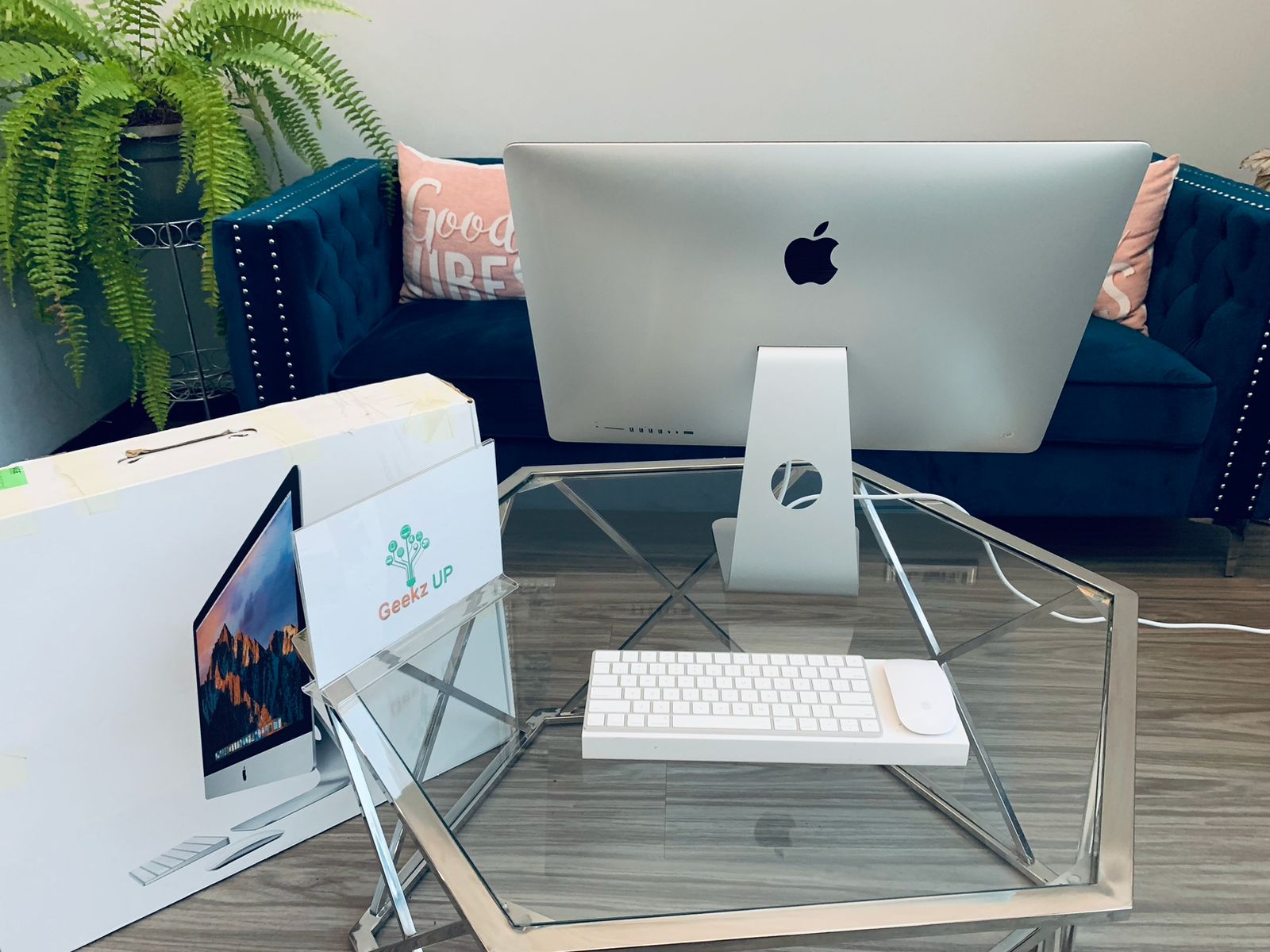
Like New 2017 iMac 27"

Configuration

Preloaded Software

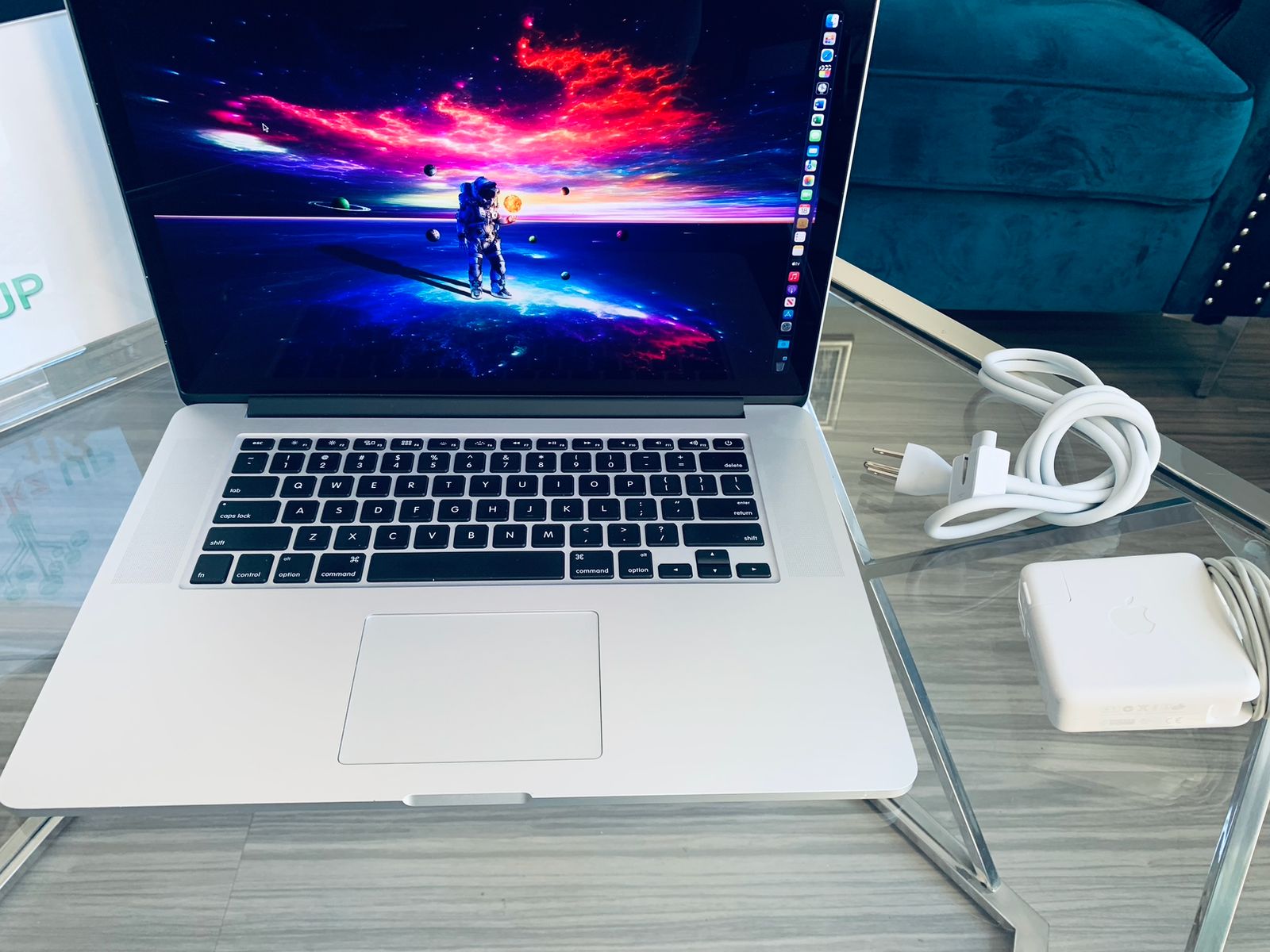
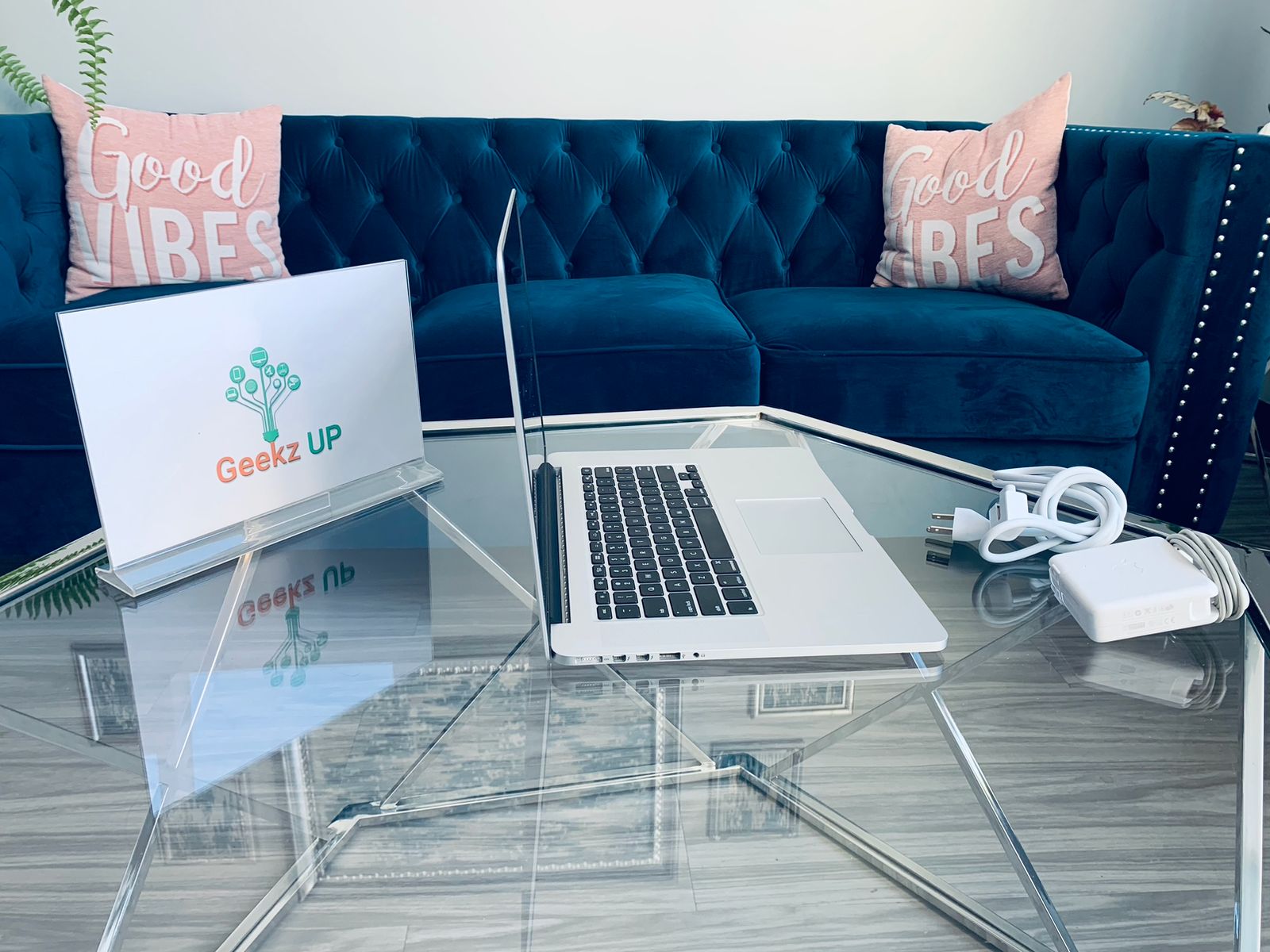
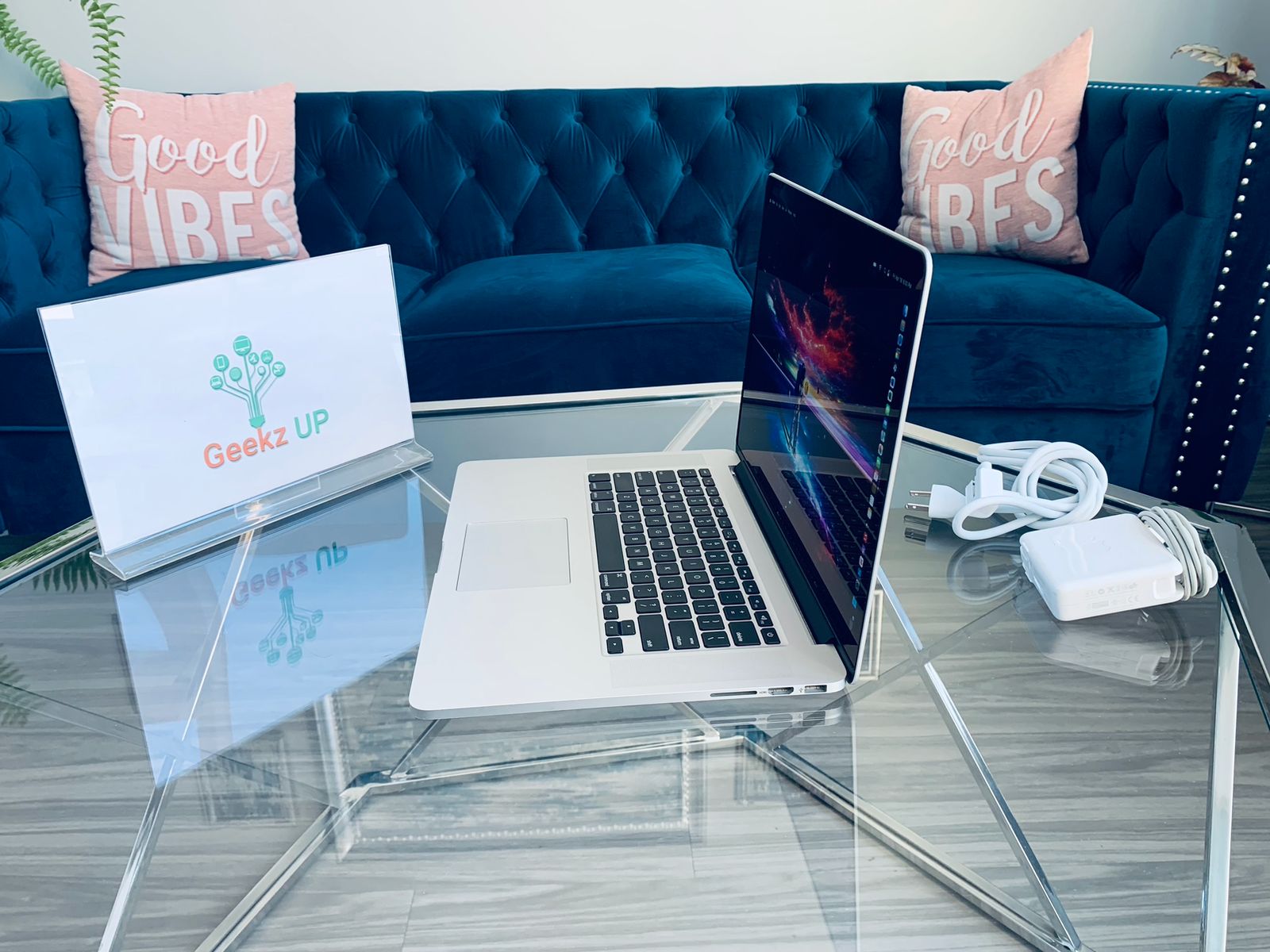
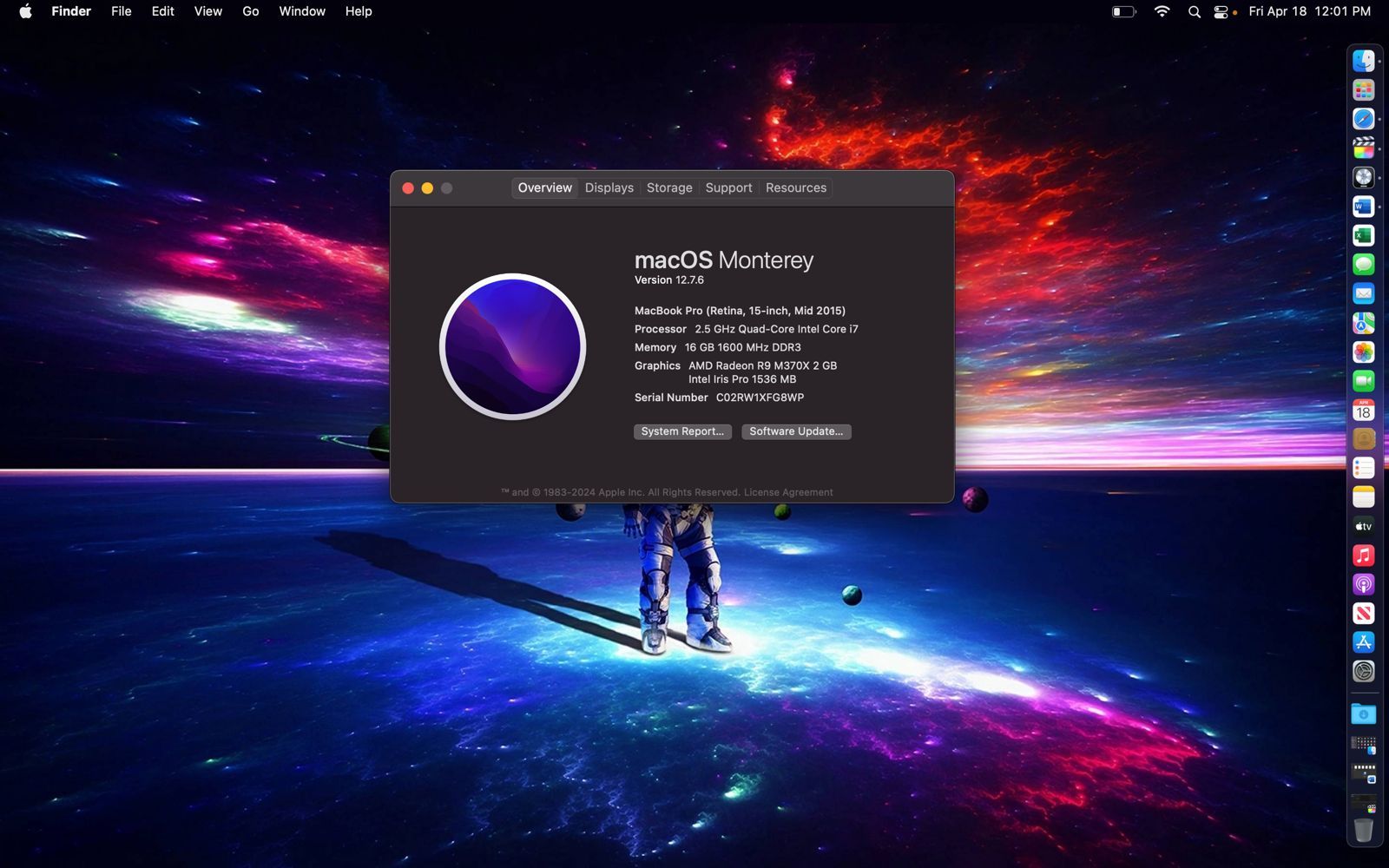
15’ Macbook Pro 2015 (Like New)

Configuration

Preloaded Software

Gaming Beast

Configuration

Preloaded Software

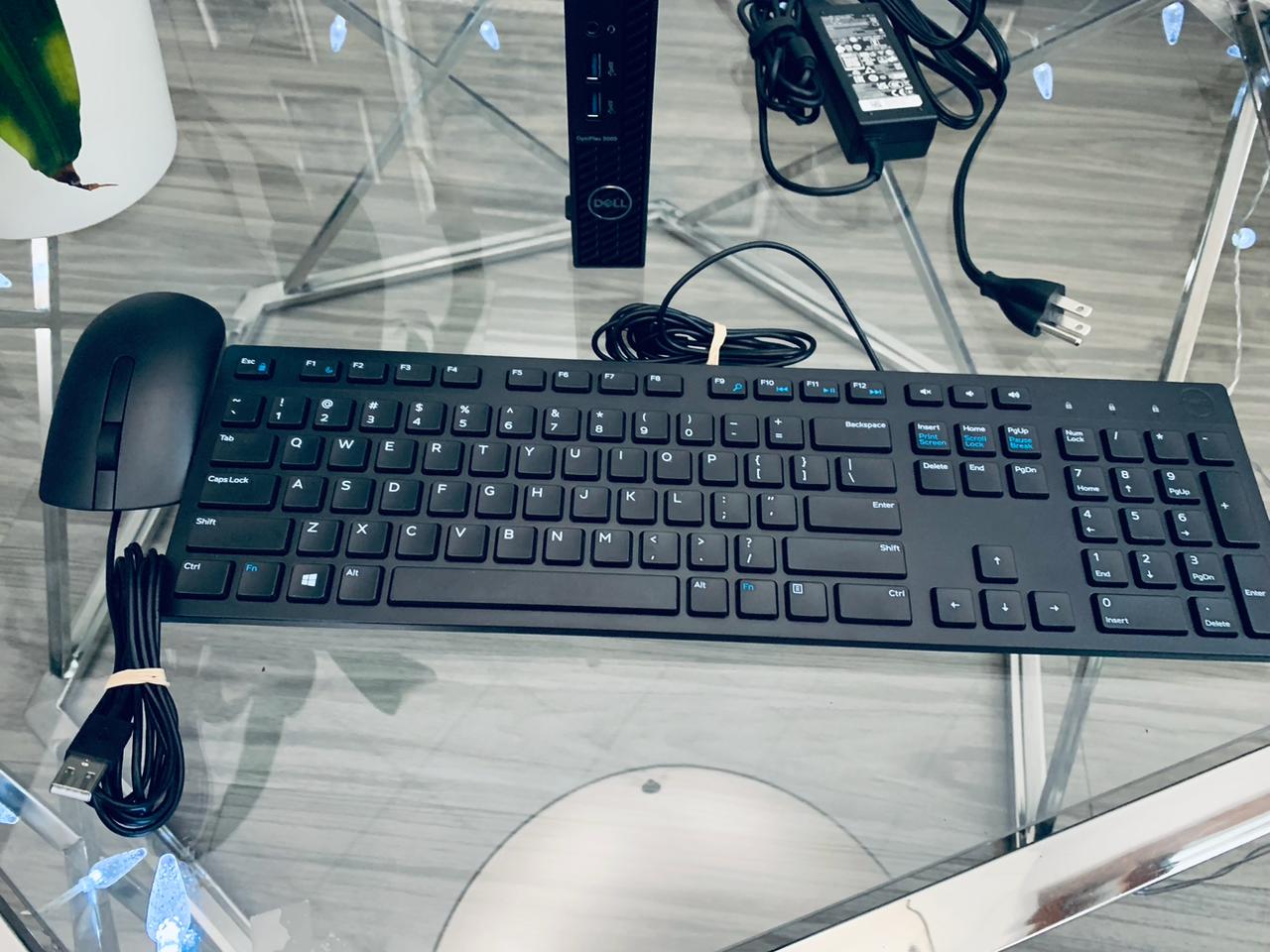
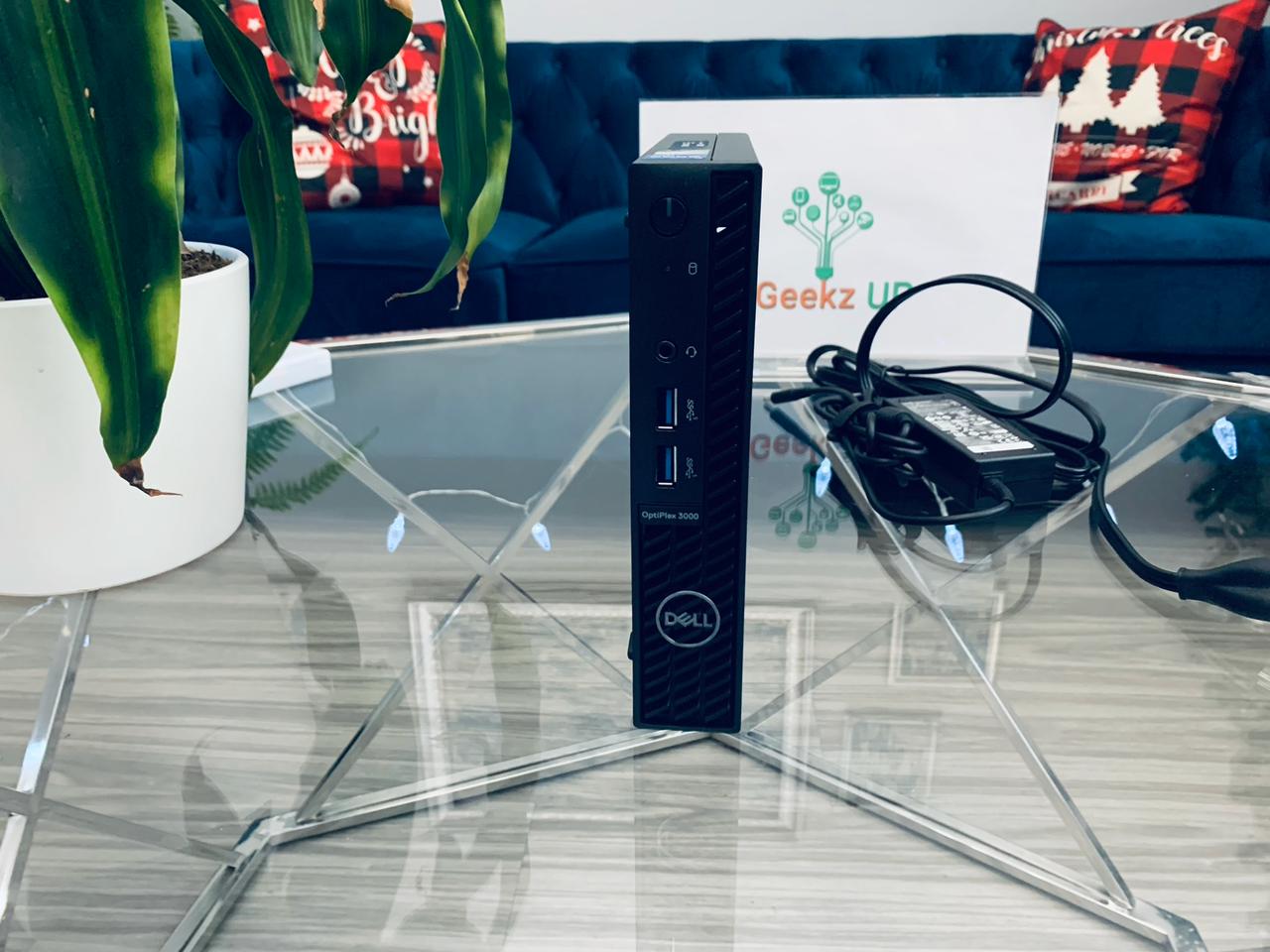
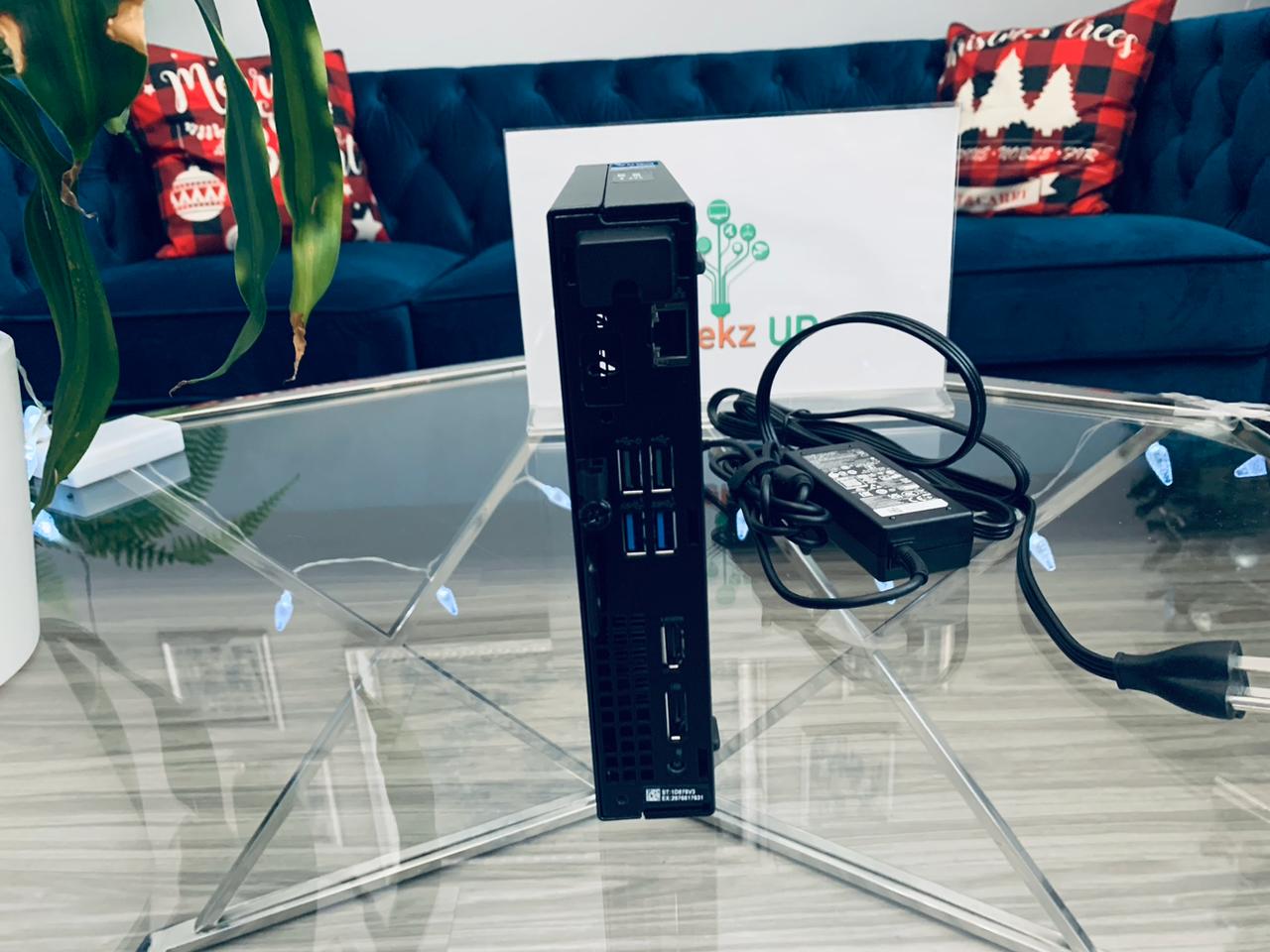
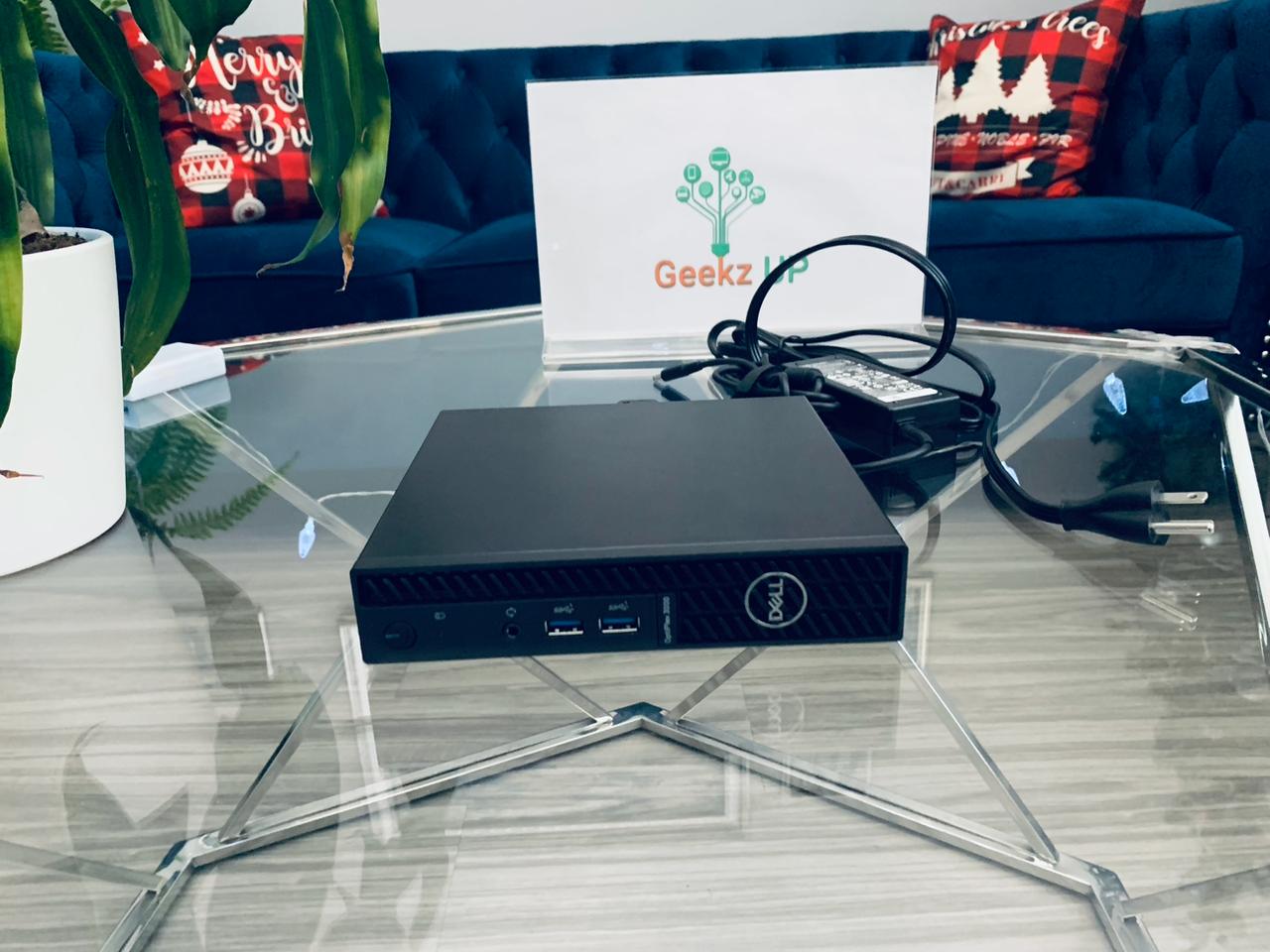
Dell OptiPlex 3000

Configuration

Preloaded Software

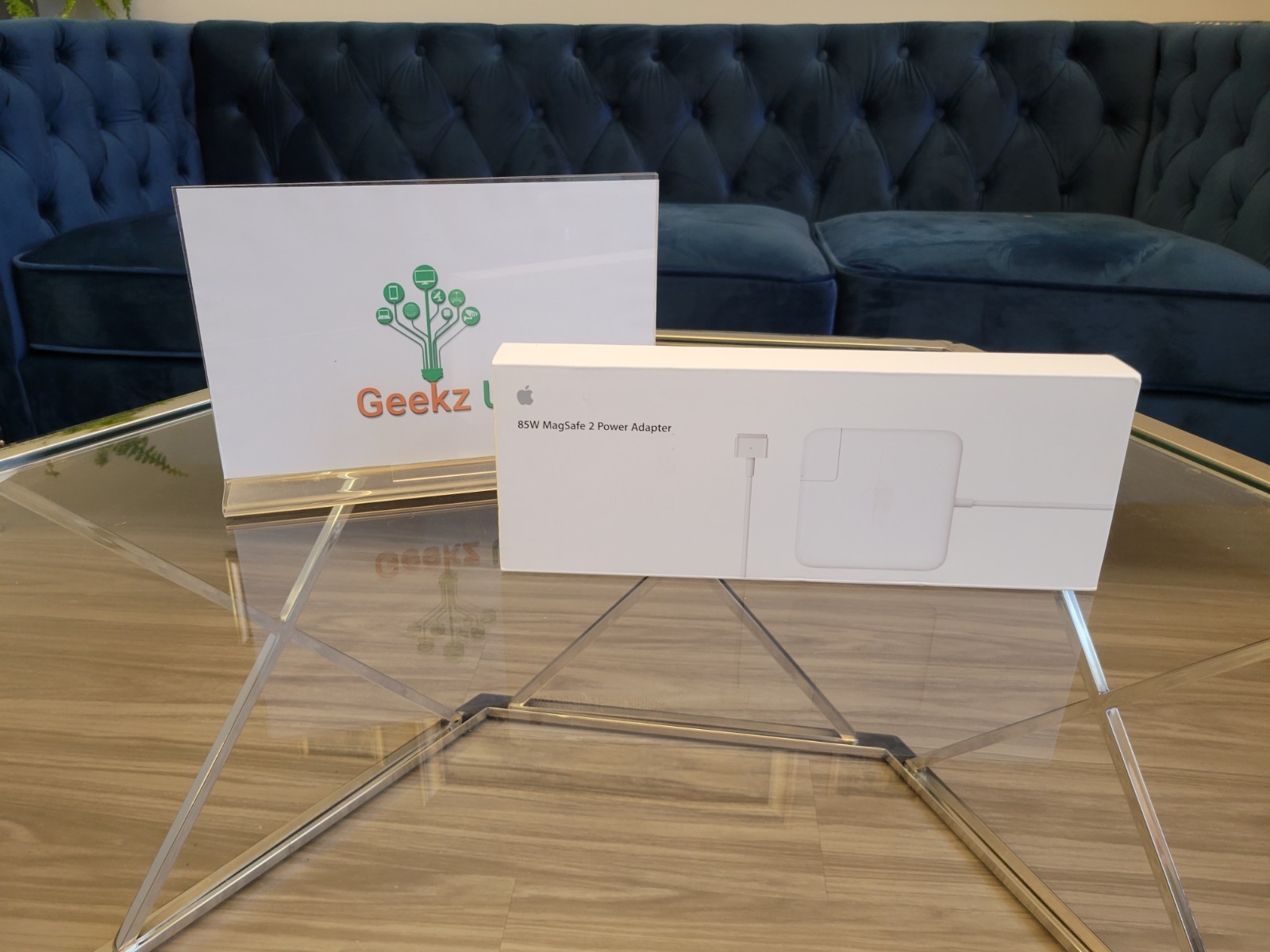
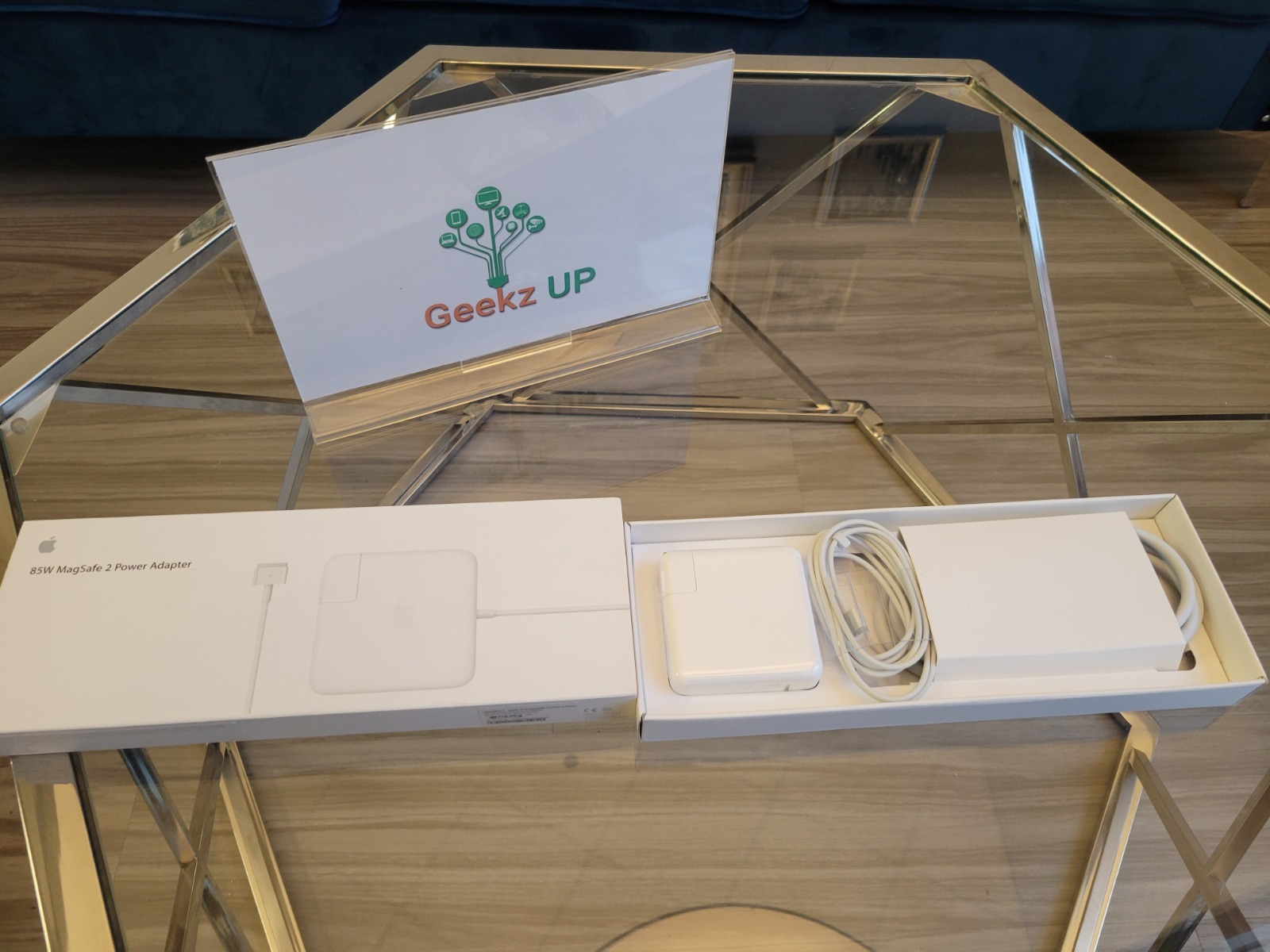
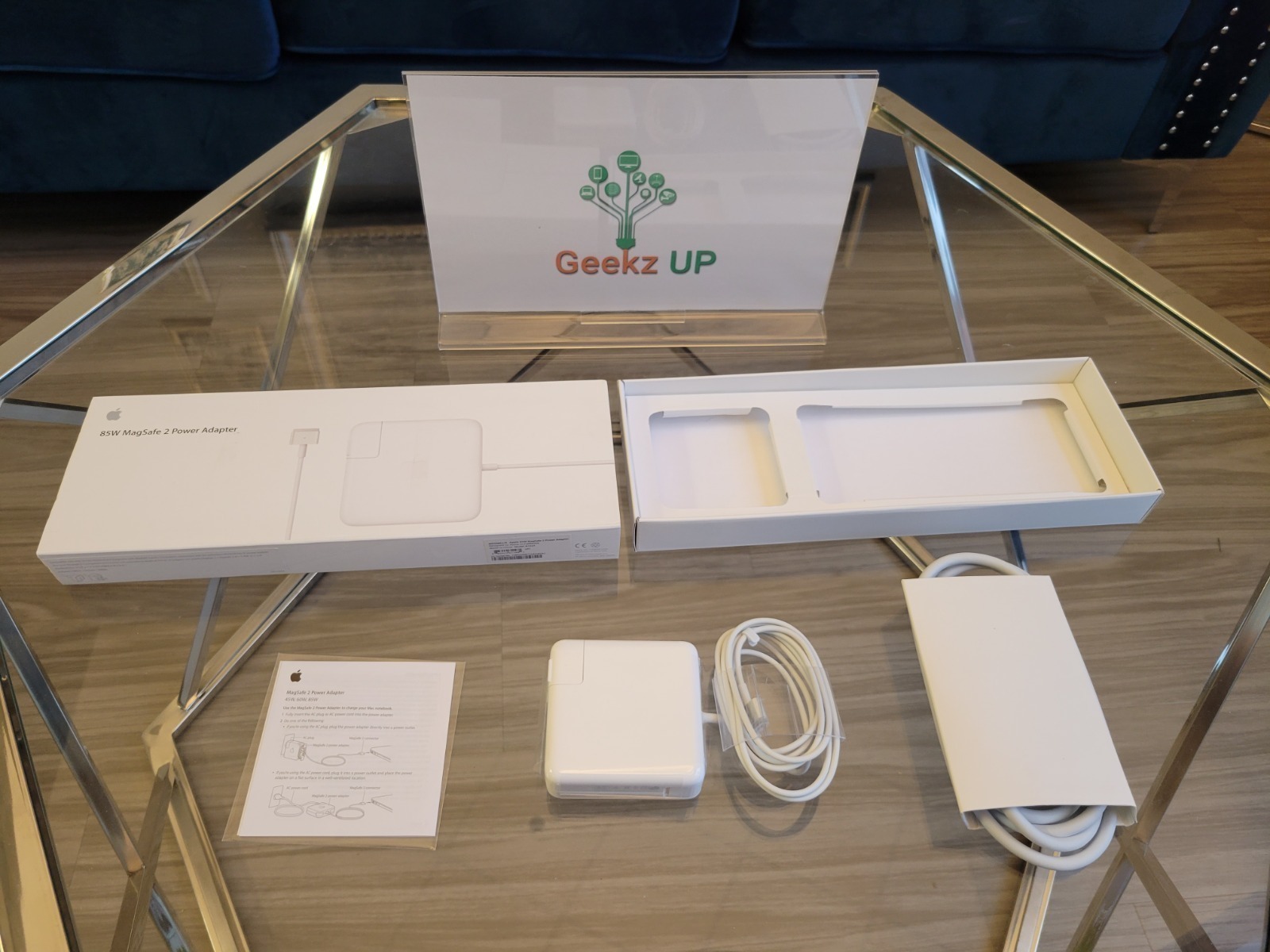
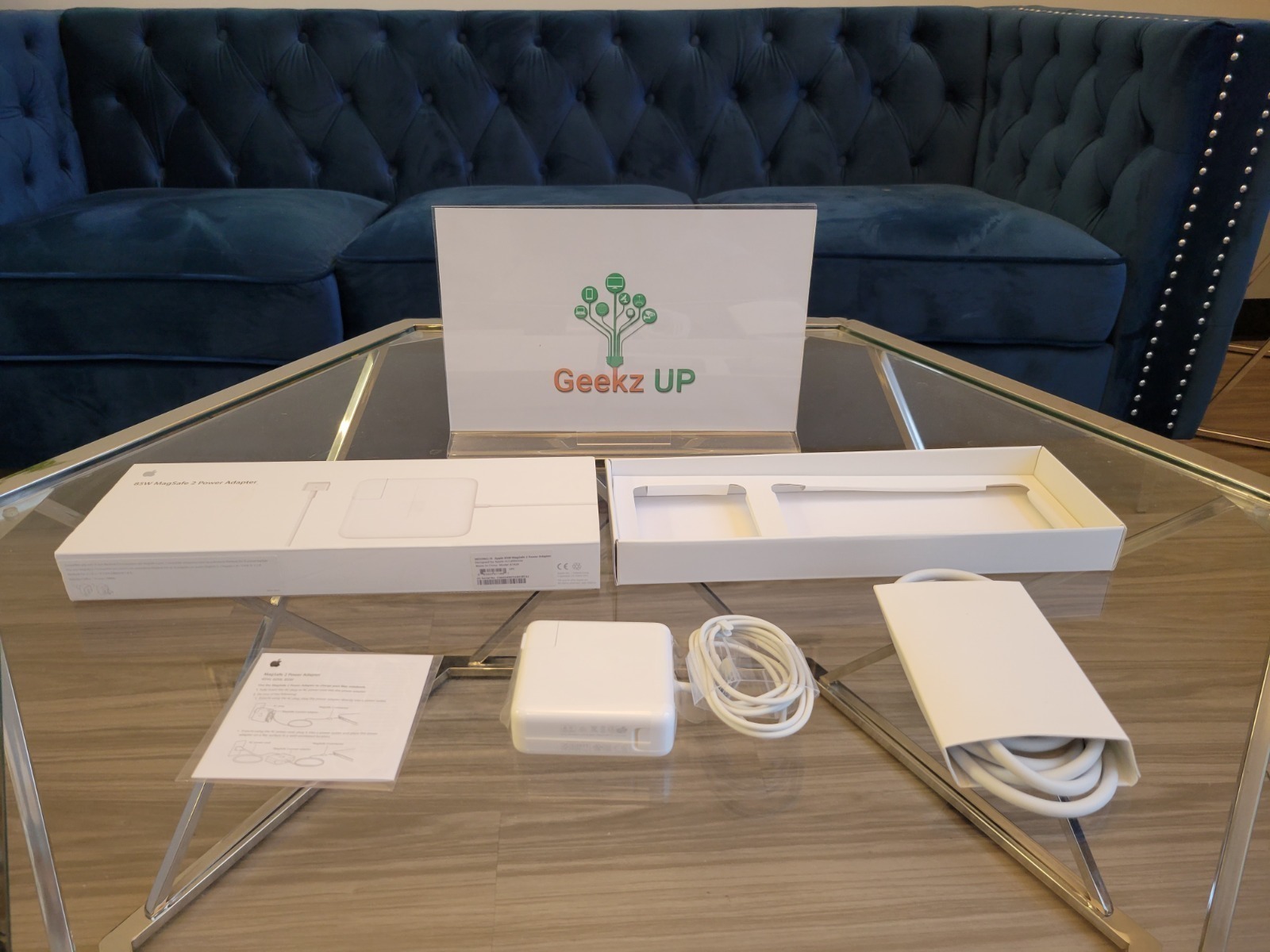
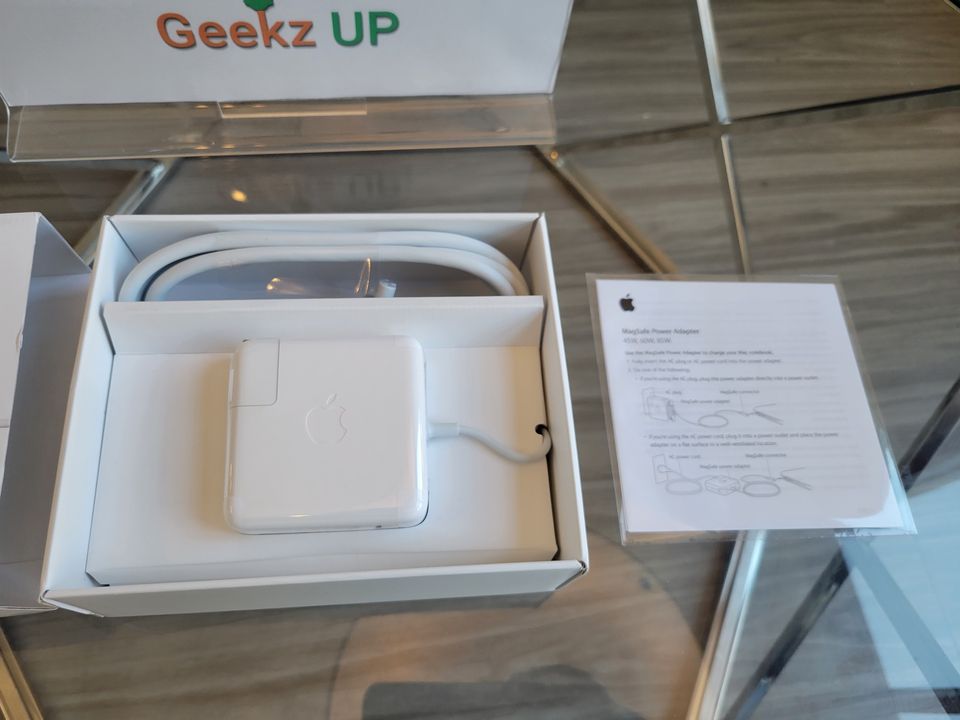
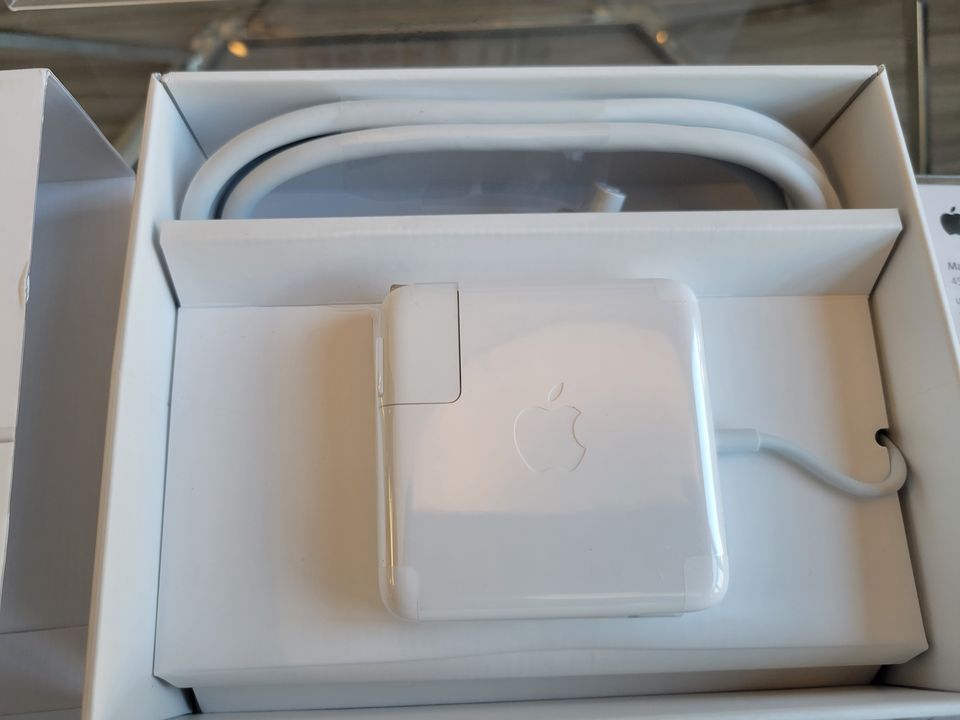
Genuine OEM 85W MagSafe 2 Power Adapter With 6Ft Extension Cord For Apple MacBook Pro Retina

Technical Specifications

Compatible Models

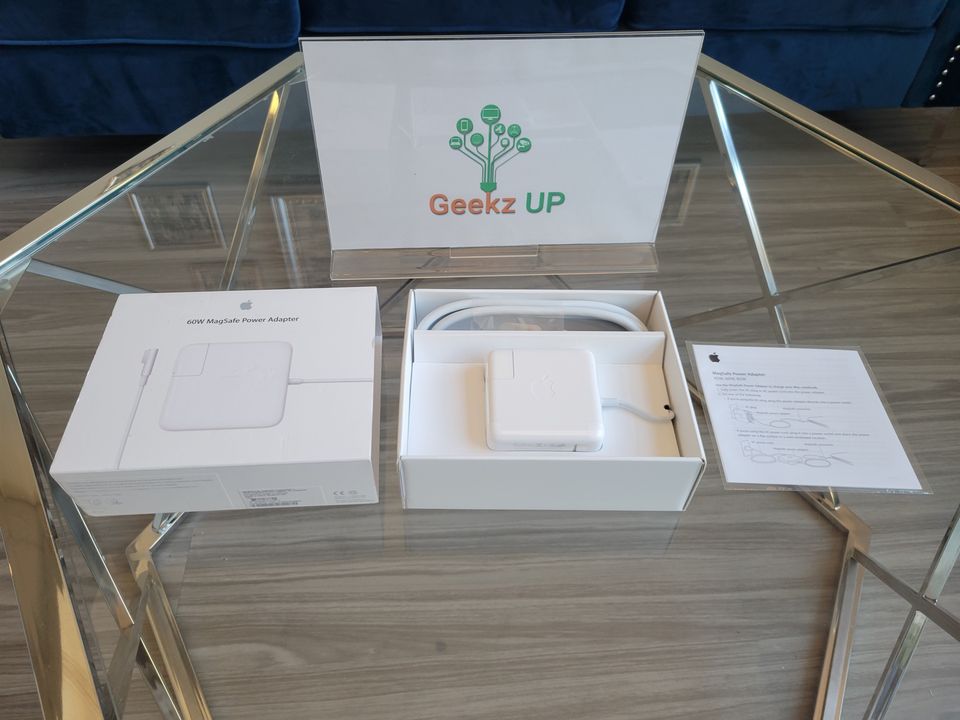
Brand New 60W MagSafe1 Adapter For MacBook Pro Power Charger A1184 A1330 A1344

Neutral box

Specifications

Compatible model

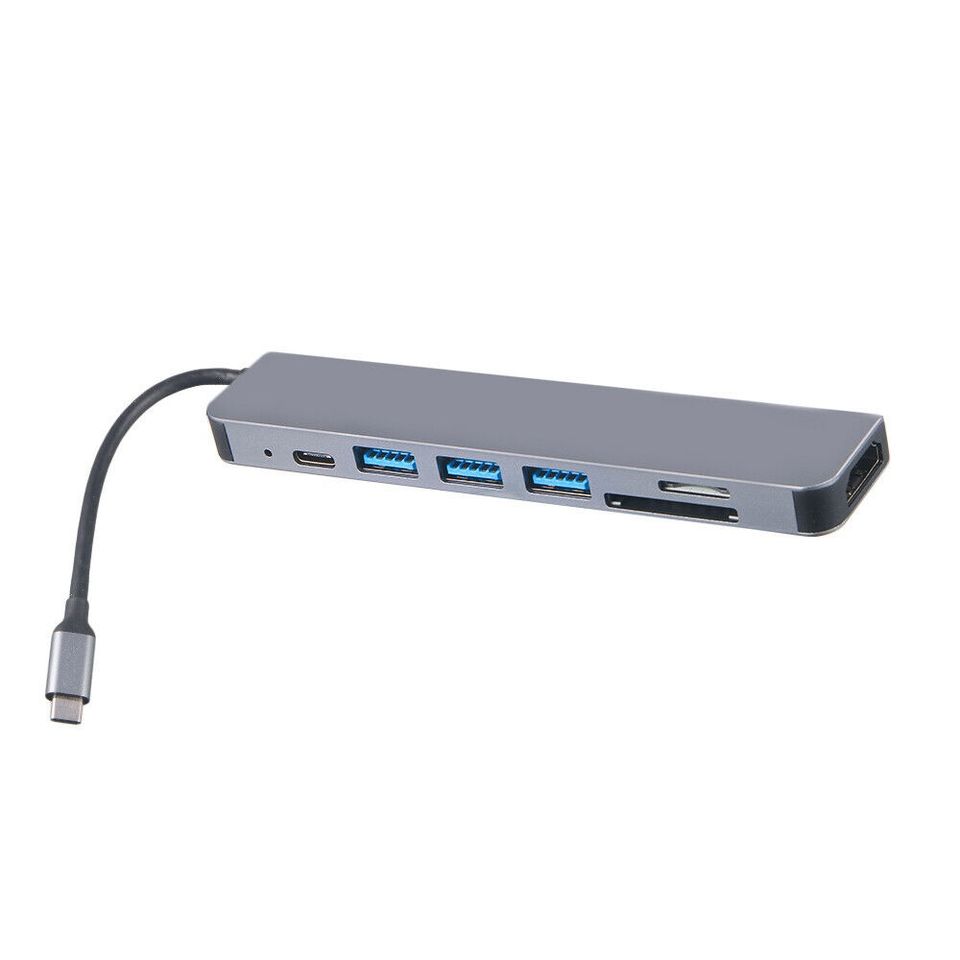
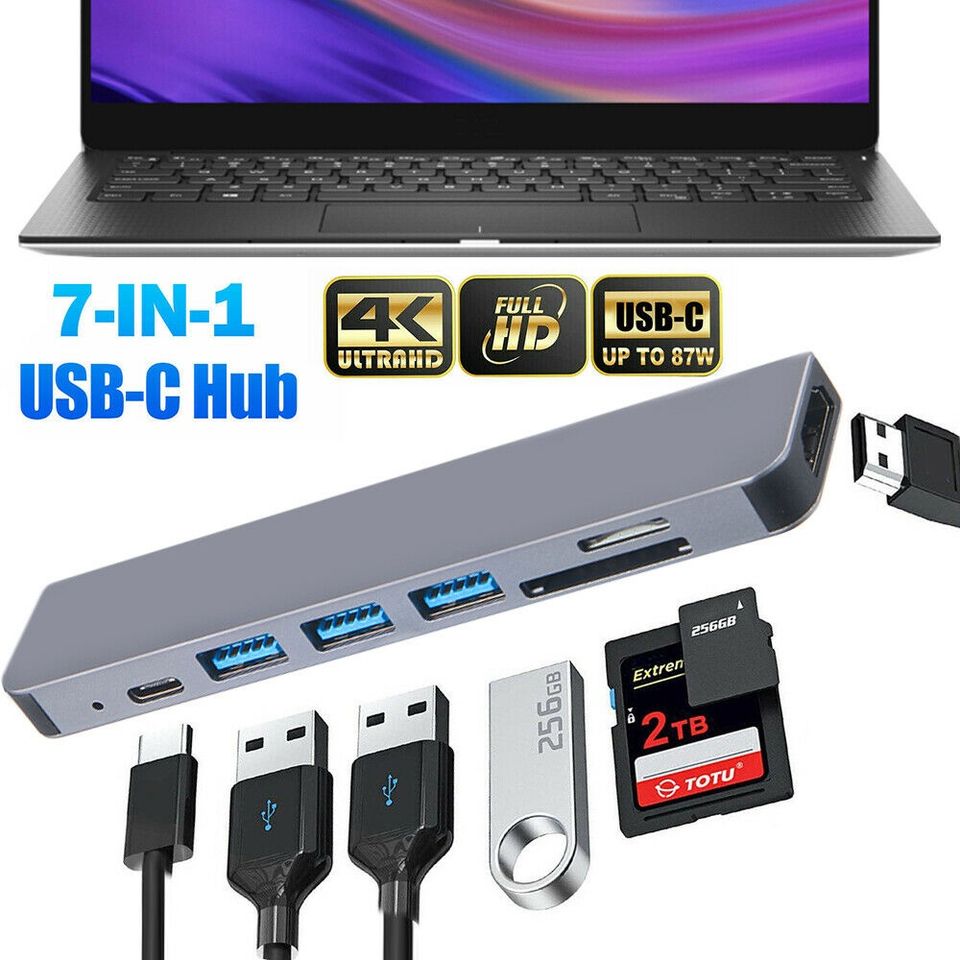
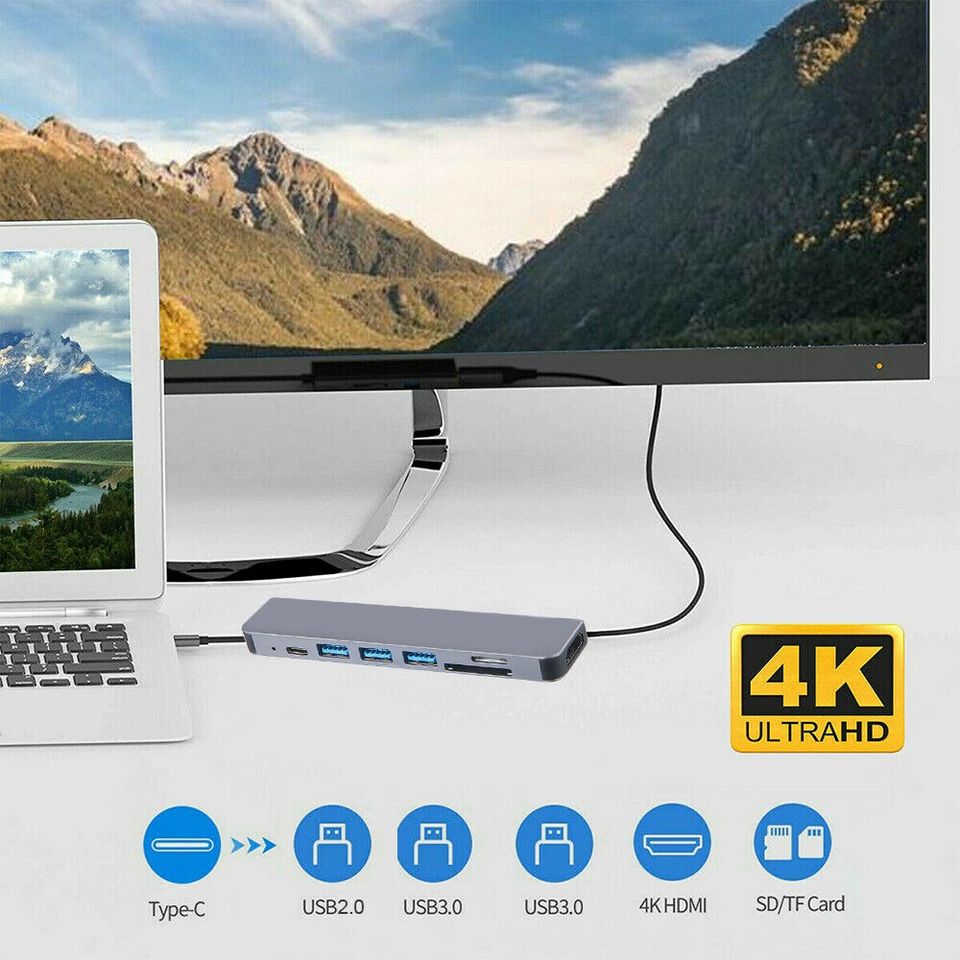
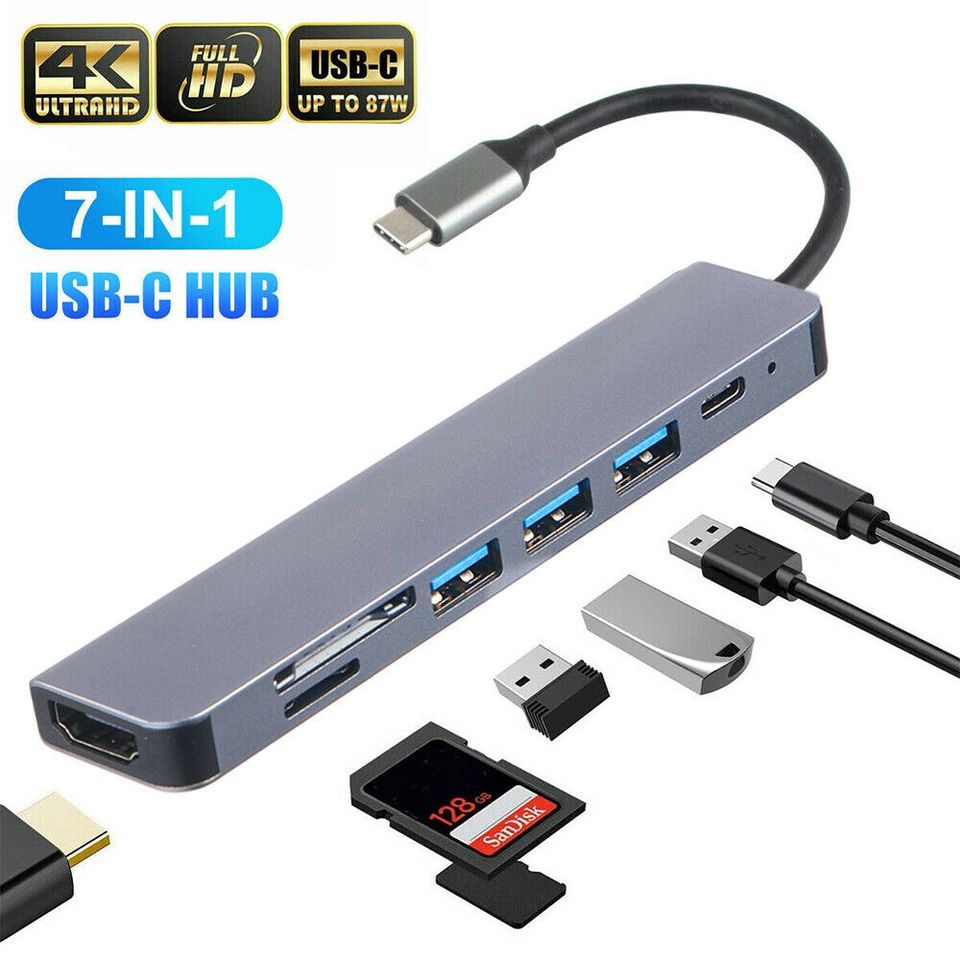
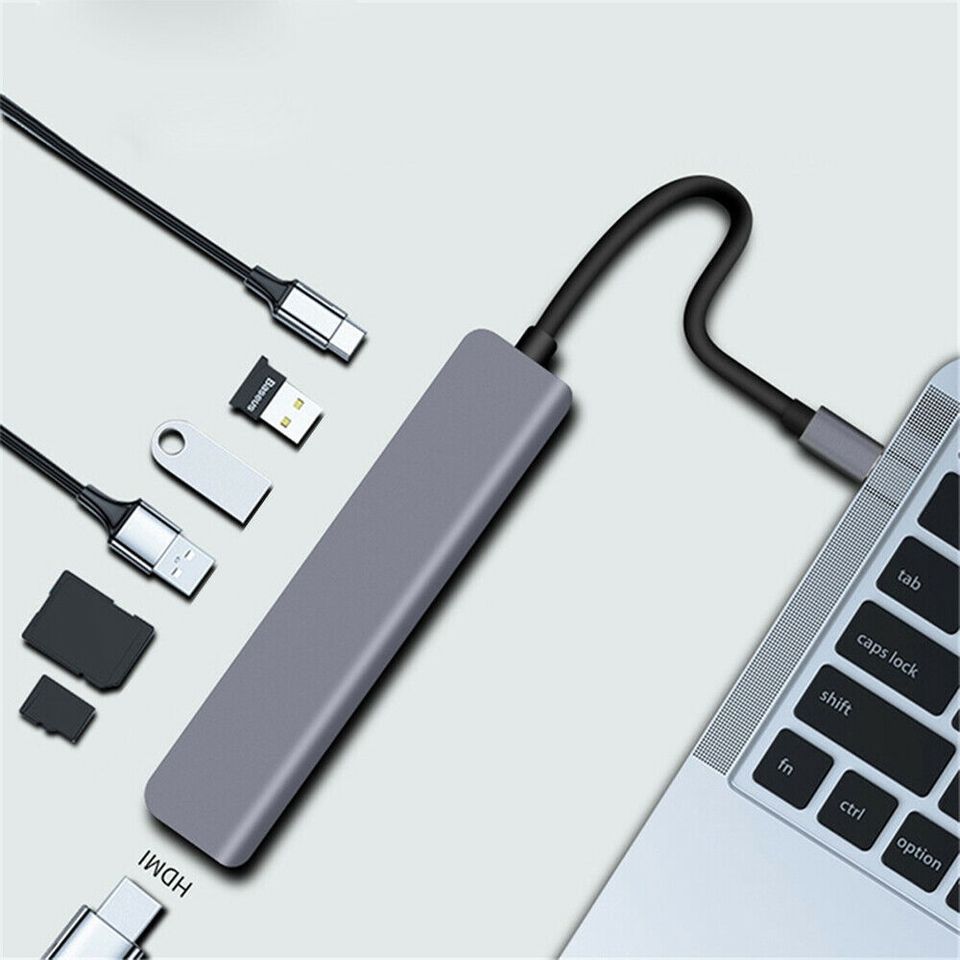
7 in 1 Multiport USB C

Features

Specifications

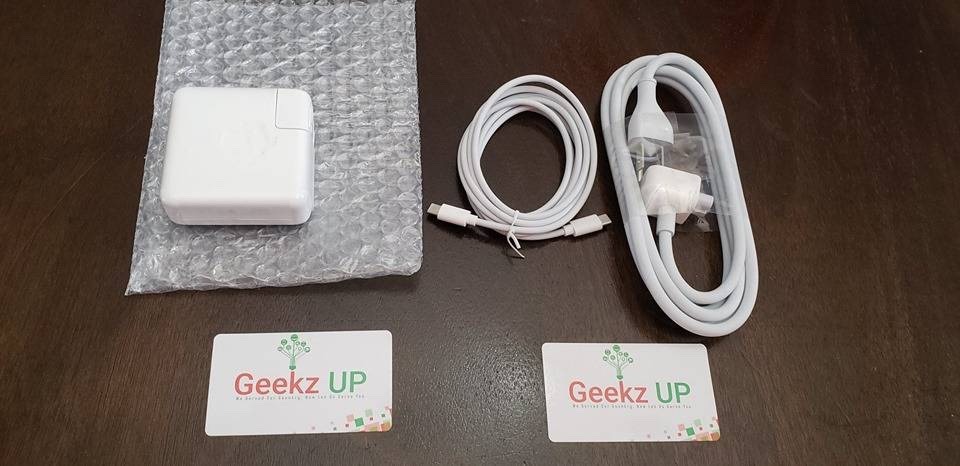
Apple 61W USB-C Power Adapter with 1M USB-C to C Cable + Extension Cord

Mac Models

Bundle

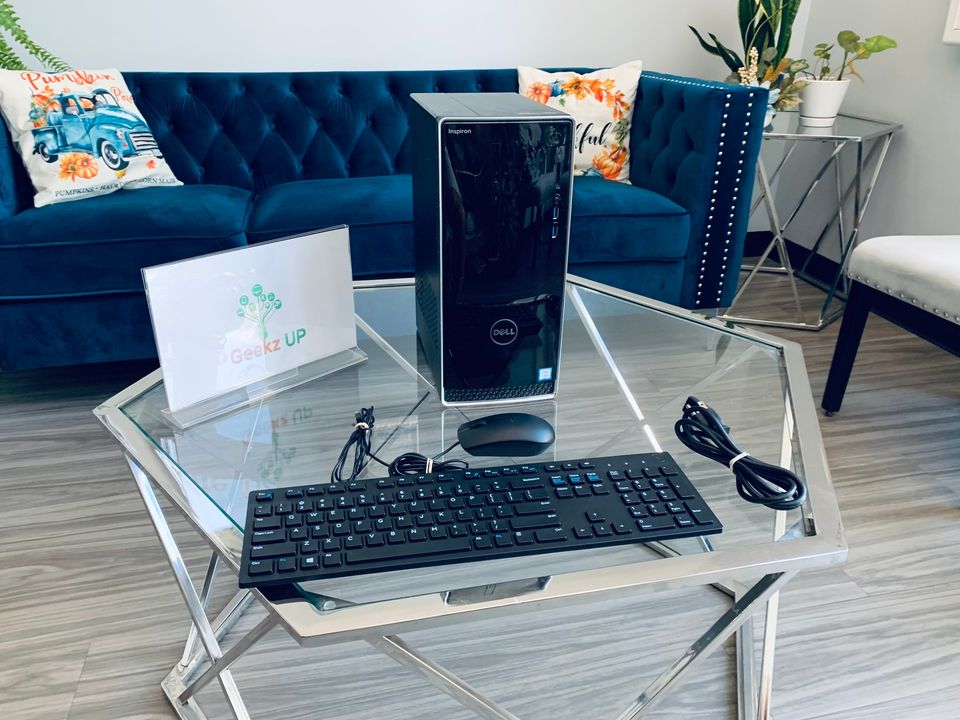
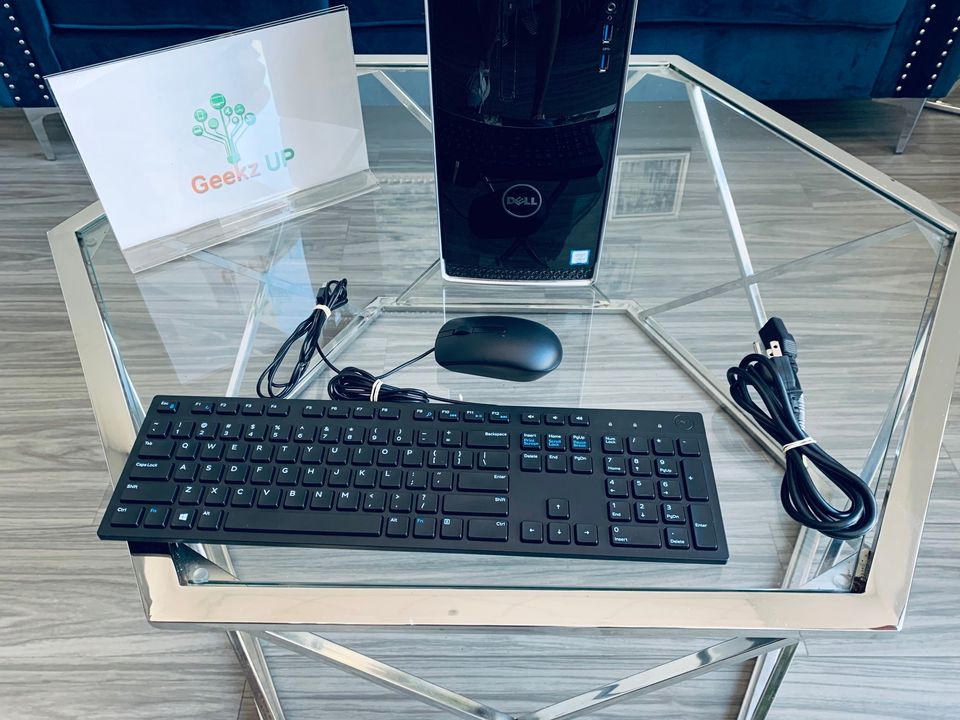
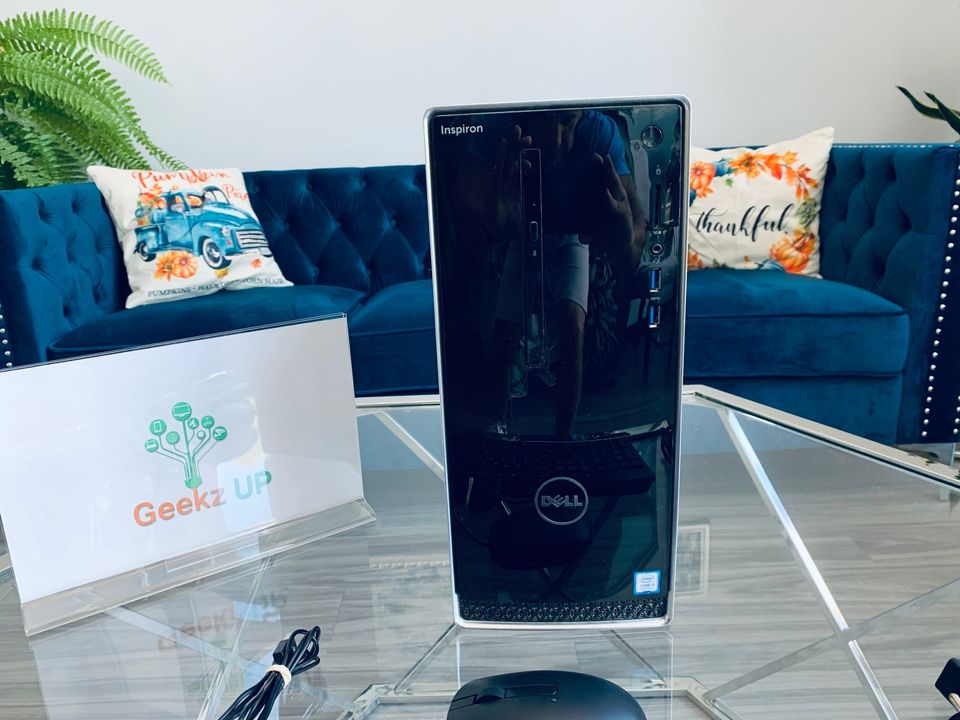
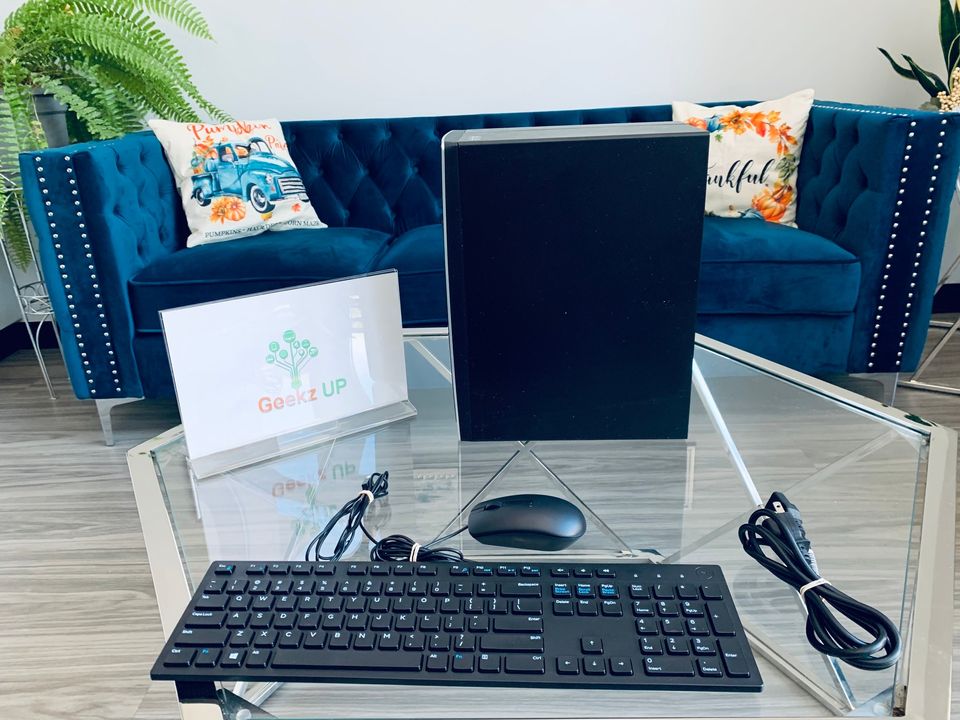
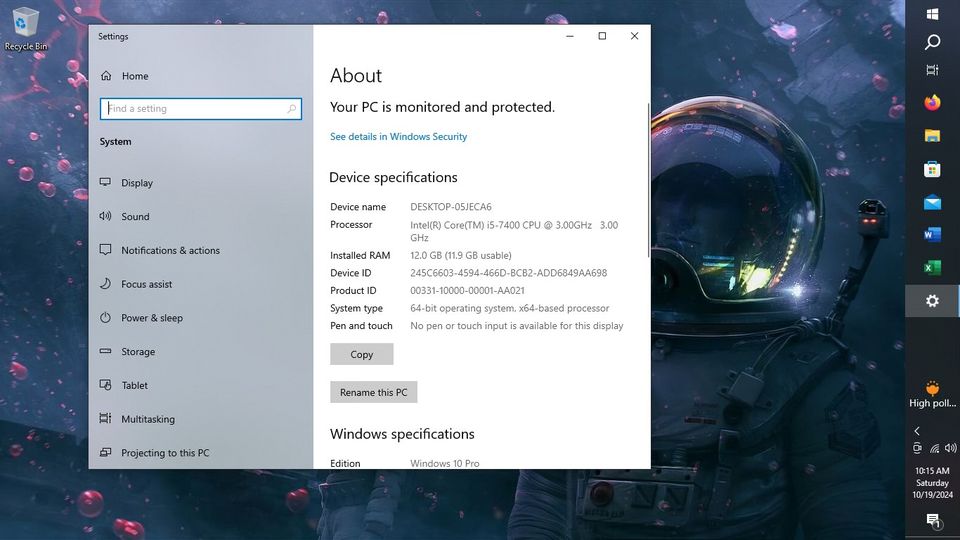
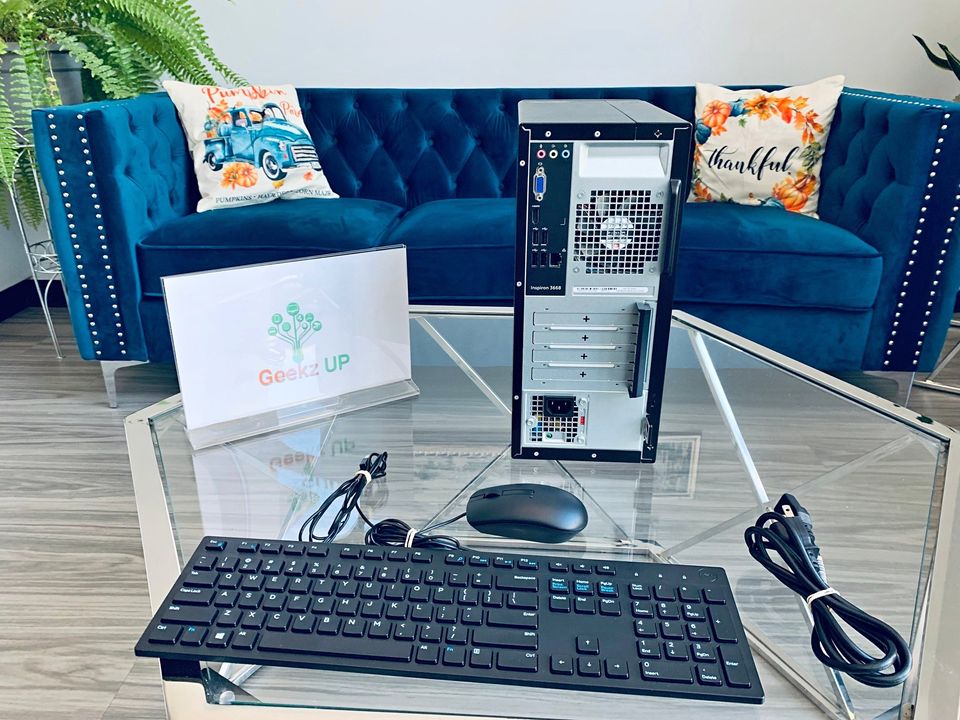
Dell Inspiron 3668~3.0 i5,12gb,1tbSSD,Win10Pro,Office

Configuration

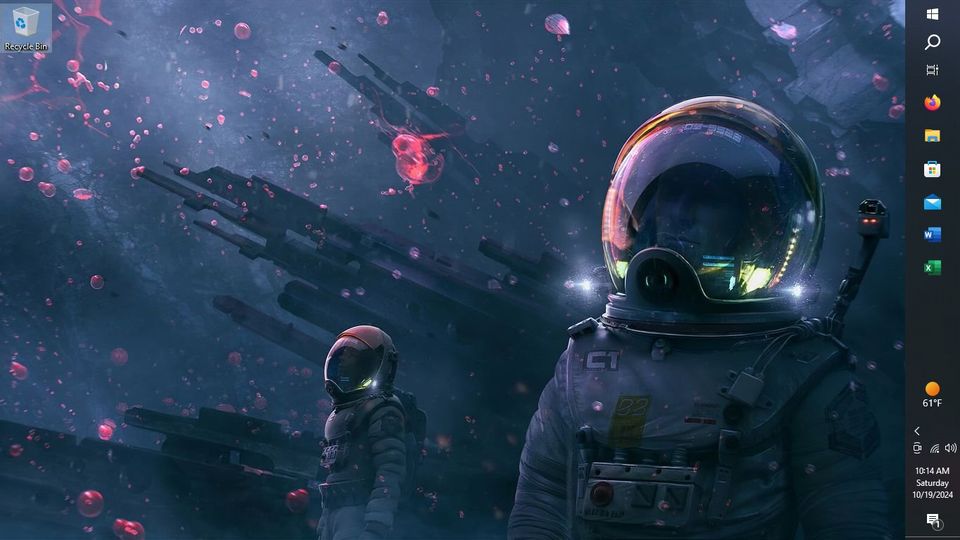
Preloaded Software

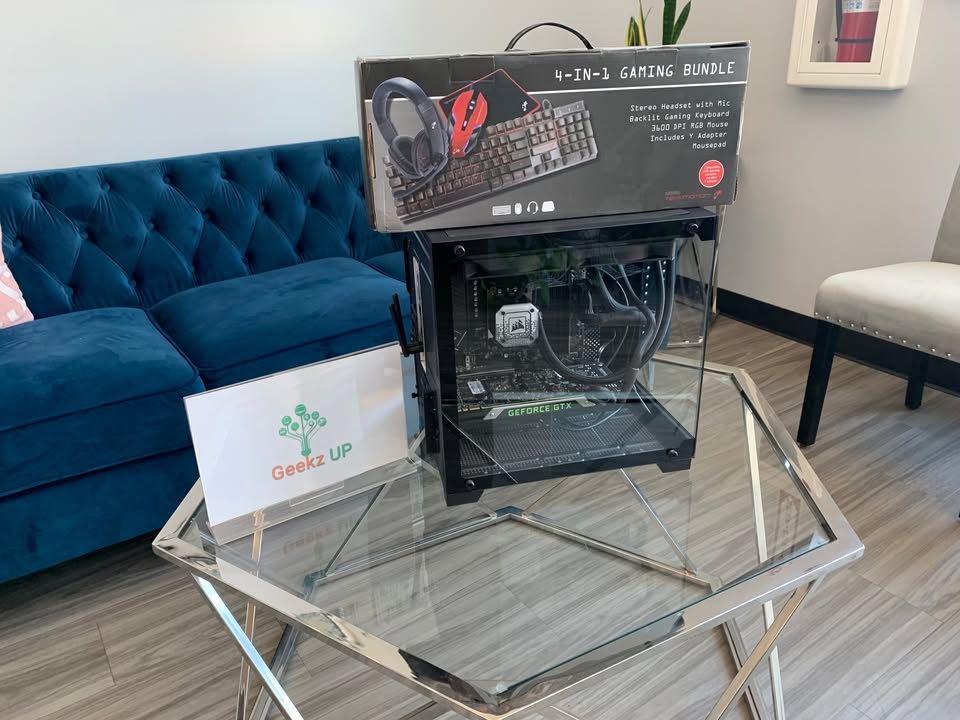
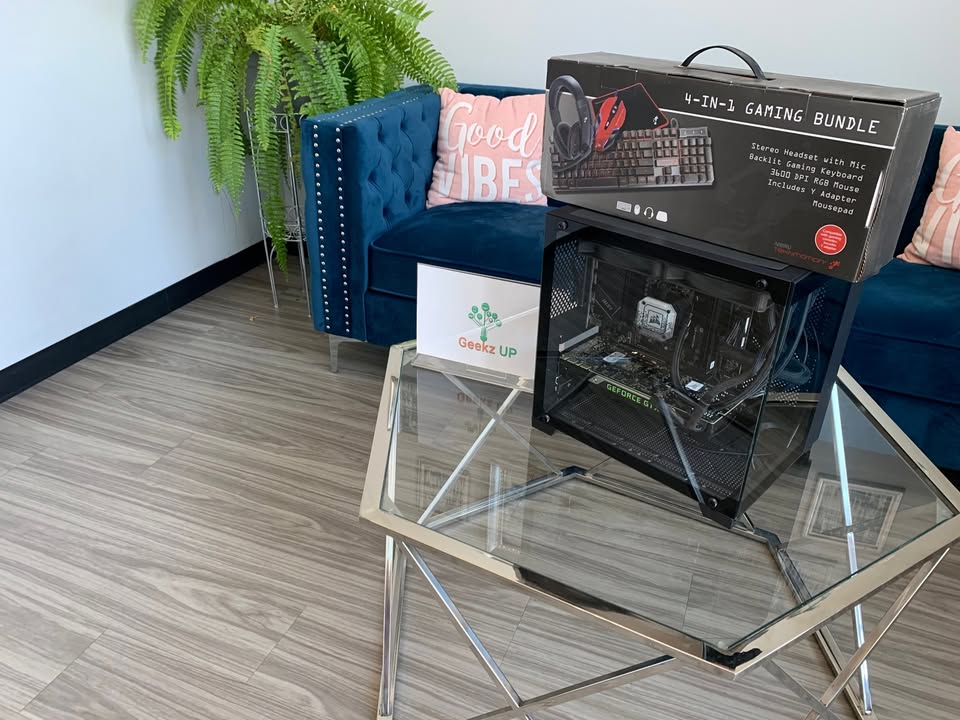
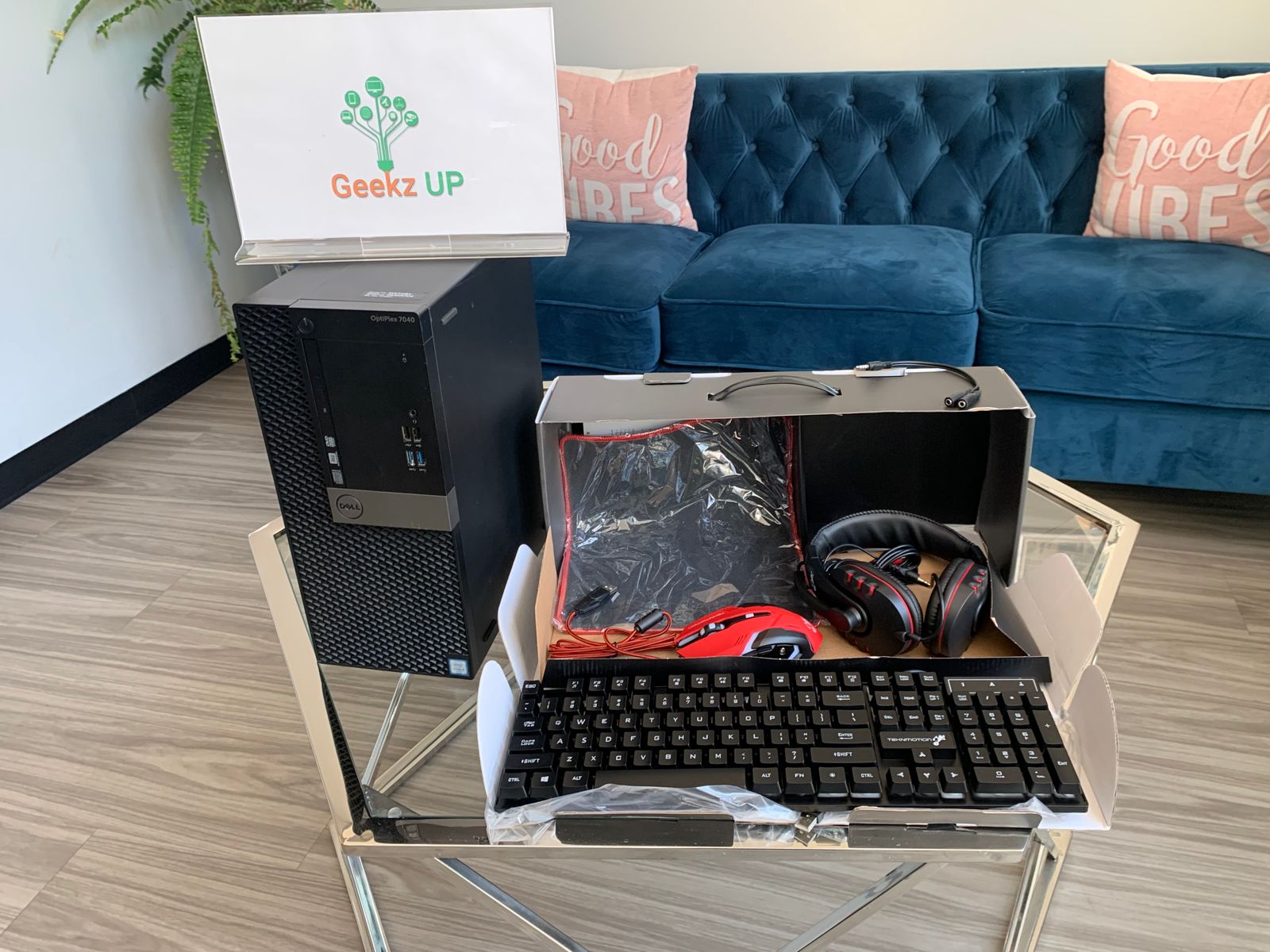
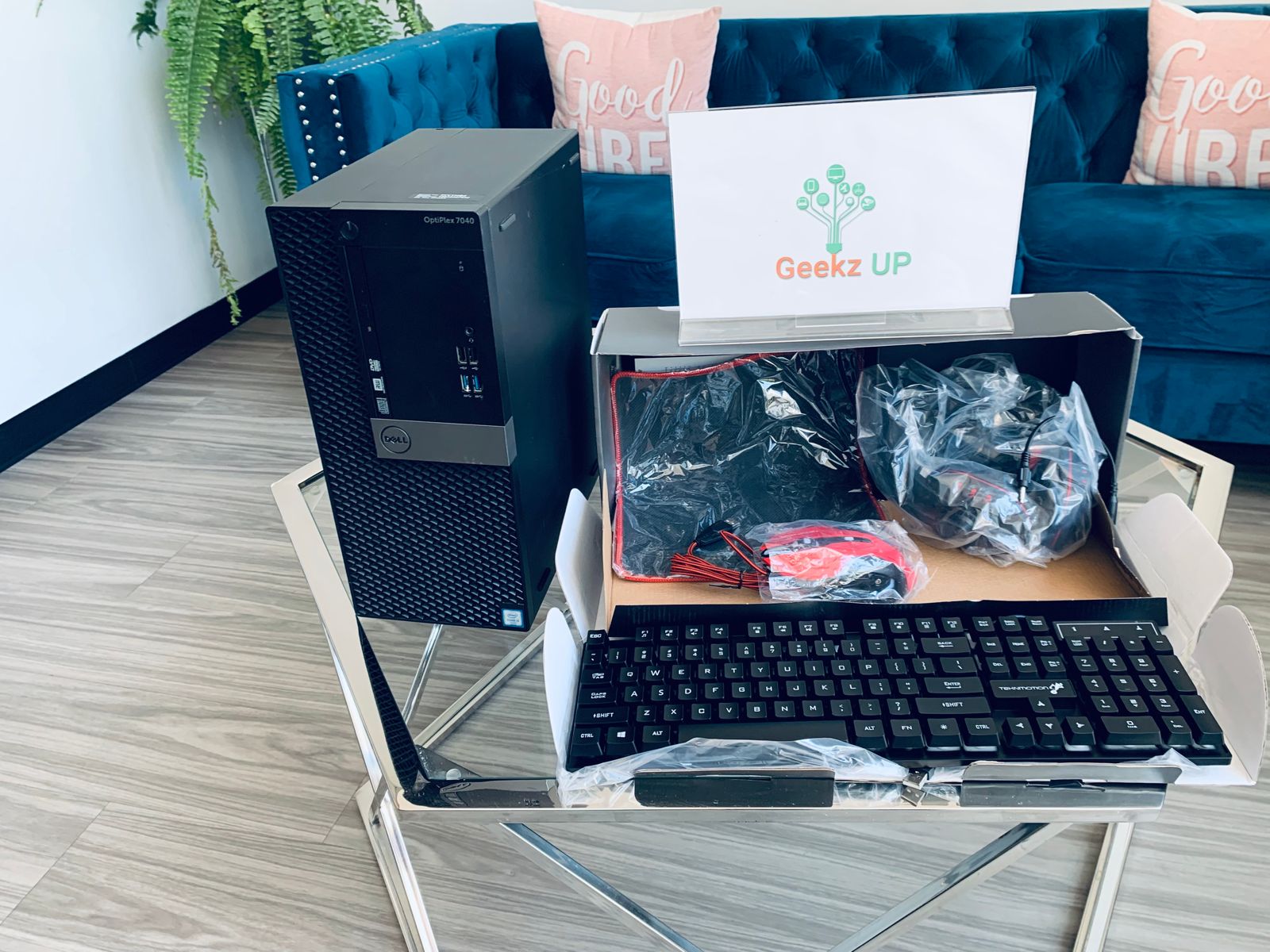
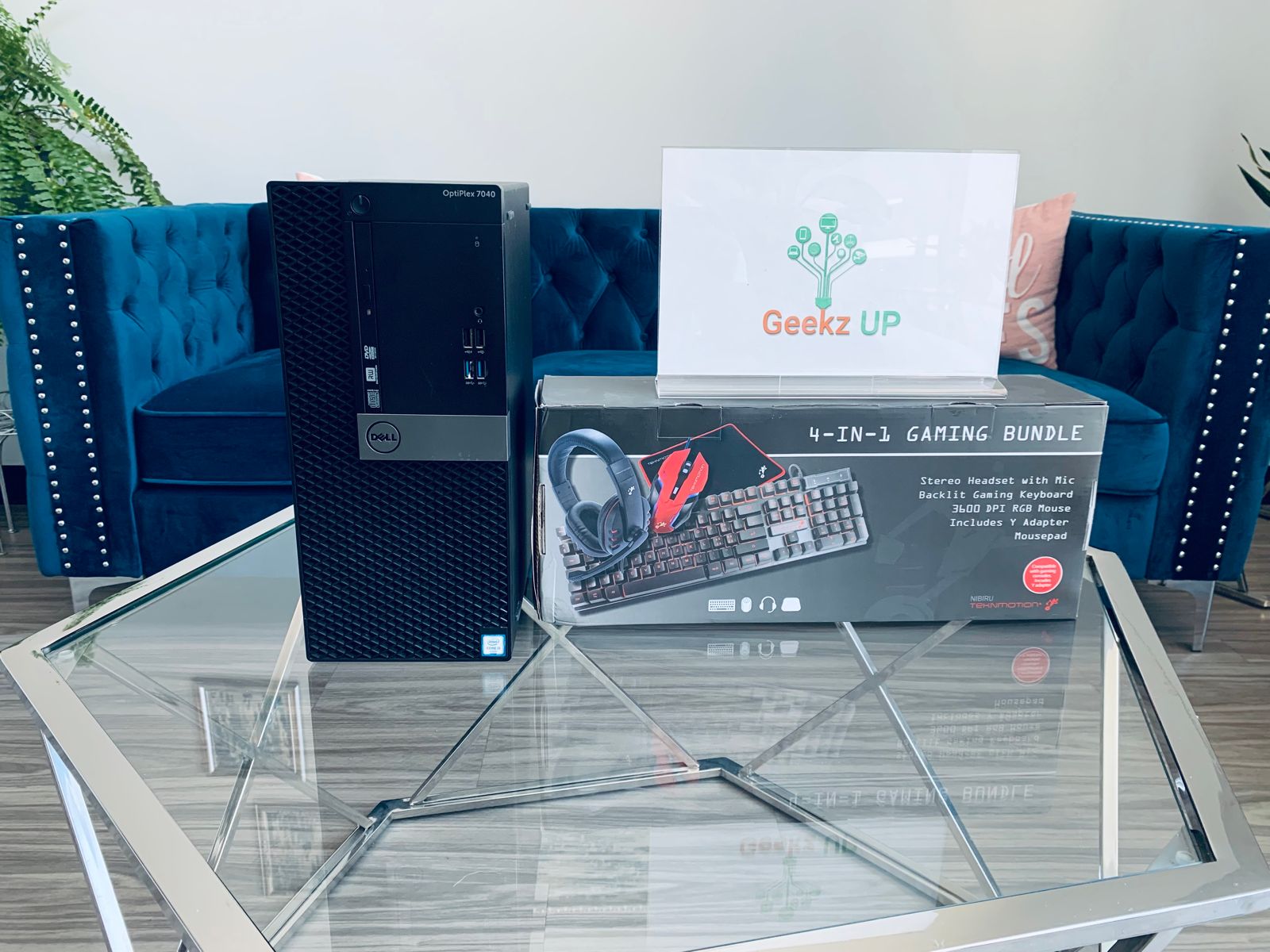
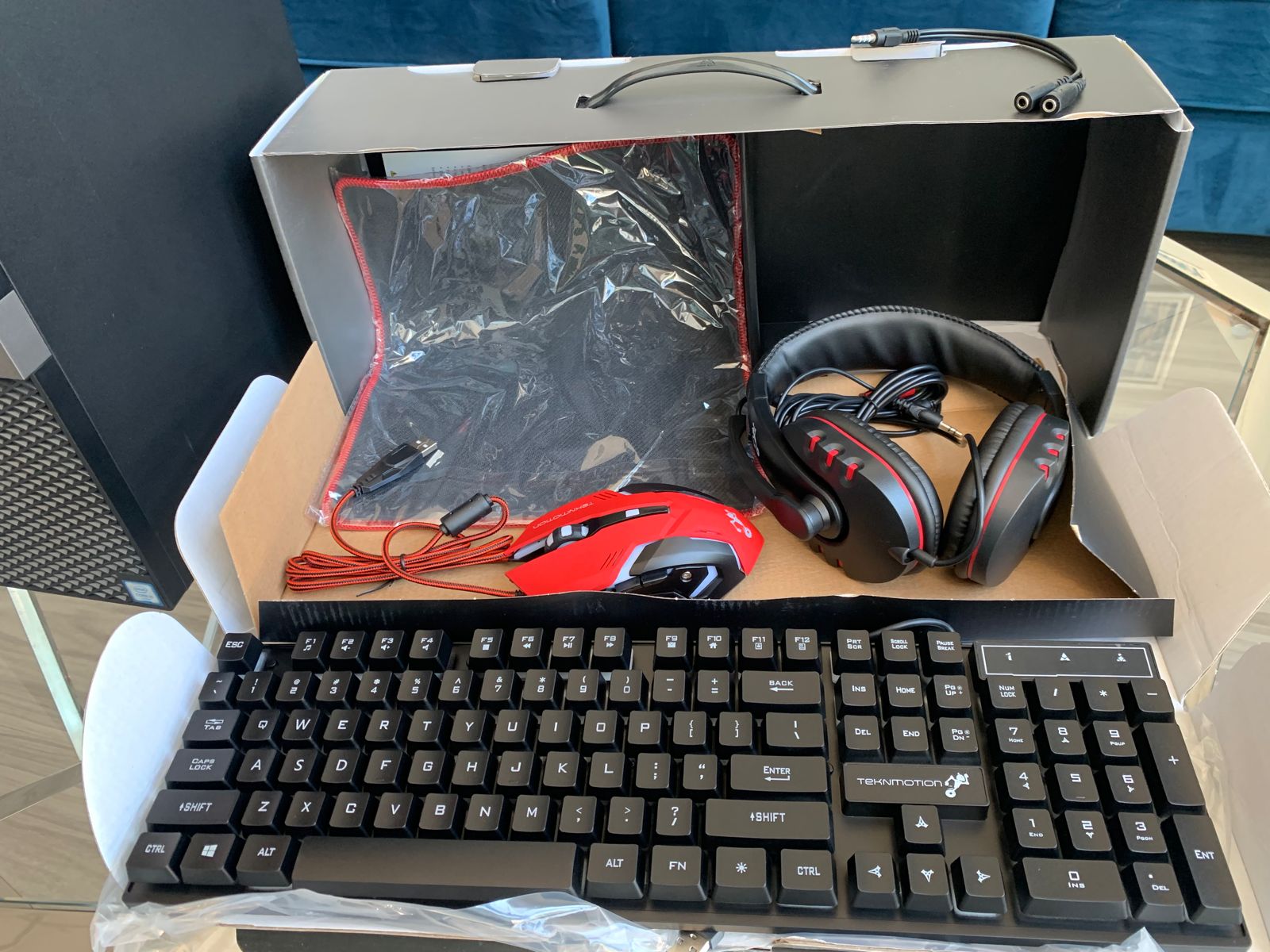
Dell Optiplex With Gaming Bundle (Keyboard,Mouse, Headset and Mousepad)

Configuration

Preloaded Software

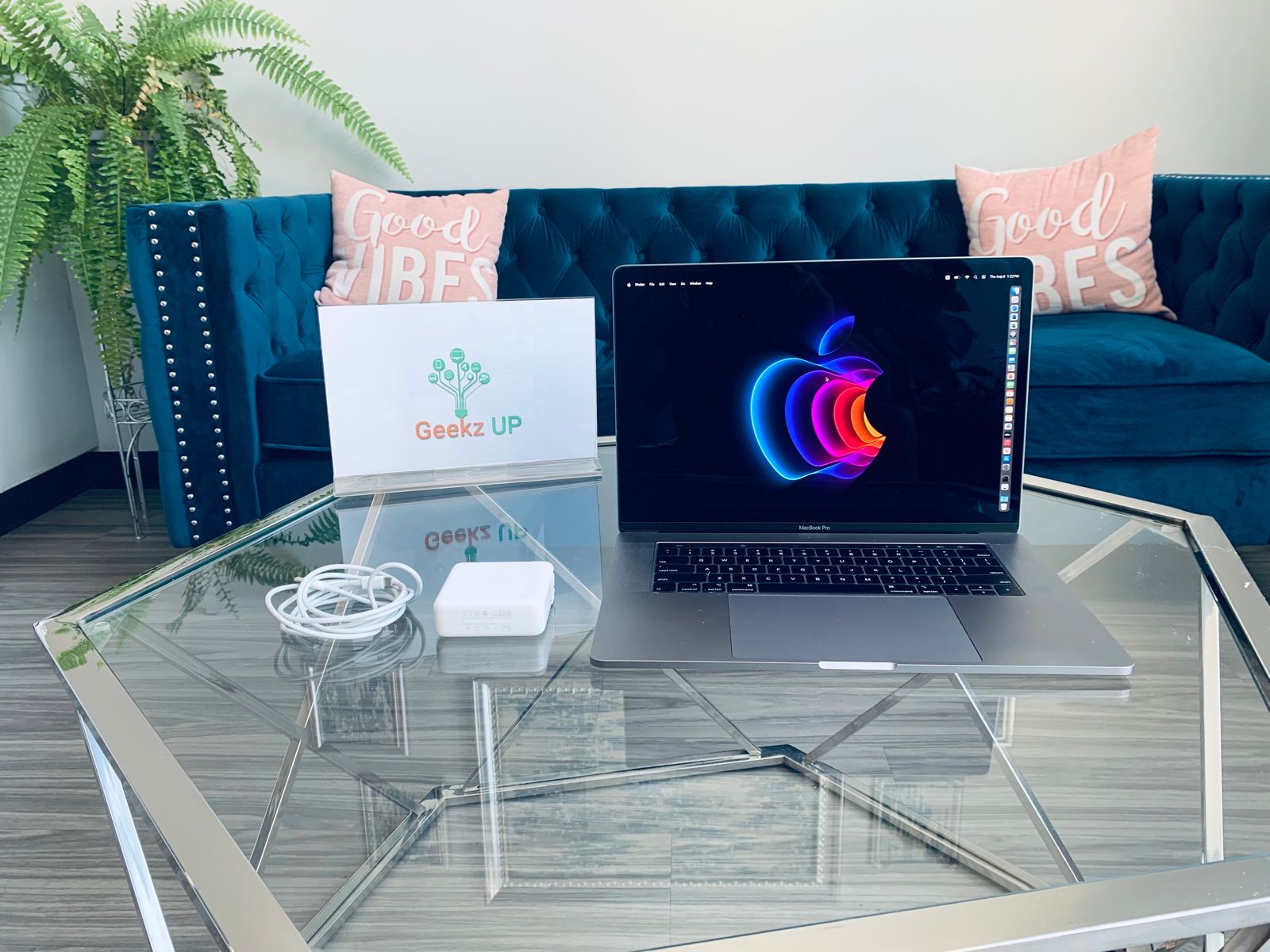
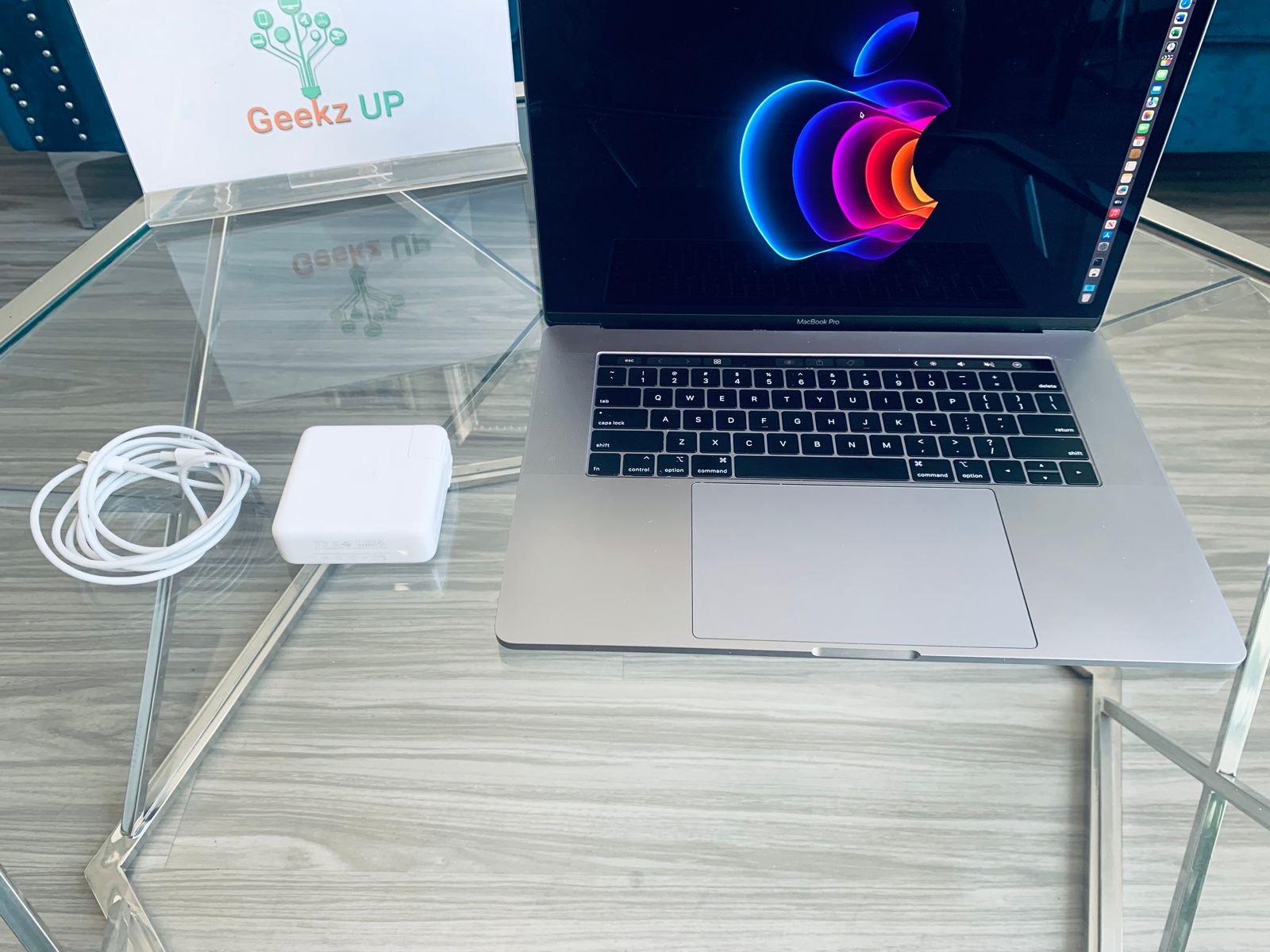
2019 Macbook Pro 16” (Like New)

Configuration

Preloaded Software

Like New 2016 Macbook Pro 16”

Configuration

Preloaded Software

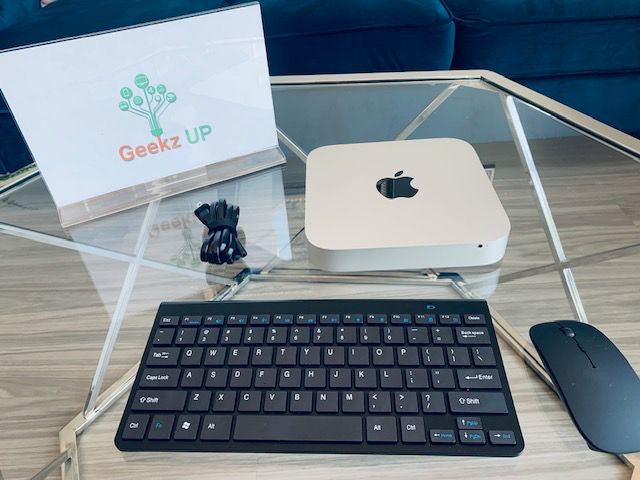
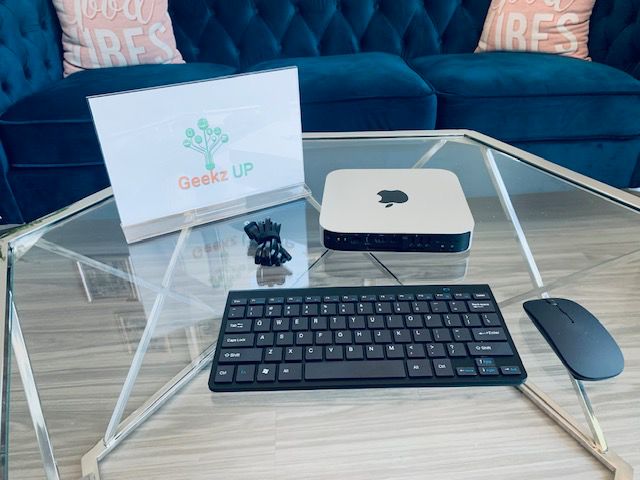
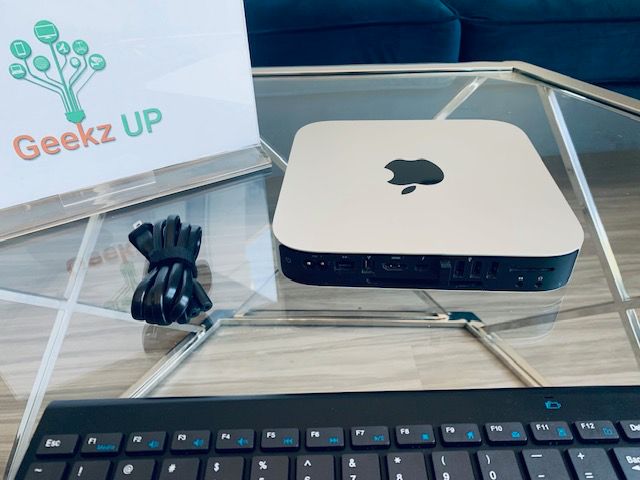
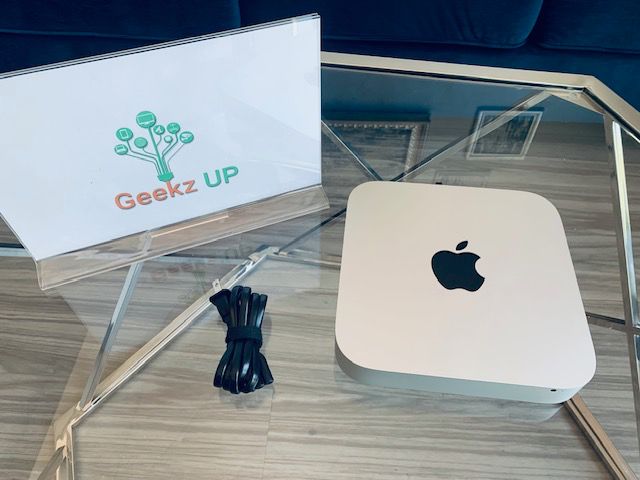
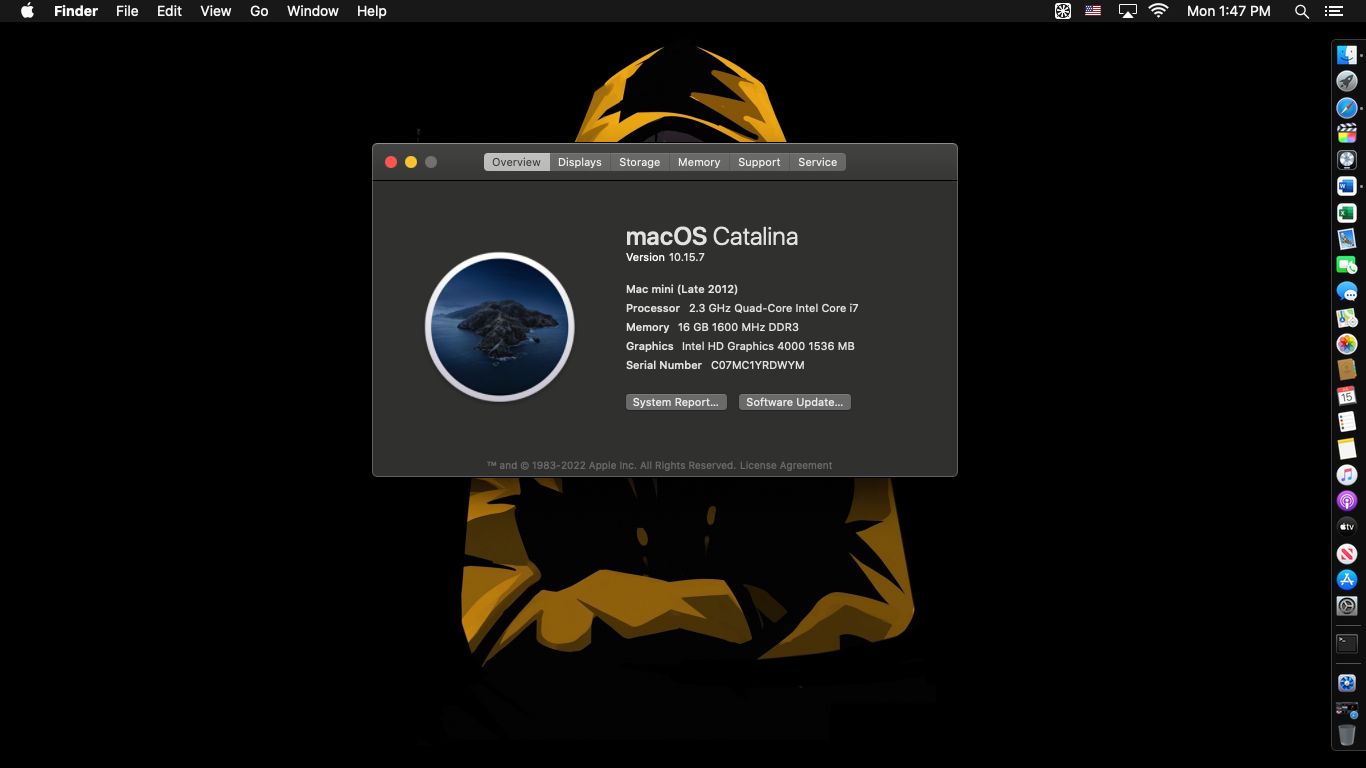
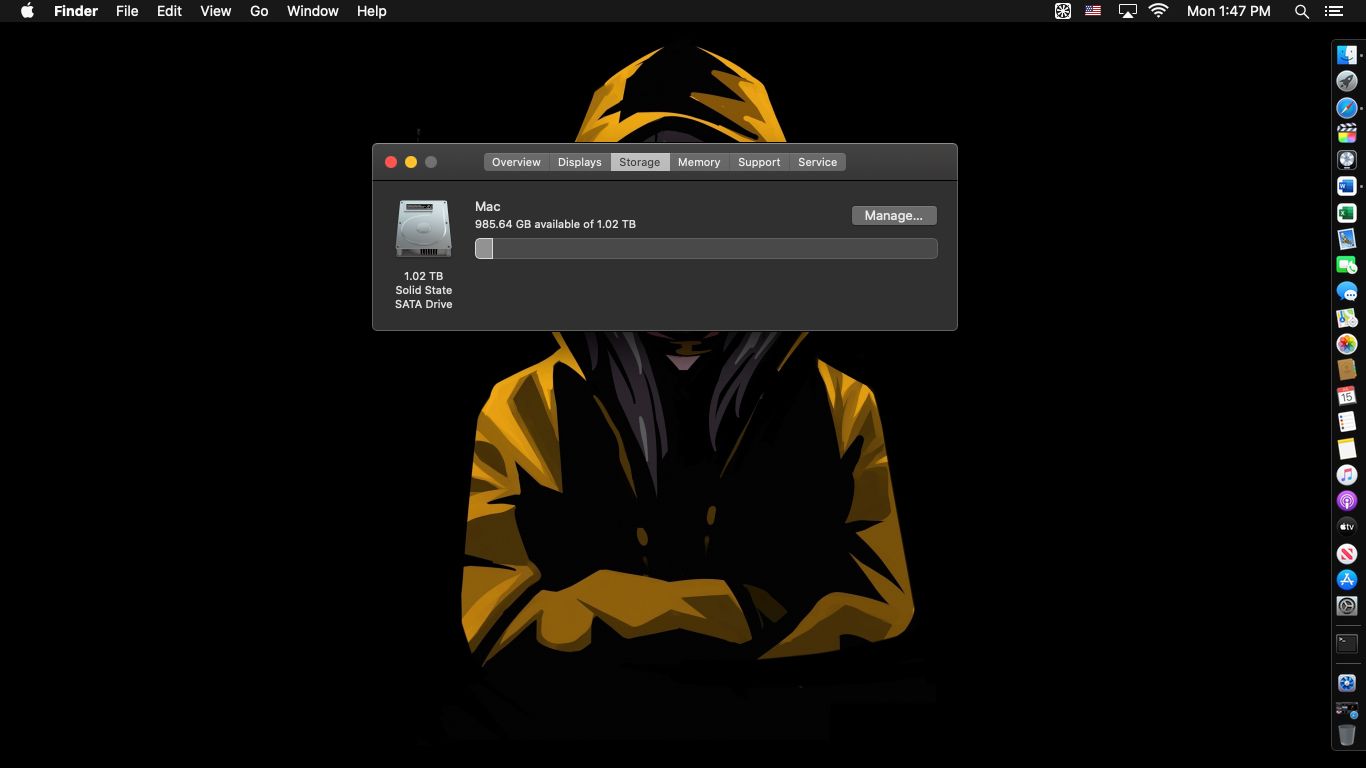
Late 2012 Mac mini

Configuration

Preloaded Software