A clear, calm guide to a clicking hard drive: tell normal activity from a data-risk warning, avoid the common mistakes, and choose the right next step.
A clicking hard drive is one of those sounds that makes people freeze. Sometimes it is ordinary drive activity. Sometimes it is the point where a computer that still starts becomes a data-recovery job. The useful question is not whether every click means disaster. It does not. The useful question is whether the sound is new, repeated and arriving with other trouble: files taking forever to open, the drive disappearing, error messages, freezing, a failed boot or a recent drop.
If the noise is loud or rhythmic, the drive is no longer behaving normally and the files matter, stop using it. Do not keep restarting the computer to see if it gets lucky on the next attempt. That is the habit we most want to interrupt when a possible data recovery job comes into our Hendersonville shop.
The Short Answer: New, Repeated Clicking Is A Warning
A spinning hard drive has moving parts, so a faint single click or soft chatter while it reads and writes can be normal. Manufacturers make the same distinction. The concern is a new, hard or repeating click, especially if the computer pauses, the drive is not detected or the sound began after an impact. Repeated clicking or beeping can point to a power issue, electronics problem, firmware problem or physical failure. You cannot identify the exact cause safely from the sound alone.
Treat the symptom and the value of the files together. A drive holding no important data can be replaced once the fault is confirmed. A drive holding the only copy of family photos, tax records or business work deserves a more careful first move. Do not turn a recoverable problem into a permanent loss by trying every fix you find online.
| What You Notice | Risk Level | Best First Move |
|---|---|---|
| Light, occasional chatter while files open normally | Usually low | Confirm that a current backup exists and monitor for a change |
| New repeated clicking with freezes, errors or missing files | High | Shut down and avoid more power attempts |
| A loud click or beep and the drive is not detected | High | Leave it off and keep the drive, cable and power supply together |
| Clicking after a drop or liquid exposure | High | Do not reconnect it; arrange professional assessment |
| A beep from an external drive that otherwise works | Unclear | Use one direct-port and cable check only if the files are already backed up |
This is triage, not a diagnosis. A healthy backup gives you options; the only copy of important files calls for more caution.
What To Do In The First Ten Minutes
Start by deciding whether the sound fits the urgent column in the table. If it does, power the computer down normally if it still responds. If it does not respond, hold the power button to turn it off. Disconnect an external drive once the computer is off. Then leave it alone. You do not need to get a perfect recording of the noise or keep the drive spinning while you look for a tutorial.
- 1Write down what happened just before the sound began: a drop, a power outage, a cable getting pulled, a Windows update, or nothing at all.
- 2Note whether the drive is internal or external, and whether the computer can still see it. Keep the original USB cable and power adapter with an external drive.
- 3Check whether the important files exist somewhere else already: cloud storage, another computer, an old backup drive or a shared folder.
- 4If the drive is clicking repeatedly and the files are not backed up, do not run a scan, repair tool, benchmark or clone attempt before getting advice.
- 5Bring the whole computer for an internal drive, or the external drive with its cable and adapter, so the fault can be assessed without guesswork.
If the computer is working normally and you only heard light activity, the sensible response is different: make a current backup first. If you need to get files safe but do not want to risk it yourself, our data recovery team can advise on the safest next step.
Not Every Click Is A Failed Drive
Hard drives are not silent. Their heads move whenever data is read or written, and a soft click while opening a folder can be normal. Cooling fans, a loose laptop case, an optical drive and even a computer speaker can also be mistaken for a hard drive. Before assuming the worst, notice whether the sound changes as files open and whether it is truly coming from the drive area.
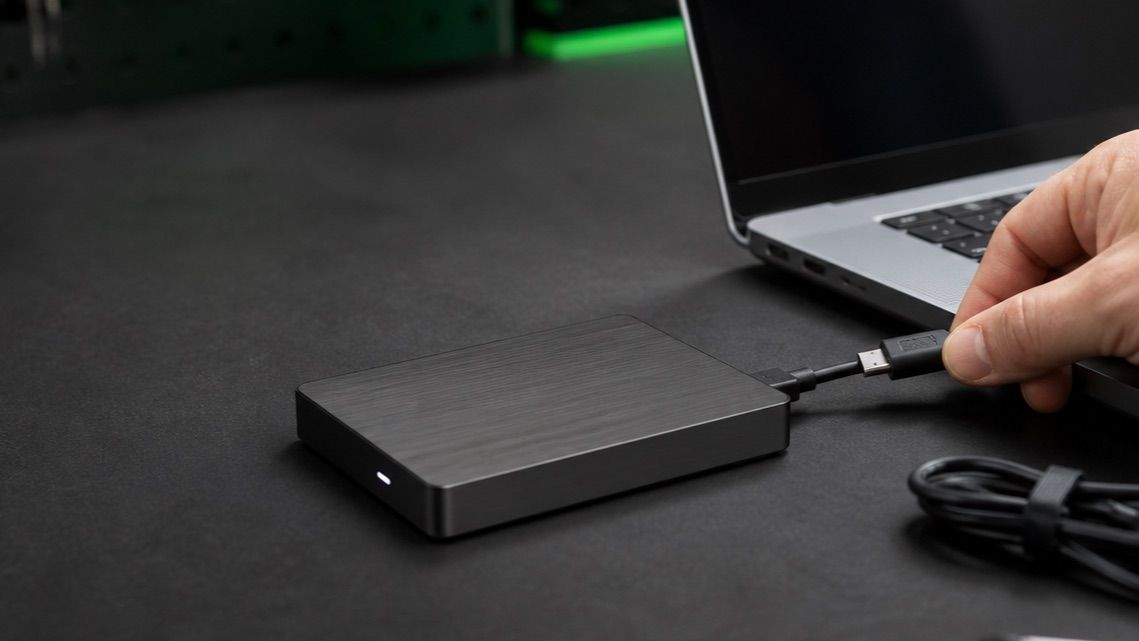
External drives add one more possibility: they can beep or repeatedly try to spin up when they are not getting enough power. If the files are safely backed up and the enclosure has not been dropped, make one deliberate test. Connect it directly to a different port on the computer, not through a hub, and try a known-good cable or its original power adapter. Do not keep rotating through ports and computers if it is making a loud repeating sound or has stopped appearing.
The Pattern Matters More Than The Word “Click”
One light click while a drive is working is not the same as a new, regular click-click-click while the computer freezes. The second pattern, particularly alongside a boot error, missing drive or a recent drop, is the one to treat as urgent.
What Not To Do With A Clicking Hard Drive
Do not open the drive. The inside is not a normal repair space, and dust or a fingerprint can damage the media. Do not put it in a freezer. Do not tap it, shake it or search for a screwdriver adjustment. Those internet tricks are not a recovery plan and can make the data harder to retrieve.
Also avoid CHKDSK, Disk Utility First Aid, defragmentation, antivirus scans, drive-health scans and long copy jobs when the drive is repeatedly clicking or vanishing. Those tools are useful for some logical problems. They are not a safe answer to a suspected mechanical or access problem, because they can keep demanding reads from a drive that is already struggling.
The same goes for repeated power cycling. A drive that works for ten seconds after a reboot has not fixed itself. If the files are important, stop collecting evidence and protect the state it is in. If you are unsure whether you have a failing drive or a different computer problem, our hard drive failure warning signs guide covers the other symptoms worth noticing.
Clicking After A Drop Is Different
A hard drive that begins clicking after being dropped should not be treated like a cable issue. A fall can affect moving parts inside the drive even when the plastic enclosure looks fine. Do not plug it in again to see whether it has recovered. Keep it still, do not open the enclosure and bring it in with the power supply and cable. Tell the technician that the sound started after an impact; that history changes the safe next step.
The same rule applies when liquid has reached a laptop or an external drive. Turn it off, disconnect power and do not charge or restart it. A spilled drink can affect more than the storage, and acting quickly without repeatedly powering it can protect both the computer and the files. See our laptop water-spill guide for the immediate safety steps.
Can A Clicking Hard Drive Be Fixed?
The drive itself is rarely worth trusting again after a confirmed serious clicking fault. The practical goal is usually to recover the data that matters, then replace the drive. A power cable, external enclosure or software issue may have a simpler resolution, but that is exactly why a diagnosis comes before a promise. The noise alone does not prove a specific internal failure.
For an internal laptop or desktop drive, the next storage device is often an SSD. It has no moving parts, makes no drive-head noise and makes a computer feel much faster when replacing an old mechanical drive. That is a replacement conversation only after the data question is under control, not a reason to throw away a drive that contains the only copy of something important.
How GeekzUP Handles A Suspected Failing Drive
When a computer comes in with a clicking or beeping drive, we start with the history: when the sound began, whether there was a drop, whether the drive still appears, and what files are most important. We assess the machine before doing anything that creates unnecessary reads. The outcome may be a simple external-power issue, a drive replacement, a data recovery path or a recommendation for specialist recovery if the damage calls for it.
Bring the computer or drive to GeekzUP in Hendersonville; drop-offs do not need an appointment. If getting it to the shop is difficult, pickup and delivery is available across our service area. For customers in Nashville and surrounding Middle Tennessee, that means you do not need to keep switching the drive on while you decide what to do.
The important part is acting with the right level of caution. Light activity from a healthy drive is not a reason to panic. New repeated clicking, a drive that disappears or anything after a drop is a reason to stop experimenting. Preserve the drive, protect the files and get a clear assessment before the next power-on.
Frequently Asked Questions
Does A Clicking Hard Drive Mean It Is Failing?
Not always. A soft occasional click while files open normally can be ordinary drive activity. A new, loud or repeated clicking pattern, especially with freezes, errors, a missing drive or a recent drop, can indicate an abnormal condition or drive failure. If the files matter and that pattern appears, turn it off rather than repeatedly restarting it.
Should I Turn Off A Clicking Hard Drive?
Turn it off if the clicking is new and repeated, the drive is not being detected, the computer is freezing or the files are not safely backed up. If it is just light normal activity and the drive works normally, make a current backup and monitor it. Do not keep power-cycling a drive that is making a loud repeating sound.
Can I Recover Files From A Clicking Hard Drive?
Sometimes, but the safe route depends on what caused the clicking and how the drive behaves. Stop using a drive that has important unbacked-up files and get it assessed before running scans or repair software. The more unnecessary reads and power attempts a failing drive receives, the less predictable the recovery path can become.
Can CHKDSK Fix A Clicking Hard Drive?
CHKDSK can help with some file-system problems, but it cannot repair a physical drive mechanism. When a drive is repeatedly clicking or disappearing, running a scan can create many more reads from a device that may already be struggling. Get advice before running it if the data is important.
Why Is My External Hard Drive Beeping?
A beeping external drive can have a power or cable problem, particularly when it is connected through a weak USB hub. If the files are backed up and the drive is otherwise working, make one direct-port and known-good-cable test. If it is also clicking, not detected or making a new loud sound, leave it off.
What If My Hard Drive Started Clicking After I Dropped It?
Do not reconnect it. A drop can affect moving parts even when the enclosure looks fine. Keep the drive still, keep its cable and power supply with it, and arrange an assessment. Repeated attempts to make it mount can make a data-recovery situation worse.
Can I Replace A Clicking Hard Drive With An SSD?
Yes, once the data question has been handled. An SSD is usually the better long-term replacement for an old internal hard drive because it has no moving parts and gives a major speed improvement. Do not erase or discard the old drive until you know whether its files need to be recovered.
Need Help With A Drive Or Your Files?
GeekzUP Team
Veteran-owned computer repair in Hendersonville, TN. Serving Nashville and Middle Tennessee since 2012.