Clicking sounds, vanishing files, minutes-long boots: the 7 warning signs a hard drive is dying, what to do in the first hour, and when data recovery can still save everything.
Hard drives rarely die without warning. They die after weeks of warnings nobody recognized. Almost every serious data loss story that reaches our bench in Hendersonville follows the same shape: the machine got slow, then it got noisy, then one morning it would not boot, and nine years of photographs were on it. The symptoms were there the whole time, and none of them looked urgent on their own.
This guide covers the seven signs that a drive is failing, how to test one yourself without making it worse, and what your options are once the drive has already gone. If you only read one section, read the first hour, because what you do in the hour after the first symptom decides how much of your data survives.
Two Ways A Drive Dies, And Why The Difference Matters
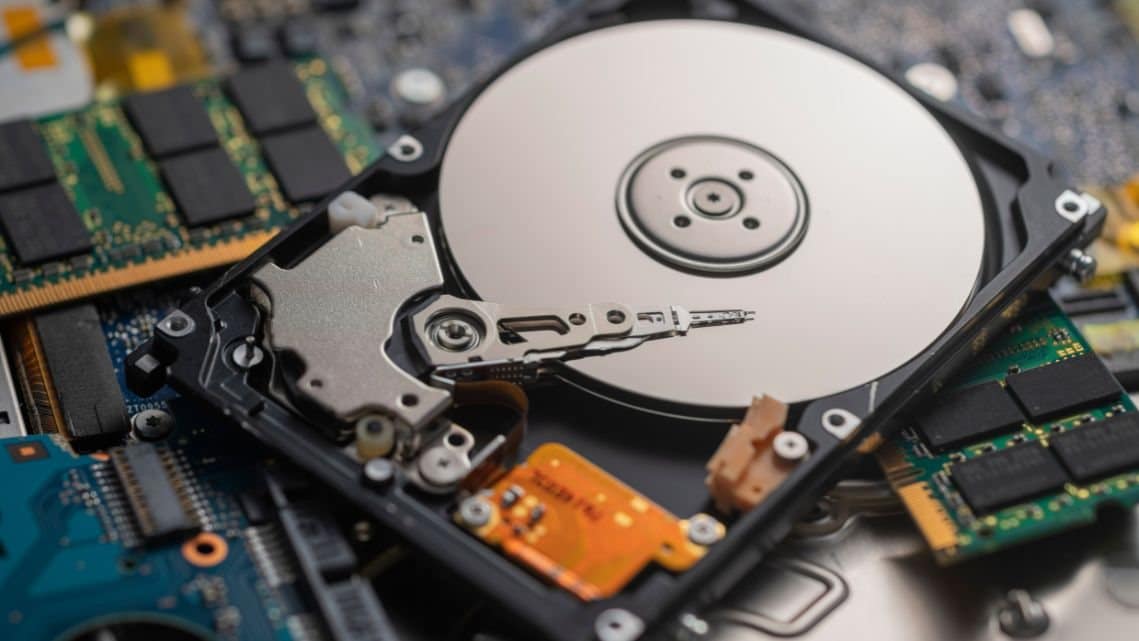
Every failure we handle falls into one of two categories. Logical failure means the hardware still works but the data structure on it does not: a corrupted file system, a damaged partition table, deleted files, an update that left Windows unbootable. Mechanical failure means the physical drive is coming apart: heads out of alignment, a motor that will not spin, damaged platter surfaces, or on a solid state drive, a controller that has stopped answering.
The distinction matters because the correct response is the opposite in each case. A logical failure is usually stable, so you have time, and software often fixes it. A mechanical failure gets measurably worse every second the drive spins, so the correct move is to switch it off and stop touching it. Guessing wrong in that direction is exactly how recoverable data becomes unrecoverable. When you cannot tell which one you have, assume mechanical and bring it in for data recovery rather than running experiments on your only copy.
The Seven Warning Signs
1. Clicking, Grinding Or Beeping
The click of death is the read arm failing to find its position and resetting, several times a second, forever. Beeping usually means the motor cannot spin the platters at all, often because the heads have settled onto the surface and stuck there. Grinding or scraping is the worst of the three, because it means metal is in contact with the magnetic coating your files live on. Any new mechanical noise is a stop-now signal. A drive that is allowed to click for another hour can lose data that was perfectly recoverable when the clicking started.
2. Everything Got Slow, Specifically Around Files
A failing drive re-reads a weak sector dozens of times before it gets a clean result, and the whole system waits every time. So the machine feels normal until it touches the disk: a folder takes twenty seconds to list, saving a document freezes the program, and a boot that used to take fifteen seconds now takes four minutes. Open Task Manager on Windows or Activity Monitor on a Mac and watch the disk figure while it happens. A drive pinned at 100 percent while moving only a few megabytes a second is failing, not busy. Slowness with the disk sitting idle is a different problem, and usually a much cheaper one.
3. Files Vanish Or Refuse To Open
Documents that were there yesterday, photographs that open as gray rectangles, folders that report themselves as empty, and errors reading 'the file or directory is corrupted and unreadable'. That is bad sectors eating your data one cluster at a time. On macOS the same failure often shows up as Error 36 during a copy, where a single unreadable file halts the entire transfer. Corruption appearing across unrelated folders is a hardware symptom, not a software one, and no amount of reinstalling fixes it.
4. Crashes, Freezes And Blue Screens
When the operating system itself is sitting on failing sectors, everything pays. You get freezes where the pointer still moves but nothing responds, applications that die at the moment they save, and a blue screen of death carrying a storage related stop code such as CRITICAL PROCESS DIED or NTFS FILE SYSTEM. A machine that turned unstable and file-slow in the same month is telling one story, not two, and the storage is the obvious suspect.
5. Repair Prompts And Disk Errors
Windows offering to scan and repair the drive at every single boot, chkdsk finding fresh errors on every run, or the machine dropping into the recovery environment again and again all mean one thing. The file system keeps getting damaged because the hardware underneath keeps failing to write reliably. Repairing it once more does not address the cause, and each repair pass can relocate or discard data that a recovery process would rather have found intact.
6. SMART Warnings
Drives monitor themselves and publish the results through SMART, so a BIOS message announcing that a drive failure is imminent is the most literal warning a computer is capable of giving you. People dismiss it constantly because the machine still boots afterward. It is wrong far less often than they hope. Treat a SMART warning as a deadline rather than an opinion, and note the reverse is not true: a drive can pass SMART cleanly and die the same week.
7. The Drive Disappears And Comes Back
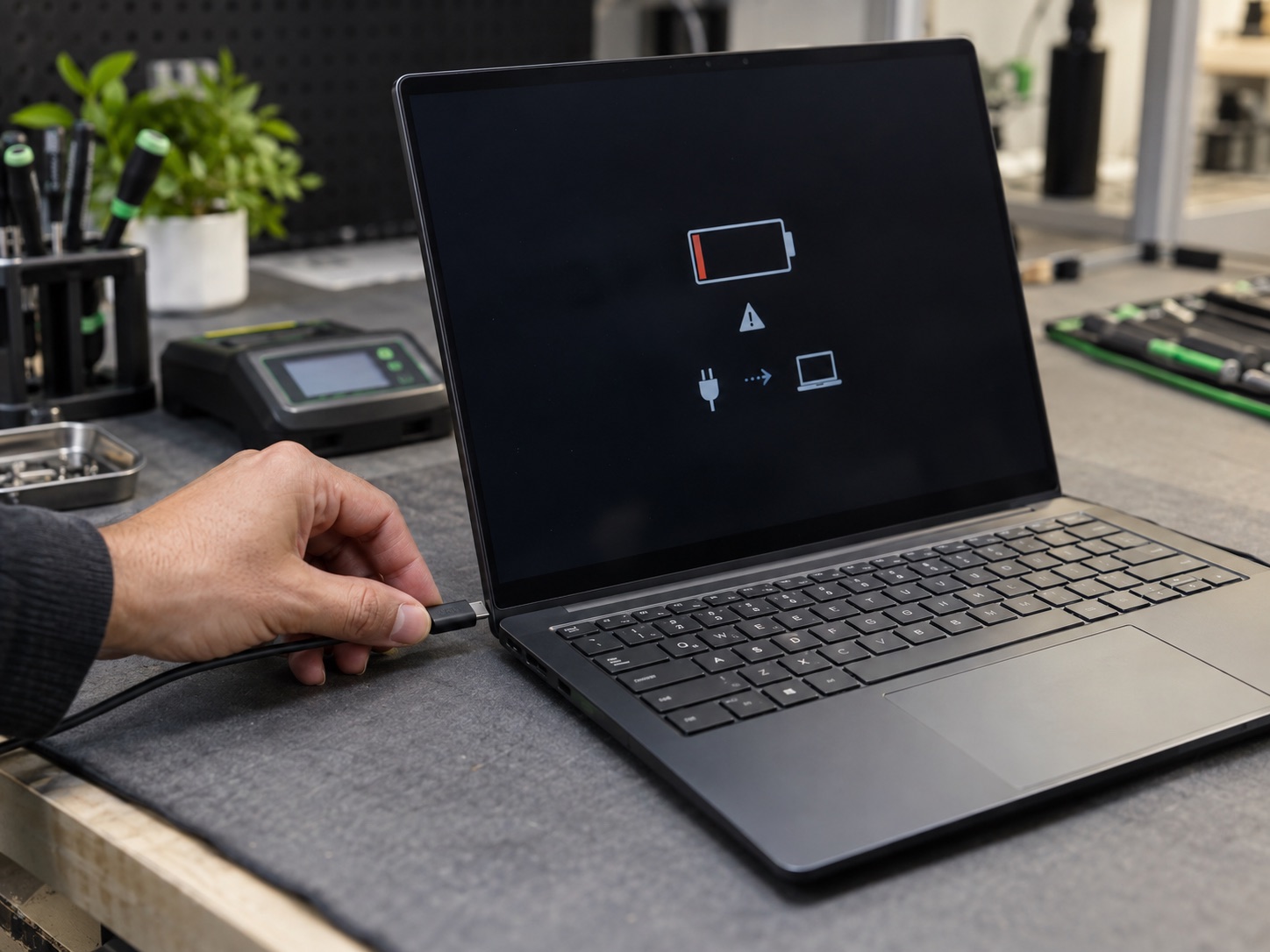
A drive that vanishes from File Explorer or Disk Utility, reappears after a restart, then vanishes again is running out of connections. External drives that need three replugs before they mount belong in the same category, though with an external it is worth ruling out the cable and the enclosure board first, because the bare drive inside is frequently healthy. A computer that will not turn on at all is a different diagnostic path, usually power rather than storage, and it is worth separating the two before assuming the worst.
| Symptom | What you see or hear | Likely cause | First move |
|---|---|---|---|
| Clicking or beeping | Rhythmic noise, drive often not detected | Head or motor failure | Power off now, do not retry |
| Grinding or scraping | Constant harsh noise while spinning | Heads contacting the platter | Power off, treat the data as urgent |
| Slow only around files | Disk at 100 percent, very low throughput | Weak sectors being re-read | Copy the irreplaceable files, then stop |
| Files corrupt or missing | Read errors across unrelated folders | Bad sectors spreading | Back up whatever opens, replace the drive |
| Repair prompt every boot | chkdsk or First Aid loops | File system damaged repeatedly | Stop repairing, image the drive instead |
| SMART warning at startup | Imminent failure message from BIOS | Reallocated or pending sectors | Back up today, replace this week |
| Appears then disappears | Intermittent detection | Failing controller, cable or connector | Test the cable, then stop using it |
Two of these rows say power off rather than back up. Noise means the damage is physical, and every extra minute of spinning costs data.
The First Hour Decides How Much You Keep
If the drive is quiet, copy the irreplaceable files first, meaning photographs, documents and tax records, not a full disk image. A failing drive may only have one good hour left and you want that hour spent on what matters. If the drive is making noise, do the opposite: shut down and leave it off. Do not defragment, do not run chkdsk or First Aid, do not install recovery software onto the failing drive, and never open the case.
How To Check A Drive Yourself Without Making It Worse
If there is no noise, a few minutes of checking will tell you most of what a technician would want to know. Work in this order, and stop the moment anything gets worse.
- 1Listen with the room quiet and the machine idle. Noise outranks every other test, and if you hear any, stop at this step.
- 2Open Task Manager on Windows, Performance tab, and watch the disk while the slowness is happening. Pinned at 100 percent with almost no data moving is the failing pattern.
- 3Read the SMART attributes with a free health utility instead of trusting the drive's own pass or fail summary, which is written to be reassuring.
- 4Check the error history. Windows records disk faults in Event Viewer under the disk source, and macOS logs read failures in Console.
- 5Copy one large folder you do not need onto another drive and watch it. A copy that stalls at the same file every attempt has found a bad sector.
- 6Back up before you change anything else. Every diagnostic step you run spends some of the drive's remaining life.
Reading SMART Without Guessing
Health utilities show dozens of attributes and most of them are noise for this purpose. Four are worth your attention.
- Reallocated Sector Count: sectors the drive has already abandoned and replaced from its spare pool. Anything above zero is a warning, and a figure that climbs week to week means active degradation.
- Current Pending Sector Count: sectors the drive cannot read but has not retired yet. This is the attribute that lines up most closely with the files you are about to lose.
- Uncorrectable Sector Count: reads that failed outright with no recovery. Data is already gone at that point.
- Power On Hours, for context. A drive with years of runtime and a rising error count is not going to improve on its own.
What Not To Do
- Do not run chkdsk, First Aid or a partition repair tool on a drive you have not backed up. They write to the disk, and on failing hardware that can turn a repairable file system into a scrambled one.
- Do not defragment a failing drive. It moves every file on the disk, which is the heaviest possible workload for hardware that is already struggling.
- Do not install recovery software onto the drive you are trying to recover. The installer can overwrite the exact data you want back.
- Do not put the drive in the freezer. It is an old internet trick that adds condensation to a precision mechanism.
- Do not open a drive outside a cleanroom. A single dust particle on a platter is far larger than the gap the heads fly at.
- Do not keep power cycling it hoping for one more boot. Each attempt is a coin flip you are paying for with your data.
Solid State Drives Fail Too, Just More Quietly
An SSD has no heads to click, so the software signs are the only ones you get. Watch for a drive that switches itself to read only, files that will not verify, freezes lasting several seconds at a time, capacity that reports incorrectly, or a volume that simply is not present at the next boot. SSD failure also tends to be more abrupt than mechanical failure, because a controller that stops responding can take the whole drive with it in a single step rather than degrading over weeks. Act on the first symptom, not the third.
There is a happier side to the same technology. If your drive is healthy and merely slow, an SSD upgrade is still the single best money you can spend on an aging computer, and it is a routine job: we clone the existing system across so nothing has to be reinstalled and none of your settings move. An NVMe drive in a machine that shipped with a spinning disk changes how the whole thing feels.
What We Do With A Failing Drive
Bring the machine or the bare drive to the shop, no appointment needed. Our standard diagnostic is $100 for PCs and Macs, $125 for gaming laptops and desktops, and it is applied to the repair, so the assessment is not money spent twice. We establish whether the failure is logical or mechanical, tell you plainly whether the data is recoverable on our bench, and quote before any work starts. Data recovery starts at $99. Drives with physical damage that need a cleanroom get a straight referral rather than an experiment on your only copy.
Once the data is safe, the repair itself is usually straightforward. A new drive goes in, your system is cloned or rebuilt, and the machine comes back faster than it was before the trouble started. That happens on the same computer and laptop repair bench as everything else, in-house, and we confirm the expected timing after diagnosis. You approve the quote first, and the payment options are published up front, including which methods carry a card fee and which do not.
Macs deserve a note of their own, because on most recent models the storage is soldered to the logic board and there is no drive to swap. When that hardware fails there is nothing to replace and nothing to image, which makes the backup the entire strategy. It is why a Mac repair conversation about storage tends to start with Time Machine rather than with parts. Drives arrive at the shop from Nashville and the surrounding Middle Tennessee towns every week, and the ones that end well are always the ones that came in early.
Making The Next Failure Boring
Every drive fails eventually. The only question is whether the failure is an inconvenience or a catastrophe, and that gets decided long before the drive starts clicking. The rule that settles it is 3-2-1: three copies of anything you care about, on two different kinds of storage, with one copy kept somewhere else.
- Three copies means the working file plus two backups, because a backup nobody has ever restored from is a hope rather than a copy.
- Two kinds of storage means an external drive and a cloud service, not two folders on the same machine.
- One copy off-site covers the failures that take the whole building: theft, fire, water or a power surge.
- Automate it. A backup that depends on somebody remembering to plug something in stops happening in about three weeks.
- Test a restore twice a year. Pull one real file back and open it, then you know.
For a household that is usually an external drive plus a cloud subscription, and it can be set up in a single remote support session at $100 per hour with nobody driving anywhere. For a business with a server, shared folders and several machines that all matter, on-site support at $125 per hour with no minimum is the faster route, and properly configured network storage with scheduled backups turns the whole problem into routine maintenance instead of an emergency waiting to happen.
One thing worth saying plainly, because it is true of every recovery we have ever done: the customers who keep everything are almost never the ones with the newest hardware. They are the ones whose backup ran last night.
Frequently Asked Questions
My hard drive is clicking. Can the data be saved?
Often yes, if you stop immediately. Clicking means the heads are failing, and every additional minute of running can scrape data off the platters for good. Power the machine down, resist trying one more time, and bring the drive in so it can be assessed before anything else touches it.
How much does data recovery cost?
Recovery at GeekzUP starts at $99 for logical cases such as deleted files, a corrupted file system, or a drive that no longer boots. Physically damaged drives needing cleanroom work cost considerably more at a specialist lab, and we will tell you that up front rather than charging you to discover it slowly.
How long do hard drives last?
Age is only one factor, and heat, physical knocks and how hard the drive is worked matter just as much as the calendar. Treat any drive past its third year as one that needs a real backup, and any drive showing the signs above as one that needs a backup today.
Do SSDs fail the same way as hard drives?
No moving parts means no clicking, so the early warning is quieter. Solid state drives usually fail through read errors, a sudden switch to read only mode, or disappearing from the system entirely. Recovery is also more time-sensitive, so act on the very first symptom.
Should I run chkdsk on a failing drive?
Not before the data is backed up. chkdsk writes to the disk while it repairs the file system, and on failing hardware that can make a recoverable situation considerably worse. Copy what matters off first, then repair or replace.
Can you recover files if the computer will not start at all?
Usually. A machine that will not start often has a perfectly healthy drive and a dead power supply, board or battery, and even when the drive is at fault the files are frequently readable outside the machine. That is a normal day at the bench rather than a lost cause.
Is a clean SMART report proof the drive is fine?
No. SMART is far more often right than wrong when it warns, but silence is not evidence of health. A drive can report clean and fail the same week, which is why the symptoms you can see matter more than the summary the drive prints about itself.
Act Before It Fails
If your computer is showing any of the seven signs, the useful move today is a backup, and the useful move tomorrow is a diagnostic. GeekzUP Repairs is at 110 Sanders Ferry Rd, Suite 11 in Hendersonville, drop-offs welcome without an appointment, and the work stays in-house from the first look to the last test.
GeekzUP Team
Veteran-owned computer repair in Hendersonville, TN. Serving Nashville and Middle Tennessee since 2012.