Microsoft has confirmed several September Windows update problems. Here is how to tell whether yours matches, get the current fix and protect your files before rolling anything back.
If your computer started acting up straight after the September 2026 Windows security update, you are not imagining every symptom. Microsoft has confirmed a group of real issues, then issued an out-of-band update for several of them. The important part is not to assume that every slow PC, black screen or missing file is caused by Windows. The safest move is to match your exact symptom to the confirmed problem, install the current fix where one exists and protect your data before trying a rollback.
As of September 22, 2026, the confirmed problems include Remote Desktop Services instability, a Hyper-V folder-sharing problem and certain USB audio devices failing to start. Microsoft released KB5129195 on September 14 for Windows 11 24H2 and 25H2 to address the Remote Desktop and Hyper-V issues, plus one specific multichannel USB audio symptom. Other USB Audio Class 1.0 symptoms remain under investigation. That distinction matters because uninstalling an update is not automatically the best first step. If your computer needs a proper check rather than more trial and error, GeekzUP provides computer and laptop repair in Middle Tennessee.
What Microsoft Has Confirmed So Far
The September 8 monthly security update affected more than one Windows release, but not every issue applies to every home computer. Here is the useful version of the official status, without turning a temporary update problem into a blanket claim that Windows is broken.
| Confirmed Symptom | Who May Be Affected | Current Status |
|---|---|---|
| Remote Desktop connections, sign-ins or RDS management tools become unresponsive | Businesses and remote users on Windows 11 24H2 or 25H2 using Remote Desktop Services | Addressed by KB5129195, the September 14 out-of-band update |
| A Linux virtual machine cannot access a host folder shared through Hyper-V Plan9 | People using Hyper-V and Linux VMs on Windows 11 24H2 or 25H2 | Addressed by KB5129195 |
| A USB Audio Class 1.0 device will not start, has no audio, shows volume at zero or returns Code 10 | Certain older or standard USB audio devices across affected Windows releases | The out-of-band update addresses the 8-channel and 3D-audio case; Microsoft is still working on other symptoms |
| File History says Reconnect Your Drive even though the backup drive is present | Windows 10 Enterprise LTSC 2021 and Windows 10 IoT Enterprise LTSC 2021 only | Microsoft lists this as a known issue and is working on a resolution |
The list is current as of September 22, 2026. A symptom appearing after an update is a reason to check, not proof that the update caused it.
Do Not Download A Random Fix From A Search Result
Use Windows Update first. Microsoft says KB5129195 is delivered through Windows Update and Windows Update for Business for the affected Windows 11 releases. A page promising a one-click registry repair or a driver pack can add a second problem while you are trying to solve the first one.
First, Confirm Which Update And Symptom You Have
Before changing settings, write down what changed and when. Open Settings, choose Windows Update, then select Update history. Look for the September security update and note its install date and KB number. Next, press Windows and R, type winver and press Enter. The small window tells you whether the computer is on Windows 11 24H2, 25H2 or another release. That information prevents you from applying advice intended for a different build.
Then keep the symptom plain. ‘My computer is messed up’ is hard to diagnose. ‘The USB headset stopped appearing and Device Manager says Code 10 after September 8’ is useful. So is ‘Remote Desktop stopped accepting our team’s connections after the update.’ Take a photo of any blue screen, error code or Device Manager message before rebooting. If the computer freezes instead of producing a clear error, work through our guide for a computer that freezes randomly in Windows, because storage, heat and graphics drivers can produce the same timing by coincidence.
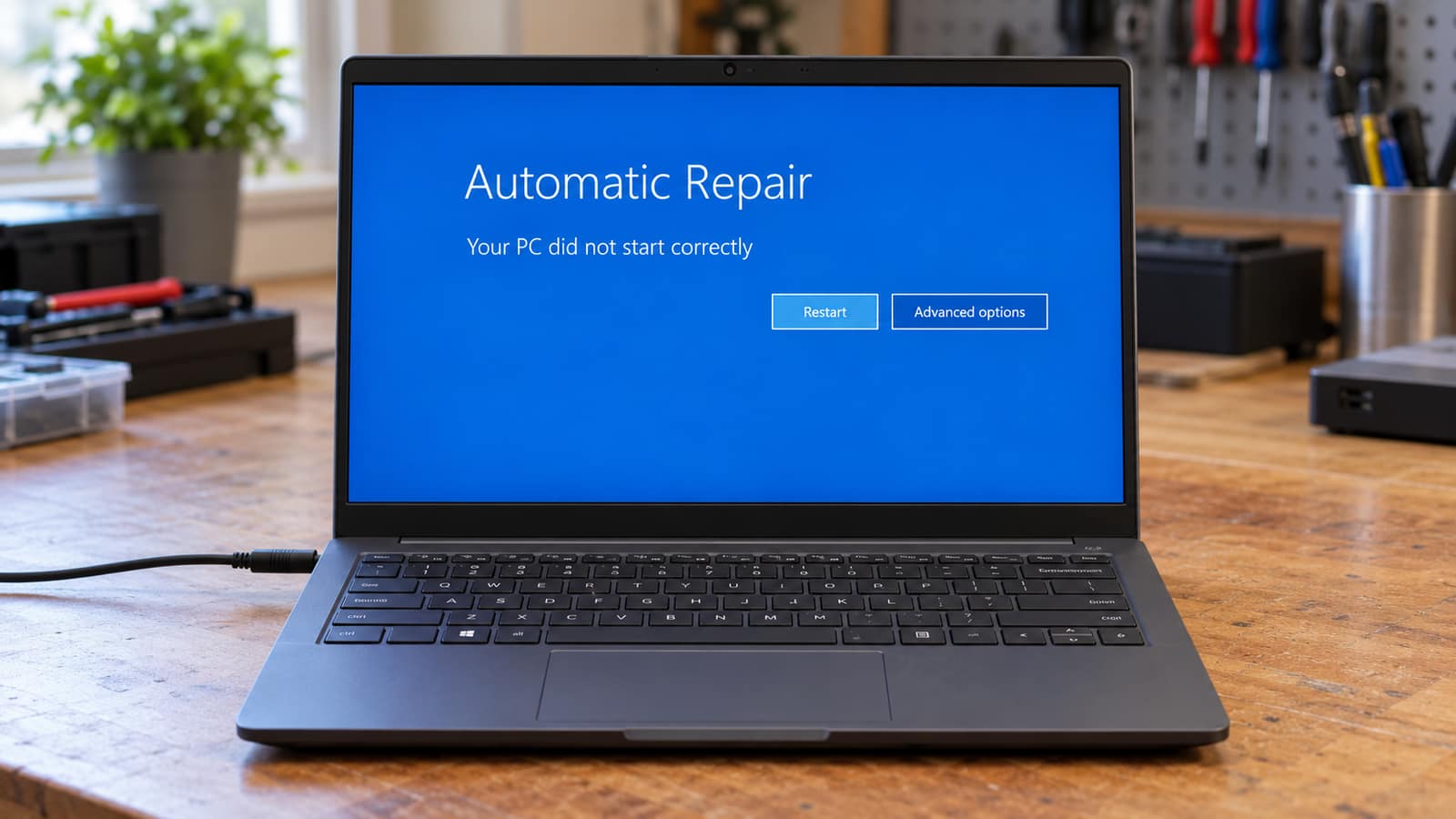
Do not skip the backup step because the machine still turns on. Copy work files, photos and any local business records to a separate drive or a trusted cloud backup before you experiment with updates, repair tools or a reset. If files are already disappearing, the drive is clicking or Windows is stuck in a repair loop, stop repeatedly restarting it and read our automatic repair loop guide first. A failing drive needs a different response from a normal update fault.
Try The Current Fix Before You Roll Anything Back
For Windows 11 24H2 or 25H2, start by opening Settings, Windows Update and Check for updates. Install the available September out-of-band update, restart once when Windows asks and test the exact job that was failing. Do not judge it only by whether the desktop loads. Test the Remote Desktop connection, the Hyper-V share or the USB audio device that caused the problem.
For a USB audio issue, open Device Manager and look under Sound, video and game controllers. If the device is present with a yellow warning icon or Code 10, record the device name before changing drivers. Avoid downloading a generic driver scanner. A manufacturer driver for the exact headset, audio interface or dock can be reasonable when the maker provides one, but it will not replace Microsoft's pending fix for a known Windows-side issue. If you need someone to look at the device and Windows configuration with you, this is often a good fit for remote support.
For a Remote Desktop Services problem at a business, let the person responsible for the server or company IT handle the update window. Restarting an RDS host or changing group policies without knowing the setup can disconnect multiple people. The September out-of-band update specifically targeted RDS instability, sign-in problems and management tools becoming unresponsive, so the first question is whether that fix is installed. For a personal PC that suddenly cannot connect to a work computer, confirm with the workplace before changing its remote-access settings.
If File History is the only issue, first make a separate manual copy of anything important. The current Microsoft status specifically names Windows 10 Enterprise LTSC 2021 and Windows 10 IoT Enterprise LTSC 2021, not ordinary Windows 10 Home or Pro. Do not format a working backup drive because File History says reconnect. Check the edition under Settings, System, About, then wait for the published fix or get help verifying the backup rather than risking the only copy.
When A Rollback Is Reasonable
Removing the latest quality update can be reasonable when the failure began immediately after it installed, the current Microsoft fix is not available for your version or does not solve the exact symptom and the computer was stable beforehand. It is not a permanent solution. Security updates are installed for a reason, so use a rollback to restore a usable machine while you prepare to install the corrected update, not as a way to stop updates forever.
- 1Back up important files and make sure you can sign back into Windows afterward. If BitLocker is enabled, keep the recovery key available before making recovery changes.
- 2Open Settings, choose Windows Update, then Update history and Uninstall updates.
- 3Choose the most recent quality update only if its install date matches the start of the problem. Do not remove several updates at once.
- 4Restart and test the same symptom again. If it returns immediately, the update was probably not the only cause.
- 5Once the computer is stable, pause updates briefly while you monitor Microsoft's status, then install the corrected update instead of leaving Windows unpatched indefinitely.
If Windows will not reach the desktop, use the recovery screen: Troubleshoot, Advanced options, Uninstall Updates, then Uninstall latest quality update. Pick the quality update option, not a reset, as the least disruptive route. Microsoft also recommends trying repair or reinstall options before removing an update on Windows 11 where appropriate. A reset or clean install is a later step, not the first response to one bad update. If you are already in a loop, protect the files before escalating to those larger changes.
What Not To Do While Windows Is Acting Up
- Do not install a driver updater that changes every driver at once. It makes it impossible to tell what fixed or worsened the problem.
- Do not use System Restore, Reset This PC and a BIOS update all in the same hour. Start with the smallest reversible change.
- Do not keep force-powering a computer that is clicking, disappearing from the BIOS or failing to read files. That points beyond a normal update problem.
- Do not pause updates permanently. Windows only allows a temporary pause, and the corrected security update still needs to be installed later.
- Do not assume a blue screen, Wi-Fi drop or slow computer is on Microsoft's current known-issues list just because it started this month.
The right order is identify, back up, apply the documented fix, test and only then roll back if it is still necessary. That is slower than copying random commands from a forum, but it leaves a clear path back if the first attempt does not solve it. If Windows is old enough that an update is repeatedly failing or the machine is still on an unsupported release, our Windows 11 upgrade service can check whether the hardware is a good candidate before major changes are made.
When To Bring The Computer In
Bring the computer in when it will not boot after the update, BitLocker is asking for a recovery key you cannot find, the drive is making new noises, the same failure remains after the documented current fix or you need business-critical Remote Desktop, backups or virtual machines back quickly. Those cases benefit from testing the hardware and Windows together. A blue screen that started after an update may still be memory, storage or a graphics-driver problem waiting to surface.
For a local drop-off, bring the laptop, power adapter and any USB device involved in the fault. Tell us the Windows version, the update date, the exact error and what you have already tried. GeekzUP can check the machine without turning it into a full reset by default. You can book a diagnostic online or contact the shop if you need help deciding whether a rollback is safe.
Frequently Asked Questions
Did The September 2026 Windows Update Break Computers?
Microsoft has confirmed specific September update issues, including Remote Desktop Services instability, a Hyper-V folder-sharing issue and certain USB Audio Class 1.0 problems. That does not mean every computer problem after the update has the same cause. Check your Windows version, update history and exact symptom before rolling anything back.
What Is KB5129195?
KB5129195 is Microsoft's September 14, 2026 out-of-band update for Windows 11 24H2 and 25H2. It addresses confirmed Remote Desktop Services and Hyper-V issues, along with a specific 8-channel and 3D USB audio symptom. It is delivered through Windows Update for affected systems.
Should I Uninstall The Latest Windows Update?
Only after you back up important files, verify that the problem began with that update and check whether Microsoft has already released a fix for your Windows version. Remove the latest quality update rather than resetting Windows. Reinstall the corrected security update once it is available because staying unpatched has its own risk.
Why Did My USB Headset Or Audio Interface Stop Working After The Update?
Microsoft has a known issue affecting some USB Audio Class 1.0 devices. Symptoms can include no sound, volume stuck at zero, unresponsive audio settings or a Code 10 error. The September out-of-band update resolves one multichannel symptom, while Microsoft continues to work on others.
Can A Windows Update Delete My Files?
A routine quality update should not be treated as a file-deletion tool, but any unstable computer can make files harder to reach. Back up important files before uninstalling updates, using recovery tools or resetting Windows. If files are already missing or the drive is failing, stop troubleshooting and seek data-recovery help first.
How Long Can I Pause Windows Updates?
Windows lets you choose a temporary pause period of up to 35 days. It is a short breathing room while you confirm the fix, not a permanent opt-out. When updates resume, Windows will need to install the available updates before you can pause again.
Need A Second Set Of Eyes On A Windows Update Problem?
GeekzUP Team
Veteran-owned computer repair in Hendersonville, TN. Serving Nashville and Middle Tennessee since 2012.