An Automatic Repair loop is not one fault and Reset This PC is not the first answer. Start with the recovery options that protect your files, learn when a failed drive changes the plan and know when to stop before a software fix makes recovery harder.
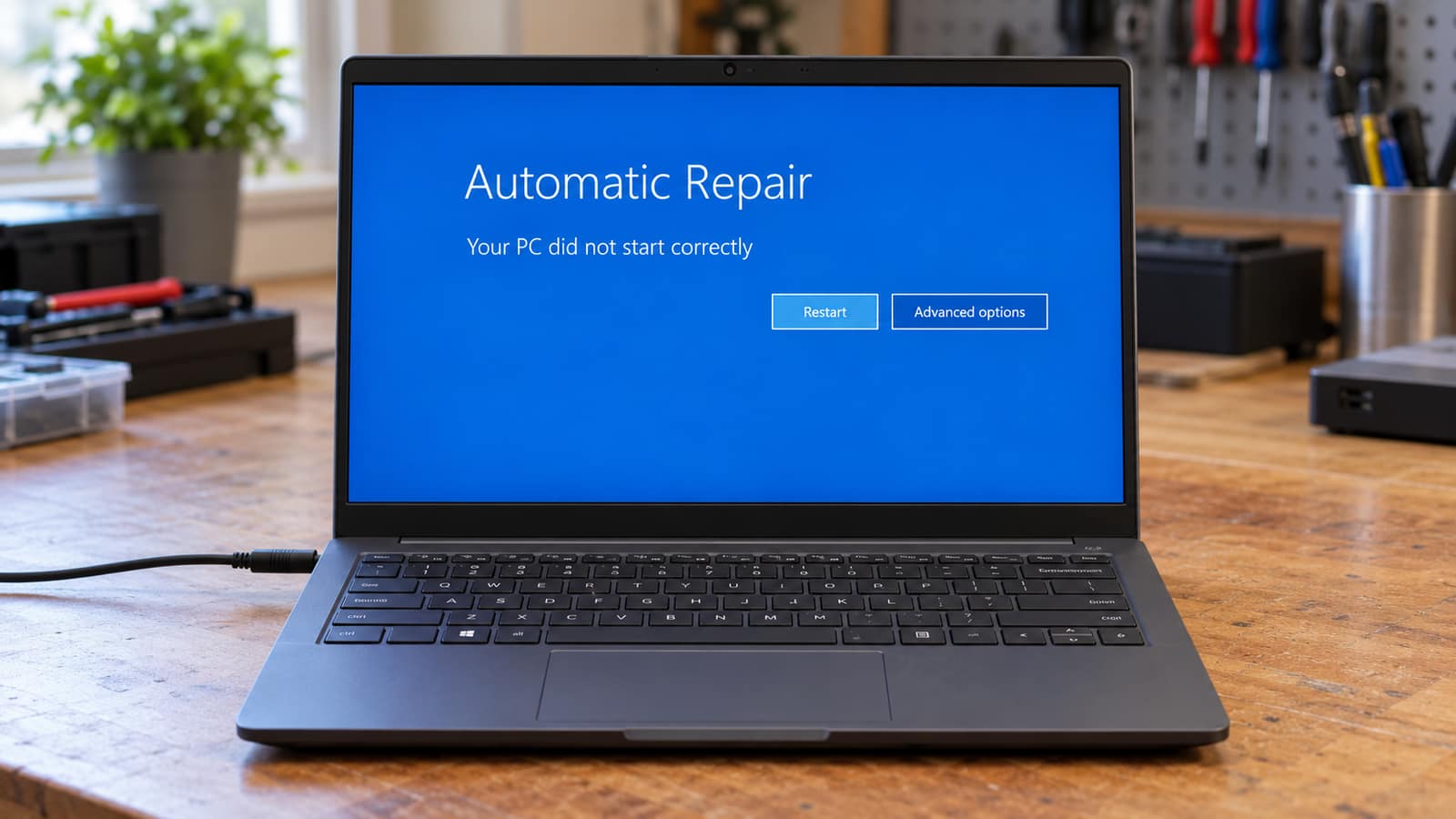
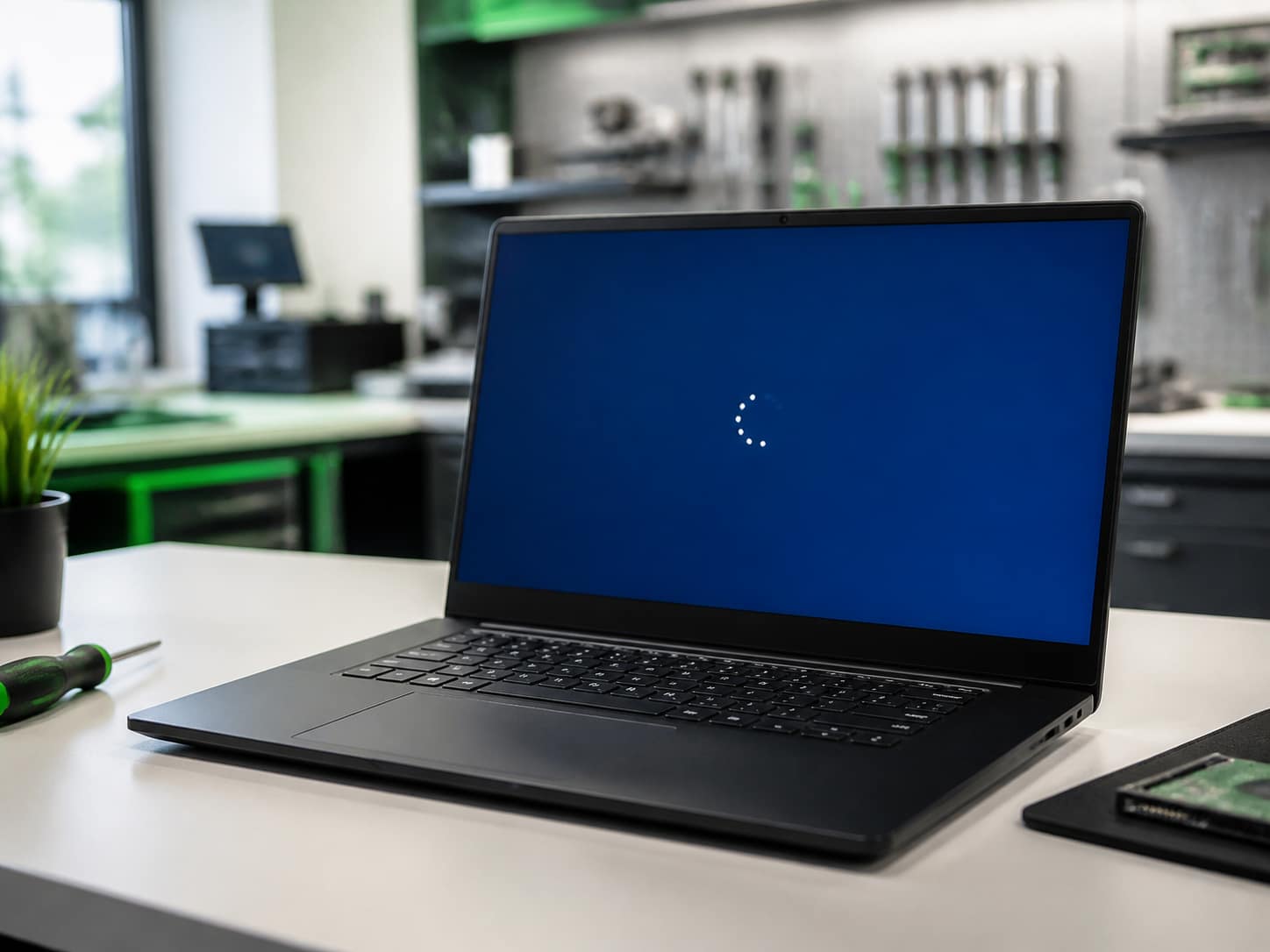
A Windows Automatic Repair loop usually looks like this: the PC says Preparing Automatic Repair or Diagnosing Your PC, restarts, then lands on the same screen again. Sometimes it adds Your PC Did Not Start Correctly. It feels like Windows is trying to help and failing. Do not treat every loop as the same fault or jump straight to Reset This PC.
The loop can follow a bad update, a driver change, a sudden loss of power or damaged Windows startup files. It can also be the first sign that the drive is struggling. Those causes need different responses. This guide works through Windows Recovery Environment in the order least likely to disturb your data, then explains the signs that mean you should stop troubleshooting and protect the files first.
First, Make Sure It Is Really An Automatic Repair Loop
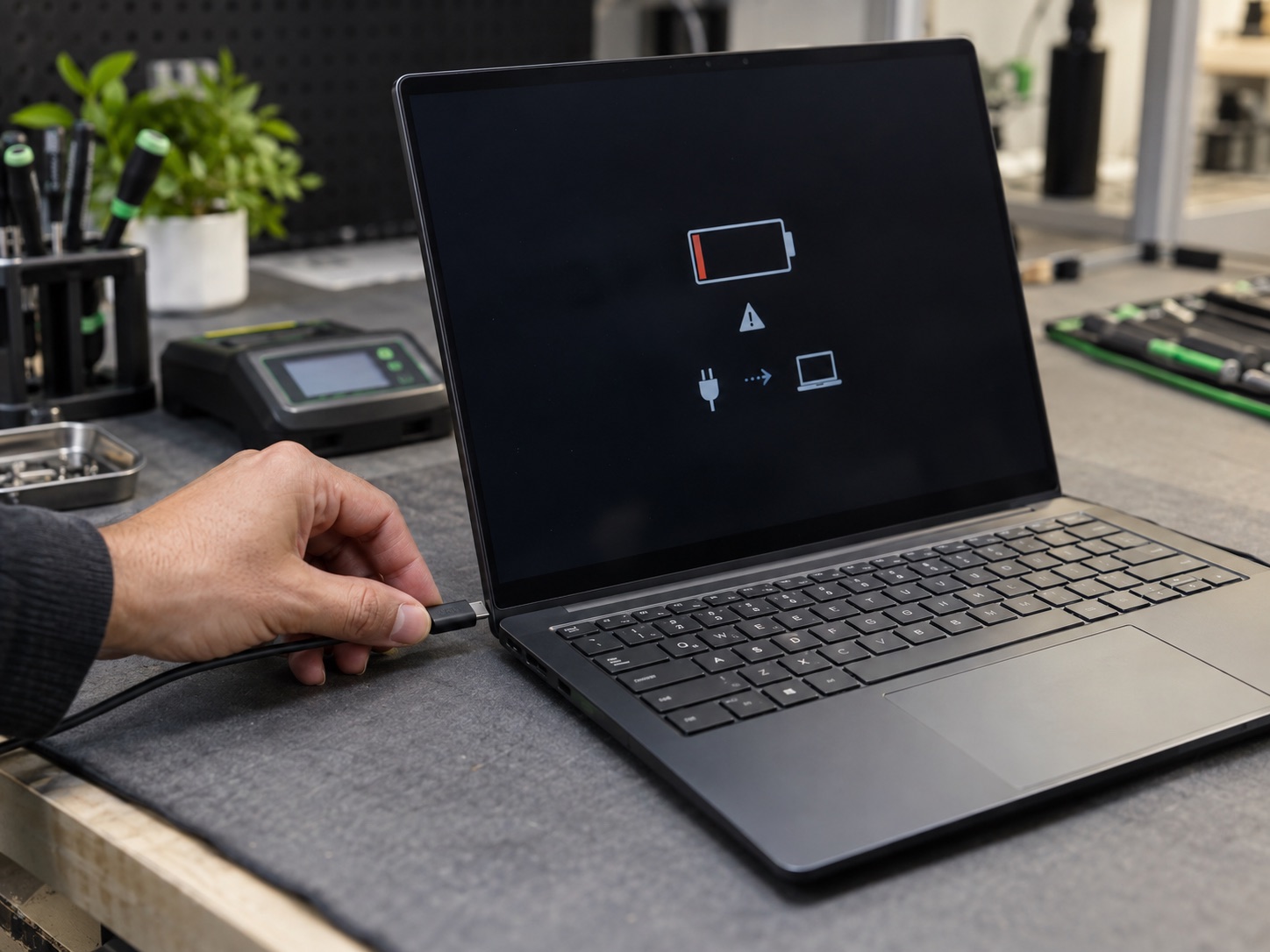
A PC that stays on a blue recovery screen but lets you choose Advanced Options is in the loop this article covers. A machine with no lights, no fan and no response to the power button is a different problem. Start with the checks for a computer that will not turn on instead. A laptop that powers up, shows a logo, then returns to Automatic Repair has enough life to use the recovery tools below.
If Windows has already reached the recovery screen, do not keep holding the power button or repeatedly selecting Continue to Windows 11. One normal restart is reasonable. Repeating the same failed boot is not a repair and, when storage is failing, it adds more reads and writes to the component you are trying to save.
Why The Order Matters
Windows Recovery Environment, often called WinRE, has several tools with very different consequences. Startup Repair checks common startup faults automatically. Uninstall Updates removes a recent Windows update. System Restore rolls system files and settings back to an earlier point. Reset This PC reinstalls Windows, and even its Keep My Files option removes installed apps and settings. They are not interchangeable buttons.
| Try This First | What It Changes | Use It When |
|---|---|---|
| Startup Repair | Attempts to repair startup files and boot configuration | The loop appeared without an obvious recent change |
| Uninstall Updates | Removes the latest quality or feature update | The loop began immediately after an update |
| System Restore | Returns system files, drivers and settings to an earlier point | A driver, app or update change likely triggered the loop |
| Startup Settings / Safe Mode | Starts Windows with a minimal driver set | You need to remove the last driver or software change |
| Reset This PC | Reinstalls Windows and removes apps and settings | The earlier options failed and your files are already safe |
If BitLocker or Device Encryption is enabled, WinRE may ask for the 48-digit recovery key before it lets you use these tools.
Do Not Reset First
Reset This PC is not a diagnostic. Keep My Files normally preserves personal files, but it removes installed programs and settings. If the drive is failing, a reset can fail halfway through and leave you with a harder recovery. Try the smaller recovery steps first and back up anything irreplaceable before choosing reset.
Get To Advanced Options And Check Your BitLocker Key
On the Automatic Repair screen, select Advanced options, then Troubleshoot, then Advanced options. If the screen asks for a BitLocker recovery key, stop and find it before changing anything. From another device, sign in at aka.ms/myrecoverykey with the Microsoft account used on the PC. Work or school machines may have the key stored by that organization instead. There is no safe workaround for a lost encryption key.
If you cannot reach the recovery screen at all, use a working computer to create Windows installation media on a USB drive. Boot the affected PC from it, choose your language, select Repair your computer, then open Troubleshoot. Do not select Install Windows unless you have deliberately reached the reinstall stage and your files are backed up.
Step 1: Run Startup Repair Once
Choose Startup Repair from Advanced options and select your Windows account if asked. Windows checks common startup faults including damaged system files, boot configuration data and certain driver or registry issues. Let it finish, even if it seems to pause for a few minutes, then test one normal restart. This is the safest first tool because it is designed to repair boot problems rather than replace Windows.
If it reports Startup Repair Could Not Repair Your PC, read that as a result, not an instruction to run it again five more times. A repeated failure usually means the cause is outside the small set of problems Startup Repair can resolve. Go back to Advanced options and use the clue that matters most: did this begin after an update, a driver install or a power event?
Step 2: If It Started After An Update, Uninstall The Update
Choose Troubleshoot, Advanced options, then Uninstall Updates. Start with Uninstall Latest Quality Update. That removes the most recent smaller Windows update and leaves your personal files and installed apps in place. If that does not help and the problem began right after a major Windows version change, return and consider Uninstall Latest Feature Update instead.
This step is especially useful when the machine was working before a restart, then began looping after it installed updates overnight. It is not a reason to disable updates permanently. Once Windows is stable, install the update again later or let a technician check the storage and drivers first. A failed update can be the symptom of a drive with too little free space or a disk beginning to fail, not the original cause.
Step 3: Use System Restore Before You Use Reset
If there is a restore point from before the loop began, choose System Restore in Advanced options. Select the most recent point from before the failed update, new driver or new program. System Restore rolls back system files, drivers and settings. It does not target your documents, photos or other personal files, though apps and drivers installed after that restore point can be removed.
A restore point is not always available. Many PCs have System Protection turned off or have already used the available space. If you see no suitable point, do not invent one and do not assume the drive is empty. Move on to Safe Mode or get the data assessed if the machine is showing a storage warning.
Step 4: Use Safe Mode To Remove The Last Change
From Advanced options, choose Startup Settings, select Restart, then press 4 or F4 for Safe Mode. Safe Mode starts Windows with a basic set of drivers. If it reaches the desktop there, remove only the software, driver or security program you installed immediately before the trouble began. If the loop started after a graphics driver update, for example, remove that one driver rather than using a driver updater to change twenty things at once.
Safe Mode is also a good moment to copy your most important files to an external drive or cloud storage if the PC stays stable. Do not mistake that short window for proof the hardware is fine. A machine that only starts in Safe Mode can still have a driver problem, a corrupt Windows installation or a disk error that needs proper testing.
When The Loop Might Be A Drive Problem
Automatic Repair is sometimes blamed on Windows when the failing part is the storage drive. Treat the problem as urgent if the machine was freezing before the loop, files were taking a long time to open, the drive disappeared from BIOS, the laptop was dropped or the drive is clicking, beeping or making a new repeated sound. In those cases, do not run a reset or a long repair command just to see what happens. The safest job is recovering the data from the drive before it stops responding completely.
A healthy SSD can also fail without making noise. If the Windows drive is not listed in the BIOS or recovery tools cannot see a Windows installation, that is not a normal update problem. Shut the computer down and arrange a data recovery assessment rather than repeatedly forcing it through the same loop.
Use Reset This PC Only When You Know The Tradeoff
If Startup Repair, uninstalling the recent update, System Restore and Safe Mode do not solve the problem, Reset This PC is the next built-in option. Choose Keep My Files only after checking that your important files are backed up. It reinstalls Windows while keeping personal files such as documents and photos, but it removes installed applications and settings. You will need to reinstall programs, sign in again and set the PC back up.
Choose Cloud Download if you have a reliable connection and suspect the local Windows files are corrupted. Choose Local Reinstall if internet access is limited and the local recovery files are likely intact. Either choice can take time and may ask for the BitLocker key. If the reset fails, stops at a percentage or returns to the loop, stop there. A failed reset is another reason to check the drive before reinstalling Windows from scratch.
The USB Recovery Option When Windows Will Not Cooperate
A Windows installation USB gives you a clean path back into WinRE when the built-in recovery menu is damaged. On a working PC, create the media with Microsoft's official tool, boot the problem computer from the USB and select Repair your computer. That gives you access to the same Startup Repair, System Restore and command options without selecting a destructive installation by mistake.
A clean install from USB is a last resort, not a faster form of Startup Repair. It removes files and installed apps unless the drive was already backed up and you deliberately choose a non-destructive reinstall path. If your PC qualifies for a Windows 11 upgrade, this can also be a good time to make the move, but only after the data and drive health question is settled.
When To Bring It In Instead Of Trying One More Fix
Bring it in when the loop returns after the steps above, the drive is not detected, BitLocker has locked the recovery options, Windows crashes during reset or the files are more important than the repair experiment. We can test the drive, memory, boot configuration and Windows install separately, then tell you whether you need a repair, a data recovery job or a replacement drive and fresh installation. That is faster than trying random commands copied from a forum and discovering the hard way that the files mattered more than the Windows install.
GeekzUP handles these jobs in Hendersonville, with no appointment needed for drop-offs. If you are coming from Nashville or elsewhere in Middle Tennessee, pickup and delivery is available when a computer that will not boot is not worth carrying across town. You approve the plan before work begins, whether it is a repair, a file recovery or a clean setup on a new SSD.
Frequently Asked Questions
Why Is My PC Stuck On Preparing Automatic Repair?
Windows enters Automatic Repair when it detects repeated startup failures. Common causes include damaged system or boot files, an update or driver that did not install cleanly, a sudden power interruption and a failing storage drive. The message identifies a boot problem, not its exact cause.
Will Startup Repair Delete My Files?
Startup Repair is designed to diagnose and repair startup problems. It does not give you a choice to remove personal files. That is why it belongs before Reset This PC. Still, any PC that contains irreplaceable data should be backed up before major recovery work whenever possible.
What Should I Try Before Reset This PC?
Use Startup Repair once, uninstall the latest quality update if the loop began after an update, try System Restore if a suitable restore point exists and use Safe Mode to remove the last known driver or program change. Reset is more disruptive because it removes apps and settings.
Does Keep My Files Really Keep Everything?
It normally keeps personal files such as documents and photos, but it removes installed apps and settings. It is not a backup and it cannot protect data if the drive itself is failing. Copy important files elsewhere before starting whenever you can.
Why Is Windows Asking For A BitLocker Recovery Key?
Windows can require the 48-digit key before it opens recovery tools because encryption protects the drive when Windows detects a security or hardware change. Look for it in the Microsoft account or work or school account associated with the PC. Microsoft cannot recreate a lost key.
Can A Failing SSD Or Hard Drive Cause An Automatic Repair Loop?
Yes. Windows cannot start normally if it cannot reliably read its own files or boot data. A hard drive may click or freeze first, while an SSD can simply vanish from BIOS or recovery tools. Stop resetting a drive that shows those signs and address the data first.
Need Help With A Windows Boot Loop?
If your PC is stuck on Automatic Repair and you are not sure whether it is Windows or the drive, book a repair and let us test it before a reset turns a small boot problem into a data problem.
GeekzUP Team
Veteran-owned computer repair in Hendersonville, TN. Serving Nashville and Middle Tennessee since 2012.