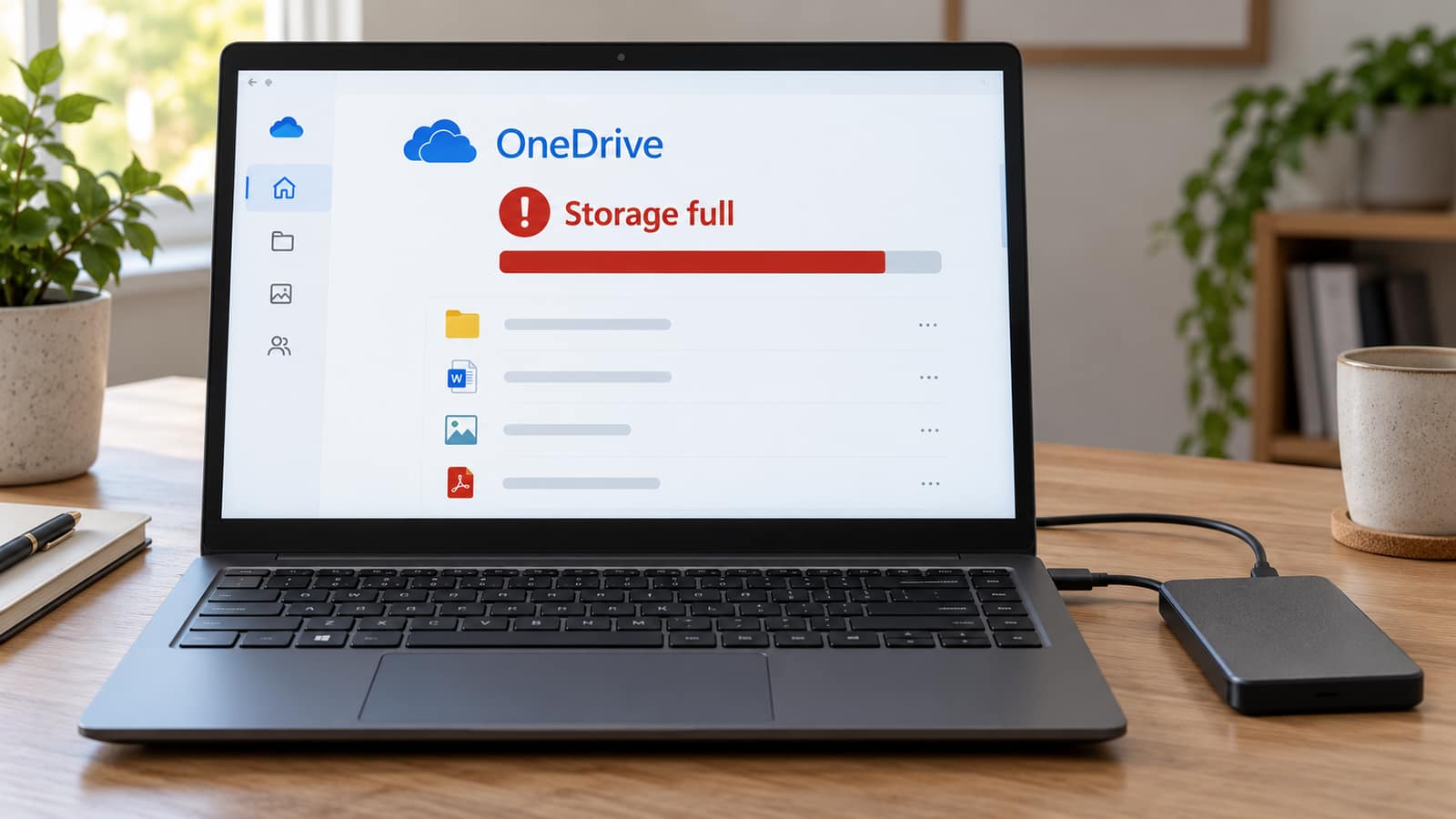
Before deleting anything, find out which storage is full. OneDrive cloud space and your computer's drive are different, and the wrong cleanup choice can remove files you wanted to keep.
OneDrive says your storage is full, so you start deleting old folders. Then a document disappears from your laptop too. Or you choose Free up space and discover that the cloud warning has not changed. Both problems come from treating two separate storage locations as if they were the same thing.
At GeekzUP, the first question is not which subscription to buy. It is where the files actually exist and which copies must survive the cleanup. If you need help identifying those locations, remote support can be appropriate while the computer and internet connection are working. Do not give anyone account access through an unsolicited popup or phone call.
First, Find Out Which Storage Is Full
Open OneDrive from the cloud icon and read the actual warning. Then sign in to your Microsoft account through its official website and review the storage dashboard. Separately, check your computer's drive capacity in File Explorer under This PC. A laptop can have plenty of free disk space while its cloud account is full, or the reverse. Microsoft's OneDrive-full guide also separates personal accounts from work or school accounts.
| What Is Full? | What To Check | What Actually Helps |
|---|---|---|
| OneDrive or Microsoft cloud storage | The signed-in account's online storage dashboard | Reduce cloud contents after preserving them elsewhere, or review the account allowance |
| The computer's local drive | Available space on the relevant drive | Reduce local downloads or other local storage use |
| Both locations | Cloud usage and local free capacity separately | Preserve selected files to a suitable independent destination before changing either location |
Free up space is a local-storage command. It is not a way to increase your OneDrive cloud allowance.
Record the account name and used-versus-allowed storage before changing settings. Personal and employer accounts can appear on the same computer. Removing files from the wrong account creates another problem without fixing the first. If the laptop itself is nearly full, our slow-computer troubleshooting guide helps separate storage pressure from unrelated performance issues.
Why Free Up Space Does Not Fix A Full Cloud Account
Microsoft's Files On-Demand documentation describes Free up space as making a downloaded OneDrive file online-only. The cloud file remains, but its full contents no longer occupy the same local space. You need an internet connection to open an online-only file again. This can help a crowded laptop, but it does not remove that file from cloud storage.
By contrast, Delete inside a syncing OneDrive location is a request to delete the item, not just its local download. Microsoft's deletion guide explains the distinction between keeping a file on your computer, keeping it online and deleting it from both. Do not test the difference on a folder containing your only family photos or business records.
A Downloaded Copy Is Not Necessarily An Independent Copy
A file can open without internet and still sit inside a syncing OneDrive folder. A later cloud deletion can affect that location. Before deleting the online original, preserve and verify a separate copy outside all syncing folders, preferably with another backup as well.
Preserve Your Files Before Clearing Cloud Storage
Choose A Destination That Is Not Syncing
Use a clearly identified folder outside OneDrive or a suitable external drive with enough available capacity. Do not assume that Desktop or Documents is independent: those folders may be included in OneDrive folder backup. Also check for another cloud-sync application watching your intended destination. Write down the full destination path so you can distinguish the preserved copy from the original later.
Our guide to backing up before computer repair covers the same practical test: the backup must contain usable files, not just familiar-looking folder names. For important material, keep more than one independent copy before retiring the cloud copy. Moving the only surviving version to a single USB drive changes the location of the risk; it does not eliminate it.
Copy A Small Batch, Then Verify It
Microsoft's download instructions allow selected files or folders to be saved outside OneDrive before removing their online copies. Multiple selections may arrive as a ZIP archive. OneNote notebooks need their own export or backup process; an ordinary folder download is not a complete notebook backup. Large collections also have download limits, so work in manageable batches instead of assuming one giant download captured everything.
- 1Start with one clearly identified folder or a few large files that you own. Copy or download them; do not cut and paste the only copy as your first step.
- 2Save to the independent destination and wait for the operation to finish. If a ZIP arrives, extract it and inspect the results, including any error or skipped-file notices.
- 3Compare the expected folders, file counts and approximate sizes. Open representative documents, pictures and videos from the destination itself. Important unique files deserve individual checks.
- 4Disconnect from the internet briefly and confirm those destination files still open. Reconnect afterward. This checks local availability, while the destination path checks independence from sync.
- 5Make another backup of irreplaceable material. Only then consider deleting the corresponding cloud originals, keeping a clear record of the batch you preserved.
If the local drive has almost no room, stop rather than selecting Download all files. There must be capacity for the download and, where relevant, extraction. A computer repair assessment can help establish a workable transfer destination without filling the system drive or losing track of what has already copied.
Clear The Cloud Carefully, Not All At Once
Review the largest files and old exports first, but decide by value rather than size alone. A large installer may be replaceable; a small spreadsheet may not be. Delete only the online originals corresponding to verified independent copies, or items you genuinely no longer need. In shared folders, confirm ownership and permission before changing anything that another person relies on.
Review OneDrive's web Recycle bin separately from the computer's Recycle Bin. Microsoft's full-account guidance says recycled OneDrive items count toward storage. Recover anything uncertain before permanently removing selected, verified items. Emptying the entire bin just because a warning suggests it can discard your recovery options. Recheck the dashboard before deleting another batch.
Do not assume every deletion is reflected instantly or that a full account means a failing SSD. Note the before-and-after usage and any error message. If files are already missing, switch from cleanup to recovery. Our data recovery service can assess available copies and local storage, but no technician can promise to reconstruct a cloud-only file that Microsoft no longer retains.
If Only The PC Is Full, Use The Local-Space Option
When the online copies are confirmed present and the cloud account has capacity, right-click a downloaded OneDrive file or folder in File Explorer and choose Free up space. Keep files needed for travel or unreliable internet available offline instead. Microsoft's icon reference distinguishes online-only items, downloaded items and files marked Always keep on this device. A red sync error needs investigation, not an assumption that upload finished.
If the drive remains crowded after reducing local OneDrive downloads, review other storage use separately. Deleting cloud files is not the next automatic step. Hardware upgrades may help a genuinely undersized drive, but capacity, compatibility and a safe data-transfer plan should be checked before purchasing anything.
Check Folder Backup Before Unlinking OneDrive
In Windows OneDrive settings, open Sync and backup, then Manage backup. Microsoft's folder-backup guide explains that stopping backup can offer different choices: keeping files only in OneDrive or only on the PC. Read the actual choice before confirming. Cloud-only files may need downloading first. Keep your independent backup and inspect the resulting locations afterward; macOS behavior differs.
Unlinking is a separate decision. Microsoft's unlinking instructions disconnect the computer from OneDrive; they do not remove the account's online contents or increase its quota. Do not use unlinking as a substitute for preserving files. On an employer-managed device, ask the administrator before changing backup, accounts or storage policies.
For an office with shared documents and several computers, on-site support can help map which account owns each folder and how the team should access it. Agree on one filing and backup arrangement instead of having different people improvise cleanup on the same shared material.
Why Your Allowance Or Email May Have Changed
Check the current account allowance rather than a plan comparison from last year. As checked October 28, 2026, Microsoft's quota table lists 2 TB shared storage for new Microsoft 365 Family and Premium subscriptions starting October 8, 2026, including repurchased expired subscriptions. Existing Family and Premium subscriptions move to that arrangement on renewals starting May 2, 2027. This does not mean every existing subscriber has already changed.
For personal Microsoft accounts, cloud storage also interacts with Outlook.com attachments. Microsoft's Outlook.com storage guidance explains that exceeding the cloud quota can stop email even when the separate mailbox allowance is not full. Check both limits. Do not assume every email account configured in the Outlook desktop app follows these consumer-account rules.
If the storage warning and email problem appeared together, email setup support can help separate account capacity from an application configuration fault. Do not delete business correspondence indiscriminately to see whether mail starts working. Preserve required records and contact the account administrator where appropriate.
Already Deleted Something? Stop Cleanup And Check Recovery
Sign in to the correct OneDrive account on the web and inspect its Recycle bin. Microsoft's recovery instructions state a 30-day window for personal accounts and normally 93 days for work or school accounts, subject to administrator settings. Permanently deleted web-bin items cannot be restored through that feature. Online-only deletions may not appear in your computer's bin at all.
If the file still exists but its contents are wrong, Version history is a different recovery route. Microsoft's version-history guide explains how to inspect and restore an earlier version. Check the available versions and account rules rather than assuming unlimited history. For widespread changes, seek help before rolling an entire library backward and affecting newer work.
GeekzUP serves Hendersonville and nearby Middle Tennessee communities. When requesting help, tell us which account is affected, what was deleted and when, and whether a separate copy exists. Do not send your password in an ordinary message. Book a service before making more irreversible changes if you are unsure what remains.
Frequently Asked Questions
Does Free Up Space Delete My OneDrive Files?
It makes eligible downloaded files online-only rather than deleting the cloud originals. They still count against cloud storage and need internet to open. Delete is a different action.
Can I Keep Files On My PC But Remove Them From OneDrive?
Yes, but first preserve and verify independent copies outside syncing folders. Merely opening a file offline or marking it Always keep on this device does not make its OneDrive location independent of sync.
Why Is OneDrive Full After I Deleted Files?
Check the correct account, its web Recycle bin and the current allowance. Recycled items can still use cloud storage. Do not permanently empty the bin until uncertain files are restored or preserved.
Will Uninstalling OneDrive Free My Cloud Storage?
No. Removing or unlinking the app does not remove online files or change the account allowance. Preserve files and address the actual cloud usage separately.
Can GeekzUP Recover Files That Existed Only Online?
We can help check account recovery options and available backups, but we cannot guarantee recovery of permanently deleted cloud-only files. Physical drive recovery is not a replacement for a missing cloud copy.
GeekzUP Team
Veteran-owned computer repair in Hendersonville, TN. Serving Nashville and Middle Tennessee since 2012.