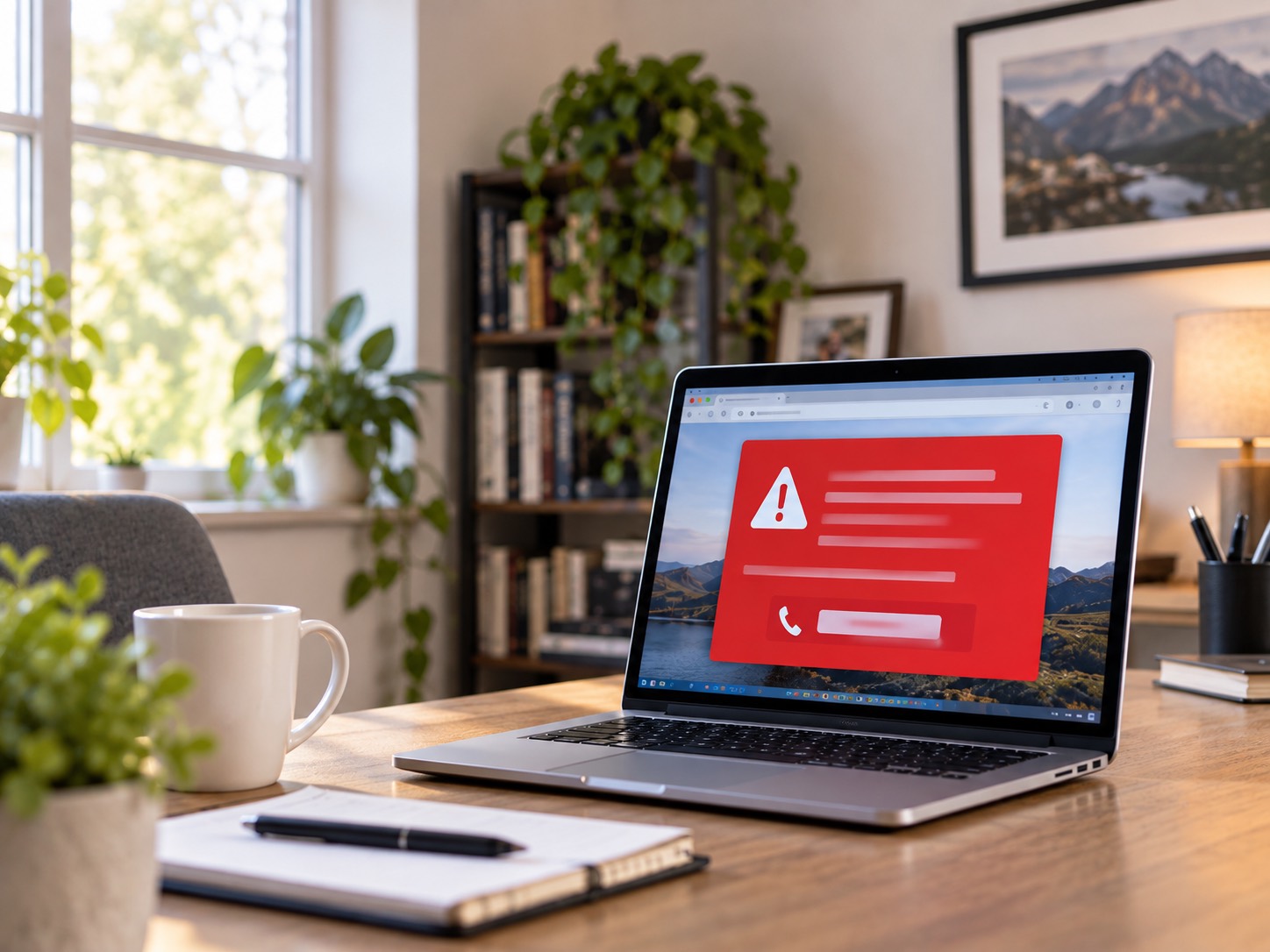
Windows 10 support ended October 14, 2025. What that really means, who qualifies for extended security updates, and how GeekzUP upgrades both supported and unsupported PCs to Windows 11.
Microsoft ended support for Windows 10 on October 14, 2025. Your computer did not stop working that morning, but it stopped receiving the security patches that stand between your passwords, your banking and your files and every vulnerability found after that date. Machines running unsupported Windows still arrive at our Hendersonville shop most weeks, usually brought in for something unrelated, and the owner had no idea the patches had stopped. This guide covers what changed, what is still being updated, how extended security updates work now that Microsoft has moved the end date, and what your real options are, including for PCs Microsoft says cannot run Windows 11.
You have three paths. Upgrade the PC you already own to Windows 11, buy time with extended security updates while you plan, or replace the machine. Which one fits depends on the age of the processor, the health of the drive and what you use the computer for, and you can work most of that out in ten minutes with the checks below. If the answer is not obvious, a diagnostic at $100 for a PC or Mac settles it, and the fee applies toward whatever work you decide to do.
What End Of Support Actually Means
- No more security updates: newly found Windows 10 vulnerabilities stay open on your machine
- No feature or quality updates and no Microsoft technical support
- Software slowly follows: over time, new versions of browsers and apps drop Windows 10
- Compliance risk for businesses handling customer data on unsupported systems
The machine keeps booting. The risk is invisible and grows month by month, because attackers reverse-engineer each new Windows 11 patch and check whether the same hole exists, permanently unpatched, in Windows 10. Every Patch Tuesday from here is effectively a published list of things your operating system will never be protected against.
What Is Still Being Updated, And What Is Not
End of support is not one switch. Several Microsoft products kept their own schedules on Windows 10, which is why people see a browser that is clearly still updating and assume nothing has changed. Here is the distinction in one place.
| Component | Updates On Windows 10 | What It Means For You |
|---|---|---|
| Windows 10 itself, version 22H2 | Ended October 14, 2025 unless you enroll in ESU | The operating system is the exposed layer, and it is the one that stopped |
| Consumer Extended Security Updates | Critical and important patches through October 12, 2027 | A bridge. Security fixes only, nothing else |
| Microsoft Defender security intelligence | Continues through October 2028 | Your definitions stay current, the holes they defend do not get closed |
| Microsoft Edge and WebView2 | Supported through at least October 2028 | The browser stays patched even without ESU |
| Microsoft 365 Apps | Security updates through October 10, 2028, no new features | Office keeps working, it stops improving |
| Drivers and third party software | Vendor by vendor, shrinking every year | Printers, scanners and creative apps quietly drop Windows 10 |
Dates published by Microsoft. Enrolling in consumer ESU changes only the first row.
Read that table the right way. Current antivirus definitions on an unpatched operating system are a good lock on a door with the hinges taken off. Defender recognizes malware it already knows about, but it cannot repair the flaw in Windows that lets an attack in without you clicking anything. Most of what we see at the bench arrives through the operating system or the browser rather than a file the customer chose to open, and virus and malware removal on an unpatched machine is a cleanup you may be paying for again a few months later.
The Stopgap: Extended Security Updates
Microsoft runs a consumer Extended Security Updates program, ESU for short, that keeps critical and important patches flowing to Windows 10 machines. It was originally due to close in October 2026, and Microsoft quietly extended it by a further year, so consumer ESU now runs through October 12, 2027 and you can enroll at any point before it ends. Be clear about what you get: patches, and nothing else. No feature updates, no quality fixes, no technical support.
There are three ways in for home users. Turning on Windows Backup so your settings sync to a Microsoft account enrolls you at no cost, and so does redeeming 1,000 Microsoft Rewards points. Otherwise there is a one-time paid enrollment, and a single license covers up to ten devices on the same account, which is worth knowing if you are holding a household of older machines together.
Getting ESU Actually Switched On
- 1Confirm the PC is on Windows 10 version 22H2. Older builds are not eligible and have to be brought up to 22H2 first.
- 2Install every outstanding update, including the servicing updates that add the enrollment wizard. The option does not appear on a machine that is months behind.
- 3Sign in with a Microsoft account that has administrator rights. A local-only account cannot enroll, which catches out plenty of people who have used the same local login since 2016.
- 4Open Settings, then Update and Security, then Windows Update, and look for the enrollment link near the top of the page.
- 5Choose your enrollment route, finish the wizard, then check the following month that updates are genuinely installing rather than assuming they are.
Two things go wrong often enough to be worth naming. The enrollment link really does stay hidden on some machines until the pending updates are cleared, and a PC that has been sitting in a closet for a year can need several restarts to catch up. If it instead gets stuck in an update loop or throws a blue screen on every attempt, that is a fault to fix rather than a step to skip, and in our experience it usually points at storage or memory rather than at Windows. It is also the kind of job a remote support session handles well, since nothing has to leave your desk.
ESU Buys Time, Not A Future
If your PC is on ESU, you have until October 2027 to make a real plan. The realistic paths are an upgrade to Windows 11 or a replacement machine, and the upgrade is cheaper than most people think. Do not treat the extra year as a reason to stop planning: the deadline has moved once, and it will not move forever.
Check Whether Your PC Can Run Windows 11
Before you pick a path, find out where you actually stand. Microsoft's floor is an 8th generation Intel Core processor or a Ryzen 2000 series and newer, TPM 2.0, UEFI firmware with Secure Boot available, 4 GB of RAM and 64 GB of storage. In practice it is the processor generation and the TPM that fail people. Everything else is usually satisfiable on the hardware you already own.
| Requirement | How To Check It Yourself | Why It Commonly Fails |
|---|---|---|
| Processor generation | Press Windows and R, type msinfo32, read the Processor line | Intel 6th or 7th generation, or a first generation Ryzen |
| TPM 2.0 | Press Windows and R, type tpm.msc | A TPM is present but disabled in firmware, or reporting version 1.2 |
| Secure Boot | Run msinfo32 and read the Secure Boot State line | The drive was set up in legacy BIOS mode years ago |
| RAM and storage | Settings, then System, then About and Storage | 4 GB is the official floor, 8 GB is the practical one |
| Overall verdict | Microsoft's PC Health Check app | It reports pass or fail without telling you which item failed |
PC Health Check gives you a verdict, not a diagnosis. Several of these failures are firmware settings rather than missing hardware.
That last line matters more than anything else here. We regularly see machines rejected by PC Health Check that have a perfectly good TPM sitting switched off in firmware, or a disk still partitioned the old way from a build in 2017. Enabling the TPM and converting the disk turns a failed check into a fully supported upgrade with no new parts at all.
Path 1: Upgrade A Supported PC To Windows 11
If your PC clears those requirements, the license upgrade is free from Microsoft. What people underestimate is everything around it. An in-place upgrade on a machine with a tired drive, a fragile Windows install or six years of accumulated software inherits every one of those problems, and when it goes wrong it tends to go wrong at the reboot, with your files on the far side of it.
Our managed Windows 11 upgrade is built around that risk. We image the machine before touching anything, install Windows 11 cleanly rather than layering it over the old install, bring drivers up to date for your exact model, configure Secure Boot and Defender properly, put your files, profiles and settings back where they were, then confirm activation and update health before the machine goes home.
Supported upgrades are done in-house, and we confirm the expected timing after reviewing the machine. If the machine still has a spinning hard disk, this is the moment to move to an SSD. Windows 11 on mechanical storage is a slow and thoroughly disappointing experience, and an upgrade is the one time the machine is already open, already backed up and already being reinstalled.
Path 2: The Unsupported PC (This Is Our Specialty)
Millions of perfectly good computers fail Microsoft's official checks: no TPM or TPM 1.2 only, Intel 6th or 7th generation processors, legacy BIOS without Secure Boot, or brand-locked firmware restrictions. GeekzUP specializes in exactly these systems. Using verified, controlled professional procedures, we prepare the firmware and boot environment, apply secure bypass techniques, install Windows 11, and calibrate drivers for the older hardware, delivering a stable, updatable Windows 11 system on hardware Microsoft gave up on.
Every unsupported upgrade starts with a deep evaluation of the processor, motherboard firmware, memory, storage health, and graphics, so we only proceed on machines that will genuinely run Windows 11 well. If your hardware is truly too old to be worth it, we will say so and help you plan the replacement instead.
What We Check Before We Agree To It
- Processor capability, because a fourth generation chip can be forced to run Windows 11 and should not be
- Firmware options, including whether TPM, Secure Boot and UEFI mode are genuinely absent or simply switched off
- Drive health and free space, since a marginal disk rarely survives an operating system installation
- Installed memory, because 8 GB is the realistic floor and a 4 GB machine needs a stick first
- Graphics driver availability for hardware of that age, which decides whether the result feels normal or feels forced
- Whether the machine still earns its keep, or whether you are paying to upgrade something that should be retired
We do turn work away on this basis. A ten year old laptop with a swollen battery and a failing drive is not a candidate for anything except recovering the files off it, and saying so before we take your money is the reason we test first.
Path 3: Replace Strategically
For very old machines, the straight answer is replacement, and it does not have to mean paying full retail. We build custom PCs, sell refurbished business-class desktops and laptops, and can move all your data from the old machine to the new one so you never miss a file. Your old PC can often be traded in or recycled responsibly.
Refurbished business hardware is the value play here. Machines that came off corporate leases were built to a higher standard than consumer retail models, and a three or four year old business laptop with an SSD and 16 GB of RAM will comfortably outrun a brand new budget machine at the same price. We keep refurbished desktops and laptops on the shelf for exactly this reason. If the PC is mainly for gaming, a custom build sized to the games you actually play is a better use of the same money than a prebuilt that spends its budget on lighting.
Do Not Forget The Data
Whatever path you choose, the files come first. Every GeekzUP upgrade begins with a complete backup of documents, photos, videos, settings, and profiles, and ends with everything restored and verified. Moving to Windows 11 should never cost you a single photo.
There is one situation where this stops being routine and becomes urgent. If the drive in your Windows 10 machine is already showing symptoms, clicking, stalling for seconds at a time, or vanishing from BIOS on a cold boot, then running an operating system installation on top of it is the worst possible thing you can do to it. Hours of sustained writes and heat are precisely what pushes a marginal drive over the edge. Get it in for data recovery first, from $99, and deal with Windows 11 afterward.
The Mistake That Costs The Most
Waiting for the machine to break before dealing with any of this. An unpatched PC does not warn you. It either gets quietly compromised, or it fails during an upgrade you were forced into on somebody else's deadline. Both cost more than the same work done on a calm Tuesday with a backup already sitting on a separate drive.
If You Run A Business On Windows 10
Consumer ESU is a home program. Businesses have their own track, and more to the point they carry obligations that home users do not. If you handle card payments, patient records or client financial data, an unsupported operating system is a compliance exposure before it is ever a security one, and it is the sort of detail an insurer asks about after an incident rather than before.
Rolling a small office to Windows 11 is a scheduling problem more than a technical one. It goes best in waves and out of hours, with one machine proven first and the rest following behind it. We handle this on site across Nashville and Middle Tennessee at $125 per hour with no minimum, and where a rollout touches shared drives, domain logins or printers, the network side needs planning at the same time rather than afterward.
What This Costs At GeekzUP
| Service | Price | Notes |
|---|---|---|
| Diagnostic, PC or Mac | $100 | Up to 1 hour of testing, applied toward the work |
| Diagnostic, gaming laptop or desktop | $125 | Includes up to 1 hour of testing under sustained load |
| Remote support | $100 per hour | Suits ESU enrollment and update faults |
| On-site service | $125 per hour | No minimum, home or business |
| Data recovery | From $99 | Quoted after an evaluation |
| Windows 11 upgrade, supported or unsupported | Parts plus labor | Quoted in full and approved before work starts |
Card payments carry a 3.5% fee. Cash, CashApp, Venmo, Apple Pay and Zelle are fee-free. Parts and labor are covered by warranty.
Drop-offs need no appointment, and nothing gets sent out. You approve the price before anyone starts, and we confirm the expected timeline after diagnosis. If you would rather not make the trip to Hendersonville at all, pickup and delivery is available across the area.
A Sensible Timeline
- 1This week: check your Windows version, processor generation and TPM status. Ten minutes, and it decides everything that follows.
- 2This month: get a current backup onto something that is not the machine, whichever path you end up taking.
- 3Before you need it: enroll in ESU if you are staying on Windows 10 for now, rather than attempting it after something has gone wrong.
- 4Well before October 2027: be off Windows 10. The deadline has moved once already, and planning around a third extension is not a plan.
Frequently Asked Questions
Is Windows 10 still safe to use in 2026?
It gets riskier every month once patches stop. If you need to stay on it for now, enroll in Microsoft's consumer ESU program, which covers critical patches through October 12, 2027, and plan your move rather than waiting for the deadline.
Can my old PC really run Windows 11 if Microsoft says it is unsupported?
In many cases, yes. GeekzUP professionally upgrades systems without TPM 2.0, with 6th and 7th generation Intel CPUs, and with legacy BIOS, using controlled, verified methods. We evaluate your hardware first and only proceed when the result will be stable.
Will I lose my files upgrading to Windows 11?
Not with a managed upgrade. We back up everything before any work, restore it all afterward, and verify the result. Your documents, photos, and settings come along.
Is the Windows 11 upgrade free?
Microsoft's license upgrade is free for eligible Windows 10 PCs. What GeekzUP charges for is the professional service: backup, clean installation, drivers, security setup, restoration, and testing, including the specialized work unsupported systems need.
What happens after October 2027 if I am on ESU?
Consumer ESU ends October 12, 2027, and Windows 10 is then fully unpatched. Use the time to upgrade to Windows 11 or replace the machine on your schedule instead of in an emergency.
Do I have to pay for extended security updates?
Not necessarily. Turning on Windows Backup so your settings sync to a Microsoft account enrolls you at no cost, and so does redeeming 1,000 Microsoft Rewards points. There is also a one-time paid enrollment, and one license covers up to ten devices on the same account.
Why does the ESU enrollment option not appear on my PC?
Almost always one of three reasons: the machine is not on Windows 10 version 22H2, it is missing the updates that add the enrollment wizard, or it is signed in with a local account instead of a Microsoft account with administrator rights.
My antivirus is up to date. Is that enough on Windows 10?
No. Microsoft Defender keeps getting security intelligence updates on Windows 10 through October 2028, but definitions only help against threats that are already known. They cannot close the flaw in an unpatched operating system that lets an attack in without you doing anything at all.
Should I switch to Linux instead of upgrading?
It is a genuine option for a machine used for browsing, email and documents, and it keeps working hardware out of landfill. It is the wrong answer if you depend on Office, on a specific Windows-only application, or on games with anti-cheat. We will tell you which of those describes your machine.
Make The Move Safely
GeekzUP Repairs has upgraded hundreds of Middle Tennessee PCs to Windows 11, supported and unsupported alike. Bring the machine to 110 Sanders Ferry Rd, Suite 11 in Hendersonville without an appointment, call or text 615-387-9454, or book online, and get off the unpatched list before it starts to matter.
GeekzUP Team
Veteran-owned computer repair in Hendersonville, TN. Serving Nashville and Middle Tennessee since 2012.