

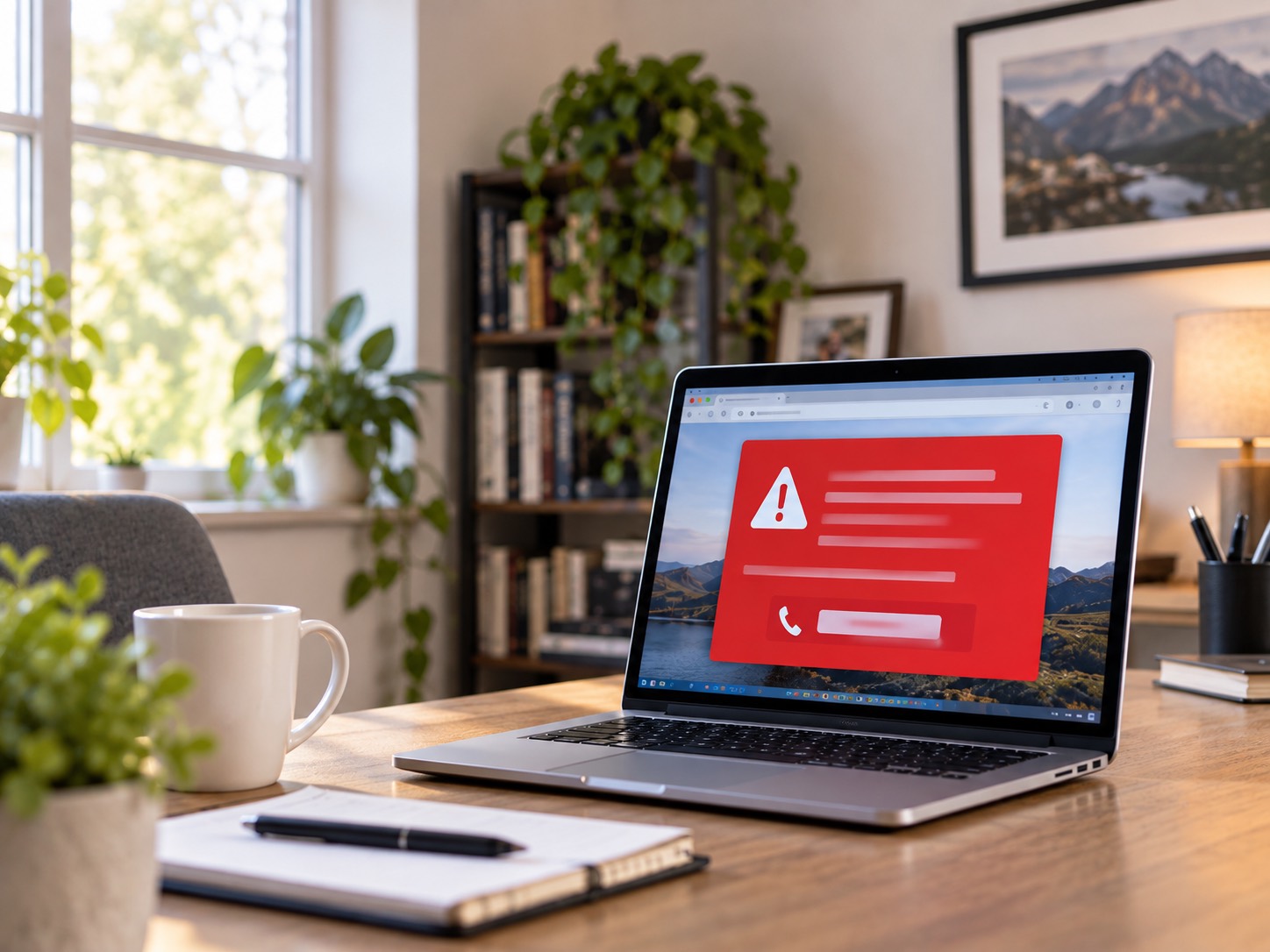
A loud browser warning saying your computer is locked is designed to make you panic. Here is how to close it safely, and what to do differently if you gave the caller remote access.
A full-screen warning appears. It may beep, flash a blue screen, say your IP address or files are at risk, and insist that you call Microsoft immediately. Sometimes it prevents you from clicking anywhere else. The message looks frightening because it is designed to interrupt your thinking. It is almost always a scam page in the browser, not Windows discovering that your computer is locked.
The fastest rule is this: a browser warning with a phone number is not a real Microsoft security alert. Microsoft does not put a support number inside an error message and ask you to call it. Do not call, click a button, install anything, enter a password, or let a stranger take control of the computer. The right next step depends on one important detail: did you only see the page, or did you actually speak to the person behind it?
First: A Popup Is Not The Same As A Locked Computer
Most of these warnings are scareware: a malicious or deceptive website that imitates a Windows error, antivirus scan, or Microsoft message. A site can trigger loud sounds, switch to full screen, repeat an alert, and make the browser feel stuck. It cannot diagnose your hard drive from a web page. The goal is to make a phone number feel like an emergency so you call before you have time to look closely.
| What Happened | What It Usually Means | Best Next Step |
|---|---|---|
| You saw a warning but did not call, click, download, or enter anything | Usually a deceptive browser page | Close the browser safely, then reopen without restoring that tab |
| You called the number but gave no passwords, payment, or computer access | The caller may try to contact you again | Stop contact, block the number, and watch for follow-up messages |
| You installed a remote-access app or let them control the PC | They may have viewed files, installed software, or changed settings | Disconnect from the internet and treat it as a security incident |
| You entered a password, bank details, card number, or sent payment | Account or financial information may be exposed | Change passwords from a clean device and contact the financial institution |
Do not let embarrassment delay the right response. These pages are designed to fool people who are paying attention, especially when they appear at a stressful moment.
How To Tell A Fake Microsoft Alert From A Real Problem
- It displays a phone number and tells you to call immediately. Real Microsoft error messages do not do that.
- It appears inside Chrome, Edge, Firefox, Safari, or another browser tab rather than as a normal Windows notification.
- It uses threats: your computer is locked, your data will be deleted, or you will be arrested unless you act now.
- It asks you to install software, enter a password, pay with gift cards or cryptocurrency, or allow remote access.
- It claims to be Microsoft even though you did not request support or start a support case yourself.
A real Windows problem can still be inconvenient: a BitLocker recovery screen, blue screen, browser crash, or Microsoft account sign-in prompt may need attention. The difference is the pressure tactic. Do not decide based on the logo or color alone. A genuine problem gives you a normal way to get help; it does not trap you in a browser and order you to call an unfamiliar number. If you are seeing a real stop code rather than a browser page, use our blue screen guide instead.
If You Only Saw The Popup: Close It Without Touching The Page
If you have not interacted with it, do not panic and do not give the page more information. Avoid its close button, scan button, chat window, download prompt, or phone number. Start by trying Alt + F4 on Windows to close the active browser window. On a Mac, press Command + Q to quit the browser. If the page closes, do not use the browser's Restore Tabs option when you open it again.
If the page has taken over the screen or keeps reopening, close the browser itself. On Windows, press Ctrl + Shift + Esc to open Task Manager, select Chrome, Edge, Firefox, or the browser you were using, and choose End task. On a Mac, press Option + Command + Esc, select the browser, and choose Force Quit. This closes the website without calling its fake support flow. If Windows will not reach the desktop at all, that is a different symptom with a different safe first checklist.
- 1Close or force-quit the browser; do not click the warning's own buttons.
- 2Open the browser again and decline any prompt to restore the previous tabs or session.
- 3Clear the browser's recent history and site data if the same page immediately returns.
- 4Check Extensions or Add-ons and remove anything unfamiliar, especially something installed around the time the warning appeared.
- 5Run a full scan using the security software already installed on the computer. Do not download a random “cleaner” advertised by the warning.
Do Not Call The Number Just To Check
The person answering is part of the scam. Calling confirms that your number works and opens the door to more pressure. If you want technical help, use a number you already know belongs to a business you trust, or navigate to that business's site yourself.
If You Called Or Let Someone Access The Computer
This is the point where the response changes. A caller may ask you to install a remote-access tool, then use the connection to view the desktop, search for files, change browser settings, add unwanted programs, or persuade you to sign in to email or banking. Do not try to keep them on the line to gather proof. End the call and disconnect the computer from the internet immediately: turn off Wi-Fi or unplug the Ethernet cable.
From a different, trusted device, change passwords for the accounts that matter most: your email first, then financial accounts, Microsoft or Apple account, password manager, and any work account used on that computer. Turn on two-factor authentication where it is not already enabled and review recent sign-ins or account recovery details. Changing the email password first matters because email is usually the reset route for everything else.
If you logged into a bank, entered a card number, bought anything, shared a one-time verification code, or let the caller see a financial account, contact the bank or card issuer using the number on the back of the card or the official app. Explain that it involved a tech-support scam. Do not use a phone number supplied by a popup, a caller, or a search advertisement.
The computer itself should be checked before you trust it with important logins again. Remove the remote-access program only if you can identify it confidently, but do not assume uninstalling one app proves the system is clean. A proper malware and security check can look for extra remote tools, browser changes, unwanted startup items, and anything installed while the scammer was connected. GeekzUP can handle that kind of virus and malware removal in the shop, and we will explain what we find before doing more work. Before any deeper repair, make a safe copy of important files if the computer still opens them.
Do Not “Fix” A Scam By Installing More Software
After a scareware page appears, search results can become a second trap. Sponsored ads and lookalike sites may offer a one-click scanner, a remote technician, or a paid subscription that promises to remove the exact warning. Do not install a driver updater, registry cleaner, unknown antivirus, or another remote-access tool just because it is shown beside the search result. Those programs can add a new problem or make it harder to see what changed.
Use the security tool already on the computer, install Windows updates from Settings, and get help through a company website or phone number you independently know. If the popup was the only event and the browser is now behaving normally, a careful browser cleanup and a scan may be enough. If software was installed, passwords were entered, or the computer is still acting strangely, take the more cautious route and have it inspected.
When You Should Bring The Computer In
- A caller took remote control or asked you to install AnyDesk, TeamViewer, UltraViewer, ScreenConnect, or another remote tool.
- You typed a password, saved a card, opened banking, email, tax, payroll, or work records while they were connected.
- The warning returns after you close the browser, new extensions appear, the homepage changed, or the PC has become unusually slow.
- You do not feel certain about what you clicked or installed. A quick check is safer than guessing.
Bring the computer in with its charger and explain exactly what happened, including the name of any program you installed and whether you entered a password or payment information. Screenshots, the phone number, receipts, and the approximate time of the call can be useful, but do not reopen the scam page to collect them. If the device is a work computer, notify the business owner or IT contact too; a remote-access scam can affect more than one account.
Report The Scam After You Are Safe
Once accounts and payment methods are protected, report the incident. The Federal Trade Commission accepts scam reports at ReportFraud.ftc.gov, and the FBI's Internet Crime Complaint Center accepts reports at ic3.gov. Microsoft also provides a way to report suspected tech-support scams. Reports may not remove the popup instantly, but the phone number, website, payment details, and remote-access details can help investigators connect campaigns and warn others.
If you are using Microsoft Edge, consider turning on its scareware blocker and keep the browser and Windows current. Browser protections are helpful, but they are not a reason to call a number in a pop-up. The safest habit is still simple: close the page, use independently verified support contact details, and slow down whenever a warning demands immediate action. A real technician will explain the next step, not rush you through a payment or remote-control prompt.
The Bottom Line
A page claiming “Microsoft has locked your computer” is trying to get a reaction, not helping you solve a Windows problem. If you only saw it, close the browser safely and do not restore the tab. If you called, gave access, shared credentials, or paid, disconnect the computer, protect accounts from another device, contact the bank if needed, and get the PC checked. You have not done anything foolish; you have encountered a deliberately convincing scam.
For customers in Hendersonville, Nashville, and Middle Tennessee, GeekzUP can inspect a computer after a tech-support scam, remove unwanted software, and help you get back to a secure setup. Book a repair online or bring the computer in when you are ready. We serve both Hendersonville and Nashville from the local shop.
Frequently Asked Questions
Is A Microsoft Security Alert With A Phone Number Real?
Treat it as a scam. Microsoft does not place phone numbers in error messages and tell you to call because the computer has a virus or is locked. Close the page without calling the number.
Can A Browser Popup Actually Lock My Computer?
It can make the browser appear stuck by using full screen, repeated alerts, and deceptive messages, but that does not mean Windows is locked. Force-close the browser if necessary and do not restore the previous tab.
What If I Called The Number But Did Not Give Remote Access?
End contact and do not call back. Block the number and be cautious about follow-up calls, emails, or texts. If you did not share information, install software, or make a payment, the main risk is usually further social-engineering attempts.
What If I Let A Scammer Remote Into My Computer?
Disconnect the computer from the internet, change important passwords from another trusted device, contact your financial institution if financial information was exposed, and have the computer checked before trusting it with important accounts again.
Should I Reset My Computer After A Tech Support Scam?
Do not rush into a reset without considering your files and what the scammer did. A reset can remove programs and settings but may not be necessary in every case. First protect accounts and have the computer assessed, especially if important data is on it.
Need Help After A Scam Popup?
GeekzUP Team
Veteran-owned computer repair in Hendersonville, TN. Serving Nashville and Middle Tennessee since 2012.

