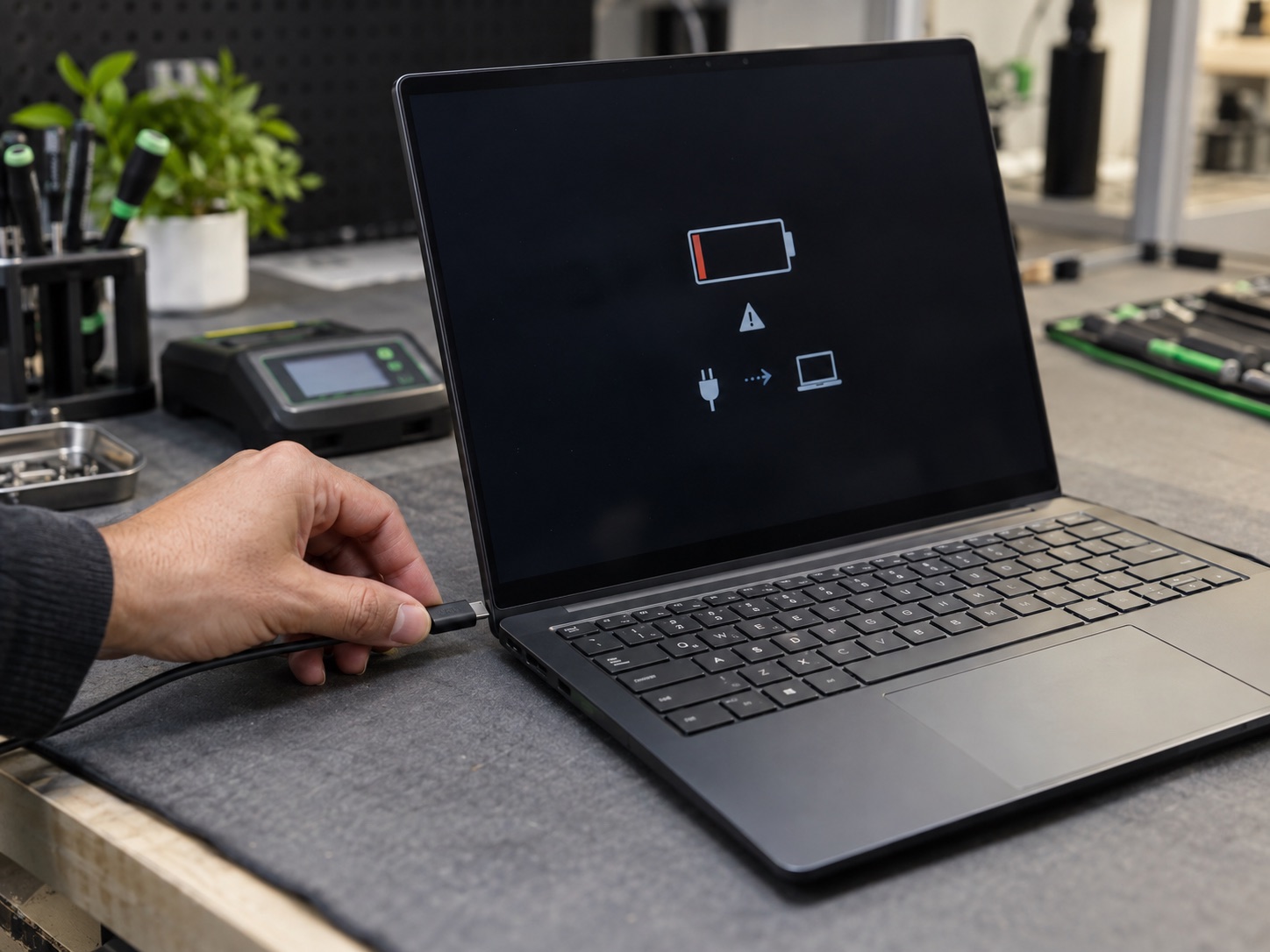
Battery dying by lunch? Swollen trackpad? Random shutdowns at 30%? The 7 real signs a laptop battery is done, what replacement involves, and why swelling means act now.
Laptop batteries are consumables in the same way tires are consumables. Most cells are built for somewhere between 500 and 1,000 charge cycles, which on a machine used every day works out to roughly three to five years before the runtime you paid for is gone. That part is chemistry and there is no arguing with it. The useful skill is telling ordinary aging apart from a battery that has genuinely failed, and recognizing the one symptom, swelling, that turns a maintenance item into a safety problem.
This guide is written from the bench. Most weeks we see laptop batteries at every point on that curve, from a two year old machine whose owner is convinced something is broken to a five year old case that will no longer close because the pack inside has grown. What follows is the signs in order of seriousness, how to pull the real numbers out of Windows and macOS instead of guessing, what a glued battery involves compared with a screwed one, what the parts actually cost, and the four situations where the battery is not the fault at all.
The 7 Signs, In Order Of Seriousness
1. Anything Bulging, Flexing Or Not Sitting Flat
This one is first because it is the only sign on the list that can hurt you. Put the laptop on a flat table and look at it from eye level. If it rocks, if there is a visible gap along the seam of the bottom cover, if the trackpad sits proud of the palm rest or clicks oddly or has stopped clicking at all, if the keyboard deck bows upward under your hands, or if the lid no longer closes flush, the battery underneath is swelling. On a MacBook the trackpad is almost always what gives it away first, because the cells sit directly beneath it. Stop charging the machine, stop using it, and read the safety section further down this page before you do anything else.
2. Heat, A Smell, Or A Pack That Stays Warm Doing Nothing
A battery that runs hot while charging, or that stays warm when the laptop has been sitting idle on the desk, is a cell working badly. Any chemical or sweet solvent smell coming out of the vents is more serious again and means stop immediately. Be careful with this sign, though, because a laptop that is hot everywhere is usually a cooling problem rather than a battery problem, and the two get confused constantly. Heat concentrated under the palm rest and the bottom cover with fans that are not especially loud points at the battery. Heat with screaming fans and a hot exhaust points at dust and dried out thermal paste.
3. Shutdowns Under Load, Or At A Percentage That Should Be Fine
The gauge reads 40 percent, you open a video call or a game, and the machine cuts out instantly with no warning and no shutdown sequence. Worn cells cannot hold their voltage when current demand spikes, so the system sees the voltage collapse and pulls the plug to protect itself. The same underlying fault shows up as a gauge that jumps, sitting at 80 percent for an hour and then falling to 10 in fifteen minutes. That percentage is not measured, it is estimated from voltage against a stored capacity figure, and once the cells stop behaving predictably the estimate becomes fiction. On gaming laptops this arrives earlier than on anything else, because the power draw is higher and the pack lives hotter.
4. The Laptop Only Runs With The Charger Plugged In
Pull the charger and the machine dies on the spot, as though there were no battery in it at all. At that point the pack is not degraded, it is finished, and the laptop has quietly turned into a desktop that stops working during a power cut. One thing is worth ruling out first: if the machine also refuses to charge, or charges only when the cable is held at a particular angle, the fault may be the charging port or the adapter rather than the cells, and a new battery would change nothing.
5. Charging That Is Slow, Stalled Or Capped
Six hours to fill, or a charge that climbs to 80 or 90 percent and then refuses to move, or a percentage that barely rises while the machine is in use. Some of that is deliberate. Windows and macOS both ship charge limiting features that hold the battery below full on purpose to extend its life, and most manufacturers add their own on top, so people regularly mistake their own setting for a fault. Check that before anything else. If no limit is set and the charge still stalls, the cells or the charging circuit are the suspects.
6. Runtime That Collapsed Rather Than Drifted
Every battery loses runtime slowly, and a machine that used to give six hours giving five after two years is doing exactly what it was designed to do. What is not normal is a cliff. Six hours in March and ninety minutes in June is not aging, it is cell failure, and it usually arrives alongside one or two of the signs above. Before blaming the pack, be honest about what changed on the machine, because a browser holding forty tabs, a new cloud sync client or a background process pinning the CPU will eat runtime just as effectively as a bad cell, and that is a software problem with a completely different fix.
7. The System Itself Reports Poor Health Or Asks For Service
Both operating systems will tell you plainly if you ask, and hardly anyone asks. Sometimes they volunteer it: Windows puts a red X on the battery icon in the taskbar and pops a message reading Consider replacing your battery, and macOS puts Service Recommended, or Service Battery on older releases, beside the battery status. Those warnings are worth acting on, but they are not the whole picture, because Windows only raises that one when capacity has fallen a long way and plenty of failing packs never trigger it at all. Windows will also produce a full battery report from a single command, and macOS shows maximum capacity, cycle count and a condition line in System Settings. Those are measurements rather than opinions. The next two sections cover how to get them yourself in about a minute, and they are worth having before you spend a dollar.
How To Read The Windows Battery Report
Windows has kept a detailed battery log since Windows 8, and it lives behind a command line tool that almost nobody knows exists. It takes under a minute and it costs nothing.
- 1Click Start, type cmd, then right-click Command Prompt and choose Run as administrator.
- 2Type powercfg /batteryreport and press Enter.
- 3Windows writes an HTML file and prints the path, usually C:\Users\YourName\battery-report.html. Paste that path into a browser address bar to open it.
- 4Scroll to the Installed Batteries section and find Design Capacity and Full Charge Capacity.
- 5Divide full charge capacity by design capacity to get health as a percentage. A pack designed for 50,000 mWh that now holds 30,000 mWh is at 60 percent.
- 6Scroll further to Battery Capacity History for the decline month by month, and to Battery Life Estimates for what the runtime was when the machine was new against what it is now.
That capacity history graph is the one that settles arguments. It shows whether the capacity drifted down gently over years or fell off a ledge in a single month, and a ledge means a failing pack rather than an old one. If the report lists no battery at all, or reports a capacity of zero, the pack or its connector has stopped communicating with the system, which is a hardware fault to bring in rather than a number to interpret.
| Full charge against design capacity | What it means in practice | What we would tell you to do |
|---|---|---|
| 90 percent or more | Effectively a new battery | Nothing at all |
| 80 to 90 percent | Normal wear for one to two years of use | Nothing, but note the cycle count |
| 60 to 80 percent | Noticeably shorter days away from a desk | Replace only if you work unplugged |
| 40 to 60 percent | Runtime roughly halved, shutdowns likely | Replace |
| Under 40 percent | Failing rather than simply worn | Replace, and check the case for swelling |
| Any reading, with swelling present | A safety issue regardless of the number | Stop using it today |
Cycle count matters alongside the percentage. Most laptop packs are rated for 500 to 1,000 cycles, so a battery reading 85 percent health with 900 cycles behind it has far less life left than the percentage on its own suggests.
How To Check Battery Health On A Mac
macOS is friendlier about it. Open the Apple menu, choose System Settings, then Battery, and click the small information icon beside Battery Health. You get Maximum Capacity as a percentage of the original and you get Cycle Count. On older releases, hold Option, click the Apple menu, open System Information and look under Power for the same two figures.
Two numbers, two rules. Apple rates most modern MacBook batteries for 1,000 cycles, so a machine at 300 cycles has plenty of life ahead of it even if it feels tired, while one at 1,100 is past its design life whatever the percentage claims. The condition line matters more than either number on its own. Normal means the battery is behaving. Service Recommended means macOS has measured a problem and wants the pack replaced. A Mac that reports Normal and still shuts down at 40 percent is worth bringing in anyway, because that condition line is a summary rather than a full diagnosis.
Why A Swollen Battery Is A Safety Problem And Not An Inconvenience
Swelling is not the battery getting fat. It is gas generated inside the cell by chemical breakdown, sealed in a soft pouch with nowhere to go, which is why it pushes the laptop apart from the inside with enough force to bend an aluminum case. The pouch itself is thin foil. A punctured lithium pouch can vent, ignite and burn at a temperature water will not put out, and the two usual ways people puncture one are pressing on the bulge to see how bad it is and prying at the pack with a screwdriver on the kitchen table.
- Shut the laptop down and unplug the charger. Do not put it back on charge to check whether it still works.
- Do not press, squeeze or pry at the bulge, and do not try to lever the pack out of the chassis yourself.
- Keep it off soft surfaces. No beds, no couches, no zipped bag, and not left in a car in July.
- Do not fly with it. Airlines will not accept damaged lithium batteries in the cabin or the hold, and this is precisely why.
- Do not put the old pack in household trash. Lithium cells go to proper disposal, and any shop replacing one should be handling that for you as part of the job.
The Mistake People Make
Deciding a swollen battery can wait until the weekend, and carrying on charging it in the meantime. Swelling only goes one direction. The pack lifting your trackpad today will crack the bottom cover, stretch the trackpad cable or split the screen bezel over the following weeks, and every one of those turns a battery job into a battery job plus parts. Charging a swollen cell is putting more energy into a cell that has already failed. Power it down, leave it unplugged, and bring it in.
Glued Batteries And Screwed Batteries Are Two Different Jobs
Every quote you will ever be given on a battery comes down to how the pack is attached to the machine. There are three broad answers and they explain most of the price difference between one laptop and the next.
- External packs. A latch on the underside, the battery slides out, thirty seconds and no tools. These have all but disappeared from consumer laptops but still turn up on older business machines and rugged models.
- Internal and screwed. The bottom cover comes off, the pack is held by a handful of screws and one connector. Straightforward on most Dell, HP, Lenovo and ASUS machines, and it is the reason a mainstream Windows laptop battery is the cheapest version of this repair.
- Internal and glued. The pack is bonded to the chassis with adhesive strips, or on some models with adhesive across the entire underside. Removal is slow work with solvent or pull tabs, and the cells sit under and around components that do not tolerate being levered against.
On a glued design it is rarely the part that makes the bill, it is the time. There is no shortcut and no safe way to rush it, which is why an ultrabook or MacBook battery service costs more than a business laptop battery even when the pack itself costs about the same. It is also the main reason we tell people not to attempt a glued battery at home. The video always makes it look like ten minutes, and what we see afterward is punctured cells, ribbon cables torn where they ran underneath the pack, and bottom covers bent past the point of sitting flush again.
What A Replacement Costs
Two separate numbers end up on the invoice and it helps to keep them apart. The battery is a part with a market price. The labor depends entirely on how that part is attached. Our own pricing is fixed and published rather than produced at the counter: the diagnostic is $100 for PCs and Macs, or $125 for gaming laptops and desktops, and it is applied to the repair rather than added on top of it. You get an exact quote for your model before anything is opened, and you approve it before we start.
| Machine type | Typical retail part cost | How the pack is attached | Labor involved |
|---|---|---|---|
| Mainstream Windows laptop | $40 to $90 | Screwed, under the bottom cover | Short |
| Business laptop, Dell or Lenovo or HP | $50 to $110 | Screwed, often designed to be serviced | Short |
| Thin Windows ultrabook | $70 to $150 | Glued with adhesive strips | Longer |
| Gaming laptop | $90 to $200 | Screwed, high capacity pack | Short to medium |
| MacBook Air or MacBook Pro | $90 to $220 | Glued, on some models to the whole case | Longest |
These are typical retail ranges for a quality replacement pack, not GeekzUP prices. What we charge is quoted for your exact model after the diagnostic, and the diagnostic comes off the repair.
A warning about the bottom of that range. There is a tier of no-name battery on the marketplaces at half the price of anything reputable, and it is cheap for reasons: recovered cells, capacity overstated on the label, and a protection circuit that was the first thing the manufacturer economized on. A battery is the one component in a laptop capable of burning your house down, which makes it a poor place to save thirty dollars. We fit quality cells with the correct capacity and the correct controller for the model, dispose of the old pack properly, and the work carries a warranty on parts and labor.
When The Battery Is Not Actually The Fault
A fair share of the batteries we are asked to replace do not need replacing. These are the things that impersonate a dying battery, roughly in the order we see them.
- The charger. A failing adapter, a cable frayed at the barrel, or a third-party brick that cannot deliver the wattage the laptop asks for will produce slow charging, a charge that stalls, and a machine that dies when the cable moves. Try a known good charger of the correct wattage before condemning anything.
- The charging port. A DC jack with a cracked solder joint, or a USB-C port with a bent pin, charges intermittently and only at certain angles. That is a repair to the port, and a new battery changes nothing about it.
- Software and settings. A machine with a stuck background process burns through a healthy battery in two hours and looks exactly like cell failure. So does a power plan set to maximum performance, a display at full brightness, and a video call left open in a forgotten tab.
- Cooling. Heatsinks packed with dust and thermal paste that dried out years ago make the fans run constantly and the CPU throttle, which costs runtime and cooks the pack sitting next to it. Cleaning the cooling on an older laptop often recovers close to an hour of battery life and extends the life of the battery already fitted.
- The power management circuit on the board. Less common, and the one that genuinely needs a technician, because a failed charging controller can report nonsense capacity figures and refuse to charge a perfectly good battery.
Separating those is most of what a diagnostic is for. A worn battery, a weak charger, a damaged port and a failed charging circuit all present as a laptop that will not stay alive, and the only way to tell them apart is to measure: what the adapter is actually delivering, what the board is drawing, what the pack reports over its data line, and how the machine behaves on a known good battery on the bench. We would far rather find you a thirty dollar charger problem than sell you a pack you never needed.
When A New Battery Is Not Worth Buying
Sometimes the answer is no, and we would rather say so on day one. If the laptop is eight years old, still runs from a mechanical hard drive, tops out at 4GB of RAM and needs a $120 battery, that money is better spent elsewhere, because a fresh pack does not make a slow machine usable. Fix what actually limits the machine first. On an older laptop in otherwise sound condition, an SSD and a memory upgrade change the daily experience far more than a battery does. If the machine really is finished, the sensible plan is to move the data off it and put the money toward a replacement.
The other case is a laptop that swelling has already broken elsewhere. A pack that has cracked the case, wrecked the trackpad and bowed the screen assembly is three repairs rather than one, and on a five year old machine the total can pass what the laptop is worth. You get that number plainly and up front, not after the work has started.
What Happens When You Bring A Battery To GeekzUP
Drop-offs need no appointment. We read the pack's reported health, cycle count and voltage, load test it rather than trusting the gauge, measure what the charger is actually delivering, and inspect the port and the board before anybody says the word battery. If it is the battery, we source the correct pack for your exact model, fit it, take the old one away for proper disposal, and test the machine on and off charge before it goes back to you. The work stays on the same repair bench from the first look to the last test, and we confirm the expected timeline after diagnosis.
We are at 110 Sanders Ferry Rd, Suite 11 in Hendersonville, veteran owned and working on machines in Middle Tennessee since 2012. Laptops come to us from Nashville, Gallatin, Franklin, Murfreesboro and everywhere in between. Cards carry a 3.5 percent fee, and cash, CashApp, Venmo, Apple Pay and Zelle carry none.
Making The Next Battery Last Longer
- Heat is what kills cells, not use. Keep the vents clear, keep the machine off duvets and couches, and have the cooling cleaned every couple of years.
- Sitting at 100 percent all day is harder on a pack than cycling it. If the laptop lives on a desk, turn on the charge limit: Windows calls it smart charging, macOS calls it Optimized Battery Charging, and most manufacturers ship a version of their own.
- Avoid running it flat to zero as a routine. Somewhere between 20 and 80 percent is the easiest range chemically.
- Use the original charger or a certified replacement at the correct wattage. An underpowered brick makes the battery cover the shortfall while you work.
- If a laptop is going into storage for months, leave it at around half charge and check on it twice a year. A pack left completely flat for a year frequently never comes back.
- Do not obsess over any of this. A battery is a consumable and you bought it to be used. These habits buy months, not years.
The short version. Runtime that drifts down is chemistry and nothing to act on. Runtime that collapses, a gauge that lies, or shutdowns under load mean the cells are going. A case that will not sit flat on a table means stop today. Pull the real numbers before you spend anything, because Windows and macOS both hand them to you for free, and rule out the charger and the port before replacing a pack that was never the problem.
Frequently Asked Questions
How long should a laptop battery last?
Three to five years for a machine used daily, or 500 to 1,000 charge cycles, whichever arrives first. Runtime falling gradually after that is normal aging. A sudden collapse, shutdowns under load, or any swelling means the pack needs replacing rather than tolerating.
What battery health percentage means I should replace it?
Above 80 percent of design capacity is normal wear. Between 60 and 80 percent, replace it only if you regularly work away from a power outlet. Below 60 percent the runtime is roughly halved and shutdowns start, and below 40 percent the pack is failing rather than simply worn. Any percentage combined with visible swelling means stop now.
How do I check laptop battery health on Windows?
Open Command Prompt as administrator, type powercfg /batteryreport and press Enter. Windows saves an HTML file and prints the path. Open it, find the Installed Batteries section, and divide Full Charge Capacity by Design Capacity for your health percentage. The Battery Capacity History graph further down shows whether the decline was gradual or sudden.
How do I check battery health on a MacBook?
Apple menu, System Settings, Battery, then click the information icon next to Battery Health. That gives you Maximum Capacity and Cycle Count. On older versions of macOS, hold Option, click the Apple menu, open System Information and look under Power. A condition of Service Recommended means macOS has measured a problem and wants the pack replaced.
Is a swollen laptop battery dangerous?
Yes, and it should be treated as urgent. Swelling is gas trapped inside a damaged lithium cell, and a punctured cell can vent and ignite. Stop using and charging the laptop, do not press on the bulge or try to pry the pack out, keep it off soft furniture and out of a closed bag, and have it replaced and disposed of professionally.
Can I replace a laptop battery myself?
On models with an external latched pack, easily. On internal screwed batteries it is possible with the right tools and care. On glued batteries, MacBooks and thin ultrabooks especially, we would advise against it. The failures we repair afterward are punctured cells, ribbon cables torn where they ran under the pack, and bottom covers that no longer sit flush.
Why does my laptop die at 30 percent battery?
Worn cells cannot hold their voltage when the load rises, so the system sees the voltage drop and shuts down to protect itself while the gauge still shows charge remaining. The percentage is an estimate, not a measurement, and it is one of the most reliable signs the pack itself is finished.
How much does a laptop battery replacement cost?
The part is typically $40 to $90 at retail for a mainstream Windows laptop and $90 to $220 for a MacBook or a gaming laptop, and glued designs take considerably longer to fit than screwed ones. Those are market ranges rather than our prices. Our diagnostic is $100 for PCs and Macs and $125 for gaming machines, it is applied to the repair, and you approve an exact quote first.
Is it my battery or my charger?
Both look identical from the outside. Slow charging, a charge that stalls, or a machine that dies when the cable is nudged point at the adapter or the charging port at least as often as the battery. Try a known good charger of the correct wattage first. If that changes nothing, the pack, the port or the charging circuit on the board needs measuring.
Can I keep using a laptop with a dead battery plugged in?
If the pack is simply worn out and not swollen, yes, though you lose all protection against a power cut and some laptops throttle performance when they cannot draw from the battery. If there is any swelling, no. Take the machine off charge and bring it in.
Battery Acting Up?
Bring the laptop to GeekzUP Repairs in Hendersonville and we will check the battery health, the charger and the charging port together, so the thing that gets replaced is the thing that is actually broken. No appointment needed, and we confirm the expected timing after diagnosis.
GeekzUP Team
Veteran-owned computer repair in Hendersonville, TN. Serving Nashville and Middle Tennessee since 2012.