Losing access to a hard drive is one of the most stressful tech situations a person can face. Years of photos, work documents, financial records, and irreplaceable files can feel completely gone in an instant. But before you assume the worst, there is something important you need to know: in many cases, you can still recover data from a dead hard drive, and the sooner you act, the better your chances.
At GeekzUP Repairs in Nashville, data recovery is one of the most common services we handle. We have seen drives that looked completely dead come back with all their data intact. We have also seen situations where waiting too long or trying the wrong fixes made recovery impossible. This guide walks you through 5 proven methods, what they work for, and when to stop and call a professional.
First, What Does a Dead Hard Drive Actually Mean?
Not every dead hard drive is dead in the same way. Understanding what type of failure you are dealing with changes everything about how you approach recovery.
There are four main categories of hard drive failure:
Logical failure: The drive is physically fine but the file system is corrupted. The drive spins and is detected by your computer but files are inaccessible or the drive shows as unformatted.
Mechanical failure: Internal moving parts have failed. This includes a seized motor, damaged read and write heads, or a stuck spindle. You may hear clicking, grinding, or no sound at all.
Electronic failure: The printed circuit board on the bottom of the drive has failed. The drive does not spin up or get detected at all.
Firmware failure: The drive’s internal software has become corrupted, causing it to behave erratically or not respond to commands.
Knowing which type of failure you have determines which recovery method gives you the best chance. Attempting the wrong method on the wrong failure type can make things significantly worse.
Method 1: Try a Different USB Cable, Port, or Enclosure
Before assuming the worst, rule out the obvious. If your drive is an external hard drive that suddenly stopped working, the problem may not be the drive itself. USB cables fail. Ports get damaged. Enclosures develop faults.
Try these steps first:
- Swap the USB cable for a known working one
- Try a different USB port on your computer
- Try connecting to a completely different computer
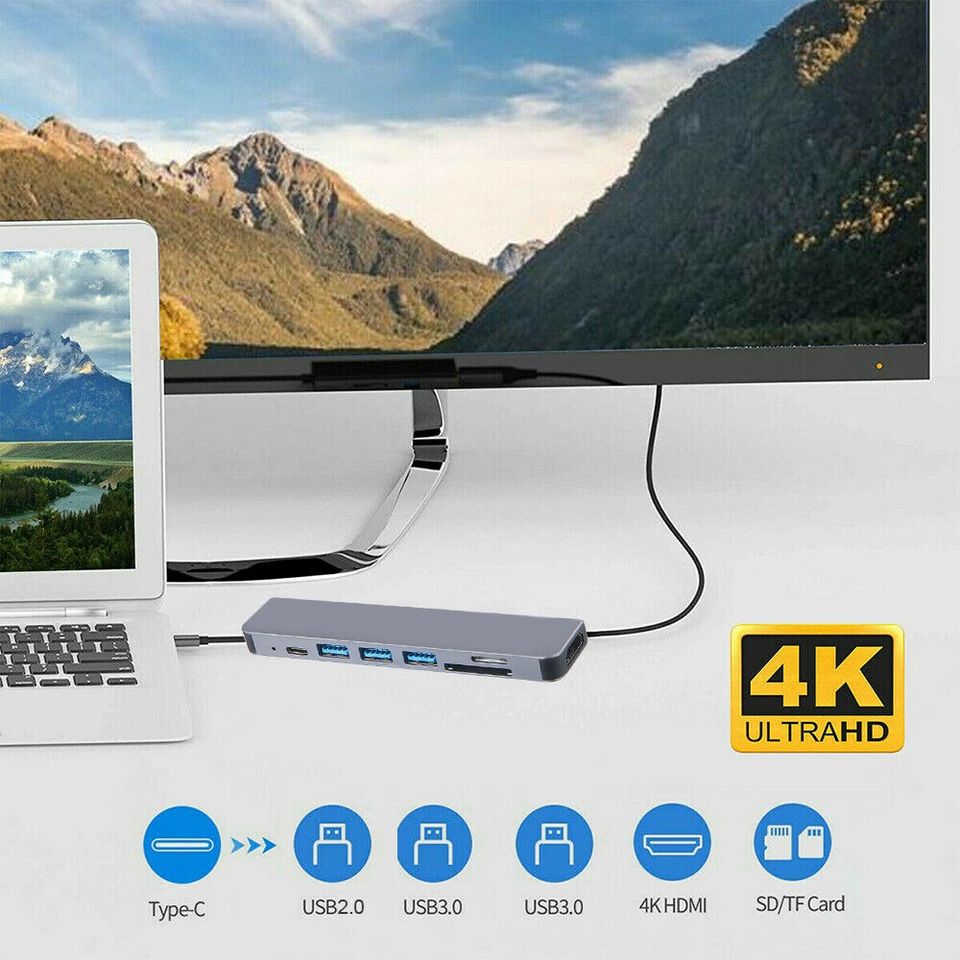
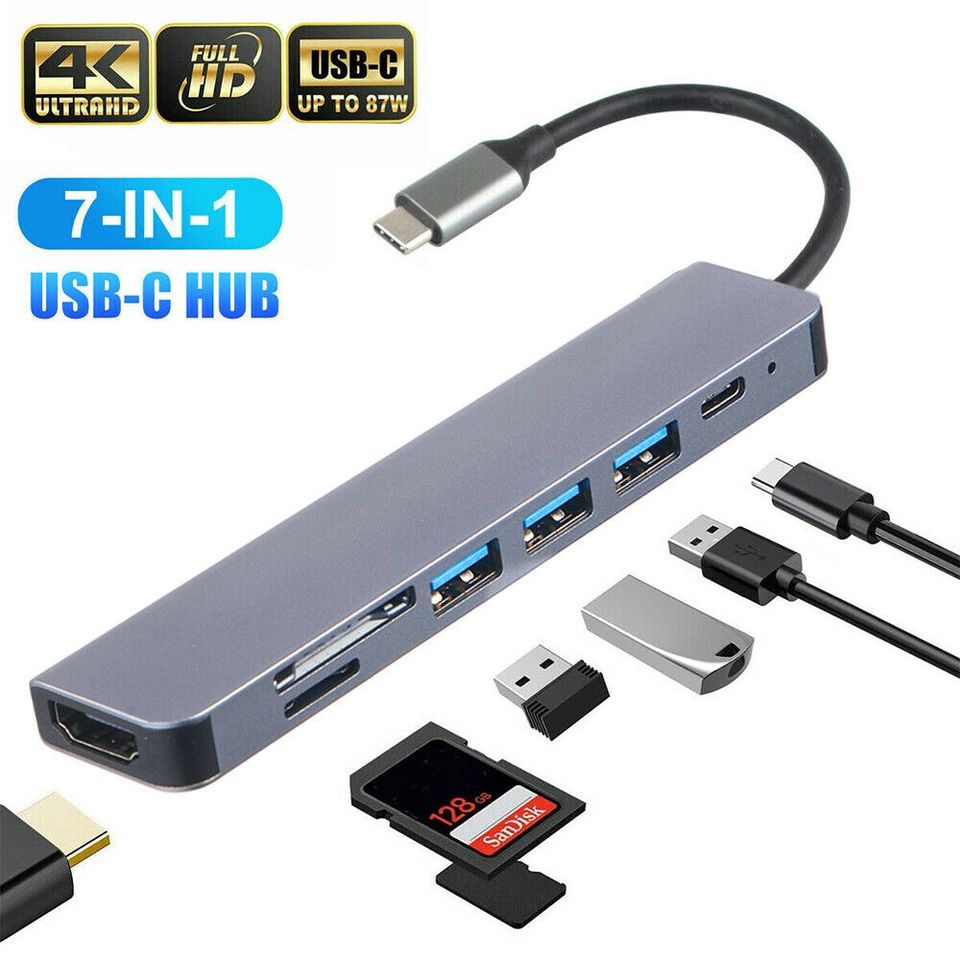
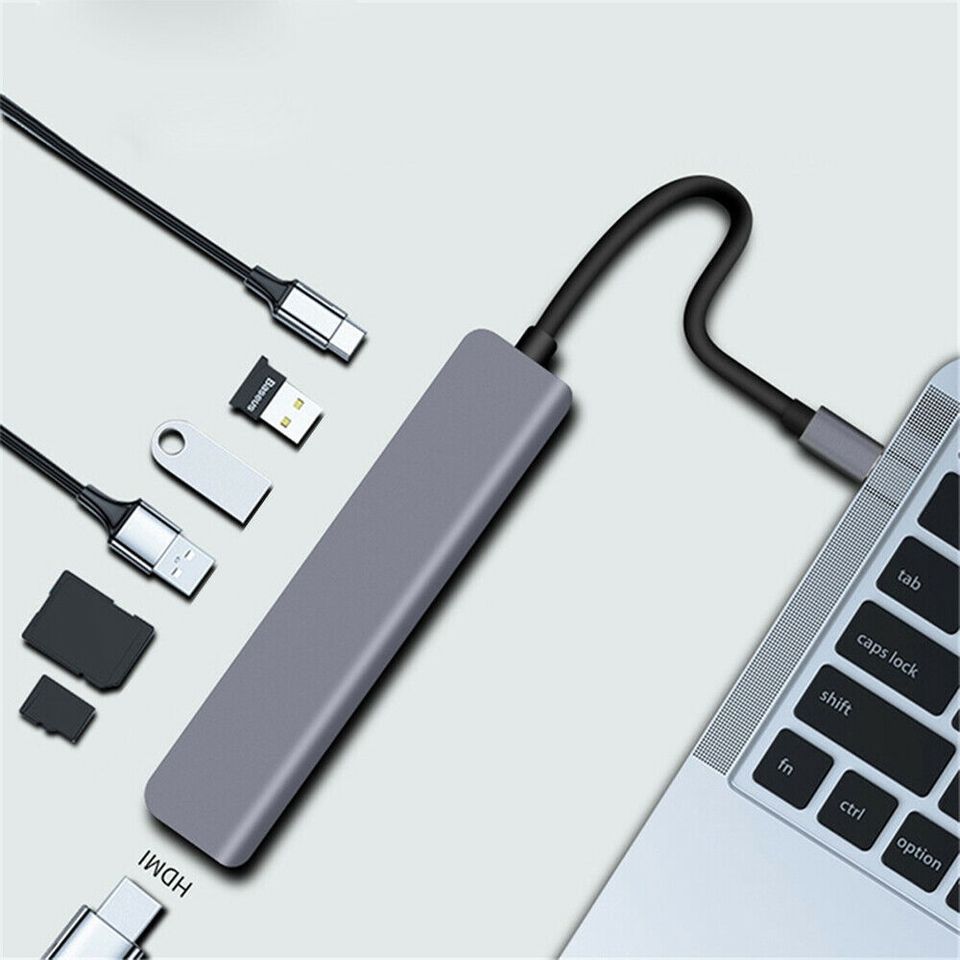
- Remove the drive from its enclosure and connect it directly via a SATA to USB adapter
A surprising number of cases that look like dead hard drive situations turn out to be faulty enclosures or cables. If the drive shows up after any of these steps, immediately copy your files off before trying anything else.
This method works for: External drive failures that are actually enclosure or cable issues.
Method 2: Use Data Recovery Software for Logical Failures
If your drive is detected by your computer but files are missing, the drive shows as unformatted, or the file system appears corrupted, data recovery software can often retrieve your files without professional intervention.
Reliable tools used by technicians include:
- Recuva (free, Windows)
- Disk Drill (Windows and Mac)
- TestDisk (free, open source, advanced users)
- R-Studio (professional grade)
The key rule when using recovery software is to never write anything to the drive you are trying to recover from. Do not save recovered files back to the same drive. Always recover to a separate drive or external storage.
This method works for: Logical failures, accidental deletions, corrupted file systems, unformatted drives.
This method does not work for: Mechanical failures, electronic failures, or drives that are not detected at all.
Method 3: Attempt a Freeze or Warm Stabilization Trick
This is a temporary and controversial method that occasionally works on drives experiencing mechanical failure caused by a seized motor or components that have slightly warped due to heat exposure. It is not a guaranteed fix and should only be tried when professional recovery is not an option.
The freezer method: Place the drive in a sealed airtight bag and put it in the freezer for several hours. The cold can temporarily cause metal components to contract enough for the drive to spin up briefly. The moment you remove it, connect it immediately and copy as much data as possible before it warms back up.
The warmth method: In some cases, gently warming a drive with a hairdryer on low heat from a distance can loosen a stuck spindle enough to allow a brief window of access.
These are last resort options. Both carry risk of making the situation worse. If you have important data on the drive, skip these methods and contact a professional data recovery service instead.
This method works for: Specific mechanical failures involving seized motors, only as a temporary measure.
Method 4: Replace the Printed Circuit Board
For drives that do not spin up or are not detected at all due to electronic failure, replacing the PCB (printed circuit board) on the bottom of the drive can restore functionality. This is a more technical repair but is something experienced technicians handle regularly.
The critical detail here is that modern hard drives store firmware data on the PCB itself. Simply swapping a PCB from an identical drive often does not work without also transferring the ROM chip from the original board. Attempting this without understanding the process can permanently damage the drive beyond recovery.
If your drive shows signs of electronic failure, burnt smell, visible burn marks on the PCB, or complete silence when powered, this is the path most likely to recover your data. Our team at GeekzUP Computer Repair Services can assess your drive and advise whether PCB replacement is the right approach for your specific failure.
This method works for: Electronic failures where the drive platters and heads are still physically intact.
Method 5: Professional Data Recovery Service
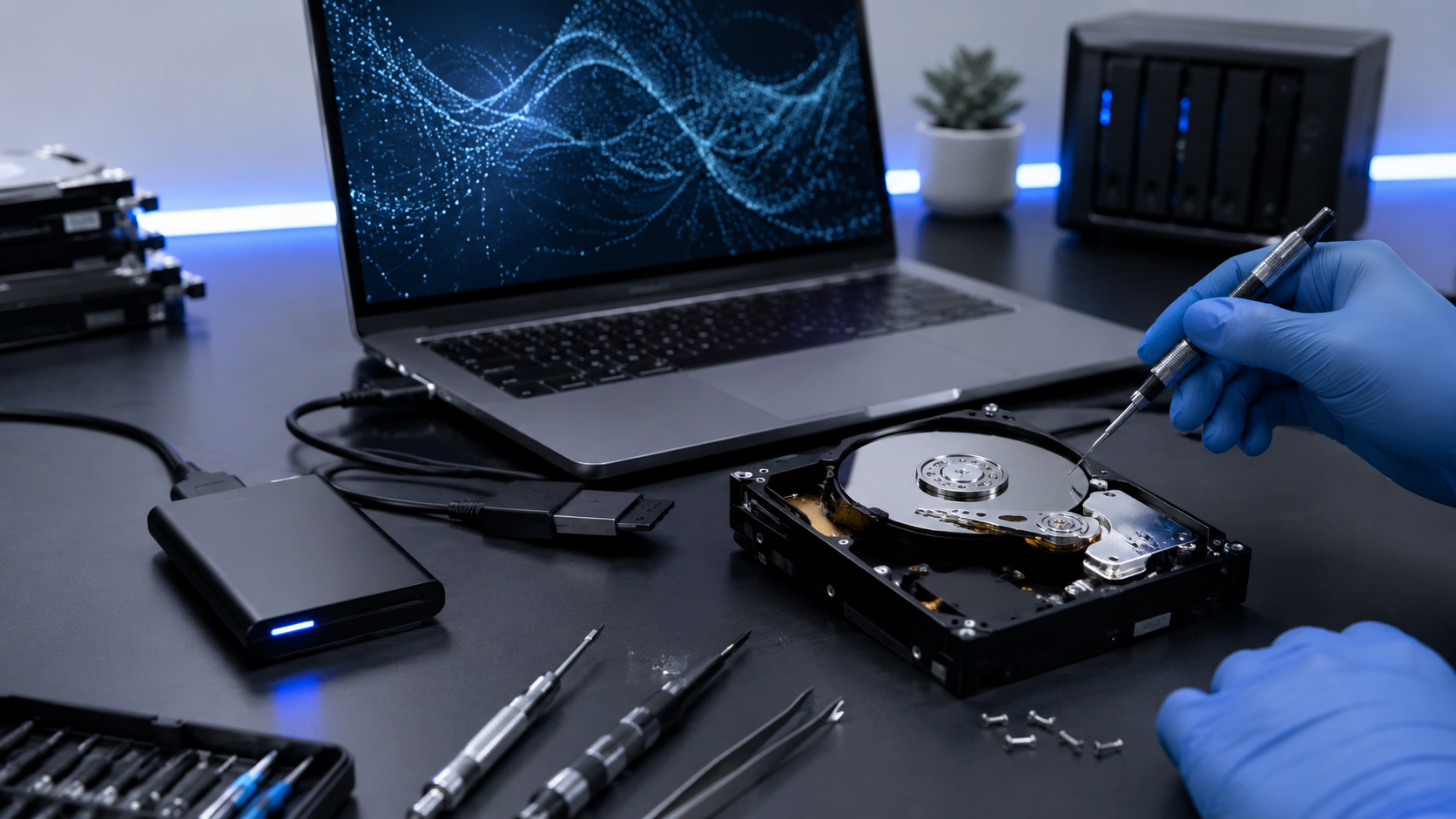
When all other methods fail or when the drive has suffered a serious mechanical failure, professional data recovery is your best and sometimes only remaining option. A professional recovery service works in controlled clean room environments where drives can be opened without contamination, heads can be replaced, and platters can be accessed directly.
This is the appropriate path when:
- Your drive is making clicking or grinding sounds
- The drive is not detected by any computer
- You have already tried software recovery without success
- The data on the drive is critical and irreplaceable
At GeekzUP Repairs, we handle data recovery assessments for Nashville customers and can guide you toward the right level of service based on what your drive has experienced. For drives requiring clean room work, we work with trusted specialized recovery partners to get your data back.
You can also send your drive to us directly via our Mail-In Repair Request if you are not local. For a remote consultation before committing to a repair, our Remote Computer Support Services team can help you assess the situation first.
For more information on how professional data recovery works, Ontrack’s data recovery resource center is a reliable external reference worth reviewing.
What Not to Do When Your Hard Drive Dies
Just as important as knowing what to try is knowing what to avoid. These common mistakes make recovery harder or impossible:
- Do not run CHKDSK or any disk repair tool on a failing drive, it can overwrite recoverable data
- Do not reinstall your operating system to a failing drive
- Do not keep powering the drive on and off repeatedly if it is making unusual sounds
- Do not open the drive outside of a clean room environment
- Do not save recovered files back to the same drive you are recovering from
Every time a failing drive is powered on, there is a risk of further damage. Act quickly and carefully.
Protect Yourself Before It Happens Again
The best data recovery strategy is one you never have to use. Once you get your data back, set up a proper backup system immediately. Use Time Machine on Mac or Windows Backup on PC paired with an external drive. Add a cloud backup layer through iCloud, Google Drive, or Backblaze for off-site protection.
If your computer is running on an older spinning hard drive, consider upgrading to an SSD. SSDs have no moving parts, which eliminates the most common cause of hard drive failure entirely. Our Computer Repair Services team handles SSD upgrades for both Windows and Mac machines.
Need Help Recovering Your Data in Nashville?
GeekzUP Repairs helps Nashville customers recover data from dead and failing hard drives every week. Whether your situation calls for software recovery, a hardware assessment, or a referral to a clean room specialist, we will give you an honest evaluation and a clear path forward.
Contact GeekzUP Repairs today and let us help you get your files back before it is too late.